navigation VOLVO XC60 2018 Owner´s Manual
[x] Cancel search | Manufacturer: VOLVO, Model Year: 2018, Model line: XC60, Model: VOLVO XC60 2018Pages: 660, PDF Size: 11.77 MB
Page 137 of 660
DISPLAYS AND VOICE CONTROL
}}
* Option/accessory.135
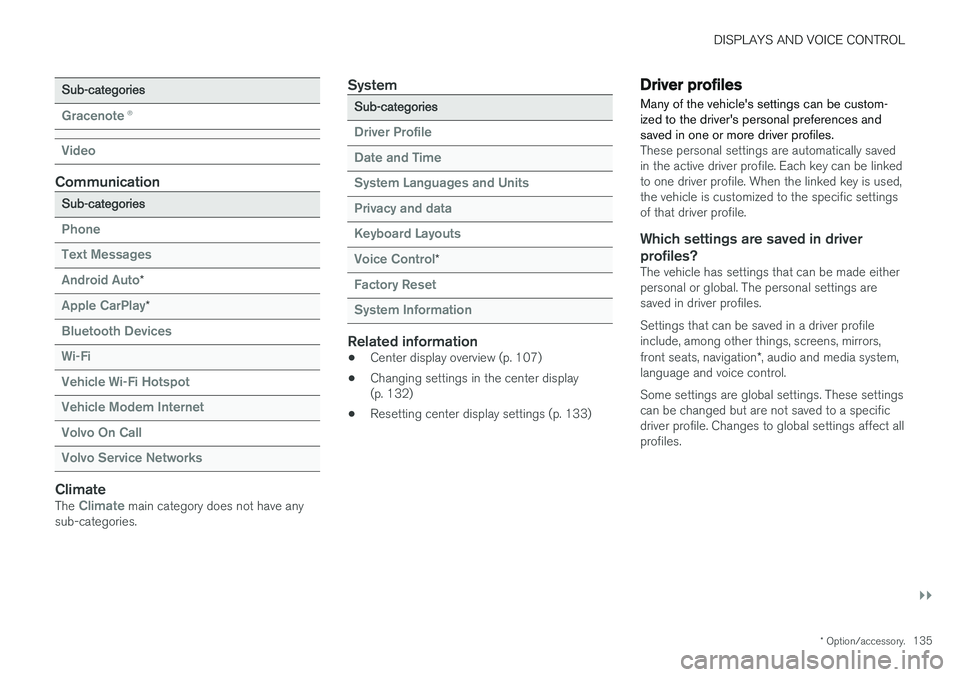
Sub-categories
Gracenote®
Video
Communication
Sub-categories
Phone Text Messages Android Auto
*
Apple CarPlay*
Bluetooth Devices Wi-FiVehicle Wi-Fi HotspotVehicle Modem Internet Volvo On Call Volvo Service Networks
ClimateThe Climate main category does not have any
sub-categories.
System
Sub-categories
Driver Profile Date and TimeSystem Languages and UnitsPrivacy and dataKeyboard Layouts Voice Control
*
Factory Reset System Information
Related information
• Center display overview (p. 107)
• Changing settings in the center display (p. 132)
• Resetting center display settings (p. 133)
Driver profiles
Many of the vehicle's settings can be custom- ized to the driver's personal preferences andsaved in one or more driver profiles.
These personal settings are automatically saved in the active driver profile. Each key can be linkedto one driver profile. When the linked key is used,the vehicle is customized to the specific settingsof that driver profile.
Which settings are saved in driver profiles?
The vehicle has settings that can be made eitherpersonal or global. The personal settings aresaved in driver profiles. Settings that can be saved in a driver profile include, among other things, screens, mirrors, front seats, navigation *, audio and media system,
language and voice control. Some settings are global settings. These settings can be changed but are not saved to a specificdriver profile. Changes to global settings affect allprofiles.
Page 142 of 660
DISPLAYS AND VOICE CONTROL
* Option/accessory.
140
Handling messages saved from thecenter display
Messages saved from the instrument panel and center displays are handled in the center display.
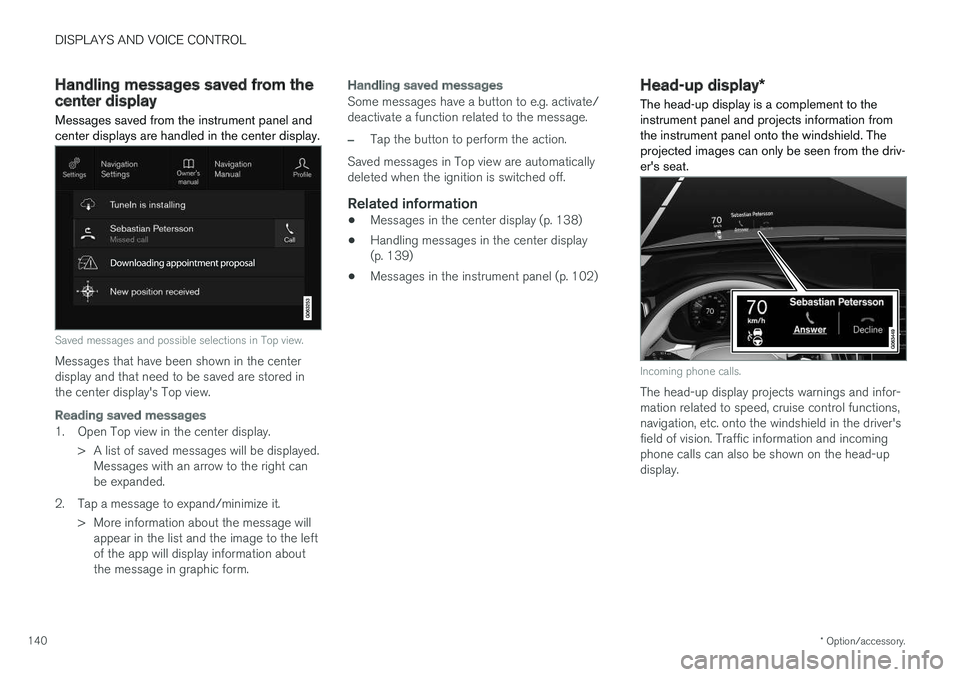
Saved messages and possible selections in Top view.
Messages that have been shown in the center display and that need to be saved are stored inthe center display's Top view.
Reading saved messages
1. Open Top view in the center display.
> A list of saved messages will be displayed.Messages with an arrow to the right can be expanded.
2. Tap a message to expand/minimize it. > More information about the message willappear in the list and the image to the leftof the app will display information aboutthe message in graphic form.
Handling saved messages
Some messages have a button to e.g. activate/ deactivate a function related to the message.
–Tap the button to perform the action.
Saved messages in Top view are automatically deleted when the ignition is switched off.
Related information
• Messages in the center display (p. 138)
• Handling messages in the center display(p. 139)
• Messages in the instrument panel (p. 102)
Head-up display
*
The head-up display is a complement to the instrument panel and projects information fromthe instrument panel onto the windshield. Theprojected images can only be seen from the driv-er's seat.
Incoming phone calls.
The head-up display projects warnings and infor- mation related to speed, cruise control functions,navigation, etc. onto the windshield in the driver'sfield of vision. Traffic information and incomingphone calls can also be shown on the head-updisplay.
Page 143 of 660
DISPLAYS AND VOICE CONTROL
* Option/accessory.141
NOTE
The driver's ability to see information in the head-up display may be impeded by:
• the use of polarizing sunglasses
• a driving posture in which the driver is notcentered in the seat
• objects on the display unit's glass cover
• unfavorable lighting conditions.
CAUTION
The information is projected from a display unit located in the dashboard. To help preventdamage to the display unit's glass cover, donot place any objects on the glass and pre-vent objects from falling onto it.
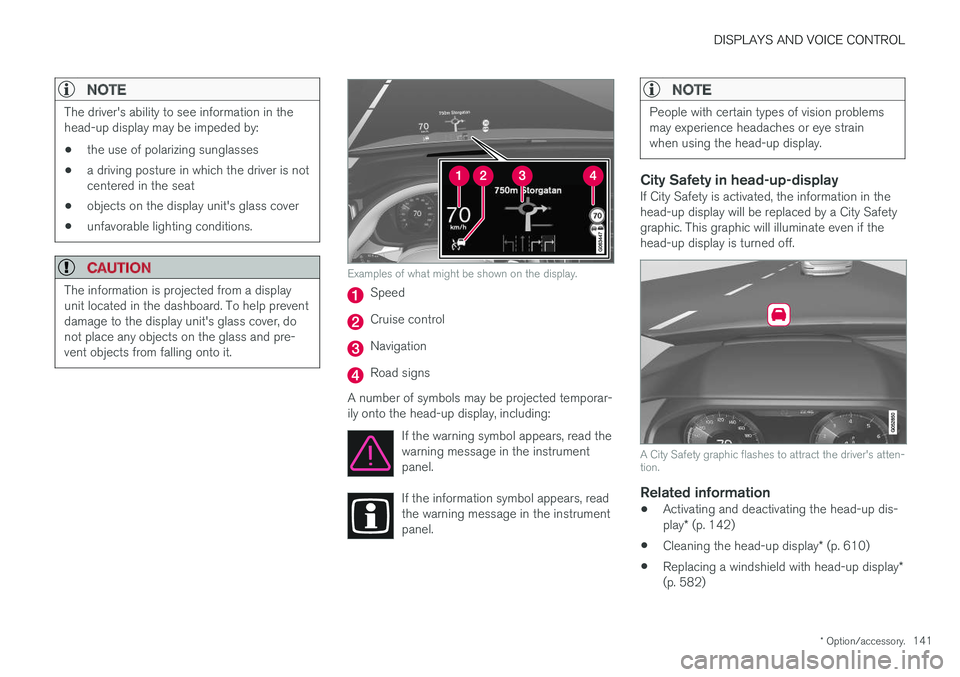
Examples of what might be shown on the display.
Speed
Cruise control
Navigation
Road signs
A number of symbols may be projected temporar- ily onto the head-up display, including: If the warning symbol appears, read thewarning message in the instrumentpanel.
If the information symbol appears, read the warning message in the instrumentpanel.
NOTE
People with certain types of vision problems may experience headaches or eye strainwhen using the head-up display.
City Safety in head-up-displayIf City Safety is activated, the information in the head-up display will be replaced by a City Safety graphic. This graphic will illuminate even if the head-up display is turned off.
A City Safety graphic flashes to attract the driver's atten- tion.
Related information
•Activating and deactivating the head-up dis- play
* (p. 142)
• Cleaning the head-up display
* (p. 610)
• Replacing a windshield with head-up display
*
(p. 582)
Page 144 of 660
DISPLAYS AND VOICE CONTROL
* Option/accessory.
142
Activating and deactivating the
head-up display *
The head-up display can be activated and deac- tivated when the vehicle has been started.
Press the Head-up Displaybutton in the center display's Function view. An indicator lightin the button will illuminatewhen the function is activated.
Related information
• Head-up display settings
* (p. 142)
• Head-up display
* (p. 140)
Head-up display settings *
Adjusting settings for the head-up display.
Settings can be adjusted in the center display's Settings menu when the vehicle is started and aprojected image is displayed on the windshield. This setting is stored as a personal setting in the driver profile.
Selecting display optionsSelect the functions to be shown in the head-updisplay. 1. Tap
Settings in the center display's Top
view.
2. Tap
My CarDisplaysHead-Up
Display Options.
3. Select one or more functions:
•
Show Navigation
•Show Road Sign Information
•Show Driver Support
•Show Phone.
Adjusting brightness and height position
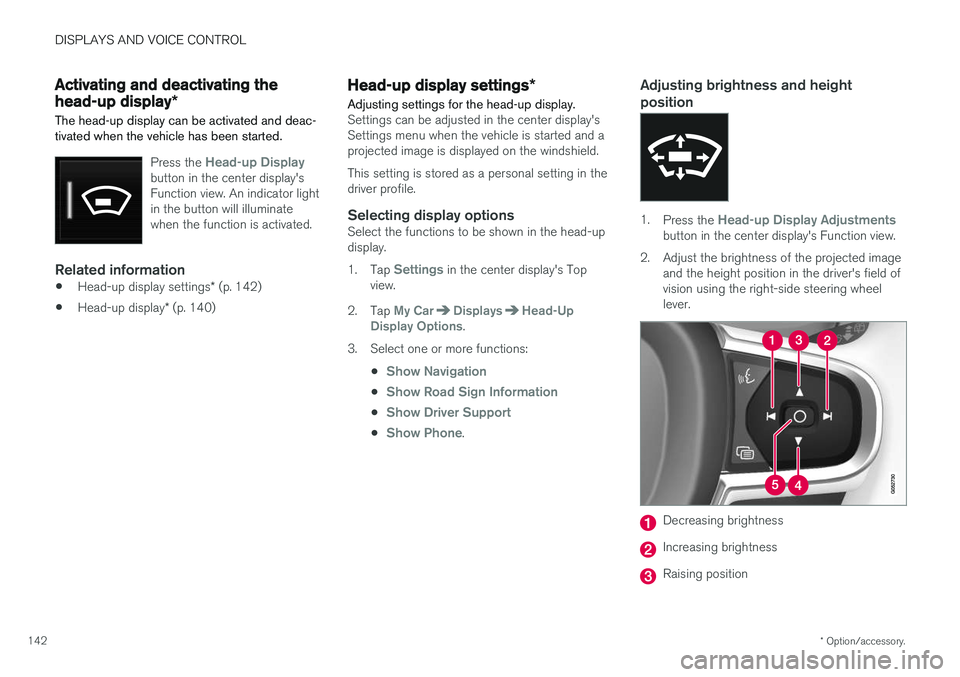
1.Press the Head-up Display Adjustmentsbutton in the center display's Function view.
2. Adjust the brightness of the projected image and the height position in the driver's field of vision using the right-side steering wheellever.
Decreasing brightness
Increasing brightness
Raising position
Page 145 of 660
DISPLAYS AND VOICE CONTROL
}}
* Option/accessory.143
Lowering position
Confirm
The brightness of the graphic is automatically adapted to the light conditions in its background.Brightness is also affected by adjustments to thebrightness of the other displays in the vehicle. The height position can be stored in the front power seat's * memory function.
Calibrating the horizontal positionIf the windshield or display unit has been replaced, the head-up display's horizontal posi-tion may need to be calibrated. Calibration meansthat the projected image is rotated clockwise orcounterclockwise. 1.
Tap
Settings in the center display's Top
view.
2. Select
My CarDisplaysHead-Up
Display Options
Head-Up Display
Calibration.
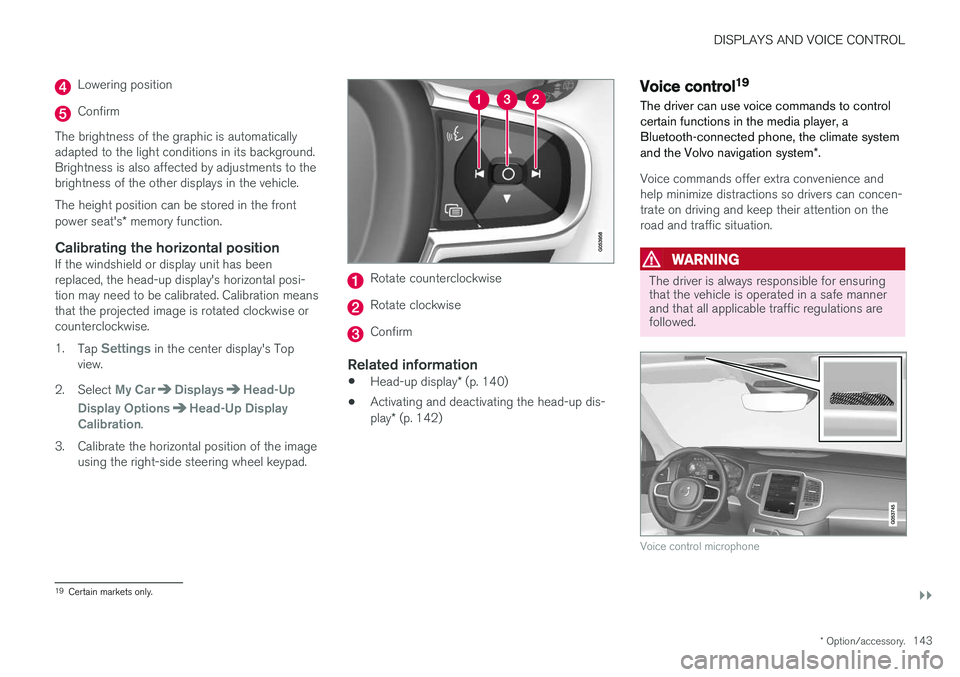
3. Calibrate the horizontal position of the image using the right-side steering wheel keypad.
Rotate counterclockwise
Rotate clockwise
Confirm
Related information
• Head-up display
* (p. 140)
• Activating and deactivating the head-up dis- play
* (p. 142)
Voice control19
The driver can use voice commands to control certain functions in the media player, aBluetooth-connected phone, the climate system and the Volvo navigation system *.
Voice commands offer extra convenience and help minimize distractions so drivers can concen-trate on driving and keep their attention on theroad and traffic situation.
WARNING
The driver is always responsible for ensuring that the vehicle is operated in a safe mannerand that all applicable traffic regulations arefollowed.
Voice control microphone
19
Certain markets only.
Page 352 of 660
DRIVER SUPPORT
* Option/accessory.
350
Road Sign Information *
The Road Sign Information (RSI 94
) function noti-
fies the driver of speed-related road signs the vehicle is passing.
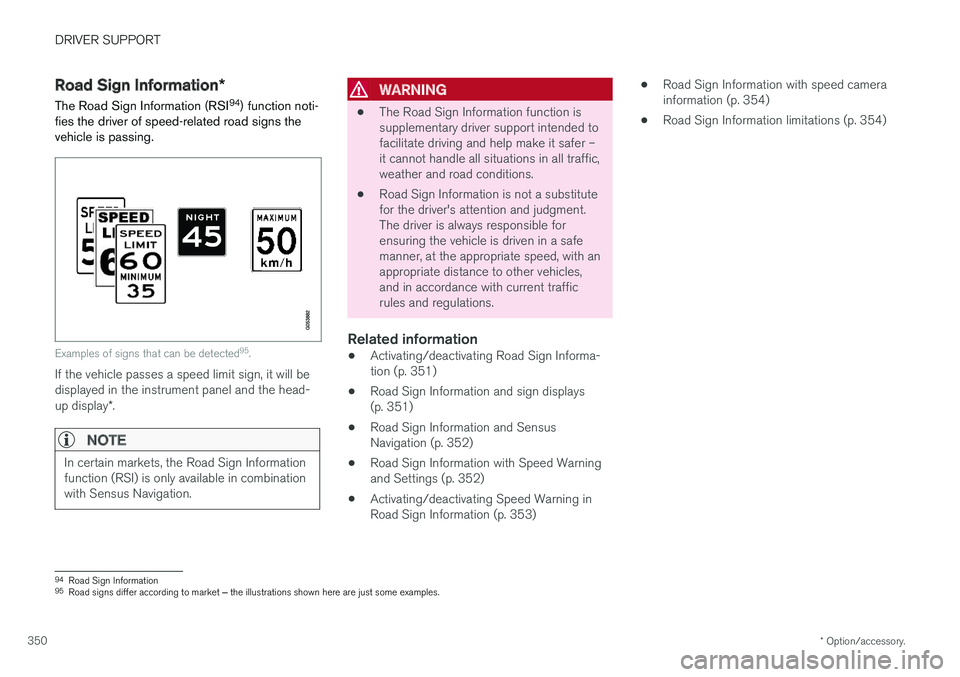
Examples of signs that can be detected 95
.
If the vehicle passes a speed limit sign, it will be displayed in the instrument panel and the head- up display *.
NOTE
In certain markets, the Road Sign Information function (RSI) is only available in combinationwith Sensus Navigation.
WARNING
• The Road Sign Information function is supplementary driver support intended tofacilitate driving and help make it safer –it cannot handle all situations in all traffic,weather and road conditions.
• Road Sign Information is not a substitutefor the driver's attention and judgment.The driver is always responsible forensuring the vehicle is driven in a safemanner, at the appropriate speed, with anappropriate distance to other vehicles,and in accordance with current trafficrules and regulations.
Related information
•Activating/deactivating Road Sign Informa-tion (p. 351)
• Road Sign Information and sign displays(p. 351)
• Road Sign Information and SensusNavigation (p. 352)
• Road Sign Information with Speed Warningand Settings (p. 352)
• Activating/deactivating Speed Warning inRoad Sign Information (p. 353) •
Road Sign Information with speed camerainformation (p. 354)
• Road Sign Information limitations (p. 354)
94
Road Sign Information
95 Road signs differ according to market ‒ the illustrations shown here are just some examples.
Page 354 of 660
||
DRIVER SUPPORT
* Option/accessory.
352
Signs for "School" and "Children playing"
If the warning sign 97
"School"
or "Children playing" is included in the satellite naviga- tor's map data 98
, a symbol of
this type will be displayed in the instrument panel.
Related information
• Road Sign Information
* (p. 350)
Road Sign Information and SensusNavigation
If the vehicle is equipped with Sensus Navigation, speed-related information will be provided in thefollowing situations:
• In cases where the speed limit is given indi-rectly, e.g. signs for highways or other majorroads.
• If a previously detected speed sign isdeemed to be no longer valid and no newsign has been passed.
NOTE
In certain markets, the Road Sign Information function (RSI) is only available in combinationwith Sensus Navigation.
NOTE
If a downloaded third-party app is used for navigation, there is no support for speed-rela-ted information.
Related information
•
Road Sign Information
* (p. 350)
Road Sign Information with SpeedWarning and Settings
The
Speed Limit Warning sub-function for
RSI 99
can be switched On or Off.
Speed Limit Warning alerts the driver if the
vehicle's speed has exceeded the applicable speed limit or the preset Speed Limiter speed.The warning will be repeated once if the driverdoes not slow down.
When Speed Warning is acti-vated, the symbol for the cur-rent speed limit in the instru- ment panel100
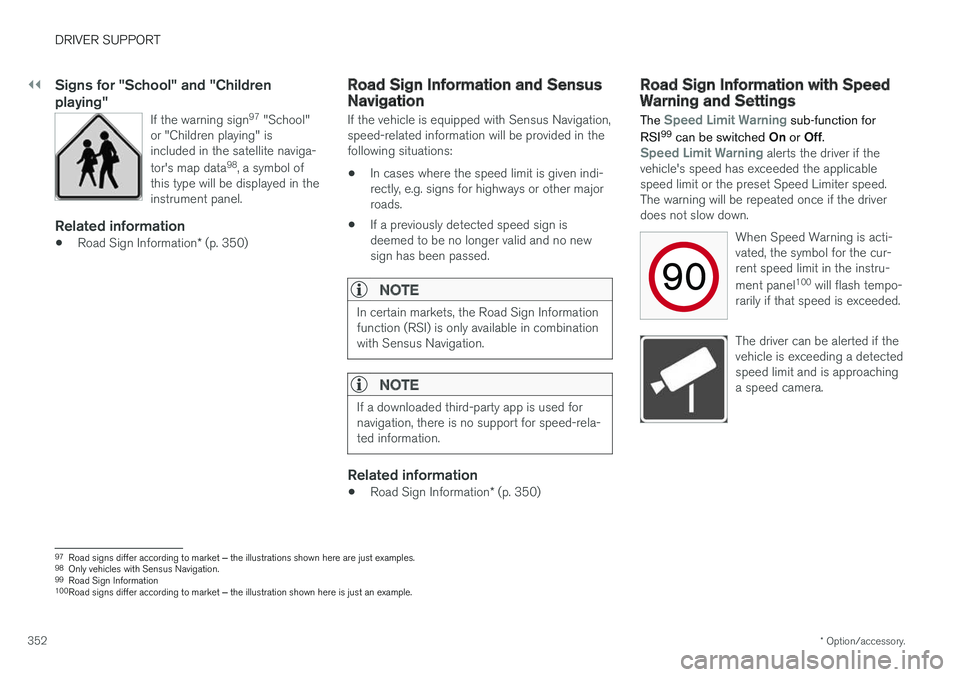
will flash tempo-
rarily if that speed is exceeded.
The driver can be alerted if the vehicle is exceeding a detectedspeed limit and is approachinga speed camera.
97 Road signs differ according to market ‒ the illustrations shown here are just examples.
98 Only vehicles with Sensus Navigation.
99 Road Sign Information
100 Road signs differ according to market ‒ the illustration shown here is just an example.
Page 356 of 660
DRIVER SUPPORT
* Option/accessory.
354
Road Sign Information with speedcamera information
Vehicles equipped with RSI 101
and Sensus
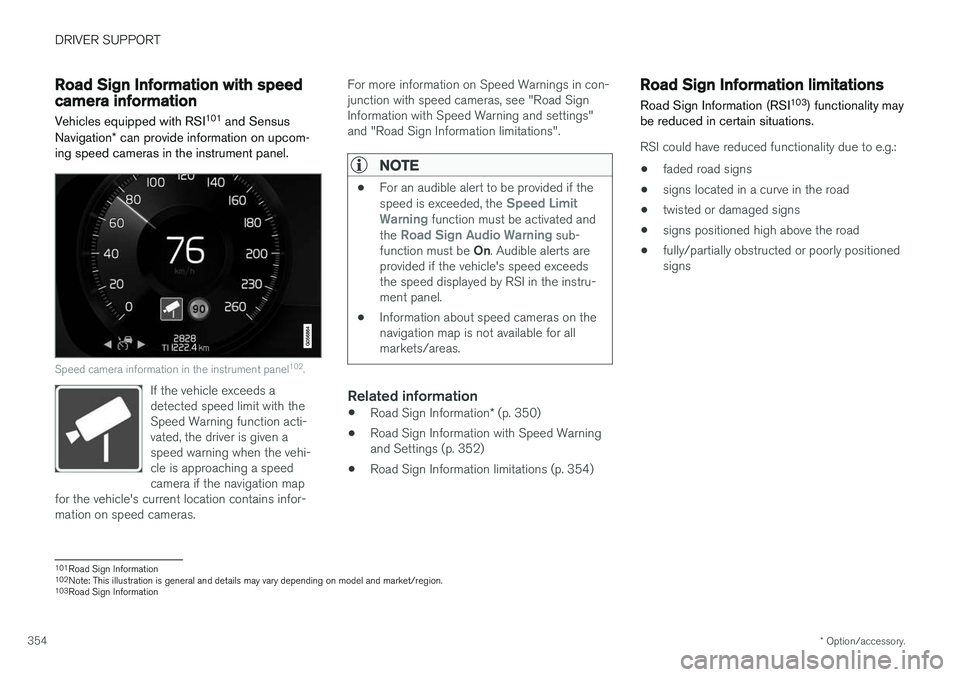
Navigation * can provide information on upcom-
ing speed cameras in the instrument panel.
Speed camera information in the instrument panel 102
.
If the vehicle exceeds a detected speed limit with theSpeed Warning function acti-vated, the driver is given aspeed warning when the vehi-cle is approaching a speedcamera if the navigation map
for the vehicle's current location contains infor-mation on speed cameras.
For more information on Speed Warnings in con- junction with speed cameras, see "Road SignInformation with Speed Warning and settings"and "Road Sign Information limitations".
NOTE
• For an audible alert to be provided if the speed is exceeded, the Speed Limit
Warning function must be activated and
the Road Sign Audio Warning sub-
function must be On. Audible alerts are
provided if the vehicle's speed exceeds the speed displayed by RSI in the instru-ment panel.
• Information about speed cameras on thenavigation map is not available for allmarkets/areas.
Related information
•
Road Sign Information
* (p. 350)
• Road Sign Information with Speed Warning and Settings (p. 352)
• Road Sign Information limitations (p. 354)
Road Sign Information limitations
Road Sign Information (RSI 103
) functionality may
be reduced in certain situations.
RSI could have reduced functionality due to e.g.:
• faded road signs
• signs located in a curve in the road
• twisted or damaged signs
• signs positioned high above the road
• fully/partially obstructed or poorly positioned signs
101
Road Sign Information
102 Note: This illustration is general and details may vary depending on model and market/region.
103 Road Sign Information
Page 357 of 660
DRIVER SUPPORT
}}
* Option/accessory.355
•
signs partially or fully covered by frost, snow and/or dirt
• digital road maps 104
that are outdated, incor-
rect or do not contain speed information 105
.
NOTE
Certain types of bike carriers that are con- nected to the trailer socket may be interpre-ted as a connected trailer by the RSI function.In such cases, the instrument panel may indi-cate incorrect speed information.
NOTE
The function uses the vehicle's camera unit, which has some general limitations – see thesection "Camera unit limitations".
Related information
• Road Sign Information
* (p. 350)
Driver Alert Control
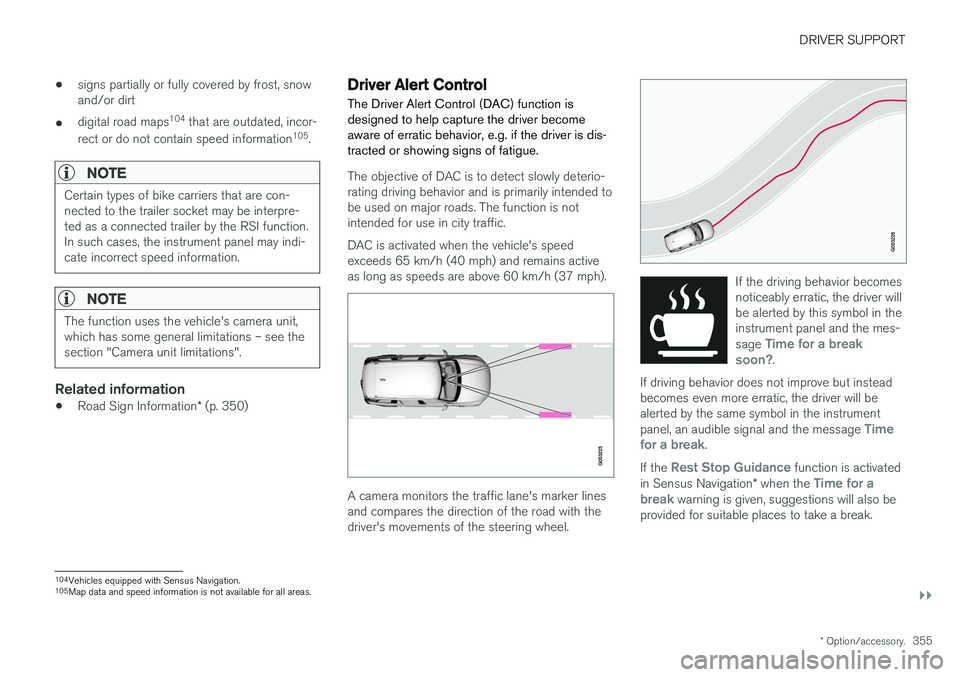
The Driver Alert Control (DAC) function is designed to help capture the driver becomeaware of erratic behavior, e.g. if the driver is dis-tracted or showing signs of fatigue.
The objective of DAC is to detect slowly deterio- rating driving behavior and is primarily intended tobe used on major roads. The function is notintended for use in city traffic. DAC is activated when the vehicle's speed exceeds 65 km/h (40 mph) and remains activeas long as speeds are above 60 km/h (37 mph).
A camera monitors the traffic lane's marker lines and compares the direction of the road with thedriver's movements of the steering wheel.
If the driving behavior becomes noticeably erratic, the driver willbe alerted by this symbol in theinstrument panel and the mes- sage
Time for a break
soon?.
If driving behavior does not improve but instead becomes even more erratic, the driver will bealerted by the same symbol in the instrument panel, an audible signal and the message
Time
for a break.
If the Rest Stop Guidance function is activated
in Sensus Navigation * when the Time for a
break warning is given, suggestions will also be
provided for suitable places to take a break.
104 Vehicles equipped with Sensus Navigation.
105 Map data and speed information is not available for all areas.
Page 476 of 660
AUDIO, MEDIA AND INTERNET
* Option/accessory.
474
SiriusXM Travel Link®
*
SiriusXM Travel Link is a feature offered by
SiriusXM ®
Satellite radio * that can provide infor-
mation about e.g., weather forecasts, weather alerts, service stations, sports, etc. in the vicinityof the vehicle.
Starting SiriusXM Travel Link
NOTE
SiriusXM Travel Link services are only availa- ble in vehicles equipped with the SensusNavigation system.
From the center display's App view, tap Travel
Link to activate the feature. A disclaimer text will
be displayed. Tap OK to display a list of SiriusXM
Travel Link services: •
Alerts
•Fuel
•Sports
•Weather
•Favorites
In order to use one or more of these services, the user has to subscribe to the ones desired. To subscribe to a SiriusXM Travel Link service:
1. Open the center display's Top view.2. Tap
Settings. 3.
Press
SiriusXM Travel Link andSubscription Status.
> To subscribe, call the phone number listed on the screen.
Any services not subscribed will be grayed out and contain the text
Service not subscribed.
When the services have been activated (subscri- bed), tap the one of your choice to start it. The following applies for all of the
SiriusXM
Travel Link services:
• Pressing the
Back button will take you back
to the previous screen
• Pressing the
Close button will take you to
the SiriusXM Travel Link home screen.
NOTE
If the Close button is used to return to theSiriusXM Travel Link home screen, the fol-
lowing applies (the Weather service is used
here as an example):
• If you have already used the
Weatherfunction, tapping Weather again in theSiriusXM Travel Link home screen
before using any other SiriusXM
Travel Link service will return you to the
point where you left the Weather service.
• If another
SiriusXM Travel Link service
is used (e.g., Fuel, Sports, etc.) before
you return to the Weather service, you
will be returned to the default Weatherview (in this case, Local).
The same principle applies to all of the
SiriusXM Travel Link services.
FavoritesMany SiriusXM Travel Link selections can be saved for easy access as favorites by tapping the"star" icon next to the selection where applicable. To display a list of your favorites, tap the
Favorites application in the SiriusXM Travel Link
home screen.
Related information
• SiriusXM ®
Satellite radio * (p. 470)
• SiriusXM Travel Link ®
* - Fuel (p. 477)