remote start VOLVO XC60 2018 Owner´s Manual
[x] Cancel search | Manufacturer: VOLVO, Model Year: 2018, Model line: XC60, Model: VOLVO XC60 2018Pages: 660, PDF Size: 11.77 MB
Page 449 of 660
STARTING AND DRIVING
}}
447
Disabling the automatic check
The automatic light check can be disabled in the center display. 1.Tap
Settings in the Top view.
2. Tap
My CarLights and Lighting.
3. Deselect
Automatic Trailer Lamp Check.
Manual check
If the automatic check has been disabled, the check can be started manually. 1.Tap
Settings in the Top view.
2. Tap
My CarLights and Lighting.
3. Select
Manual Trailer Lamp Check.
> The light check will begin. Get out of the vehicle to perform the check.
Related information
• Driving with a trailer (p. 443)
Towing using a towline
This section refers to one vehicle being towed behind another using a towline.
Before towing another vehicle, check applicable speed limit regulations.
Preparations and towing
CAUTION
Note that the vehicle must always be towed with the wheels rolling forward.
• Do not tow a vehicle with automatictransmission at a speed greater than80 km/h (50 mph) or for a distancegreater than 80 km (50 miles).
WARNING
•
Ignition mode
II must be active – all air-
bags are deactivated in ignition mode I.
• Always have the remote key in the vehicle when it is towed.
WARNING
The brake and steering servos do not work when the engine is off – it takesabout 5 times more pressure on the brakepedal and steering requires much more effortthan normal. 1. Turn on the hazard warning flashers.
2. Attach the towline to the towing eyelet.3.
Put the vehicle in ignition mode II – without
pressing the brake pedal, turn the start knob clockwise and hold it there for about4 seconds. Release the knob, which willautomatically return to its original position.
4. Move the gear selector to neutral ( N) and
release the parking brake. If the battery charge level is too low, it may not be possible to release the parking brake.Connect an auxiliary battery to the vehicle ifthe battery is discharged.
> The towing vehicle can now start driving.
5. Keep the towline taut when the towing vehi- cle slows down by applying light pressure to the brake pedal. This will help avoid jarringmovements.
6. Be prepared to apply the brakes to stop the vehicle.
Jump startingDo not tow the vehicle to start the engine. Use anauxiliary battery if the start battery's charge levelis so low that the engine cannot be started.
Page 452 of 660
STARTING AND DRIVING
* Option/accessory.
450
Recovery
This section refers to transporting the vehicle with a tow truck or similar vehicle.
Call a professional towing service for assistance. In certain conditions, the towing eyelet can be used to pull the vehicle onto a flatbed tow truck. For vehicles equipped with leveling control *:
If the vehicle is equipped with pneumatic suspen- sion, this feature must be turned off before thevehicle is lifted onto a tow truck. Turning off thefunction in the center display. 1. Tap
Settings in the Top view.
2. Tap
My CarParking Brake and
Suspension.
3. Select
Disable Leveling Control.
The vehicle's location and ground clearance determine if it can be lifted onto a tow truck. Ifthe incline of the tow truck is too steep or if theground clearance under the vehicle is insufficient,attempting to pull it up may result in damage. Inthis case, the vehicle should only be lifted withthe tow truck's lifting equipment.
WARNING
No person or object should be behind the tow truck when the vehicle is lifted onto the bedof the truck.
CAUTION
The towing eyelet is only intended for towing on roads, and must not be used to pull vehi-
cles from ditches or any similar purpose involving severe strain. Call a tow truck forprofessional assistance.
CAUTION
Note that the vehicle must always be towed with the wheels rolling forward.
Related information
• Attaching and removing the towing eyelet (p. 448)
HomeLink®
*11
HomeLink ®
12
is a programmable remote control,
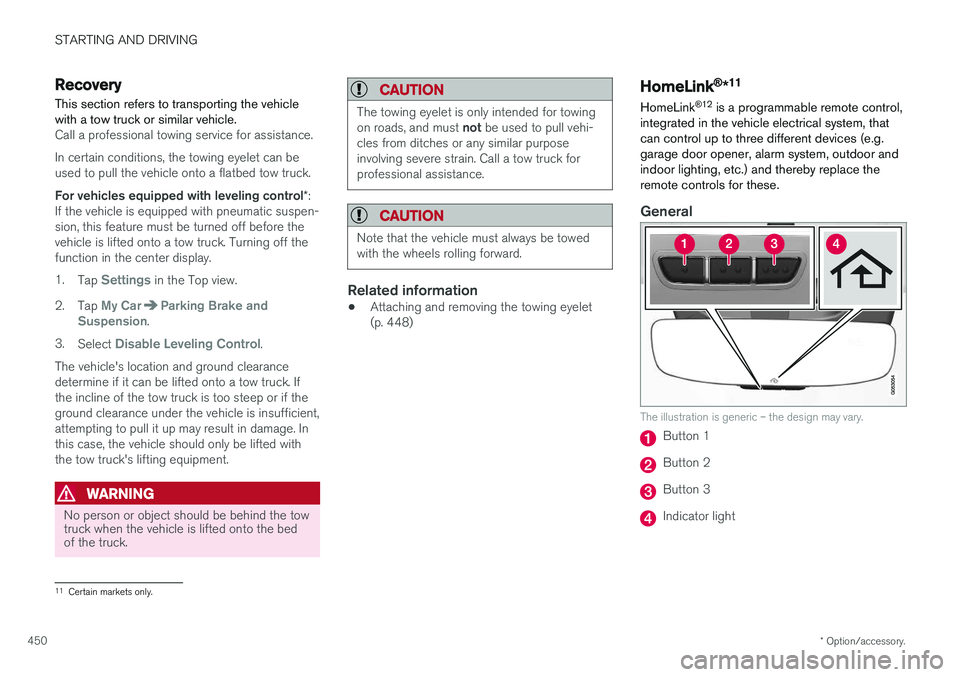
integrated in the vehicle electrical system, that can control up to three different devices (e.g.garage door opener, alarm system, outdoor andindoor lighting, etc.) and thereby replace theremote controls for these.
General
The illustration is generic – the design may vary.
Button 1
Button 2
Button 3
Indicator light
11 Certain markets only.
Page 453 of 660
STARTING AND DRIVING
}}
* Option/accessory.451
HomeLink
®
is delivered integrated in the rearview
mirror. The HomeLink ®
panel consists of three
programmable buttons and an indicator light in the mirror. For more information about HomeLink ®
, please
visit www.HomeLink.com, www.youtube.com/ HomeLinkGentex or call 1-800-355-3515. Save the original remote controls for future pro- gramming (e.g. for use in another vehicle). It isalso advisable to delete the button programmingif the vehicle is sold.
Related information
• Using HomeLink (p. 452)
• Programming HomeLink ®
* (p. 451)
• Type approval for HomeLink ®
* (p. 453)
Programming HomeLink®
*13
Follow these instructions to program HomeLink ®
, reset all programming, or program
individual buttons.
NOTE
In some vehicles, the ignition must be on or in the "accessory position" before HomeLink ®
can be programmed or used. It can be a good idea to put new batteries in the remote con- trol being replaced by HomeLink ®
for faster
programming and better radio signal trans-mission. The HomeLink ®
buttons should be
reset before programming.
WARNING
While HomeLink ®
is being programmed, the
garage door or gate being programmed may be activated. Make sure that no one is nearthe door or gate during programming. Whenprogramming a garage door opener, it isadvised to park outside of the garage. 1.
Point the remote control at the HomeLink ®
button to be programmed and hold it about 2-8 cm (1-3 inches) from the button. Do not obstruct the HomeLink ®
indicator light.
Note: Some remote controls are more effec-
tive at programming HomeLink ®
from a dis-
tance of about 15-20 cm (6-12 inches). Try moving the remote control closer or furtheraway if you are experiencing any difficultiesprogramming.
2. Press and hold both the remote control but- ton and the HomeLink ®
button to be pro-
grammed.
3. Do not release the buttons until the indicator light has stopped flashing slowly (about oncea second) and either flashes quickly (about10 times a second) or glows steadily. >Steady glow: Indication that program-
ming is complete. Press the programmed button twice to activate. Flashing quickly: The device being pro-
grammed with HomeLink ®
may have a
security function that requires an extra step. Try pressing the programmed buttontwice to see whether the programmingworks. Otherwise, continue with the fol-lowing steps.
12 HomeLink and the HomeLink house symbol are registered trademarks of Gentex Corporation.
13 Certain markets only.
Page 454 of 660
||
STARTING AND DRIVING
* Option/accessory.
452
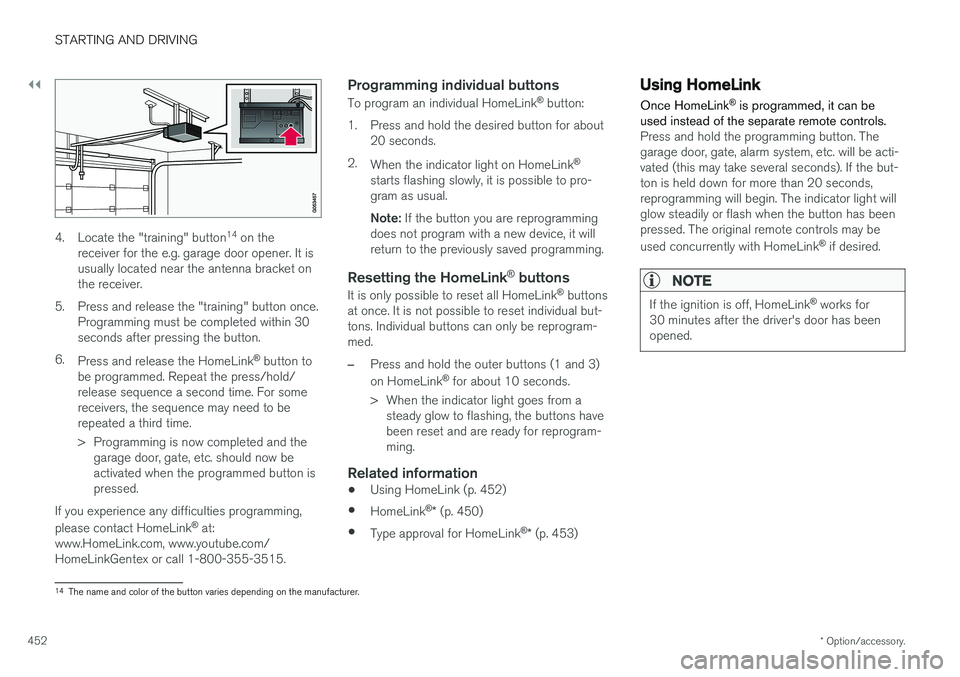
4. Locate the "training" button 14
on the
receiver for the e.g. garage door opener. It is usually located near the antenna bracket onthe receiver.
5. Press and release the "training" button once. Programming must be completed within 30seconds after pressing the button.
6. Press and release the HomeLink ®
button to
be programmed. Repeat the press/hold/release sequence a second time. For somereceivers, the sequence may need to berepeated a third time.
> Programming is now completed and the garage door, gate, etc. should now be activated when the programmed button ispressed.
If you experience any difficulties programming, please contact HomeLink ®
at:
www.HomeLink.com, www.youtube.com/ HomeLinkGentex or call 1-800-355-3515.
Programming individual buttons
To program an individual HomeLink ®
button:
1. Press and hold the desired button for about 20 seconds.
2. When the indicator light on HomeLink ®
starts flashing slowly, it is possible to pro-gram as usual. Note: If the button you are reprogramming
does not program with a new device, it will return to the previously saved programming.
Resetting the HomeLink ®
buttons
It is only possible to reset all HomeLink ®
buttons
at once. It is not possible to reset individual but-tons. Individual buttons can only be reprogram-med.
–Press and hold the outer buttons (1 and 3) on HomeLink ®
for about 10 seconds.
> When the indicator light goes from a steady glow to flashing, the buttons have been reset and are ready for reprogram-ming.
Related information
• Using HomeLink (p. 452)
• HomeLink ®
* (p. 450)
• Type approval for HomeLink ®
* (p. 453)
Using HomeLink
Once HomeLink ®
is programmed, it can be
used instead of the separate remote controls.
Press and hold the programming button. The garage door, gate, alarm system, etc. will be acti-vated (this may take several seconds). If the but-ton is held down for more than 20 seconds,reprogramming will begin. The indicator light willglow steadily or flash when the button has beenpressed. The original remote controls may be used concurrently with HomeLink ®
if desired.
NOTE
If the ignition is off, HomeLink ®
works for
30 minutes after the driver's door has been opened.
14 The name and color of the button varies depending on the manufacturer.
Page 494 of 660
AUDIO, MEDIA AND INTERNET
* Option/accessory.
492
Tips for using Android Auto *
Here are some useful tips for when you use Android Auto.
• Ensure that your apps are updated.
• When starting the car, wait until the center display has started, connect the phone andthen open Android Auto from the app view.
• In the event of problems with Android Auto,disconnect your Android phone from theUSB port and then reconnect via USB. Oth-erwise, try closing the app on the phone andthen restarting the app.
• When a phone is connected to Android Autoit is still possible to playback media viaBluetooth to another media player. TheBluetooth function is on when Android Autois used.
Related information
•
Android Auto
* (p. 490)
Phone
A phone equipped with Bluetooth can be wire- lessly connected to the vehicle's integratedhands-free system.
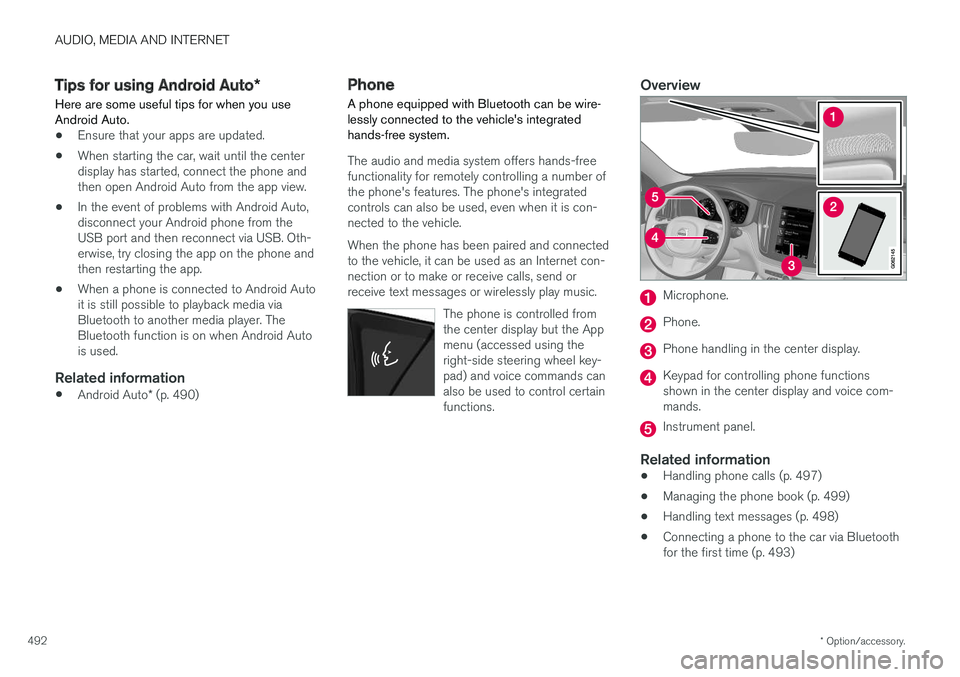
The audio and media system offers hands-free functionality for remotely controlling a number ofthe phone's features. The phone's integratedcontrols can also be used, even when it is con-nected to the vehicle. When the phone has been paired and connected to the vehicle, it can be used as an Internet con-nection or to make or receive calls, send orreceive text messages or wirelessly play music.
The phone is controlled fromthe center display but the Appmenu (accessed using theright-side steering wheel key-pad) and voice commands canalso be used to control certainfunctions.
Overview
Microphone.
Phone.
Phone handling in the center display.
Keypad for controlling phone functions shown in the center display and voice com-mands.
Instrument panel.
Related information
•Handling phone calls (p. 497)
• Managing the phone book (p. 499)
• Handling text messages (p. 498)
• Connecting a phone to the car via Bluetooth for the first time (p. 493)
Page 650 of 660
INDEX
648
H
Handbrake 405, 406
Hand wash 615Hard diskspace 510
Hazard warning flashers 160
HDC 431
HD radio 466
Head restraint 195
Head-up display 140 activate and deactivate 142
cleaning 610
replacing windshield 582
settings 142
Heated washer nozzles 177 Heating Seats 214, 215
steering wheel 217, 218
windows 221, 222
Height adjustment 426, 429
high beams 154, 155
High engine temperature 440
Hill Descent Control 430, 431, 432 activate with function button 432
Hill Start Assist 410 Hill Start Assist (HSA) 410
Hoisting the vehicle 579 HomeLink ® 450
programming 451
use 452
HomeLink ® remote control
programmable 450
Home safe lighting 160
Honk 196
Hood, opening 581
Horn 196
I
IAQS (Interior Air Quality System) 204
IC (Inflatable Curtain) 60
ID, Volvo 26
Identification number 38
Ignition mode 401, 402
Immobilizer 244 Electronic immobilizer 244
Indicator symbols 91
Individual drive mode 417
Infant seats 67
Inflatable curtain 60
Inflatable Curtain 60
Inflating tires 549 Inflation pressure adjusting 530
Checking 529
recommended 531
Inflation pressure monitoring 531 action 535
Status 534
Inflation pressure table 641
Information display 80, 84
Infotainment (Audio and media) 458
Instrument cluster 80 settings 84
Instrument illumination 162
Instrument lighting 162 Instrument panel App menu 100, 101
messages 102
Instruments and controls 78 Instruments overview left-hand drive vehicle 78
IntelliSafe driver support 28
Interior Air Quality System 204
Intermittent wiping 176
Internet, see Internet-connected vehicle 501
Page 654 of 660

INDEX
652Rain sensor 177, 178
Rain sensor's memory function 178
Raise the rear end 562
Rear camera 379, 380, 381, 383, 384,
386, 387
Rear seat blower 224
climate 212
folding backrest 192
head restraint 195
heating 215
temperature 226
Rear sensors 374, 375, 376, 377, 378 Rearview/door mirrors dimming 170
heating 222
interior 169
Rearview mirror 169 dimming 170
Rear window heating 222
washers 180
wipers 180
Recalls 45
Recommendations when driving 433
Recommendations when loading 561
Recovery 450
Red Key 240 settings 241
Refrigerant 582 climate system 640
Refueling filling 436
fuel filler door, fuel flap 435
Remote immobilizer 244
Remote key 231 battery replacement 236
connecting to driver profile 137
detachable key blade 242
loss 240
Range 235
Remote updates 575
Reporting safety defects 44
Resetting door mirrors 170
Resetting settings 133 change of owner 132
Driver profile 137
Resetting trip odometer 88
Road Sign Information 350, 351, 352 limitations 354
operation 351, 352, 353, 354
Road trip 433
Roll Stability Control 265
Roof load, max. weight 635RSC (Roll Stability Control) 265
Run-off Mitigation 366, 367
S
Safety 42 pregnancy 43
Safety belt, see Seat belt 47
Safety defects, reporting 44
Safety mode 61 starting/moving 62
Sealing compound 545
Seat, see Seats 184
Seat belt reminder 51
Seat belts 47 Automatic locking retractor/Emergency
locking retractor 65
buckling/unbuckling 48
pregnancy 43
seat belt reminder 51
seat belt tensioner 50
securing child restraint systems 67, 69, 71
Seat belt tensioner 50 resetting 51
Seats heating 214, 215
manual front seat 184