change time VOLVO XC60 2018 Owner´s Manual
[x] Cancel search | Manufacturer: VOLVO, Model Year: 2018, Model line: XC60, Model: VOLVO XC60 2018Pages: 660, PDF Size: 11.77 MB
Page 342 of 660
DRIVER SUPPORT
340
Rear Collision Warning
The Rear Collision Warning (RCW) function can help the driver avoid rear-end collisions fromvehicles approaching from behind.
RCW is automatically activated each time the engine is started. RCW can warn the driver of a potential collision with vehicles approaching from behind by rapidlyflashing the turn signals. If, at a speed below 30 km/h (20 mph), the RCW function detects that the car is in danger of beinghit from behind, the seatbelt tensioners may ten-sion the front seatbelts and activate the WhiplashProtection System safety system. Immediately before a collision from behind, RCW may also activate the foot brake in order toreduce the forward acceleration of the car duringthe collision. However, the brakes will only beapplied if your vehicle is stationary. The brakeswill be immediately released if the acceleratorpedal is depressed.
Related information
• Rear Collision Warning limitations (p. 340)
• Whiplash Protection System (p. 46)
Rear Collision Warning limitations
In some situations, it may be difficult for RCW to warn the driver of a collision risk.
This may be the case if:
• the vehicle approaching from the rear is detected at a late stage
• the vehicle approaching from the rearchanges lanes at a late stage
• the vehicle approaching from the rear is mov-ing at a speed above 80 km/h (50 mph)
• a trailer, bicycle holder or similar is con-nected to the vehicle's electrical system - theRCW function will then be automaticallydeactivated.
NOTE
In certain markets RCW does
not warn with
the direction indicators due to local traffic regulations – in such cases, that part of thefunction is deactivated.
NOTE
The warning with direction indicators for Rear Collision Warning is deactivated if the colli-sion warning distance in the City Safety func- tion is set to the lowest level "
Late".
The seat belt tensioning and braking func- tions remain active.
Related information
• Rear Collision Warning (p. 340)
Page 349 of 660

DRIVER SUPPORT
}}
* Option/accessory.347
Activating/deactivating Cross TrafficAlert
The driver can choose to deactivate the CTA 89
function as follows:
Press the Cross Traffic Alertbutton in the center display's Function view.
• GRAY button indicator light - CTA is deacti- vated.
• GREEN button indicator light - CTA is acti-vated.
CTA is automatically activated each time theengine is started.
Related information
• Cross Traffic Alert
* (p. 346)
Cross Traffic Alert limitations
CTA 90
functionality may be reduced in certain
situations.
CTA does not function optimally in all situations and has certain limitations. The CTA sensors, forexample, cannot "see" through other parkedvehicles or objects blocking the vehicle. Below are a few examples of situations in which CTA's field of vision may be initially limited andapproaching vehicles may therefore not bedetected until they are very close to your vehicle:
The vehicle is parked very far into a parking space.
In a diagonal parking space, CTA may be completely "blind" on one side of your vehicle.
CTA's blind zone.
CTA's field of vision.
However, as you back your vehicle slowly out of a parking space, CTA's field of vision changes inrelation to the obstructing vehicle/object and itsblind zone is reduced.
89 Cross Traffic Alert
90 Cross Traffic Alert
Page 358 of 660
||
DRIVER SUPPORT
356The warnings will be repeated after a short time if driving behavior does not improve.
WARNING
•
The Driver Alert Control function is sup- plementary driver support intended tofacilitate driving and help make it safer –it cannot handle all situations in all traffic,weather and road conditions.
• Driver Alert Control must not be used toextend a period of driving. The drivershould plan in breaks at regular intervalsand make sure they are well rested.
• Driver Alert Control is not a substitute forthe driver's attention and judgment. Thedriver is always responsible for ensuringthe vehicle is driven in a safe manner, atthe appropriate speed, with an appropri-ate distance to other vehicles, and inaccordance with current traffic rules andregulations.
WARNING
An alarm from Driver Alert Control should be taken very seriously since a sleepy driver isoften not aware of their own condition. If the alarm sounds or you feel fatigued:
• Stop the vehicle safely as soon as possi- ble and rest.
Studies have shown that it is just as danger- ous to drive while tired as it is to drive underthe influence of alcohol or other stimulants.
Related information
• Activating/deactivating Driver Alert Control (p. 356)
• Selecting guidance to a rest area if theDriver Alert Control warning has been given(p. 357)
• Driver Alert Control limitations (p. 357)
Activating/deactivating Driver AlertControl
The Driver Alert Control (DAC) function can be activated/deactivated.
On/OffTo change DAC settings: 1. Tap
Settings in the center display's Top
view.
2. Select
My CarIntelliSafeDriver Alert
Control.
3. Select/deselect
Alertness Warning to acti-
vate/deactivate DAC.
Related information
• Driver Alert Control (p. 355)
Page 385 of 660
DRIVER SUPPORT
* Option/accessory.383
1.
Tap
Towbar (1).
> The trajectory line for the towbar's antici- pated path toward the vehicle will appear and the vehicle's trajectory lines will dis-appear. Trajectory lines cannot be displayed for both the vehicle and the towbar at thesame time.
2. Tap
Zoom (2) for a close-up view for more
precise maneuvering.
> The camera will zoom in.
Related information
• Park Assist Camera
* (p. 379)
Sensor field from Park Assist forPark Assist Camera
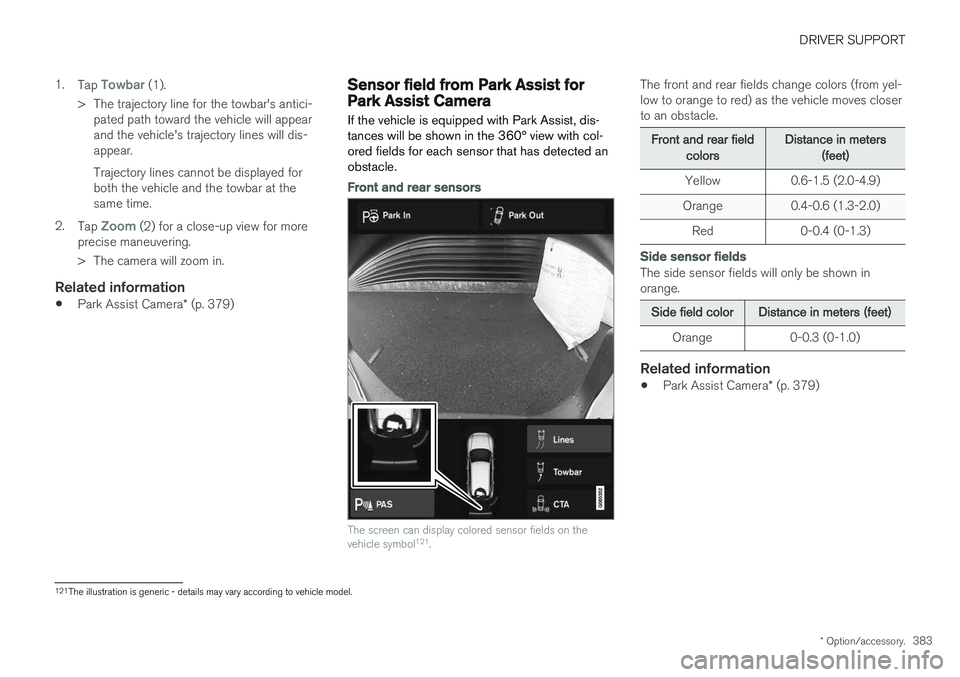
If the vehicle is equipped with Park Assist, dis- tances will be shown in the 360° view with col-ored fields for each sensor that has detected anobstacle.
Front and rear sensors
The screen can display colored sensor fields on the vehicle symbol 121
.
The front and rear fields change colors (from yel- low to orange to red) as the vehicle moves closerto an obstacle.
Front and rear fieldcolorsDistance in meters(feet)
Yellow 0.6-1.5 (2.0-4.9)
Orange 0.4-0.6 (1.3-2.0)
Red 0-0.4 (0-1.3)
Side sensor fields
The side sensor fields will only be shown in orange.
Side field colorDistance in meters (feet)
Orange 0-0.3 (0-1.0)
Related information
• Park Assist Camera
* (p. 379)
121
The illustration is generic - details may vary according to vehicle model.
Page 416 of 660
||
STARTING AND DRIVING
* Option/accessory.
414 In shift mode
M, the paddles are automatically
activated.
Instrument panel when the paddles are activated for shifting in manual mode.
ChangeTo shift one gear:
–Pull one of the paddles toward the steering wheel and then release.
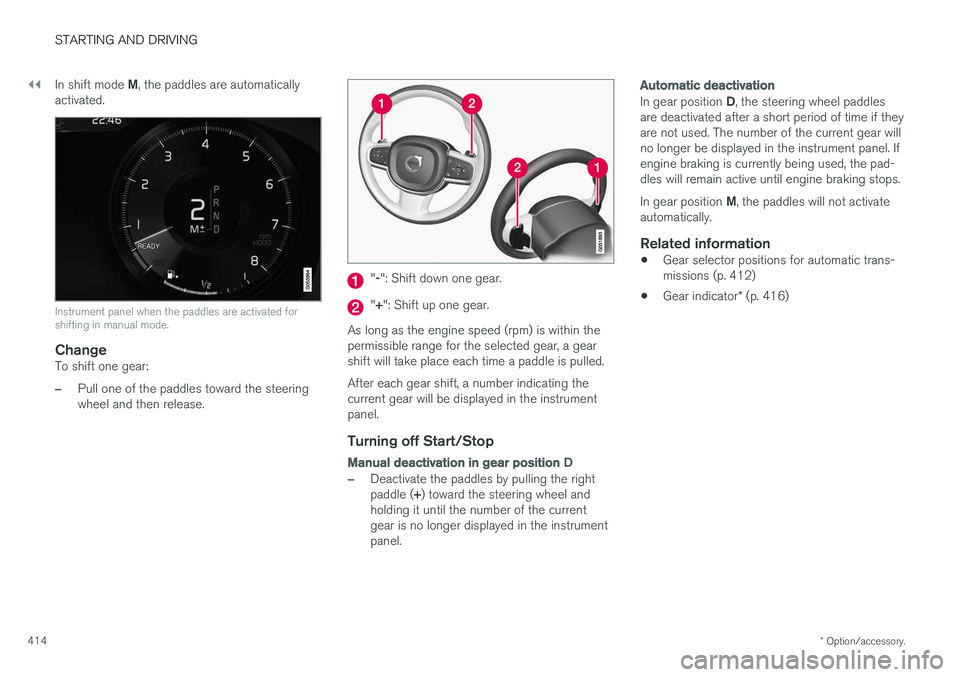
" -": Shift down one gear.
" + ": Shift up one gear.
As long as the engine speed (rpm) is within the permissible range for the selected gear, a gear shift will take place each time a paddle is pulled. After each gear shift, a number indicating the current gear will be displayed in the instrumentpanel.
Turning off Start/Stop
Manual deactivation in gear position D
–Deactivate the paddles by pulling the right paddle (+) toward the steering wheel and
holding it until the number of the current gear is no longer displayed in the instrumentpanel.
Automatic deactivation
In gear position D, the steering wheel paddles
are deactivated after a short period of time if they are not used. The number of the current gear willno longer be displayed in the instrument panel. Ifengine braking is currently being used, the pad-dles will remain active until engine braking stops. In gear position M, the paddles will not activate
automatically.
Related information
• Gear selector positions for automatic trans- missions (p. 412)
• Gear indicator
* (p. 416)
Page 426 of 660
STARTING AND DRIVING
424
Temporarily deactivating the Start/Stop function
In certain situations, it may be advisable to tem- porarily turn the Start/Stop function off.
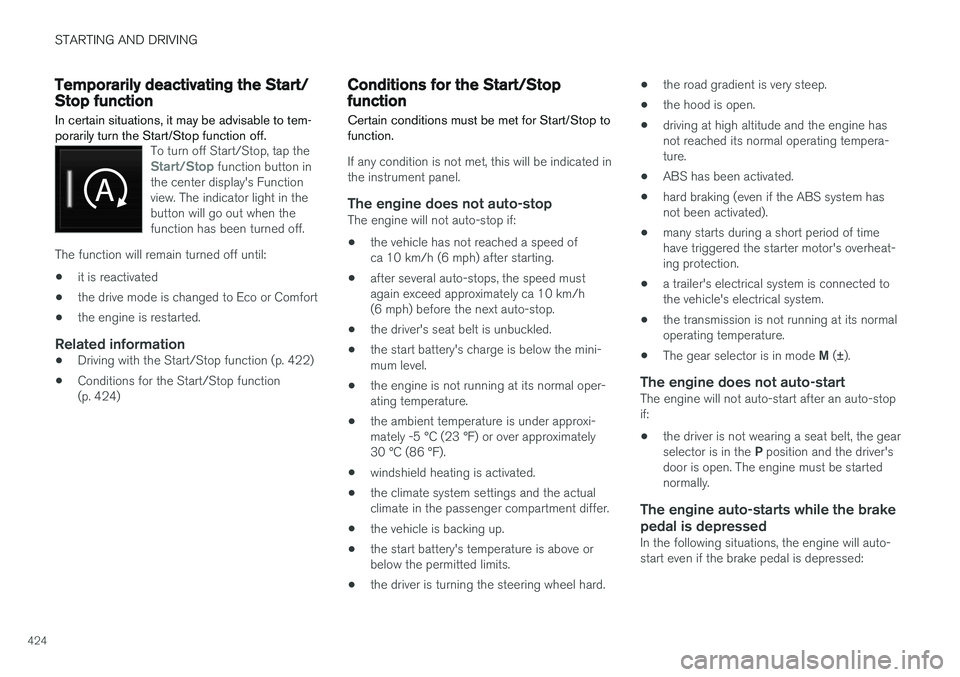
To turn off Start/Stop, tap theStart/Stop function button in
the center display's Function view. The indicator light in thebutton will go out when thefunction has been turned off.
The function will remain turned off until:
• it is reactivated
• the drive mode is changed to Eco or Comfort
• the engine is restarted.
Related information
•
Driving with the Start/Stop function (p. 422)
• Conditions for the Start/Stop function (p. 424)
Conditions for the Start/Stopfunction Certain conditions must be met for Start/Stop to function.
If any condition is not met, this will be indicated in the instrument panel.
The engine does not auto-stopThe engine will not auto-stop if: •
the vehicle has not reached a speed of ca 10 km/h (6 mph) after starting.
• after several auto-stops, the speed mustagain exceed approximately ca 10 km/h(6 mph) before the next auto-stop.
• the driver's seat belt is unbuckled.
• the start battery's charge is below the mini-mum level.
• the engine is not running at its normal oper-ating temperature.
• the ambient temperature is under approxi-mately -5 °C (23 °F) or over approximately30 °C (86 °F).
• windshield heating is activated.
• the climate system settings and the actualclimate in the passenger compartment differ.
• the vehicle is backing up.
• the start battery's temperature is above orbelow the permitted limits.
• the driver is turning the steering wheel hard. •
the road gradient is very steep.
• the hood is open.
• driving at high altitude and the engine hasnot reached its normal operating tempera-ture.
• ABS has been activated.
• hard braking (even if the ABS system hasnot been activated).
• many starts during a short period of timehave triggered the starter motor's overheat-ing protection.
• a trailer's electrical system is connected tothe vehicle's electrical system.
• the transmission is not running at its normaloperating temperature.
• The gear selector is in mode
M (±).
The engine does not auto-startThe engine will not auto-start after an auto-stopif: • the driver is not wearing a seat belt, the gear selector is in the
P position and the driver's
door is open. The engine must be started normally.
The engine auto-starts while the brake
pedal is depressed
In the following situations, the engine will auto-start even if the brake pedal is depressed:
Page 433 of 660
STARTING AND DRIVING
* Option/accessory.431
Hill Descent Control *
The function for assisting when driving downhill, Hill Descent Control (HDC), is a low-speedfunction with increased engine braking. Thefunction makes it possible to increase ordecrease the vehicle's speed on steep downhillgradients by only using the accelerator pedal,without applying the brakes. In vehicles equipped with drive mode control *,
the function is included in the Off Road drive mode.
HDC is designed for driving on rough roads at low speeds and downhill gradients with slipperyor otherwise difficult road surfaces. The driverdoes not need to use the brake pedal but caninstead focus on steering.
WARNING
HDC is only intended to be a supplementary braking aid and it does not function in all sit-uations. The driver is always ultimately responsible for operating the vehicle in a safe manner.
FunctionHill Descent Control allows the vehicle to move forward or backward at very low speeds assistedby the brake system. The driver can increase thespeed by pressing the accelerator pedal. Whenthe accelerator pedal is released, the vehicle will return to very low speed regardless of how steepthe hill is and without the brakes needing to beapplied. The brake lights will illuminate when thefunction is activated. The driver can brake to stop or slow the vehicle at any time by depressing the brake pedal. HDC is activated along with Low Speed Control (LSC), which facilitates and improves traction andcontrol on rough and slippery surfaces. The sys-tem is intended to be used at low speeds, up toapproximately 40 km/h (25 mph).
To keep in mind when using HDC
•
If the function is switched off while driving ona steep downhill gradient, braking effect willbe gradually reduced.
• HDC can be used in gear positions
D and R,
and in manual gears 1 or 2.
• It is not possible to manually shift to thirdgear or higher when HDC is active.
NOTE
When LSC with HDC is activated, the feel of the accelerator pedal and engine responsewill change.
NOTE
This drive mode is not designed to be used for normal street driving.
NOTE
The function is deactivated when driving at high speeds and must be reactivated at lowerspeeds if so desired.
Related information
• Activating and deactivating Hill Descent Con- trol
* using the function button (p. 432)
• Changing drive mode
* (p. 419)
• Low Speed Control
* (p. 429)
• All Wheel Drive (AWD)
* (p. 417)
Page 471 of 660
AUDIO, MEDIA AND INTERNET
469
Selecting sub-channels
To listen to a station's sub-channel(s), tap the station on the screen or press the forward/backarrow keys on the right-side steering wheel key-pad or below the screen. Sub-channels can also be saved as radio favor- ites. If you tap a sub-channel favorite, it may take up to 6 seconds before the channel becomes audi-
ble. If you tap a station while you are out of digital range of the transmitter,
No reception will be
displayed.
Related information
• HD Radio
™ (p. 466)
• Activating and deactivating the HD Radio
™
(p. 468)
• Changing waveband and radio station (p. 463)
• Searching for a radio station (p. 464)
• HD Radio
™ limitations (p. 469)
HD Radio™ limitations
Limitations
• Main channel vs. sub-channels (FM only)
:
The main channel is the only channel that can receive in hybrid mode (both digital andanalog). If a frequency has sub-channels,they are broadcast in digital mode only. Themain FM channel will be displayed as, forexample, "WRIF-FM HD1". The sub-FMchannels will be displayed as"WRIF-FMHD2", "WRIF-FM HD3", etc.
• Reception coverage area
: Due to current
IBOC transmitter power limitations, thereception coverage area in digital mode issomewhat more limited than the station'sanalog coverage area. Be aware that, like allradio transmission technology, terrain, time ofday, vegetation and buildings can have apositive or negative effect on radio reception.
• Analog to digital/digital to analog blend-ing
: Analog to digital blending will occur as
the signal strength reaches a preset thresh-old in the receiver. This will be noticeable infringe areas (areas with weak reception) andis normal.
NOTE
There may be a noticeable difference in sound quality when a change from analogueto digital or digital to analogue occurs, suchas:
• Volume increase or decrease
• Equalizer settings, i.e., Bass/ Midrange/Treble cut or boost
• Time alignment (Digital program materialin extreme cases can be as much as 8seconds behind the analogue). This willnoticeable as a "stuttering" effect.
The above items are dependant on thebroadcaster's equipment settings and donot indicate a fault in the vehicle's radioreceiver or antenna systems .
Related information
•HD Radio
™ (p. 466)
• Activating and deactivating the HD Radio
™
(p. 468)
• HD Radio
™
sub-channels (p. 468)
Page 495 of 660
AUDIO, MEDIA AND INTERNET
}}
493
•
Connecting a phone to the car via Bluetooth automatically (p. 495)
• Connecting a phone to the car via Bluetoothmanually (p. 495)
• Disconnecting a Bluetooth-connected phone(p. 496)
• Switch between phones connected via Blue-tooth (p. 496)
• Removing a Bluetooth-connected phone(p. 497)
• Phone settings (p. 500)
• Voice control (p. 143)
• Handling the App menu in the instrumentpanel (p. 101)
• Sound settings (p. 458)
• Connecting the car to the Internet via amobile device (Bluetooth) (p. 503)
Connecting a phone to the car viaBluetooth for the first time
Pair a Bluetooth-enabled phone to the vehicle to make calls, send/receive text messages andwirelessly play media from the vehicle, or con-nect the vehicle to the Internet.
Two Bluetooth devices can be connected at the same time, but in that case, only one will be usedfor wireless playback. The most recently pairedphone will be automatically connected to makecalls, send/receive text messages, play media oruse as an Internet connection. To change whatthe phone is used for when it is paired, go to
Bluetooth Devices settings.
After the device has been connected/registered for the first time via Bluetooth, the device nolonger needs to be visible/searchable. It justneeds to have Bluetooth activated. To connectthe vehicle to the Internet using a phone, thephone's Wi-Fi sharing function (personal hot-spot/tethering) must be activated. A maximum of20 paired Bluetooth devices can be stored in thevehicle. There are two ways to pair a phone to the vehicle. Searching for the phone from the vehicle orsearching for the vehicle from the phone.
Option 1 - searching for the phone from the vehicle
1. Make the phone discoverable/visible using its Bluetooth function. 2. To connect the vehicle to the Internet via the
phone's Bluetooth function, activate Internetsharing (tethering/personal hotspot) viaBluetooth in the phone.
3. Open the phone tile.
•If no phone has been paired to the vehi- cle, tap
Add phone.
• If a phone has been paired to the vehicle, tap
Change. Tap Add phone in the
pop-up window.
> A list of available Bluetooth devices will be displayed. The list will be updated as new devices are discovered.
4. Tap the name of the phone you would like to connect.
5. Make sure that the code displayed in the vehicle matches the one in the phone. Con-firm the code in both cases.
6. In the phone, accept or cancel the options for selecting the phone's contacts and textmessages.
NOTE
• The message function must be activated in certain phones.
• Not all cell phones are fully compatibleand may not be able to display contactsand messages in the vehicle.
Page 498 of 660
AUDIO, MEDIA AND INTERNET
496•
Settings for Bluetooth devices (p. 501)
• Connecting the car to the Internet via a
mobile device (Bluetooth) (p. 503)
Disconnecting a Bluetooth-connected phone Disconnect a Bluetooth-connected phone from the vehicle by deactivating Bluetooth in thephone.
When the phone is out of range of the vehicle, it will be automatically disconnected. If a call is inprogress when the phone is disconnected fromthe vehicle, the call will be transferred from thevehicle's speakers and microphone to the cellularphone.
Related information
•Phone (p. 492)
• Phone settings (p. 500)
• Switch between phones connected via Blue-tooth (p. 496)
• Removing a Bluetooth-connected phone(p. 497)
• Settings for Bluetooth devices (p. 501)
Switch between phones connectedvia Bluetooth
It is possible to switch between Bluetooth-con- nected phones.
1. Open the phone tile. 2. Tap
Change or pull down Top view and
tap
SettingsCommunication
Bluetooth DevicesAdd device.
> A list of available Bluetooth devices will be displayed.
3. Tap the name of the phone you would like to connect.
Related information
• Phone (p. 492)
• Connecting a phone to the car via Bluetooth for the first time (p. 493)
• Settings for Bluetooth devices (p. 501)
• Disconnecting a Bluetooth-connected phone(p. 496)
• Removing a Bluetooth-connected phone(p. 497)