save itinerary VOLVO XC60 2021 Sensus Navigation Manual
[x] Cancel search | Manufacturer: VOLVO, Model Year: 2021, Model line: XC60, Model: VOLVO XC60 2021Pages: 47, PDF Size: 0.69 MB
Page 8 of 47
NAVIGATION
* Option/accessory.
6
Information cards in the navigation system *
All icons on the map, such as destinations, waypoints and stored favorites, have an infor-mation card that can be opened by tappingthe icon.
Press the information card once to display a small card, and press twice to display a largercard with more information. The informationand possible options vary depending on thetype of icon. For example, when a POI( 2
) is highlighted, the
driver can select e.g.:
Start navigation - save the location as a
destination
Add as waypoint - the position is saved
as an intermediate destination (only dis- played at the specified destination)
Save - the position is saved in the library
Remove from itinerary - the position is
removed if it is included in the itinerary
Nearby POI - points of interest close to
the car's position are shown
Related information
Itinerary (p. 19)
Entering a POI as a destination (p. 16)
Viewing points of interest along the route (p. 20)
Navigation system
* in center
display
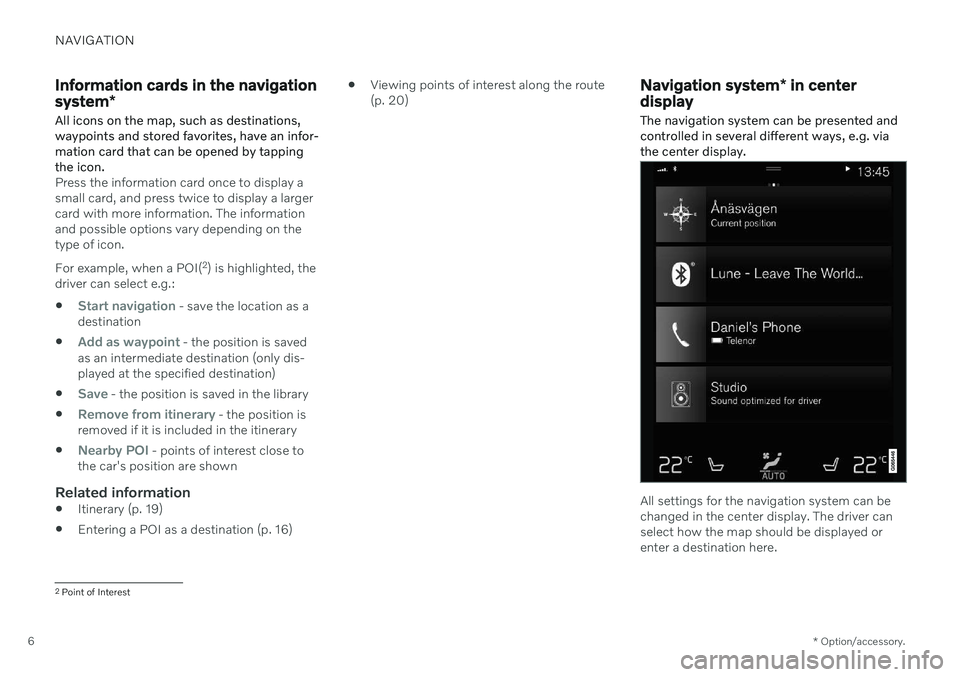
The navigation system can be presented and controlled in several different ways, e.g. viathe center display.
All settings for the navigation system can be changed in the center display. The driver canselect how the map should be displayed orenter a destination here.
2 Point of Interest
Page 19 of 47
NAVIGATION
}}
* Option/accessory.17
Entering a destination using Recent/Favorites/Library
A destination can be specified in different ways in the navigation system * - selecting
from a list is one of them.
1. When the map appears, expand the tool- bar using the down arrow on the left-hand side and tap
Set dest.
> The map will switch to free text search.
2. Select one of these lists at the top of the screen:
Recent
Favorites
Library
After an option in a list has been marked, it can be added as a destination by tapping either the
Start navigation or Add as
waypoint button.
Recent
This is a list of previous searches. Scroll through the list and select. This is also available as a menu option in the instrument panel and can be displayed usingthe right-side steering wheel keypad. Use
Edit to delete one or more items in the
list.
Favorites
This is a list of the locations from the Librarythat have been set as favorites. Scroll through the list and select. A position that has been deleted in
Favoriteswill remain in Library, but with a grayed-out
star. To return a position to Favorites, go toLibrary and mark the position's star again.
Use
Set Home address to program a fre-
quently used destination. An entered Homedestination is also available as a menu option in the instrument panel and can be displayedusing the right-side steering wheel keypad. Use
Edit to delete one or more items in the
list.
Library
This is a list of saved locations and itineraries. The most recently saved will be shown at thetop of the list. Tap the location's star to select/deselect it as a favorite. A location with a selected (filled in) star will also be displayed under the
Favoritesheading. If a location is deleted in
Library, it will also be
deleted in Favorites. The Library can be sorted in various ways:
Added - sort in chronological order.
Name - sort in alphabetical order.
Distance - sort according to distance
from the vehicle's current location.
Received - locations sent to the vehicle
using the Send to Car function will be fil- tered out. New unread locations have aBLUE marker that is grayed out once thepositions have been read.
Use
Edit to delete one or more items in the
list. To edit a stored location in
Library, mark the
location in the list and select Edit position.
You can, for example, change the name of the location, move it on the map by dragging anddropping it, or add a phone number or emailaddress.
Related information
Itinerary (p. 19)
Entering a destination directly on the map(p. 13)
Entering a destination using an address(p. 14)
Entering a destination with a free textsearch (p. 15)
Entering a POI as a destination (p. 16)
Page 20 of 47
NAVIGATION
* Option/accessory.
18
Entering a destination with Send to Car (p. 18)
Route settings and guidance (p. 25)
Entering a destination with Send to Car
A destination can be specified in different ways in the navigation system * – using the
Send to Car function is one of them.
Send destination to the vehicleSend to Car is a function that enables you to send a destination/location to the vehicle'snavigation system via Volvo On Call. To use Send to Car, a Volvo ID must be regis- tered to the vehicle.
Receiving and using a destination in
the vehicle
In order for the vehicle to receive data, it mustbe connected to the Internet.
1. When the vehicle has received a destina- tion, a notification will appear in the center display. Tap the notification/symbol.
> An information card will open.
2. Select how you would like to use the des- tination.
Using a saved destination
Received destinations are saved in the naviga- tion system's library for later use.
Related information
Itinerary (p. 19)
Entering a destination directly on the map (p. 13)
Entering a destination using an address (p. 14)
Entering a destination with a free textsearch (p. 15)
Entering a POI as a destination (p. 16)
Entering a destination using Recent/Favorites/Library (p. 17)
Route settings and guidance (p. 25)