light VOLVO XC60 T8 2018 Owner´s Manual
[x] Cancel search | Manufacturer: VOLVO, Model Year: 2018, Model line: XC60 T8, Model: VOLVO XC60 T8 2018Pages: 674, PDF Size: 11.93 MB
Page 121 of 674
DISPLAYS AND VOICE CONTROL
119
Button modes
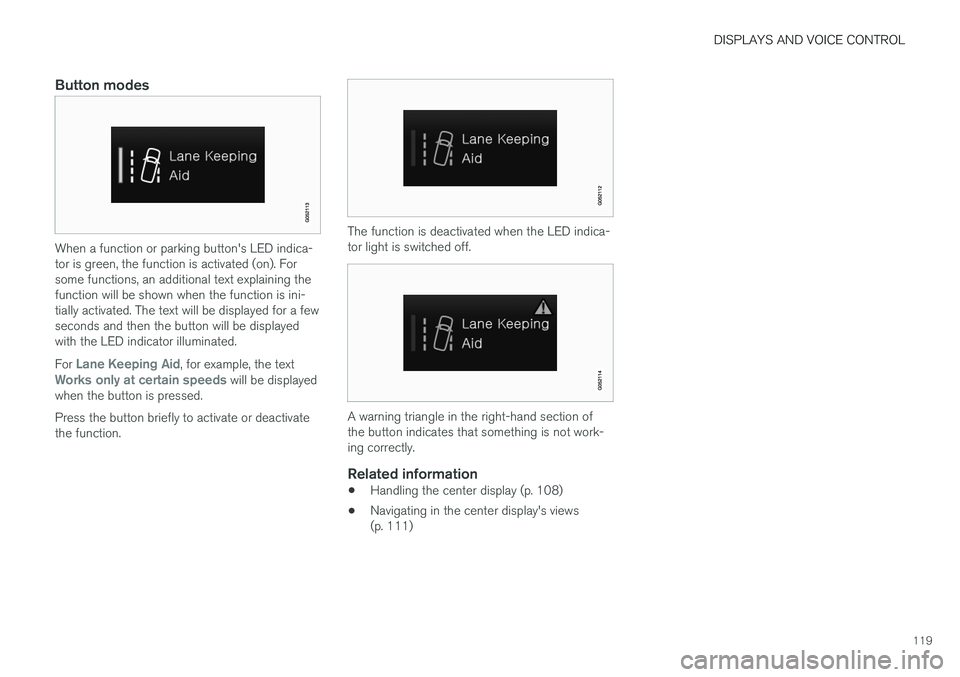
When a function or parking button's LED indica- tor is green, the function is activated (on). Forsome functions, an additional text explaining thefunction will be shown when the function is ini-tially activated. The text will be displayed for a fewseconds and then the button will be displayedwith the LED indicator illuminated. For
Lane Keeping Aid, for example, the textWorks only at certain speeds will be displayed
when the button is pressed. Press the button briefly to activate or deactivate the function.
The function is deactivated when the LED indica- tor light is switched off.
A warning triangle in the right-hand section of the button indicates that something is not work-ing correctly.
Related information
• Handling the center display (p. 108)
• Navigating in the center display's views (p. 111)
Page 122 of 674
DISPLAYS AND VOICE CONTROL
120
Moving apps and buttons in thecenter display
The apps and buttons for vehicle functions can be moved and organized in the App and Func-tion views.
1. Swipe from right to left 8
to access App view
or swipe from left to right 8
to access Func-
tion view.
2. Press and hold an app or button. > The app or button will change size andbecome slightly transparent. It can then be moved.
3. Drag the app or button to an available posi- tion in the view.
A maximum of 48 rows can be used to positionapps or buttons. To move an app or button out-side the visible view, drag it to the bottom of theview. New rows will be added and the app or but-ton can be placed in one of these. Apps or buttons placed below the view's normal display will not be visible on the screen. Swipe the screen to scroll up or down in the view to display information outside the view.
NOTE
Hide the apps that are rarely or never used by moving them far down, outside of the visibleview. This makes it easier to find the appsused more frequently.
NOTE
Apps and vehicle function buttons cannot be situated at spots already in use.
Related information
• Function view in the center display (p. 118)
• Apps (p. 477)
• Handling the center display (p. 108)
Symbols in the center display statusbar
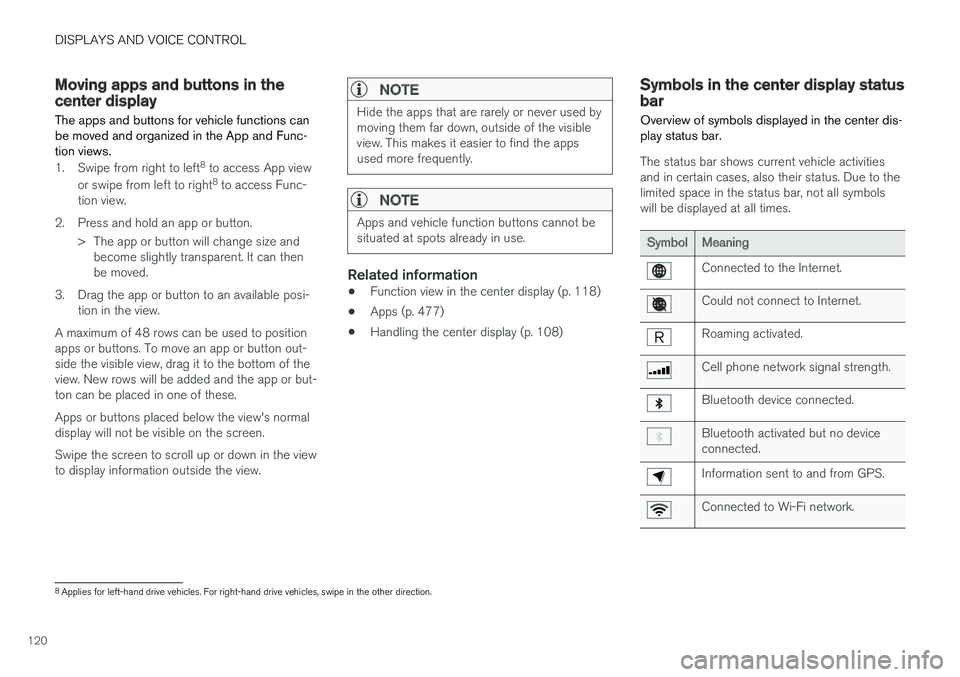
Overview of symbols displayed in the center dis- play status bar.
The status bar shows current vehicle activities and in certain cases, also their status. Due to thelimited space in the status bar, not all symbolswill be displayed at all times.
SymbolMeaning
Connected to the Internet.
Could not connect to Internet.
Roaming activated.
Cell phone network signal strength.
Bluetooth device connected.
Bluetooth activated but no device connected.
Information sent to and from GPS.
Connected to Wi-Fi network.
8 Applies for left-hand drive vehicles. For right-hand drive vehicles, swipe in the other direction.
Page 129 of 674
DISPLAYS AND VOICE CONTROL
127
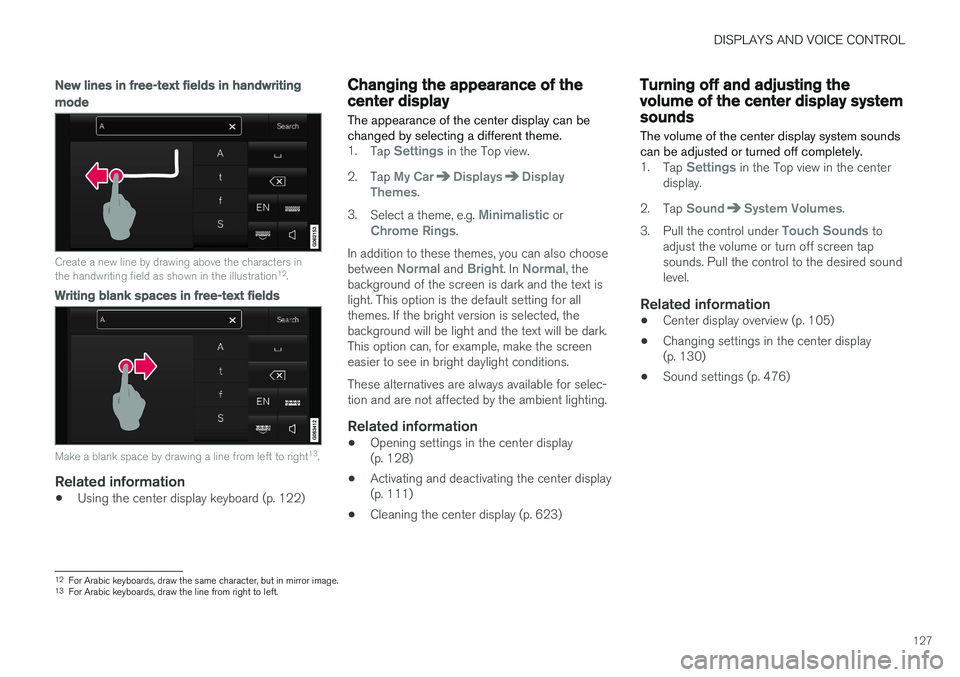
New lines in free-text fields in handwriting
mode
Create a new line by drawing above the characters in the handwriting field as shown in the illustration12
.
Writing blank spaces in free-text fields
Make a blank space by drawing a line from left to right 13
.
Related information
• Using the center display keyboard (p. 122)
Changing the appearance of thecenter display
The appearance of the center display can be changed by selecting a different theme.
1. Tap Settings in the Top view.
2. Tap
My CarDisplaysDisplay
Themes.
3. Select a theme, e.g.
Minimalistic orChrome Rings.
In addition to these themes, you can also choose between
Normal and Bright. In Normal, the
background of the screen is dark and the text is light. This option is the default setting for allthemes. If the bright version is selected, thebackground will be light and the text will be dark.This option can, for example, make the screeneasier to see in bright daylight conditions. These alternatives are always available for selec- tion and are not affected by the ambient lighting.
Related information
• Opening settings in the center display(p. 128)
• Activating and deactivating the center display(p. 111)
• Cleaning the center display (p. 623)
Turning off and adjusting thevolume of the center display systemsounds
The volume of the center display system sounds can be adjusted or turned off completely.
1. Tap Settings in the Top view in the center
display.
2. Tap
SoundSystem Volumes.
3. Pull the control under
Touch Sounds to
adjust the volume or turn off screen tap sounds. Pull the control to the desired soundlevel.
Related information
• Center display overview (p. 105)
• Changing settings in the center display(p. 130)
• Sound settings (p. 476)
12
For Arabic keyboards, draw the same character, but in mirror image.
13 For Arabic keyboards, draw the line from right to left.
Page 134 of 674
||
DISPLAYS AND VOICE CONTROL
* Option/accessory.
132
Type ofsettingDescription
Slider Select a level for a function by pressing and dragging the slider control, e.g. to set volume level.
Informa-tion dis-play This is not an actual setting, butinstead displays information suchas the vehicle's VIN number.
Related information
•
Center display overview (p. 105)
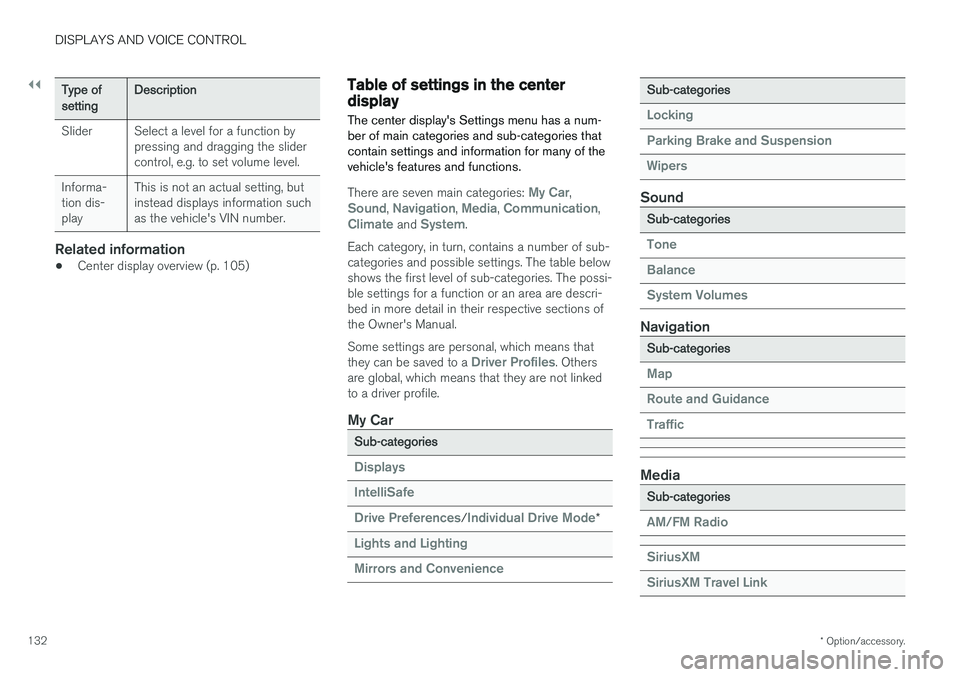
Table of settings in the centerdisplay The center display's Settings menu has a num- ber of main categories and sub-categories thatcontain settings and information for many of thevehicle's features and functions.
There are seven main categories: My Car,Sound, Navigation, Media, Communication,Climate and System.
Each category, in turn, contains a number of sub- categories and possible settings. The table belowshows the first level of sub-categories. The possi-ble settings for a function or an area are descri-bed in more detail in their respective sections ofthe Owner's Manual. Some settings are personal, which means that they can be saved to a
Driver Profiles. Others
are global, which means that they are not linked to a driver profile.
My Car
Sub-categories
Displays IntelliSafe Drive Preferences
/Individual Drive Mode*
Lights and Lighting Mirrors and Convenience
Sub-categories
Locking Parking Brake and SuspensionWipers
Sound
Sub-categories
Tone BalanceSystem Volumes
Navigation
Sub-categories
Map Route and GuidanceTraffic
Media
Sub-categories
AM/FM Radio SiriusXM SiriusXM Travel Link
Page 141 of 674
DISPLAYS AND VOICE CONTROL
* Option/accessory.139
NOTE
The driver's ability to see information in the head-up display may be impeded by:
• the use of polarizing sunglasses
• a driving posture in which the driver is notcentered in the seat
• objects on the display unit's glass cover
• unfavorable lighting conditions.
CAUTION
The information is projected from a display unit located in the dashboard. To help preventdamage to the display unit's glass cover, donot place any objects on the glass and pre-vent objects from falling onto it.
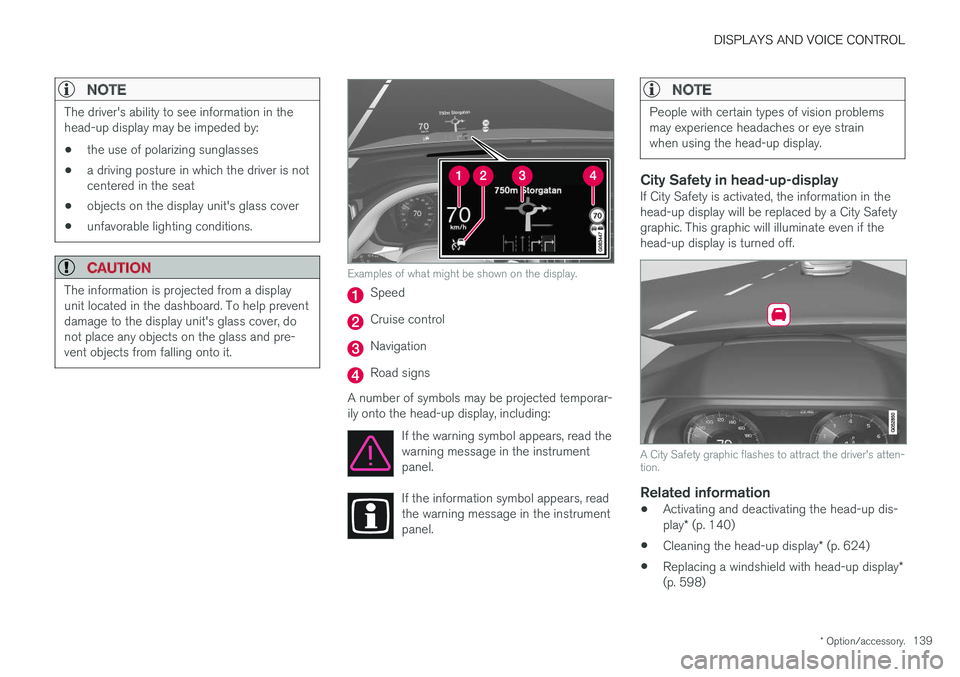
Examples of what might be shown on the display.
Speed
Cruise control
Navigation
Road signs
A number of symbols may be projected temporar- ily onto the head-up display, including: If the warning symbol appears, read thewarning message in the instrumentpanel.
If the information symbol appears, read the warning message in the instrumentpanel.
NOTE
People with certain types of vision problems may experience headaches or eye strainwhen using the head-up display.
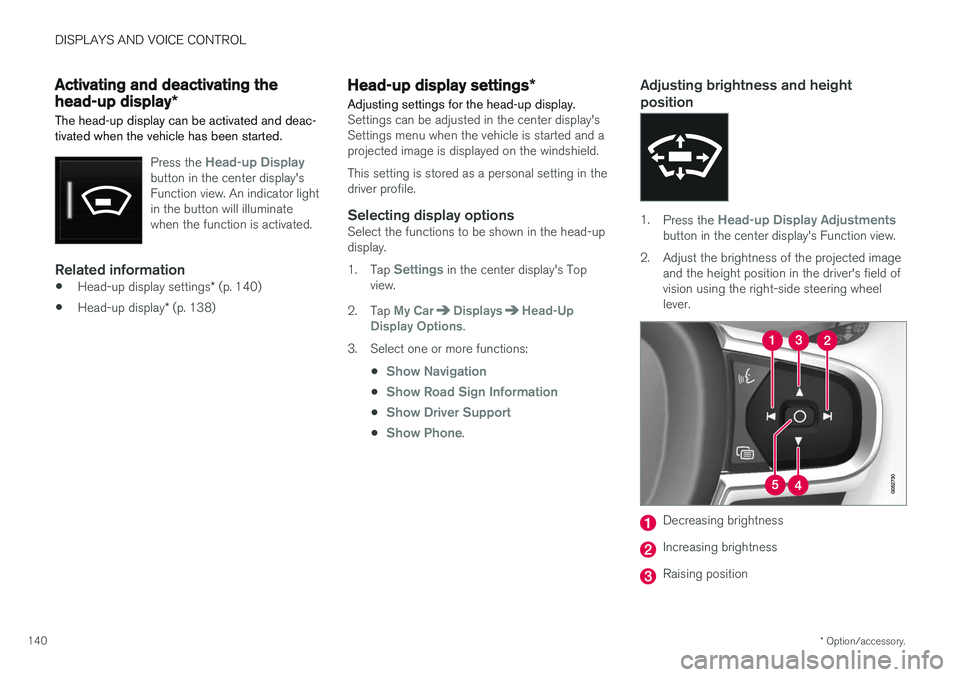
City Safety in head-up-displayIf City Safety is activated, the information in the head-up display will be replaced by a City Safety graphic. This graphic will illuminate even if the head-up display is turned off.
A City Safety graphic flashes to attract the driver's atten- tion.
Related information
•Activating and deactivating the head-up dis- play
* (p. 140)
• Cleaning the head-up display
* (p. 624)
• Replacing a windshield with head-up display
*
(p. 598)
Page 142 of 674
DISPLAYS AND VOICE CONTROL
* Option/accessory.
140
Activating and deactivating the
head-up display *
The head-up display can be activated and deac- tivated when the vehicle has been started.
Press the Head-up Displaybutton in the center display's Function view. An indicator lightin the button will illuminatewhen the function is activated.
Related information
• Head-up display settings
* (p. 140)
• Head-up display
* (p. 138)
Head-up display settings *
Adjusting settings for the head-up display.
Settings can be adjusted in the center display's Settings menu when the vehicle is started and aprojected image is displayed on the windshield. This setting is stored as a personal setting in the driver profile.
Selecting display optionsSelect the functions to be shown in the head-updisplay. 1. Tap
Settings in the center display's Top
view.
2. Tap
My CarDisplaysHead-Up
Display Options.
3. Select one or more functions:
•
Show Navigation
•Show Road Sign Information
•Show Driver Support
•Show Phone.
Adjusting brightness and height position
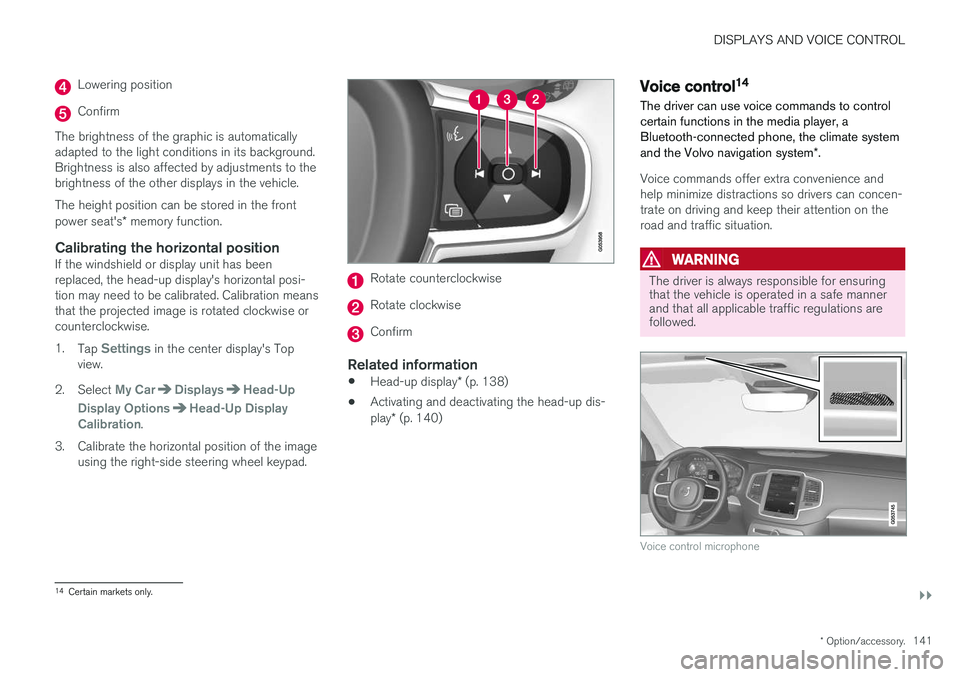
1.Press the Head-up Display Adjustmentsbutton in the center display's Function view.
2. Adjust the brightness of the projected image and the height position in the driver's field of vision using the right-side steering wheellever.
Decreasing brightness
Increasing brightness
Raising position
Page 143 of 674
DISPLAYS AND VOICE CONTROL
}}
* Option/accessory.141
Lowering position
Confirm
The brightness of the graphic is automatically adapted to the light conditions in its background.Brightness is also affected by adjustments to thebrightness of the other displays in the vehicle. The height position can be stored in the front power seat's * memory function.
Calibrating the horizontal positionIf the windshield or display unit has been replaced, the head-up display's horizontal posi-tion may need to be calibrated. Calibration meansthat the projected image is rotated clockwise orcounterclockwise. 1.
Tap
Settings in the center display's Top
view.
2. Select
My CarDisplaysHead-Up
Display Options
Head-Up Display
Calibration.
3. Calibrate the horizontal position of the image using the right-side steering wheel keypad.
Rotate counterclockwise
Rotate clockwise
Confirm
Related information
• Head-up display
* (p. 138)
• Activating and deactivating the head-up dis- play
* (p. 140)
Voice control14
The driver can use voice commands to control certain functions in the media player, aBluetooth-connected phone, the climate system and the Volvo navigation system *.
Voice commands offer extra convenience and help minimize distractions so drivers can concen-trate on driving and keep their attention on theroad and traffic situation.
WARNING
The driver is always responsible for ensuring that the vehicle is operated in a safe mannerand that all applicable traffic regulations arefollowed.
Voice control microphone
14
Certain markets only.
Page 150 of 674
LIGHTING
* Option/accessory.
148
Lighting panel and controls
The lighting panel and controls can be used to adjust both exterior and interior lighting. Thelighting ring on the left-side steering wheel levercan be used to activate and adjust the exteriorlighting. The brightness of the interior lightingcan be adjusted using the thumb wheel on thedashboard.
Exterior lighting
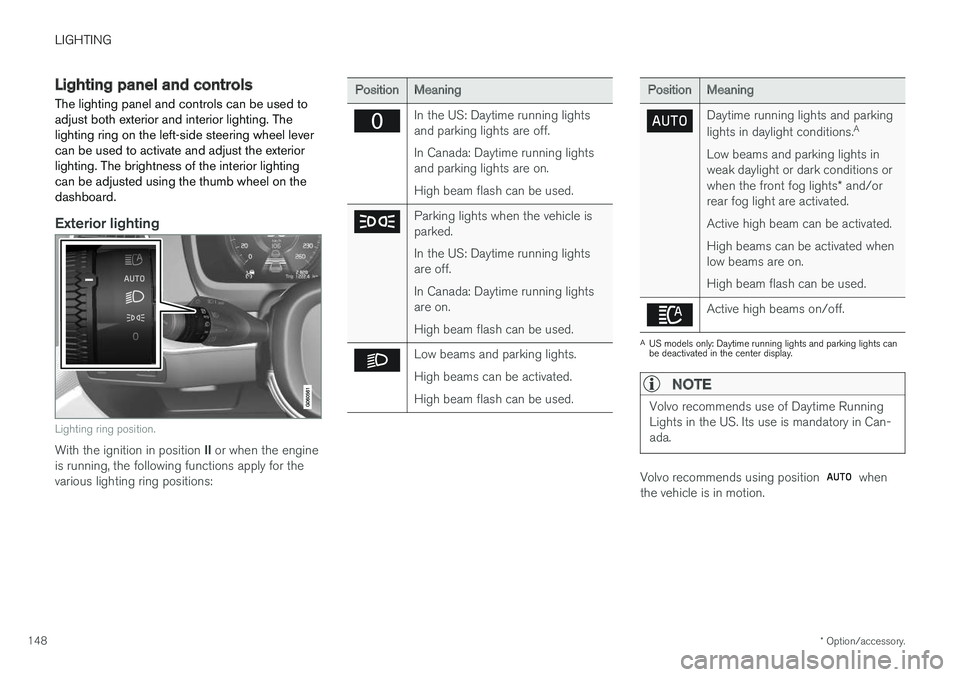
Lighting ring position.
With the ignition in position II or when the engine
is running, the following functions apply for the various lighting ring positions:
PositionMeaning
In the US: Daytime running lights and parking lights are off. In Canada: Daytime running lights and parking lights are on. High beam flash can be used.
Parking lights when the vehicle is parked. In the US: Daytime running lights are off. In Canada: Daytime running lights are on. High beam flash can be used.
Low beams and parking lights. High beams can be activated.High beam flash can be used.
PositionMeaning
Daytime running lights and parking lights in daylight conditions. A
Low beams and parking lights in weak daylight or dark conditions or when the front fog lights * and/or
rear fog light are activated. Active high beam can be activated.High beams can be activated when low beams are on. High beam flash can be used.
Active high beams on/off.
A US models only: Daytime running lights and parking lights can be deactivated in the center display.
NOTE
Volvo recommends use of Daytime Running Lights in the US. Its use is mandatory in Can-ada.
Volvo recommends using position when
the vehicle is in motion.
Page 151 of 674
LIGHTING
* Option/accessory.149
WARNING
The vehicle lighting system cannot in all situa- tions determine when the daylight is too weakor not strong enough, e.g. when there is fogor rain. The driver is always responsible for driving the vehicle with lighting that is safe for the trafficconditions and as specified by applicable traf-fic regulations.
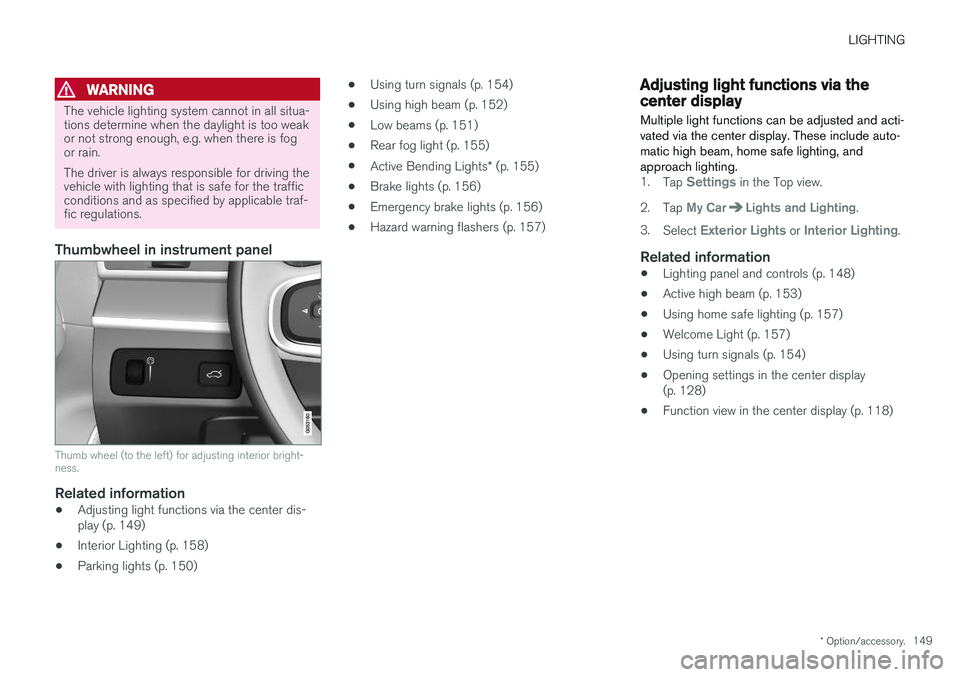
Thumbwheel in instrument panel
Thumb wheel (to the left) for adjusting interior bright- ness.
Related information
•Adjusting light functions via the center dis- play (p. 149)
• Interior Lighting (p. 158)
• Parking lights (p. 150) •
Using turn signals (p. 154)
• Using high beam (p. 152)
• Low beams (p. 151)
• Rear fog light (p. 155)
• Active Bending Lights
* (p. 155)
• Brake lights (p. 156)
• Emergency brake lights (p. 156)
• Hazard warning flashers (p. 157)
Adjusting light functions via thecenter display
Multiple light functions can be adjusted and acti- vated via the center display. These include auto-matic high beam, home safe lighting, andapproach lighting.
1. Tap Settings in the Top view.
2. Tap
My CarLights and Lighting.
3. Select
Exterior Lights or Interior Lighting.
Related information
• Lighting panel and controls (p. 148)
• Active high beam (p. 153)
• Using home safe lighting (p. 157)
• Welcome Light (p. 157)
• Using turn signals (p. 154)
• Opening settings in the center display (p. 128)
• Function view in the center display (p. 118)
Page 152 of 674
LIGHTING
150
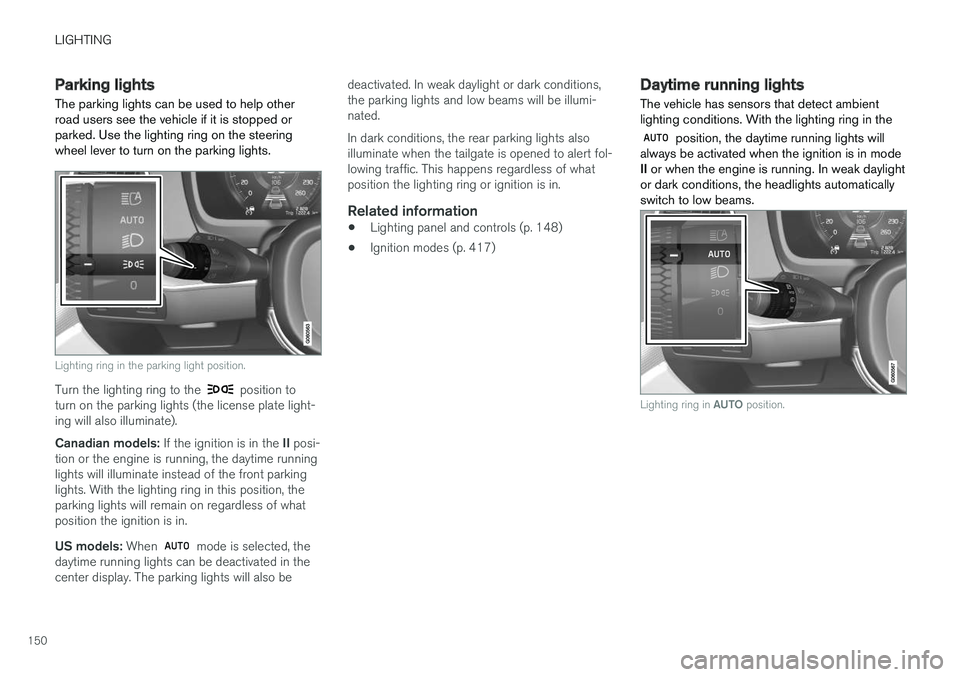
Parking lights The parking lights can be used to help other road users see the vehicle if it is stopped orparked. Use the lighting ring on the steeringwheel lever to turn on the parking lights.
Lighting ring in the parking light position.
Turn the lighting ring to the position to
turn on the parking lights (the license plate light- ing will also illuminate). Canadian models: If the ignition is in the II posi-
tion or the engine is running, the daytime running lights will illuminate instead of the front parkinglights. With the lighting ring in this position, theparking lights will remain on regardless of whatposition the ignition is in. US models: When
mode is selected, the
daytime running lights can be deactivated in the center display. The parking lights will also be deactivated. In weak daylight or dark conditions,the parking lights and low beams will be illumi-nated. In dark conditions, the rear parking lights also illuminate when the tailgate is opened to alert fol-lowing traffic. This happens regardless of whatposition the lighting ring or ignition is in.
Related information
•
Lighting panel and controls (p. 148)
• Ignition modes (p. 417)
Daytime running lights The vehicle has sensors that detect ambient lighting conditions. With the lighting ring in the
position, the daytime running lights will
always be activated when the ignition is in mode II or when the engine is running. In weak daylight
or dark conditions, the headlights automaticallyswitch to low beams.
Lighting ring in AUTO position.