lock VOLVO XC60 TWIN ENGINE 2020 Owner's Manual
[x] Cancel search | Manufacturer: VOLVO, Model Year: 2020, Model line: XC60 TWIN ENGINE, Model: VOLVO XC60 TWIN ENGINE 2020Pages: 687, PDF Size: 14.65 MB
Page 82 of 687
SAFETY
* Option/accessory.
80
Folding up the integrated booster cushion *
When the integrated booster cushion is used, it must be folded up.
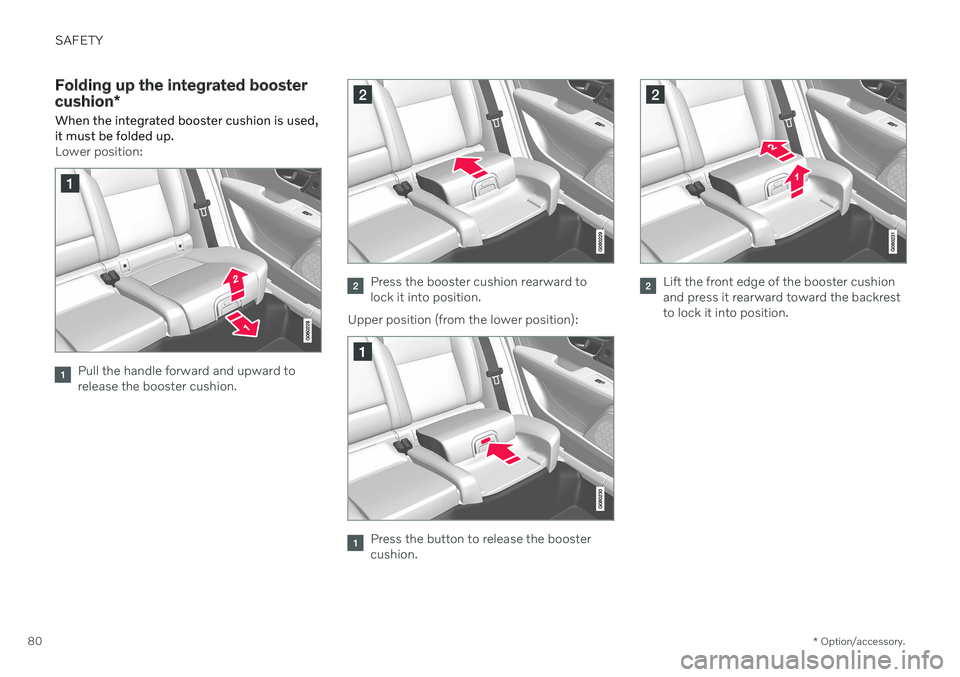
Lower position:
Pull the handle forward and upward to release the booster cushion.
Press the booster cushion rearward to lock it into position.
Upper position (from the lower position):
Press the button to release the booster cushion.
Lift the front edge of the booster cushion and press it rearward toward the backrestto lock it into position.
Page 83 of 687

SAFETY
}}
* Option/accessory.81
WARNING
DEATH or SERIOUS INJURY can occur
Follow all instructions on this child restraint and in the vehi-cle's owner's manual.
Make sure the booster cushionis securely locked before thechild is seated.
Use this booster cushion only with chil- dren whose height and weight arewithin the permitted limits shown inthe table.
Use only the vehicle's lap and shoulderbelt system when restraining the childin this booster cushion.
In the event of a collision while theintegrated booster cushion was occu-pied, the entire booster cushion andseat belt must be replaced. Thebooster cushion should also bereplaced if it is badly worn or damagedin any way. This work should be per-formed by a trained and qualified Volvoservice technician only.
NOTE
The integrated booster cushion cannot be moved directly from the upper position tothe lower position. From the upper posi-tion, the booster cushion must first befolded down completely into the rear seatand then raised to the lower position.
Related information
Integrated booster cushion
* (p. 78)
Folding down the integrated booster cushion
* (p. 81)
Folding down the integrated booster cushion *
When the integrated booster cushion in the rear seat is not in use, it should be stowed(folded down).
NOTE
The integrated booster cushion cannot be moved directly from the upper position tothe lower position. From the upper posi-tion, the booster cushion must first befolded down completely into the rear seatand then raised to the lower position.
Pull the handle forward to release the booster cushion.
Page 84 of 687
||
SAFETY
* Option/accessory.
82
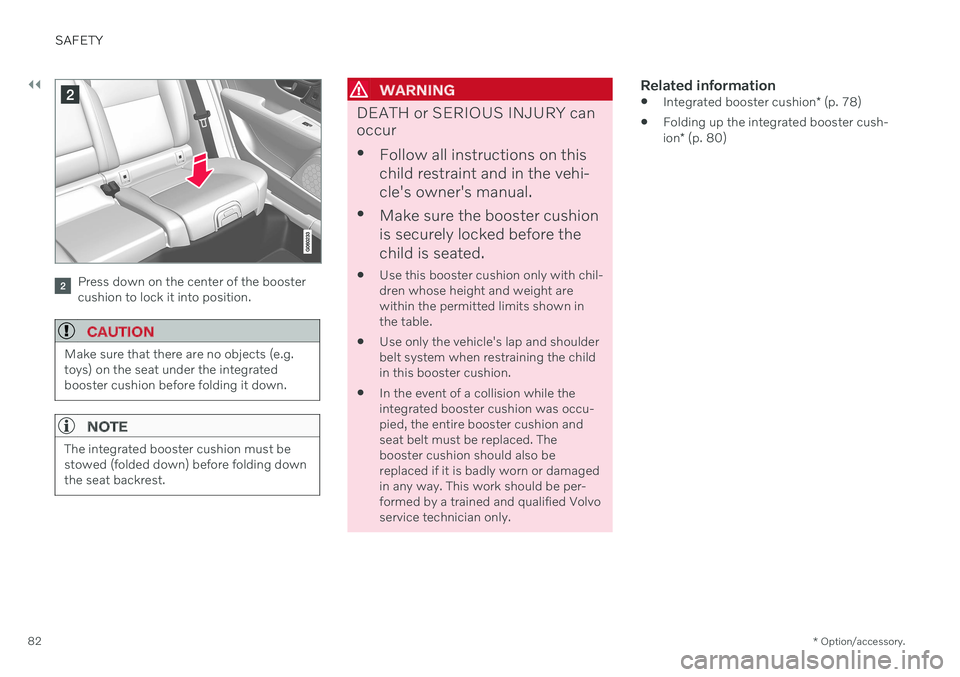
Press down on the center of the booster cushion to lock it into position.
CAUTION
Make sure that there are no objects (e.g. toys) on the seat under the integratedbooster cushion before folding it down.
NOTE
The integrated booster cushion must be stowed (folded down) before folding downthe seat backrest.
WARNING
DEATH or SERIOUS INJURY can occur
Follow all instructions on this child restraint and in the vehi-cle's owner's manual.
Make sure the booster cushionis securely locked before thechild is seated.
Use this booster cushion only with chil- dren whose height and weight arewithin the permitted limits shown inthe table.
Use only the vehicle's lap and shoulderbelt system when restraining the childin this booster cushion.
In the event of a collision while theintegrated booster cushion was occu-pied, the entire booster cushion andseat belt must be replaced. Thebooster cushion should also bereplaced if it is badly worn or damagedin any way. This work should be per-formed by a trained and qualified Volvoservice technician only.
Related information
Integrated booster cushion
* (p. 78)
Folding up the integrated booster cush- ion
* (p. 80)
Page 86 of 687
DISPLAYS AND VOICE CONTROL
* Option/accessory.
84
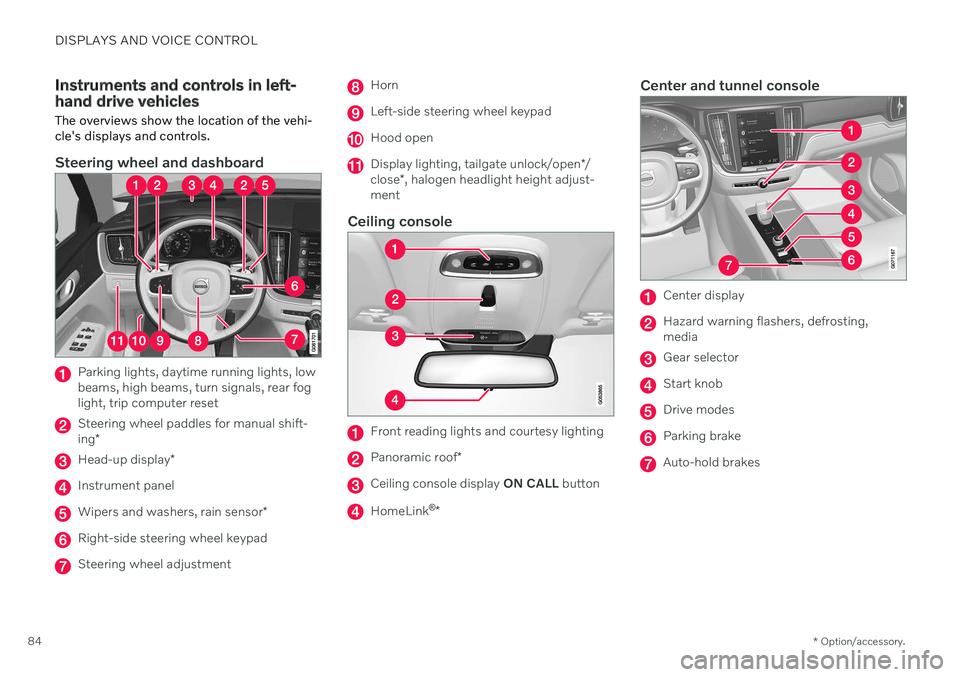
Instruments and controls in left- hand drive vehicles The overviews show the location of the vehi- cle's displays and controls.
Steering wheel and dashboard
Parking lights, daytime running lights, low beams, high beams, turn signals, rear foglight, trip computer reset
Steering wheel paddles for manual shift- ing *
Head-up display *
Instrument panel
Wipers and washers, rain sensor *
Right-side steering wheel keypad
Steering wheel adjustment
Horn
Left-side steering wheel keypad
Hood open
Display lighting, tailgate unlock/open */
close *, halogen headlight height adjust-
ment
Ceiling console
Front reading lights and courtesy lighting
Panoramic roof *
Ceiling console display ON CALL button
HomeLink ®
*
Center and tunnel console
Center display
Hazard warning flashers, defrosting, media
Gear selector
Start knob
Drive modes
Parking brake
Auto-hold brakes
Page 87 of 687

DISPLAYS AND VOICE CONTROL
* Option/accessory.85
Driver's door
Memory for power front seat settings *,
door mirrors and head-up display *
Central locking
Power windows, door mirrors, electric child safety locks*
Controls for front seat
Related information
Manual front seats (p. 188)
Adjusting the power
* front seats (p. 189)
Adjusting the steering wheel (p. 202)
Lighting control and panel (p. 156)
Starting the vehicle (p. 402)
Instrument panel (p. 86)
Center display overview (p. 113)
Transmission (p. 416)
Page 88 of 687

DISPLAYS AND VOICE CONTROL
* Option/accessory.
86
Instrument panel The instrument panel displays information related to the vehicle and driving.
The instrument panel contains gauges, indica- tors and monitoring and warning symbols.What is shown in the instrument panel variesdepending on the equipment, settings andfunctions currently active. The instrument panel is activated as soon as a door is opened, i.e. in ignition mode 0. The
panel will power down after a short period oftime if it is not used. To reactivate it, do one ofthe following:
Depress the brake pedal.
Activate ignition mode
I.
Open one of the doors.
WARNING
If the instrument panel turns off, does not activate when the ignition is switched on,or part/all of the panel cannot be read, donot drive the vehicle. Consult a workshopimmediately. Volvo recommends anauthorized Volvo workshop.
WARNING
If the instrument panel is not functioning properly, information about brakes, airbagsor other safety-related systems may not bedisplayed. The driver will then not be ableto check the status of the vehicle systemsor receive relevant warnings and informa-tion.
The illustration is generic - details may vary accord- ing to vehicle model.
Location in the instrument panel:
Left side In the center Right side
Speedometer Indicator and warning symbols
Tachometer/Hybrid gaugeA
Trip odometer Ambient temperature sensor Gear indicator Odometer B
Clock Drive Mode
Cruise control/speed limiter information Message (also graphics in some cases) Fuel gauge Road sign information * Door and seat belt status Hybrid battery gauge
– Hybrid battery's charge level Distance to empty tank
Page 98 of 687

DISPLAYS AND VOICE CONTROL
* Option/accessory.
96
Date and time The clock is displayed in both the instrument panel and the center display.
Location of clock
Certain messages and other information may obscure the clock in the instrument panel. In the center display, the clock is located on the upper right-hand side in the status bar.
Settings for date and time–Select SettingsSystemDate and
Time in the center display's Top view to
change settings for time and date format. Adjust the date and time by tapping the up or down arrows on the touchscreen.
Automatic time for vehicles with GPS
When the vehicle is equipped with a naviga- tion system, Auto Time is also available. The time zone will then be automatically set to the vehicle's location. In some navigation systems,the current location must also be set to deter- mine the correct time zone. If
Auto Time is
not selected, the time and date can be adjusted using the up and down arrows on thetouchscreen.
Daylight savings time
In some countries, the Auto Daylight Saving
Time setting can be selected to automatically
change to daylight savings time. For other countries, the
Daylight Saving Time setting
can be selected manually.
Related information
Instrument panel (p. 86)
Changing settings in the center display's Top view (p. 135)
Ambient temperature sensor
The ambient temperature is shown in the instrument panel.
The sensor detects the temperature outside the vehicle.
If the vehicle has been stationary, the sensor reading may be higher than the actual tem- perature.
When the ambient temperature isbetween –5 °C and +2 °C (23 °F
and 36 °F), a snowflake symbol will
illuminate to alert the driver of the
risk of slippery conditions. The symbol is also temporarily lit in the head- up display * if the vehicle is equipped with one.
Change the measurement standard for the temperature sensor etc. via system settings in the center display's Top view.
Page 100 of 687

||
DISPLAYS AND VOICE CONTROL
98
Symbol Meaning
Tire pressure system This symbol illuminates to indi- cate low tire pressure. If there isa fault in the tire pressure sys-tem, the symbol will first flash forapproximately 1 minute and thenglow steadily. This may occur ifthe system cannot detect or alertthe driver of low tire pressure asintended.
Emission control system If this symbol illuminates after starting the engine, it could indi-cate a fault in the vehicle's emis-sion control system. Have thevehicle checked by a workshop.Volvo recommends contactingan authorized Volvo workshop.
Left/right turn signals The symbol will flash when the turn signals are in use.
Symbol Meaning
Parking lights This symbol illuminates when the parking lights are on.
Fault in headlight system This symbol illuminates if a fault has been detected in the ABL(Active Bending Lights) functionor another fault in the headlightsystem.
Active high beams on This symbol lights up in blue when the active high beams areon.
Active high beams off This symbol lights up in white when the active high beams areoff.
High beams on This symbol illuminates when the high beams are on or flashed.
Active high beams on This symbol lights up in blue when the active high beams areon. Parking lights are on.
Symbol Meaning
Active high beams off This symbol lights up in white when the active high beams areoff. Parking lights are on.
High beams on This symbol illuminates when the high beams and parking lightsare on.
Front fog lights on This symbol illuminates when the front fog lights are on.
Rear fog light on This symbol illuminates when the rear fog light is on.
Rain sensor on This symbol illuminates when the rain sensor is on.
Preconditioning on This symbol illuminates when the engine block/passenger com-partment heater or air condition-ing are preconditioning the vehi-cle.
Page 116 of 687
||
DISPLAYS AND VOICE CONTROL
* Option/accessory.
114
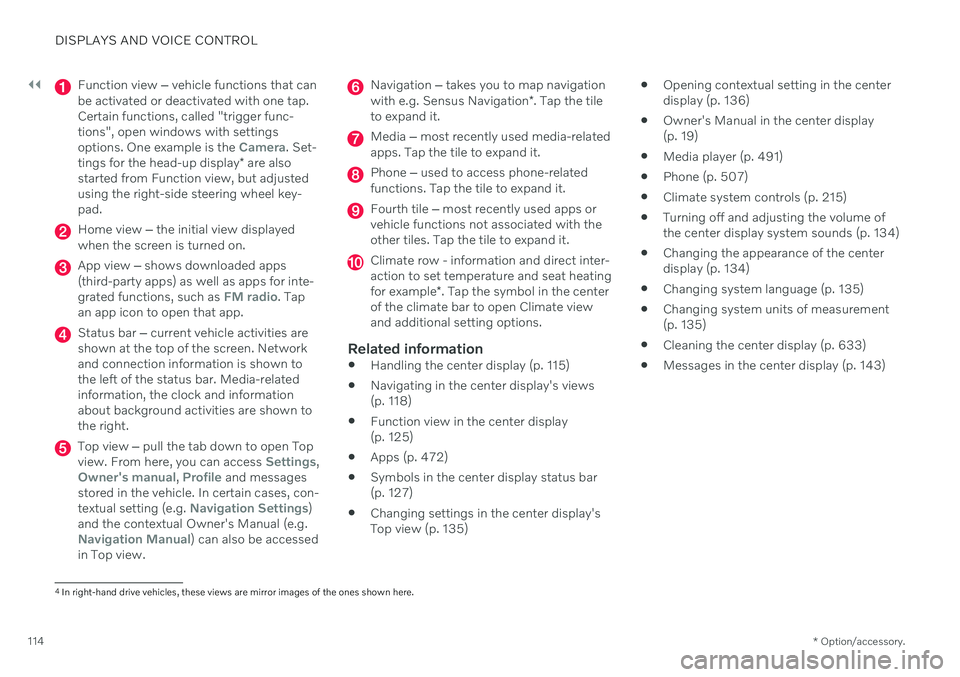
Function view ‒ vehicle functions that can
be activated or deactivated with one tap. Certain functions, called "trigger func-tions", open windows with settingsoptions. One example is the
Camera. Set-
tings for the head-up display * are also
started from Function view, but adjusted using the right-side steering wheel key-pad.
Home view ‒ the initial view displayed
when the screen is turned on.
App view ‒ shows downloaded apps
(third-party apps) as well as apps for inte- grated functions, such as
FM radio. Tap
an app icon to open that app.
Status bar ‒ current vehicle activities are
shown at the top of the screen. Network and connection information is shown tothe left of the status bar. Media-relatedinformation, the clock and informationabout background activities are shown tothe right.
Top view ‒ pull the tab down to open Top
view. From here, you can access Settings,Owner's manual, Profile and messages
stored in the vehicle. In certain cases, con- textual setting (e.g.
Navigation Settings)
and the contextual Owner's Manual (e.g.
Navigation Manual) can also be accessed
in Top view.
Navigation ‒ takes you to map navigation
with e.g. Sensus Navigation *. Tap the tile
to expand it.
Media ‒ most recently used media-related
apps. Tap the tile to expand it.
Phone ‒ used to access phone-related
functions. Tap the tile to expand it.
Fourth tile ‒ most recently used apps or
vehicle functions not associated with the other tiles. Tap the tile to expand it.
Climate row - information and direct inter- action to set temperature and seat heating for example *. Tap the symbol in the center
of the climate bar to open Climate view and additional setting options.
Related information
Handling the center display (p. 115)
Navigating in the center display's views (p. 118)
Function view in the center display (p. 125)
Apps (p. 472)
Symbols in the center display status bar(p. 127)
Changing settings in the center display'sTop view (p. 135)
Opening contextual setting in the centerdisplay (p. 136)
Owner's Manual in the center display(p. 19)
Media player (p. 491)
Phone (p. 507)
Climate system controls (p. 215)
Turning off and adjusting the volume ofthe center display system sounds (p. 134)
Changing the appearance of the centerdisplay (p. 134)
Changing system language (p. 135)
Changing system units of measurement(p. 135)
Cleaning the center display (p. 633)
Messages in the center display (p. 143)
4
In right-hand drive vehicles, these views are mirror images of the ones shown here.
Page 121 of 687

DISPLAYS AND VOICE CONTROL
}}
* Option/accessory.119
NOTE
In Home view's standard mode – short press on the Home button. An animationdescribing access to the various views isshown on the screen.
NOTE
When the vehicle is moving:
Certain functions (e.g. using the center display's keyboard) may be deacti-vated.
Certain texts (e.g. those generated byapps) will be shortened to three rows. Tap the
Read out button to have the
entire message read aloud.
Text messages will be shortened to one row. Tap the
Read out button to
have the entire message read aloud.
Status barCurrent vehicle activities are shown at the top of the screen in the status bar. Network andconnection information is shown to the left ofthe status bar. Media-related information, theclock and information about background activ-ities are shown to the right.
Top view
Top view when expanded.
There is a tab in the center of the status bar at the top of the screen. Open Top view by tap-ping the tab or by dragging/swiping from thetop of the screen downward. Top view always provides access to:
Settings
Owner's manual
Profile
The vehicle's stored messages.
In certain cases, Top view provides access to: Contextual setting (e.g.
Navigation
Settings). Change settings directly in Top
view when an app (e.g. navigation) is being used.
Contextual Owner's Manual (e.g.
Navigation Manual). Access articles in the digital Owner's Manual related to the content shown on the screen, directly inTop view.
To exit Top view, tap the screen outside Topview, press the Home button or tap the screenat the bottom of Top view and swipe upward.The views behind will become visible againand can be used.
NOTE
The top view is not available at start-up/ shutdown or when a message is beingshown on the screen. Similarly, it is notavailable when the climate view is shown.
Climate viewThe climate bar is always visible at the bottom of the screen. The most common climate set-tings can be made directly there, such as set- ting temperature and seat heating *.
Tap the symbol in the center of the climate bar to open Climate viewand access additional climate sys-tem settings.
Tap the symbol to close Climate view and return to a previous view.