transmission VOLVO XC60 TWIN ENGINE 2020 Owner's Manual
[x] Cancel search | Manufacturer: VOLVO, Model Year: 2020, Model line: XC60 TWIN ENGINE, Model: VOLVO XC60 TWIN ENGINE 2020Pages: 687, PDF Size: 14.65 MB
Page 452 of 687

STARTING AND DRIVING
450
Overheating of engine and transmission
In certain driving conditions, such as driving in mountainous areas or hot weather, there isa risk of the engine or transmission overheat-ing, especially when carrying heavy loads.
Engine power may be temporarily limited.
Remove any auxiliary lights mounted in front of the grille when driving in hotweather.
If the temperature in the engine's coolingsystem becomes too high, a warning sym-bol will appear in the instrument panel along with the message
Engine
temperature High temperature Stop
safely. Pull over to a safe location and let
the engine idle for a few minutes to cool down.
If the message
Engine temperature
High temperature Turn off engine orEngine coolant Level low, turn off
engine is displayed, stop the vehicle and
turn off the engine.
If the transmission begins to overheat, an alternative gear shifting program will beselected. An integrated protective functionwill also be activated, the warning symbolwill illuminate and the message
Transmission warm Reduce speed to
lower temperature or Transmission hot
Stop safely, wait for cooling will be dis- played in the instrument panel. Follow the recommendations given by reducingspeed or stopping the vehicle safely andletting the engine idle for a few minutes tolet the transmission cool.
If the vehicle begins to overheat, the airconditioning may be temporarily switchedoff.
After a prolonged period of driving indemanding conditions, do not turn off theengine immediately after stopping.
NOTE
It is normal for the engine's cooling fan to operate for a short time after the engine isswitched off.
Symbols in the instrument panel
Symbol Meaning
High engine temperature. Follow the recommendations provided.
Low coolant level. Follow the recommendations provided.
Transmission hot/overheated/ cooling. Follow the recommen-dations provided.
Related information
Refilling coolant (p. 604)
Driving with a trailer (p. 457)
Preparing for a long trip (p. 442)
Page 460 of 687

||
STARTING AND DRIVING
* Option/accessory.
458
NOTE
Extreme weather conditions, towing a trailer, high altitude and lower fuel gradethan recommended are factors that cansignificantly increase the vehicle's fuel con-sumption.
Trailer weights
WARNING
Please adhere to the recommendations provided for trailer weight. If the recom-mendations are not followed, the vehicleand trailer may be difficult to control duringevasive maneuvers and braking.
NOTE
The specified maximum trailer weights are those permitted by Volvo. National vehicleregulations may set additional restrictionson trailer weight and speed. The trailerhitches may be certified for higher towingweights than the vehicle is permitted totow.
Self-leveling suspension *The vehicle's self-leveling system attempts to keep the vehicle at a constant level, regardlessof load (up to the maximum permitted weight).When the vehicle is stationary, the rear end of the vehicle will be slightly lowered, which isnormal.
Driving in hilly terrain or hot weatherIn certain conditions, there is a risk of over-heating when driving with a trailer. If overheat-ing of the engine and drive system is detected,a warning symbol will illuminate in the instru-ment panel and a message will appear. The automatic transmission selects the opti- mal gear for the current load and enginespeed.
Steep inclines
Do not lock the automatic transmission into a higher gear than what the engine can handle
‒
it is not always preferable to drive in highgears at low rpm.
Parking on a hill
1. Depress the brake pedal.
2. Apply the parking brake.
3. Put the gear selector in P.
4. Release the brake pedal.Put chocks behind the wheels when the vehi- cle is parked on a hill with a trailer attached.
Starting on a hill
1. Depress the brake pedal.
2. Put the gear selector in D.
3. Release the parking brake.
4. Release the brake pedal and start driving.
Related information
Trailer Stability Assist
* (p. 459)
Checking trailer lights (p. 460)
Towing capacity and tongue weight (p. 660)
Overheating of engine and transmission(p. 450)
Retractable hitch
* (p. 453)
Page 463 of 687

STARTING AND DRIVING
}}
461
Towing using a towline
This section refers to one vehicle being towed behind another using a towline.
Never attempt to tow a Twin Engine vehicle behind another vehicle as this could damagethe electric motor. The vehicle must instead belifted onto a tow truck and transported with allfour wheels on the bed or lifting platform ofthe truck (no wheels may touch the road).
Towing another vehicleTowing another vehicle requires a lot of power - use the Constant AWD drive mode. This
helps charge the hybrid battery and improve the vehicle's driving and roadholding characte-ristics. Before towing another vehicle, check applica- ble speed limit regulations.
Jump startingNever attempt to tow the vehicle to start theengine, as this could damage the electricmotor. Use an auxiliary battery if the start bat-tery's charge level is so low that the enginecannot be started.
CAUTION
Attempts to tow-start the vehicle could cause damage to the electrical drive motorand three-way catalytic converter.
Related information
Attaching and removing the towing eyelet (p. 461)
Hazard warning flashers (p. 164)
Recovery (p. 462)
Jump starting using another battery(p. 451)
Selecting ignition mode (p. 406)
Transmission (p. 416)
Attaching and removing the towing eyelet
Use the towing eyelet to tow another vehicle. Screw the towing eyelet securely into placein the threaded outlet behind the cover on theright-hand side of the rear bumper.
NOTE
If the vehicle is equipped with a towbar, there is no rear attachment for the towingeye.
Attaching the towing eyelet
Take out the towing eyelet, which is stored in a foam block under the floor inthe cargo compartment.
Page 466 of 687
STARTING AND DRIVING
* Option/accessory.
464
Programming HomeLink ®
*20
Follow these instructions to program HomeLink ®
, reset all programming, or pro-
gram individual buttons.
NOTE
In some vehicles, the ignition must be on or in the "accessory position" before HomeLink ®
can be programmed or used. It
can be a good idea to put new batteries in the remote control being replaced by HomeLink ®
for faster programming and
better radio signal transmission. TheHomeLink ®
buttons should be reset before
programming.
WARNING
While HomeLink ®
is being programmed,
the garage door or gate being programmed may be activated. Make sure that no one isnear the door or gate during programming.When programming a garage door opener,it is advised to park outside of the garage. 1. Point the remote control at the
HomeLink ®
button to be programmed and
hold it about 2-8 cm (1-3 inches) from the button. Do not obstruct the HomeLink ®
indicator light. Note: Some remote controls are more
effective at programming HomeLink ®
from
a distance of about 15-20 cm (6-12 inches). Keep this in mind if you experi-ence any programming difficulties.
2. Press and hold both the remote control button and the HomeLink ®
button to be
programmed. 3. Do not release the buttons until the indica-
tor light has stopped flashing slowly(about once a second) and either flashesquickly (about 10 times a second) orglows steadily. >If the indicator light glows steadily: Indication that programming is com-plete. Press the programmed buttontwice to activate. If the indicator light flashes quickly: The device being programmed with HomeLink ®
may have a security func-
tion that requires an extra step. Try pressing the programmed button twiceto see whether the programmingworks. Otherwise, continue with thefollowing steps.
20 Certain markets only.
Page 483 of 687
AUDIO, MEDIA AND INTERNET
481
Selecting sub-channels
To listen to a station's sub-channel(s), tap the station on the screen or press the forward/back arrow keys on the right-side steeringwheel keypad or below the screen. Sub-channels can also be saved as radio favorites. If you tap a sub-channel favorite, it may take up to 6 seconds before the channel becomes
audible. If you tap a station while you are out of digital range of the transmitter,
No
reception will be displayed.
Related information
HD Radio
™
(p. 479)
Activating and deactivating the HD Radio
™ (p. 480)
Changing waveband and radio station(p. 476)
Searching for a radio station (p. 476)
HD Radio
™
limitations (p. 481)
HD Radio ™ limitations
Limitations
Main channel vs. sub-channels (FM only)
: The main channel is the only chan-
nel that can receive in hybrid mode (bothdigital and analog). If a frequency has sub-channels, they are broadcast in digitalmode only. The main FM channel will bedisplayed as, for example, "WRIF-FMHD1". The sub-FM channels will be dis-played as"WRIF-FM HD2", "WRIF-FMHD3", etc.
Reception coverage area
: Due to current
IBOC transmitter power limitations, thereception coverage area in digital mode issomewhat more limited than the station'sanalog coverage area. Be aware that, likeall radio transmission technology, terrain,time of day, vegetation and buildings canhave a positive or negative effect on radioreception.
Analog to digital/digital to analogblending
: Analog to digital blending will
occur as the signal strength reaches a pre-set threshold in the receiver. This will benoticeable in fringe areas (areas with weakreception) and is normal.
NOTE
There may be a noticeable difference in sound quality when a change from ana-logue to digital or digital to analogueoccurs, such as:
Volume increase or decrease
Equalizer settings, i.e., Bass/ Mid-range/Treble cut or boost
Time alignment (Digital program mate-rial in extreme cases can be as muchas 8 seconds behind the analogue).This will noticeable as a "stuttering"effect.
The above items are dependant on thebroadcaster's equipment settings anddo not indicate a fault in the vehicle'sradio receiver or antenna systems .
Related information
HD Radio
™ (p. 479)
Activating and deactivating the HD Radio
™ (p. 480)
HD Radio
™ sub-channels (p. 480)
Page 523 of 687
AUDIO, MEDIA AND INTERNET
* Option/accessory.521
No or poor Internet connection Factors affecting the Internet connection.
The amount of data transmitted depends on the services or apps currently in use in thevehicle. Streaming music, for example,involves the transmission of a large amount ofdata, and this requires a good connection anda strong signal.
Phone to vehicleInternet connection speed may vary depend-ing on the location of the cellular phone in thevehicle. Move the phone closer to the centerdisplay to increase signal strength. Make surethat nothing is between the phone and centerdisplay that could be blocking the signal.
Phone to network operatorThe speed of the mobile network variesdepending on the coverage in the vehicle'scurrent location. Coverage may be poorer ine.g. tunnels, mountainous areas, deep valleysor indoors. Connection speed is also depend-ent on the subscription you have with yourservice provider.
NOTE
If you experience any problems with data traffic, contact your network service pro-vider.
Restarting the phoneIf you experience any Internet connection problems, it may help to restart your phone.
Related information
Internet-connected vehicle
* (p. 516)
Wi-Fi technology and security (p. 522)
Deleting Wi-Fi networks
Networks that are not needed can be deleted.
1. Tap Settings in the Top view.
2. Proceed to
CommunicationWi-FiSaved networks.
3. Tap
Forget to delete the network.
4. Confirm the selection. > The vehicle will no longer connect tothe deleted network.
Deleting all networksAll networks can be deleted at once by per- forming a factory reset. Please note that alluser data and system settings will be restoredto original default factory settings.
Related information
Internet-connected vehicle
* (p. 516)
No or poor Internet connection (p. 521)
Resetting center display settings (p. 137)
Connecting the vehicle to the Internet viaa phone (Wi-Fi) (p. 517)
Page 556 of 687

WHEELS AND TIRES
* Option/accessory.
554
Removing a wheel Wheel changes must always be carried out correctly. The following instructions showhow to remove a wheel and what is impor-tant to keep in mind.
CAUTION
When not in use, the jack
* should be
kept in its storage compartment under the cargo compartment floor.
The jack provided with your vehicle isintended to be used only in temporarysituations such as changing wheels inthe event of a flat tire. Only the jackthat came with your particular modelshould be used to lift the vehicle. If thevehicle needs to be lifted more fre-quently or for a prolonged period, usinga garage jack or hoist is recommended.Always follow this device's instructionsfor use.
WARNING
Apply the parking brake and put the gear selector in the Park (
P) position.
Block the wheels standing on theground, use rigid wooden blocks orlarge stones.
Check that the jack is not damaged,the threads are properly lubricated andit is free from dirt.
Be sure the jack is on a firm, level, non-slippery surface and that it is uprightand not leaning.
The jack must correctly engage in thejack attachment.
No objects should be placed betweenthe base of the jack and the ground, orbetween the jack and the attachmentbar on the vehicle.
Never let anyone remain in the vehiclewhen it is raised on a jack.
If a tire must be changed near passingtraffic, make sure all passengers moveto a safe location.
Use a jack intended for the vehiclewhen changing a tire. For any otherjob, use stands to support the vehicle.
Never crawl under or allow any part ofyour body to be extended under a vehi-cle supported by a jack. 1. Turn on the vehicle's hazard warning
flashers if a wheel change must be per-formed in an area with traffic.
2. Apply the parking brake and put the gear selector in P, or first gear if the vehicle has
a manual transmission. For vehicles with
Leveling Control* : If the
vehicle is equipped with pneumatic sus- pension, this must be switched off before the vehicle is lifted with the jack *.
3. Take out the jack *, lug wrench * and tool for
removing the plastic covers, which are stowed in the foam block.
Tool for removing the plastic covers on the wheel bolts.
4. Place chocks in front of and behind the wheels that are still on the ground. For example, use heavy wooden blocks orlarge stones.
Page 598 of 687
||
MAINTENANCE AND SERVICE
* Option/accessory.
596
Accepting an appointment suggestionWhen the vehicle has received an appoint- ment suggestion, a message will be displayedat the top of the center display.
1. Tap the message.
2. To accept the suggested appointment, tap
Accept. Otherwise, tap Send new
proposal or Decline.
For some markets, the system reminds you when an appointment time is approaching and the navigation system 8
can also guide you to
the workshop at the appointed time.
Related information
Vehicle status (p. 595)
Sending vehicle information to the work- shop (p. 596)
Navigating in the center display's views(p. 118)
Volvo ID (p. 28)
Internet-connected vehicle
* (p. 516)
Sending vehicle information to the workshop 9
Vehicle-related information can be sent at any time from the vehicle, e.g. if you schedulea visit to a workshop and would like to assistyour workshop by providing additional basicinformation. Sending vehicle information isnot the same as scheduling service.
1. Open the Car Status app from App view
in the center display.
2. Tap
Appointments.
3. Tap
Send vehicle data.
> A message confirming that vehicle-rela- ted information has been sent will appear at the top of the center display.You can cancel data transmission bytapping the checkbox in the activityindicator. Information is sent via the vehicle's Internet connection 10
.
Vehicle information can be accessed by any retailer if they are provided with your vehicle identification number (VIN 11
).
Vehicle information contentsThe most recently saved vehicle-related infor- mation will be sent (the last time the vehiclewas turned on). This includes informationregarding:
service requirements
time since last service was performed
function status
fluid levels
mileage (odometer reading)
Vehicle Identification Number (VIN 11
)
software version
diagnostic information.
Related information
Scheduling service and repairs (p. 595)
Vehicle status (p. 595)
Navigating in the center display's views(p. 118)
Internet-connected vehicle
* (p. 516)
6
There may be a charge for transmitting data over the Internet, depending on your service plan.
7 Timespan may vary depending on market.
8 For vehicles with Sensus Navigation *.
9 Certain markets only.
10 There may be a charge for transmitting data over the Internet, depending on your service plan.
11 Vehicle Identification Number.
Page 618 of 687

||
MAINTENANCE AND SERVICE
616Fuse pliers are provided on the inside of the fuse box cover to assist in removing andinserting fuses.
There are also spaces for several extra fuses inthe fusebox.
PositionsThere is a decal with a diagram of the loca-tions of the fuses on the inside of the cover.
Function
Ampere Type
– – Micro
–– Micro
–– Micro
Control module for actuator for engaging/changing gears, automatic transmission 5 Micro
High-voltage coolant heater control module5 Micro
Control module for A/C; heat exchanger cut-off valve; cut-off valve for coolant through the climate system 5 Micro
Hybrid battery control module; high-voltage converter for combined high-voltage generator/starter motor with 500 V– 12 V voltage converter5 Micro
–
– Micro
Converter for controlling feed to rear axle electric motor10 Micro
Hybrid battery control module; high-voltage converter for combined high-voltage generator/starter motor with 500 V– 12 V voltage converter10 Micro
Charge module
5 Micro
Cut-off valve for hybrid battery coolant; coolant pump 1 for hybrid battery15 Micro
Coolant pump for electric drive system15 Micro
Page 621 of 687
MAINTENANCE AND SERVICE
}}
619
FunctionAmpere Type
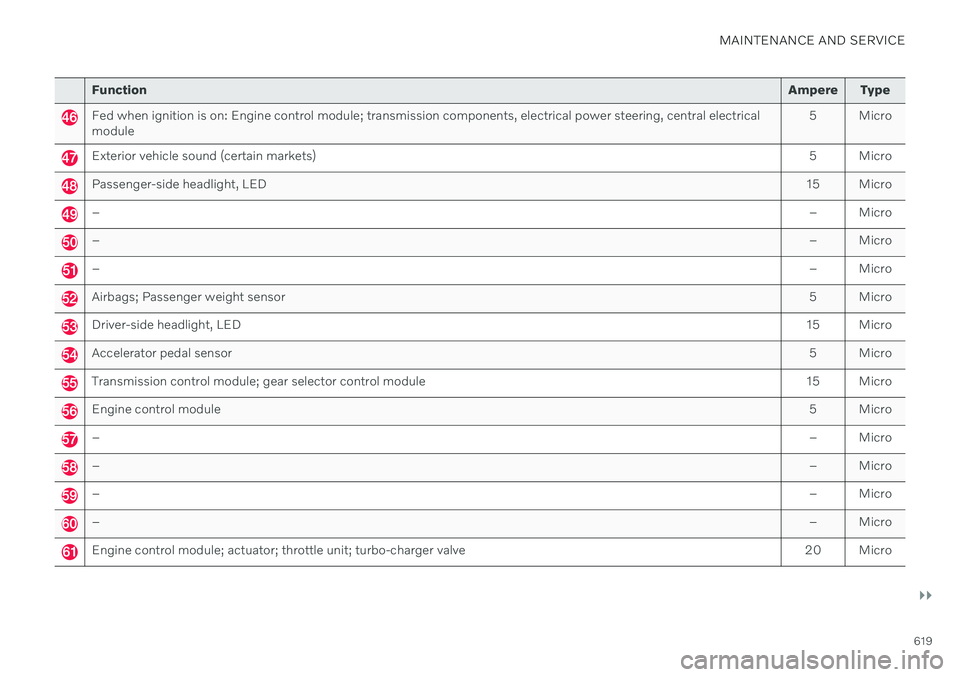
Fed when ignition is on: Engine control module; transmission components, electrical power steering, central electrical module 5 Micro
Exterior vehicle sound (certain markets)
5 Micro
Passenger-side headlight, LED15 Micro
– – Micro
–– Micro
–– Micro
Airbags; Passenger weight sensor 5 Micro
Driver-side headlight, LED15 Micro
Accelerator pedal sensor 5 Micro
Transmission control module; gear selector control module15 Micro
Engine control module 5 Micro
–– Micro
–– Micro
–– Micro
–– Micro
Engine control module; actuator; throttle unit; turbo-charger valve20 Micro