window VOLVO XC60 TWIN ENGINE 2020 Owners Manual
[x] Cancel search | Manufacturer: VOLVO, Model Year: 2020, Model line: XC60 TWIN ENGINE, Model: VOLVO XC60 TWIN ENGINE 2020Pages: 687, PDF Size: 14.65 MB
Page 7 of 687
5
WINDOWS, GLASS AND MIRRORS
Windows, glass and mirrors170
Pinch protection for windows and sun curtains 170
Reset procedure for pinch protection 171
Power windows 171
Operating the power windows 172
Rearview/door mirrors 173
Adjusting the rearview mirror dim-ming function 174
Adjusting the door mirrors 174
Panoramic roof *
176
Operating the panoramic roof *
177
Auto closing the panoramic roof *
sun curtain 179
Wiper blades and washer fluid 180
Using the windshield wipers 180
Using the rain sensor 181
Using the rain sensor's memoryfunction 182
Using the windshield and head-light washers 183
Using the rear window wiper/washer 184
Using automatic rear windowwiping when backing up 185
SEATS AND STEERING WHEEL
Manual front seats
188
Power * front seats
189
Adjusting the power * front seats
189
Storing positions for seats, mir- rors and head-up display *190
Using stored positions for seats,mirrors and head-up display *191
Front seat massage * settings
192
Adjusting front seat massage set-tings * 193
Adjusting * front seat cushion length
194
Adjusting front seat side bolstersettings * 195
Adjusting front seat lumbar support *
195
Adjusting the passenger seat fromthe driver's seat * 197
Folding down the rear seat backrests 198
Adjusting the rear seat head restraints 199
Steering wheel controls and horn 201
Adjusting the steering wheel 202
CLIMATE CONTROL
Climate204
Climate zones 204
Climate control sensors 204
Perceived temperature 205
Climate control system voice commands 205
Air quality 206
Clean Zone *
207
Clean Zone Interior Package *
208
Interior Air Quality System *
208
Activating and deactivating the air quality sensor * 209
Passenger compartment air filter 209
Air distribution 209
Adjusting air distribution 210
Opening, closing and directing air vents 211
Air distribution options 212
Climate system controls 215
Activating and deactivating power front seats * 216
Activating and deactivating theheated front seat * 217
Activating and deactivating theheated rear seats * 217
Activating and deactivating frontseat ventilation * 217
Page 8 of 687
6
Activating and deactivating the heated steering wheel*218
Activating and deactivating auto-matic steering wheel heating *218
Activating auto climate control 219
Activating and deactivating recir- culation 219
Activating and deactivating therecirculation timer setting 220
Activating and deactivating maxdefroster 220
Activating and deactivating theheated rear window and door mirrors 221
Automatically activating and deac-tivating the heated rear windowand door mirrors 222
Setting the blower speed for thefront seats 222
Setting the temperature for thefront seats 223
Synchronize temperature 224
Activating and deactivating airconditioning 225
Parking climate 225
Preconditioning 226
Starting and stopping preconditioning 226
Preconditioning timer 227
Adding and editing timer settingsfor preconditioning 228
Activating and deactivating pre- conditioning timer 229
Deleting preconditioning timersettings 229
Climate comfort retaining function 230
Starting and switching off the cli-mate retaining function when parking 230
Parking climate symbols and mes-sages 232
Heater 233
Parking heater 233
Additional heater 233
Activating and deactivating theauxiliary heater 234
KEY, LOCKS AND ALARM
Lock indication
236
Lock confirmation settings 237
Remote key 238
Locking and unlocking using the remote key 240
Settings for remote and insidedoor unlock 241
Unlocking the tailgate using theremote key 242
Remote key range 242
Replacing the remote key's battery 243
Ordering additional remote keys 246
Red Key - restricted remote key *
247
Settings for Red Key *
248
Detachable key blade 249
Locking and unlocking withdetachable key blade 250
Electronic immobilizer 251
Start and lock system type desig-nations 252
Keyless and touch-sensitive surfaces *
253
Keyless locking and unlocking *
254
Keyless unlock settings *
255
Keyless tailgate unlock *
256
Antenna locations for the startand lock system 256
Page 16 of 687
14
Fuses in the engine compartment615
Fuses under the glove compartment 622
Fuses in the cargo compartment 628
Cleaning the interior 633
Cleaning the center display 633
Cleaning the head-up display *
634
Cleaning fabric upholstery and ceiling liner 635
Cleaning the seat belt 635
Cleaning floor mats and inlay mats 635
Cleaning leather upholstery *
636
Cleaning the leather steering wheel 637
Cleaning interior plastic, metal andwood surfaces 637
Cleaning the exterior 638
Polishing and waxing 638
Hand washing 639
Automatic car washes 641
High-pressure washing 642
Cleaning the wiper blades 642
Cleaning exterior plastic, rubberand trim components 643
Cleaning rims 644
Corrosion protection 644
Paintwork 645
Touching up minor paint damage645
Color codes 646
Changing rear window wipers 647
Replacing windshield wiper blades 648
Putting the wiper blades in service position 649
Filling washer fluid 650
SPECIFICATIONS
Type designations 654
Dimensions 657
Weights 659
Towing capacity and tongue weight 660
Engine specifications 661
Engine oil specifications 662
Coolant specifications 663
Transmission fluid specifications 663
Brake fluid specifications 663
Fuel tank volume 664
Air conditioning specifications 664
Approved tire pressure 665
Page 31 of 687

YOUR VOLVO
* Option/accessory.29
Creating and registering a Volvo ID
A Volvo ID can be created in two ways. If your Volvo ID was created with the Volvo On Callapp, the Volvo IDmust also be registered tothe vehicle to enable access to the Volvo IDservices.
Creating a Volvo ID with the Volvo ID app
1. Download the Volvo ID app fromDownload Center in the center display's
App view.
2. Start the app and register a personal email address.
3. Follow the instructions that will be sent automatically to this email address.
> A Volvo ID has now been created and isautomatically registered to the vehicle. The Volvo ID services can now be used.
Creating a Volvo ID using the Volvo On Call
app 1
1. Download the latest version of the Volvo
On Call app to your phone, via e.g. App Store, Windows Phone or Google Play.
2. Choose to create a Volvo ID.
3. The website for creating a Volvo ID will open. Fill in the requested information.
4. Check the box to accept the terms and conditions. 5. Press the button to create your Volvo ID.
6. An email will be sent to the address you
have provided. Confirm that the address is correct.
> Your Volvo ID is now ready to be used.
Registering your Volvo ID to the vehicle
If your Volvo ID was created using the Volvo On Call app, follow these steps to register theID to the vehicle:
1. If you have not already done so, download
the Volvo ID app from
Download Centerin the center display's App view.
NOTE
To download apps the vehicle must be connected to the internet.
2. Start the app and enter your Volvo ID/email address.
3. Follow the instructions that will be auto- matically sent to the email address con- nected to your Volvo ID.
> Your Volvo ID has now been registeredto the vehicle. The Volvo ID services can now be used.
Related information
Volvo ID (p. 28)
Download apps (p. 473)
Handling system updates via DownloadCenter (p. 594)
Internet-connected vehicle
* (p. 516)
1
Vehicles with Volvo On Call.
Page 60 of 687

||
SAFETY
58
Passenger's side airbag decal.
WARNING
Children must never be allowed in the front passenger's seat.
Occupants in the front passenger'sseat must never sit on the edge of theseat, sit leaning toward the instrumentpanel or otherwise sit out of position.
The occupant's back must be asupright as comfort allows and beagainst the seat back with the seat beltproperly fastened.
Feet must be on the floor, e.g., not onthe dash, seat or out of the window.
WARNING
No objects or accessory equipment, e.g. dashboard covers, may be placedon, attached to, or installed near the airbag cover (the area above the glovecompartment) or the area affected byairbag deployment.
There should be no loose articles, suchas coffee cups on the floor, seat, ordashboard area.
Never try to open the airbag cover onthe steering wheel or the passenger'sside dashboard. This should only bedone by a trained and qualified Volvoservice technician.
Failure to follow these instructions canresult in injury to the vehicle's occu-pants.
Related information
Airbags (p. 54)
Occupant weight sensor (p. 58)
Occupant weight sensor
The Occupant Weight Sensor (OWS) is designed to meet the regulatory require-ments of Federal Motor Vehicle SafetyStandard (FMVSS) 208 and is designed todisable (will not inflate) the passenger's sidefront airbag under certain conditions.
Occupant Weight Sensor (OWS) indicator light
Disabling the passenger's side front airbag
Volvo recommends that ALL occupants (adults and children) shorter than 140 cm(4 feet 7 inches) be seated in the back seat ofany vehicle with a front passenger side airbagand be properly restrained for their size andweight. The OWS works with sensors that are part of the front passenger's seat and seat belt. Thesensors are designed to detect the presence
Page 65 of 687
SAFETY
}}
63
WARNING
Volvo recommends contacting an author- ized Volvo workshop for repair. Incorrectlyperformed repairs to the inflatable curtainsystem could impair function and lead toserious injury.
WARNING
Never hang or attach heavy objects in the handle in the ceiling. The hooks are onlyintended for lightweight garments (not forhard objects such as umbrellas). Never screw or mount anything to the vehi- cle's headlining, door pillars or side panels.This could impair the intended protectiveproperties. Volvo recommends only usingVolvo original parts that are approved forplacement in these areas.
WARNING
If objects are loaded higher than the upper edge of the side windows, leave a 10 cm(4 in.) space between the objects and thewindow. Objects placed closer to thiscould impede the function of the inflatablecurtain concealed inside the headlining.
WARNING
The inflatable curtain is a supplement to the seat belt. Always wear your seat belt.
Related information
Airbags (p. 54)
Safety mode Safety mode is a feature that is triggered after a collision if there is potential damage toan important function in the vehicle, such asthe fuel lines, sensors for one of the safetysystems, the brake system, etc.
If the vehicle has been involved in a collision, the text Safety mode See Owner's manualmay appear in the instrument panel along with the warning symbol if the panel is undamagedand the vehicle's electrical system is intact.The message indicates that one or more of thevehicle's functions may be reduced.
WARNING
Never attempt to restart the vehicle if you smell fuel fumes when the message Safety
mode See Owner's manual is displayed
in the instrument panel. Leave the vehicle immediately.
If safety mode has been set, it may be possi- ble to reset the system in order to start andmove the vehicle a short distance, for exam-ple, if it is blocking traffic.
Page 87 of 687

DISPLAYS AND VOICE CONTROL
* Option/accessory.85
Driver's door
Memory for power front seat settings *,
door mirrors and head-up display *
Central locking
Power windows, door mirrors, electric child safety locks*
Controls for front seat
Related information
Manual front seats (p. 188)
Adjusting the power
* front seats (p. 189)
Adjusting the steering wheel (p. 202)
Lighting control and panel (p. 156)
Starting the vehicle (p. 402)
Instrument panel (p. 86)
Center display overview (p. 113)
Transmission (p. 416)
Page 94 of 687

||
DISPLAYS AND VOICE CONTROL
92
Distance to empty tankThe trip computer calculates the dis- tance that can be driven on the fuelremaining in the tank.
This calculation is based on average fuel con- sumption during the last 30 km (20 miles)and the amount of fuel remaining in the tank. When the gauge displays "----", there is not enough fuel remaining to calculate the remain-ing mileage. Refuel as soon as possible.
NOTE
The information will change based on your driving style.
An economical driving style will generally increase how far you can drive on a certainamount of fuel.
Distance to discharged batteryThis gauge shows the approximatedistance that can be driven with theremaining current in the hybrid bat-tery.
This calculation is based on average consump- tion with a normally loaded vehicle in normaldriving conditions, and takes into accountwhether the air conditioning is on or off. Changing drive modes from
Hybrid to Puremay increase the calculated distance because
Pure mode has reduced climate control set-
tings (ECO Climate). When the gauge displays "----", there is little charge remaining in the battery and electricmotor range cannot be reliably calculated.
NOTE
The information will change based on your driving style.
An economical driving style will generally increase how far you can drive on a certainamount of fuel.
Starting values for fully charged hybrid battery
Because it is difficult to predict driving style and other factors that affect the range of elec-tric motors, Volvo uses a starting value whenthe vehicle is fully charged. This starting valueprovides an "up to" amount instead of a pre-diction on the range of the electric current inthe motor. The difference in starting value between
Hybrid and Pure is because the
vehicle is permitted to use more current from the hybrid battery in
Pure mode, and because
the vehicle switches to ECO Climate.
Mileage when using electric motor
To achieve the longest possible mileage when using the electric motor, the driver of an elec-tric vehicle also needs to think about conserv- ing electricity. The more electricity consumers(stereo, heated windows/mirrors/seats, verycold air from climate control system, etc.) thatare active, the shorter the potential mileage.
NOTE
In addition to high electrical consumption in the passenger compartment, rapidacceleration, sudden braking, high speeds,heavy loads, low ambient temperaturesand driving up hills can reduce possibledriving distance.
Tourist - alternative speedometerThe alternative digital speedometer makes it easier to drive in countries where speed limitsigns are shown in a different measurementunit than the one shown in the vehicle'sgauges. When used, the digital speed is displayed in the opposite unit to that shown in the analogspeedometer. If
mph is used in the analog
speedometer, the equivalent speed in km/h
will be shown in the digital speedometer.
Related information
Displaying trip data in the instrumentpanel (p. 93)
Resetting the trip odometer (p. 94)
Displaying trip statistics in the center dis-play (p. 94)
Page 116 of 687
||
DISPLAYS AND VOICE CONTROL
* Option/accessory.
114
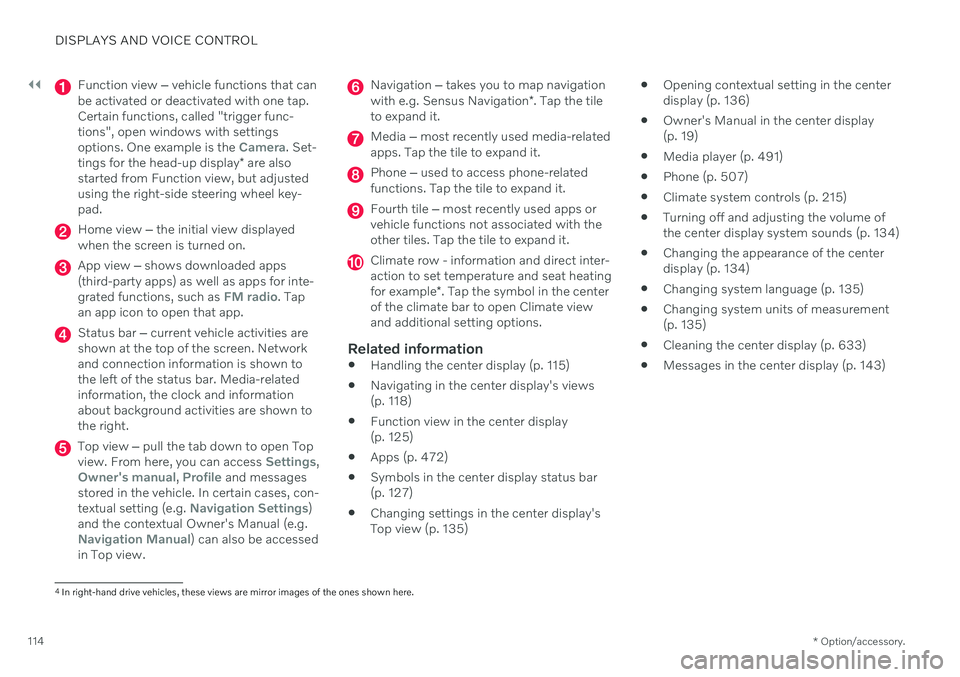
Function view ‒ vehicle functions that can
be activated or deactivated with one tap. Certain functions, called "trigger func-tions", open windows with settingsoptions. One example is the
Camera. Set-
tings for the head-up display * are also
started from Function view, but adjusted using the right-side steering wheel key-pad.
Home view ‒ the initial view displayed
when the screen is turned on.
App view ‒ shows downloaded apps
(third-party apps) as well as apps for inte- grated functions, such as
FM radio. Tap
an app icon to open that app.
Status bar ‒ current vehicle activities are
shown at the top of the screen. Network and connection information is shown tothe left of the status bar. Media-relatedinformation, the clock and informationabout background activities are shown tothe right.
Top view ‒ pull the tab down to open Top
view. From here, you can access Settings,Owner's manual, Profile and messages
stored in the vehicle. In certain cases, con- textual setting (e.g.
Navigation Settings)
and the contextual Owner's Manual (e.g.
Navigation Manual) can also be accessed
in Top view.
Navigation ‒ takes you to map navigation
with e.g. Sensus Navigation *. Tap the tile
to expand it.
Media ‒ most recently used media-related
apps. Tap the tile to expand it.
Phone ‒ used to access phone-related
functions. Tap the tile to expand it.
Fourth tile ‒ most recently used apps or
vehicle functions not associated with the other tiles. Tap the tile to expand it.
Climate row - information and direct inter- action to set temperature and seat heating for example *. Tap the symbol in the center
of the climate bar to open Climate view and additional setting options.
Related information
Handling the center display (p. 115)
Navigating in the center display's views (p. 118)
Function view in the center display (p. 125)
Apps (p. 472)
Symbols in the center display status bar(p. 127)
Changing settings in the center display'sTop view (p. 135)
Opening contextual setting in the centerdisplay (p. 136)
Owner's Manual in the center display(p. 19)
Media player (p. 491)
Phone (p. 507)
Climate system controls (p. 215)
Turning off and adjusting the volume ofthe center display system sounds (p. 134)
Changing the appearance of the centerdisplay (p. 134)
Changing system language (p. 135)
Changing system units of measurement(p. 135)
Cleaning the center display (p. 633)
Messages in the center display (p. 143)
4
In right-hand drive vehicles, these views are mirror images of the ones shown here.
Page 123 of 687

DISPLAYS AND VOICE CONTROL
121
If there are many functions, you can also scroll downward through the view. This is done bysweeping/dragging from the bottom upwards. Unlike in App view, where you tap an app to open it, in Function view, tapping a functionactivates or deactivates it. Certain functions(trigger functions) open in their own windowwhen tapped. To return to Home view, swipe the screen from right to left
5
or press the Home button.
Related information
Handling tiles in the center display (p. 122)
Symbols in the center display status bar(p. 127)
Changing settings in the center display'sTop view (p. 135)
Opening contextual setting in the centerdisplay (p. 136)
Owner's Manual in the center display(p. 19)
Driver profiles (p. 139)
Climate system controls (p. 215)
Apps (p. 472)
Function view in the center display(p. 125)
Center display overview (p. 113)
5
Applies for left-hand drive vehicles. For right-hand drive vehicles, swipe in the other direction.