service VOLVO XC70 2015 Owner´s Manual
[x] Cancel search | Manufacturer: VOLVO, Model Year: 2015, Model line: XC70, Model: VOLVO XC70 2015Pages: 408, PDF Size: 11.26 MB
Page 202 of 408
04 Driver support
Blind Spot Information System (BLIS)*
04
200* Option/accessory, for more information, see Introduction.
Introduction
G021426
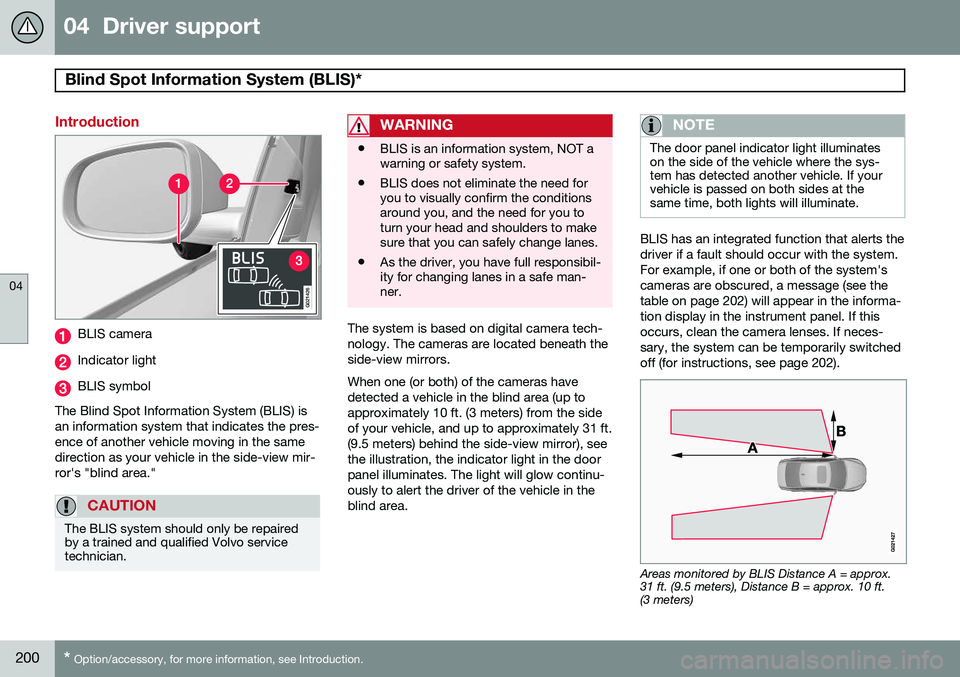
BLIS camera
Indicator light
BLIS symbol
The Blind Spot Information System (BLIS) is an information system that indicates the pres-ence of another vehicle moving in the samedirection as your vehicle in the side-view mir-ror's "blind area."
CAUTION
The BLIS system should only be repaired by a trained and qualified Volvo servicetechnician.
WARNING
• BLIS is an information system, NOT a warning or safety system.
• BLIS does not eliminate the need foryou to visually confirm the conditionsaround you, and the need for you toturn your head and shoulders to makesure that you can safely change lanes.
• As the driver, you have full responsibil-ity for changing lanes in a safe man-ner.
The system is based on digital camera tech- nology. The cameras are located beneath theside-view mirrors. When one (or both) of the cameras have detected a vehicle in the blind area (up toapproximately 10 ft. (3 meters) from the sideof your vehicle, and up to approximately 31 ft.(9.5 meters) behind the side-view mirror), seethe illustration, the indicator light in the doorpanel illuminates. The light will glow continu-ously to alert the driver of the vehicle in theblind area.
NOTE
The door panel indicator light illuminates on the side of the vehicle where the sys-tem has detected another vehicle. If yourvehicle is passed on both sides at thesame time, both lights will illuminate.
BLIS has an integrated function that alerts the driver if a fault should occur with the system.For example, if one or both of the system'scameras are obscured, a message (see thetable on page 202) will appear in the informa-tion display in the instrument panel. If thisoccurs, clean the camera lenses. If neces-sary, the system can be temporarily switchedoff (for instructions, see page 202).
Areas monitored by BLIS Distance A = approx. 31 ft. (9.5 meters), Distance B = approx. 10 ft.(3 meters)
Page 203 of 408
04 Driver support
Blind Spot Information System (BLIS)*
04
}}
* Option/accessory, for more information, see Introduction.201
When does BLIS function
The system functions when your vehicle is moving at speeds above 6 mph (10 km/h).
When you pass another vehicle:The system reacts when you pass another vehicle at a speed of up to 6 mph (10 km/h)faster than that vehicle.
When you are passed by another
vehicle:
The system reacts if your vehicle is passed by another vehicle at a speed of up to 43 mph(70 km/h) faster than your vehicle.
WARNING
• BLIS does not function in sharp curves.
• BLIS does not function when yourvehicle is backing up.
• If you are towing a wide trailer, thismay prevent the BLIS cameras fromdetecting other vehicles in adjacentlanes.
How BLIS functions in daylight and darkness
DaylightBLIS reacts to the
shape of surrounding vehi-
cles. The system is designed to help detect motor vehicles such as cars, trucks, buses, motorcycles, etc.
DarknessBLIS reacts to the
headlights of surrounding
vehicles. In order to be detected by BLIS, a vehicle in the blind area must have its head-lights on. This means, for example, that thesystem will not detect a trailer without head-lights that is being towed behind a car ortruck.
WARNING
• BLIS does not react to cyclists or mopeds.
• BLIS does not react to vehicles thatare standing still.
• The BLIS cameras have the same limi-tation as the human eye. In otherwords, their "vision is impaired" byadverse weather conditions such asheavy snowfall, intense light directlyinto the camera, dense fog, etc.
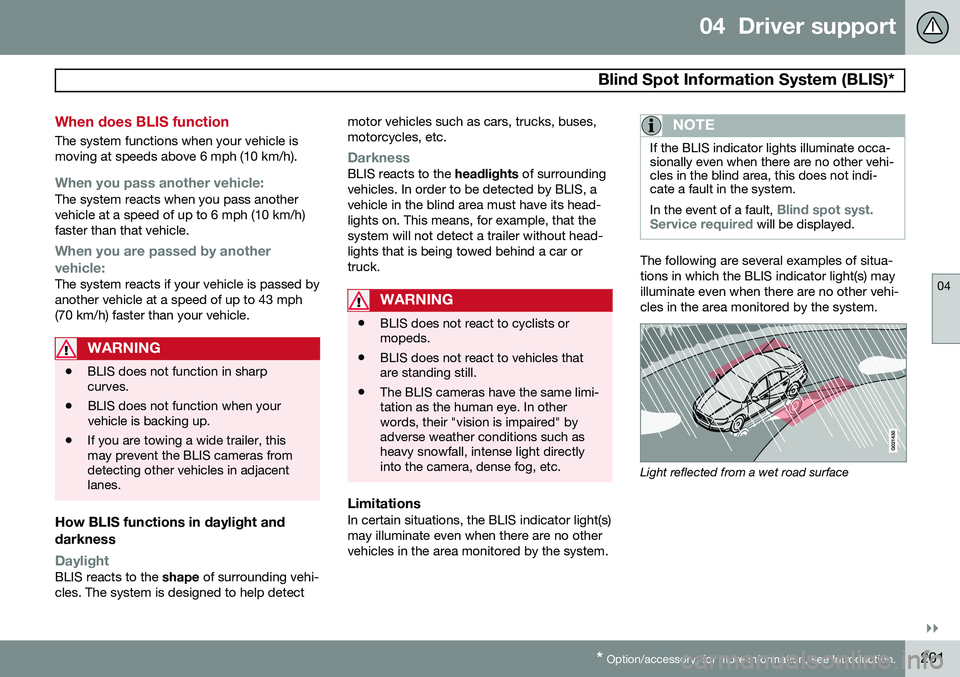
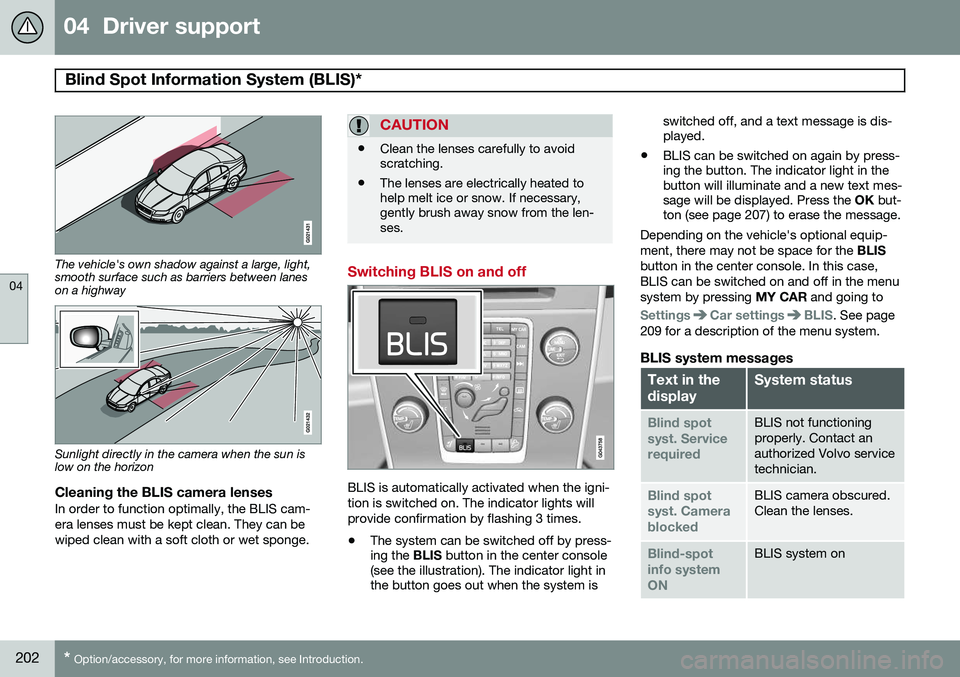
LimitationsIn certain situations, the BLIS indicator light(s) may illuminate even when there are no othervehicles in the area monitored by the system.
NOTE
If the BLIS indicator lights illuminate occa- sionally even when there are no other vehi-cles in the blind area, this does not indi-cate a fault in the system. In the event of a fault,
Blind spot syst.
Service required will be displayed.
The following are several examples of situa- tions in which the BLIS indicator light(s) mayilluminate even when there are no other vehi-cles in the area monitored by the system.
Light reflected from a wet road surface
Page 204 of 408
04 Driver support
Blind Spot Information System (BLIS)*
04
202* Option/accessory, for more information, see Introduction.
The vehicle's own shadow against a large, light, smooth surface such as barriers between laneson a highway
Sunlight directly in the camera when the sun is low on the horizon
Cleaning the BLIS camera lensesIn order to function optimally, the BLIS cam- era lenses must be kept clean. They can bewiped clean with a soft cloth or wet sponge.
CAUTION
• Clean the lenses carefully to avoid scratching.
• The lenses are electrically heated tohelp melt ice or snow. If necessary,gently brush away snow from the len-ses.
Switching BLIS on and off
BLIS is automatically activated when the igni- tion is switched on. The indicator lights willprovide confirmation by flashing 3 times.
• The system can be switched off by press- ing the
BLIS button in the center console
(see the illustration). The indicator light inthe button goes out when the system is switched off, and a text message is dis-played.
• BLIS can be switched on again by press-ing the button. The indicator light in thebutton will illuminate and a new text mes-sage will be displayed. Press the
OK but-
ton (see page 207) to erase the message.
Depending on the vehicle's optional equip- ment, there may not be space for the BLIS
button in the center console. In this case,BLIS can be switched on and off in the menusystem by pressing MY CAR and going to
SettingsCar settingsBLIS. See page
209 for a description of the menu system.
BLIS system messages
Text in the displaySystem status
Blind spot syst. ServicerequiredBLIS not functioning properly. Contact anauthorized Volvo servicetechnician.
Blind spot syst. CamerablockedBLIS camera obscured. Clean the lenses.
Blind-spot info systemONBLIS system on
Page 209 of 408
05 Comfort and driving pleasure
Menus and messages
05
}}
* Option/accessory, for more information, see Introduction.207
Main instrument panel
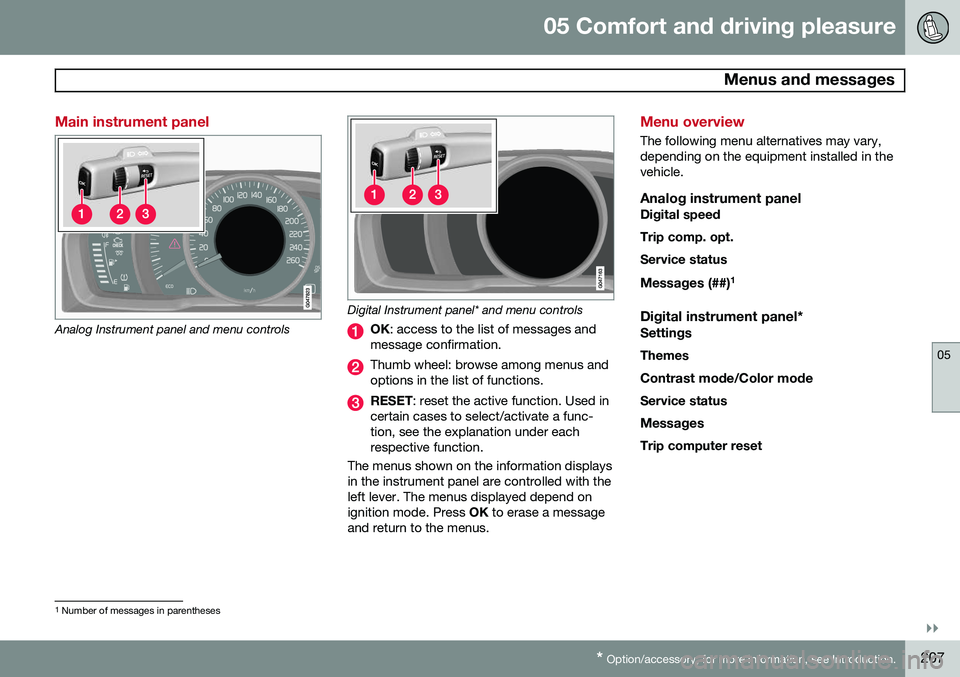
Analog Instrument panel and menu controls
Digital Instrument panel* and menu controls
OK : access to the list of messages and
message confirmation.
Thumb wheel: browse among menus and options in the list of functions.
RESET : reset the active function. Used in
certain cases to select/activate a func- tion, see the explanation under eachrespective function.
The menus shown on the information displaysin the instrument panel are controlled with theleft lever. The menus displayed depend onignition mode. Press OK to erase a message
and return to the menus.
Menu overview
The following menu alternatives may vary, depending on the equipment installed in thevehicle.
Analog instrument panelDigital speed Trip comp. opt.Service status
Messages (##) 1
Digital instrument panel*
Settings
Themes
Contrast mode /Color mode
Service status
Messages Trip computer reset
1 Number of messages in parentheses
Page 210 of 408
05 Comfort and driving pleasure
Menus and messages
05
208
Messages
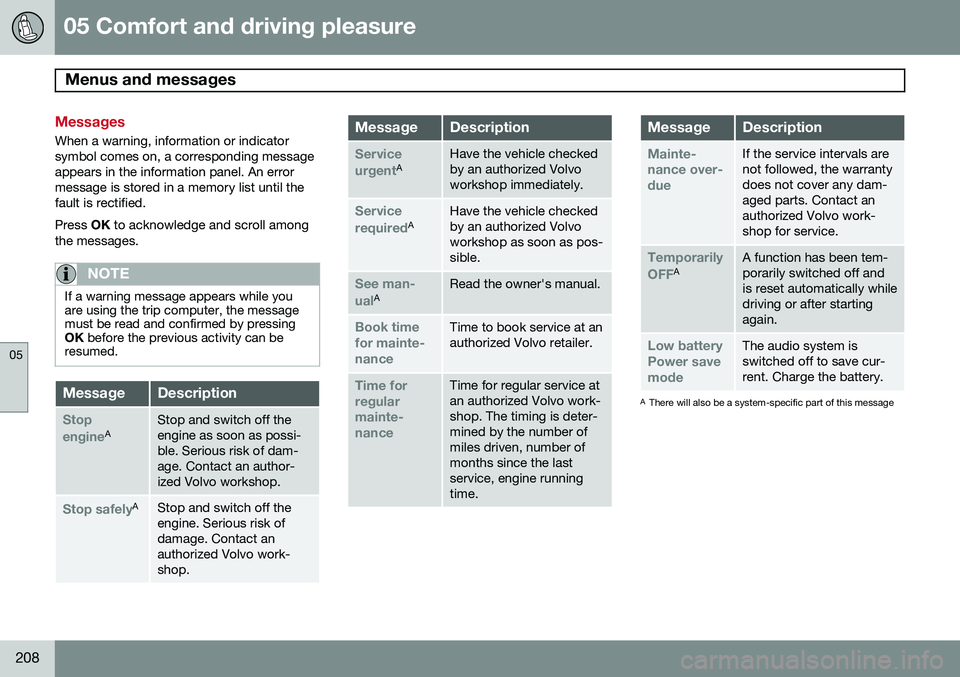
When a warning, information or indicator symbol comes on, a corresponding messageappears in the information panel. An errormessage is stored in a memory list until thefault is rectified. Press OK to acknowledge and scroll among
the messages.
NOTE
If a warning message appears while you are using the trip computer, the messagemust be read and confirmed by pressingOK before the previous activity can be
resumed.
MessageDescription
Stop engineAStop and switch off the engine as soon as possi-ble. Serious risk of dam-age. Contact an author-ized Volvo workshop.
Stop safelyAStop and switch off the engine. Serious risk ofdamage. Contact anauthorized Volvo work-shop.
MessageDescription
Service urgentAHave the vehicle checked by an authorized Volvoworkshop immediately.
Service requiredAHave the vehicle checked by an authorized Volvoworkshop as soon as pos-sible.
See man- ualARead the owner's manual.
Book time for mainte-nanceTime to book service at an authorized Volvo retailer.
Time for regularmainte-nanceTime for regular service at an authorized Volvo work-shop. The timing is deter-mined by the number ofmiles driven, number ofmonths since the lastservice, engine runningtime.
MessageDescription
Mainte- nance over-dueIf the service intervals are not followed, the warrantydoes not cover any dam-aged parts. Contact anauthorized Volvo work-shop for service.
Temporarily OFFAA function has been tem- porarily switched off andis reset automatically whiledriving or after startingagain.
Low battery Power savemodeThe audio system is switched off to save cur-rent. Charge the battery.
A There will also be a system-specific part of this message
Page 217 of 408
05 Comfort and driving pleasure
Climate system
05
}}
* Option/accessory, for more information, see Introduction.215
Introduction
Air conditioningThe vehicle is equipped with Electronic Cli- mate Control (ECC). The climate control sys-tem cools, heats or dehumidifies the air in thepassenger compartment.
NOTE
• The air conditioning can be switched off, but to ensure the best possible cli-mate comfort in the passenger com-partment and to prevent the windowsfrom misting, it should always be on.
• In warm weather, a small amount ofwater may accumulate under the carwhen it has been parked. This water iscondensation from the A/C systemand is normal.
Sensor location
•
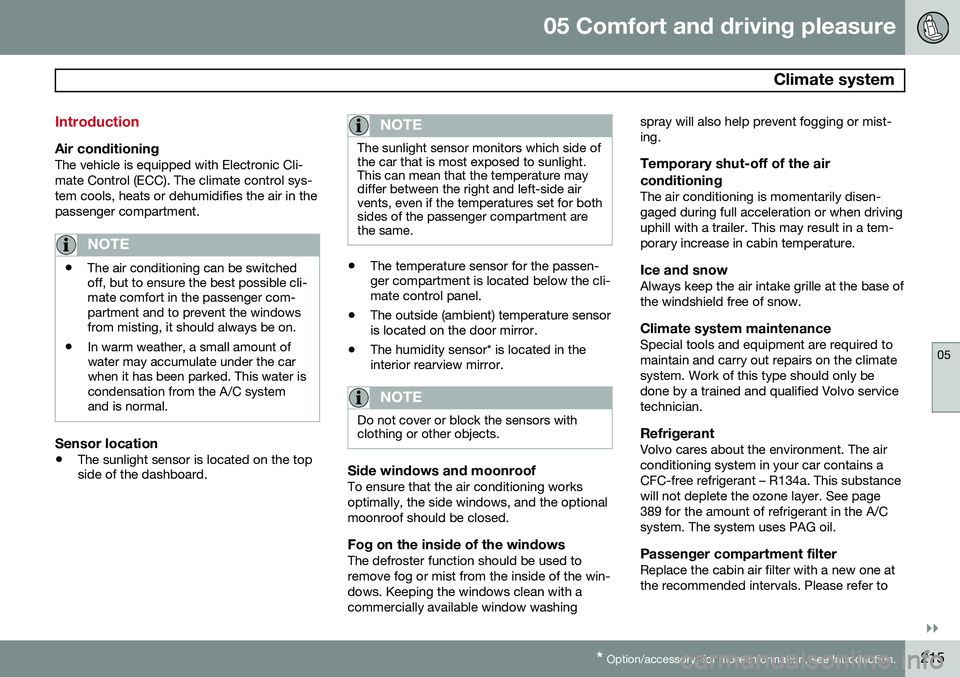
The sunlight sensor is located on the top side of the dashboard.
NOTE
The sunlight sensor monitors which side of the car that is most exposed to sunlight.This can mean that the temperature maydiffer between the right and left-side airvents, even if the temperatures set for bothsides of the passenger compartment arethe same.
•The temperature sensor for the passen- ger compartment is located below the cli-mate control panel.
• The outside (ambient) temperature sensoris located on the door mirror.
• The humidity sensor* is located in theinterior rearview mirror.
NOTE
Do not cover or block the sensors with clothing or other objects.
Side windows and moonroofTo ensure that the air conditioning works optimally, the side windows, and the optionalmoonroof should be closed.
Fog on the inside of the windowsThe defroster function should be used toremove fog or mist from the inside of the win-dows. Keeping the windows clean with acommercially available window washing spray will also help prevent fogging or mist-ing.
Temporary shut-off of the air
conditioning
The air conditioning is momentarily disen-gaged during full acceleration or when drivinguphill with a trailer. This may result in a tem-porary increase in cabin temperature.
Ice and snowAlways keep the air intake grille at the base ofthe windshield free of snow.
Climate system maintenanceSpecial tools and equipment are required tomaintain and carry out repairs on the climatesystem. Work of this type should only bedone by a trained and qualified Volvo servicetechnician.
RefrigerantVolvo cares about the environment. The airconditioning system in your car contains aCFC-free refrigerant – R134a. This substancewill not deplete the ozone layer. See page389 for the amount of refrigerant in the A/Csystem. The system uses PAG oil.
Passenger compartment filterReplace the cabin air filter with a new one atthe recommended intervals. Please refer to
Page 218 of 408
05 Comfort and driving pleasure
Climate system
05
216
your Warranty and Service Records Informa- tion booklet, or consult a trained and qualifiedVolvo service technician for these intervals.The filter should be replaced more often whendriving under dirty and dusty conditions. Thefilter cannot be cleaned and therefore shouldalways be replaced with a new one.
NOTE
There are different types of cabin air filters. Ensure that the correct type is installed.
Interior Air Quality System (IAQS)A multifilter helps reduce gases and particles in the incoming air, thereby reducing the lev-els of odors and contaminants entering thevehicle. The air quality sensor detectsincreased levels of contaminants in the out-side air. When the air quality sensor detectscontaminated outside air, the air intake closesand the air inside the passenger compart-ment is recirculated, i.e., no outside air entersthe vehicle. The filter also cleans recirculatedpassenger compartment air.
NOTE
Contact your Volvo retailer for IAQS air fil- ter replacement intervals.
Materials used in the cabinThe materials used in the cabin have been developed to help minimize the amount ofdust and make the cabin easier to keepclean. All floor mats can be easily removedfor cleaning. Use car cleaning products rec-ommended by Volvo. See also the informa-tion beginning on page 375.
Menu settingsThe default settings for four of the climatesystem's functions can be changed in themenu system.• Blower speed in automatic mode.
• Recirculation timer for passenger com- partment air.
• Automatic rear window defrosting.
• The optional Interior Air Quality System(IAQS).
The functions can also be returned to factory settings in the menu system. See page 209 for a description of the menu system.
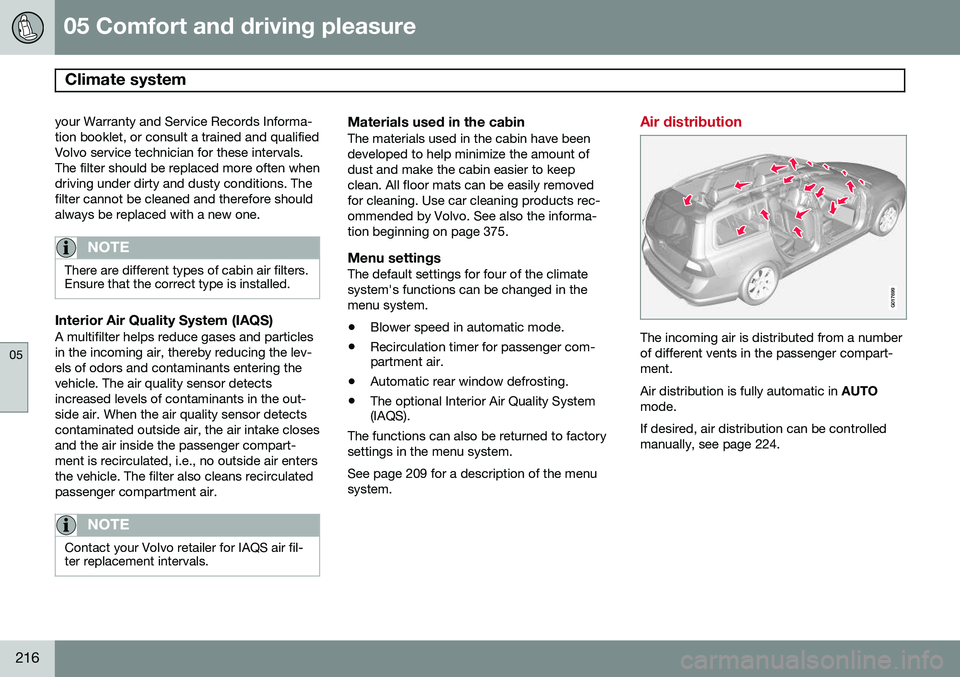
Air distribution
G017699
The incoming air is distributed from a number of different vents in the passenger compart-ment. Air distribution is fully automatic in AUTO
mode.If desired, air distribution can be controlled manually, see page 224.
Page 228 of 408
05 Comfort and driving pleasure
Trip computer
05
226
FunctionDescription
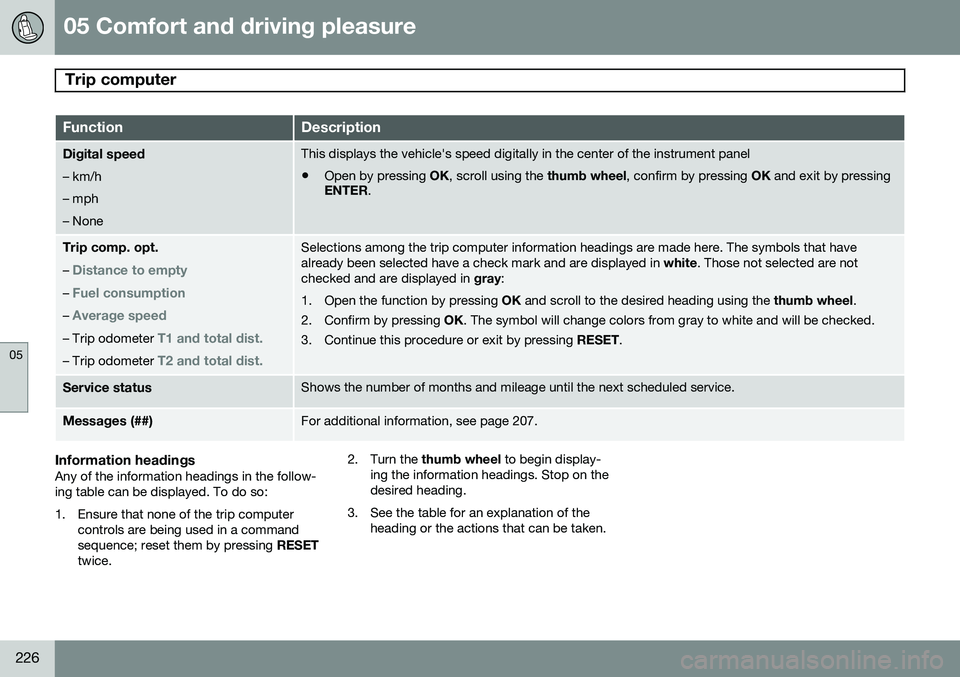
Digital speed – km/h – mph– NoneThis displays the vehicle's speed digitally in the center of the instrument panel
• Open by pressing
OK, scroll using the thumb wheel, confirm by pressing OK and exit by pressing
ENTER .
Trip comp. opt.
–
Distance to empty
– Fuel consumption
– Average speed
– Trip odometer T1 and total dist.
– Trip odometer T2 and total dist.
Selections among the trip computer information headings are made here. The symbols that have already been selected have a check mark and are displayed in white. Those not selected are not
checked and are displayed in gray:
1. Open the function by pressing OK and scroll to the desired heading using the thumb wheel.
2. Confirm by pressing OK. The symbol will change colors from gray to white and will be checked.
3. Continue this procedure or exit by pressing RESET.
Service statusShows the number of months and mileage until the next scheduled service.
Messages (##)For additional information, see page 207.
Information headingsAny of the information headings in the follow- ing table can be displayed. To do so:
1. Ensure that none of the trip computer
controls are being used in a command sequence; reset them by pressing RESET
twice. 2. Turn the
thumb wheel to begin display-
ing the information headings. Stop on thedesired heading.
3. See the table for an explanation of the heading or the actions that can be taken.
Page 230 of 408
05 Comfort and driving pleasure
Trip computer
05
228* Option/accessory, for more information, see Introduction.
3. Use the thumb wheel to scroll among the
functions and select/confirm your choice by pressing OK. 4. After completing your selection, exit by
pressing RESET twice. The following table lists the digital trip com-puter's functions:
FunctionDescription
Trip computer reset
– Average fuel consumption – Average speedNOTE: This function does not reset the trip odometers, see page 230 for a description of how
this is done.
MessagesFor additional information, see page 207.
ThemesSet the way in which information is displayed in the instrument panel, see page 80.
Settings *Select Auto On or Off.
Contrast mode /Color modeAdjust the instrument panel's contrast and color.
Service statusShows the number of months and mileage until the next scheduled service.
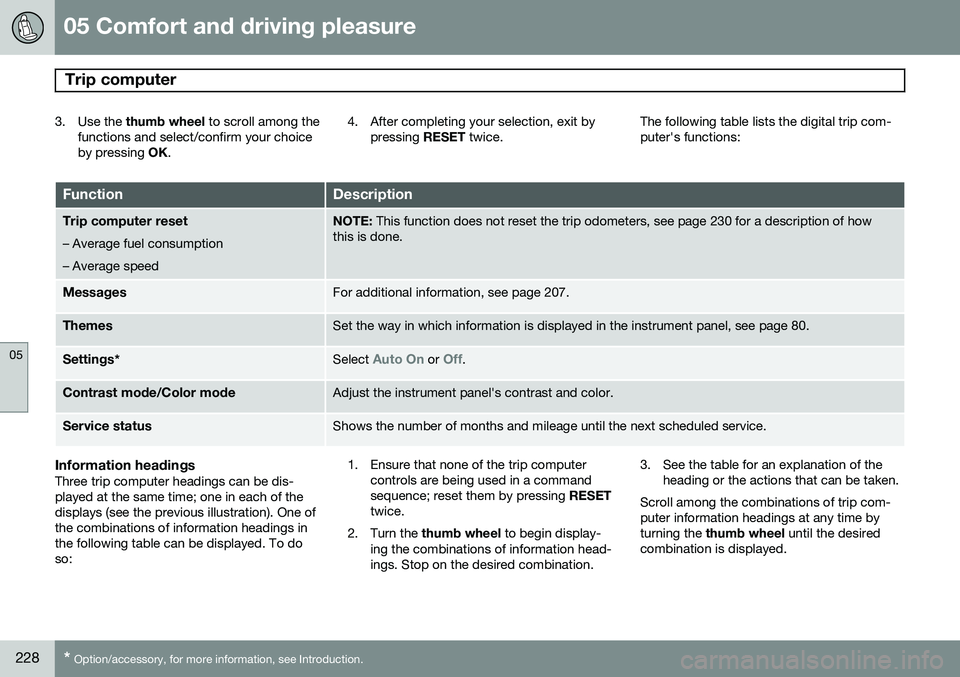
Information headingsThree trip computer headings can be dis- played at the same time; one in each of thedisplays (see the previous illustration). One ofthe combinations of information headings inthe following table can be displayed. To doso: 1. Ensure that none of the trip computer
controls are being used in a commandsequence; reset them by pressing RESET
twice.
2. Turn the thumb wheel to begin display-
ing the combinations of information head-ings. Stop on the desired combination. 3. See the table for an explanation of the
heading or the actions that can be taken.
Scroll among the combinations of trip com-puter information headings at any time byturning the thumb wheel until the desired
combination is displayed.
Page 266 of 408
06 Infotainment
AUX/USB sockets
06
264
Connecting external devices
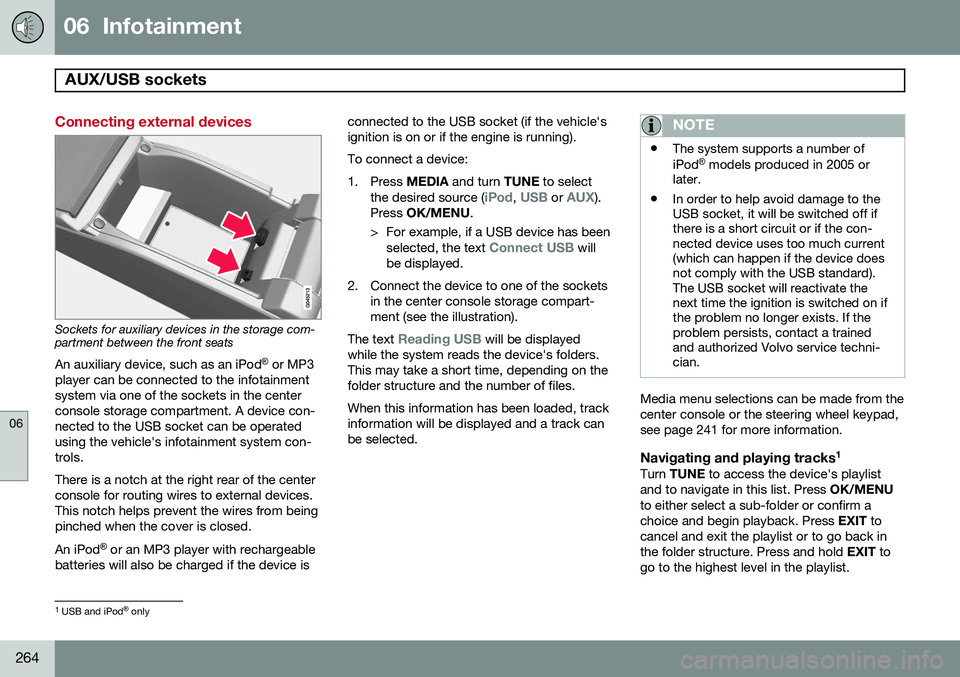
Sockets for auxiliary devices in the storage com- partment between the front seatsAn auxiliary device, such as an iPod ®
or MP3
player can be connected to the infotainment system via one of the sockets in the centerconsole storage compartment. A device con-nected to the USB socket can be operatedusing the vehicle's infotainment system con-trols. There is a notch at the right rear of the center console for routing wires to external devices.This notch helps prevent the wires from beingpinched when the cover is closed. An iPod ®
or an MP3 player with rechargeable
batteries will also be charged if the device is connected to the USB socket (if the vehicle's ignition is on or if the engine is running). To connect a device:
1. Press
MEDIA and turn TUNE to select
the desired source (
iPod, USB or AUX).
Press OK/MENU .
> For example, if a USB device has been selected, the text
Connect USB will
be displayed.
2. Connect the device to one of the sockets in the center console storage compart- ment (see the illustration).
The text
Reading USB will be displayed
while the system reads the device's folders. This may take a short time, depending on thefolder structure and the number of files. When this information has been loaded, track information will be displayed and a track canbe selected.
NOTE
• The system supports a number of iPod ®
models produced in 2005 or
later.
• In order to help avoid damage to the USB socket, it will be switched off ifthere is a short circuit or if the con-nected device uses too much current(which can happen if the device doesnot comply with the USB standard).The USB socket will reactivate thenext time the ignition is switched on ifthe problem no longer exists. If theproblem persists, contact a trainedand authorized Volvo service techni-cian.
Media menu selections can be made from the center console or the steering wheel keypad,see page 241 for more information.
Navigating and playing tracks 1Turn
TUNE to access the device's playlist
and to navigate in this list. Press OK/MENU
to either select a sub-folder or confirm achoice and begin playback. Press EXIT to
cancel and exit the playlist or to go back inthe folder structure. Press and hold EXIT to
go to the highest level in the playlist.
1 USB and iPod ®
only