reset VOLVO XC90 2009 Owner´s Manual
[x] Cancel search | Manufacturer: VOLVO, Model Year: 2009, Model line: XC90, Model: VOLVO XC90 2009Pages: 282, PDF Size: 8.76 MB
Page 238 of 282
10 AudioAudio system controls
10238
NOTE
TheMY KEY buttons can only be pro-
grammed for one shortcut function at a
time.Rear headphone connectors and
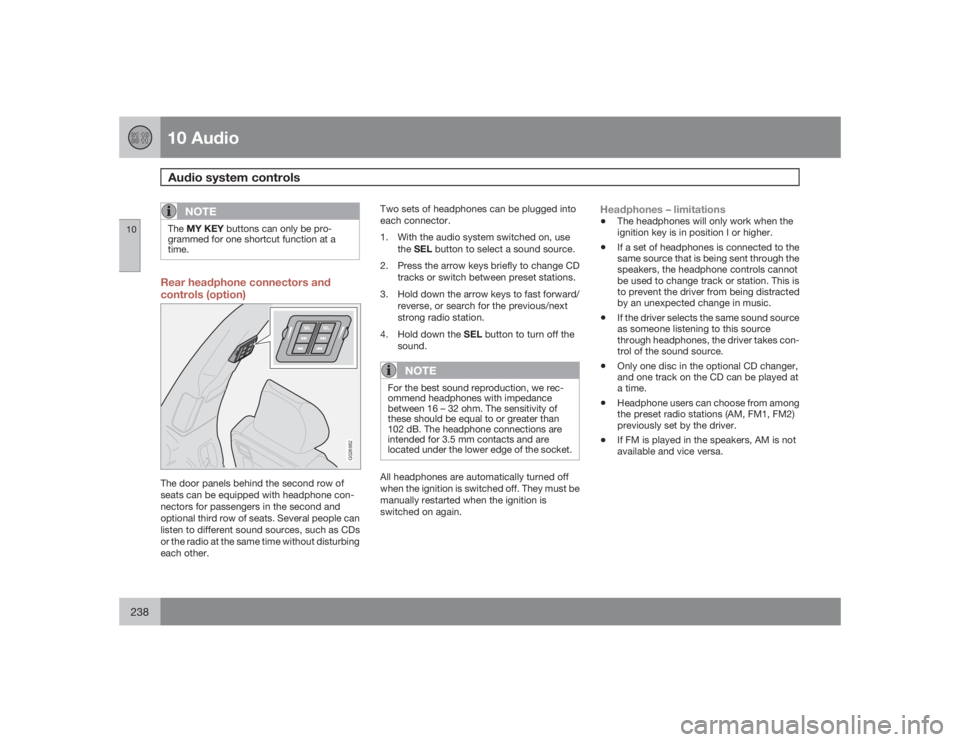
controls (option)
G026982
The door panels behind the second row of
seats can be equipped with headphone con-
nectors for passengers in the second and
optional third row of seats. Several people can
listen to different sound sources, such as CDs
or the radio at the same time without disturbing
each other.Two sets of headphones can be plugged into
each connector.
1. With the audio system switched on, use
theSEL button to select a sound source.
2. Press the arrow keys briefly to change CD
tracks or switch between preset stations.
3. Hold down the arrow keys to fast forward/
reverse, or search for the previous/next
strong radio station.
4.
Hold down the SEL button to turn off the
sound.
NOTE
For the best sound reproduction, we rec-
ommend headphones with impedance
between 16 – 32 ohm. The sensitivity of
these should be equal to or greater than
102 dB. The headphone connections are
intended for 3.5 mm contacts and are
located under the lower edge of the socket.All headphones are automatically turned off
when the ignition is switched off. They must be
manually restarted when the ignition is
switched on again.
Headphones – limitations•
The headphones will only work when the
ignition key is in position I or higher.
•
If a set of headphones is connected to the
same source that is being sent through the
speakers, the headphone controls cannot
be used to change track or station. This is
to prevent the driver from being distracted
by an unexpected change in music.
•
If the driver selects the same sound source
as someone listening to this source
through headphones, the driver takes con-
trol of the sound source.
•
Only one disc in the optional CD changer,
and one track on the CD can be played at
a time.
•
Headphone users can choose from among
the preset radio stations (AM, FM1, FM2)
previously set by the driver.
•
If FM is played in the speakers, AM is not
available and vice versa.
Page 243 of 282
10 Audio
Radio functions
10
243
Starting autostore1.
Choose a frequency band with the AM/
FM button.
2.
Press and hold down the AUTO button
until
AUTOSTORING
is shown in the
display.
When
AUTOSTORING
is no longer displayed,
the autostore process is complete. The auto-
matically stored stations can be selected withe
the preset (number) keys If there are no stations
with sufficient signal strength,
NO AST
FOUND
is displayed.
Stopping autostorePressEXIT.Selecting an autostored station1.
PressAUTO (1) briefly. AUTOwill be dis-
played.
2. Press one of the preset buttons (0 – 9).
The radio will remain in Autostore mode until
AUTO, EXIT, or AM/FM is pressed.
SCANThis function automatically searches the cur-
rently selected waveband (AM, FM1, or FM2)
for strong stations. When the radio finds a sta-
tion, it will pause for approximately 8 seconds,
after which it will continue scanning.Activating/deactivating Scan1.
Choose a waveband by pressing the AM/
FM button.
2.
PressSCAN
.SCAN will be shown in the
display.
3.
PressEXIT to stop scanning.
Storing a station found by SCANStations can be stored on the preset buttons
while the SCAN function is activated.•
Press a preset button and hold it down until
Station stored is displayed.
This deactivates SCAN and the stored station
can be selected by pressing the preset button.
Radio textCertain stations broadcast program informa-
tion, which can be shown in the display.
1.
Press the MENU button.
2.
Select
RADIOTEXT
in the menu and press
ENTER.
Select
RADIOTEXT
again to deactivate.
Page 245 of 282

10 Audio
Sirius satellite radio
10``245
1.
PressMENU and scroll to
Direct channel
entry
.
2. Use the numerical keypad to enter the
channel's number. Press EXIT if necessary
to erase a digit.
3.
PressENTER. The radio will tune to this
channel, even if it belongs to a category
other than the currently selected one.
NOTE
The numbers of skipped or locked channels
will not be displayed.•
If a channel is locked, the access code
must be entered before the channel can
be selected. See "Unlocking a channel"
on page 246.
ScanningSCAN automatically searches through the list
of satellite channels. see page 242 for more
detailed information.
Storing a channelA total of 20 satellite channels can be stored;
10 channels each for Sirius 1 and 2. See page
242 for detailed information on storing chan-
nels.•
Along press on one of the number keys
stores the currently tuned channel on that
key.
•
Ashort press on a number key while the
radio is in Sirius 1 or 2 mode will tune to the
preset satellite channel stored on that but-
ton, regardless of the currently selected
channel category.
Song Seek and Song MemoryThe Song Seek
and
Song Memory
functions
provide both audio and visual notification when
Sirius is broadcasting your favorite songs.
Song Seek enables you to store the name of
the song for future advance notification when
that song is being played. The
Song Memory
feature makes it possible to view all of the cur-
rent songs that are stored in memory.Song memoryUp to ten songs can be saved in the system's
memory.
1.
PressMENU.2.
Scroll to "
Add song to song mem.
" and
follow the instructions shown in the dis-
play.
If a new song is selected when the memory is
full, you will be prompted to press ENTER to
delete the last song on the list.
The remaining songs in the list will move down
one position, and the newly added song will be
placed at the top of the list.
Song seekWhen a satellite radio channel plays one of the
songs stored in the song memory, the listener
will be alerted by a text message and an audi-
ble signal.
PressENTER to listen to the song or EXIT to
cancel.
To activate/deactivate the song seek function:
1.
PressMENU
2.
Scroll to "
Song seek
"
3.
PressENTER to activate or deactivate the
function.
NOTE
When the song has ended, the radio will
remain tuned to the channel on which the
song was played.
Page 252 of 282
10 AudioMenu structure
10252
FM Menu1. Radio Text
2. Audio Settings
1
1. Surround
2. Subwoofer (option)
3. Equalizer Fr
4. Equalizer Rr
5. Reset All
AM MenuSee Audio Settings i the FM Menu.CD Menu1. Random
2. Disc Text
3. Audio Settings
See Audio Settings in the FM Menu.AUX Menu (option)1. AUX input vol
2. Audio Settings
See Audio Settings in the FM Menu1Certain audio systems
Page 275 of 282
12 Index
12
275
Child restraints
recalls and registration......................... 46
Child safety................................................ 33
Child safety locks....................................124
Climate system.......................................... 90
refrigerant............................................. 90
Clock reset button..................................... 54
Coat hanger............................................. 111
Cold weather precautions........................ 157
Compact disc care
CD care............................................... 251
Convertible seats....................................... 39
Coolant.................................................... 211
changing............................................. 206
Courtesy light........................................... 106
Cup holder
rear seat.............................................. 110
Curb weight............................................. 175
Current fuel consumption.......................... 71
DDefroster
rear window and door mirrors.............. 70
rear window and mirrors....................... 95
windshield............................................. 94
Detachable trailer hitch............................ 155
Dimensions.............................................. 260
Disabling the passenger's side front air-
bag............................................................. 25
Display, instrument panel.......................... 54
Dolby Pro Logic II (DPL II)........................ 239
Door mirrors............................................... 81
defroster............................................... 70
Door mirrors, folding.................................. 60
Driving conditions, difficult......................137
Driving economically................................ 136
Driving through water..............................137EEconomical driving..................................136
Electrically operated moonroof.................. 83
Electrical system...................................... 270Emission inspection readiness................ 203
Engine
specifications...................................... 269
starting................................................ 133
Engine oil................................................. 208
specifications...................................... 268
FFederal Clean Air Act............................... 202
Flat tires
changing............................................. 180
repairing with tire sealing system....... 185
Fog light..................................................... 56
Fog lights
front*.....................................................64
Folding door mirrors.................................. 60
Front airbags.................................. 21, 22, 25
Front seat
folding backrest.................................. 100
manually adjusted............................... 100
Front seats
power.................................................. 100
Front suspension..................................... 267