wheel VOLVO XC90 2009 Owner´s Manual
[x] Cancel search | Manufacturer: VOLVO, Model Year: 2009, Model line: XC90, Model: VOLVO XC90 2009Pages: 282, PDF Size: 8.76 MB
Page 248 of 282
10 AudioAuxiliary equipment
10248
G027029
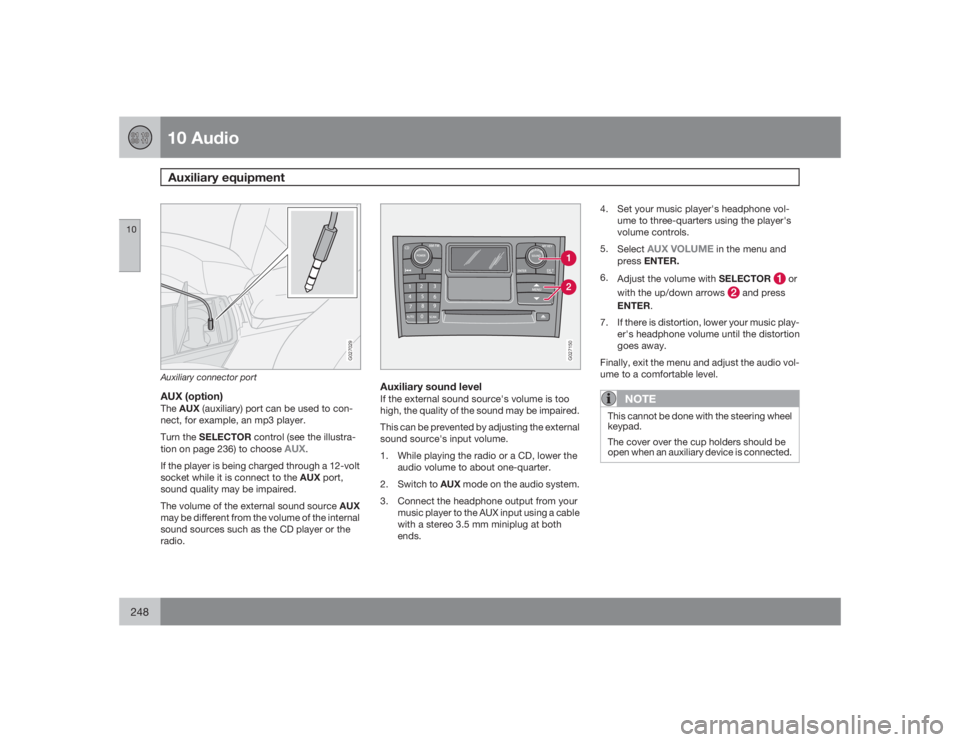
Auxiliary connector portAUX (option)TheAUX(auxiliary) port can be used to con-
nect, for example, an mp3 player.
Turn the SELECTOR control (see the illustra-
tion on page 236) to choose
AUX
.
If the player is being charged through a 12-volt
socket while it is connect to the AUX port,
sound quality may be impaired.
The volume of the external sound source AUX
may be different from the volume of the internal
sound sources such as the CD player or the
radio.
G027150
Auxiliary sound levelIf the external sound source's volume is too
high, the quality of the sound may be impaired.
This can be prevented by adjusting the external
sound source's input volume.
1. While playing the radio or a CD, lower the
audio volume to about one-quarter.
2.
Switch to AUX mode on the audio system.
3. Connect the headphone output from your
music player to the AUX input using a cable
with a stereo 3.5 mm miniplug at both
ends.4. Set your music player's headphone vol-
ume to three-quarters using the player's
volume controls.
5.
Select
AUX VOLUME
in the menu and
pressENTER.
6.
Adjust the volume with SELECTOR
or
with the up/down arrows
and press
ENTER.
7. If there is distortion, lower your music play-
er's headphone volume until the distortion
goes away.
Finally, exit the menu and adjust the audio vol-
ume to a comfortable level.
NOTE
This cannot be done with the steering wheel
keypad.
The cover over the cup holders should be
open when an auxiliary device is connected.
Page 250 of 282
10 AudioCD player/changer
10250
Navigating the disc and playing tracksIf a disc with audio files is in the CD player,
pressENTER to display a list of folders on the
disc.
Use the up and down arrows to move among
the folders on the disc. Audio files have the
symbol and folders containing these
files have the
symbol.
PressENTER to play a selected folder or a file.
When the music file has been played, the
player will continue to play the rest of the files
in the current folder. When all of the files in the
folder have been played, the player will auto-
matically go to the next folder and play the files
in it.
NOTE
Press
or
if the entire name of
the current track does not fit in the display.
Changing tracks
CD player/CD changer1.
Briefly press
or
to go to the
next/previous track or file. The steeringwheel keypad can be used in the same
way.
2.
Press and hold down
or
to
search within a track/file. The search con-
tinues as long as the buttons are
depressed. The steering wheel keypad can
be used in the same way.
SCANThis function plays the first ten seconds of
each track or file
1.
1.
PressSCAN to begin scanning the tracks
or files on the currently selected CD.
2.
PressEXIT/CLEAR or SCAN to interrupt
the scan function and listen to an entire
track or file.
Random play
CD playerThis function plays the tracks or files on a CD
in random order (shuffle).If a normal music CD is being playedSelectRANDOMin the menu and press
ENTER.
If a CD with mp3 or wma files is being
playedSelect
DISC
or
FOLDER
in the menu and
pressENTER.
CD changerThis function offers two alternatives for playing
the tracks on the disc(s) in the CD changer in
random order (shuffle).•
SINGLE DISC
(random order on the cur-
rently selected disc)
•
ALL DISCS
(random order on all of the
CDs in the changer)
If a normal music CD is being played•
Select
RANDOM
in the menu and press
ENTER.
•
Select
SINGLE DISC
or
ALL DISCS
and
press ENTER.
NOTE
Press to play the next randomly selected
track. This can only be done on the currently
selected disc.If a CD with mp3 or wma files is being
playedSelect
SINGLE DISC
or
FOLDER i
n the menu
and press ENTER.
1CD changer: SCAN only functions on the currently selected disc.
Page 253 of 282
10 Audio
Rear Seat Entertainment - Dual Screen (RSE)–option
10``253 Introduction
The RSE system can be used at the same time
as the vehicle’s audio system.
When the rear seat passengers play a DVD,
connect an external device to the RSE AUX
connectors, etc., and listen to the audio
through the cordless headphones, the driver
and front seat passenger can still use the vehi-
cle's audio system to listen to the radio, a CD,
music stored on an MP3 player, etc.
Please also refer to the Quick Guide provided
with the RSE system for additional information.Electrical current - ignition keyThe RSE system can be activated with the igni-
tion in position I or II (see page 135 for infor-
mation on the ignition positions), or when the
engine is running. While the engine is being
started, a film or music that is currently being
played will pause momentarily and resume
playing when the engine has started.
When the RSE system has been used once
when the ignition is switched off, it will be then
be blocked for further use. RSE can be restar-
ted by turning the ignition key to position I.
NOTE
Using RSE for more than approximately
10 minutes with the engine switched off may
drain the vehicle’s battery and make it diffi-
cult or impossible to start the engine.
If this occurs, a message will be displayed
on the RSE system’s screens.MusicListening to a music CD1. Insert a CD into the RSE player’s slot with
the disc’s label facing upward.
> The CD will begin to play automatically.
2. Switch on the cordless headphones and
selectCH A for the left screen or CH B for
the right screen.
> This will direct the sound to the head-
phones.
3. Adjust the headphone volume by using the
thumb wheel on the headphones.
To listen through the vehicle’s audio sys-
tem speakers, press MODE on the audio
system control panel and select
AUX
.
Press
A B
on the RSE remote to route
the sound through the speakers.
Selecting a folder on the CD1. Insert the CD in the player.
2.
Press
.
3. Use the navigation buttons (the arrow keys
surrounding the OK button on the RSE
remote control) to highlight a folder and/or
a specific track.
4.
Press to select a sub-folder.
Playback alternativesThe CD can be played in several different ways.
Use the navigation buttons to select one of the
alternatives.
With the dialogue box displayed:
1. Press the right navigation button to access
the menu to the right..
2. Use the navigation keys to select one of the
alternatives.
3.
Confirm your choice by pressing
.
Changing tracks on the CD±
Change tracks on the CD by pressing
or
. Hold the respective
buttons down for fast forward or reverse.
Page 260 of 282
11 SpecificationsDimensions
11260
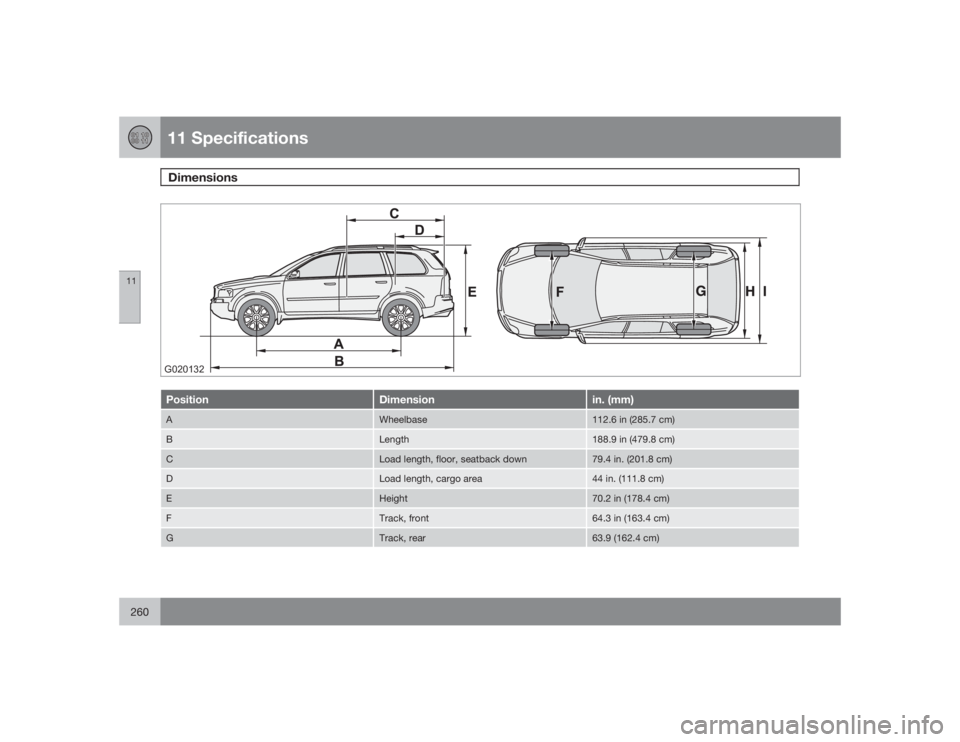
G020132Position
Dimension
in. (mm)
A
Wheelbase
112.6 in (285.7 cm)
B
Length
188.9 in (479.8 cm)
C
Load length, floor, seatback down
79.4 in. (201.8 cm)
D
Load length, cargo area
44 in. (111.8 cm)
E
Height
70.2 in (178.4 cm)
F
Track, front
64.3 in (163.4 cm)
G
Track, rear
63.9 (162.4 cm)
Page 263 of 282
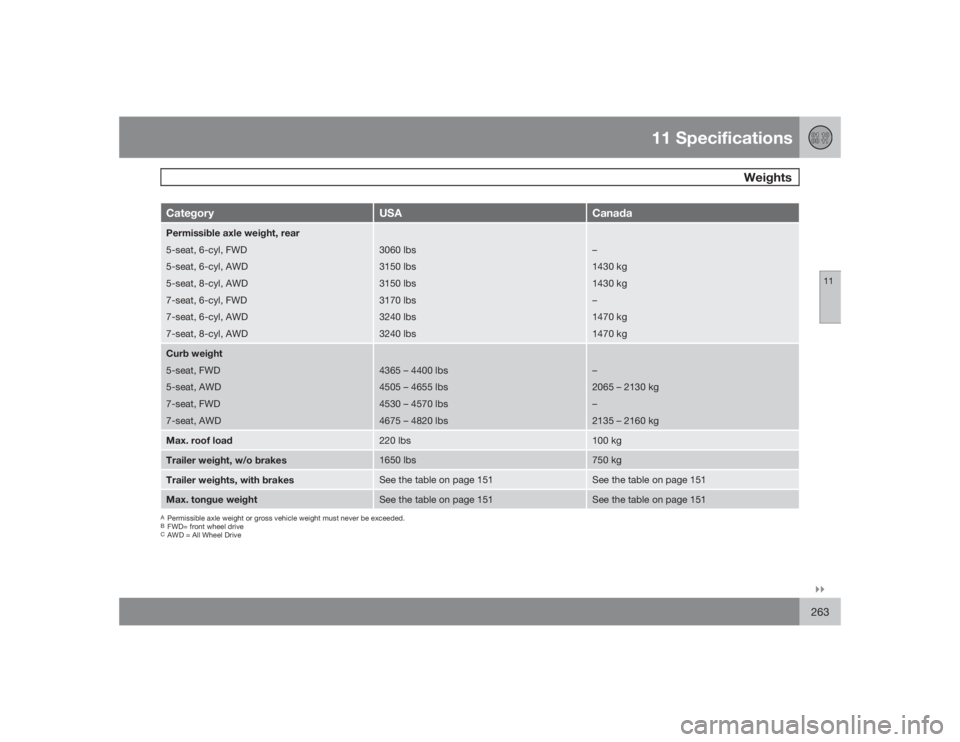
11 Specifications
Weights
11``263
Category
USA
Canada
Permissible axle weight, rear
5-seat, 6-cyl, FWD
5-seat, 6-cyl, AWD
5-seat, 8-cyl, AWD
7-seat, 6-cyl, FWD
7-seat, 6-cyl, AWD
7-seat, 8-cyl, AWD
3060 lbs
3150 lbs
3150 lbs
3170 lbs
3240 lbs
3240 lbs
–
1430 kg
1430 kg
–
1470 kg
1470 kg
Curb weight
5-seat, FWD
5-seat, AWD
7-seat, FWD
7-seat, AWD
4365 – 4400 lbs
4505 – 4655 lbs
4530 – 4570 lbs
4675 – 4820 lbs
–
2065 – 2130 kg
–
2135 – 2160 kg
Max. roof load
220 lbs
100 kg
Trailer weight, w/o brakes
1650 lbs
750 kg
Trailer weights, with brakes
See the table on page 151
See the table on page 151
Max. tongue weight
See the table on page 151
See the table on page 151
APermissible axle weight or gross vehicle weight must never be exceeded.BFWD= front wheel driveCAWD = All Wheel Drive
Page 267 of 282
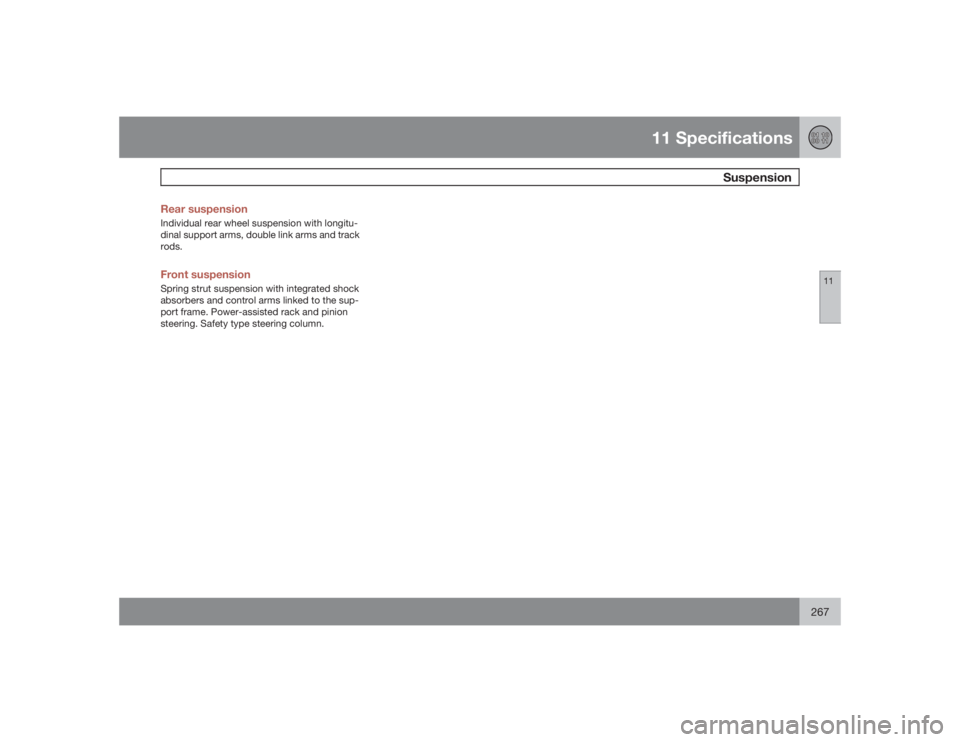
11 Specifications
Suspension
11
267 Rear suspension
Individual rear wheel suspension with longitu-
dinal support arms, double link arms and track
rods.Front suspensionSpring strut suspension with integrated shock
absorbers and control arms linked to the sup-
port frame. Power-assisted rack and pinion
steering. Safety type steering column.
Page 274 of 282
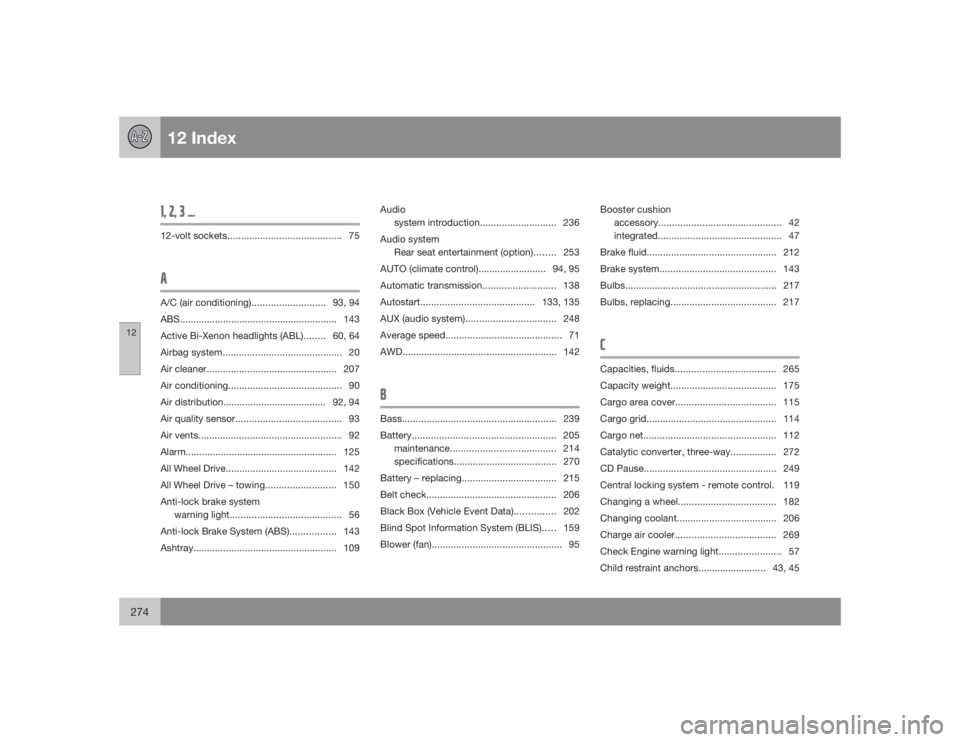
12 Index
12274
1, 2, 3 ...12-volt sockets.......................................... 75AA/C (air conditioning)...........................93, 94
ABS.......................................................... 143
Active Bi-Xenon headlights (ABL)........60, 64
Airbag system............................................ 20
Air cleaner................................................ 207
Air conditioning.......................................... 90
Air distribution...................................... 92, 94
Air quality sensor....................................... 93
Air vents..................................................... 92
Alarm........................................................ 125
All Wheel Drive......................................... 142
All Wheel Drive – towing.......................... 150
Anti-lock brake system
warning light......................................... 56
Anti-lock Brake System (ABS)................. 143
Ashtray..................................................... 109Audio
system introduction............................ 236
Audio system
Rear seat entertainment (option)........ 253
AUTO (climate control)......................... 94, 95
Automatic transmission........................... 138
Autostart..........................................133, 135
AUX (audio system).................................248
Average speed........................................... 71
AWD......................................................... 142
BBass......................................................... 239
Battery..................................................... 205
maintenance....................................... 214
specifications...................................... 270
Battery – replacing................................... 215
Belt check................................................ 206
Black Box (Vehicle Event Data)............... 202
Blind Spot Information System (BLIS)..... 159
Blower (fan)................................................ 95Booster cushion
accessory............................................. 42
integrated.............................................. 47
Brake fluid................................................ 212
Brake system........................................... 143
Bulbs........................................................ 217
Bulbs, replacing....................................... 217
CCapacities, fluids..................................... 265
Capacity weight....................................... 175
Cargo area cover..................................... 115
Cargo grid................................................ 114
Cargo net................................................. 112
Catalytic converter, three-way................. 272
CD Pause................................................. 249
Central locking system - remote control. 119
Changing a wheel.................................... 182
Changing coolant..................................... 206
Charge air cooler..................................... 269
Check Engine warning light....................... 57
Child restraint anchors......................... 43, 45
Page 276 of 282
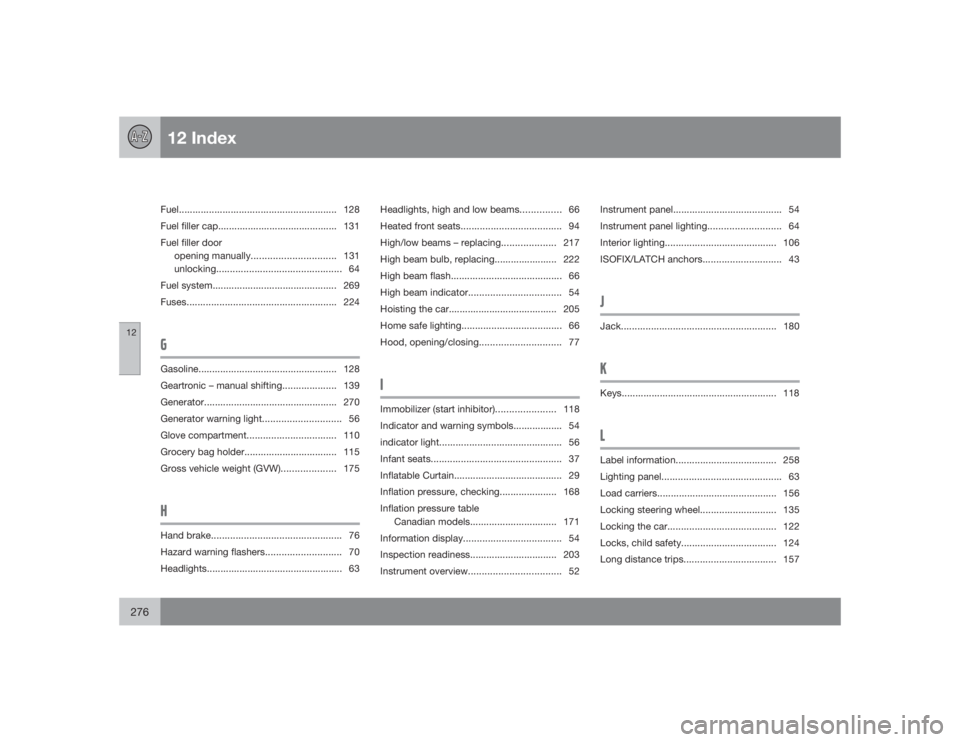
12 Index
12276
Fuel.......................................................... 128
Fuel filler cap............................................ 131
Fuel filler door
opening manually...............................131
unlocking.............................................. 64
Fuel system.............................................. 269
Fuses.......................................................224GGasoline................................................... 128
Geartronic – manual shifting.................... 139
Generator................................................. 270
Generator warning light............................. 56
Glove compartment................................. 110
Grocery bag holder.................................. 115
Gross vehicle weight (GVW).................... 175HHand brake................................................ 76
Hazard warning flashers............................ 70
Headlights.................................................. 63Headlights, high and low beams............... 66
Heated front seats..................................... 94
High/low beams – replacing....................217
High beam bulb, replacing....................... 222
High beam flash......................................... 66
High beam indicator.................................. 54
Hoisting the car........................................ 205
Home safe lighting..................................... 66
Hood, opening/closing.............................. 77
IImmobilizer (start inhibitor)...................... 118
Indicator and warning symbols.................. 54
indicator light............................................. 56
Infant seats................................................ 37
Inflatable Curtain........................................ 29
Inflation pressure, checking..................... 168
Inflation pressure table
Canadian models................................ 171
Information display.................................... 54
Inspection readiness................................ 203
Instrument overview.................................. 52Instrument panel........................................ 54
Instrument panel lighting........................... 64
Interior lighting......................................... 106
ISOFIX/LATCH anchors............................. 43
JJack.........................................................180KKeys......................................................... 118LLabel information..................................... 258
Lighting panel............................................ 63
Load carriers............................................ 156
Locking steering wheel............................ 135
Locking the car........................................ 122
Locks, child safety................................... 124
Long distance trips.................................. 157
Page 278 of 282
12 Index
12278
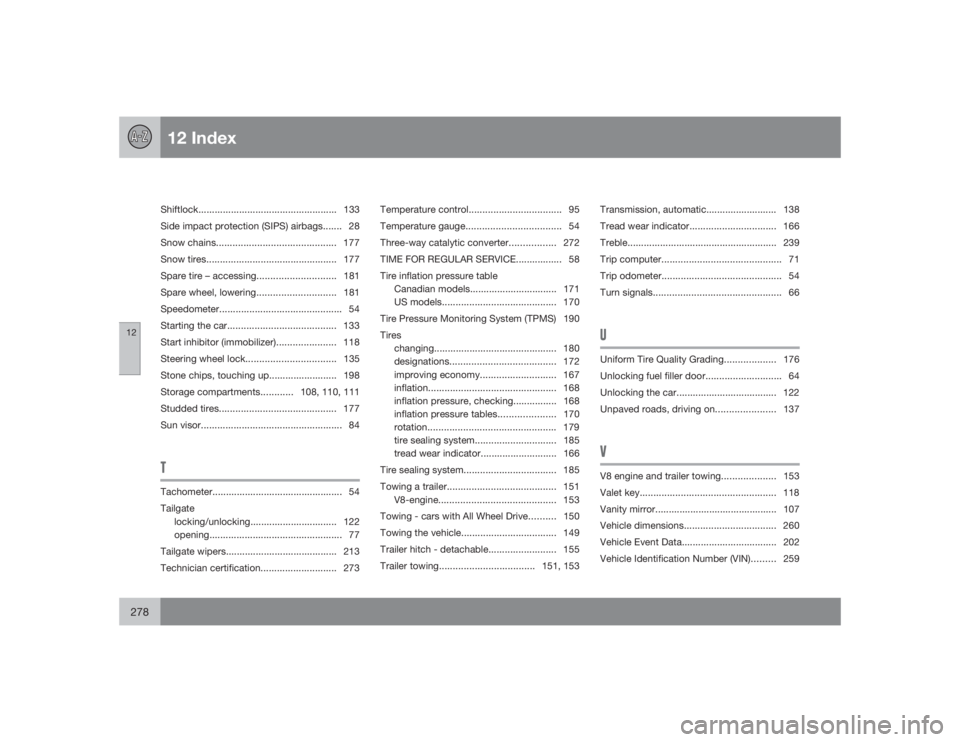
Shiftlock...................................................133
Side impact protection (SIPS) airbags....... 28
Snow chains............................................ 177
Snow tires................................................ 177
Spare tire – accessing.............................181
Spare wheel, lowering.............................181
Speedometer............................................. 54
Starting the car........................................ 133
Start inhibitor (immobilizer)...................... 118
Steering wheel lock.................................135
Stone chips, touching up......................... 198
Storage compartments............108, 110, 111
Studded tires........................................... 177
Sun visor.................................................... 84TTachometer................................................ 54
Tailgate
locking/unlocking................................ 122
opening................................................. 77
Tailgate wipers......................................... 213
Technician certification............................ 273Temperature control.................................. 95
Temperature gauge................................... 54
Three-way catalytic converter................. 272
TIME FOR REGULAR SERVICE................. 58
Tire inflation pressure table
Canadian models................................ 171
US models.......................................... 170
Tire Pressure Monitoring System (TPMS) 190
Tires
changing............................................. 180
designations....................................... 172
improving economy............................ 167
inflation............................................... 168
inflation pressure, checking................ 168
inflation pressure tables..................... 170
rotation............................................... 179
tire sealing system.............................. 185
tread wear indicator............................ 166
Tire sealing system.................................. 185
Towing a trailer........................................ 151
V8-engine........................................... 153
Towing - cars with All Wheel Drive.......... 150
Towing the vehicle................................... 149
Trailer hitch - detachable......................... 155
Trailer towing...................................151, 153Transmission, automatic.......................... 138
Tread wear indicator................................ 166
Treble....................................................... 239
Trip computer............................................ 71
Trip odometer............................................ 54
Turn signals............................................... 66
UUniform Tire Quality Grading................... 176
Unlocking fuel filler door............................ 64
Unlocking the car..................................... 122
Unpaved roads, driving on...................... 137VV8 engine and trailer towing....................153
Valet key.................................................. 118
Vanity mirror............................................. 107
Vehicle dimensions.................................. 260
Vehicle Event Data................................... 202
Vehicle Identification Number (VIN)......... 259