change time VOLVO XC90 2014 Owner´s Manual
[x] Cancel search | Manufacturer: VOLVO, Model Year: 2014, Model line: XC90, Model: VOLVO XC90 2014Pages: 308, PDF Size: 13.31 MB
Page 206 of 308
07 Wheels and tires
Tire Pressure Monitoring System (TPMS)
07
204
properly. Always check the TPMS malfunc- tion telltale after replacing one or more tiresor wheels on your vehicle to ensure that thereplacement or alternate tires and wheelsallow the TPMS to continue to function prop-erly.
NOTE
TPMS indicates low tire pressure but does not replace normal tire maintenance. Forinformation on correct tire pressure, pleaserefer to the tire inflation pressure table inthis chapter or consult your Volvo retailer.
Erasing warning messagesWhen a low tire pressure warning message has been displayed, and the tire pressurewarning light has come on:
1. Use a tire pressure gauge to check theinflation pressure of all four tires.
2. Re-inflate the tire(s) to the correct pres- sure (consult the tire pressure placard or the table see page 183).
3. Drive the vehicle for several minutes at a speed of 20 mph (30 km/h) or faster.
> This will erase the warning text and thewarning light will go out.
WARNING
Incorrect inflation pressure could lead to tire failure, resulting in a loss of control ofthe vehicle.
Changing wheels with TPMSPlease note the following when changing or replacing the factory installed TPMS wheels/tires on the vehicle:
• Only the factory-mounted wheels are equipped with TPMS sensors in thevalves.
• If the vehicle is equipped with a tempo-rary spare tire, this tire does not have aTPMS sensor.
• If wheels without TPMS sensors are mounted on the vehicle,
TIRE PRESS
SYST. SERVICE REQUIRED will be dis-
played each time the vehicle is driven above 25 mph (40 km/h) for 10 minutes ormore.
• Once TPMS sensors are properly instal-led, the warning message should notreappear.
• Volvo recommends that TPMS sensorsbe fitted on all wheels used on the vehi-cle. Volvo does not recommend movingsensors back and forth between sets ofwheels.
NOTE
If a tire is changed or if the TPMS sensor is moved to another wheel, the sensor’svalve and valve core should be replaced.
CAUTION
When inflating tires with TPMS valves, press the pump's mouthpiece straightonto the valve to help avoid bending orotherwise damaging the valve.
Recalibrating TPMS (Canadian models only)
In certain cases, it may be necessary to reca- librate TPMS to conform to Volvo's recom-mended tire inflation pressures (see the infla-tion pressure table on page 183), for exam-ple, if higher inflation pressure is necessarywhen transporting heavy loads, etc. To recalibrate:
1. Switch off the engine.
2. Inflate the tires to the desired pressure
and turn the ignition key to position I or II
(see page 145 for additional information).
3. Turn the thumb wheel on the left-side steering wheel lever until
Tire pressure
Calibration appears in the display.
Page 256 of 308
10 Audio
Audio system controls
10
254* Option/accessory, for more information, see Introduction.
NOTE
The MY KEY buttons can only be pro-
grammed for one shortcut function at a time.
Rear headphone connectors and controls *
G026982
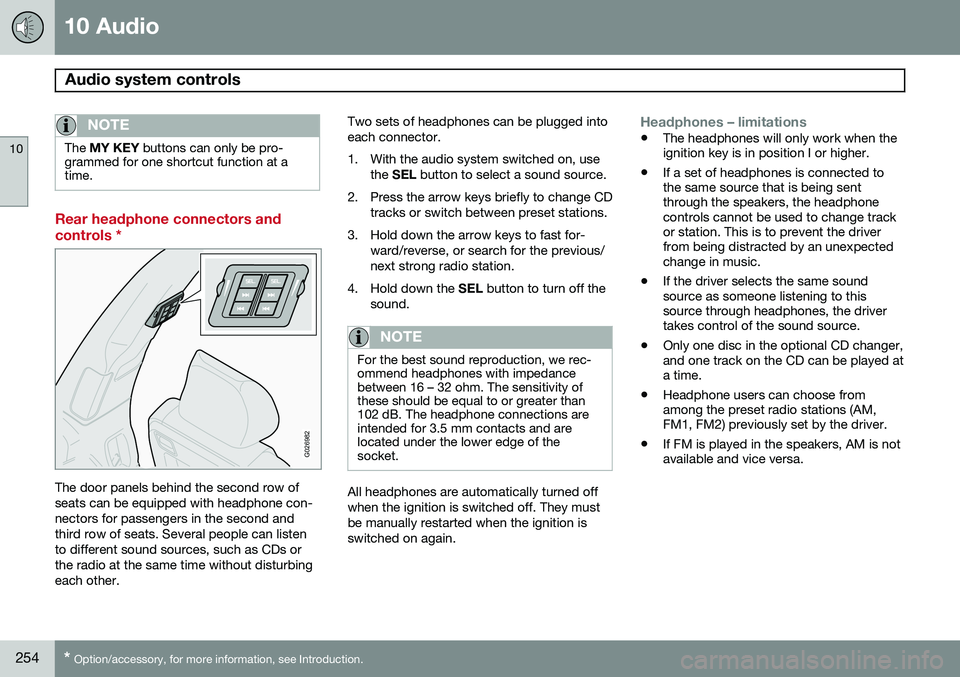
The door panels behind the second row of seats can be equipped with headphone con-nectors for passengers in the second andthird row of seats. Several people can listento different sound sources, such as CDs orthe radio at the same time without disturbingeach other. Two sets of headphones can be plugged intoeach connector.
1. With the audio system switched on, use
the SEL button to select a sound source.
2. Press the arrow keys briefly to change CD tracks or switch between preset stations.
3. Hold down the arrow keys to fast for- ward/reverse, or search for the previous/ next strong radio station.
4. Hold down the SEL button to turn off the
sound.
NOTE
For the best sound reproduction, we rec- ommend headphones with impedancebetween 16 – 32 ohm. The sensitivity ofthese should be equal to or greater than102 dB. The headphone connections areintended for 3.5 mm contacts and arelocated under the lower edge of thesocket.
All headphones are automatically turned off when the ignition is switched off. They mustbe manually restarted when the ignition isswitched on again.
Headphones – limitations
• The headphones will only work when the ignition key is in position I or higher.
• If a set of headphones is connected tothe same source that is being sentthrough the speakers, the headphonecontrols cannot be used to change trackor station. This is to prevent the driverfrom being distracted by an unexpectedchange in music.
• If the driver selects the same soundsource as someone listening to thissource through headphones, the drivertakes control of the sound source.
• Only one disc in the optional CD changer,and one track on the CD can be played ata time.
• Headphone users can choose fromamong the preset radio stations (AM,FM1, FM2) previously set by the driver.
• If FM is played in the speakers, AM is notavailable and vice versa.
Page 263 of 308
10 Audio
Radio functions
10
261
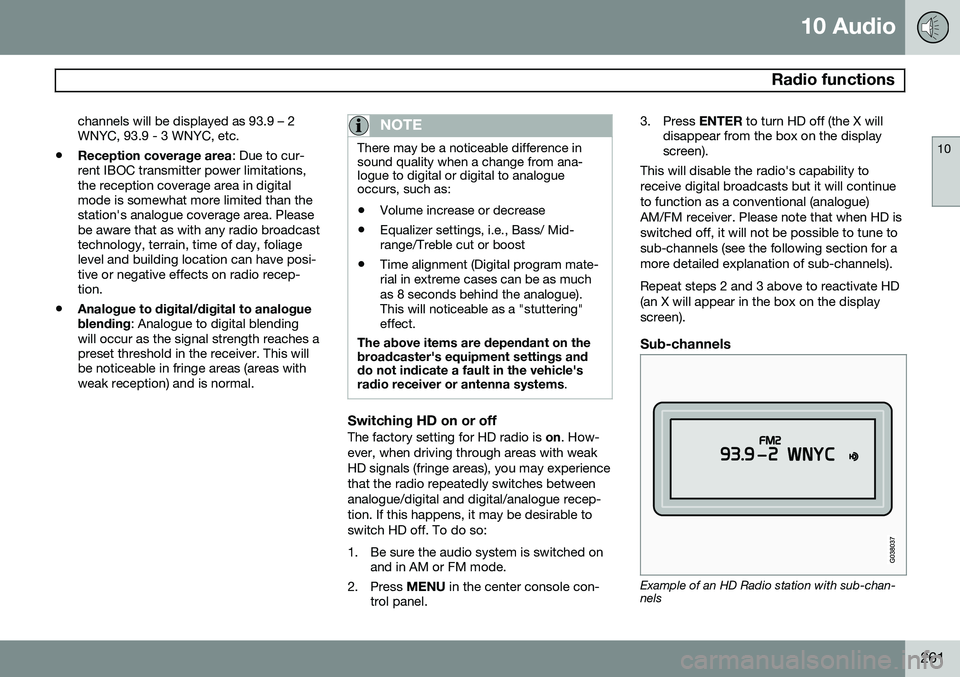
channels will be displayed as 93.9 – 2 WNYC, 93.9 - 3 WNYC, etc.
• Reception coverage area
: Due to cur-
rent IBOC transmitter power limitations,the reception coverage area in digitalmode is somewhat more limited than thestation's analogue coverage area. Pleasebe aware that as with any radio broadcasttechnology, terrain, time of day, foliagelevel and building location can have posi-tive or negative effects on radio recep-tion.
• Analogue to digital/digital to analogue blending
: Analogue to digital blending
will occur as the signal strength reaches a preset threshold in the receiver. This willbe noticeable in fringe areas (areas withweak reception) and is normal.
NOTE
There may be a noticeable difference in sound quality when a change from ana-logue to digital or digital to analogueoccurs, such as:
• Volume increase or decrease
• Equalizer settings, i.e., Bass/ Mid- range/Treble cut or boost
• Time alignment (Digital program mate-rial in extreme cases can be as muchas 8 seconds behind the analogue).This will noticeable as a "stuttering"effect.
The above items are dependant on the broadcaster's equipment settings and do not indicate a fault in the vehicle's radio receiver or antenna systems .
Switching HD on or offThe factory setting for HD radio is on. How-
ever, when driving through areas with weak HD signals (fringe areas), you may experiencethat the radio repeatedly switches betweenanalogue/digital and digital/analogue recep-tion. If this happens, it may be desirable toswitch HD off. To do so:
1. Be sure the audio system is switched on and in AM or FM mode.
2. Press MENU in the center console con-
trol panel. 3. Press
ENTER to turn HD off (the X will
disappear from the box on the display screen).
This will disable the radio's capability to receive digital broadcasts but it will continueto function as a conventional (analogue)AM/FM receiver. Please note that when HD isswitched off, it will not be possible to tune tosub-channels (see the following section for amore detailed explanation of sub-channels). Repeat steps 2 and 3 above to reactivate HD (an X will appear in the box on the displayscreen).
Sub-channels
Example of an HD Radio station with sub-chan- nels
Page 267 of 308
10 Audio
SiriusXM™ satellite radio
10
265
NOTE
When the song has ended, the radio will remain tuned to the channel on which thesong was played.
Radio text
The text that is displayed about the song cur- rently playing can be changed. Use the AUTO
button to switch between Artist, Title, Com-poser, or to switch radio text off, or use themenu to display and select among these cat-egories.
Advanced settings
This menu function enables you to make set- tings on certain SiriusXM ™ satellite radio
functions. To access this menu:
1. Press MENU.
2. Select
Adv. settings.
WARNING
Settings should be made when the vehicle is at a standstill.
The following settings can be made in the Sir- iusXM ™ menu: •
Songs can be added to the song list
• Channel skip settings can be made
• Channel lock settings can be made
• The channel access code can be dis- played or changed
• Your SiriusXM
™ ID can be displayed
Skip optionsThis function is used to remove a channel from the list of available channels.
Skip current channel1.
Select CHANNEL SKIP LIST and press
ENTER .
2. Select a category in the list and press ENTER .
3. Skip channels in the list presented by pressing ENTER.
Unskip all channelsThis permanently removes all channels from the skip list and makes them available forselection.
Temp. unskip all ch.This function will temporarily unskip all chan- nels and make them available for selection.The channels remain on the skip list and willagain be skipped the next time the ignition isswitched on.
Channel lockAccess to specific channels can be restricted(locked). A locked channel will not provideaudio, song titles, or artist information.
NOTE
All channels are initially unlocked at deliv- ery.
Locking a channel: 1.
Select "
Adv. settings" in the menu and
select LOCK OPTIONS and press
ENTER .
2. Select
CHANNEL LOCK LIST and press
ENTER
3. Enter the channel access code 1
and
press ENTER .
4. Select a category in the list and press ENTER .
5. Lock channels in the list presented by pressing ENTER.
The channel is now locked and a checked box will be displayed to indicate this. It will benecessary to enter the channel access code.See the section "Unlocking a channel" inorder to listen to a locked channel.
1 The default code is 0000. If you have changed the code and forgotten it, see the section "If you have forgotten the access code."
Page 268 of 308
10 Audio
SiriusXM™ satellite radio
10
266
Unlocking a channel
A channel's access code 1
is required to
unlock a channel.
Unlock all channelsThis permanently removes all channels from the locked list and makes them available forselection.
Temp. unlock all ch.This function will temporarily unlock all chan- nels and make them available for selection.The channels remain on the locked list andwill again be locked the next time the ignitionis switched on.
CHANGE CODE
This function makes it possible to change the channel access code. The default code is0000. To change the code:1. Select
CHANGE CODE and press
ENTER .
2. Enter the current code and press ENTER.
3. Enter the new code and press ENTER.
4. Confirm the new code and press ENTER.If an incorrect code is entered, the text "
Incorrect code!" is displayed.
If you have forgotten the access code1.
Select "SIRIUS ID" in the SiriusXM ™ set-
tings menu and press ENTER.
2. Press and hold the ENTER button for
2 seconds.
The current code will be displayed. Your Volvo retailer can also provide you with assistance.
1 The default code is 0000. If you have changed the code and forgotten it, see the section "If you have forgotten the access code."
Page 270 of 308
10 Audio
Auxiliary equipment
10
268
2. Connect the iPod®, MP3 player or USB
flash drive to the USB connector (see the illustration). > The text
Loading will be displayed
while the system loads the files (folder structure) on the device. This may takea short time.
When the information has been loaded, infor-mation about the tracks on the device will bedisplayed. The
/ buttons can be used to fast
forward/reverse or change tracks:
• Press briefly to change tracks.
• Press slightly longer to fast forward/ reverse.
The arrow keys on the steering wheel keypad can also be used in the same way.
NOTE
• The system supports a number of iPod ®
models produced in 2005 or
later.
• In order to help avoid damage to the USB socket, it will be switched off ifthere is a short circuit or if the con-nected device uses too much current(which can happen if the device doesnot comply with the USB standard).The USB socket will reactivate thenext time the ignition is switched on ifthe problem no longer exists. If theproblem persists, contact a trainedand authorized Volvo service techni-cian.
USB flash driveTo simplify the use of a USB flash drive, it is advisable to only store music files on thedrive. It will take considerably longer for thesystem to index the files on the drive if it con-tains anything other than compatible musicfiles.
NOTE
• The system supports removable media that uses the USB 2.0 standard andthe FAT32 file system. It can index upto 1,000 folders and a maximum of254 sub-folders/files for each folder.However, the highest folder level cansupport up to 1,000 sub-folders/files.
• When using a longer type of USBdevice, connecting it with a USBadapter cable will help reducemechanical wear on the USB socketand on the device.
iPod®
An iPod ®
is charged and draws current if it is
connected to the USB connector. However, if the battery is completely discharged, it should be charged before the iPod ®
is con-
nected to the USB connector.
Bluetooth ®
streaming audio (BT)The vehicle's audio system is equipped withBluetooth ®
, which makes it possible to play
streaming audio files from a Bluetooth ®
con-
nected cell phone. Navigation and control of the phone can be done through the vehicle'scenter console control panel or the steeringwheel keypad. On certain cell phones, it is
Page 272 of 308
10 Audio
CD player/changer
10
270* Option/accessory, for more information, see Introduction.
G027151
Playing a CD
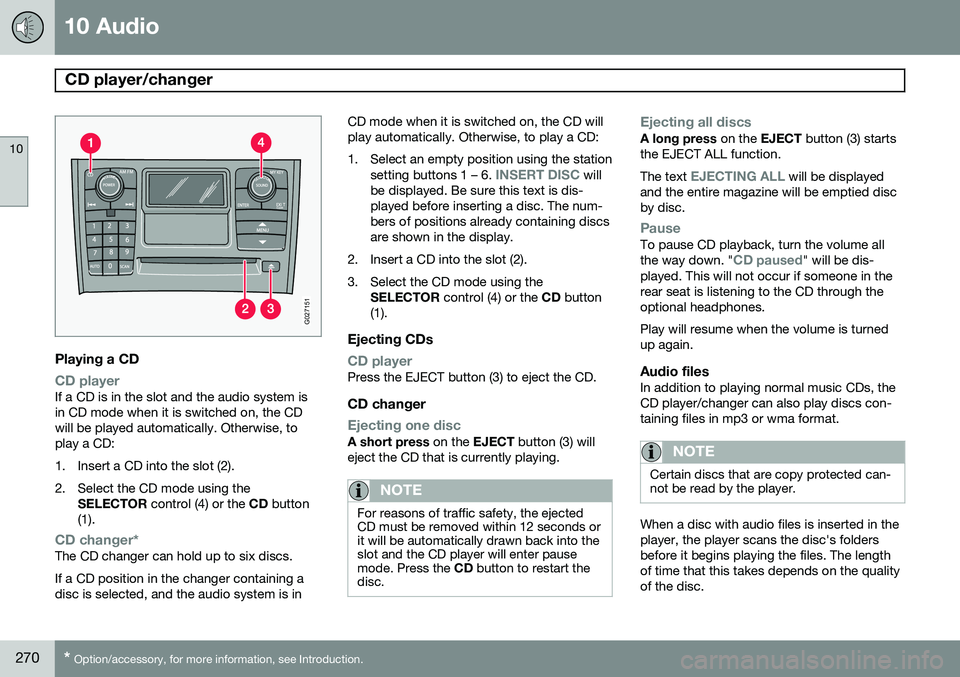
CD playerIf a CD is in the slot and the audio system is in CD mode when it is switched on, the CDwill be played automatically. Otherwise, toplay a CD:
1. Insert a CD into the slot (2).
2. Select the CD mode using the
SELECTOR control (4) or the CD button
(1).
CD changer*The CD changer can hold up to six discs. If a CD position in the changer containing a disc is selected, and the audio system is in CD mode when it is switched on, the CD willplay automatically. Otherwise, to play a CD:
1. Select an empty position using the station
setting buttons 1 – 6.
INSERT DISC will
be displayed. Be sure this text is dis- played before inserting a disc. The num-bers of positions already containing discsare shown in the display.
2. Insert a CD into the slot (2).
3. Select the CD mode using the SELECTOR control (4) or the CD button
(1).
Ejecting CDs
CD playerPress the EJECT button (3) to eject the CD.
CD changer
Ejecting one discA short press on the EJECT button (3) will
eject the CD that is currently playing.
NOTE
For reasons of traffic safety, the ejected CD must be removed within 12 seconds orit will be automatically drawn back into theslot and the CD player will enter pausemode. Press the CD button to restart the
disc.
Ejecting all discsA long press on the EJECT button (3) starts
the EJECT ALL function. The text
EJECTING ALL will be displayed
and the entire magazine will be emptied disc by disc.
PauseTo pause CD playback, turn the volume all the way down. "CD paused" will be dis-
played. This will not occur if someone in the rear seat is listening to the CD through theoptional headphones. Play will resume when the volume is turned up again.
Audio filesIn addition to playing normal music CDs, theCD player/changer can also play discs con-taining files in mp3 or wma format.
NOTE
Certain discs that are copy protected can- not be read by the player.
When a disc with audio files is inserted in the player, the player scans the disc's foldersbefore it begins playing the files. The lengthof time that this takes depends on the qualityof the disc.
Page 279 of 308
10 Audio
Bluetooth®
hands-free connection
10
277
Ringing volume
Go to PHONE MENUPHONE SETTINGS
SOUNDS AND VOLUMERing volume
and adjust the volume with the / keys
on the center console.
Ringing tonesThe hands-free system’s integrated ringing tones can be selected in
PHONE MENU
PHONE SETTINGSSOUNDS AND
VOLUME
Ring signalsRing signal 1,
etc.
NOTE
The connected cell phone’s ring tone may not be switched off when one of thehands-free system's ringing tones is used.
If you prefer to use the connected cell phone’s ring tone 1
, go to
PHONE MENU
PHONE SETTINGSSOUNDS AND
VOLUME
Ring signalsUse cell phone
signal
More information about registering and connecting cell phones
A maximum of 5 cell phones can be regis- tered in the hands-free system. Registrationonly needs to be done once for each phone.After registration, the cell phones can then befound in the list of registered phones. Onlyone cell phone can be connected to hands-free at a time. Phones can be unregistered in
PHONE MENUBLUETOOTHRemove
phone.
Automatic connectionWhen the hands-free system is active and the most recently connected cell phone is withinrange, it is detected automatically. When theaudio system searches for the most recentlyconnected phone, this phone’s name appearsin the display. To manually connect a differentcell phone, press EXIT.
Manual connectionTo connect a phone other than the one thatwas most recently connected or to switchbetween cell phones that are already regis-tered in the hands-free system: Put the audio system in telephone mode (
Phone) and follow the instructions in the dis-
play or change the connected cell by going into the menu system under
PHONE MENU
BLUETOOTHChange phoneAdd
phone.
Phone book
In order to use the hands-free system’s phone book (list of contacts), PHONE must
be displayed at the top of the center console display and the
symbol must be visible.
The audio system stores a copy of the phone book of each registered cell phone. Thephone book is automatically copied each timea phone is connected. This function can be activated in
PHONE SETTINGSSync ph
book. Searches for contacts are only made in
the phone book of the currently connected cell phone.
NOTE
If a particular cell phone does not support copying of the phone book, List is emptywill be displayed when copying has been completed.
If the phone book contains information about someone who is trying to call you, this infor-mation will be shown in the display.
1 Not supported by all cell phones.
Page 280 of 308
10 Audio
Bluetooth®
hands-free connection
10
278
Searching for contactsThe easiest way to search for a contact in the phone book is to press and hold any of thebuttons 2–9 in the center console (no. 8 in the
illustration on page 274). This starts a searchbased on the first letter on the button that hasbeen pressed. The phone book can also be accessed by pressing the navigation buttons
/ on
the center console or by pressing
/on the steering wheel keypad. A search can also be made in the phone book’s search menu in
PHONE BOOKSearch:
1. Enter the first letter of the contact’s name and press ENTER or simply press
ENTER.
2. Select the desired contact and press ENTER to make a call to that person.
Voice mail numberThe phone number to your voice mail can be changed in the menu
CALL OPTIONSVoice mail no.. If no number has been
stored, this menu can be accessed by a pro- longed press on button 1. Once a phone
number has been stored, press and hold 1 to
dial this number.
Call listsLists of calls in a particular cell phone arecopied to the hands-free system each timethat phone is connected. These lists are thenupdated while the phone is connected. PressENTER to show the most recently dialed
numbers. Other call lists can be found under
Call register….
NOTE
Certain cell phones display the list of the most recently dialed numbers in reverseorder.
Entering textText is entered by using the number buttons in the center console. Press a button once toenter the first letter on the button, twice toenter the second letter, etc. Continue to pressthe button to display other characters. Press EXIT briefly to erase a character. Press
and hold EXIT to erase all of the characters
that have been entered. Use the
/ but-
tons on the center console to navigate among the characters.
Bluetooth ®
menus
1. CALL REGISTER
1.1. Last 10 missed calls 1.2. Last 10 received calls1.3. Last 10 dialed calls
2. PHONE BOOK
2.1. Search2.2. Copy to cell phone
3. BLUETOOTH
3.1. Change phone3.1.1. Add phone3.1.2–4. Added phones 2
3.2. Remove phone
3.3. Connect fr. cell phone
3.4. Car Bluetooth info
4. CALL OPTIONS
4.1. Automatic answer
4.2. Voice mail number
5. PHONE SETTINGS
5.1. SOUNDS AND VOLUME5.1.1. Ring volume
2Max. 3 phones