CD player VOLVO XC90 2014 Owner´s Manual
[x] Cancel search | Manufacturer: VOLVO, Model Year: 2014, Model line: XC90, Model: VOLVO XC90 2014Pages: 308, PDF Size: 13.31 MB
Page 7 of 308
Contents
5
09
09 Maintenance and servicing
Volvo service........................................... 216
Maintaining your vehicle......................... 217
Working on your vehicle......................... 219
Engine compartment............................... 221
Engine oil................................................ 222
Fluids...................................................... 224
Wiper blades........................................... 226
Battery..................................................... 227
Replacing bulbs...................................... 230
Fuses...................................................... 238
10
10 Audio
Audio system overview........................... 252
Audio system controls............................ 253
Radio functions....................................... 258SiriusXM™ satellite radio........................ 263
Auxiliary equipment................................ 267
CD player/changer.................................. 270
Menu structure........................................ 273 Bluetooth ®
hands-free connection......... 274
11
11 Specifications
Label information.................................... 282
Dimensions ............................................ 284
Weights .................................................. 286
Fluids...................................................... 288
Suspension............................................. 289
Engine oil................................................ 290
Engine specifications.............................. 291
Electrical system..................................... 292
Three-way catalytic converter................. 293Overview of information and warning
symbols .................................................. 294
Volvo programs....................................... 296
Page 244 of 308
09 Maintenance and servicing
Fuses 09
242* Option/accessory, for more information, see Introduction.
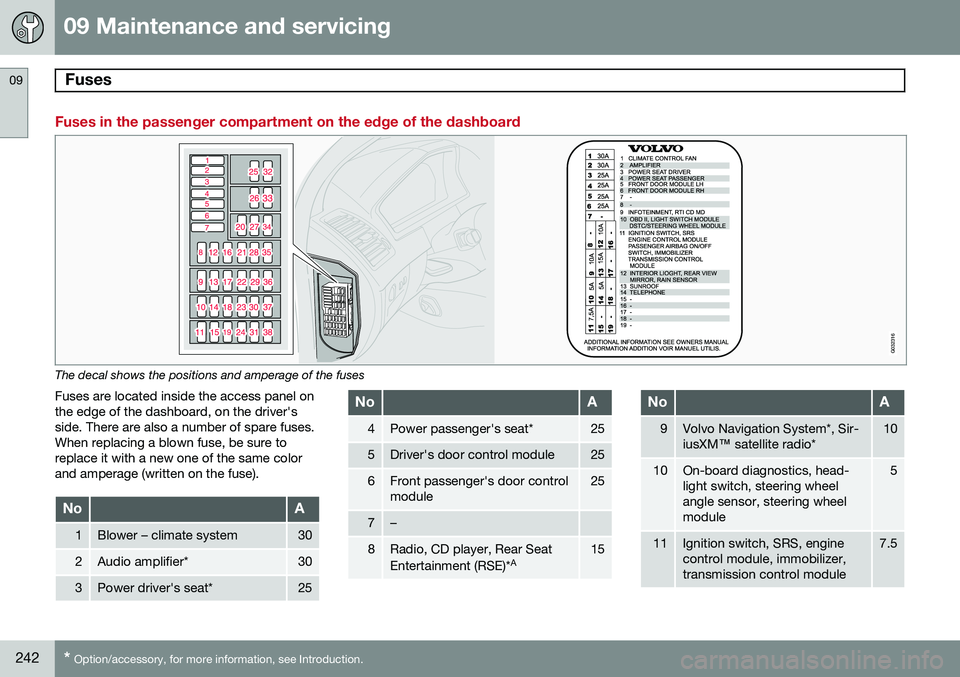
Fuses in the passenger compartment on the edge of the dashboard
G032316
The decal shows the positions and amperage of the fuses
Fuses are located inside the access panel on the edge of the dashboard, on the driver'sside. There are also a number of spare fuses.When replacing a blown fuse, be sure toreplace it with a new one of the same colorand amperage (written on the fuse).
NoA
1Blower – climate system30
2Audio amplifier*30
3Power driver's seat*25
NoA
4Power passenger's seat*25
5Driver's door control module25
6Front passenger's door control module25
7–
8Radio, CD player, Rear Seat Entertainment (RSE)* A15
NoA
9Volvo Navigation System*, Sir- iusXM
™ satellite radio*10
10On-board diagnostics, head- light switch, steering wheelangle sensor, steering wheelmodule5
11Ignition switch, SRS, engine control module, immobilizer,transmission control module7.5
Page 252 of 308
250
Audio system overview......................................................................... 252
Audio system controls.......................................................................... 253
Radio functions.....................................................................................258SiriusXM™ satellite radio...................................................................... 263
Auxiliary equipment............................................................................... 267
CD player/changer................................................................................ 270
Menu structure......................................................................................273 Bluetooth ®
hands-free connection....................................................... 274
Page 254 of 308
10 Audio
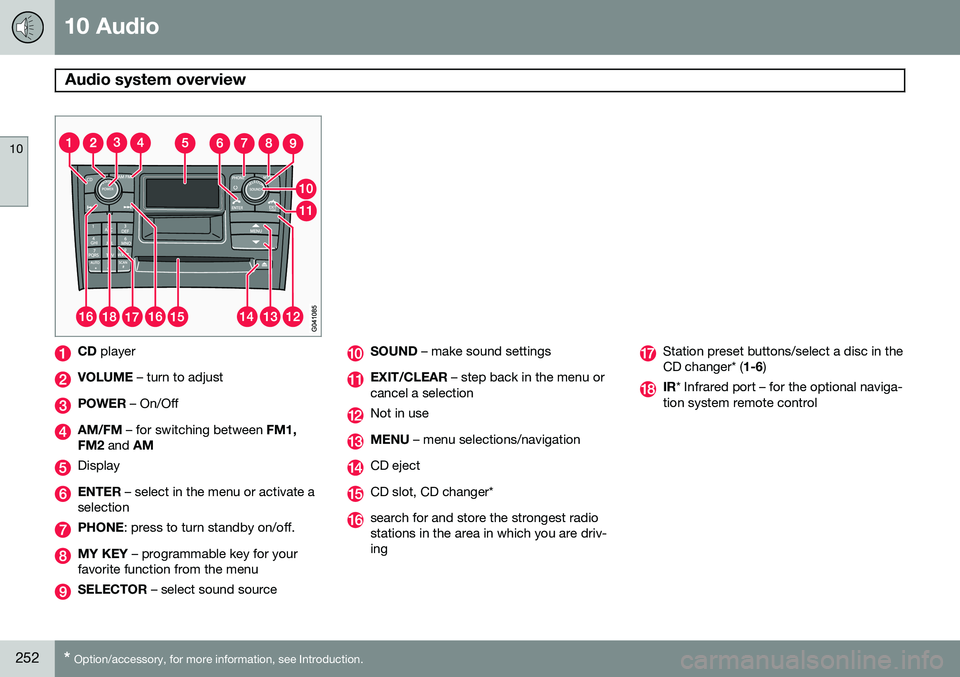
Audio system overview
10
252* Option/accessory, for more information, see Introduction.
CD player
VOLUME – turn to adjust
POWER – On/Off
AM/FM – for switching between FM1,
FM2 and AM
Display
ENTER – select in the menu or activate a
selection
PHONE : press to turn standby on/off.
MY KEY – programmable key for your
favorite function from the menu
SELECTOR – select sound source
SOUND – make sound settings
EXIT/CLEAR – step back in the menu or
cancel a selection
Not in use
MENU – menu selections/navigation
CD eject
CD slot, CD changer*
search for and store the strongest radio stations in the area in which you are driv-ing
Station preset buttons/select a disc in the CD changer* ( 1-6)
IR* Infrared port – for the optional naviga-
tion system remote control
Page 257 of 308
10 Audio
Audio system controls
10
* Option/accessory, for more information, see Introduction.255
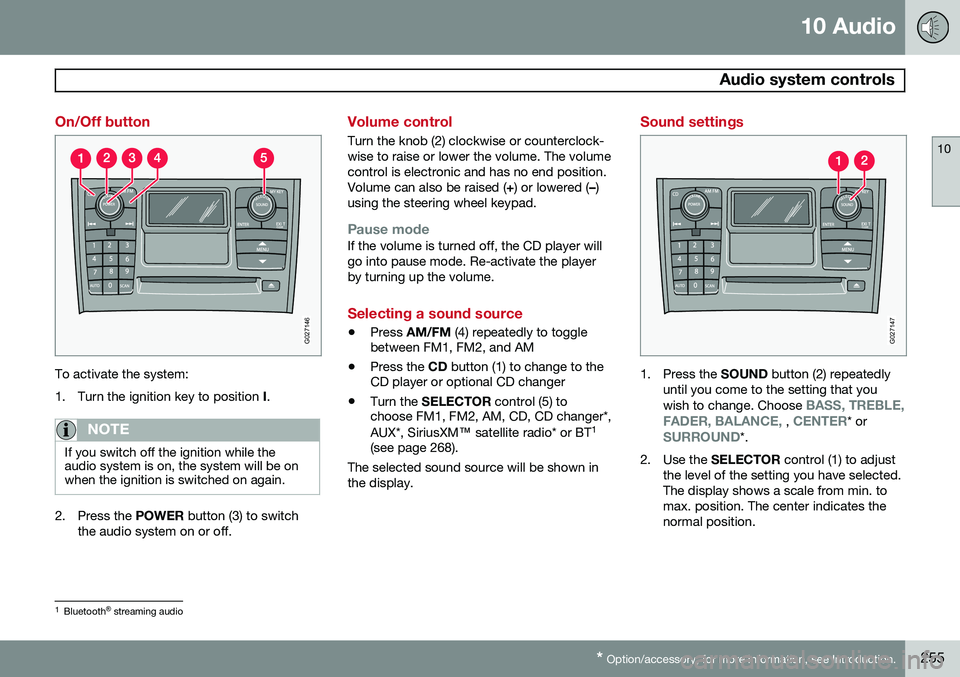
On/Off button
G027146
To activate the system:
1. Turn the ignition key to position I.
NOTE
If you switch off the ignition while the audio system is on, the system will be onwhen the ignition is switched on again.
2. Press the POWER button (3) to switch
the audio system on or off.
Volume control
Turn the knob (2) clockwise or counterclock- wise to raise or lower the volume. The volumecontrol is electronic and has no end position.Volume can also be raised ( +) or lowered ( –)
using the steering wheel keypad.
Pause modeIf the volume is turned off, the CD player will go into pause mode. Re-activate the playerby turning up the volume.
Selecting a sound source
• Press
AM/FM (4) repeatedly to toggle
between FM1, FM2, and AM
• Press the
CD button (1) to change to the
CD player or optional CD changer
• Turn the
SELECTOR control (5) to
choose FM1, FM2, AM, CD, CD changer*, AUX*, SiriusXM ™ satellite radio* or BT 1
(see page 268).
The selected sound source will be shown in the display.
Sound settings
G027147
1. Press the SOUND button (2) repeatedly
until you come to the setting that you wish to change. Choose
BASS, TREBLE,
FADER, BALANCE, , CENTER* orSURROUND*.
2. Use the SELECTOR control (1) to adjust
the level of the setting you have selected. The display shows a scale from min. tomax. position. The center indicates thenormal position.
1 Bluetooth ®
streaming audio
Page 269 of 308
10 Audio
Auxiliary equipment
10
* Option/accessory, for more information, see Introduction.267
Auxiliary connector
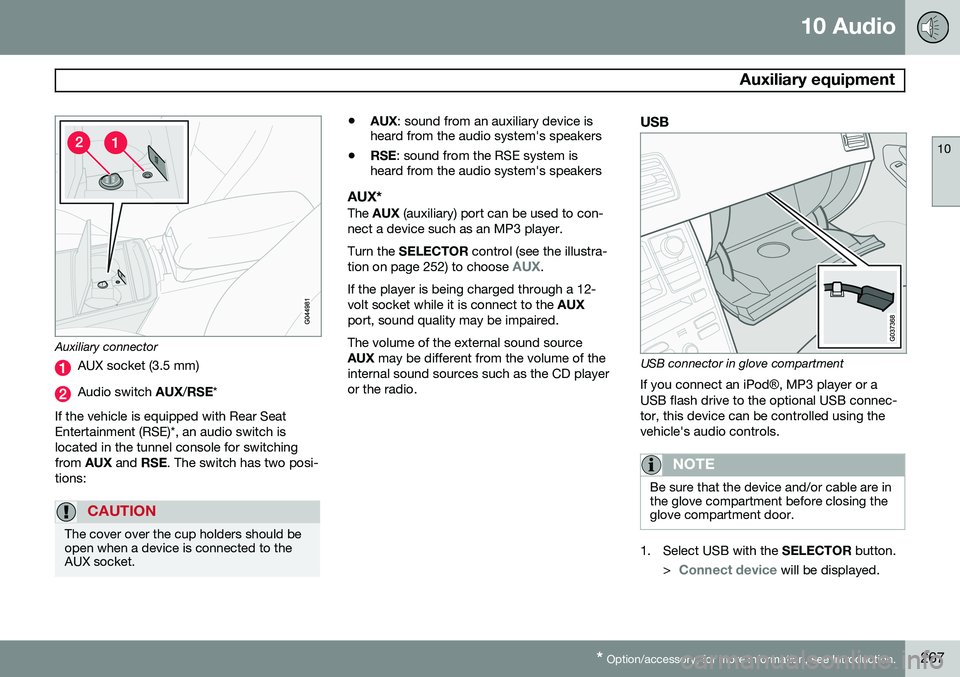
AUX socket (3.5 mm)
Audio switch AUX/RSE *
If the vehicle is equipped with Rear Seat Entertainment (RSE)*, an audio switch islocated in the tunnel console for switchingfrom AUX and RSE. The switch has two posi-
tions:
CAUTION
The cover over the cup holders should be open when a device is connected to theAUX socket.
• AUX
: sound from an auxiliary device is
heard from the audio system's speakers
• RSE
: sound from the RSE system is
heard from the audio system's speakers
AUX*The AUX (auxiliary) port can be used to con-
nect a device such as an MP3 player. Turn the SELECTOR control (see the illustra-
tion on page 252) to choose
AUX.
If the player is being charged through a 12- volt socket while it is connect to the AUX
port, sound quality may be impaired. The volume of the external sound source AUX may be different from the volume of the
internal sound sources such as the CD player or the radio.
USB
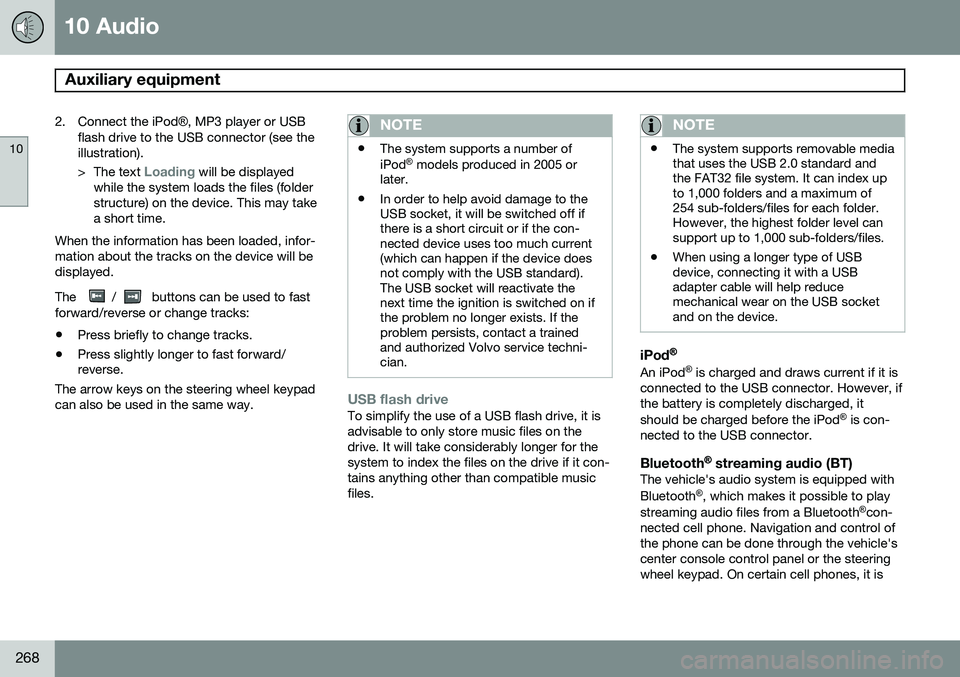
USB connector in glove compartment
If you connect an iPod ®, MP3 player or a
USB flash drive to the optional USB connec- tor, this device can be controlled using thevehicle's audio controls.
NOTE
Be sure that the device and/or cable are in the glove compartment before closing theglove compartment door.
1. Select USB with the SELECTOR button.
>
Connect device will be displayed.
Page 270 of 308
10 Audio
Auxiliary equipment
10
268
2. Connect the iPod®, MP3 player or USB
flash drive to the USB connector (see the illustration). > The text
Loading will be displayed
while the system loads the files (folder structure) on the device. This may takea short time.
When the information has been loaded, infor-mation about the tracks on the device will bedisplayed. The
/ buttons can be used to fast
forward/reverse or change tracks:
• Press briefly to change tracks.
• Press slightly longer to fast forward/ reverse.
The arrow keys on the steering wheel keypad can also be used in the same way.
NOTE
• The system supports a number of iPod ®
models produced in 2005 or
later.
• In order to help avoid damage to the USB socket, it will be switched off ifthere is a short circuit or if the con-nected device uses too much current(which can happen if the device doesnot comply with the USB standard).The USB socket will reactivate thenext time the ignition is switched on ifthe problem no longer exists. If theproblem persists, contact a trainedand authorized Volvo service techni-cian.
USB flash driveTo simplify the use of a USB flash drive, it is advisable to only store music files on thedrive. It will take considerably longer for thesystem to index the files on the drive if it con-tains anything other than compatible musicfiles.
NOTE
• The system supports removable media that uses the USB 2.0 standard andthe FAT32 file system. It can index upto 1,000 folders and a maximum of254 sub-folders/files for each folder.However, the highest folder level cansupport up to 1,000 sub-folders/files.
• When using a longer type of USBdevice, connecting it with a USBadapter cable will help reducemechanical wear on the USB socketand on the device.
iPod®
An iPod ®
is charged and draws current if it is
connected to the USB connector. However, if the battery is completely discharged, it should be charged before the iPod ®
is con-
nected to the USB connector.
Bluetooth ®
streaming audio (BT)The vehicle's audio system is equipped withBluetooth ®
, which makes it possible to play
streaming audio files from a Bluetooth ®
con-
nected cell phone. Navigation and control of the phone can be done through the vehicle'scenter console control panel or the steeringwheel keypad. On certain cell phones, it is
Page 271 of 308
10 Audio
Auxiliary equipment
10
269
also possible to change tracks from the phone itself. In order to listen streaming audio,
BT must be
selected as a sound source (see page 255) and a Bluetooth ®
cell phone must be con-
nected (paired) with the audio system. See page 275 for more information.
NOTE
Any Bluetooth cell phones used must sup- port Audio/Video Remote Control Profile(AVRCP) and Advanced Audio DistributionProfile (A2DP). The phone must useAVRCP version 1.3 and A2DP 1.2. If olderversions of these standards are used, cer-tain features (e.g., scan or random) maynot function. Not all cell phones are fully compatible with the vehicle's Bluetooth system. A listof compatible phones is available at youVolvo retailer or at www.volvocars.us.
Listening to streaming audioTurn SELECTOR to select BT as the sound
source. The
/ buttons can be used to fast-
forward/back or change tracks: • Press briefly to change tracks.
• Press and hold to go fast-forward/back. The buttons in the steering wheel keypad can be used in the same way.
Auxiliary sound level
G027150
If the external sound source's volume is too high, the quality of the sound may beimpaired. This can be prevented by adjusting the exter- nal sound source's input volume.
1. While playing the radio or a CD, lower the
audio volume to about one-quarter.
2. Switch to AUX mode on the audio sys-
tem. 3. Connect the headphone output from your
music player to the AUX input using a cable with a stereo 3.5 mm miniplug atboth ends.
4. Set your music player's headphone vol- ume to three-quarters using the player'svolume controls.
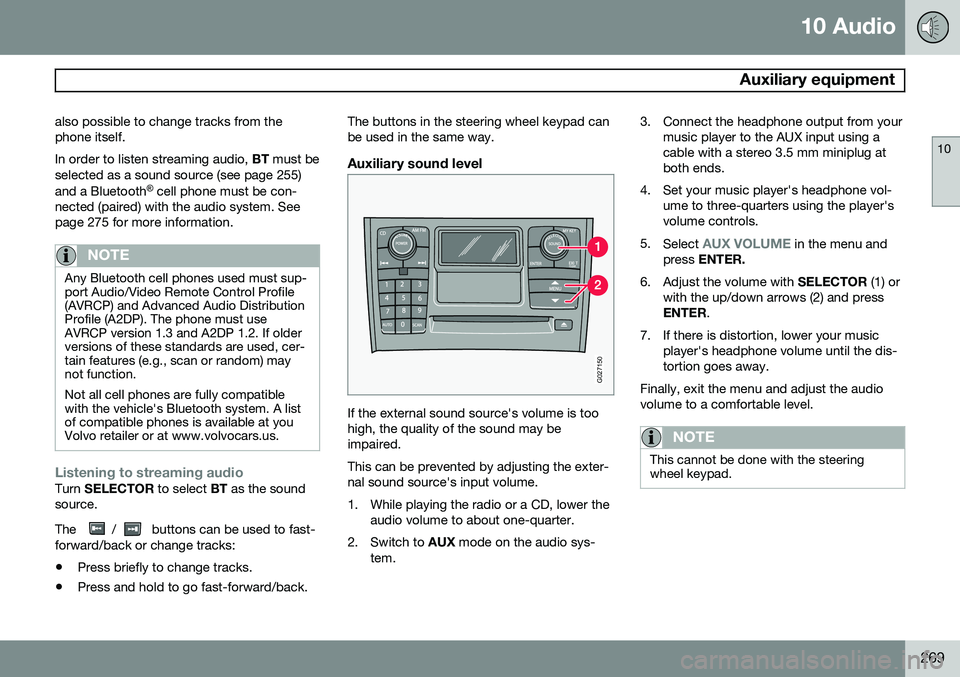
5. Select
AUX VOLUME in the menu and
press ENTER.
6. Adjust the volume with SELECTOR (1) or
with the up/down arrows (2) and press ENTER .
7. If there is distortion, lower your music player's headphone volume until the dis-tortion goes away.
Finally, exit the menu and adjust the audiovolume to a comfortable level.
NOTE
This cannot be done with the steering wheel keypad.
Page 272 of 308
10 Audio
CD player/changer
10
270* Option/accessory, for more information, see Introduction.
G027151
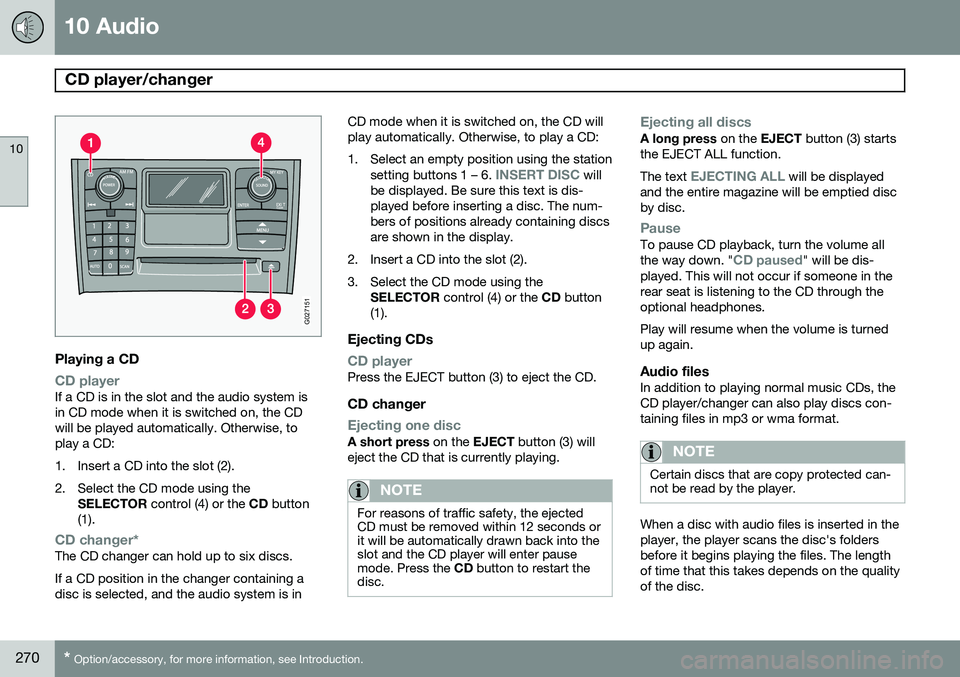
Playing a CD
CD playerIf a CD is in the slot and the audio system is in CD mode when it is switched on, the CDwill be played automatically. Otherwise, toplay a CD:
1. Insert a CD into the slot (2).
2. Select the CD mode using the
SELECTOR control (4) or the CD button
(1).
CD changer*The CD changer can hold up to six discs. If a CD position in the changer containing a disc is selected, and the audio system is in CD mode when it is switched on, the CD willplay automatically. Otherwise, to play a CD:
1. Select an empty position using the station
setting buttons 1 – 6.
INSERT DISC will
be displayed. Be sure this text is dis- played before inserting a disc. The num-bers of positions already containing discsare shown in the display.
2. Insert a CD into the slot (2).
3. Select the CD mode using the SELECTOR control (4) or the CD button
(1).
Ejecting CDs
CD playerPress the EJECT button (3) to eject the CD.
CD changer
Ejecting one discA short press on the EJECT button (3) will
eject the CD that is currently playing.
NOTE
For reasons of traffic safety, the ejected CD must be removed within 12 seconds orit will be automatically drawn back into theslot and the CD player will enter pausemode. Press the CD button to restart the
disc.
Ejecting all discsA long press on the EJECT button (3) starts
the EJECT ALL function. The text
EJECTING ALL will be displayed
and the entire magazine will be emptied disc by disc.
PauseTo pause CD playback, turn the volume all the way down. "CD paused" will be dis-
played. This will not occur if someone in the rear seat is listening to the CD through theoptional headphones. Play will resume when the volume is turned up again.
Audio filesIn addition to playing normal music CDs, theCD player/changer can also play discs con-taining files in mp3 or wma format.
NOTE
Certain discs that are copy protected can- not be read by the player.
When a disc with audio files is inserted in the player, the player scans the disc's foldersbefore it begins playing the files. The lengthof time that this takes depends on the qualityof the disc.
Page 273 of 308
10 Audio
CD player/changer
10
271
Navigating the disc and playing tracksIf a disc with audio files is in the CD player, press ENTER to display a list of folders on
the disc. Use the up and down arrows to move among the folders on the disc. Audio files have the
symbol and folders containing these
files have the
symbol.
Press ENTER to play a selected folder or a
file. When the music file has been played, the player will continue to play the rest of the filesin the current folder. When all of the files inthe folder have been played, the player willautomatically go to the next folder and playthe files in it.
NOTE
Press or if the entire name of
the current track does not fit in the display.
Changing tracks
CD player/CD changer1. Briefly press or to go to the
next/previous track or file. The steering wheel keypad can be used in the same way.
2. Press and hold down
or to
search within a track/file. The search con- tinues as long as the buttons aredepressed. The steering wheel keypadcan be used in the same way.
SCANThis function plays the first ten seconds of each track or file 1
.
1. Press SCAN to begin scanning the tracks
or files on the currently selected CD.
2. Press EXIT/CLEAR or SCAN to interrupt
the scan function and listen to an entire track or file.
Random play
CD playerThis function plays the tracks or files on a CD in random order (shuffle).
If a normal music CD is being playedSelect RANDOM in the menu and press
ENTER .
If a CD with mp3 or wma files is being
played
Select DISC or FOLDER in the menu and
press ENTER .
CD changerThis function offers two alternatives for play- ing the tracks on the disc(s) in the CDchanger in random order (shuffle). •
SINGLE DISC (random order on the cur-
rently selected disc)
•
ALL DISCS (random order on all of the
CDs in the changer)
If a normal music CD is being played
• Select RANDOM in the menu and press
ENTER .
• Select
SINGLE DISC or ALL DISCS and
press ENTER .
NOTE
Press to play the next randomly selected track. This can only be done on the cur-rently selected disc.
If a CD with mp3 or wma files is being played
Select SINGLE DISC or FOLDER In the
menu and press ENTER.
This function is deactivated when a new disc is selected.
1 CD changer: SCAN only functions on the currently selected disc.