service VOLVO XC90 2015 Owners Manual
[x] Cancel search | Manufacturer: VOLVO, Model Year: 2015, Model line: XC90, Model: VOLVO XC90 2015Pages: 570, PDF Size: 12.44 MB
Page 428 of 570
VOLVO ON CALL WITH SENSUS CONNECT *
* Option/accessory, for more information, see Introduction.
426 have the vehicle's remote keys immobilized (deactivated).
NOTE
This applies even if the vehicle has been unlocked and started with one of its remotekeys.
After contacting the owner/police, the VOC cus- tomer service center then deactivates the remotekeys. Once the engine has been switched off, itcan only be restarted if the owner/police hasgiven the VOC customer service center authori-zation to reactivate the remote keys. Once thisauthorization has been verified (using your PINcode), the VOC customer service center will reac-tivate the remote keys.
Related information
•
Volvo On Call (VOC)
* (p. 414)
• Unlocking the vehicle from the customer service center (p. 426)
• Service center phone number (p. 419)
• Volvo On Call PIN code (p. 418)
Unlocking the vehicle from the customer service center
The doors can be unlocked remotely with assis-
tance from the VOC customer service center.
1. Contact the VOC customer service center at 855-399-4691 (this number applies in both the United States and Canada).
2. After confirming that the caller is the vehi- cle's owner or other authorized person (usingyour PIN code), the VOC customer servicecenter sends a signal to the vehicle to unlockit.
3. The tailgate has to be opened to unlock the other doors. Press lightly on the rubberizedpressure plate under the outer tailgate han-dle.
NOTE
If the tailgate is not opened within the time period set by the VOC customer service cen-ter, it will relock.
NOTE
If the vehicle is parked in a garage or other covered area, remote unlocking may not bepossible due to poor signal reception.
Related information
• Volvo On Call security services (p. 425)
• Volvo On Call (VOC)
* (p. 414)
• Locking/unlocking the tailgate (p. 233)
Page 443 of 570
NAVIGATION*
* Option/accessory, for more information, see Introduction.
441
Setting a destination by entering an address
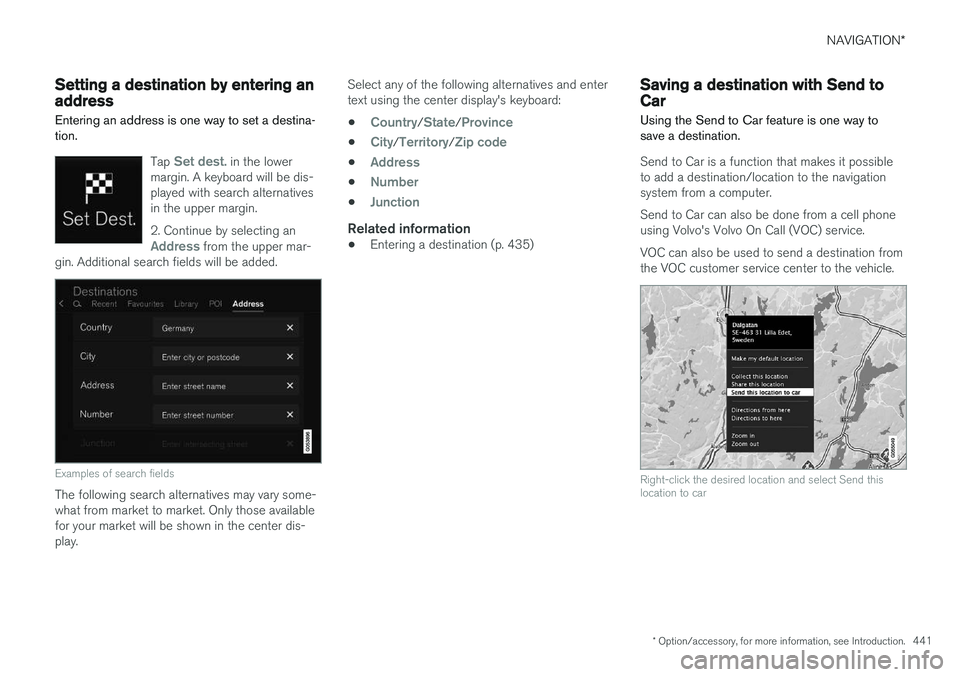
Entering an address is one way to set a destina- tion.
Tap Set dest. in the lower
margin. A keyboard will be dis- played with search alternativesin the upper margin. 2. Continue by selecting an
Address from the upper mar-
gin. Additional search fields will be added.
Examples of search fields
The following search alternatives may vary some- what from market to market. Only those availablefor your market will be shown in the center dis-play. Select any of the following alternatives and entertext using the center display's keyboard:
•
Country/State/Province
•City/Territory/Zip code
•Address
•Number
•Junction
Related information
• Entering a destination (p. 435)
Saving a destination with Send to Car
Using the Send to Car feature is one way to save a destination.
Send to Car is a function that makes it possible to add a destination/location to the navigationsystem from a computer. Send to Car can also be done from a cell phone using Volvo's Volvo On Call (VOC) service. VOC can also be used to send a destination from the VOC customer service center to the vehicle.
Right-click the desired location and select Send this location to car
Page 444 of 570
NAVIGATION*
* Option/accessory, for more information, see Introduction.
442
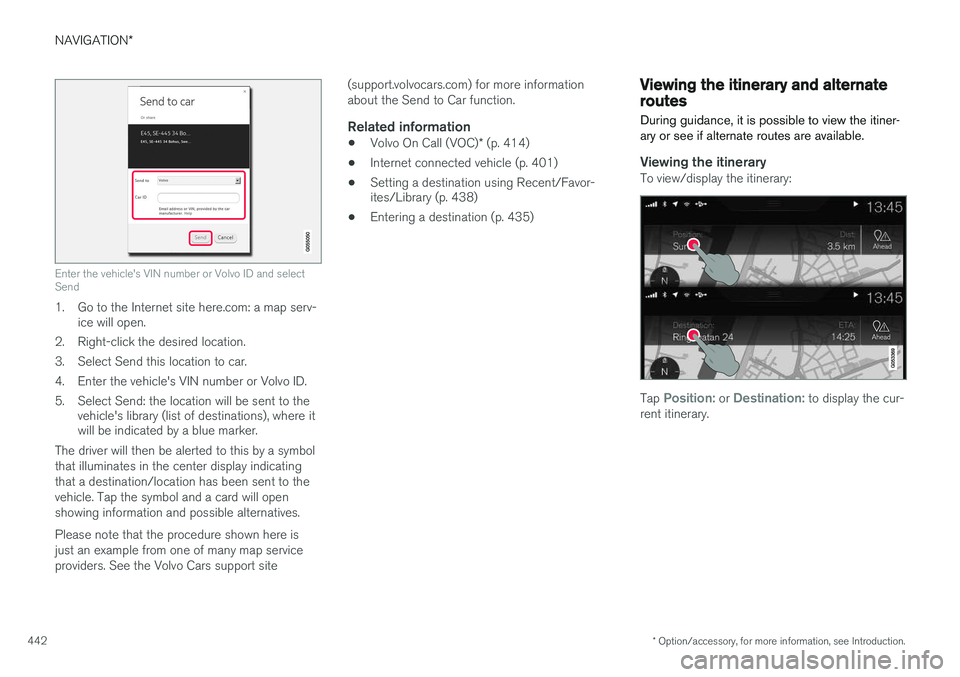
Enter the vehicle's VIN number or Volvo ID and select Send
1. Go to the Internet site here.com: a map serv-
ice will open.
2. Right-click the desired location.
3. Select Send this location to car.
4. Enter the vehicle's VIN number or Volvo ID.
5. Select Send: the location will be sent to the vehicle's library (list of destinations), where it will be indicated by a blue marker.
The driver will then be alerted to this by a symbol that illuminates in the center display indicatingthat a destination/location has been sent to thevehicle. Tap the symbol and a card will openshowing information and possible alternatives. Please note that the procedure shown here is just an example from one of many map serviceproviders. See the Volvo Cars support site (support.volvocars.com) for more informationabout the Send to Car function.
Related information
•
Volvo On Call (VOC)
* (p. 414)
• Internet connected vehicle (p. 401)
• Setting a destination using Recent/Favor- ites/Library (p. 438)
• Entering a destination (p. 435)
Viewing the itinerary and alternate routes
During guidance, it is possible to view the itiner- ary or see if alternate routes are available.
Viewing the itineraryTo view/display the itinerary:
Tap Position: or Destination: to display the cur-
rent itinerary.
Page 447 of 570
NAVIGATION*
* Option/accessory, for more information, see Introduction.
445
POIs along the route
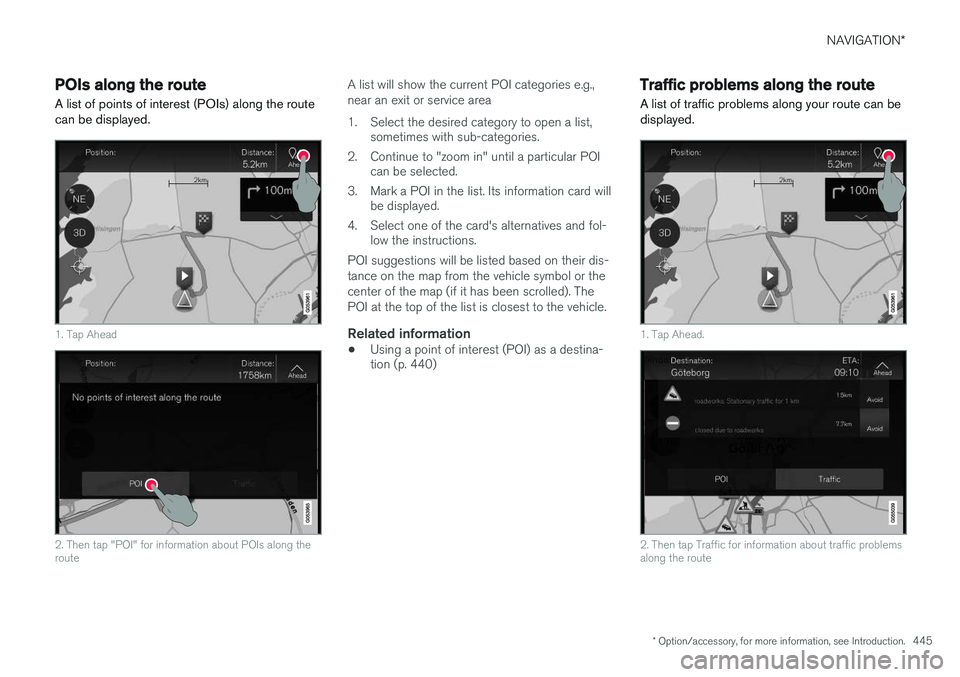
A list of points of interest (POIs) along the route can be displayed.
1. Tap Ahead
2. Then tap "POI" for information about POIs along the route
A list will show the current POI categories e.g., near an exit or service area
1. Select the desired category to open a list, sometimes with sub-categories.
2. Continue to "zoom in" until a particular POI can be selected.
3. Mark a POI in the list. Its information card will be displayed.
4. Select one of the card's alternatives and fol- low the instructions.
POI suggestions will be listed based on their dis- tance on the map from the vehicle symbol or thecenter of the map (if it has been scrolled). ThePOI at the top of the list is closest to the vehicle.
Related information
• Using a point of interest (POI) as a destina- tion (p. 440)
Traffic problems along the route A list of traffic problems along your route can be displayed.
1. Tap Ahead.
2. Then tap Traffic for information about traffic problems along the route
Page 459 of 570
NAVIGATION*
* Option/accessory, for more information, see Introduction.
457
QuestionAnswer
How big is an update?This varies from market to market. Consult a Volvoretailer.
Updating has not worked.What shouldI do?Try the Volvo Cars support site (support.volvocars.com) orcontact a Volvo retailer.
Related information
•Remote map updates (p. 457)
• Map updates from a computer with a USB flash drive (p. 458)
• Sensus Navigation troubleshooting (p. 462)
• Copyright (p. 462)
• Navigation license agreements (p. 460)
• System updates (p. 490)
• Internet connected vehicle (p. 401)
• Connecting to the Internet (p. 402)
• System settings (p. 456)
Remote map updates
Some preparation is necessary before a remote update can be made through the vehicle's cellphone Internet connection.
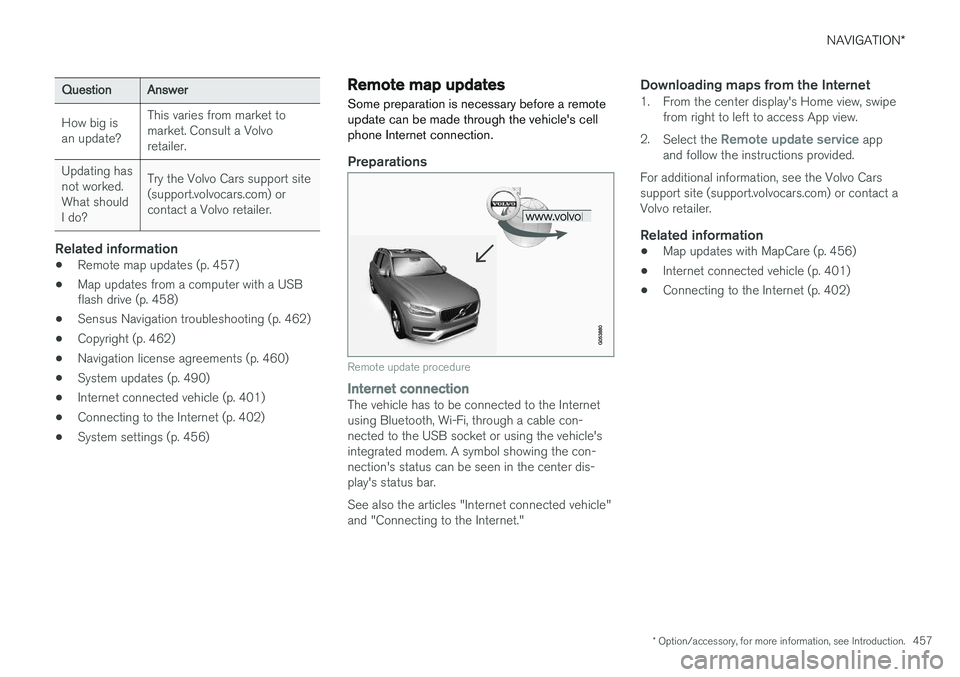
Preparations
Remote update procedure
Internet connectionThe vehicle has to be connected to the Internet using Bluetooth, Wi-Fi, through a cable con-nected to the USB socket or using the vehicle'sintegrated modem. A symbol showing the con-nection's status can be seen in the center dis-play's status bar. See also the articles "Internet connected vehicle" and "Connecting to the Internet."
Downloading maps from the Internet1. From the center display's Home view, swipe from right to left to access App view.
2. Select the
Remote update service app
and follow the instructions provided.
For additional information, see the Volvo Cars support site (support.volvocars.com) or contact aVolvo retailer.
Related information
• Map updates with MapCare (p. 456)
• Internet connected vehicle (p. 401)
• Connecting to the Internet (p. 402)
Page 460 of 570
NAVIGATION*
* Option/accessory, for more information, see Introduction.
458
Map updates from a computer with a USB flash drive
Some preparation is necessary before a USB map update can be carried out.
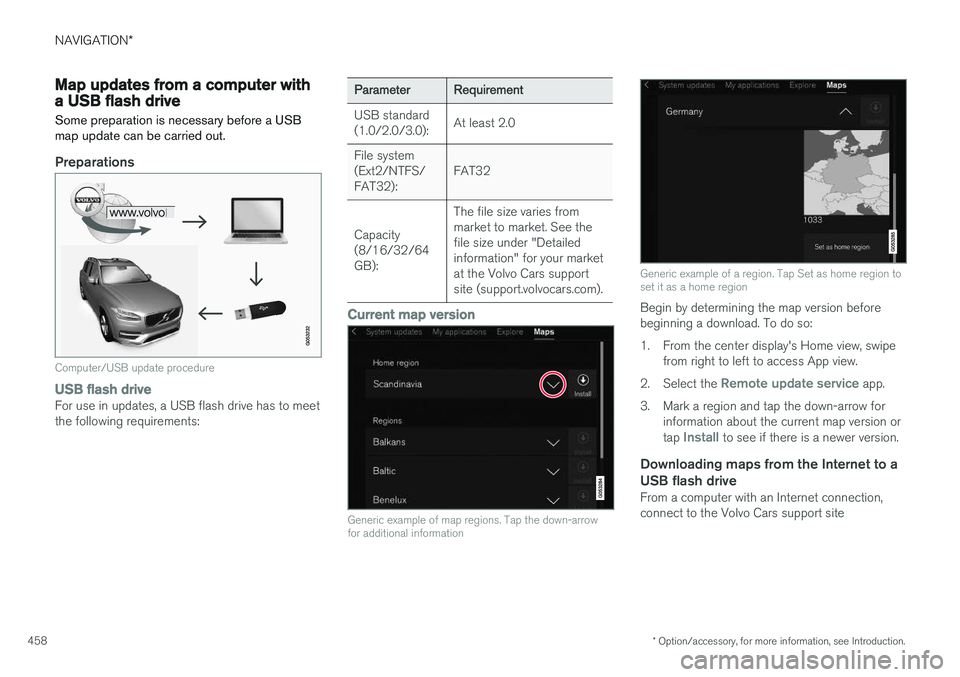
Preparations
Computer/USB update procedure
USB flash driveFor use in updates, a USB flash drive has to meet the following requirements:
ParameterRequirement
USB standard (1.0/2.0/3.0):At least 2.0
File system (Ext2/NTFS/FAT32):FAT32
Capacity (8/16/32/64GB):
The file size varies from market to market. See thefile size under "Detailedinformation" for your marketat the Volvo Cars supportsite (support.volvocars.com).
Current map version
Generic example of map regions. Tap the down-arrow for additional information
Generic example of a region. Tap Set as home region to set it as a home region
Begin by determining the map version before beginning a download. To do so:
1. From the center display's Home view, swipe from right to left to access App view.
2. Select the
Remote update service app.
3. Mark a region and tap the down-arrow for information about the current map version or tap
Install to see if there is a newer version.
Downloading maps from the Internet to a USB flash drive
From a computer with an Internet connection, connect to the Volvo Cars support site
Page 465 of 570
NAVIGATION*
* Option/accessory, for more information, see Introduction.
463
The types of roads that you have chosen to avoid will not be used if there are viable alternatives.
After being transported, the vehicle's location on the map is not correct
If the vehicle has been transported (e.g., on a ferry or train) where GPS signals have beenblocked, it may take up to 5 minutes before itslocation will be shown correctly.
The car symbol moves erratically after
new tires have been installed
In addition to GPS signals, the navigation systemalso uses the speedometer and a gyroscopicsensor to calculate the vehicle's current locationand speed. If e.g., a spare tire or snow tires havebeen installed, the system has to "learn" the newtire dimensions. To do so, drive for a short periodon a road with unobstructed GPS reception.
The map does not correspond to actual road conditions
Due to road changes/additions/rerouting/newtraffic regulations, the map database may not beup-to-date. The database is continuously beingupdated. Consult your Volvo retailer.
The car symbol jumps forward or spinsBefore you begin to drive, the system may needseveral seconds to determine the vehicle's loca-tion. Switch off the navigation system and the ignition.Restart but remain at a standstill for a minute orso before driving.
The map information is not up-to-dateSee the next heading.
How can I check which map version I
have?
1. From the center display's Home view, swipe from right to left to display App view.
2. Select the
Remote update service app.
This contains information about the current map version. See also "Updating map data with Map-Care" for additional information or contact yourVolvo retailer.
Related information
• Getting started with Sensus Navigation (p. 432)
• Map updates with MapCare (p. 456)
Page 472 of 570
WHEELS AND TIRES
470•
B-pillar
: The structural member at the side
of the vehicle behind the front door.
• Bead area of the tire
: Area of the tire next
to the rim.
• Sidewall of the tire
: Area between the bead
area and the tread.
• Tread area of the tire
: Area of the perime-
ter of the tire that contacts the road when mounted on the vehicle.
• Rim
: The metal support (wheel) for a tire or a
tire and tube assembly upon which the tirebeads are seated.
• Maximum load rating
: a figure indicating
the maximum load in pounds and kilogramsthat can be carried by the tire. This rating isestablished by the tire manufacturer.
• Maximum permissible inflation pressure
:
the greatest amount of air pressure thatshould ever be put in the tire. This limit is setby the tire manufacturer.
• Recommended tire inflation pressure
:
inflation pressure, established by Volvo,which is based on the type of tires that aremounted on a vehicle at the factory. Thisinformation can be found on the tire inflation placard(s) located on the driver's side B-pillarand in the tire inflation table in this chapter.
• Cold tires
: The tires are considered to be
cold when they have the same temperatureas the surrounding (ambient) air. This tem-perature is normally reached after the vehiclehas been parked for at least 3 hours.
Tire direction of rotation
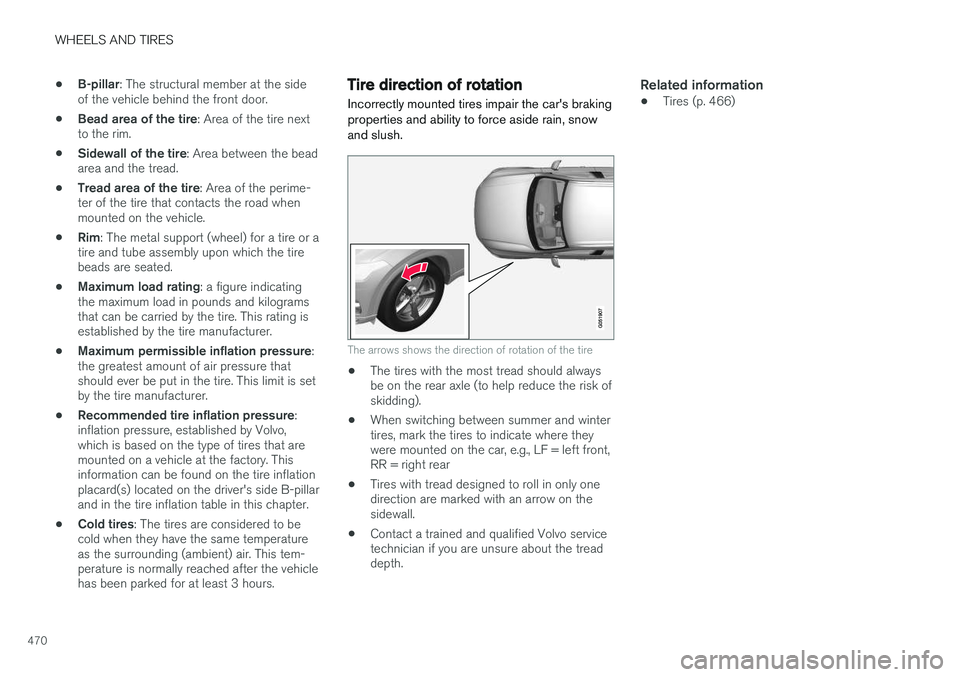
Incorrectly mounted tires impair the car's braking properties and ability to force aside rain, snowand slush.
The arrows shows the direction of rotation of the tire
• The tires with the most tread should always be on the rear axle (to help reduce the risk ofskidding).
• When switching between summer and wintertires, mark the tires to indicate where theywere mounted on the car, e.g., LF = left front,RR = right rear
• Tires with tread designed to roll in only onedirection are marked with an arrow on thesidewall.
• Contact a trained and qualified Volvo servicetechnician if you are unsure about the treaddepth.
Related information
•Tires (p. 466)
Page 475 of 570
WHEELS AND TIRES
473
Snow tires and chains
The use of snow chains and/or winter tires can help improve traction in winter driving conditions.
Snow chains can be used on your Volvo with the following restrictions:
• Snow chains should be installed on front wheels only. Use only Volvo approved snowchains.
• If accessory, aftermarket or "custom" tiresand wheels are installed and are of a size dif-ferent than the original tires and wheels,chains in some cases CANNOT be used.Sufficient clearances between chains andbrakes, suspension and body componentsmust be maintained.
• Some strap-on type chains will interfere withbrake components and therefore CANNOTbe used.
• All Wheel Drive models
: Snow chains
should only be installed on the front wheels.
• Certain size tires may not allow the assemblyof snow chains/traction devices.
Consult your Volvo retailer for additional snow chain information.
CAUTION
• Snow chains should not be used on wheels larger than 19".
• Always follow the chain manufacturer'sinstallation instructions carefully. Installchains as tightly as possible andretighten periodically.
• Check local regulations regarding the useof snow chains before installing.
• Use single-sided snow chains only.
• Never exceed the chain manufacturer'sspecified maximum speed limit. (Underno circumstances should you exceed31 mph (50 km/h).
• Avoid bumps, holes or sharp turns whendriving with snow chains.
• The handling of the vehicle can beadversely affected when driving withchains. Avoid fast or sharp turns as wellas locked wheel braking.
Checking tire inflation pressure
Correct tire inflation pressure helps improve driv- ing stability, save fuel and increase the servicelife of the tires.
WARNING
• Under-inflation is the most common cause of tire failure and may result insevere tire cracking, tread separation, or"blow-out," with unexpected loss of vehi-cle control and increased risk of injury.
• Under-inflated tires reduce the load car-rying capacity of your vehicle.
Cold tiresInflation pressure should be checked when the tires are cold. The tires are considered to be cold when they have the same temperature as the sur-rounding (ambient) air. This temperature is normally reached after the vehicle has been parked for at least 3 hours. After driving a distance of approximately 1 mile (1.6 km), the tires are considered to be hot. If youhave to drive farther than this distance to pumpyour tire(s), check and record the tire pressurefirst and add the appropriate air pressure whenyou get to the pump. When weather temperature changes occur, tire inflation pressures also change. A 10-degree
Page 476 of 570
WHEELS AND TIRES
474temperature drop causes a corresponding drop of 1 psi (7 kPa) in inflation pressure. Check yourtire pressures frequently and adjust them to theproper pressure, which can be found on the vehi-cle's tire information placard or certification label. If checking tire pressure when the tire is hot, never "bleed" or reduce air pressure. The tiresare hot from driving and it is normal for pressuresto increase above recommended cold pressures.A hot tire at or below recommended cold inflationpressure could be significantly under-inflated.
Recommended inflation pressures
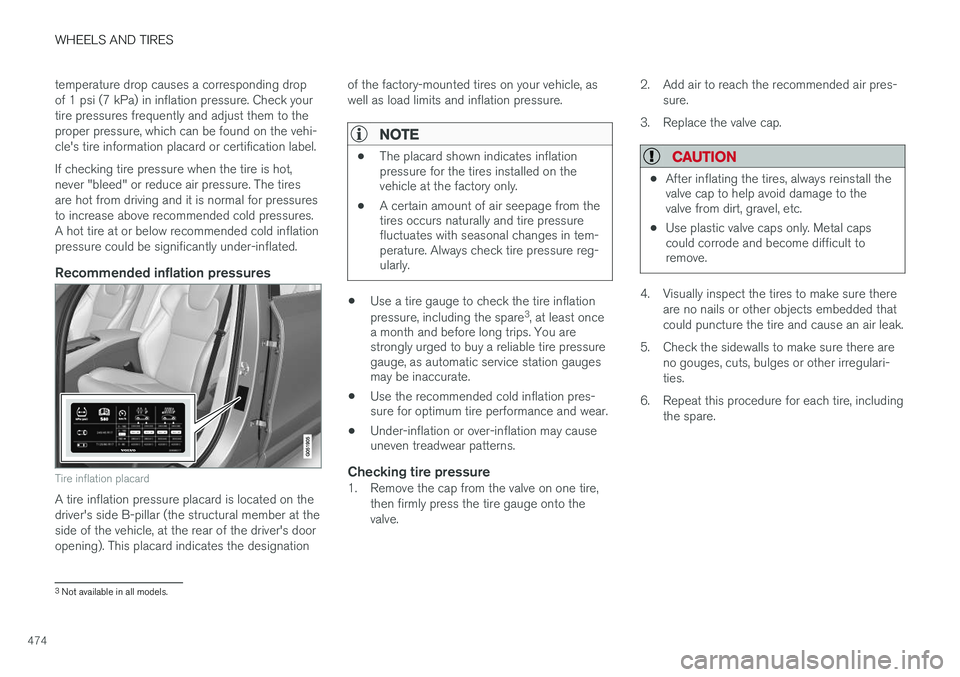
Tire inflation placard
A tire inflation pressure placard is located on the driver's side B-pillar (the structural member at theside of the vehicle, at the rear of the driver's dooropening). This placard indicates the designation
of the factory-mounted tires on your vehicle, aswell as load limits and inflation pressure.
NOTE
•
The placard shown indicates inflation pressure for the tires installed on thevehicle at the factory only.
• A certain amount of air seepage from thetires occurs naturally and tire pressurefluctuates with seasonal changes in tem-perature. Always check tire pressure reg-ularly.
•Use a tire gauge to check the tire inflation pressure, including the spare 3
, at least once
a month and before long trips. You are strongly urged to buy a reliable tire pressuregauge, as automatic service station gaugesmay be inaccurate.
• Use the recommended cold inflation pres-sure for optimum tire performance and wear.
• Under-inflation or over-inflation may causeuneven treadwear patterns.
Checking tire pressure1. Remove the cap from the valve on one tire,
then firmly press the tire gauge onto the valve. 2. Add air to reach the recommended air pres-
sure.
3. Replace the valve cap.
CAUTION
• After inflating the tires, always reinstall the valve cap to help avoid damage to thevalve from dirt, gravel, etc.
• Use plastic valve caps only. Metal capscould corrode and become difficult toremove.
4. Visually inspect the tires to make sure there
are no nails or other objects embedded that could puncture the tire and cause an air leak.
5. Check the sidewalls to make sure there are no gouges, cuts, bulges or other irregulari-ties.
6. Repeat this procedure for each tire, including the spare.
3Not available in all models.