USB port VOLVO XC90 2015 User Guide
[x] Cancel search | Manufacturer: VOLVO, Model Year: 2015, Model line: XC90, Model: VOLVO XC90 2015Pages: 570, PDF Size: 12.44 MB
Page 460 of 570
NAVIGATION*
* Option/accessory, for more information, see Introduction.
458
Map updates from a computer with a USB flash drive
Some preparation is necessary before a USB map update can be carried out.
Preparations
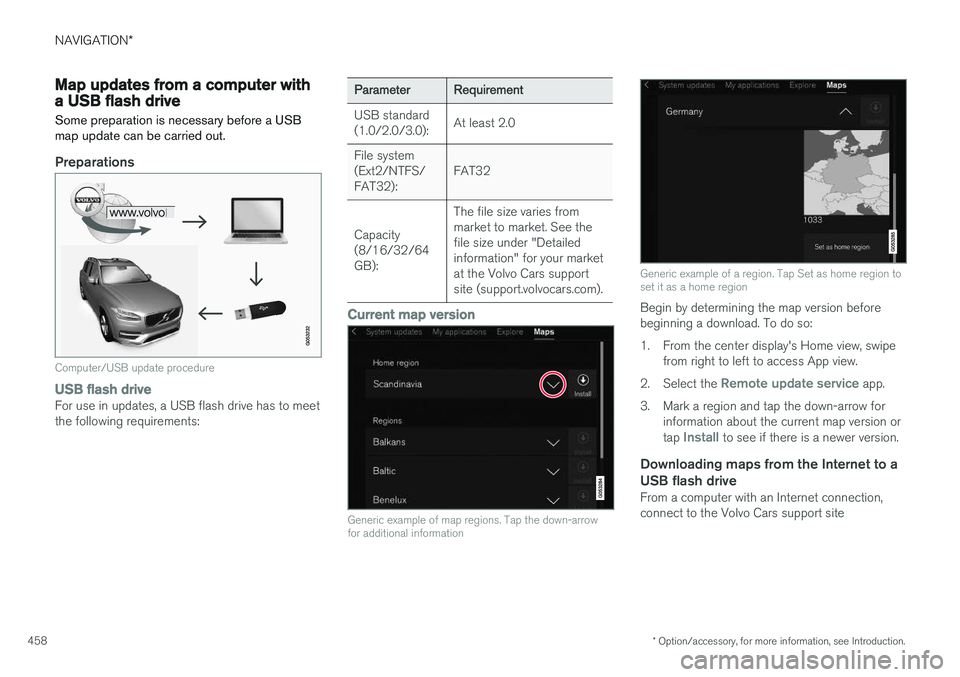
Computer/USB update procedure
USB flash driveFor use in updates, a USB flash drive has to meet the following requirements:
ParameterRequirement
USB standard (1.0/2.0/3.0):At least 2.0
File system (Ext2/NTFS/FAT32):FAT32
Capacity (8/16/32/64GB):
The file size varies from market to market. See thefile size under "Detailedinformation" for your marketat the Volvo Cars supportsite (support.volvocars.com).
Current map version
Generic example of map regions. Tap the down-arrow for additional information
Generic example of a region. Tap Set as home region to set it as a home region
Begin by determining the map version before beginning a download. To do so:
1. From the center display's Home view, swipe from right to left to access App view.
2. Select the
Remote update service app.
3. Mark a region and tap the down-arrow for information about the current map version or tap
Install to see if there is a newer version.
Downloading maps from the Internet to a USB flash drive
From a computer with an Internet connection, connect to the Volvo Cars support site
Page 461 of 570
NAVIGATION*
* Option/accessory, for more information, see Introduction.
459
(support.volvocars.com) and follow the instruc- tions on the screen.
1. Tap "Detailed information" for the region to
be updated.
2. Information about the latest maps for the region will be displayed. Verify that it is newer than the version in the vehicle.
3. Connect a USB flash drive to the computer and download the update to the USB drive.
The amount of time for the download variesaccording to the size of the file and the speed ofthe Internet connection.
Transferring the updated maps from the USB drive to the vehicle
General informationThis transfer may take between 30–60 minutes depending on the file size. This must be donewith the navigation and infotainment systemsactivated. If the engine is not running, it may be necessary to connect a battery charger to avoid dischargingthe battery. An update can also be done whiledriving. During a complete map download, certain info- tainment system functions may not be availableor have limited functionality:
• Navigation
• Voice commands •
Information/media stored on the vehicle's hard drive
Updating1. Activate the navigation system (see the pre-
vious section "Current map version").
2. Connect the USB drive to the vehicle's USB socket in the tunnel console.
3. The navigation system will automatically detect any available updates. The update's progress will be displayed on the screen as%. The driver must tap
Confirm to start the
update or Cancel to interrupt it.
4. Tap
Confirm. The update will begin and pro-
gress information will be shown on the cen- ter display.
5. The center display will indicate when the update has been completed. Remove theUSB drive from the socket.
6. Verify that the correct map information has been transferred by repeating the procedurein "Current map version."
Interruptions
What happens if...Answer
...the infotainment system is turned offwhile an update is inprogress?The process will pause and will continue auto-matically when thesystem is reactivated.
...the USB flash drive is removed from theUSB socket while anupdate is in pro-gress?The process will pause and will continue auto-matically when theUSB drive is recon-nected to the USBsocket.
If an update is interrupted, an explanatory text will always appear on the center display. For additional information, see the Volvo Cars support site (support.volvocars.com) or contact aVolvo retailer.
Related information
• Map updates with MapCare (p. 456)
Page 558 of 570
556Brake assist system 333
Brake lights 143, 334Brakes
auto-hold 332
Brake system Brake pad inspection 331
fluid 541
general information 330, 332, 333
Bulbs 514 replacing 510
specifications 515
C
Cameradriver support systems 240
limitations 241
Camera, Park Assist 296, 298, 300
Capacity weight 471, 539
Cargo area, steel grid 211
Cargo area cover 213Cargo compartment fuses 508
raising/lowering the level 207
Cargo net 209
Cargo space 200
Car wash 525
Catalytic converter 349CD, USB, iPod, AUX, Bluetooth, Recents, Library, Shuffle, Similar, Change device, Pri-mary Audio Default Language, Subtitle, Pri-mary Subtitle Default Language, Video, DivX ® VOD 395
CD player 394 Cell phone hands-free 387
Pairing 387
Cell phone voice control 121 Center display changing settings 31
cleaning 529
keyboard 32
navigating in 39
overview 29
screen in the center console 46
symbols in the status bar 44
Chains 473
Changing a wheel 475Child restraints recalls and registration 65
Child restraint systems 65 booster cushions 71
convertible seats 69
infant seats 67ISOFIX/LATCH anchors 72
top tether anchors 74
Child safety 63 booster cushions 71
child restraint systems 65, 73
convertible seats 69
infant seats 67
Child safety locks 218 Child seats lower attachment points 73
City safety 273, 278City Safety crossing traffic 277
detecting objects 275
limitations 278
rear collision warning 277
symbols and messages 282
troubleshooting 280
City Safety, On/Off 275 Cleaning exterior 525
interior 527
Clean Zone Interior Package 178
Climate system 180 air distribution 194, 195, 196
air filter 179
air vents 194
auto mode 179