reset VOLVO XC90 2015 User Guide
[x] Cancel search | Manufacturer: VOLVO, Model Year: 2015, Model line: XC90, Model: VOLVO XC90 2015Pages: 570, PDF Size: 12.44 MB
Page 109 of 570
INSTRUMENTS AND CONTROLS
107
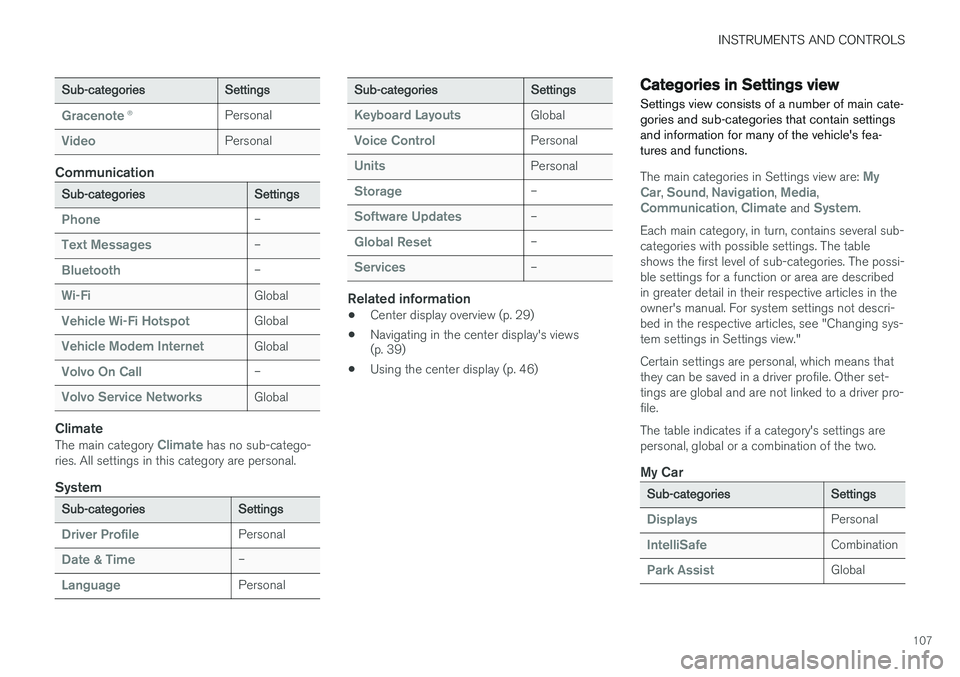
Sub-categoriesSettings
Gracenote®Personal
VideoPersonal
Communication
Sub-categoriesSettings
Phone–
Text Messages–
Bluetooth–
Wi-FiGlobal
Vehicle Wi-Fi HotspotGlobal
Vehicle Modem InternetGlobal
Volvo On Call–
Volvo Service NetworksGlobal
Climate
The main category Climate has no sub-catego-
ries. All settings in this category are personal.
System
Sub-categoriesSettings
Driver ProfilePersonal
Date & Time–
LanguagePersonal
Sub-categoriesSettings
Keyboard LayoutsGlobal
Voice ControlPersonal
UnitsPersonal
Storage–
Software Updates–
Global Reset–
Services–
Related information
• Center display overview (p. 29)
• Navigating in the center display's views (p. 39)
• Using the center display (p. 46)
Categories in Settings view
Settings view consists of a number of main cate- gories and sub-categories that contain settingsand information for many of the vehicle's fea-tures and functions.
The main categories in Settings view are: My
Car, Sound, Navigation, Media,Communication, Climate and System.
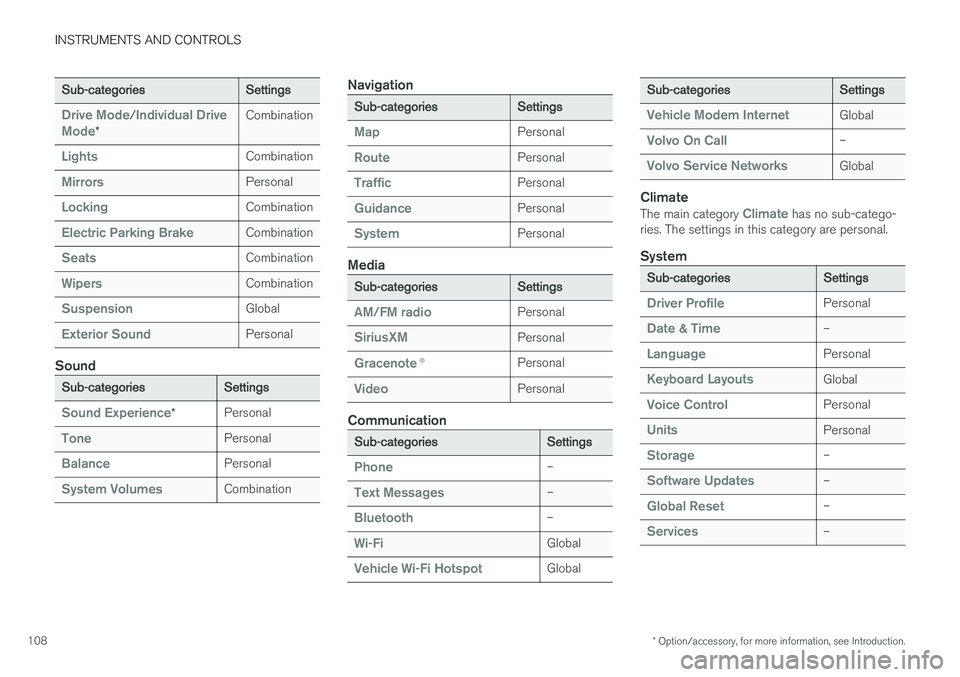
Each main category, in turn, contains several sub- categories with possible settings. The tableshows the first level of sub-categories. The possi-ble settings for a function or area are describedin greater detail in their respective articles in theowner's manual. For system settings not descri-bed in the respective articles, see "Changing sys-tem settings in Settings view." Certain settings are personal, which means that they can be saved in a driver profile. Other set-tings are global and are not linked to a driver pro-file. The table indicates if a category's settings are personal, global or a combination of the two.
My Car
Sub-categoriesSettings
DisplaysPersonal
IntelliSafeCombination
Park AssistGlobal
Page 110 of 570
INSTRUMENTS AND CONTROLS
* Option/accessory, for more information, see Introduction.
108
Sub-categoriesSettings
Drive Mode/Individual Drive
Mode*
Combination
LightsCombination
MirrorsPersonal
LockingCombination
Electric Parking BrakeCombination
SeatsCombination
WipersCombination
SuspensionGlobal
Exterior SoundPersonal
Sound
Sub-categoriesSettings
Sound Experience*Personal
TonePersonal
BalancePersonal
System VolumesCombination
Navigation
Sub-categoriesSettings
MapPersonal
RoutePersonal
TrafficPersonal
GuidancePersonal
SystemPersonal
Media
Sub-categoriesSettings
AM/FM radioPersonal
SiriusXMPersonal
Gracenote ®Personal
VideoPersonal
Communication
Sub-categoriesSettings
Phone–
Text Messages–
Bluetooth–
Wi-FiGlobal
Vehicle Wi-Fi HotspotGlobal
Sub-categoriesSettings
Vehicle Modem InternetGlobal
Volvo On Call–
Volvo Service NetworksGlobal
Climate
The main category Climate has no sub-catego-
ries. The settings in this category are personal.
System
Sub-categoriesSettings
Driver ProfilePersonal
Date & Time–
LanguagePersonal
Keyboard LayoutsGlobal
Voice ControlPersonal
UnitsPersonal
Storage–
Software Updates–
Global Reset–
Services–
Page 111 of 570
INSTRUMENTS AND CONTROLS
* Option/accessory, for more information, see Introduction.109
Related information
•Driver profiles (p. 112)
• Settings view (p. 106)
• Changing system settings in Settings view (p. 109)
Changing system settings in Settings view
Settings view's main category
System contains
general settings and information, such as lan- guage, units of measure, etc.
The system settings under Driver Profile, Date
& Time, Keyboard Layouts, Voice Control,Software Updates, Global Reset andServices are described in their respective arti-
cles in the owner's manual.
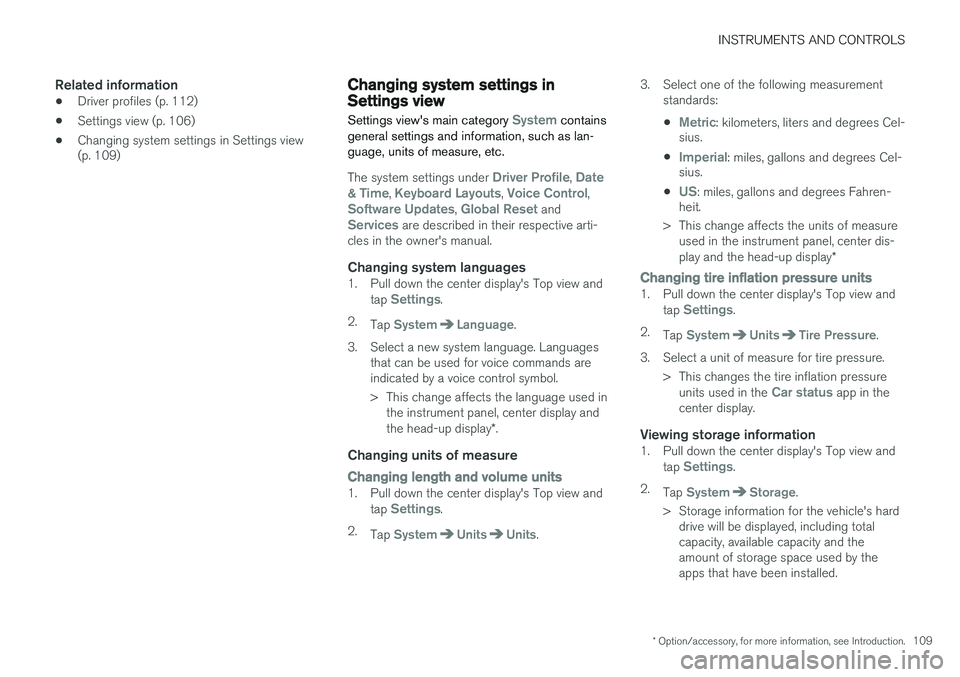
Changing system languages1. Pull down the center display's Top view and
tap Settings.
2. Tap
SystemLanguage.
3. Select a new system language. Languages that can be used for voice commands are indicated by a voice control symbol.
> This change affects the language used inthe instrument panel, center display and the head-up display *.
Changing units of measure
Changing length and volume units1. Pull down the center display's Top view and
tap Settings.
2. Tap
SystemUnitsUnits. 3. Select one of the following measurement
standards:
•
Metric: kilometers, liters and degrees Cel-
sius.
•
Imperial: miles, gallons and degrees Cel-
sius.
•
US: miles, gallons and degrees Fahren-
heit.
> This change affects the units of measure used in the instrument panel, center dis- play and the head-up display *
Changing tire inflation pressure units1. Pull down the center display's Top view and
tap Settings.
2. Tap
SystemUnitsTire Pressure.
3. Select a unit of measure for tire pressure. > This changes the tire inflation pressureunits used in the
Car status app in the
center display.
Viewing storage information1. Pull down the center display's Top view and
tap Settings.
2. Tap
SystemStorage.
> Storage information for the vehicle's hard drive will be displayed, including total capacity, available capacity and theamount of storage space used by theapps that have been installed.
Page 113 of 570
INSTRUMENTS AND CONTROLS
111
Changing settings in apps
App view, which is one of the center display's basic views, contains all of the apps installed inthe vehicle. From Home view, navigate to Appview by swiping the screen from right to left.
Apps for integrated (basic) functionsCertain apps in your vehicle are factory-installed, such as FM, USB and CD and are part of Sen-
sus. Settings in these apps can be changed in the center display's Top view.
Changing settings for a basic app1. Tap one of the basic apps, for example FM
radio.
2. Pull down Top view. 3. Tap
FM Radio Settings.
4. Change the desired settings and confirm.
5. Press the Home button below the center dis- play or tap the screen outside of Top view or pull up Top view to return to your originalview. See also the article "Categories in Set-tings view."
Third party appsThird party apps have to be downloaded e.g.,Volvo ID. Settings for these apps are made in
the apps themselves, not in Top view.
Related information
• Settings view (p. 106)
• Navigating in the center display's views (p. 39)
• Categories in Settings view (p. 107)
Resetting the settings view
All of the changes made under Settings view can be reset to their default values at the sametime.
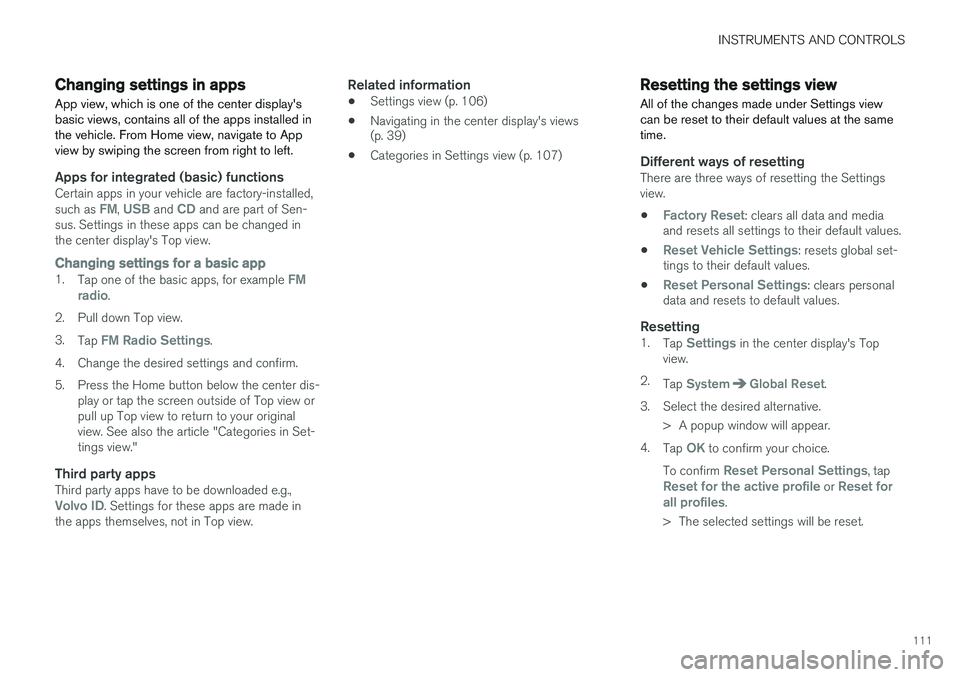
Different ways of resettingThere are three ways of resetting the Settings view.
•
Factory Reset: clears all data and media
and resets all settings to their default values.
•
Reset Vehicle Settings: resets global set-
tings to their default values.
•
Reset Personal Settings: clears personal
data and resets to default values.
Resetting1. Tap Settings in the center display's Top
view.
2. Tap
SystemGlobal Reset.
3. Select the desired alternative. > A popup window will appear.
4. Tap
OK to confirm your choice.
To confirm
Reset Personal Settings, tapReset for the active profile or Reset for
all profiles.
> The selected settings will be reset.
Page 114 of 570
INSTRUMENTS AND CONTROLS
112
Related information
•Settings view (p. 106)
• Driver profiles (p. 112)
• Resetting user data when the vehicle changes owners (p. 112)
Resetting user data when the vehicle changes owners
When the vehicle changes owners, all user set- tings should be reset to the factory defaults.
When the vehicle changes owners, it is essential to reset all user data and system settings to theirfactory defaults, including Volvo On Call.
Related information
• Resetting the settings view (p. 111)
• Volvo ID (p. 27)
• Changing ownership of a vehicle with Volvo On Call (p. 424)
Driver profiles
Many of the vehicle's settings can be adapted to the driver's personal preference and saved inone or more driver profiles.
Different settings can be saved and also linked to different remote keys. When a key with a certainprofile is used, the vehicle's settings are changedaccording to the specific driver profile linked tothat key.
Two types of profilesWhen the center display is activated, the name ofthe driver profile linked to the remote key used tounlock the vehicle will be shown at the top of thedisplay. No profiles are initially linked to the remote keys and the
Guest profile is selected automatically.
No settings can be saved in this profile; the
Guest profile is intended for use if the remote
key is lent to another driver. A driver profile can be created for each of the vehicle's remote keys. If a new key is purchased,a new profile is also added to the vehicle's sys-tem.
Page 116 of 570
INSTRUMENTS AND CONTROLS
114
Editing a driver profile
The driver profiles can be edited to e.g., change their names or lock a profile.
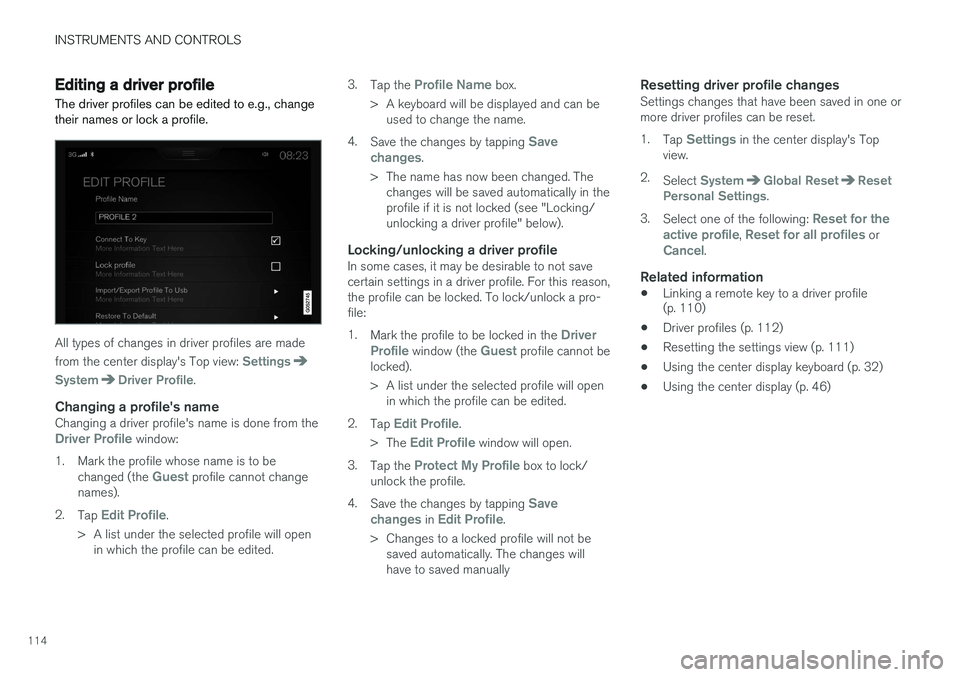
All types of changes in driver profiles are made from the center display's Top view:
Settings
SystemDriver Profile.
Changing a profile's nameChanging a driver profile's name is done from theDriver Profile window:
1. Mark the profile whose name is to be changed (the
Guest profile cannot change
names).
2. Tap
Edit Profile.
> A list under the selected profile will open in which the profile can be edited. 3.
Tap the
Profile Name box.
> A keyboard will be displayed and can be used to change the name.
4. Save the changes by tapping
Save
changes.
> The name has now been changed. The changes will be saved automatically in the profile if it is not locked (see "Locking/unlocking a driver profile" below).
Locking/unlocking a driver profileIn some cases, it may be desirable to not savecertain settings in a driver profile. For this reason,the profile can be locked. To lock/unlock a pro-file: 1. Mark the profile to be locked in the
Driver
Profile window (the Guest profile cannot be
locked).
> A list under the selected profile will open in which the profile can be edited.
2. Tap
Edit Profile.
> The
Edit Profile window will open.
3. Tap the
Protect My Profile box to lock/
unlock the profile.
4. Save the changes by tapping
Save
changes in Edit Profile.
> Changes to a locked profile will not be saved automatically. The changes will have to saved manually
Resetting driver profile changesSettings changes that have been saved in one ormore driver profiles can be reset. 1. Tap
Settings in the center display's Top
view.
2. Select
SystemGlobal ResetReset
Personal Settings.
3. Select one of the following:
Reset for the
active profile, Reset for all profiles orCancel.
Related information
• Linking a remote key to a driver profile (p. 110)
• Driver profiles (p. 112)
• Resetting the settings view (p. 111)
• Using the center display keyboard (p. 32)
• Using the center display (p. 46)
Page 203 of 570
LOADING AND STORAGE
* Option/accessory, for more information, see Introduction.201
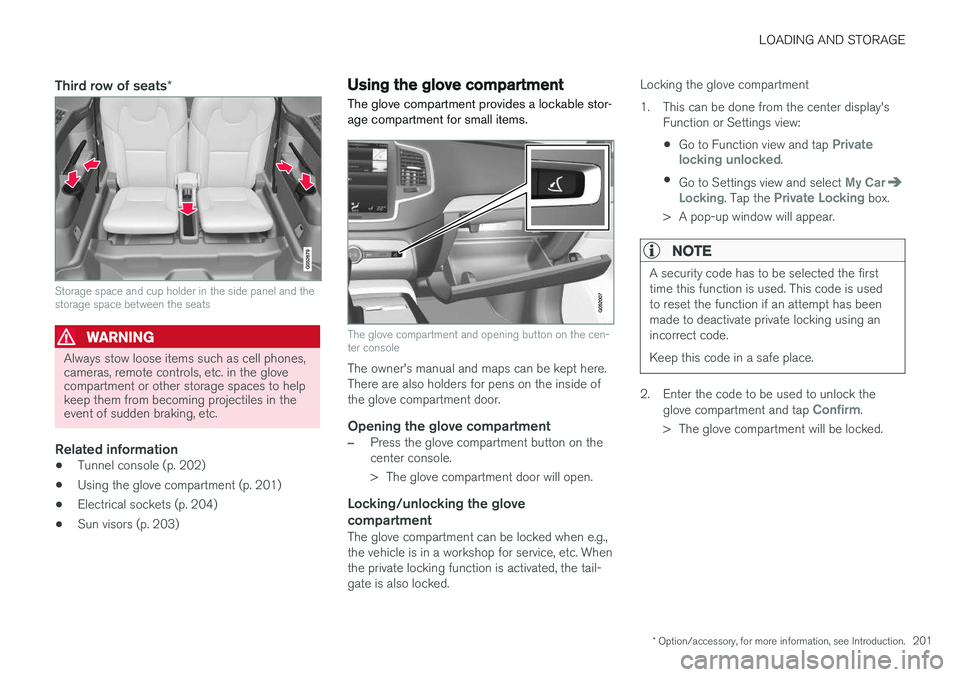
Third row of seats*
Storage space and cup holder in the side panel and the storage space between the seats
WARNING
Always stow loose items such as cell phones, cameras, remote controls, etc. in the glovecompartment or other storage spaces to helpkeep them from becoming projectiles in theevent of sudden braking, etc.
Related information
•Tunnel console (p. 202)
• Using the glove compartment (p. 201)
• Electrical sockets (p. 204)
• Sun visors (p. 203)
Using the glove compartment
The glove compartment provides a lockable stor- age compartment for small items.
The glove compartment and opening button on the cen- ter console
The owner's manual and maps can be kept here. There are also holders for pens on the inside ofthe glove compartment door.
Opening the glove compartment
–Press the glove compartment button on the center console.
> The glove compartment door will open.
Locking/unlocking the glove compartment
The glove compartment can be locked when e.g., the vehicle is in a workshop for service, etc. Whenthe private locking function is activated, the tail-gate is also locked. Locking the glove compartment
1. This can be done from the center display's
Function or Settings view:
• Go to Function view and tap
Private
locking unlocked.
• Go to Settings view and select
My CarLocking. Tap the Private Locking box.
> A pop-up window will appear.
NOTE
A security code has to be selected the first time this function is used. This code is usedto reset the function if an attempt has beenmade to deactivate private locking using anincorrect code. Keep this code in a safe place.
2. Enter the code to be used to unlock the glove compartment and tap Confirm.
> The glove compartment will be locked.
Page 238 of 570

LOCKS AND ALARM
* Option/accessory, for more information, see Introduction.
236
–Press the button 13
on the lower edge of
the tailgate.
> The tailgate will close automatically but will not be locked .
–Press the button13
on the lower edge of
the tailgate.
> The tailgate will close automatically. The tailgate and doors will also be locked and
the alarm will be armed.
If the remote key is not close enough to the tail- gate, automatic locking/unlocking/opening/clos-ing will not be possible. Three short audible sig-nals will sound.
Interrupting opening/closing
–This can be done in five ways: • Press the button on the lighting panel
• Press the button on the remote key
• Press either of the buttons on the lower edge of the tailgate
• Press lightly on the rubber-covered buttonunder the tailgate's outside handle
• Move your foot under a sensor beneath the rear bumper
*
> The tailgate will stop moving
Programming the tailgate's maximum opening angle
The tailgate's maximum opening angle can be programmed, for example, if the tailgate has to beopened in a garage with a low ceiling. Programming the opening angle:
–Open the tailgate manually to the desired angle and press and hold the closing buttonon the tailgate's lower edge for at least 3seconds. Release the tailgate.
> Two audible signals will sound to indicate that the selected opening angle has been stored.
Erasing tailgate programming
–Open the tailgate manually to its highest position and press and hold the closing but-ton on the tailgate's lower edge for at least 3seconds. Release the tailgate.
> Two audible signals will sound to indicate that the programmed opening angle has been erased.
NOTE
If the tailgate has been opened and closed continuously too long, the automatic functionwill be deactivated to avoid overloading theelectrical system. The automatic function canbe used again after approximately 2 minutes. If the vehicle's battery has been discharged or disconnected, or if the tailgate has been openfor more than 24 hours, the tailgate must beopened and closed once manually to resetthe system.
Pinch protectionIf the tailgate is obstructed when being opened/ closed, a pinch protection mechanism is acti-vated.
• While opening: the tailgate will stop moving and an audible signal will sound.
• While closing: the tailgate will stop andreturn to the maximum programmable open-ing position. An audible signal will sound.
WARNING
Be sure that no one is near the tailgate when it is opened or closed automatically. The tail-gate should never be obstructed in any waywhen it is operated.
13
Models equipped with the optional Passive Entry system have a button to close the tailgate and a button to close and lock the tailgate.
Page 262 of 570

DRIVER SUPPORT
260
WARNING
•Pilot Assist is designed to be a supple- mentary driving aid and cannot cover alldriving situations, traffic, weather and/orroad conditions.
• The driver should be familiar with all ofthe information in this article regardingPilot Assist, including its limitations.
• Pilot Assist is not intended to replace thedriver's attention and judgement.
• Pilot Assist must only be used wherethere are clearly visible traffic lane sidemarker lines on both sides of the currenttraffic lane. In other circumstances thereis an increased risk of collision with sur-rounding obstacles that are not detectedby the system.
• The driver is always responsible for steer-ing the vehicle and maintaining a suitablespeed and distance to the vehicle aheadand must intervene if necessary, even ifPilot Assist is being used.
Pilot Assist is designed to regulate speed smoothly but in situations calling for fast braking,the driver must apply the brakes. This applies tosituations where there are considerable differen-ces in speed or if the vehicle ahead brakes sud-denly. Due to the limitations of the camera andradar sensor, the system may apply the brakes inyour vehicle suddenly or not at all. The default speed for Pilot Assist is preset toapprox. 30 mph (50 km/h) and cannot bechanged. If the vehicle ahead increases speed toover 30 mph (50 km/h) and pulls away from yourvehicle, Pilot Assist will go into standby mode.
NOTE
•
Pilot Assist maintenance should only be carried out by a trained and qualifiedVolvo service technician.
• Pilot Assist regulates your vehicle'sspeed using the accelerator pedal andthe brakes. Please be aware that theremay be a faint sound from the brakeswhen the system is using them.
WARNING
•Pilot Assist does not react to people or animals, or small vehicles such as bicy-cles and motorcycles. It also does notreact to low trailers, slow moving, parkedor approaching vehicles, or stationaryobjects.
• Do not use Pilot Assist in demandingdriving conditions such as city driving orother heavy traffic situations, in slipperyconditions, when there is a great deal ofwater or slush on the road, during heavyrain or snow, in poor visibility, on windingroads or on highway on- or off-ramps.
Pilot Assist overview
Controls
Function buttons and symbols
[]: Press to activate Pilot Assist or put it
in standby mode
Arrow key [ < ]: change from Pilot Assist to
Adaptive Cruise Control (symbol (6) will also change)
Reduce the distance (time interval) to the vehicle ahead
Arrow key [ > ]: change from Adaptive Cruise
Control to Pilot Assist (symbol (6) will also change)
Increase the distance (time interval) to the vehicle ahead
Function symbols
Page 285 of 570
DRIVER SUPPORT
* Option/accessory, for more information, see Introduction.283
Speed limiter (SL)*
The Speed Limiter (SL) is a feature that helps prevent the driver from exceeding a preset maxi-mum speed.
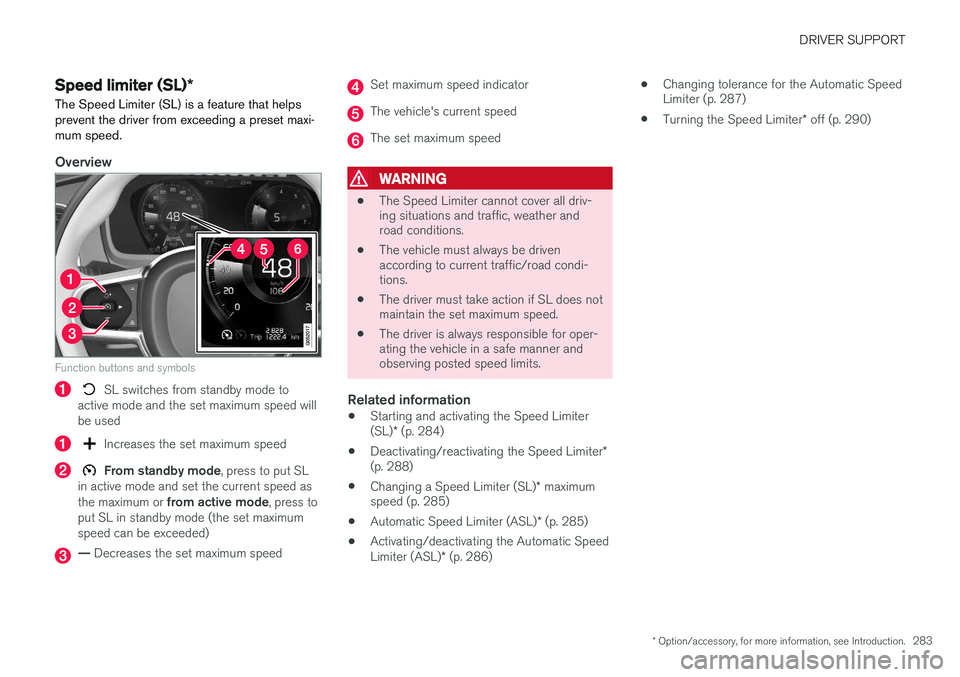
Overview
Function buttons and symbols
SL switches from standby mode to
active mode and the set maximum speed will be used
Increases the set maximum speed
From standby mode , press to put SL
in active mode and set the current speed as the maximum or from active mode , press to
put SL in standby mode (the set maximum speed can be exceeded)