steering VOLVO XC90 2015 User Guide
[x] Cancel search | Manufacturer: VOLVO, Model Year: 2015, Model line: XC90, Model: VOLVO XC90 2015Pages: 570, PDF Size: 12.44 MB
Page 87 of 570

SAFETY
85
certain non-frontal collisions where rapid deceleration occurs.
• The airbag system sensors, which trigger thefront airbags, are designed to react to boththe impact of the collision and the inertialforces generated by it, and to determine ifthe intensity of the collision is sufficient forthe seat belt pretensioners and/or airbags tobe deployed.
However, not all frontal collisions activate the front airbags.
• If the collision involves a nonrigid object (e.g., a snow drift or bush), or a rigid, fixed objectat a low speed, the front airbags will not nec-essarily deploy.
• Front airbags do not normally deploy in aside impact collision, in a collision from therear or in a rollover situation.
• The amount of damage to the bodyworkdoes not reliably indicate if the airbagsshould have deployed or not.
NOTE
• Deployment of front airbags occurs only one time during an accident. In a collisionwhere deployment occurs, the airbagsand seat belt pretensioners activate.Some noise occurs and a small amountof powder is released. The release of thepowder may appear as smoke-like matter.This is a normal characteristic and doesnot indicate fire.
• Volvo's front airbags use special sensorsthat are integrated with the front seatbuckles. The point at which the airbagdeploys is determined by whether or notthe seat belt is being used, as well as theseverity of the collision.
• Collisions can occur where only one ofthe airbags deploys. If the impact is lesssevere, but severe enough to present aclear injury risk, the airbags are triggeredat partial capacity. If the impact is moresevere, the airbags are triggered at fullcapacity.
WARNING
• Do not use child safety seats or child booster cushions/backrests in the frontpassenger's seat. We also recommendthat occupants under 4 feet 7 inches(140 cm) in height who have outgrownthese devices sit in the rear seat with theseat belt fastened. See also the Occu-pant Weight Sensor information,.
• Never drive with the airbags deployed.The fact that they hang out can impair thesteering of your vehicle. Other safety sys-tems can also be damaged.
• The smoke and dust formed when theairbags are deployed can cause skin andeye irritation in the event of prolongedexposure.
Should you have questions about any component in the SRS system, please contact a trained andqualified Volvo service technician or Volvo cus-tomer support: In the USA Volvo Cars of North America, LLC Customer Care Center1 Volvo DriveP.O. Box 914Rockleigh, New Jersey 076471-800-458-1552
Page 88 of 570

SAFETY
86www.volvocars.com/us In Canada Volvo Cars of Canada Corp. National Customer Service9130 Leslie Street, Suite 101Richmond Hill, Ontario L4B 0B91-800-663-8255www.volvocars.com/ca
Airbag decals
Airbag decal on the outside of both sun visors
Passenger's side airbag decal
WARNING
•
Children must never be allowed in the front passenger's seat.
• Occupants in the front passenger's seatmust never sit on the edge of the seat, sitleaning toward the instrument panel orotherwise sit out of position.
• The occupant's back must be as uprightas comfort allows and be against the seatback with the seat belt properly fastened.
• Feet must be on the floor, e.g., not on thedash, seat or out of the window.
WARNING
•
No objects or accessory equipment, e.g. dashboard covers, may be placed on,attached to, or installed near the air baghatch (the area above the glove compart-ment) or the area affected by airbagdeployment.
• There should be no loose articles, suchas coffee cups on the floor, seat, or dash-board area.
• Never try to open the airbag cover on thesteering wheel or the passenger's sidedashboard. This should only be done by atrained and qualified Volvo service techni-cian.
• Failure to follow these instructions canresult in injury to the vehicle occupants.
Related information
• Seat belts (p. 58)
• Occupant weight sensor (p. 78)
Page 94 of 570
INSTRUMENTS AND CONTROLS
92
Trip computer The trip computer registers and calculates infor- mation such as distance driven, fuel consump-tion and average speed. This information is dis-played in the instrument panel.
To help promote fuel efficient driving, the trip computer provides readings for current and aver-age fuel consumption. The trip computer includes the following gauges:
• Trip odometers
• Odometer
• Current fuel consumption
• Distance to empty
• Tourist (alternative speedometer)
Trip odometerThere are two trip odometers: TM and TA. Duringa drive, the trip odometer registers:
• Mileage
• Driving time
• Average speed
• Average fuel consumption
The values displayed are those since the lasttime the trip odometer was reset.
OdometerThe odometer registers the vehicle's total mile-age and cannot be reset.
Current fuel consumptionThis gauge shows the current fuel consumption.This reading is updated once a second.
Distance to emptyThis function shows the approximate distancethat can be driven on the fuel remaining in thetank. The calculation is based on average fuel con- sumption during the last 20 miles (30 km) ofdriving and the amount of fuel remaining in thetank. When the gauge displays "----", there is very little useable fuel remaining in the tank; refuel as soonas possible. The accuracy of this figure may vary if your driv- ing style changes. An economical driving style willgenerally increase this distance.
Tourist (alternative speedometer)This is an alternative digital speedometer can beused when driving in areas in which the speedlimit is listed in a different unit of measure. If the speedometer is in mph, this gauge will show the
vehicle's speed in km/h and vice versa.
Related information
•Displaying trip computer information (p. 92)
• Displaying trip statistics (p. 94)
Displaying trip computer information
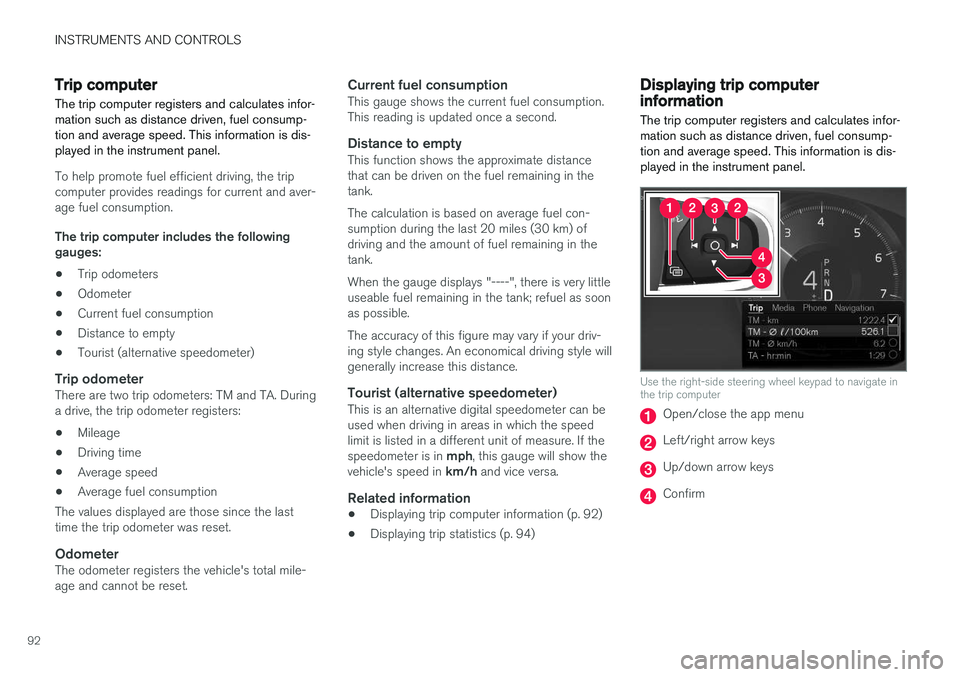
The trip computer registers and calculates infor- mation such as distance driven, fuel consump-tion and average speed. This information is dis-played in the instrument panel.
Use the right-side steering wheel keypad to navigate in the trip computer
Open/close the app menu
Left/right arrow keys
Up/down arrow keys
Confirm
Page 95 of 570
INSTRUMENTS AND CONTROLS
* Option/accessory, for more information, see Introduction.93
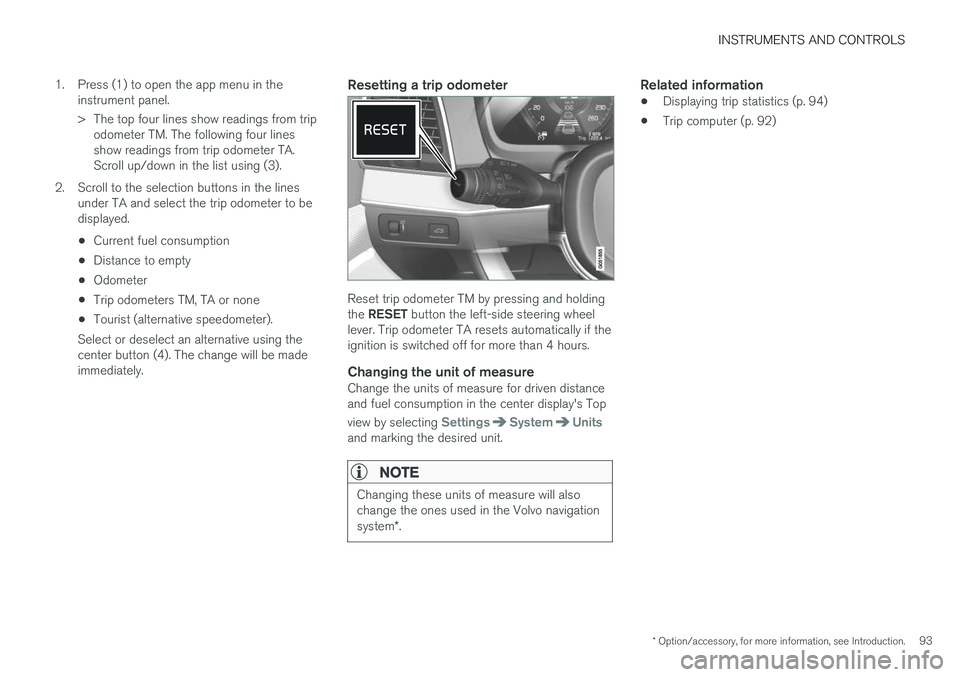
1. Press (1) to open the app menu in the
instrument panel.
> The top four lines show readings from tripodometer TM. The following four lines show readings from trip odometer TA.Scroll up/down in the list using (3).
2. Scroll to the selection buttons in the lines under TA and select the trip odometer to bedisplayed.
• Current fuel consumption
• Distance to empty
• Odometer
• Trip odometers TM, TA or none
• Tourist (alternative speedometer).
Select or deselect an alternative using thecenter button (4). The change will be madeimmediately.
Resetting a trip odometer
Reset trip odometer TM by pressing and holding the RESET button the left-side steering wheel
lever. Trip odometer TA resets automatically if the ignition is switched off for more than 4 hours.
Changing the unit of measureChange the units of measure for driven distanceand fuel consumption in the center display's Top view by selecting
SettingsSystemUnitsand marking the desired unit.
NOTE
Changing these units of measure will also change the ones used in the Volvo navigation system *.
Related information
• Displaying trip statistics (p. 94)
• Trip computer (p. 92)
Page 121 of 570

INSTRUMENTS AND CONTROLS
* Option/accessory, for more information, see Introduction.119
1.
Tap Head-up display adjustments in the
center display's Function view.
2. Use the right-side steering wheel keypad to adjust the HUD's brightness and height posi- tion on the windshield in the driver's field ofvision.
Reduce brightness
Increase brightness
Higher position
Lower position
Confirm
This selection can be saved as a personal setting in a driver profile.
Adapting brightnessThe brightness of the graphics displayed in the HUD are also automatically adjusted according toambient lighting conditions. HUD brightness isalso affected by adjustments to the brightness ofthe other displays in the vehicle.
Power front seat * memory functionThe position of the HUD can be stored in the power seat's memory function.
Replacing the windshieldVehicles with a head-up display have a specialtype of windshield meeting the requirements fordisplaying projected information. If the windshield has to be replaced, contact a trained and qualified Volvo service technician orauthorized workshop. The correct type of replace-ment windshield must be used for a head-up dis-play.
Calibrating the horizontal positionIf the windshield has been replaced, it may benecessary to calibrate the HUD's horizontal posi-tion. This means that the projected image willhave to be rotated clockwise or counterclockwise.To do so: 1. Pull down the center display's Top view and
tap
Settings.
2. Select
My CarDisplaysHead-Up
Display Calibration.
3. Use the buttons on the right-side steering wheel keypad to calibrate the horizontal posi- tion.
Rotate counterclockwise
Rotate clockwise
Confirm
CleaningWipe the glass covering the HUD projection unit carefully with a clean and dry (or very slightlydamp if necessary) microfiber cloth.
Page 122 of 570
INSTRUMENTS AND CONTROLS
* Option/accessory, for more information, see Introduction.
120 Never use strong stain removers. For difficult cleaning conditions, a special cleaning agent canbe purchased at a Volvo retailer.
Related information
•
Driver profiles (p. 112)
• Center display overview (p. 29)
• Navigating in the center display's views (p. 39)
Voice control
Voice commands make it possible for the driver to voice-control certain functions in the mediaplayer, a Bluetooth-connected cell phone, cli- mate system and the Volvo navigation system *.
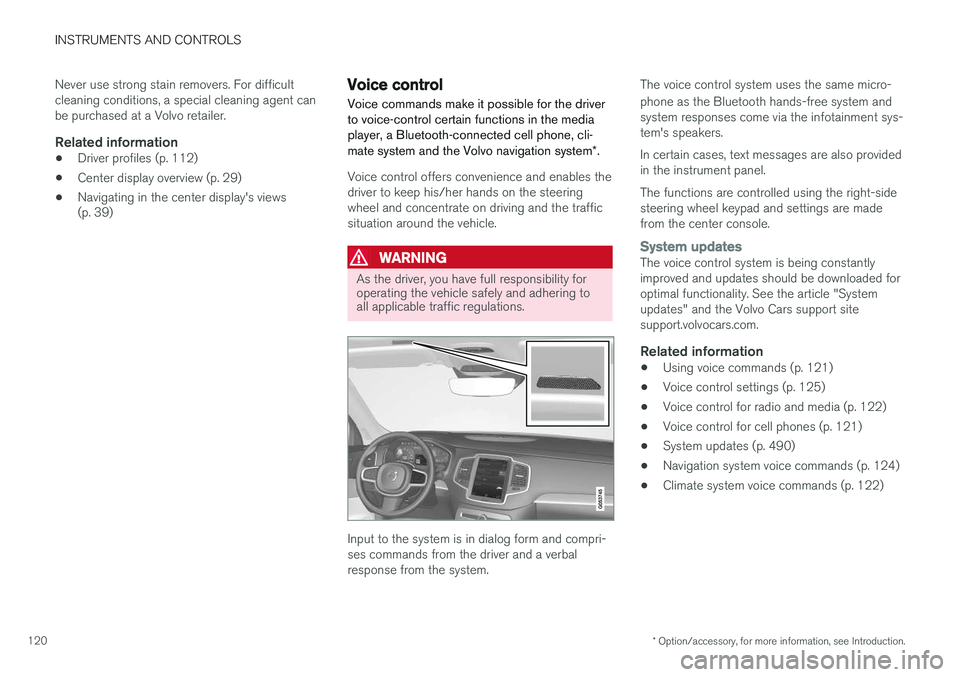
Voice control offers convenience and enables the driver to keep his/her hands on the steeringwheel and concentrate on driving and the trafficsituation around the vehicle.
WARNING
As the driver, you have full responsibility for operating the vehicle safely and adhering toall applicable traffic regulations.
Input to the system is in dialog form and compri- ses commands from the driver and a verbalresponse from the system. The voice control system uses the same micro- phone as the Bluetooth hands-free system and system responses come via the infotainment sys-tem's speakers. In certain cases, text messages are also provided in the instrument panel. The functions are controlled using the right-side steering wheel keypad and settings are madefrom the center console.
System updatesThe voice control system is being constantly improved and updates should be downloaded foroptimal functionality. See the article "Systemupdates" and the Volvo Cars support sitesupport.volvocars.com.
Related information
•
Using voice commands (p. 121)
• Voice control settings (p. 125)
• Voice control for radio and media (p. 122)
• Voice control for cell phones (p. 121)
• System updates (p. 490)
• Navigation system voice commands (p. 124)
• Climate system voice commands (p. 122)
Page 123 of 570
INSTRUMENTS AND CONTROLS
121
Using voice commands
The following is an introduction for using voice commands.
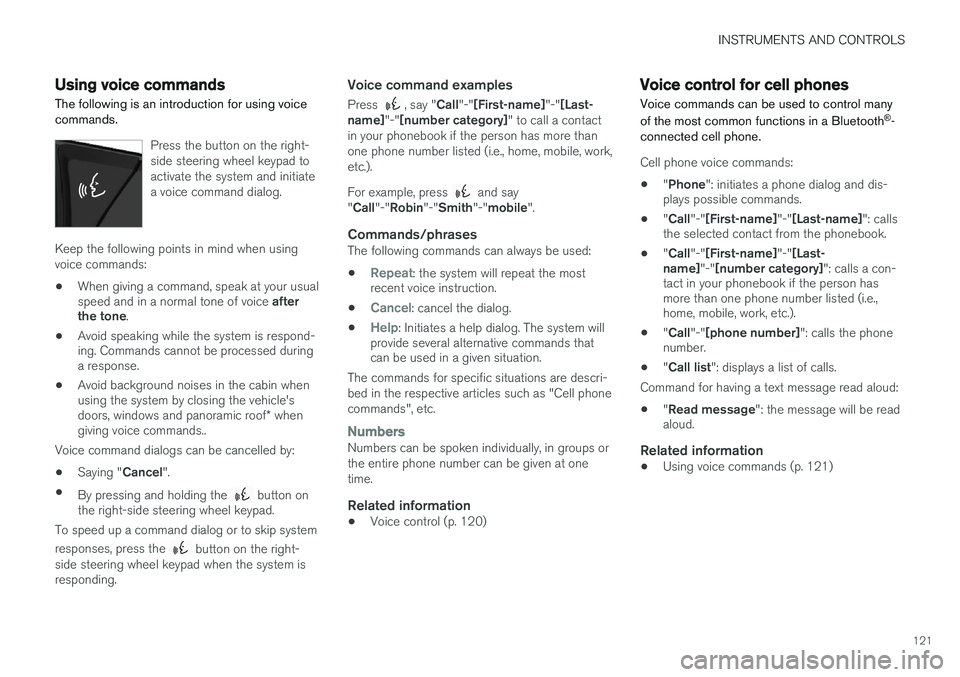
Press the button on the right- side steering wheel keypad toactivate the system and initiatea voice command dialog.
Keep the following points in mind when using voice commands:
• When giving a command, speak at your usual speed and in a normal tone of voice
after
the tone .
• Avoid speaking while the system is respond- ing. Commands cannot be processed duringa response.
• Avoid background noises in the cabin whenusing the system by closing the vehicle's doors, windows and panoramic roof
* when
giving voice commands..
Voice command dialogs can be cancelled by:
• Saying "
Cancel".
• By pressing and holding the
button on
the right-side steering wheel keypad.
To speed up a command dialog or to skip system responses, press the
button on the right-
side steering wheel keypad when the system is responding.
Voice command examples
Press , say " Call"-"[First-name] "-"[Last-
name] "-"[number category] " to call a contact
in your phonebook if the person has more than one phone number listed (i.e., home, mobile, work,etc.). For example, press
and say
" Call "-"Robin "-"Smith "-"mobile ".
Commands/phrasesThe following commands can always be used: •
Repeat: the system will repeat the most
recent voice instruction.
•
Cancel: cancel the dialog.
•
Help: Initiates a help dialog. The system will
provide several alternative commands that can be used in a given situation.
The commands for specific situations are descri- bed in the respective articles such as "Cell phonecommands", etc.
NumbersNumbers can be spoken individually, in groups or the entire phone number can be given at onetime.
Related information
• Voice control (p. 120)
Voice control for cell phones Voice commands can be used to control many of the most common functions in a Bluetooth ®
-
connected cell phone.
Cell phone voice commands:
• "
Phone ": initiates a phone dialog and dis-
plays possible commands.
• "
Call "-"[First-name] "-"[Last-name] ": calls
the selected contact from the phonebook.
• "
Call "-"[First-name] "-"[Last-
name] "-"[number category] ": calls a con-
tact in your phonebook if the person has more than one phone number listed (i.e.,home, mobile, work, etc.).
• "
Call "-"[phone number] ": calls the phone
number.
• "
Call list ": displays a list of calls.
Command for having a text message read aloud:
• "
Read message ": the message will be read
aloud.
Related information
• Using voice commands (p. 121)
Page 125 of 570
INSTRUMENTS AND CONTROLS
* Option/accessory, for more information, see Introduction.123
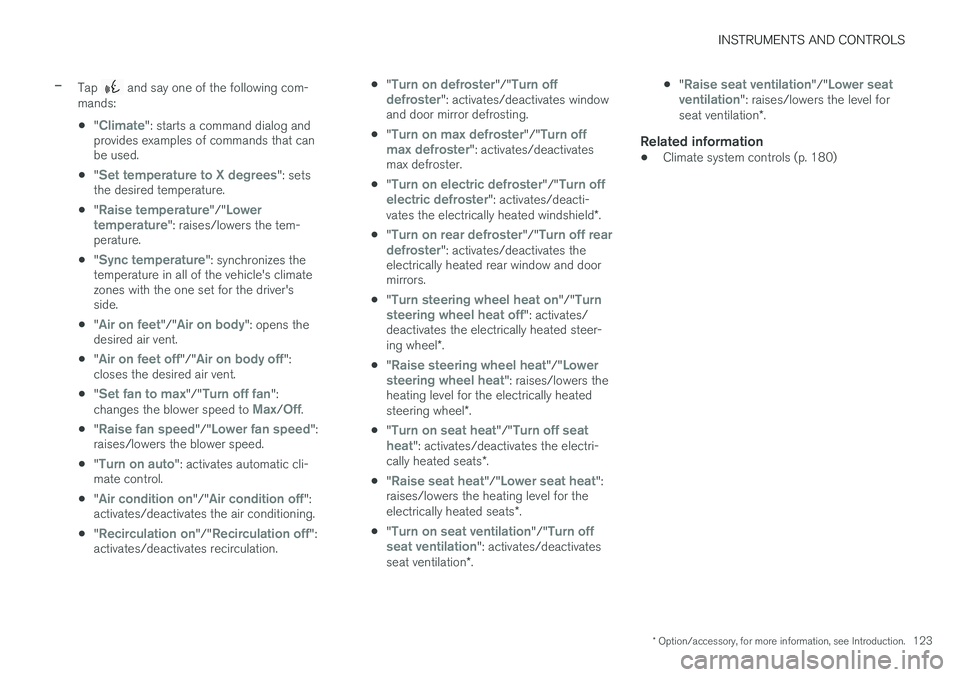
–Tap and say one of the following com-
mands:
• "
Climate": starts a command dialog and
provides examples of commands that can be used.
• "
Set temperature to X degrees": sets
the desired temperature.
• "
Raise temperature"/"Lower
temperature": raises/lowers the tem-
perature.
• "
Sync temperature": synchronizes the
temperature in all of the vehicle's climate zones with the one set for the driver'sside.
• "
Air on feet"/"Air on body": opens the
desired air vent.
• "
Air on feet off"/"Air on body off":
closes the desired air vent.
• "
Set fan to max"/"Turn off fan":
changes the blower speed to Max/Off.
• "
Raise fan speed"/"Lower fan speed":
raises/lowers the blower speed.
• "
Turn on auto": activates automatic cli-
mate control.
• "
Air condition on"/"Air condition off":
activates/deactivates the air conditioning.
• "
Recirculation on"/"Recirculation off":
activates/deactivates recirculation. •
"
Turn on defroster"/"Turn off
defroster": activates/deactivates window
and door mirror defrosting.
• "
Turn on max defroster"/"Turn off
max defroster": activates/deactivates
max defroster.
• "
Turn on electric defroster"/"Turn off
electric defroster": activates/deacti-
vates the electrically heated windshield *.
• "
Turn on rear defroster"/"Turn off rear
defroster": activates/deactivates the
electrically heated rear window and door mirrors.
• "
Turn steering wheel heat on"/"Turn
steering wheel heat off": activates/
deactivates the electrically heated steer- ing wheel *.
• "
Raise steering wheel heat"/"Lower
steering wheel heat": raises/lowers the
heating level for the electrically heated steering wheel *.
• "
Turn on seat heat"/"Turn off seat
heat": activates/deactivates the electri-
cally heated seats *.
• "
Raise seat heat"/"Lower seat heat":
raises/lowers the heating level for the electrically heated seats *.
• "
Turn on seat ventilation"/"Turn off
seat ventilation": activates/deactivates
seat ventilation *. •
"
Raise seat ventilation"/"Lower seat
ventilation": raises/lowers the level for
seat ventilation *.
Related information
• Climate system controls (p. 180)
Page 126 of 570
INSTRUMENTS AND CONTROLS
124
Navigation system voice commands
Many of the navigation system's functions can be activated using voice commands.
The procedure for using voice control is descri- bed in greater detail in the articles "Voice con-trol," "Using voice control" and "Voice controlsettings."
Voice commandsThe following list contains examples of com-mands that are unique to navigation system.
–To use the voice control system, press the
on the right-side steering wheel keypad and say one of the following commands after the tone:
• "
Navigation: Starts a navigation voice
command dialog and displays available commands.
• "
Take me home: Guidance will be given
to the location set as Home. The location
for Home is set using the Set home
address function in Favorites in the Top
view in the center display.
• "
Go to [City]: Enter a city as a destina-
tion, e.g., "Go to New York."
• "
Go to [Address]: Enter an address as a
destination, e.g., Go to 125 43 St, New York."
• "
Go to [Zip code]: Enter a zip code as a
destination, e.g., "Go to 07405."
• "
Go to [Name]: Enter a name from a list
of contacts e.g., "Go to Robyn Smith."
• "
Search [POI]: Search for a POI 7
, which
is always sorted according to POIs "around the vehicle." To search along the route, say "
Along the route" when the
list of results is displayed.
• "
Search [POI] in [a city]: Search for a
POI 7
in city/location.
• "
Search [POI category]: Search for a
POI 7
category, which is always sorted
"Around the vehicle."
7 You can opt to call the POI or set it as a destination.
Page 129 of 570

INSTRUMENTS AND CONTROLS
127
SymbolExplanation
Automatic/active high beams on The symbol will be blue when the automatic high beams are on. Theparking lights will also be on.
Automatic/active high beams off The symbol will be white when the automatic high beams are off. Theparking lights will be on.
High beams on The high beams and parking lights will be on.
Front fog lights The symbol illuminates when the front fog lights are on.
Rear fog lights The symbol illuminates when the rear fog lights are on.
Rain sensor The symbol illuminates when the rain sensor is on.
SymbolExplanation
Not in use
Stability system This symbol flashes when the sta- bility system is actively working tostabilize the vehicle. If the symbolglows steadily, there is a fault inthe system.
Stability system, sport mode This symbol illuminates when Sport mode is on. Sport modeoffers more active driving charac-teristics by monitoring movementof the accelerator pedal, steeringwheel and cornering by allowingmore lateral movement of the rearwheels before the stability systemis activated.
SymbolExplanation
Lane keeping aid White symbol: lane keeping aid on and marker lines detected. Gray symbol: lane keeping aid on and no marker lines detected. Yellow symbol: lane keeping aid active
Lane keeping aid and rain sen- sor White symbol: lane keeping aid on and marker lines detected. Rainsensor on. Gray symbol: lane keeping aid on and no marker lines detected.Rain sensor on.
AUS models
B Canadian models
Door/hood/tailgate/fuel filler door
reminder
If a door or the hood/tailgate/fuel filler door are not closed properly, the information or warningsymbol will illuminate and a graphic will be dis-played in instrument panel. Stop the vehicle in asafe place as soon as possible and close thedoor, etc.