Integrate VOLVO XC90 2015 Owner's Manual
[x] Cancel search | Manufacturer: VOLVO, Model Year: 2015, Model line: XC90, Model: VOLVO XC90 2015Pages: 570, PDF Size: 12.44 MB
Page 404 of 570
INFOTAINMENT
402
Connecting to the Internet
Connect the vehicle to the Internet using
Bluetooth, Wi-Fi, by connecting a phone through a cable to the USB socket or via the vehicle'sintegrated modem.
The cell phone and the network service provider must support Internet sharing (tethering) and thesubscription must included data transfer.
Connect using BluetoothSee the article "Pairing a cell phone."
Connect using Wi-Fi
1. Activate tethering/personal hotspot in the cell phone.
2. Tap
Settings in the center display's Top
view.
3. Tap
CommunicationWi-Fi.
4. Tap Wi-Fi to activate/deactivate.
5. Tap the name of the network to be used.
6. Enter the network password. 7. If a different connection was used previously,
confirm the connection change.
> The vehicle will connect to the network.
When a phone is connected to the vehicle, it is saved for future use. When a max. number of 50have been saved, the first one connected will bedeleted. To show the list of saved networks or to manually delete a network, tap
SettingsWi-Fi
Saved networks.
See the article "Wi-Fi technology and security" for network connection requirements.
Connect using a cable-connected to the
USB socket
1. Connect the phone via a cable to the USB socket in the tunnel console storage com-partment.
2. Activate USB tethering in the cell phone.
3. If a different connection was used previously, confirm the connection change.
> The vehicle will connect to the network.
Connect using the vehicle's integrated modem
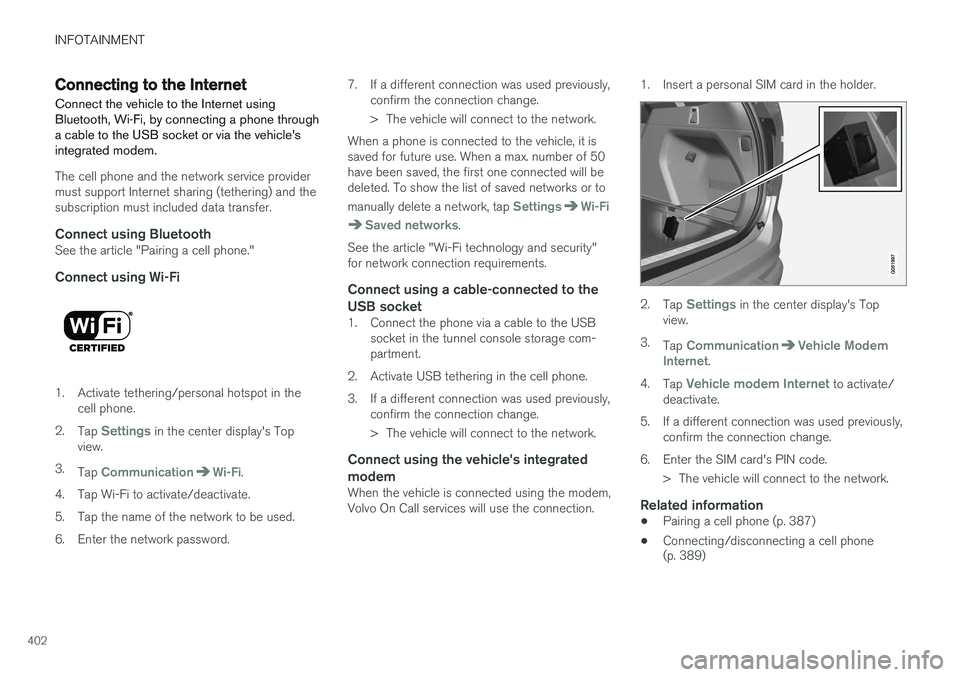
When the vehicle is connected using the modem, Volvo On Call services will use the connection. 1. Insert a personal SIM card in the holder.
2.
Tap Settings in the center display's Top
view.
3. Tap
CommunicationVehicle Modem
Internet.
4. Tap
Vehicle modem Internet to activate/
deactivate.
5. If a different connection was used previously, confirm the connection change.
6. Enter the SIM card's PIN code. > The vehicle will connect to the network.
Related information
• Pairing a cell phone (p. 387)
• Connecting/disconnecting a cell phone (p. 389)
Page 416 of 570
VOLVO ON CALL WITH SENSUS CONNECT *
* Option/accessory, for more information, see Introduction.
414
Volvo On Call (VOC) *
VOC is an integrated, subscription-based sys-
tem that provides emergency, roadside assis- tance and security services.
VOC is connected to the vehicle's airbag and alarm systems. The vehicle has an integratedGlobal System for Mobile Communications(GSM) module that handles communicationbetween the vehicle and the VOC customer serv-ice center.
AvailabilityVOC uses the Global Navigation Satellite System(GNSS) to locate the vehicle and its integratedGSM module to enable communication with theVOC customer service center and the VOCmobile app. From the time that the remote key has been removed from the vehicle, VOC's functionsremain available for 5 full days and subsequentlyonce an hour for the following 17 days. Afterthree weeks have elapsed, the system will remainswitched off until the engine is started.
WARNING
The system can only function in areas where there is adequate cellular network coverage. Just as in the case of cell phones, atmos- pheric disturbances or areas with relativelyfew GSM transmitters can make it impossiblefor VOC to make a connection, for example, inrural areas.
SubscriptionsA free, limited-time trial subscription is initiated when the vehicle is purchased and VOC is acti-vated. The subscription can be extended by con-tacting your Volvo retailer.
Information on the InternetFor additional information about Volvo On Call, goto: United States http://www.volvocars.com/us/support Canada English: http://support.volvocars.com/en-CA French: http://support.volvocars.com/fr-CA
Related information
• Volvo On Call convenience services (p. 416)
• Volvo On Call safety services (p. 424)
• Volvo On Call security services (p. 425)
• Using Volvo On Call (p. 414)
• Volvo ID (p. 27)
Using Volvo On Call
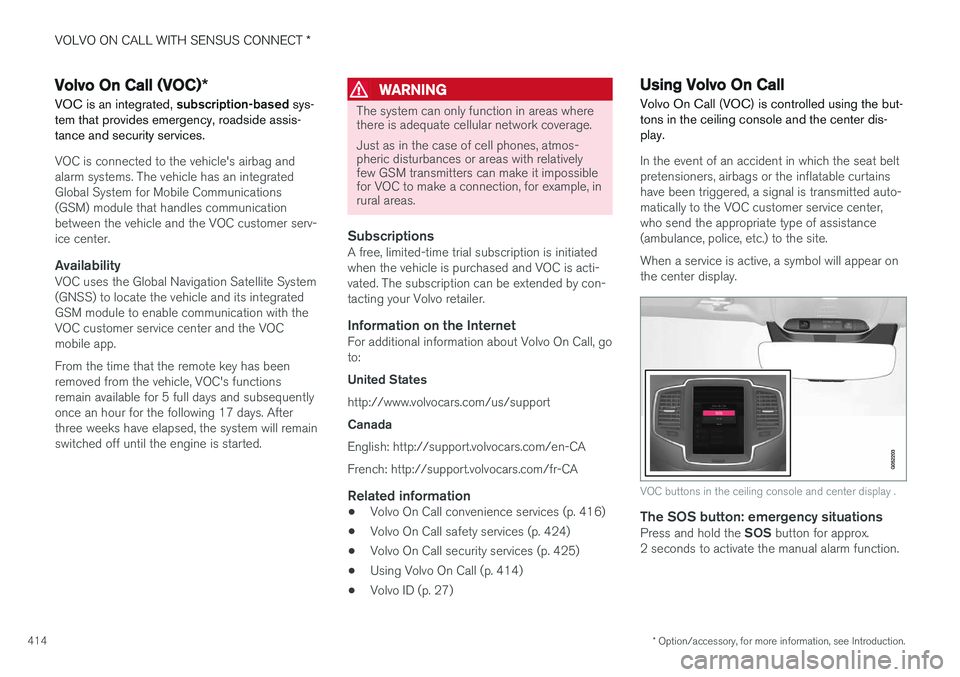
Volvo On Call (VOC) is controlled using the but- tons in the ceiling console and the center dis-play.
In the event of an accident in which the seat belt pretensioners, airbags or the inflatable curtainshave been triggered, a signal is transmitted auto-
matically to the VOC customer service center,who send the appropriate type of assistance(ambulance, police, etc.) to the site. When a service is active, a symbol will appear on the center display.
VOC buttons in the ceiling console and center display .
The SOS button: emergency situationsPress and hold the SOS button for approx.
2 seconds to activate the manual alarm function.
Page 459 of 570
NAVIGATION*
* Option/accessory, for more information, see Introduction.
457
QuestionAnswer
How big is an update?This varies from market to market. Consult a Volvoretailer.
Updating has not worked.What shouldI do?Try the Volvo Cars support site (support.volvocars.com) orcontact a Volvo retailer.
Related information
•Remote map updates (p. 457)
• Map updates from a computer with a USB flash drive (p. 458)
• Sensus Navigation troubleshooting (p. 462)
• Copyright (p. 462)
• Navigation license agreements (p. 460)
• System updates (p. 490)
• Internet connected vehicle (p. 401)
• Connecting to the Internet (p. 402)
• System settings (p. 456)
Remote map updates
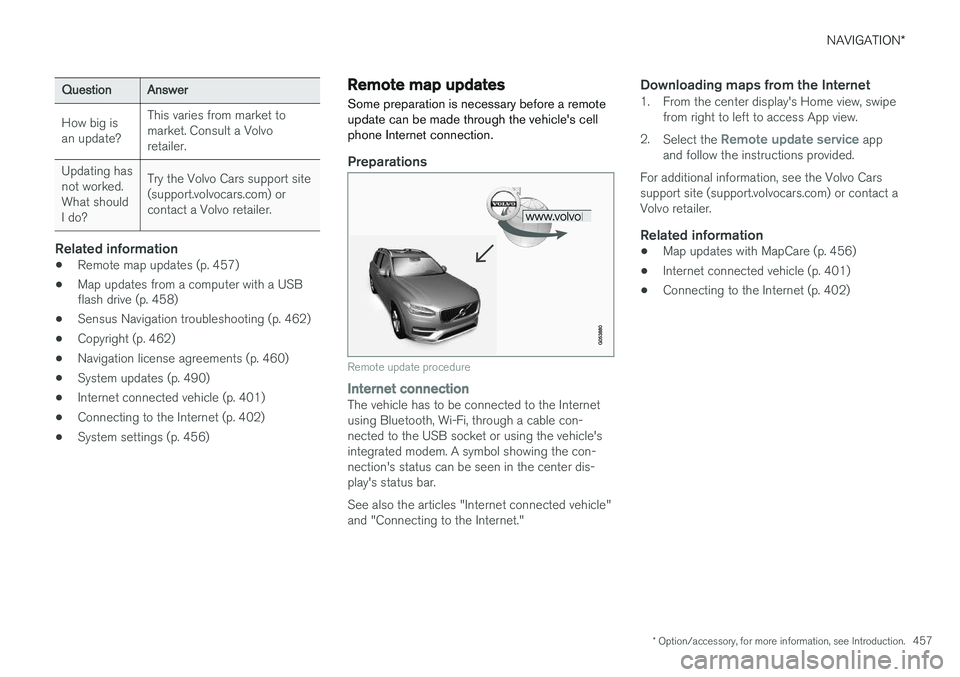
Some preparation is necessary before a remote update can be made through the vehicle's cellphone Internet connection.
Preparations
Remote update procedure
Internet connectionThe vehicle has to be connected to the Internet using Bluetooth, Wi-Fi, through a cable con-nected to the USB socket or using the vehicle'sintegrated modem. A symbol showing the con-nection's status can be seen in the center dis-play's status bar. See also the articles "Internet connected vehicle" and "Connecting to the Internet."
Downloading maps from the Internet1. From the center display's Home view, swipe from right to left to access App view.
2. Select the
Remote update service app
and follow the instructions provided.
For additional information, see the Volvo Cars support site (support.volvocars.com) or contact aVolvo retailer.
Related information
• Map updates with MapCare (p. 456)
• Internet connected vehicle (p. 401)
• Connecting to the Internet (p. 402)