change time VOLVO XC90 2015 Owner's Guide
[x] Cancel search | Manufacturer: VOLVO, Model Year: 2015, Model line: XC90, Model: VOLVO XC90 2015Pages: 570, PDF Size: 12.44 MB
Page 336 of 570
STARTING AND DRIVING
* Option/accessory, for more information, see Introduction.
334
Emergency brake lights
The emergency brake lights activate in the event of hard braking/rapid deceleration at most nor-mal driving speeds or if the ABS system is acti-vated. This function causes an additional taillighton each side of the vehicle to illuminate to helpalert vehicles traveling behind.
Once the emergency brake lights have been acti- vated, if the driver releases the brake pedal, thebrake lights will return to their normal function.
Related information
• Brakes (p. 330)
• Hazard warning flashers (p. 144)
• Brake lights (p. 143)
Hill Descent Control (HDC) HDC is a type of low-speed automatic engine brake and makes it possible to increase ordecrease the vehicle's speed on steep downhillgradients using only the accelerator pedal, with-out applying the brakes. HDC is integrated into the
Off Road drive mode.
HDC is particularly useful when driving down steep hills with rough surfaces, and where theroad may have slippery patches.
WARNING
HDC does not function in all situations, and is a supplementary braking aid. The driver hasfull responsibility for driving in a safe manner.
FunctionHDC allows the vehicle to roll forward or in reverse at very low speed with enhanced enginebraking. However, speed can be adjusted withthe accelerator pedal. When the acceleratorpedal is released, the vehicle will return to verylow speed. The driver can use the brakes to slow or stop the vehicle at any time. HDC is activated along with Low Speed Control (LSC), which together make driving on slipperysurfaces at low speeds easier. When HDC and LSC are activated, this changes the response from the accelerator pedal andengine.
Activating HDCHDC only functions at low speeds.
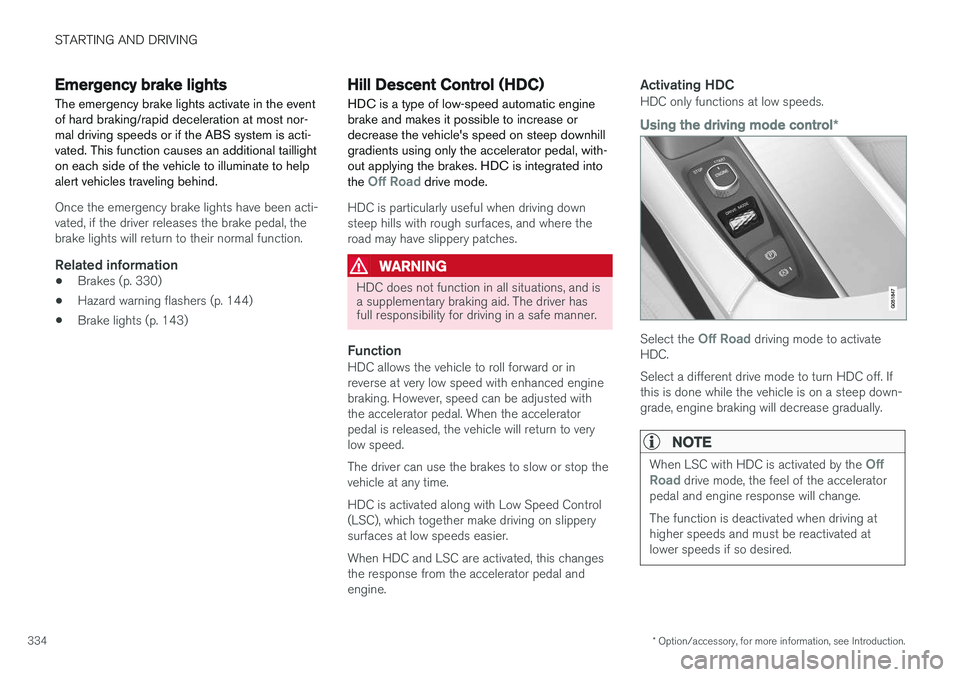
Using the driving mode control
*
Select the Off Road driving mode to activate
HDC. Select a different drive mode to turn HDC off. If this is done while the vehicle is on a steep down-grade, engine braking will decrease gradually.
NOTE
When LSC with HDC is activated by the Off
Road drive mode, the feel of the accelerator
pedal and engine response will change. The function is deactivated when driving at higher speeds and must be reactivated atlower speeds if so desired.
Page 364 of 570
STARTING AND DRIVING
* Option/accessory, for more information, see Introduction.
362
ECO drive mode
The Eco drive mode is a function designed to give the driver the opportunity to drive more eco-nomically and to help reduce fuel consumption.
When this mode is activated, the following cha- racteristics are modified:
• The automatic transmission's shifting points
• The engine management system and accel- erator pedal response
• Eco Coast functionality is activated: enginebraking is disabled at speeds betweenapprox. 40 and 85 mph (65 and 140 km/h)
• Climate system settings: certain functionswill be temporarily reduced or deactivated
• The suspension's self-leveling function
* low-
ers ground clearance to help reduce windresistance
• Information is shown in an ECO gauge in theinstrument panel to help promote more eco-nomical driving
NOTE
When Eco is activated, several climate system parameters are changed and the function ofcertain current-consuming systems will bereduced. Some of these functions can be restarted manually but full functionality will not berestored until Eco is deactivated.
Selecting ECO modeWhen the engine is switched off, ECO mode is deactivated and must be reactivated each time the engine is started.
ECO will appear in the
instrument panel when the function is activated.
Via Function view
Select Driving mode ECO in
the center display's Function view. A green indicator light inthe button shows that the func-tion is activated.
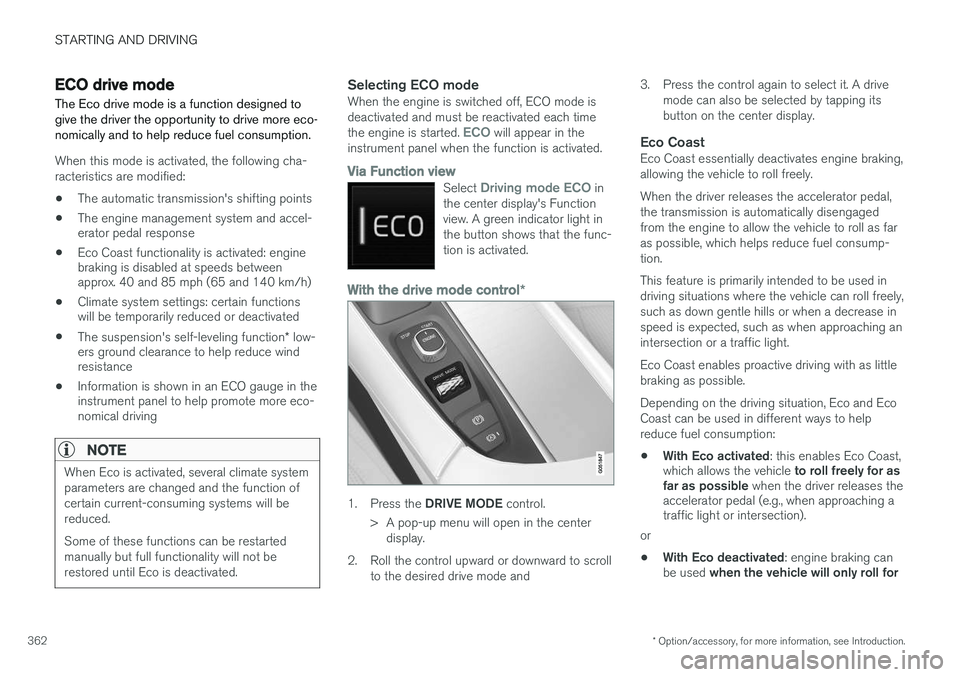
With the drive mode control *
1.
Press the DRIVE MODE control.
> A pop-up menu will open in the center display.
2. Roll the control upward or downward to scroll to the desired drive mode and 3. Press the control again to select it. A drive
mode can also be selected by tapping its button on the center display.
Eco CoastEco Coast essentially deactivates engine braking,allowing the vehicle to roll freely. When the driver releases the accelerator pedal, the transmission is automatically disengagedfrom the engine to allow the vehicle to roll as faras possible, which helps reduce fuel consump-tion. This feature is primarily intended to be used in driving situations where the vehicle can roll freely,such as down gentle hills or when a decrease inspeed is expected, such as when approaching anintersection or a traffic light. Eco Coast enables proactive driving with as little braking as possible. Depending on the driving situation, Eco and Eco Coast can be used in different ways to helpreduce fuel consumption: • With Eco activated
: this enables Eco Coast,
which allows the vehicle to roll freely for as
far as possible when the driver releases the
accelerator pedal (e.g., when approaching a traffic light or intersection).
or
• With Eco deactivated
: engine braking can
be used when the vehicle will only roll for
Page 373 of 570
STARTING AND DRIVING
* Option/accessory, for more information, see Introduction.371
AutomaticallyIf the paddles are not used for a period of time, they will deactivate automatically. The number ofthe current gear in the instrument panel changes to "D".
The paddles will remain active if engine braking is currently being used.
Related information
• Gear selector positions (p. 367)
• Gear shift indicator (p. 370)
Low Speed Control (LSC) Low Speed Control (LSC) helps make off-road driving easier on slippery surfaces when towinga trailer on grass, etc. This feature is part of the
Off Road drive mode.
When driving at low speeds, LSC prioritizes low gears and all wheel drive to help avoid wheel spinand to improve the vehicle's tractive force. Theaccelerator pedal and engine react differently tomake low-speed driving easier. It is activated along with Hill Descent Control (HDC), which increases engine braking to helpkeep vehicle speed low and smooth, even drivingdown steep hills.
Activating LSCThis function can be activated in different ways,depending on how the vehicle is equipped.
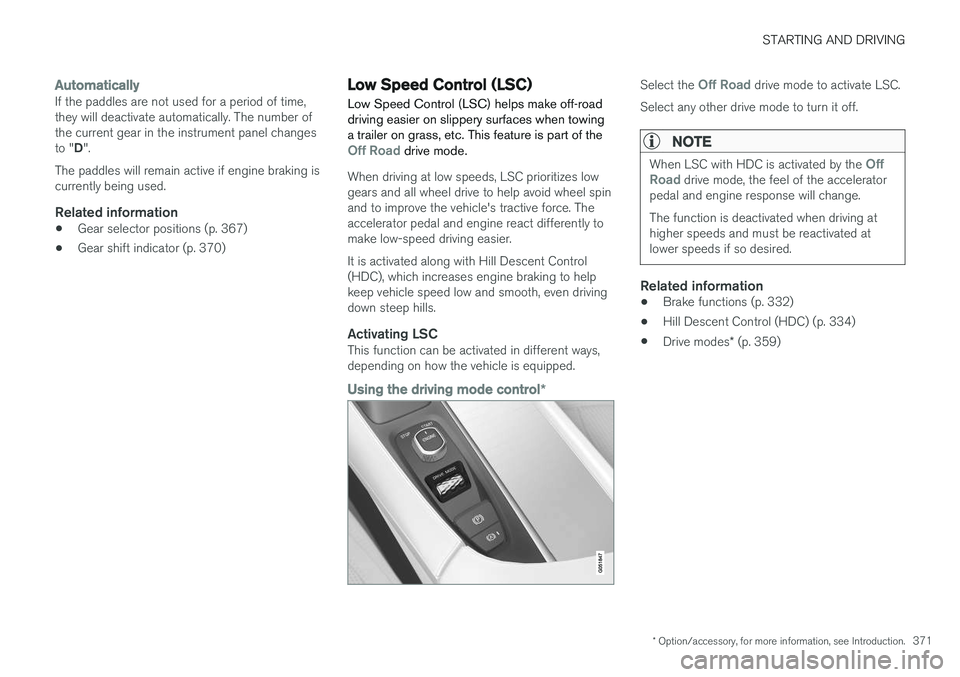
Using the driving mode control
*
Select the Off Road drive mode to activate LSC.
Select any other drive mode to turn it off.
NOTE
When LSC with HDC is activated by the Off
Road drive mode, the feel of the accelerator
pedal and engine response will change. The function is deactivated when driving at higher speeds and must be reactivated atlower speeds if so desired.
Related information
• Brake functions (p. 332)
• Hill Descent Control (HDC) (p. 334)
• Drive modes
* (p. 359)
Page 375 of 570
STARTING AND DRIVING
* Option/accessory, for more information, see Introduction.373
Loading modeUse the buttons in the cargo compartment to raise or lower the vehicle to make loading orunloading easier or when attaching a trailer.
Parking the vehicleWhen parking, be sure that there is adequatespace above and below the vehicle since itsground clearance may vary, e.g., depending onthe ambient temperature, how the vehicle is loa-ded, if loading mode is being used or the drivemode selected after the engine is started. The level may also be adjusted for a certain time after the vehicle has been parked to compensatefor possible height adjustments due to tempera-ture changes in the pneumatic suspension whenthe vehicle has cooled.
TransportWhen transporting the vehicle on a ferry, train ora tow truck, it may only be secured (lashed)around the tires, not using any other chassiscomponents. Changes in the pneumatic suspen-sion may occur during transport that could nega-tively affect the lashing and result in damage.
Related information
•Drive modes
* (p. 359)
• Driving with a trailer (p. 351)
• Loading (p. 207)
Page 385 of 570
INFOTAINMENT
* Option/accessory, for more information, see Introduction.383
NOTE
There may be a noticeable difference in sound quality when a change from analogueto digital or digital to analogue occurs, suchas:
• Volume increase or decrease
• Equalizer settings, i.e., Bass/ Midrange/ Treble cut or boost
• Time alignment (Digital program materialin extreme cases can be as much as 8seconds behind the analogue). This willnoticeable as a "stuttering" effect.
The above items are dependant on the broadcaster's equipment settings and donot indicate a fault in the vehicle's radioreceiver or antenna systems .
Related information
•HD Radio sub-channels (p. 382)
• HD Radio
™reception (p. 380)
SiriusXM ®
Satellite radio *
The SiriusXM ®
Satellite system broadcasts from
of a number of high elevation satellites in geo- synchronous orbit.
Listening to satellite radioThe digital signals from the satellites are line-of- sight, which means that physical obstructionssuch as bridges, tunnels, etc, may temporarilyinterfere with signal reception. Avoid any obstructions, such as metallic objects transported on roof racks or in a ski box, or otherantennas that may impede signals from the SiriusXM ®
satellites.
Selecting SiriusXM ®
Satellite radio mode1. From the center display's Home view, swipe
from right to left to come to App view.
2.Tap the SiriusXM ®
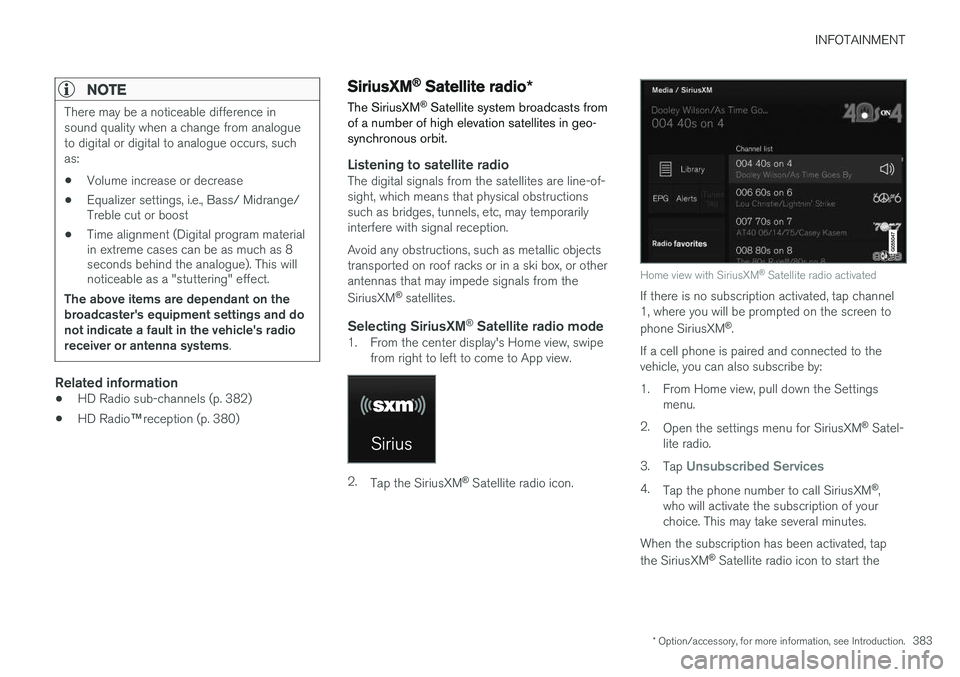
Satellite radio icon.
Home view with SiriusXM ®
Satellite radio activated
If there is no subscription activated, tap channel 1, where you will be prompted on the screen to phone SiriusXM ®
.
If a cell phone is paired and connected to the vehicle, you can also subscribe by:
1. From Home view, pull down the Settings menu.
2. Open the settings menu for SiriusXM ®
Satel-
lite radio.
3. Tap
Unsubscribed Services
4.
Tap the phone number to call SiriusXM ®
,
who will activate the subscription of your choice. This may take several minutes.
When the subscription has been activated, tap the SiriusXM ®
Satellite radio icon to start the
Page 390 of 570
INFOTAINMENT
388vated, it can then be selected for use (wirelessly connected) to the vehicle's infotainment system. Two Bluetooth devices can be connected at the same time. However, if two cell phones are con-nected, only the most recently connected onecan be used as a phone. The other one can beused to e.g., to stream audio or video. To changewhat the phone will be used for, see the article"Bluetooth settings." A paired and connected cell phone can also be used to connect the vehicle to the Internet. To doso, its tethering/personal hotspot function mustbe activated. There are two ways of pairing a Bluetooth device to the infotainment system:
• Searching for the phone (or other device) from the vehicle
• Searching for the vehicle from the phone (orother device)
The following instructions assume that a cell phone is to be paired to the infotainment systembut the procedure is the same for any Bluetoothdevice.
Alternative 1: searching for the phone
from the vehicle
1. Make the phone discoverable/visible using its Bluetooth function. Refer to the phone'suser guide if necessary. 2. Open the Phone view on the center display.
>•If no phones have been paired to the vehicle, tap
Add phone.
• If a list of phones is displayed, tap
Change and tap Add phone in
the pop-up window.
3. Tap the name of the phone to be connected.
4. Check that the code displayed in the vehicle is the same as the one in the phone. Confirm in both places.
5. For the phone selected, accept or cancel the alternatives for the phone book (list of con-tacts), text messages, etc. Full functionalitymay not be available in all cell phones.
6. To connect the vehicle to the Internet via the phone's Bluetooth function, activate thephone's function for tethering/personal hot-spot, etc.
Alternative 2: searching for the vehicle from the phone
1. Open the center display's Phone view.
•If no phones have been paired to the vehi- cle, tap
Add phoneMake vehicle
discoverable.
• If a phone has previously been paired to the vehicle, tap
Change and tap Add
phone
Make vehicle discoverable in
the pop-up window. 2. Activate the phone's Bluetooth function.
3. Search in the phone for Bluetooth devices.
> A list of Bluetooth devices will be dis-played.
4. Select the vehicle's name in the list.
5. Check that the code displayed in the phone is the same as the one in the vehicle. Con- firm in both places.
6. For the phone selected, accept or cancel the alternatives for the phone book (list of con-tacts), text messages, etc. Full functionalitymay not be available in all cell phones.
7. To connect the vehicle to the Internet via the phone's Bluetooth function, activate thephone's function for tethering/personal hot-spot, etc.
NOTE
If your cell phone's operating system is upda- ted, this may break the connection betweenthe phone and the vehicle. If this happens,delete the phone from the list of pairedphones and repeat the pairing proceduredescribed in this article.
Compatible cell phonesMany of the cell phones available today have Bluetooth functionality but not all of them arefully compatible with the vehicle. Go to
Page 398 of 570

INFOTAINMENT
* Option/accessory, for more information, see Introduction.
396
Volume: use the buttons on the keypad or turn the control under the center display to raise orlower the volume. Play/pause: tap the track's image, press the
symbol on the keypad or press the button under the center display. Change tracks: tap the desired track on the cen- ter display, press the < > buttons under the cen-
ter display or use the keypad. Fast forward/reverse, move within a track: press the time axis on the center display and drag from side to side, press and hold the
< > buttons
under the center display or use the keypad. Change media source: Tap a media source under
Recents, tap the desired app in the center dis-
play's App view or use the keypad.
Library: tap to play a track from the library.
Shuffle: tap to play tracks in random order.
Similar: tap to use Gracenote to search for simi-
lar music on the USB device and create a playlist based on the results. The playlist can contain upto 50 tracks.
Change device: tap to toggle between USB
devices if more than one is connected.
Video settingsThe following can be adjusted with the video player in full screen or by opening the center dis- play's Top view and tapping
SettingsVideo:Primary Audio Default Language, Subtitleand Primary Subtitle Default Language.
Play DivX®This DivX device must be registered in order to play purchased DivX Video-on-Demand (VOD)movies.
1. Open the center display's Top view and tap
SettingsVideoDivX
® VOD to get a
registration code. 2. Go to vod.divx.com for additional information
and to complete the registration process.
Related information
• CD (media) player
* (p. 394)
• Media player technical data (p. 400)
• Media player (p. 393)
• Voice control for radio and media (p. 122)
• Apps (applications) (p. 403)
• Connecting a Bluetooth ®
device (p. 393)
• Connecting a device via the AUX/USB socket (p. 393)
• Gracenote (p. 399)
• Connecting to the Internet (p. 402)
• Media searches (p. 397)
• Video (p. 399)
Page 408 of 570
INFOTAINMENT
406
Tethering (Wi-Fi sharing)When the vehicle is connected to the Internet, this connection can be shared (tethered) with other devices 5
.
The network service provider (the SIM card) must support tethering.
1. Open the center display's Top view.2. Tap
SettingsCommunicationVehicle Wi-Fi Hotspot.
3. Tap
Network name and assign a name to
the hotspot.
4. Tap
Password and create a password to be
used by devices trying to connect (tether) to the hotspot.
5. Tap
Frequency band and select a fre-
quency that the hotspot will use to transmit data. This may not be possible in all markets.
6. Activate/deactivate by tapping the
Vehicle
Wi-Fi Hotspot box.
7. If another connection has been used previ- ously, confirm the change of connections.
> It is now possible for external devices toconnect to the vehicle's Wi-Fi hotspot.
Connection status will be indicated in a symbol in the center display's status bar. Tap
Connected devices to see a list of con-
nected devices.
Related information
• Internet connected vehicle (p. 401)
• Wi-Fi technology and security (p. 407)
• Symbols in the center display status bar (p. 44)
• Internet connection troubleshooting (p. 405)
Deleting Wi-Fi networks
Networks that are not used can be deleted.
1. Tap Settings in the center display's Top
view.
2. Tap
Wi-FiSaved networks.
3. Tap
Forget to remove the network.
4. Confirm the selection. > The vehicle will no longer connect to thedeleted network.
Deleting all networksAll networks can be deleted at the same time by returning (resetting) to factory settings. If this is done, all user data and settings will be reset to their default settings.
Related information
• Internet connected vehicle (p. 401)
• Connecting to the Internet (p. 402)
5
Does not apply for a Wi-Fi connection.
Page 409 of 570
INFOTAINMENT
407
Wi-Fi technology and security
The following are types of networks can be con- nect to.
It is possible to connect to the following types of networks:
• Frequency: 2.4 or 5 GHz 6
.
• Standards: 802.11 a/b/g/n.
• Security type: WPA2-AES-CCMP.
The vehicle's Wi-Fi system is designed to man-age Wi-Fi devices in the vehicle. If several devices are using a frequency at the same time, this may result in poorer performance.
Related information
• Internet connected vehicle (p. 401)
• Connecting to the Internet (p. 402)
• Tethering (Wi-Fi sharing) (p. 406)
• Internet connection troubleshooting (p. 405)
Vehicle modem settings
The vehicle is equipped with a modem that can be used to connect the vehicle to the Internet. Itis also possible to share (tether) this connectionvia Wi-Fi.
1. Tap Settings in the center display's Top
view.
2. Tap
CommunicationVehicle Modem
Internet and choose among the following
settings:
•
Vehicle modem Internet: select to use the
vehicle's modem to connect to the Internet.
•
Data usage: %s: Tap Reset to restart
(reset) the counter for the amount of data sent/received.
•
Network Select carrier
: select a service provider automati-
cally or manually.
Data roaming: select to allow the vehicle to con-
nect to another network if the standard net- work is not available (e.g., if you are driving inanother country). This could entail additionalcharges, consult your service provider.
•
SIM card PIN Change PIN
: enter max. 4 digits.
Disable PIN: Allow access to the SIM card without
requiring a PIN code.
•
Send request code: this is used to down-
load the balance remaining on a SIM card. This is specific to your service provider.
Related information
• Internet connected vehicle (p. 401)
• Connecting to the Internet (p. 402)
6
Selecting a frequency is not possible in all markets.
Page 420 of 570
VOLVO ON CALL WITH SENSUS CONNECT *
* Option/accessory, for more information, see Introduction.
418
Volvo On Call PIN code The PIN code is used for security purposes to help identify those persons who are authorizedto use VOC services in a specific vehicle.
The 4-digit PIN code, which was sent to you when your Volvo retailer activated your subscrip-tion, is used for security reasons to help identifythose persons who are authorized to use certainVOC services such as remote door unlock or tocreate an account in the mobile app.
If you have forgotten or would like to
change your PIN code
If you have forgotten your PIN code or would liketo change it (e.g., if you have purchased a previ-ously owned Volvo with VOC), contact your Volvo retailer or press the On Call button in your vehi-
cle. The new code will be sent to you via email.
If an incorrect PIN code has been entered
in the app multiple times
If a PIN code has been entered incorrectly 10 times in a row, the account will be frozen. Inorder to use the app again, a new PIN code mustbe selected and a new app account will have tobe created.
Related information
• Unlocking the vehicle from the customer service center (p. 426)
• Volvo On Call mobile app (p. 416) •
Changing ownership of a vehicle with VolvoOn Call (p. 424)
• Volvo On Call (VOC)
* (p. 414)