steering wheel VOLVO XC90 2017 Owner´s Manual
[x] Cancel search | Manufacturer: VOLVO, Model Year: 2017, Model line: XC90, Model: VOLVO XC90 2017Pages: 560, PDF Size: 9.97 MB
Page 428 of 560
INFOTAINMENT
426
Text message settings
The following settings can be made for text mes- sages received through a paired and connectedcell phone.
Text message settings
–Pull down the center display's Top view and tap
SettingsCommunicationText
Messages and choose among the following
settings:
•
Notification in center display: shows
text messages in the center display's sta- tus bar.
•
Notification in driver display: shows
text messages in the instrument panel. With this alternative active, incoming mes-sages can be handled from the right-sidesteering wheel keypad.
•
Text message tone: select an audible
signal for incoming text messages.
Related information
• Connecting/disconnecting a cell phone (p. 421)
• Pairing a cell phone (p. 420)
• Handling text messages (p. 424)
Connecting a Bluetooth ®
device
Bluetooth ®
-enabled devices can be paired and
connected to the infotainment system to stream media and in some cases connect to the Inter-net.
Many cell phones and other devices currently on the market offer wireless Bluetooth ®
technology.
Consult your Volvo retailer or go to support.volvocars.com for any questions regar-ding a device's compatibility with the vehicle'sinfotainment system. The procedure for pairing and connecting a Bluetooth ®
-enabled device is the same as for a
cell phone. See the articles "Pairing a cell phone" and "Connecting/disconnecting a cell phone" fordetails.
Related information
• Pairing a cell phone (p. 420)
• Connecting/disconnecting a cell phone(p. 421)
Connecting a device via the AUX/USB socket
External audio sources such as an iPod ®
or mp3
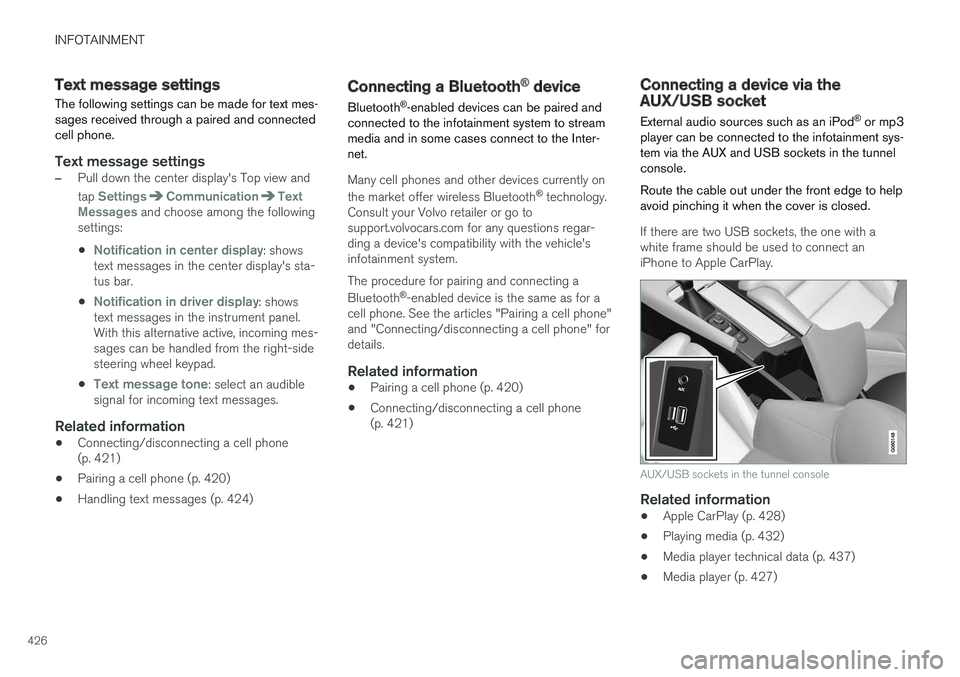
player can be connected to the infotainment sys- tem via the AUX and USB sockets in the tunnelconsole. Route the cable out under the front edge to help avoid pinching it when the cover is closed.
If there are two USB sockets, the one with a white frame should be used to connect aniPhone to Apple CarPlay.
AUX/USB sockets in the tunnel console
Related information
• Apple CarPlay (p. 428)
• Playing media (p. 432)
• Media player technical data (p. 437)
• Media player (p. 427)
Page 429 of 560
INFOTAINMENT
* Option/accessory.427
Media player
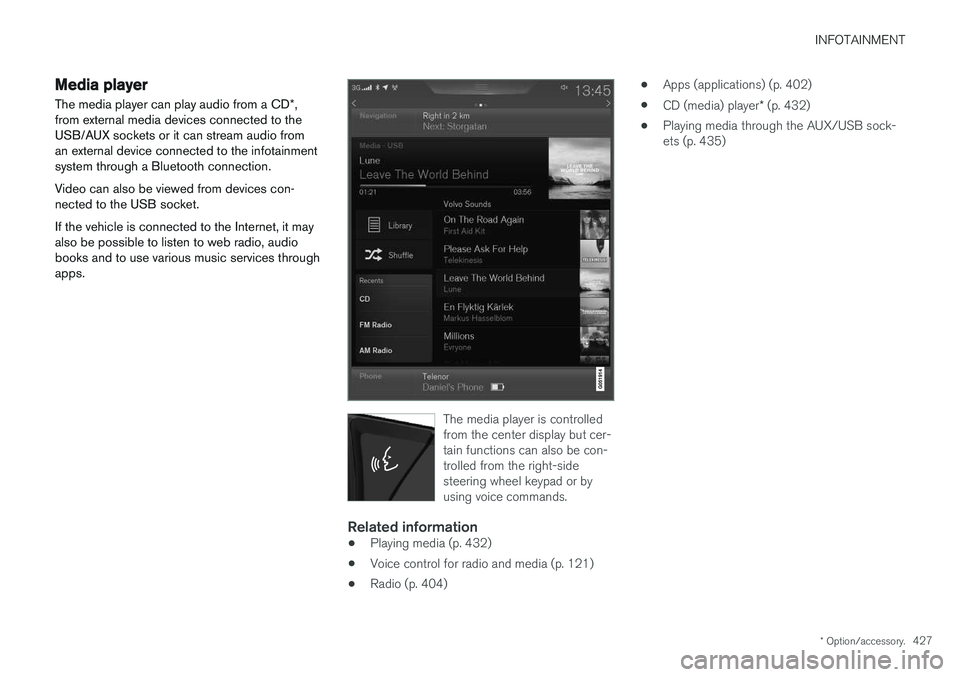
The media player can play audio from a CD *,
from external media devices connected to the USB/AUX sockets or it can stream audio froman external device connected to the infotainmentsystem through a Bluetooth connection. Video can also be viewed from devices con- nected to the USB socket. If the vehicle is connected to the Internet, it may also be possible to listen to web radio, audiobooks and to use various music services throughapps.
The media player is controlled from the center display but cer-tain functions can also be con-trolled from the right-sidesteering wheel keypad or byusing voice commands.
Related information
• Playing media (p. 432)
• Voice control for radio and media (p. 121)
• Radio (p. 404) •
Apps (applications) (p. 402)
• CD (media) player
* (p. 432)
• Playing media through the AUX/USB sock- ets (p. 435)
Page 432 of 560
||
INFOTAINMENT
* Option/accessory.
430 2.
Tap
SoundSystem Volumes and select
the following settings: •
Voice Control
•Navi Voice Guidance
•Phone Ringtone
Related information
• Apple CarPlay (p. 428)
• Resetting the settings view (p. 113)
Android auto
*
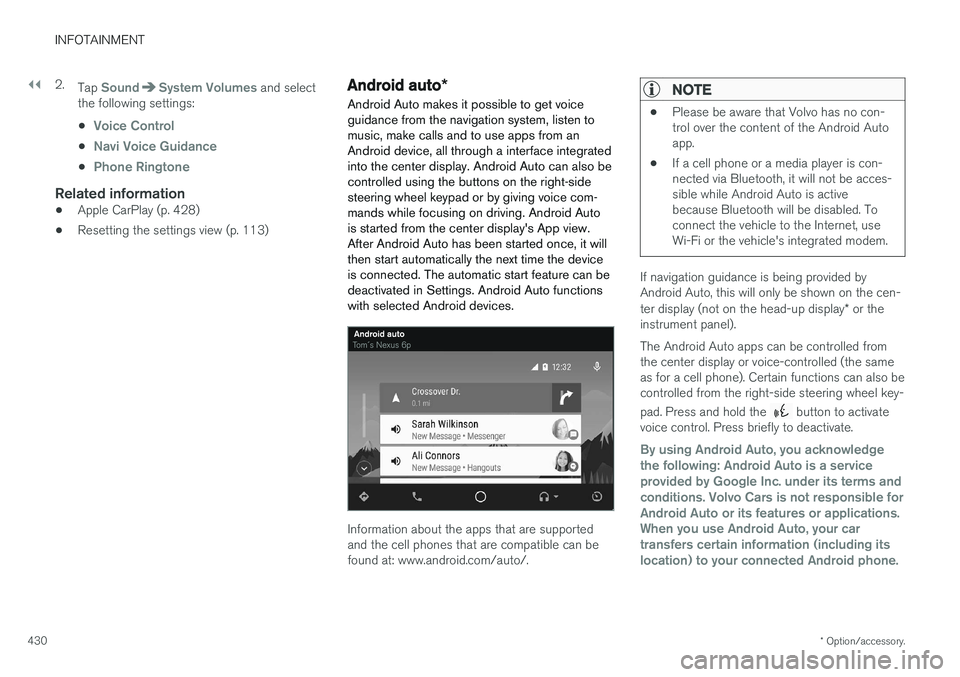
Android Auto makes it possible to get voice guidance from the navigation system, listen tomusic, make calls and to use apps from anAndroid device, all through a interface integratedinto the center display. Android Auto can also becontrolled using the buttons on the right-sidesteering wheel keypad or by giving voice com-mands while focusing on driving. Android Autois started from the center display's App view.After Android Auto has been started once, it willthen start automatically the next time the deviceis connected. The automatic start feature can bedeactivated in Settings. Android Auto functionswith selected Android devices.
Information about the apps that are supported and the cell phones that are compatible can befound at: www.android.com/auto/.
NOTE
• Please be aware that Volvo has no con- trol over the content of the Android Autoapp.
• If a cell phone or a media player is con-nected via Bluetooth, it will not be acces-sible while Android Auto is activebecause Bluetooth will be disabled. Toconnect the vehicle to the Internet, useWi-Fi or the vehicle's integrated modem.
If navigation guidance is being provided by Android Auto, this will only be shown on the cen- ter display (not on the head-up display
* or the
instrument panel). The Android Auto apps can be controlled from the center display or voice-controlled (the sameas for a cell phone). Certain functions can also becontrolled from the right-side steering wheel key- pad. Press and hold the
button to activate
voice control. Press briefly to deactivate.
By using Android Auto, you acknowledge the following: Android Auto is a serviceprovided by Google Inc. under its terms andconditions. Volvo Cars is not responsible forAndroid Auto or its features or applications.When you use Android Auto, your cartransfers certain information (including itslocation) to your connected Android phone.
Page 434 of 560
||
INFOTAINMENT
* Option/accessory.
432 2.
Tap
SoundSystem Volumes and select
the following settings: •
Voice Control
•Navi Voice Guidance
•Phone Ringtone
Related information
• Android auto
* (p. 430)
• Resetting the settings view (p. 113)
CD (media) player
*
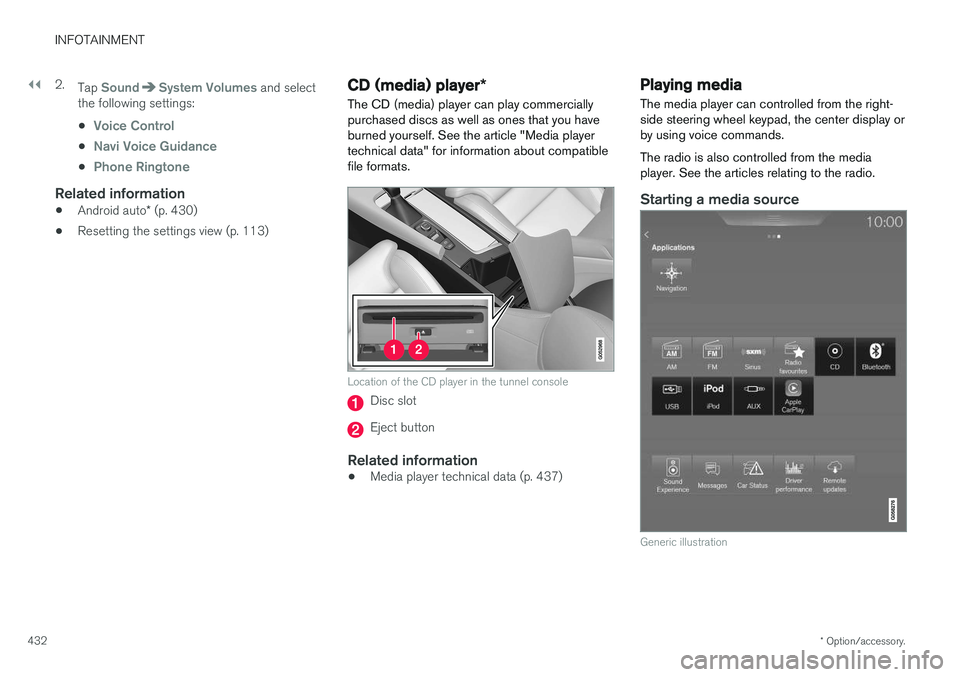
The CD (media) player can play commercially purchased discs as well as ones that you haveburned yourself. See the article "Media playertechnical data" for information about compatiblefile formats.
Location of the CD player in the tunnel console
Disc slot
Eject button
Related information
• Media player technical data (p. 437)
Playing media The media player can controlled from the right- side steering wheel keypad, the center display orby using voice commands. The radio is also controlled from the media player. See the articles relating to the radio.
Starting a media source
Generic illustration
Page 435 of 560
INFOTAINMENT
}}
433
CD
1. Insert a CD. 2.Open the
CD app in the center display's App
view.
3. Select a track. > Playback will begin.
USB flash drive
1. Insert the flash drive in the USB socket. 2. Open the
USB app in the center display's
App view.
3. Select a track. > Playback will begin.
Mp3 player and iPod®
NOTE
Use the iPod app ( not the USB app) to start playback. When an iPod is the media source, the info- tainment system will use a menu structuresimilar to the iPod's own menu structure.
1. Connect the device.
2. Start playback in the connected device.3.
Open the
iPod, USB, AUX) app in the cen-
ter display's App view.
> Playback will begin.
Bluetooth-connected device
1. Connect the device.
2. Activate Bluetooth in the device.
3. Start playback from the connected device.4. Open the
Bluetooth app in the center dis-
play's App view.
> Playback will begin.
Internet media
1. Connect the vehicle to the Internet.
2. Open the app in the center display's App view.
> Playback will begin.
Video
1. Connect the device. 2.Open the
USB app in the center display's
App view.
3. Tap the title of the video content to be played.
> Playback will begin.
Apple CarPlay
Apple CarPlay is described in a separate article.
Controlling and changing mediaThe media player can be con- trolled using voice commands,the right-side steering wheelkeypad or the center display.
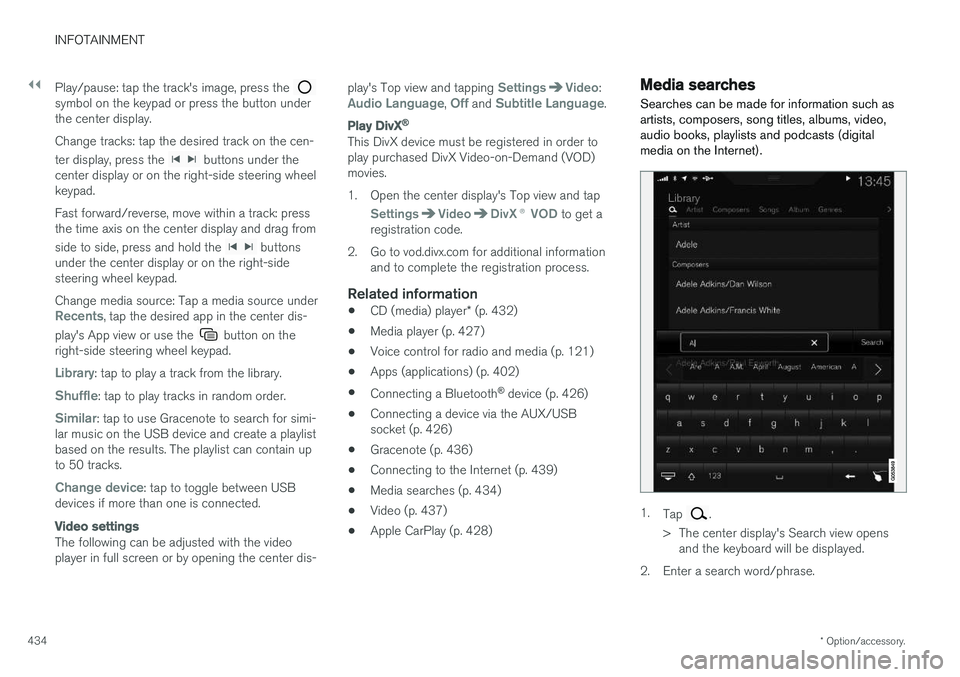
Volume: use the buttons on the right-side
steering wheel keypad or turn the control under the center display to raise or lower the volume.
Page 436 of 560
||
INFOTAINMENT
* Option/accessory.
434 Play/pause: tap the track's image, press the
symbol on the keypad or press the button under the center display. Change tracks: tap the desired track on the cen- ter display, press the
buttons under the
center display or on the right-side steering wheel keypad. Fast forward/reverse, move within a track: press the time axis on the center display and drag from side to side, press and hold the
buttons
under the center display or on the right-side steering wheel keypad. Change media source: Tap a media source under
Recents, tap the desired app in the center dis-
play's App view or use the
button on the
right-side steering wheel keypad.
Library: tap to play a track from the library.
Shuffle: tap to play tracks in random order.
Similar: tap to use Gracenote to search for simi-
lar music on the USB device and create a playlist based on the results. The playlist can contain upto 50 tracks.
Change device: tap to toggle between USB
devices if more than one is connected.
Video settings
The following can be adjusted with the video player in full screen or by opening the center dis- play's Top view and tapping
SettingsVideo:Audio Language, Off and Subtitle Language.
Play
DivX®
This DivX device must be registered in order to play purchased DivX Video-on-Demand (VOD)movies.
1. Open the center display's Top view and tap
SettingsVideoDivX
® VOD to get a
registration code.
2. Go to vod.divx.com for additional information and to complete the registration process.
Related information
• CD (media) player
* (p. 432)
• Media player (p. 427)
• Voice control for radio and media (p. 121)
• Apps (applications) (p. 402)
• Connecting a Bluetooth ®
device (p. 426)
• Connecting a device via the AUX/USB socket (p. 426)
• Gracenote (p. 436)
• Connecting to the Internet (p. 439)
• Media searches (p. 434)
• Video (p. 437)
• Apple CarPlay (p. 428)
Media searches
Searches can be made for information such as artists, composers, song titles, albums, video,audio books, playlists and podcasts (digitalmedia on the Internet).
1. Tap .
> The center display's Search view opens and the keyboard will be displayed.
2. Enter a search word/phrase.
Page 478 of 560
||
WHEELS AND TIRES
476
ice technician to have the bottle removed and properly disposed of.
WARNING
If heavy vibrations, unsteady steering behavior, or noises should occur while driving, reducespeed and park the vehicle in a safe place.Recheck the tire for bumps, cracks, or othervisible damage, and recheck its inflation pres-sure. If the pressure is below 19 psi (1.3 bar),do not continue driving. Have the vehicletowed to a trained and qualified Volvo servicetechnician.
15. Rechecking the pressure Reconnect the tire sealing system's hose to the tire's inflation valve. 16. Without starting the compressor, check the
inflation pressure on the air pressure gauge. •If the pressure is under 19 psi (1.3 bar), the puncture has not been sealed suffi-ciently and the vehicle should not bedriven. Have the vehicle towed to a trainedand qualified Volvo service technician.
• If the pressure is more than 19 psi(1.3 bar), connect the electrical wire to a12-volt socket, start the compressor andinflate the tire to the correct pressure(see the tire pressure decal on the on thedriver's side B-pillar (the structural mem-ber at the side of the vehicle, at the rearof the driver's door opening). Use the airrelease valve to release some air from thetire if necessary.
17. Switch off the compressor and disconnect the electrical wire from the 12-volt socket.Unscrew the hose from the tire
Page 479 of 560
WHEELS AND TIRES
}}
477
WARNING
•After using the tire sealing system, the vehicle should not be driven farther thanapproximately 120 miles (200 km).
• Have the tire inspected by a trained andqualified Volvo service technician as soonas possible to determine if it can be per-manently repaired or must be replaced.
• The vehicle should not be driven fasterthan 50 mph (80 km/h) while using a tirethat has been temporarily repaired withthe tire sealing system.
• After using the tire sealing system, drivecarefully and avoid abrupt steeringmaneuvers and sudden stops.
Related information
• Tire sealing system (p. 471)
• Checking tire inflation pressure (p. 460)
Inflating a tire with the tire sealing system compressor
The compressor can be used to inflate a tire.
1. The compressor should be switched off. Ensure that the on/off switch is in position 0.
Take out the electrical wire and hose.
2. Be sure the air release valve on the com- pressor's hose is completely closed. Remove the valve cap from the tire
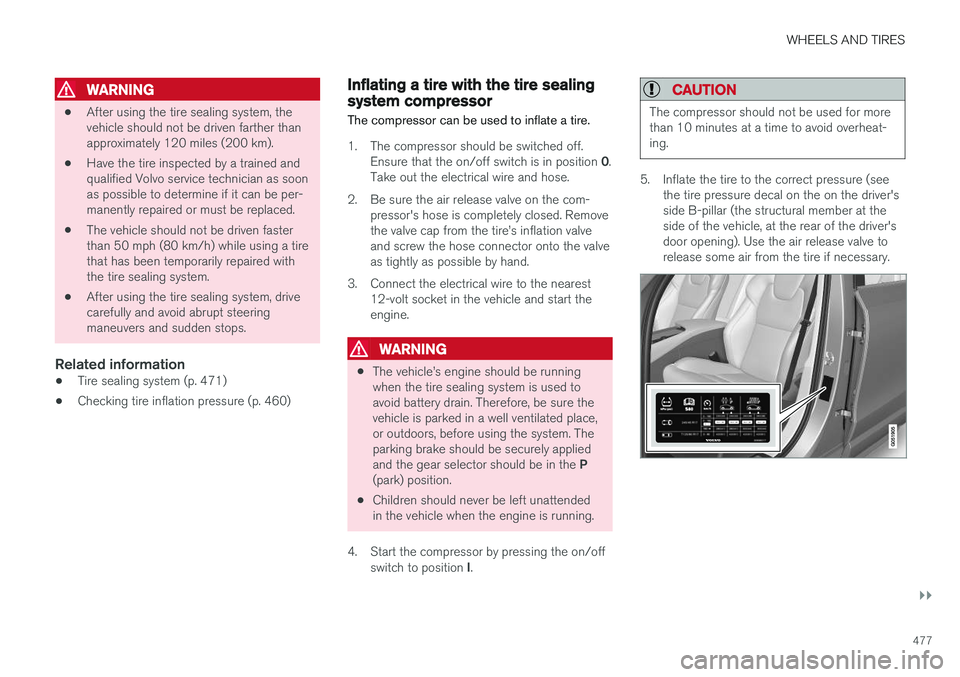
Page 502 of 560
||
MAINTENANCE AND SERVICING
* Option/accessory.
500
Positions
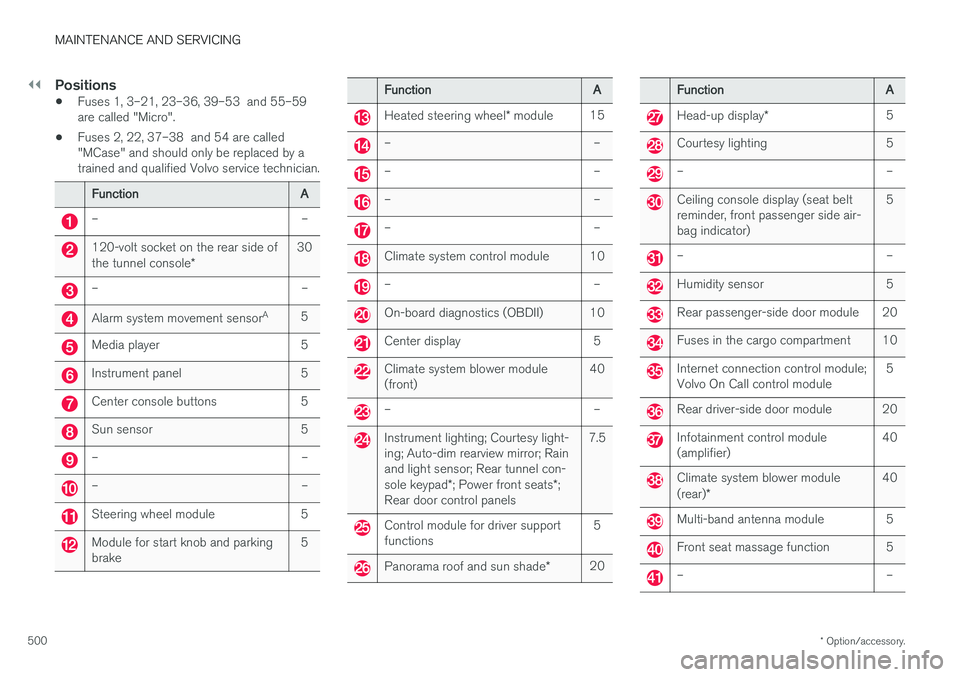
• Fuses 1, 3–21, 23–36, 39–53 and 55–59 are called "Micro".
• Fuses 2, 22, 37–38 and 54 are called"MCase" and should only be replaced by atrained and qualified Volvo service technician.
Function
A
– –
120-volt socket on the rear side of the tunnel console* 30
– –
Alarm system movement sensor
A
5
Media player 5
Instrument panel 5
Center console buttons 5
Sun sensor 5
– –
– –
Steering wheel module 5
Module for start knob and parking brake 5
Function
A
Heated steering wheel* module 15
– –
– –
– –
– –
Climate system control module 10
– –
On-board diagnostics (OBDII) 10
Center display 5
Climate system blower module (front) 40
– –
Instrument lighting; Courtesy light- ing; Auto-dim rearview mirror; Rainand light sensor; Rear tunnel con- sole keypad
*; Power front seats *;
Rear door control panels 7.5
Control module for driver support functions
5
Panorama roof and sun shade
*20
Function
A
Head-up display* 5
Courtesy lighting 5
– –
Ceiling console display (seat belt reminder, front passenger side air-bag indicator) 5
– –
Humidity sensor 5
Rear passenger-side door module 20
Fuses in the cargo compartment 10
Internet connection control module; Volvo On Call control module
5
Rear driver-side door module 20
Infotainment control module (amplifier)40
Climate system blower module (rear)
* 40
Multi-band antenna module 5
Front seat massage function 5
– –
Page 527 of 560
MAINTENANCE AND SERVICING
}}
* Option/accessory.525
Cleaning the interior
Only use cleaning agents and car care products recommended by Volvo. Clean regularly and fol-low the instructions included with the car careproduct.
CAUTION
• Under no circumstances should gasoline, naphtha or similar cleaning agents beused on the plastic or the leather sincethese can cause damage.
• Take extra care when removing stainssuch as ink or lipstick since the coloringcan spread.
• Use solvents sparingly. Too much solventcan damage the seat padding.
• Start from the outside of the stain andwork toward the center.
• Sharp objects (e.g. pencils or pens in apocket) or Velcro fasteners on clothingmay damage the textile upholstery.
• Clothing that is not colorfast, such asnew jeans or suede garments, may stainthe upholstery.
Fabric upholstery and ceiling linerClean with soapy water or a detergent. For more difficult spots caused by oil, ice cream, shoe pol-ish, grease, etc., use a clothing/fabric stainremover. Consult your Volvo retailer.
Leather
* careVolvo's leather upholstery is manufactured with aprotectant to repel soiling. Over time, sunlight,grease and dirt can break down the protection.Staining, cracking, scuffing, and fading can result. Volvo offers an easy-to-use, non-greasy leather care kit formulated to clean and beautify yourvehicle's leather, and to renew the protectivequalities of its finish. The cleaner removes dirtand oil buildup. The light cream protectantrestores a barrier against soil and sunlight. Volvo also offers a special leather softener that should be applied after the cleaner and protec-tant. It leaves leather soft and smooth, andreduces friction between leather and other fin-ishes in the vehicle. Volvo recommends cleaning, protecting and con- ditioning your vehicle's leather two to four times ayear. Ask your Volvo retailer about Leather CareKit 951 0251 and Leather Softener 943 7429.
Cleaning leather upholstery
1. Pour leather cleaner on a damp sponge and
squeeze it until the cleaner foams.
2. Apply the foam to the stain by moving the sponge with circular movements.
3. Dampen the stain thoroughly with the sponge. Let the sponge absorb the stain, do not rub.
4. Dry the stain with soft paper towels or a towel, and allow the leather to dry completely.
Protecting leather upholstery
1. Put a small amount of protectant cream on a cloth and apply a thin coating of cream to the upholstery with light circular movements.
2. Allow the leather to dry for 20 minutes. This will help the leather resist staining and pro- tect against sunlight's harmful UV rays.
Cleaning a leather-covered steering
wheel
• Remove soil, dust, etc., with a damp spongeand a neutral soap solution.
• Leather should be allowed to breath. Nevercover the steering wheel with a plastic pro-tector.
• Volvo recommends cleaning, protecting andconditioning the steering wheel with Volvo'sLeather Care Kit 951 0251 and LeatherSoftener 943 7429.
If there are stains on the steering wheel: Type 1 (ink, wine, coffee, milk, sweat or blood)
–Use a soft cloth or sponge. Wipe the wheel with a solution with 5% ammonia. For bloodstains, mix approx. 1 cup (2 dl) of water andone ounce (25g) of salt and wipe the stain.
Type 2 (fat, oil, sauces, or chocolate)
1. Same procedure as for type I stains.