USB VOLVO XC90 2017 Owner´s Manual
[x] Cancel search | Manufacturer: VOLVO, Model Year: 2017, Model line: XC90, Model: VOLVO XC90 2017Pages: 560, PDF Size: 9.97 MB
Page 414 of 560
||
INFOTAINMENT
* Option/accessory.
412
iTunes taggingFrom the center display's Top view, tapSiriusXM
Settings. Tap theiTunes Tagging menu. Tap
the iTunes Tagging box to activate/deactivate
this function and tap Close to return to Home
view. Tap Tags List to display a list of all tagged
songs. If the function is activated, the
iTunes tag button
will be displayed in Home view. If a song is played that you would like to buy in the iTunes store, tapthis button while the song is playing to tag it. If a song with
iTunes Tagging information is availa-
ble, the button will be selectable. Tap the button to tag the song. If you would like to buy a taggedsong via iTunes, Tap the iTunes tag button. To buy a song in iTunes, begin by connecting an iPhone/iPod/iPad to the USB socket in the tun-nel console. The iTunes tagging list will automati-cally be transferred to the device and removedfrom the list in the vehicle. If the device is con-nected when a song is tagged, the data will auto-matically be saved in the device. To purchase thesong, consult the iTunes support page.
Related information
• SiriusXM ®
Satellite radio * (p. 410)
• Using the center display keyboard (p. 31)
• SiriusXM ®
Satellite radio * settings (p. 412)
• Connecting a device via the AUX/USBsocket (p. 426)
SiriusXM ®
Satellite radio * settings
There are numerous settings that can be made to enhance your SiriusXM ®
Satellite radio listen-
ing experience.
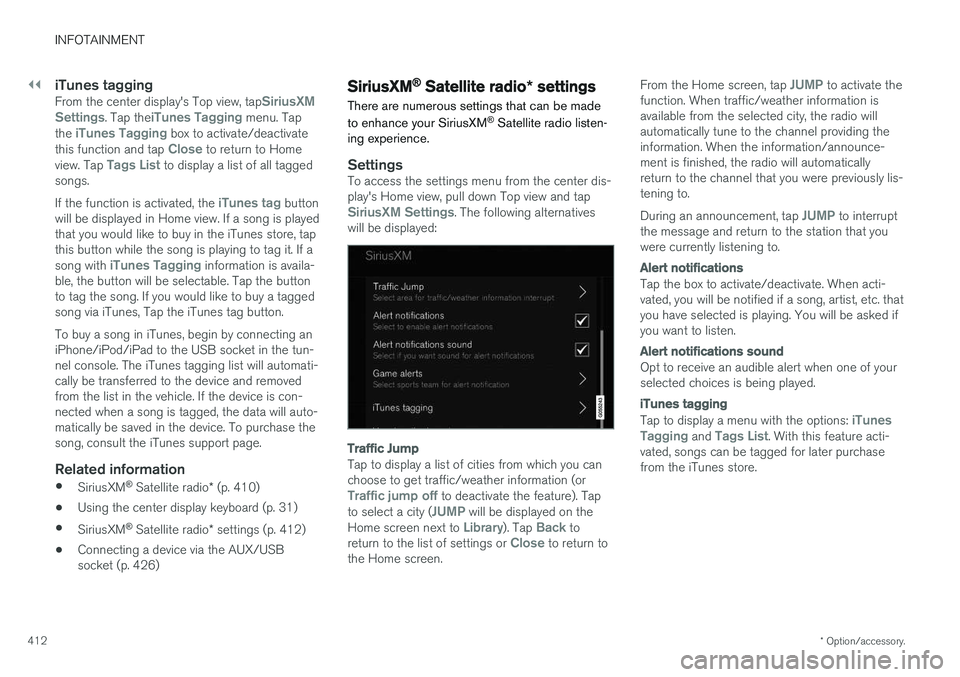
SettingsTo access the settings menu from the center dis- play's Home view, pull down Top view and tap
SiriusXM Settings. The following alternatives
will be displayed:
Traffic Jump
Tap to display a list of cities from which you can choose to get traffic/weather information (or
Traffic jump off to deactivate the feature). Tap
to select a city (JUMP will be displayed on the
Home screen next to Library). Tap Back to
return to the list of settings or Close to return to
the Home screen. From the Home screen, tap
JUMP to activate the
function. When traffic/weather information is available from the selected city, the radio willautomatically tune to the channel providing theinformation. When the information/announce-ment is finished, the radio will automaticallyreturn to the channel that you were previously lis-tening to. During an announcement, tap
JUMP to interrupt
the message and return to the station that you were currently listening to.
Alert notifications
Tap the box to activate/deactivate. When acti- vated, you will be notified if a song, artist, etc. thatyou have selected is playing. You will be asked ifyou want to listen.
Alert notifications sound
Opt to receive an audible alert when one of your selected choices is being played.
iTunes tagging
Tap to display a menu with the options: iTunes
Tagging and Tags List. With this feature acti-
vated, songs can be tagged for later purchase from the iTunes store.
Page 428 of 560
INFOTAINMENT
426
Text message settings
The following settings can be made for text mes- sages received through a paired and connectedcell phone.
Text message settings
–Pull down the center display's Top view and tap
SettingsCommunicationText
Messages and choose among the following
settings:
•
Notification in center display: shows
text messages in the center display's sta- tus bar.
•
Notification in driver display: shows
text messages in the instrument panel. With this alternative active, incoming mes-sages can be handled from the right-sidesteering wheel keypad.
•
Text message tone: select an audible
signal for incoming text messages.
Related information
• Connecting/disconnecting a cell phone (p. 421)
• Pairing a cell phone (p. 420)
• Handling text messages (p. 424)
Connecting a Bluetooth ®
device
Bluetooth ®
-enabled devices can be paired and
connected to the infotainment system to stream media and in some cases connect to the Inter-net.
Many cell phones and other devices currently on the market offer wireless Bluetooth ®
technology.
Consult your Volvo retailer or go to support.volvocars.com for any questions regar-ding a device's compatibility with the vehicle'sinfotainment system. The procedure for pairing and connecting a Bluetooth ®
-enabled device is the same as for a
cell phone. See the articles "Pairing a cell phone" and "Connecting/disconnecting a cell phone" fordetails.
Related information
• Pairing a cell phone (p. 420)
• Connecting/disconnecting a cell phone(p. 421)
Connecting a device via the AUX/USB socket
External audio sources such as an iPod ®
or mp3
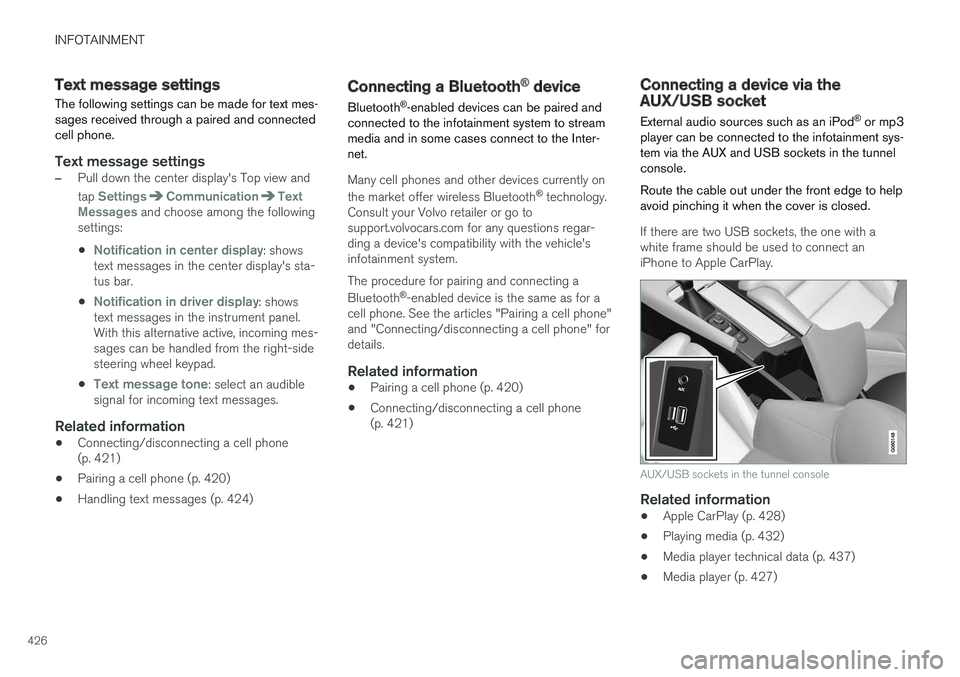
player can be connected to the infotainment sys- tem via the AUX and USB sockets in the tunnelconsole. Route the cable out under the front edge to help avoid pinching it when the cover is closed.
If there are two USB sockets, the one with a white frame should be used to connect aniPhone to Apple CarPlay.
AUX/USB sockets in the tunnel console
Related information
• Apple CarPlay (p. 428)
• Playing media (p. 432)
• Media player technical data (p. 437)
• Media player (p. 427)
Page 429 of 560
INFOTAINMENT
* Option/accessory.427
Media player
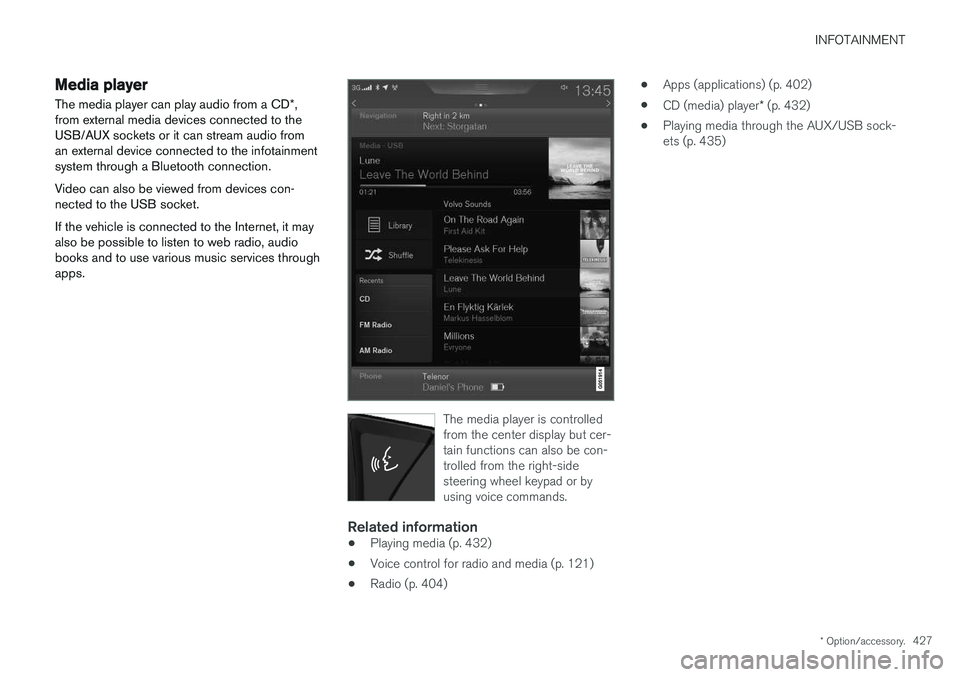
The media player can play audio from a CD *,
from external media devices connected to the USB/AUX sockets or it can stream audio froman external device connected to the infotainmentsystem through a Bluetooth connection. Video can also be viewed from devices con- nected to the USB socket. If the vehicle is connected to the Internet, it may also be possible to listen to web radio, audiobooks and to use various music services throughapps.
The media player is controlled from the center display but cer-tain functions can also be con-trolled from the right-sidesteering wheel keypad or byusing voice commands.
Related information
• Playing media (p. 432)
• Voice control for radio and media (p. 121)
• Radio (p. 404) •
Apps (applications) (p. 402)
• CD (media) player
* (p. 432)
• Playing media through the AUX/USB sock- ets (p. 435)
Page 431 of 560
INFOTAINMENT
}}
429
From a previously connected iPhone
1. Connect the iPhone to the USB socket in
the tunnel console. If there are two USB sockets, connect to the one with the whiteframe. >If the automatic start setting has been
activated, the Apple CarPlay sub-view will open and compatible apps will be dis-played.
2. If the automatic start setting has not been
activated, open the
Apple CarPlay app from
the center display's App view.
> The Apple CarPlay sub-view will open and compatible apps will be displayed.
3. Tap the desired app. > The app will start.
Apple CarPlay will run in the background if another app is started in the same sub-view. Toreturn to Apple CarPlay, tap the Apple CarPlayicon in App view.
Toggling between Apple CarPlay and iPod
Apple CarPlay to iPod
1.
Tap Settings in the center display's Top
view.
2. Tap
CommunicationApple CarPlay. 3. Deselect the Apple device's box that will no
longer start Apple CarPlay when it is con- nected.
4. Disconnect and reconnect the Apple device to the USB socket.
5. Open the
iPod app from App view.
iPod to Apple CarPlay
1.
Tap Apple CarPlay in the center display's
App view.
2. Read the conditions in the pop-up window that appears and tap
OK.
3. Disconnect and reconnect the Apple device to the USB socket.
> The Apple CarPlay sub-view will open.
Related information
• Media player (p. 427)
• Playing media (p. 432)
• Connecting a device via the AUX/USB socket (p. 426)
• Apple CarPlay settings (p. 429)
Apple CarPlay settings This article explains settings for a cell phone connected through Apple CarPlay.
Automatic start1.
Tap Settings in the center display's Top
view.
2. Tap
CommunicationApple CarPlay and
select the following settings:
• Select the Apple CarPlay box for auto- matic start when the device's USB cableis connected.
• Deselect the Apple CarPlay box to
disa-
ble automatic start when the device's
USB cable is connected.
A maximum of 20 Apple devices can be stored inthe list. When the list is full, the first (oldest)device stored will be deleted. To erase the entire list, a factory reset has to be performed. See the article "Resetting the set-tings view."
System volume levels1. Tap Settings in the center display's Top
view.
Page 435 of 560
INFOTAINMENT
}}
433
CD
1. Insert a CD. 2.Open the
CD app in the center display's App
view.
3. Select a track. > Playback will begin.
USB flash drive
1. Insert the flash drive in the USB socket. 2. Open the
USB app in the center display's
App view.
3. Select a track. > Playback will begin.
Mp3 player and iPod®
NOTE
Use the iPod app ( not the USB app) to start playback. When an iPod is the media source, the info- tainment system will use a menu structuresimilar to the iPod's own menu structure.
1. Connect the device.
2. Start playback in the connected device.3.
Open the
iPod, USB, AUX) app in the cen-
ter display's App view.
> Playback will begin.
Bluetooth-connected device
1. Connect the device.
2. Activate Bluetooth in the device.
3. Start playback from the connected device.4. Open the
Bluetooth app in the center dis-
play's App view.
> Playback will begin.
Internet media
1. Connect the vehicle to the Internet.
2. Open the app in the center display's App view.
> Playback will begin.
Video
1. Connect the device. 2.Open the
USB app in the center display's
App view.
3. Tap the title of the video content to be played.
> Playback will begin.
Apple CarPlay
Apple CarPlay is described in a separate article.
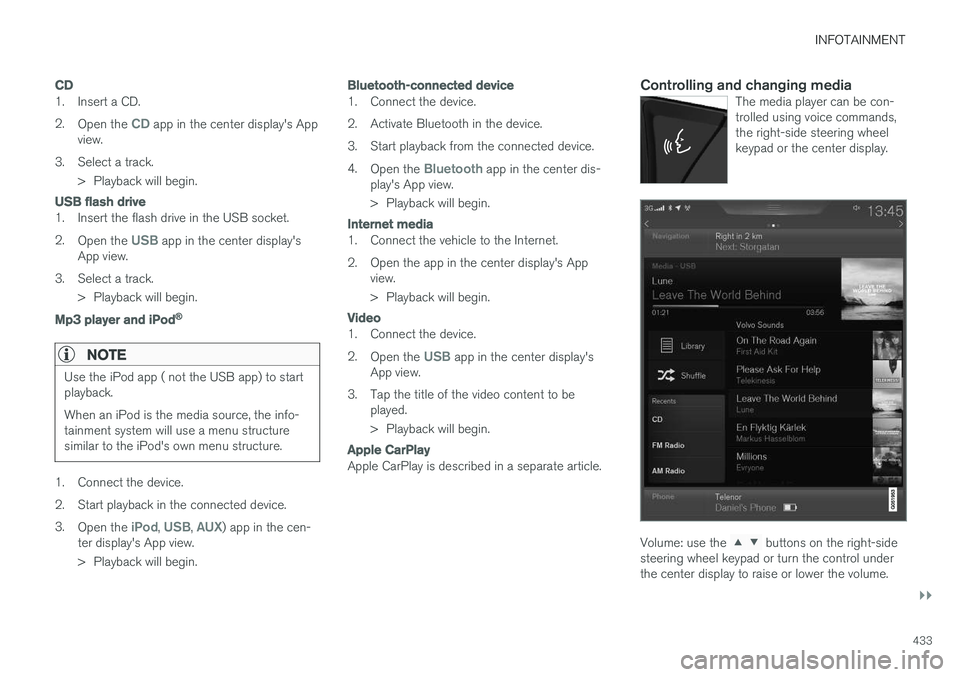
Controlling and changing mediaThe media player can be con- trolled using voice commands,the right-side steering wheelkeypad or the center display.
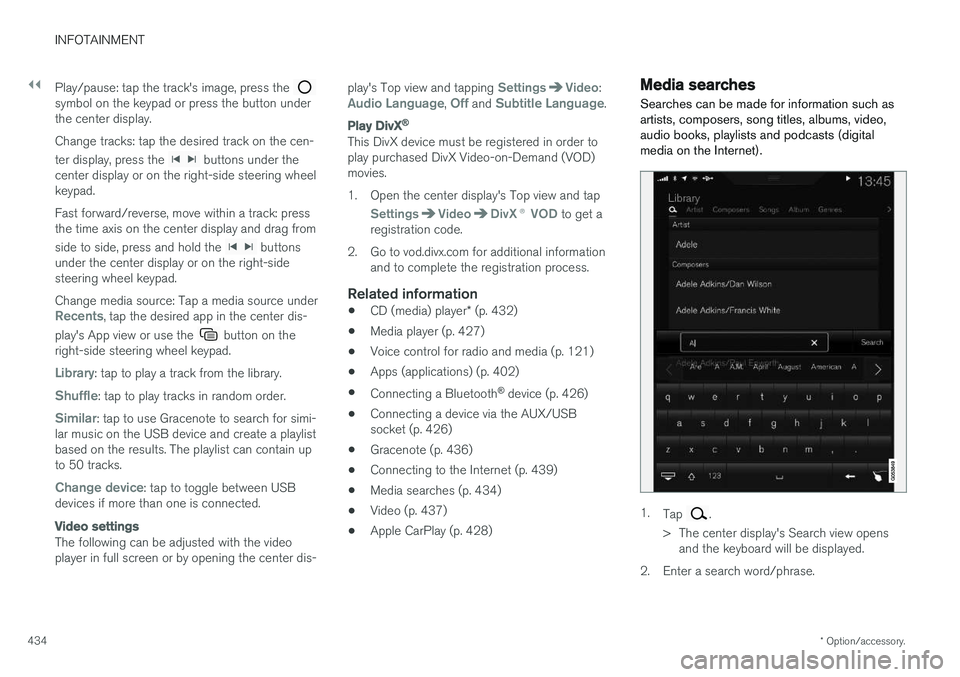
Volume: use the buttons on the right-side
steering wheel keypad or turn the control under the center display to raise or lower the volume.
Page 436 of 560
||
INFOTAINMENT
* Option/accessory.
434 Play/pause: tap the track's image, press the
symbol on the keypad or press the button under the center display. Change tracks: tap the desired track on the cen- ter display, press the
buttons under the
center display or on the right-side steering wheel keypad. Fast forward/reverse, move within a track: press the time axis on the center display and drag from side to side, press and hold the
buttons
under the center display or on the right-side steering wheel keypad. Change media source: Tap a media source under
Recents, tap the desired app in the center dis-
play's App view or use the
button on the
right-side steering wheel keypad.
Library: tap to play a track from the library.
Shuffle: tap to play tracks in random order.
Similar: tap to use Gracenote to search for simi-
lar music on the USB device and create a playlist based on the results. The playlist can contain upto 50 tracks.
Change device: tap to toggle between USB
devices if more than one is connected.
Video settings
The following can be adjusted with the video player in full screen or by opening the center dis- play's Top view and tapping
SettingsVideo:Audio Language, Off and Subtitle Language.
Play
DivX®
This DivX device must be registered in order to play purchased DivX Video-on-Demand (VOD)movies.
1. Open the center display's Top view and tap
SettingsVideoDivX
® VOD to get a
registration code.
2. Go to vod.divx.com for additional information and to complete the registration process.
Related information
• CD (media) player
* (p. 432)
• Media player (p. 427)
• Voice control for radio and media (p. 121)
• Apps (applications) (p. 402)
• Connecting a Bluetooth ®
device (p. 426)
• Connecting a device via the AUX/USB socket (p. 426)
• Gracenote (p. 436)
• Connecting to the Internet (p. 439)
• Media searches (p. 434)
• Video (p. 437)
• Apple CarPlay (p. 428)
Media searches
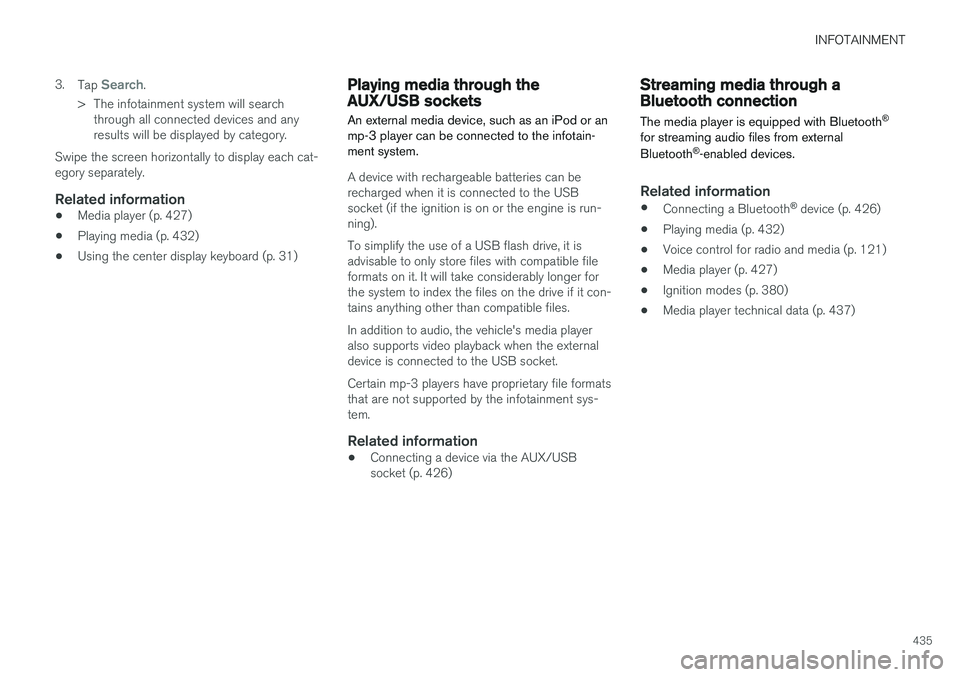
Searches can be made for information such as artists, composers, song titles, albums, video,audio books, playlists and podcasts (digitalmedia on the Internet).
1. Tap .
> The center display's Search view opens and the keyboard will be displayed.
2. Enter a search word/phrase.
Page 437 of 560
INFOTAINMENT
435
3.
Tap
Search.
> The infotainment system will search through all connected devices and any results will be displayed by category.
Swipe the screen horizontally to display each cat-egory separately.
Related information
• Media player (p. 427)
• Playing media (p. 432)
• Using the center display keyboard (p. 31)
Playing media through the AUX/USB sockets
An external media device, such as an iPod or an mp-3 player can be connected to the infotain-ment system.
A device with rechargeable batteries can be recharged when it is connected to the USBsocket (if the ignition is on or the engine is run-ning). To simplify the use of a USB flash drive, it is advisable to only store files with compatible fileformats on it. It will take considerably longer forthe system to index the files on the drive if it con-tains anything other than compatible files. In addition to audio, the vehicle's media player also supports video playback when the externaldevice is connected to the USB socket. Certain mp-3 players have proprietary file formats that are not supported by the infotainment sys-tem.
Related information
• Connecting a device via the AUX/USBsocket (p. 426)
Streaming media through a Bluetooth connection The media player is equipped with Bluetooth ®
for streaming audio files from external Bluetooth ®
-enabled devices.
Related information
• Connecting a Bluetooth ®
device (p. 426)
• Playing media (p. 432)
• Voice control for radio and media (p. 121)
• Media player (p. 427)
• Ignition modes (p. 380)
• Media player technical data (p. 437)
Page 439 of 560
INFOTAINMENT
}}
437
•
None: no results will be shown.
Updating GracenoteGracenote's contents are updated continuously. For optimal functionality, always use the latestversion. See support.volvocars.com for informa-tion and downloads.
Related information
•
Infotainment system license information(p. 445)
• Playing media (p. 432)
Video
The media player can play video from USB-con- nected devices.
No video will be available when the vehicle is moving. Video will resume playing when the vehi-cle is stationary. See the article "Media player technical data" for a list of video formats supported by the mediaplayer.
Related information
• Playing media (p. 432)
• Media player (p. 427)
• Media player technical data (p. 437)
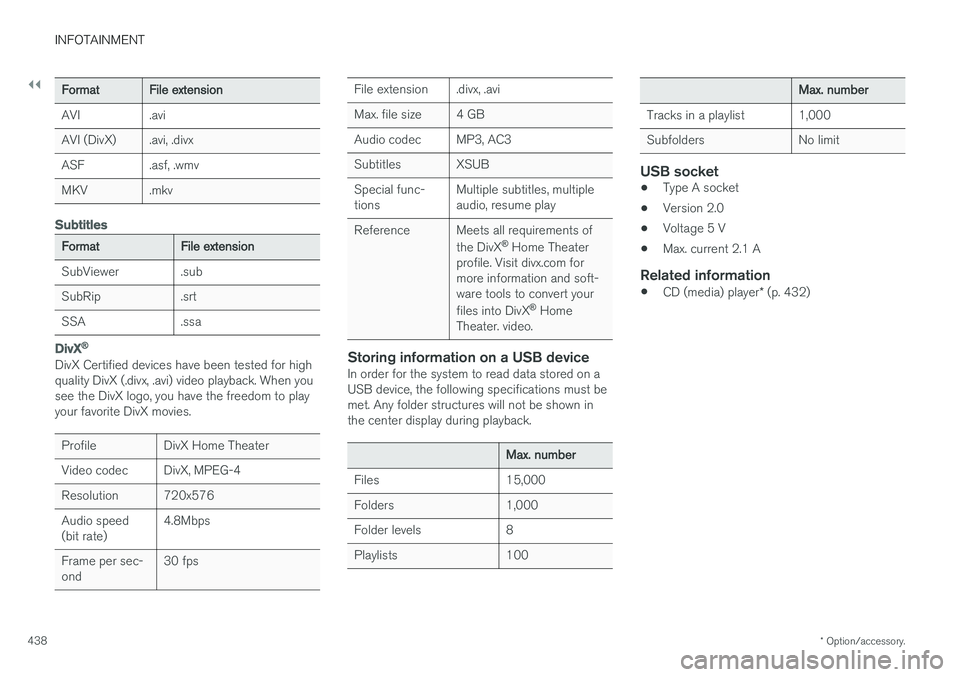
Media player technical data The following tables list compatible file formats and other technical specifications for the mediaplayer.
Audio files
For- mat File extension
Codec
MP3 .mp3 MPEG1 Layer III, MPEG2 Layer III, MP3 Pro (mp3compatible),MP3 HD (mp3compatible)
AAC .m4a, .m4b, .aac AAC LC (MPEG-4 part III Audio),HE-AAC (aacPlusv1/v2)
WMA .wma WMA8/9, WMA9/10 Pro
WAV .wav LPCM
FLAC .flac FLAC
Video files
Format File extension
MP4 .mp4, .m4v
MPEG-PS .mpg, .mp2, .mpeg, .m1v
Page 440 of 560
||
INFOTAINMENT
* Option/accessory.
438
Format File extension
AVI .avi
AVI (DivX) .avi, .divx
ASF .asf, .wmv
MKV .mkv
Subtitles
Format File extension
SubViewer .sub
SubRip .srt
SSA .ssa
DivX ®
DivX Certified devices have been tested for high quality DivX (.divx, .avi) video playback. When yousee the DivX logo, you have the freedom to playyour favorite DivX movies.
Profile DivX Home Theater
Video codec DivX, MPEG-4
Resolution 720x576Audio speed (bit rate) 4.8Mbps
Frame per sec-ond 30 fps
File extension .divx, .avi
Max. file size 4 GB
Audio codec MP3, AC3
Subtitles XSUBSpecial func- tionsMultiple subtitles, multipleaudio, resume play
Reference Meets all requirements of the DivX®
Home Theater
profile. Visit divx.com formore information and soft-ware tools to convert your files into DivX ®
Home
Theater. video.
Storing information on a USB deviceIn order for the system to read data stored on a USB device, the following specifications must bemet. Any folder structures will not be shown inthe center display during playback.
Max. number
Files 15,000
Folders 1,000
Folder levels 8
Playlists 100
Max. number
Tracks in a playlist 1,000
Subfolders No limit
USB socket
• Type A socket
• Version 2.0
• Voltage 5 V
• Max. current 2.1 A
Related information
•
CD (media) player
* (p. 432)
Page 442 of 560
||
INFOTAINMENT
4401. Activate tethering/personal hotspot in the
cell phone.
2. Tap
Settings in the center display's Top
view.
3. Tap
CommunicationWi-Fi.
4. Tap Wi-Fi to activate/deactivate.
5. Tap the name of the network to be used.
6. Enter the network password.
7. If a different connection was used previously, confirm the connection change.
> The vehicle will connect to the network.
Please be aware that certain cell phones disable tethering when the connection to the vehicle hasbeen broken, e.g., when the phone has beenremoved from the vehicle. In such cases, thephone's tethering function will have to be reacti-vated the next time the phone is used to connectto the Internet. When a phone is connected to the vehicle, it is saved for future use. When a max. number of 50have been saved, the first one connected will bedeleted. To show the list of saved networks or to manually delete a network, tap
SettingsWi-Fi
Saved networks.
See the article "Wi-Fi technology and security" for network connection requirements.
Connect using the vehicle's integrated modem
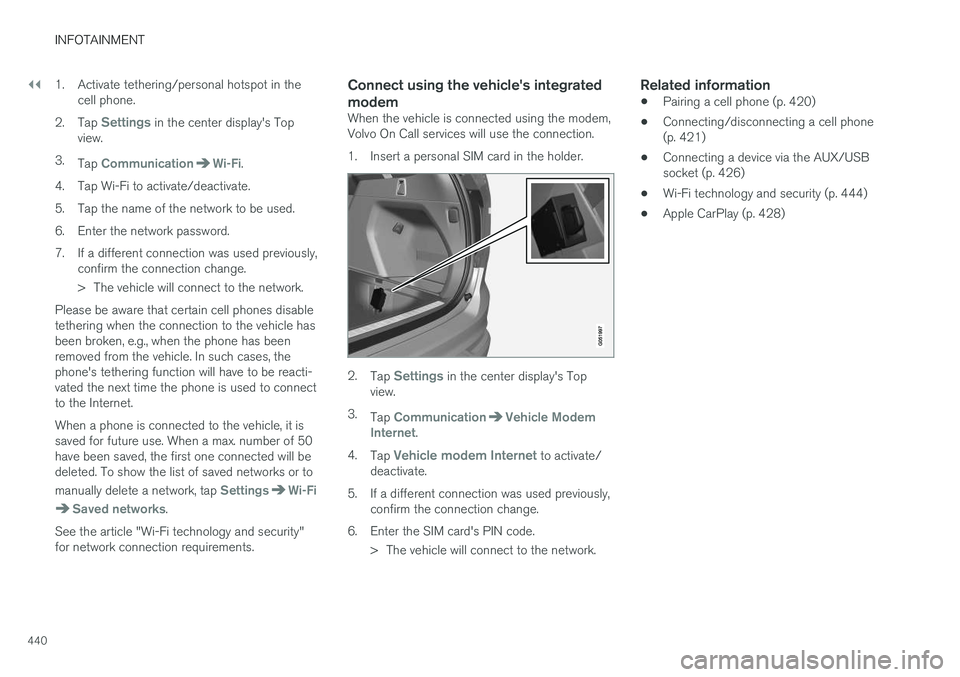
When the vehicle is connected using the modem, Volvo On Call services will use the connection.
1. Insert a personal SIM card in the holder.
2. Tap Settings in the center display's Top
view.
3. Tap
CommunicationVehicle Modem
Internet.
4. Tap
Vehicle modem Internet to activate/
deactivate.
5. If a different connection was used previously, confirm the connection change.
6. Enter the SIM card's PIN code. > The vehicle will connect to the network.
Related information
• Pairing a cell phone (p. 420)
• Connecting/disconnecting a cell phone (p. 421)
• Connecting a device via the AUX/USBsocket (p. 426)
• Wi-Fi technology and security (p. 444)
• Apple CarPlay (p. 428)