navigation VOLVO XC90 2017 Owner´s Manual
[x] Cancel search | Manufacturer: VOLVO, Model Year: 2017, Model line: XC90, Model: VOLVO XC90 2017Pages: 560, PDF Size: 9.97 MB
Page 430 of 560
INFOTAINMENT
* Option/accessory.
428
Apple CarPlay
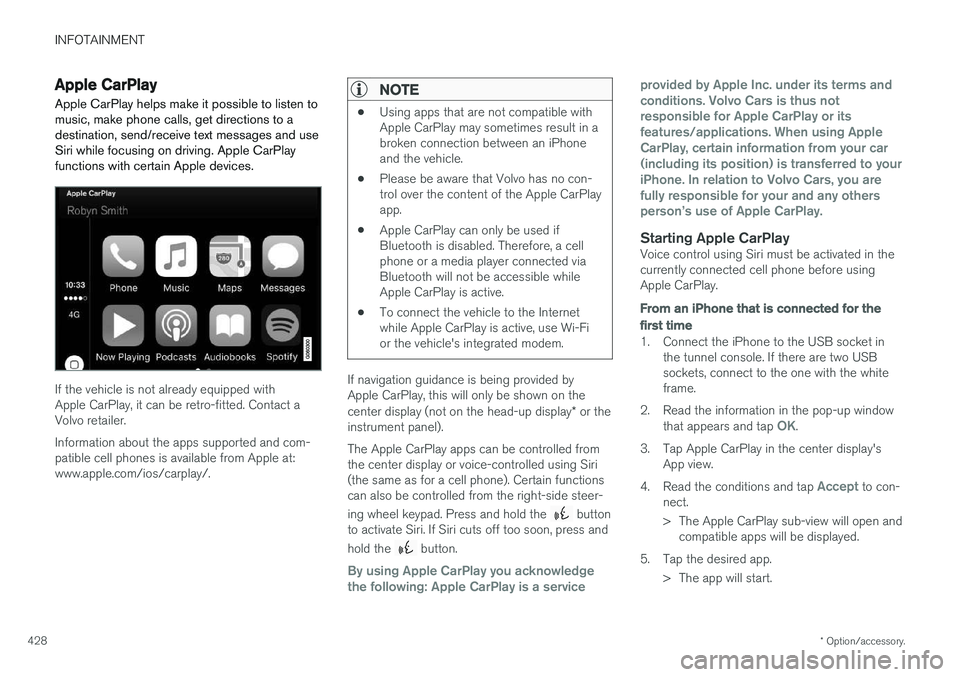
Apple CarPlay helps make it possible to listen to music, make phone calls, get directions to adestination, send/receive text messages and useSiri while focusing on driving. Apple CarPlayfunctions with certain Apple devices.
If the vehicle is not already equipped with Apple CarPlay, it can be retro-fitted. Contact aVolvo retailer. Information about the apps supported and com- patible cell phones is available from Apple at:www.apple.com/ios/carplay/.
NOTE
• Using apps that are not compatible with Apple CarPlay may sometimes result in abroken connection between an iPhoneand the vehicle.
• Please be aware that Volvo has no con-trol over the content of the Apple CarPlayapp.
• Apple CarPlay can only be used ifBluetooth is disabled. Therefore, a cellphone or a media player connected viaBluetooth will not be accessible whileApple CarPlay is active.
• To connect the vehicle to the Internetwhile Apple CarPlay is active, use Wi-Fior the vehicle's integrated modem.
If navigation guidance is being provided by Apple CarPlay, this will only be shown on the center display (not on the head-up display
* or the
instrument panel). The Apple CarPlay apps can be controlled from the center display or voice-controlled using Siri(the same as for a cell phone). Certain functionscan also be controlled from the right-side steer- ing wheel keypad. Press and hold the
button
to activate Siri. If Siri cuts off too soon, press and hold the
button.
By using Apple CarPlay you acknowledge the following: Apple CarPlay is a service provided by Apple Inc. under its terms andconditions. Volvo Cars is thus notresponsible for Apple CarPlay or itsfeatures/applications. When using AppleCarPlay, certain information from your car(including its position) is transferred to youriPhone. In relation to Volvo Cars, you arefully responsible for your and any othersperson
Page 432 of 560
||
INFOTAINMENT
* Option/accessory.
430 2.
Tap
SoundSystem Volumes and select
the following settings: •
Voice Control
•Navi Voice Guidance
•Phone Ringtone
Related information
• Apple CarPlay (p. 428)
• Resetting the settings view (p. 113)
Android auto
*
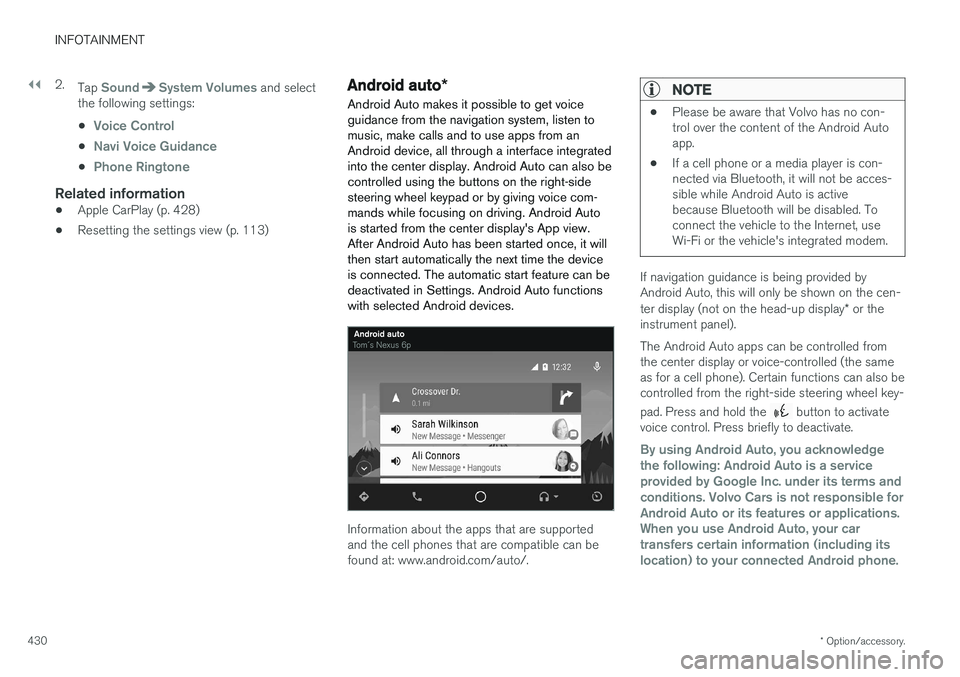
Android Auto makes it possible to get voice guidance from the navigation system, listen tomusic, make calls and to use apps from anAndroid device, all through a interface integratedinto the center display. Android Auto can also becontrolled using the buttons on the right-sidesteering wheel keypad or by giving voice com-mands while focusing on driving. Android Autois started from the center display's App view.After Android Auto has been started once, it willthen start automatically the next time the deviceis connected. The automatic start feature can bedeactivated in Settings. Android Auto functionswith selected Android devices.
Information about the apps that are supported and the cell phones that are compatible can befound at: www.android.com/auto/.
NOTE
• Please be aware that Volvo has no con- trol over the content of the Android Autoapp.
• If a cell phone or a media player is con-nected via Bluetooth, it will not be acces-sible while Android Auto is activebecause Bluetooth will be disabled. Toconnect the vehicle to the Internet, useWi-Fi or the vehicle's integrated modem.
If navigation guidance is being provided by Android Auto, this will only be shown on the cen- ter display (not on the head-up display
* or the
instrument panel). The Android Auto apps can be controlled from the center display or voice-controlled (the sameas for a cell phone). Certain functions can also becontrolled from the right-side steering wheel key- pad. Press and hold the
button to activate
voice control. Press briefly to deactivate.
By using Android Auto, you acknowledge the following: Android Auto is a serviceprovided by Google Inc. under its terms andconditions. Volvo Cars is not responsible forAndroid Auto or its features or applications.When you use Android Auto, your cartransfers certain information (including itslocation) to your connected Android phone.
Page 441 of 560
INFOTAINMENT
}}
439
Internet connected vehicle
Connecting to the Internet makes it possible to e.g., use certain navigation services, listen toweb radio, stream music using apps, contact aretailer and download software.
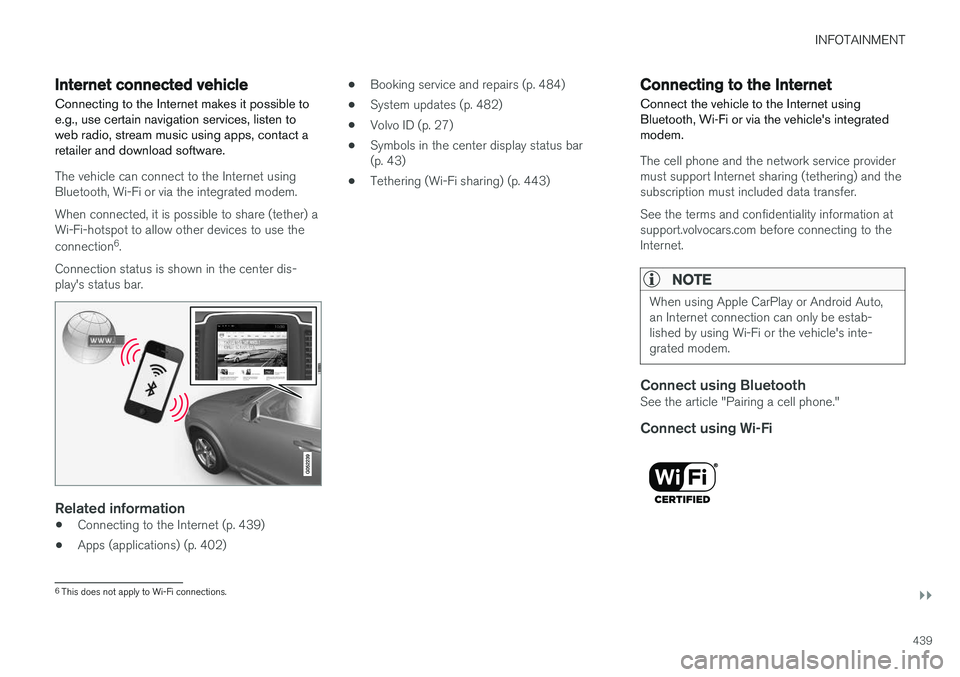
The vehicle can connect to the Internet using Bluetooth, Wi-Fi or via the integrated modem. When connected, it is possible to share (tether) a Wi-Fi-hotspot to allow other devices to use the connection 6
.
Connection status is shown in the center dis- play's status bar.
Related information
• Connecting to the Internet (p. 439)
• Apps (applications) (p. 402) •
Booking service and repairs (p. 484)
• System updates (p. 482)
• Volvo ID (p. 27)
• Symbols in the center display status bar (p. 43)
• Tethering (Wi-Fi sharing) (p. 443)
Connecting to the Internet
Connect the vehicle to the Internet using
Bluetooth, Wi-Fi or via the vehicle's integratedmodem.
The cell phone and the network service provider must support Internet sharing (tethering) and thesubscription must included data transfer. See the terms and confidentiality information at support.volvocars.com before connecting to theInternet.
NOTE
When using Apple CarPlay or Android Auto, an Internet connection can only be estab-lished by using Wi-Fi or the vehicle's inte-grated modem.
Connect using BluetoothSee the article "Pairing a cell phone."
Connect using Wi-Fi
6 This does not apply to Wi-Fi connections.
Page 451 of 560
INFOTAINMENT
449
NONINFRINGEMENT OF THIRD PARTY RIGHTS. IN NO EVENT SHALL THECOPYRIGHT HOLDER OR HOLDERSINCLUDED IN THIS NOTICE BE LIABLE FORANY CLAIM, OR ANY SPECIAL INDIRECT ORCONSEQUENTIAL DAMAGES, OR ANYDAMAGES WHATSOEVER RESULTING FROMLOSS OF USE, DATA OR PROFITS, WHETHERIN AN ACTION OF CONTRACT, NEGLIGENCEOR OTHER TORTIOUS ACTION, ARISING OUTOF OR IN CONNECTION WITH THE USE ORPERFORMANCE OF THE DATA FILES ORSOFTWARE. Except as contained in this notice, the name of a copyright holder shall not be used in advertisingor otherwise to promote the sale, use or otherdealings in these Data Files or Software withoutprior written authorization of the copyright holder.
Bluetooth
®
declaration of conformityUnited States FCC CAUTION Changes or modifications not expressly approved by the party responsible for compliance couldvoid the user's authority to operate the equip-ment. This transmitter must not be co-located oroperated in conjunction with any other antennaor transmitter. CanadaThis device complies with Industry Canada licence-exempt RSS standard(s). Operation is subject to the following two conditions: (1) thisdevice may not cause interference, and (2) thisdevice must accept any interference, includinginterference that may cause undesired operationof the device.
Terms, conditions and confidentiality
See terms and conditions for services and cus- tomer privacy policy at support.volvocars.com.
Terms & Conditions for ServicesVolvo offers the best possible services to make owning and operating a Volvo safe, convenient,comfortable and enjoyable. Volvo offers a widearray of services, ranging from emergency assis-tance to navigation and infotainment.
Customer privacy policyThis policy applies to the way in which customer-related and personal information are handled. Itspurpose is to provide our present, previous andfuture customers a general understanding of: • The circumstances under which we gather and process your personal information.
• The types of personal information gathered.
• The reasons for gathering your personalinformation.
• How we deal with your personal information.
This policy can be read in its entirety atsupport.volvocars.com.
Page 485 of 560
MAINTENANCE AND SERVICING
483
Keep in mind that a download can be cancelled but an installation that has already begun cannotbe interrupted.
Allowing background searches or
software updates
This function can be deactivated from the centerdisplay:
1. Go to the Settings in the center display's Top view and select
Download Center.
2. Tap
SystemDownload Center.
3. Tap to deselect
Auto Software Update.
If an update is available,
New software updates
available will appear in the center display's sta-
tus bar. Tap the message to start a download app in Home view's lower sub-view. As soon as the download app has started, an icon in the
System
updates button will indicate the number of
downloads available.
Related information
• Center display overview (p. 28)
• Navigating in the center display's views (p. 38)
Remote updates With the vehicle connected to the Internet, updates for a number of the vehicle's systemscan be downloaded from the center display.
The Download Center app is
started from the center dis- play's App view and makes itpossible to:
• search for and update system software
• update the Sensus Navigation maps
• download, update and uninstall apps
Related information
•Downloading, updating and uninstalling apps (p. 441)
• System updates (p. 482)
Vehicle status
The vehicle's general status can be displayed in the center display along with the possibility to book service 1
The Car status app is started
in the center display's App view and has three tabs:
•Messages: stored messages
•
Status: tire pressure and engine oil level
•
Appointments: booking service or repairs 1
Related information
•
Using the center display (p. 44)
• Booking service and repairs (p. 484)
• Checking and refilling engine oil (p. 517)
1
Certain markets only.
Page 486 of 560
MAINTENANCE AND SERVICING
484
Booking service and repairs Connected Service Booking (CSB) makes it possible to use the vehicle's Internet connectionto set up a time for service, maintenance and/orrepairs.
The information is handled through the Car
status app, which can be opened from the cen-
ter display's App view. Information about your vehicle is sent to your retailer and you can book your workshop appoint-ment directly in your retailer's workshop planningsystem using the Volvo On-Line Service Schedu-ler with your smart phone. The system will alsosend a reminder as the appointment approachesand the Sensus Navigation system will providedirections to the workshop if necessary. This feature makes it convenient to book a work- shop appointment directly from your vehicle.Vehicle-related information is sent to yourretailer, who prepares your visit to the workshop.After you have requested a workshop appoint-ment, your retailer will send you an email includ-ing a link enabling you to connect directly to yourretailer's booking system, where you can bookthe appointment at a convenient time. Informationabout your retailer is also available in the vehicleso that you can contact the retailer/workshop at any time using the
Call my retailer menu option.
NOTE
My Volvo can be found by going to www.vol- vocars.com and selecting the United States orCanada.
Before the service can be used
Volvo ID
• The owner (primary driver) must create or have a Volvo ID (see the article "Volvo ID").
• You must enter your Volvo ID (your emailaddress) in the vehicle as explained in thearticle "Volvo ID". If you have already regis-tered a Volvo ID, use the same email addressthat you used to create the Volvo ID.
Changing a
Volvo ID email address
If you would like to register a different email address, open the Volvo ID app in the center dis- play's App view and tap
Change Volvo ID. Fol-
low the instructions provided. See also the article "Volvo ID" for additional information.
Selecting a Volvo retailer on the My Volvo
website
By default, the retailer where you purchased your vehicle will be your preferred retailer/Volvoauthorized workshop who will perform serviceand repairs on your vehicle. To change the pre-ferred retailer, go to your personalized My Volvowebsite.
Prerequisites for booking service from the vehicle
In order to request an appointment from the vehi- cle:
• The engine must be running
• The vehicle must be connected to the Inter-net (see the article "Internet connected vehi-cle")
Using the serviceWhen it is time for service or in certain cases ifrepairs are necessary, a message will appear inthe instrument panel and in the center display.This message is triggered by: • the amount of time that has elapsed since the last service
• the number of hours the engine has runsince the last service
• mileage since the last service.
• Specific alerts or fault codes in the vehicle
Booking service or repairs
Submit a booking request whenever you need a workshop appointment or when a messageregarding the need for service or repairs hasbeen displayed in the instrument panel and in thecenter display. This can be done directly from thevehicle as follows or alternatively by using the MyVolvo personal website booking tab.
Page 488 of 560
||
MAINTENANCE AND SERVICING
486
Viewing workshop information
1.Open the Car status app in the center dis-
play's App view.
2. Tap
Appointments.
3. Under
Appointments, tap Workshop
information.
> A window with retailer information will appear.
4. If you prefer, call the retailer, or select an address or GPS coordinates to activate the navigation system.
Appointments and vehicle informationWhen you make an appointment or send vehicleinformation from your vehicle, this information will be sent using the Internet connection 2
. Informa-
tion about the vehicle includes:
• service requirements
• time since service was last performed
• function status
• fluid levels •
mileage (odometer reading)
• VIN (Vehicle Identification Number)
• The vehicle's software version
• Diagnostic information
Related information
•Internet connected vehicle (p. 439)
• Volvo ID (p. 27)
Wi-Fi connection to a workshop The time a vehicle is in a workshop for service or repairs can be reduced by transmitting trouble-shooting information as soon as the car reachesthe workshop. This is done most conveniently by selecting
Automatically connect when I arrive in the
center display's Settings menu.
Each time the vehicle slows down to a sufficiently low speed, it begins searching for a Wi-Fi net-work. If an authorized Volvo network (at a retaileror workshop) is found, a message will be dis-played or a pop-up window will open in the cen-ter display (this applies to manual connections,see the section "Manually connecting to a work-shop" below).
2 There will be a slight charge for sending this information via the vehicle's Internet connection, depending on your service plan.
Page 554 of 560

INDEX
552
L
Labelslist of 533
location of 533
Laminated panoramic roof 103, 104
Lane Keeping Aid 328, 331 settings 330
LATCH anchors 84
Leather care 525
Lighting panel 138
Load anchoring eyelets 216
Loading the vehicle 208, 458
Locking 233, 235
Locks and alarm 224
Low beam bulb, replacing 508
Low beams 141, 142
Low Speed Control 359
M
Maintenance 480 hoisting the vehicle 512
performed by the owner 480
Malfunction indicator light 127
Manual front seat adjustment 162
Media player 426, 427 compatible file formats 437
Media player (infotainment system) 432 Menus instrument panel 150, 152, 154, 156
Mirrors defroster 194
power door 102
retractable 102
Mirrors, rearview mirror 108
Modem 444Motor oil checking 516, 517
MP3 files 437
Multifunctional front seats 166
MY CAR 109, 110
N
Navigation system voice commands 123
Net cargo 213
O
Occupant safety 56
Occupant weight sensor 69
Octane recommendations 372
Odometer 95Oilchecking 516, 517
Oil quality 544
On-board diagnostics 480
On-board Diagnostic socket 21
On Call Roadside Assistance 14
Opening the hood 514
Option/accessory 48
Options 21
Outside temperature sensor 114
Overhead courtesy lighting 147
Overheating, engine 366Owner's information mobile applications 20
Owner's manual 16
Ownership, changing 114
Oxygen sensors, heated 374