change time VOLVO XC90 2017 Owner´s Manual
[x] Cancel search | Manufacturer: VOLVO, Model Year: 2017, Model line: XC90, Model: VOLVO XC90 2017Pages: 560, PDF Size: 9.97 MB
Page 360 of 560
STARTING AND DRIVING
* Option/accessory.
358
Emergency brake lights
The emergency brake lights activate in the event of hard braking/rapid deceleration at most nor-mal driving speeds or if the ABS system is acti-vated. This function causes an additional taillighton each side of the vehicle to illuminate to helpalert vehicles traveling behind.
Once the emergency brake lights have been acti- vated, if the driver releases the brake pedal, thebrake lights will return to their normal function.
Related information
• Brakes (p. 354)
• Hazard warning flashers (p. 146)
• Brake lights (p. 146)
Hill Descent Control (HDC) HDC is a type of low-speed automatic engine brake and makes it possible to increase ordecrease the vehicle's speed on steep downhillgradients using only the accelerator pedal, with-out applying the brakes.
HDC is particularly useful when driving down steep hills with rough surfaces, and where theroad may have slippery patches.
WARNING
HDC does not function in all situations, and is a supplementary braking aid. The driver hasfull responsibility for driving in a safe manner.
FunctionHDC allows the vehicle to roll forward or in reverse at very low speed with enhanced enginebraking. However, speed can be adjusted to ahigher level with the accelerator pedal. When theaccelerator pedal is released, the vehicle willreturn to very low speed regardless of the steep-ness of the hill and without applying the brakes.The brake lights illuminate when HDC is func-tioning. The driver can use the brakes to slow or stop the vehicle at any time. HDC is activated along with Low Speed Control (LSC), which together make driving on slipperysurfaces at low speeds easier. When HDC and LSC are activated, this changesthe response from the accelerator pedal andengine.
Activating HDCThis function can be activated in different ways,depending on how the vehicle is equipped.
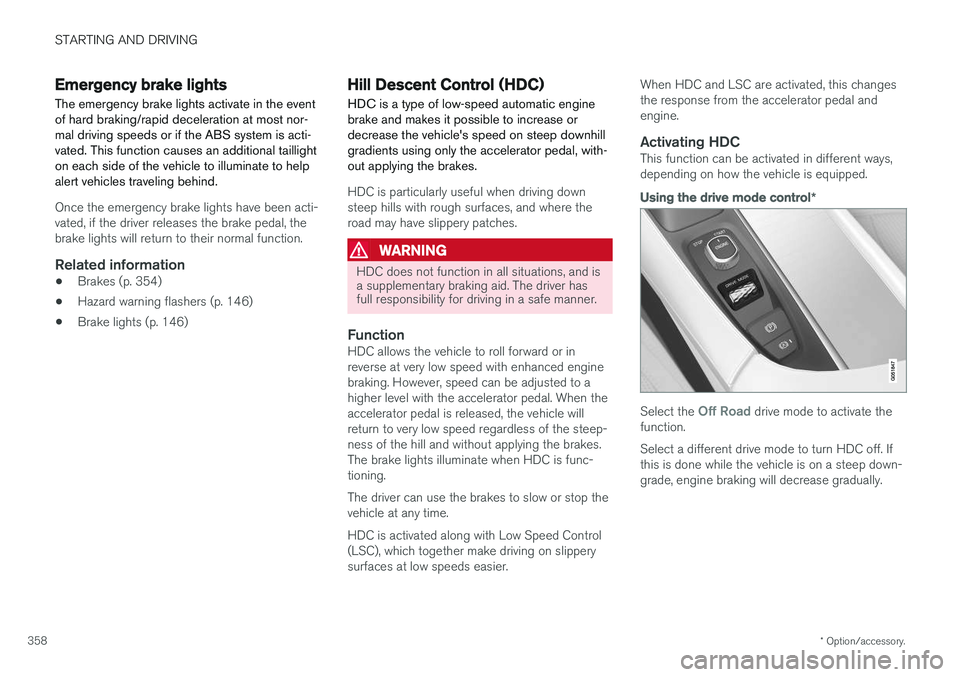
Using the drive mode control
*
Select the Off Road drive mode to activate the
function. Select a different drive mode to turn HDC off. If this is done while the vehicle is on a steep down-grade, engine braking will decrease gradually.
Page 389 of 560
STARTING AND DRIVING
}}
* Option/accessory.387
ECO drive mode
The Eco drive mode is a function designed to give the driver the opportunity to drive more eco-nomically and to help reduce fuel consumption.
When this mode is activated, the following cha- racteristics are modified:
• The automatic transmission's shifting points
• The engine management system and accel-erator pedal response
• Eco Coast functionality is activated: enginebraking is disabled at speeds betweenapprox. 40 and 87 mph(65 and 140 km/h)
• Climate system settings: certain functionswill be temporarily reduced or deactivated
• The suspension's self-leveling function
* low-
ers ground clearance to help reduce windresistance
• Information is shown in an ECO gauge in theinstrument panel to help promote more eco-nomical driving
NOTE
When Eco is activated, several climate system parameters are changed and the function ofcertain current-consuming systems will bereduced. Some of these functions can be restarted manually but full functionality will not berestored until Eco is deactivated.
Selecting ECO modeWhen the engine is switched off, ECO mode is deactivated and must be reactivated each time the engine is started.
ECO will appear in the
instrument panel when the function is activated.
Via Function view
Tap the button in the center display's Function view. An indi-cator light in the button showsthat the function is activated.
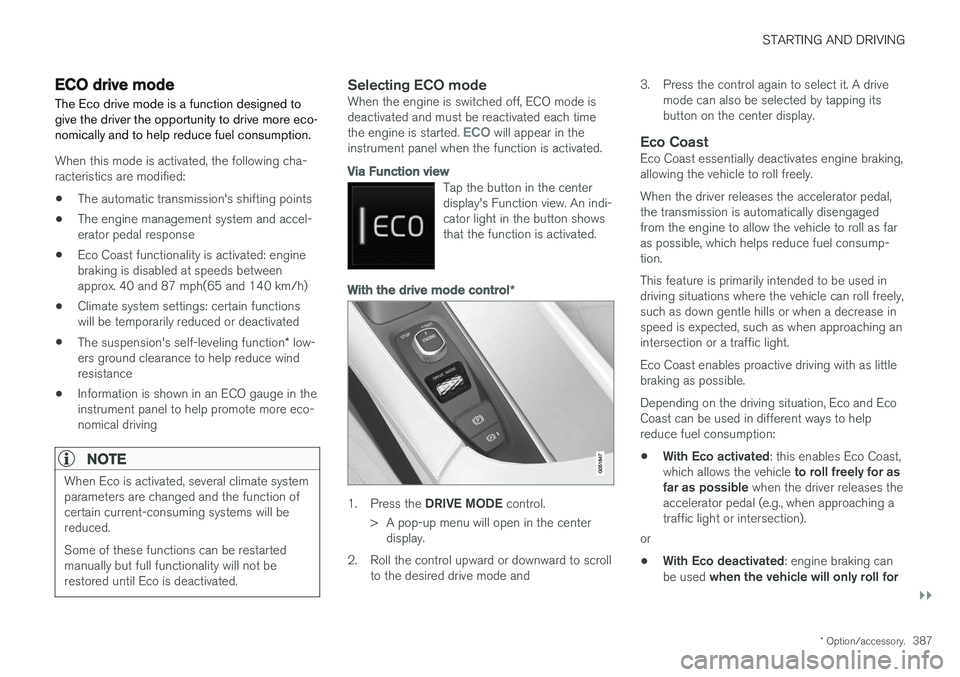
With the drive mode control *
1.
Press the DRIVE MODE control.
> A pop-up menu will open in the center display.
2. Roll the control upward or downward to scroll to the desired drive mode and 3. Press the control again to select it. A drive
mode can also be selected by tapping its button on the center display.
Eco CoastEco Coast essentially deactivates engine braking,allowing the vehicle to roll freely. When the driver releases the accelerator pedal, the transmission is automatically disengagedfrom the engine to allow the vehicle to roll as faras possible, which helps reduce fuel consump-tion. This feature is primarily intended to be used in driving situations where the vehicle can roll freely,such as down gentle hills or when a decrease inspeed is expected, such as when approaching anintersection or a traffic light. Eco Coast enables proactive driving with as little braking as possible. Depending on the driving situation, Eco and Eco Coast can be used in different ways to helpreduce fuel consumption: • With Eco activated
: this enables Eco Coast,
which allows the vehicle to roll freely for as
far as possible when the driver releases the
accelerator pedal (e.g., when approaching a traffic light or intersection).
or
• With Eco deactivated
: engine braking can
be used when the vehicle will only roll for
Page 399 of 560
STARTING AND DRIVING
* Option/accessory.397
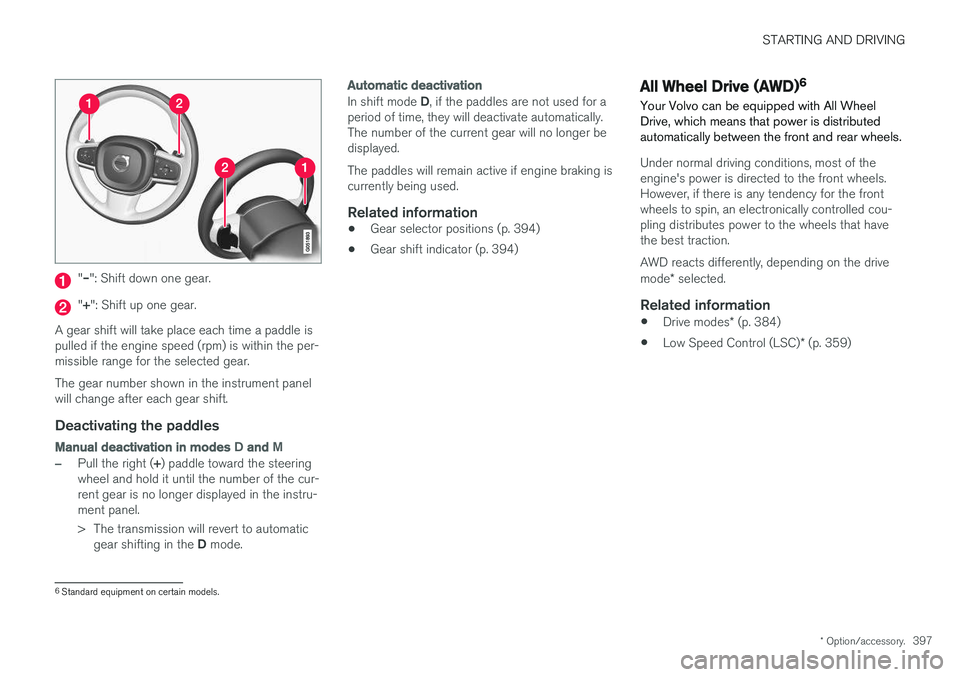
"– ": Shift down one gear.
"+ ": Shift up one gear.
A gear shift will take place each time a paddle is pulled if the engine speed (rpm) is within the per-missible range for the selected gear. The gear number shown in the instrument panel will change after each gear shift.
Deactivating the paddles
Manual deactivation in modes D and M
–Pull the right ( +) paddle toward the steering
wheel and hold it until the number of the cur- rent gear is no longer displayed in the instru-ment panel.
> The transmission will revert to automatic
gear shifting in the D mode.
Automatic deactivation
In shift mode D, if the paddles are not used for a
period of time, they will deactivate automatically. The number of the current gear will no longer bedisplayed. The paddles will remain active if engine braking is currently being used.
Related information
• Gear selector positions (p. 394)
• Gear shift indicator (p. 394)
All Wheel Drive (AWD) 6
Your Volvo can be equipped with All Wheel Drive, which means that power is distributedautomatically between the front and rear wheels.
Under normal driving conditions, most of the engine's power is directed to the front wheels.However, if there is any tendency for the frontwheels to spin, an electronically controlled cou-pling distributes power to the wheels that havethe best traction. AWD reacts differently, depending on the drive mode * selected.
Related information
• Drive modes
* (p. 384)
• Low Speed Control (LSC)
* (p. 359)
6
Standard equipment on certain models.
Page 401 of 560
STARTING AND DRIVING
* Option/accessory.399
Parking the vehicleWhen parking, be sure that there is adequate space above and below the vehicle since itsground clearance may vary, e.g., depending onthe ambient temperature, how the vehicle is loa-ded, if loading mode is being used or the drivemode selected after the engine is started. The level may also be adjusted for a certain time after the vehicle has been parked to compensatefor possible height adjustments due to tempera-ture changes in the pneumatic suspension whenthe vehicle has cooled.
TransportWhen transporting the vehicle on a ferry, train ora tow truck, it may only be secured (lashed)around the tires, not using any other chassiscomponents. Changes in the pneumatic suspen-sion may occur during transport that could nega-tively affect the lashing and result in damage.
Related information
•Drive modes
* (p. 384)
• Driving with a trailer (p. 376)
• Loading (p. 208)
Page 408 of 560
||
INFOTAINMENT
* Option/accessory.
406
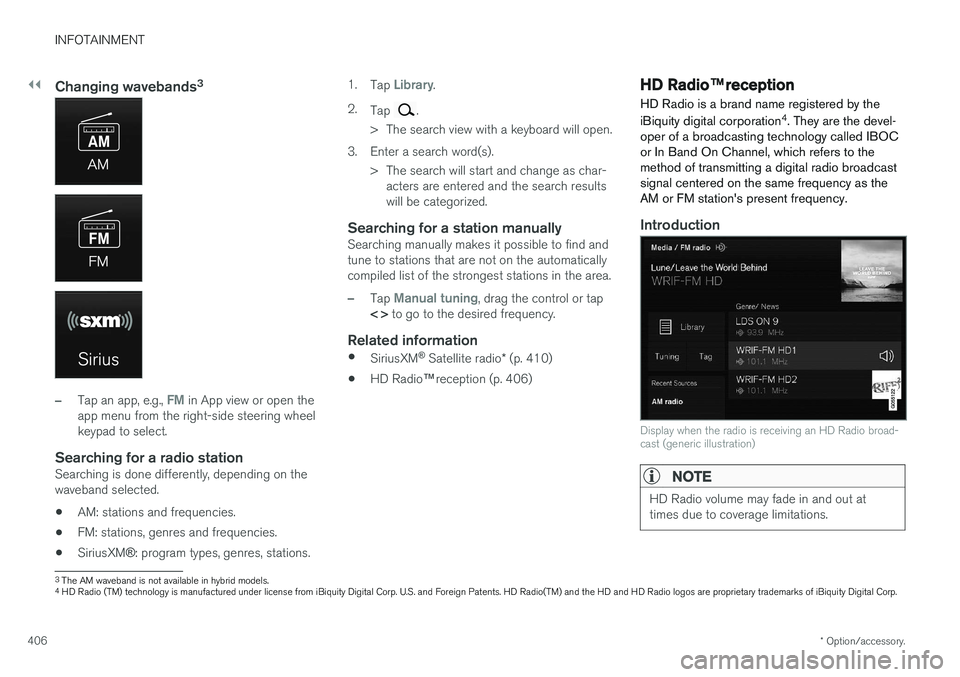
Changing wavebands 3
–Tap an app, e.g., FM in App view or open the
app menu from the right-side steering wheel keypad to select.
Searching for a radio stationSearching is done differently, depending on thewaveband selected.
• AM: stations and frequencies.
• FM: stations, genres and frequencies.
• SiriusXM
®: program types, genres, stations. 1.
Tap
Library.
2. Tap
.
> The search view with a keyboard will open.
3. Enter a search word(s). > The search will start and change as char-acters are entered and the search results will be categorized.
Searching for a station manuallySearching manually makes it possible to find andtune to stations that are not on the automaticallycompiled list of the strongest stations in the area.
–Tap Manual tuning, drag the control or tap
< > to go to the desired frequency.
Related information
•
SiriusXM ®
Satellite radio * (p. 410)
• HD Radio
™reception (p. 406)
HD Radio ™reception
HD Radio is a brand name registered by the iBiquity digital corporation 4
. They are the devel-
oper of a broadcasting technology called IBOC or In Band On Channel, which refers to themethod of transmitting a digital radio broadcastsignal centered on the same frequency as theAM or FM station's present frequency.
Introduction
Display when the radio is receiving an HD Radio broad- cast (generic illustration)
NOTE
HD Radio volume may fade in and out at times due to coverage limitations.
3 The AM waveband is not available in hybrid models.4
HD Radio (TM) technology is manufactured under license from iBiquity Digital Corp. U.S. and Foreign Patents. HD Radio(TM) and the HD and HD Radio logos are proprietary trademarks of iBiquity Digital Corp.
Page 411 of 560
INFOTAINMENT
409
Selecting sub-channels
To listen to a station's sub-channel(s), tap the station on the screen or press the forward/backarrow keys on the right-side steering wheel key-pad or below the screen. Sub-channels can also be stored as favorites, see the article "Changing and searching for radio sta-tions". If you tap a sub-channel favorite, it may take up to 6 seconds before the channel becomes audi-
ble. If you tap a station while you are out of digital range of the transmitter,
No reception will be
displayed.
Related information
• HD Radio
™reception (p. 406)
• Switching HD Radio on and off (p. 408)
• Changing and searching for radio stations (p. 405)
HD Radio limitations
Limitations
•
Main channel vs. sub-channels (FM only)
:
The main channel is the only channel that can receive in hybrid mode (both digital andanalogue). If a frequency has sub-channels,they are broadcast in digital mode only. Themain FM channel will be displayed as, forexample, "WRIF-FM HD1". The sub-FMchannels will be displayed as"WRIF-FMHD2", "WRIF-FM HD3", etc.
• Reception coverage area
: Due to current
IBOC transmitter power limitations, thereception coverage area in digital mode issomewhat more limited than the station'sanalogue coverage area. Please be awarethat as with any radio broadcast technology,terrain, time of day, foliage level and buildinglocation can have positive or negative effectson radio reception.
• Analogue to digital/digital to analogueblending
: Analogue to digital blending will
occur as the signal strength reaches a presetthreshold in the receiver. This will be noticea-ble in fringe areas (areas with weak recep-tion) and is normal.
NOTE
There may be a noticeable difference in sound quality when a change from analogueto digital or digital to analogue occurs, suchas:
• Volume increase or decrease
• Equalizer settings, i.e., Bass/ Midrange/Treble cut or boost
• Time alignment (Digital program materialin extreme cases can be as much as 8seconds behind the analogue). This willnoticeable as a "stuttering" effect.
The above items are dependant on thebroadcaster's equipment settings and donot indicate a fault in the vehicle's radioreceiver or antenna systems .
Related information
•HD Radio sub-channels (p. 408)
• HD Radio
™reception (p. 406)
Page 422 of 560
INFOTAINMENT
420
Pairing a cell phone
A Bluetooth ®
-enabled cell phone or other device
can be paired and wirelessly connected to the infotainment system.
When a cell phone or other device is connected, audio can be streamed to the infotainment sys-tem. Toggle between the devices by pressing the TEL and MEDIA buttons to access the respective
sources' functions. Before a Bluetooth device can be used with the infotainment system, it has to be paired("registered"). This procedure only needs to be done once for each device (a maximum of 20 Bluetooth devicescan be paired to the system). Once a device hasbeen paired and its Bluetooth function is acti-vated, it can then be selected for use (wirelesslyconnected) to the vehicle's infotainment system. Two Bluetooth devices can be connected at the same time. However, if two cell phones are con-nected, only the most recently connected onecan be used as a phone. The other one can beused to e.g., to stream audio or video. To changewhat the phone will be used for, see the article"Bluetooth settings." A paired and connected cell phone can also be used to connect the vehicle to the Internet. To doso, its tethering/personal hotspot function mustbe activated. There are two ways of pairing a Bluetooth deviceto the infotainment system:
• Searching for the phone (or other device)from the vehicle
• Searching for the vehicle from the phone (orother device)
The following instructions assume that a cellphone is to be paired to the infotainment systembut the procedure is the same for any Bluetoothdevice.
Alternative 1: searching for the phone
from the vehicle
1. Make the phone discoverable/visible using its Bluetooth function. Refer to the phone'suser guide if necessary.
2. Open the Phone view on the center display. >
•If no phones have been paired to the vehicle, tap
Add phone.
• If a list of phones is displayed, tap
Change and tap Add phone in
the pop-up window.
3. Tap the name of the phone to be connected.
4. Check that the code displayed in the vehicle is the same as the one in the phone. Confirm in both places. 5. For the phone selected, accept or cancel the
alternatives for the phone book (list of con-tacts), text messages, etc. Full functionalitymay not be available in all cell phones.
6. To connect the vehicle to the Internet via the phone's Bluetooth function, activate thephone's function for tethering/personal hot-spot, etc.
Alternative 2: searching for the vehicle from the phone
1. Open the center display's Phone view.
•If no phones have been paired to the vehi- cle, tap
Add phoneMake vehicle
discoverable.
• If a phone has previously been paired to the vehicle, tap
Change and tap Add
phone
Make vehicle discoverable in
the pop-up window.
2. Activate the phone's Bluetooth function.
3. Search in the phone for Bluetooth devices. > A list of Bluetooth devices will be dis-played.
4. Select the vehicle's name in the list.
5. Check that the code displayed in the phone is the same as the one in the vehicle. Con- firm in both places.
Page 436 of 560
||
INFOTAINMENT
* Option/accessory.
434 Play/pause: tap the track's image, press the
symbol on the keypad or press the button under the center display. Change tracks: tap the desired track on the cen- ter display, press the
buttons under the
center display or on the right-side steering wheel keypad. Fast forward/reverse, move within a track: press the time axis on the center display and drag from side to side, press and hold the
buttons
under the center display or on the right-side steering wheel keypad. Change media source: Tap a media source under
Recents, tap the desired app in the center dis-
play's App view or use the
button on the
right-side steering wheel keypad.
Library: tap to play a track from the library.
Shuffle: tap to play tracks in random order.
Similar: tap to use Gracenote to search for simi-
lar music on the USB device and create a playlist based on the results. The playlist can contain upto 50 tracks.
Change device: tap to toggle between USB
devices if more than one is connected.
Video settings
The following can be adjusted with the video player in full screen or by opening the center dis- play's Top view and tapping
SettingsVideo:Audio Language, Off and Subtitle Language.
Play
DivX®
This DivX device must be registered in order to play purchased DivX Video-on-Demand (VOD)movies.
1. Open the center display's Top view and tap
SettingsVideoDivX
® VOD to get a
registration code.
2. Go to vod.divx.com for additional information and to complete the registration process.
Related information
• CD (media) player
* (p. 432)
• Media player (p. 427)
• Voice control for radio and media (p. 121)
• Apps (applications) (p. 402)
• Connecting a Bluetooth ®
device (p. 426)
• Connecting a device via the AUX/USB socket (p. 426)
• Gracenote (p. 436)
• Connecting to the Internet (p. 439)
• Media searches (p. 434)
• Video (p. 437)
• Apple CarPlay (p. 428)
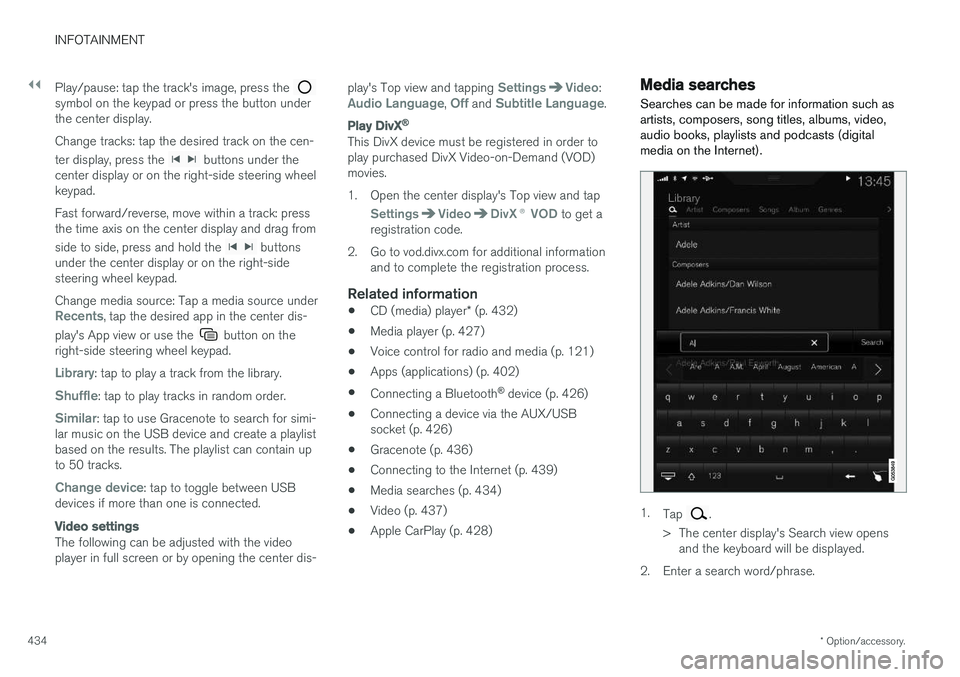
Media searches
Searches can be made for information such as artists, composers, song titles, albums, video,audio books, playlists and podcasts (digitalmedia on the Internet).
1. Tap .
> The center display's Search view opens and the keyboard will be displayed.
2. Enter a search word/phrase.
Page 442 of 560
||
INFOTAINMENT
4401. Activate tethering/personal hotspot in the
cell phone.
2. Tap
Settings in the center display's Top
view.
3. Tap
CommunicationWi-Fi.
4. Tap Wi-Fi to activate/deactivate.
5. Tap the name of the network to be used.
6. Enter the network password.
7. If a different connection was used previously, confirm the connection change.
> The vehicle will connect to the network.
Please be aware that certain cell phones disable tethering when the connection to the vehicle hasbeen broken, e.g., when the phone has beenremoved from the vehicle. In such cases, thephone's tethering function will have to be reacti-vated the next time the phone is used to connectto the Internet. When a phone is connected to the vehicle, it is saved for future use. When a max. number of 50have been saved, the first one connected will bedeleted. To show the list of saved networks or to manually delete a network, tap
SettingsWi-Fi
Saved networks.
See the article "Wi-Fi technology and security" for network connection requirements.
Connect using the vehicle's integrated modem
When the vehicle is connected using the modem, Volvo On Call services will use the connection.
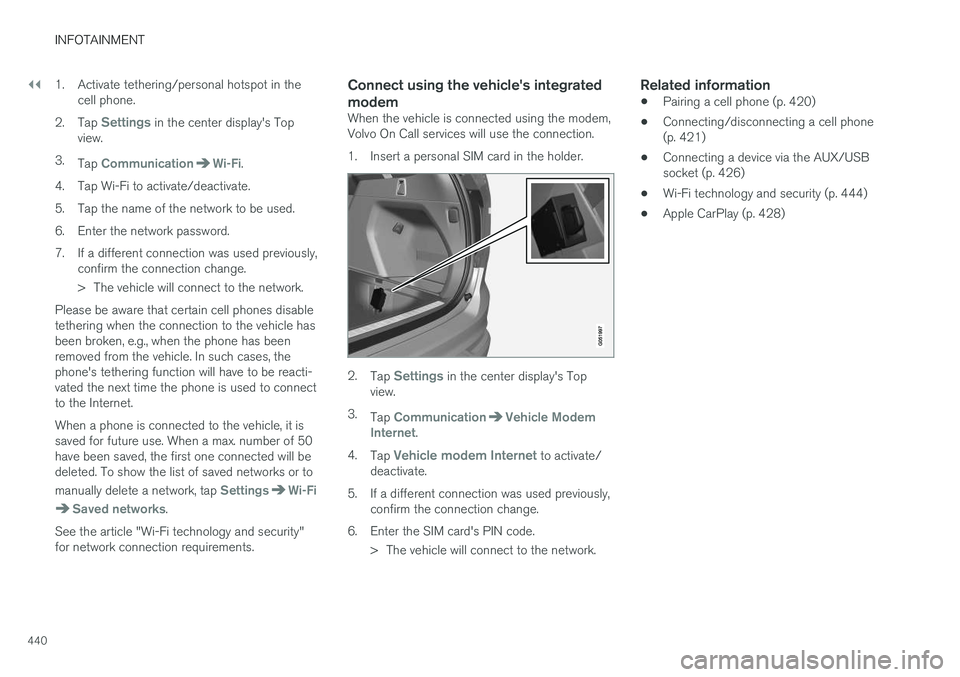
1. Insert a personal SIM card in the holder.
2. Tap Settings in the center display's Top
view.
3. Tap
CommunicationVehicle Modem
Internet.
4. Tap
Vehicle modem Internet to activate/
deactivate.
5. If a different connection was used previously, confirm the connection change.
6. Enter the SIM card's PIN code. > The vehicle will connect to the network.
Related information
• Pairing a cell phone (p. 420)
• Connecting/disconnecting a cell phone (p. 421)
• Connecting a device via the AUX/USBsocket (p. 426)
• Wi-Fi technology and security (p. 444)
• Apple CarPlay (p. 428)
Page 448 of 560
||
INFOTAINMENT
446Go to vod.divx.com for more information on how to complete your registration.
Patent number
Covered by one or more of the following U.S. pat- ents: 7,295,673; 7,460,668; 7,515,710;8,656,183; 8,731,369; RE45,052."
Gracenote
®
Gracenote, Gracenote logo and logotype, "Powered by Gracenote" and Gracenote MusicIDare either registered trademarks or trademarks ofGracenote, Inc in the United States and/or othercountries.
Gracenote
®
End User License Agreement
This application or device contains software from Gracenote, Inc. of Emeryville, California (“Grace-note”). The software from Gracenote (the “Grace-note Software”) enables this application to per-form disc and/or file identification and obtainmusic-related information, including name, artist,track, and title information (“Gracenote Data”)from online servers or embedded databases (col- lectively, “Gracenote Servers”) and to performother functions. You may use Gracenote Dataonly by means of the intended End-User func-tions of this application or device. You agree that you will use Gracenote Data, the Gracenote Software, and Gracenote Servers foryour own personal non-commercial use only. Youagree not to assign, copy, transfer or transmit theGracenote Software or any Gracenote Data toany third party. YOU AGREE NOT TO USE OREXPLOIT GRACENOTE DATA, THE GRACE-NOTE SOFTWARE, OR GRACENOTE SERVERS,EXCEPT AS EXPRESSLY PERMITTED HEREIN. You agree that your non-exclusive license to use the Gracenote Data, the Gracenote Software, andGracenote Servers will terminate if you violatethese restrictions. If your license terminates, youagree to cease any and all use of the GracenoteData, the Gracenote Software, and GracenoteServers. Gracenote reserves all rights in Grace-note Data, the Gracenote Software, and theGracenote Servers, including all ownership rights.Under no circumstances will Gracenote becomeliable for any payment to you for any informationthat you provide. You agree that Gracenote, Inc.may enforce its rights under this Agreementagainst you directly in its own name. The Gracenote service uses a unique identifier to track queries for statistical purposes. The pur-pose of a randomly assigned numeric identifier isto allow the Gracenote service to count queries
without knowing anything about who you are. Formore information, see the web page for theGracenote Privacy Policy for the Gracenote serv-ice. The Gracenote Software and each item of Grace- note Data are licensed to you “AS IS.” Gracenotemakes no representations or warranties, expressor implied, regarding the accuracy of any Grace-note Data from in the Gracenote Servers. Grace-note reserves the right to delete data from theGracenote Servers or to change data categoriesfor any cause that Gracenote deems sufficient.No warranty is made that the Gracenote Softwareor Gracenote Servers are error-free or that func-tioning of Gracenote Software or GracenoteServers will be uninterrupted. Gracenote is notobligated to provide you with new enhanced oradditional data types or categories that Grace-note may provide in the future and is free to dis-continue its services at any time. GRACENOTE DISCLAIMS ALL WARRANTIES EXPRESS OR IMPLIED, INCLUDING, BUT NOTLIMITED TO, IMPLIED WARRANTIES OF MER-CHANTABILITY, FITNESS FOR A PARTICULARPURPOSE, TITLE, AND NON-INFRINGEMENT.GRACENOTE DOES NOT WARRANT THERESULTS THAT WILL BE OBTAINED BY YOURUSE OF THE GRACENOTE SOFTWARE ORANY GRACENOTE SERVER. IN NO CASE WILLGRACENOTE BE LIABLE FOR ANY CONSE-QUENTIAL OR INCIDENTAL DAMAGES ORFOR ANY LOST PROFITS OR LOST REVENUES.