instrument panel VOLVO XC90 2017 Owner´s Manual
[x] Cancel search | Manufacturer: VOLVO, Model Year: 2017, Model line: XC90, Model: VOLVO XC90 2017Pages: 560, PDF Size: 9.97 MB
Page 155 of 560
INSTRUMENTS AND CONTROLS
153
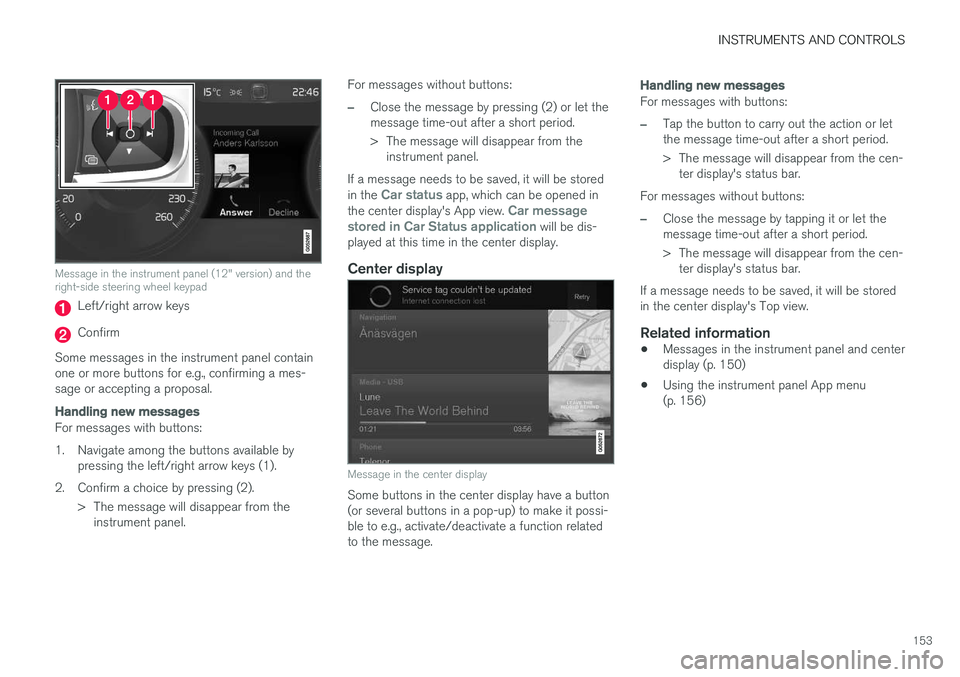
Message in the instrument panel (12" version) and the right-side steering wheel keypad
Left/right arrow keys
Confirm
Some messages in the instrument panel contain one or more buttons for e.g., confirming a mes-sage or accepting a proposal.
Handling new messages
For messages with buttons:
1. Navigate among the buttons available by pressing the left/right arrow keys (1).
2. Confirm a choice by pressing (2). > The message will disappear from theinstrument panel. For messages without buttons:
–Close the message by pressing (2) or let the message time-out after a short period.
> The message will disappear from the
instrument panel.
If a message needs to be saved, it will be stored in the
Car status app, which can be opened in
the center display's App view. Car message
stored in Car Status application will be dis-
played at this time in the center display.
Center display
Message in the center display
Some buttons in the center display have a button (or several buttons in a pop-up) to make it possi-ble to e.g., activate/deactivate a function relatedto the message.
Handling new messages
For messages with buttons:
–Tap the button to carry out the action or let the message time-out after a short period.
> The message will disappear from the cen- ter display's status bar.
For messages without buttons:
–Close the message by tapping it or let the message time-out after a short period.
> The message will disappear from the cen- ter display's status bar.
If a message needs to be saved, it will be stored in the center display's Top view.
Related information
• Messages in the instrument panel and centerdisplay (p. 150)
• Using the instrument panel App menu(p. 156)
Page 156 of 560
INSTRUMENTS AND CONTROLS
154
Handling messages stored from the instrument panel and center display
Messages saved from the instrumentpanel
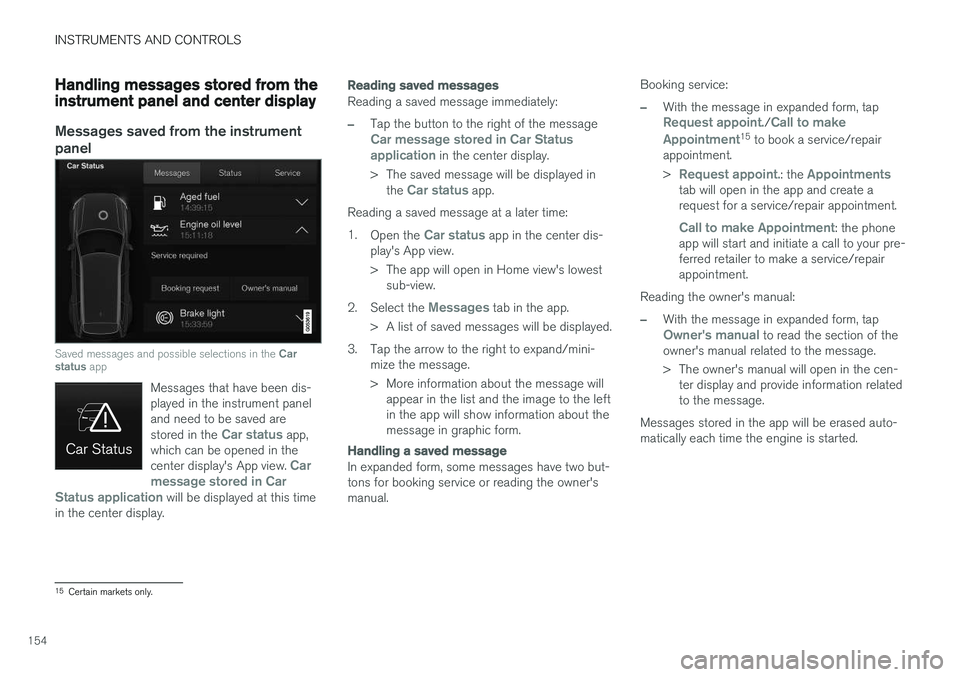
Saved messages and possible selections in the Car
status app
Messages that have been dis- played in the instrument paneland need to be saved are stored in the
Car status app,
which can be opened in the center display's App view.
Car
message stored in Car
Status application
will be displayed at this time
in the center display.
Reading saved messages
Reading a saved message immediately:
–Tap the button to the right of the messageCar message stored in Car Status application in the center display.
> The saved message will be displayed in the
Car status app.
Reading a saved message at a later time: 1. Open the
Car status app in the center dis-
play's App view.
> The app will open in Home view's lowest sub-view.
2. Select the
Messages tab in the app.
> A list of saved messages will be displayed.
3. Tap the arrow to the right to expand/mini- mize the message.
> More information about the message willappear in the list and the image to the left in the app will show information about themessage in graphic form.
Handling a saved message
In expanded form, some messages have two but- tons for booking service or reading the owner'smanual. Booking service:
–With the message in expanded form, tapRequest appoint./Call to make
Appointment15 to book a service/repair
appointment. >
Request appoint.: the Appointmentstab will open in the app and create a request for a service/repair appointment.
Call to make Appointment: the phone
app will start and initiate a call to your pre- ferred retailer to make a service/repairappointment.
Reading the owner's manual:
–With the message in expanded form, tapOwner's manual to read the section of the
owner's manual related to the message.
> The owner's manual will open in the cen- ter display and provide information related to the message.
Messages stored in the app will be erased auto-matically each time the engine is started.
15 Certain markets only.
Page 157 of 560
INSTRUMENTS AND CONTROLS
}}
155
Messages saved from the center display
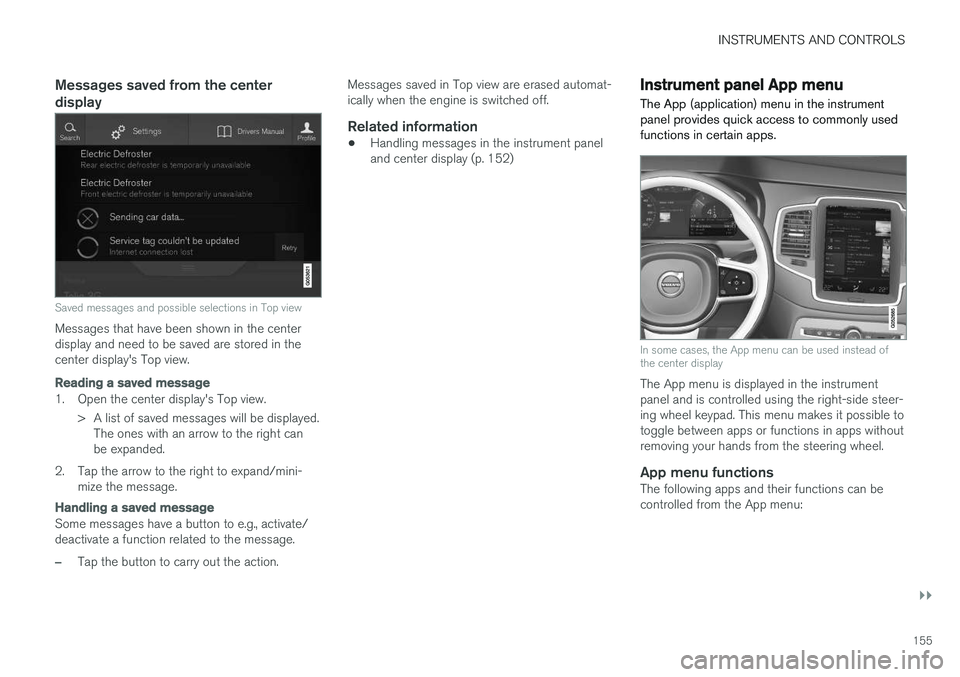
Saved messages and possible selections in Top view
Messages that have been shown in the center display and need to be saved are stored in thecenter display's Top view.
Reading a saved message
1. Open the center display's Top view.> A list of saved messages will be displayed.The ones with an arrow to the right can be expanded.
2. Tap the arrow to the right to expand/mini- mize the message.
Handling a saved message
Some messages have a button to e.g., activate/ deactivate a function related to the message.
–Tap the button to carry out the action. Messages saved in Top view are erased automat- ically when the engine is switched off.
Related information
•
Handling messages in the instrument paneland center display (p. 152)
Instrument panel App menu The App (application) menu in the instrument panel provides quick access to commonly usedfunctions in certain apps.
In some cases, the App menu can be used instead of the center display
The App menu is displayed in the instrument panel and is controlled using the right-side steer-ing wheel keypad. This menu makes it possible totoggle between apps or functions in apps withoutremoving your hands from the steering wheel.
App menu functionsThe following apps and their functions can becontrolled from the App menu:
Page 158 of 560
||
INSTRUMENTS AND CONTROLS
156
AppFunctions
Trip com- puter Select a trip odometer, makeinstrument panel display set-tings, etc.
Mediaplayer Select the active source for themedia player.
Phone Call a contact from the call list.
Navigation Pause guidance, start guidance to a recently set destination, etc.
Related information
•Instrument panel (p. 124)
• Center display overview (p. 28)
• Using the instrument panel App menu (p. 156)
Using the instrument panel App menu
The App (application) menu in the instrument panel is controlled using the right-side steeringwheel keypad.
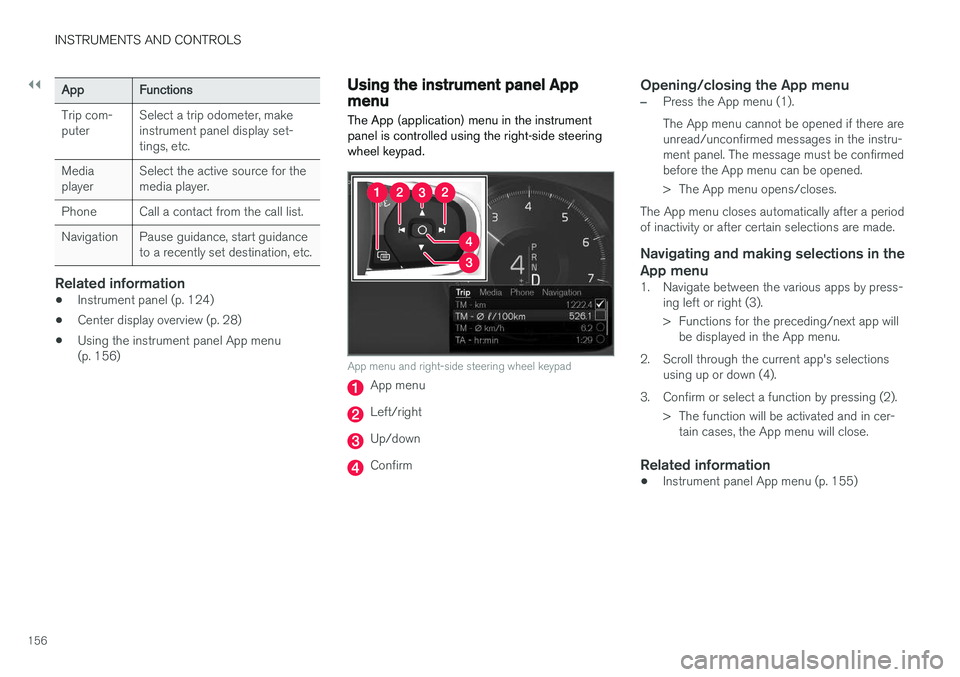
App menu and right-side steering wheel keypad
App menu
Left/right
Up/down
Confirm
Opening/closing the App menu
–Press the App menu (1). The App menu cannot be opened if there are unread/unconfirmed messages in the instru-ment panel. The message must be confirmedbefore the App menu can be opened.
> The App menu opens/closes.
The App menu closes automatically after a period of inactivity or after certain selections are made.
Navigating and making selections in the App menu
1. Navigate between the various apps by press- ing left or right (3).
> Functions for the preceding/next app willbe displayed in the App menu.
2. Scroll through the current app's selections using up or down (4).
3. Confirm or select a function by pressing (2). > The function will be activated and in cer-tain cases, the App menu will close.
Related information
• Instrument panel App menu (p. 155)
Page 159 of 560
INSTRUMENTS AND CONTROLS
}}
* Option/accessory.157
Using the windshield wipers
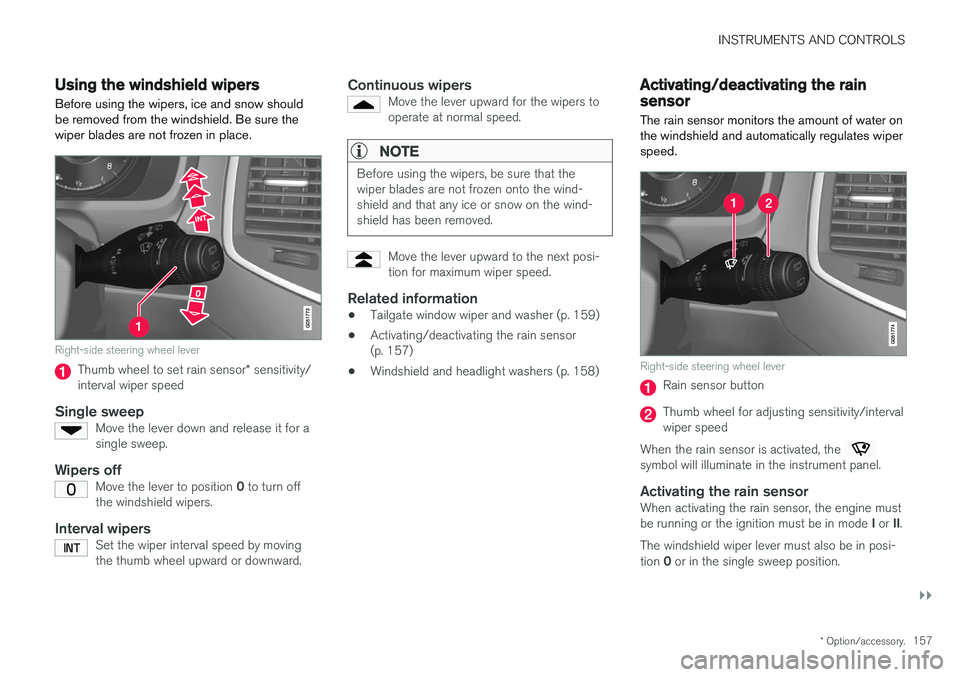
Before using the wipers, ice and snow should be removed from the windshield. Be sure thewiper blades are not frozen in place.
Right-side steering wheel lever
Thumb wheel to set rain sensor * sensitivity/
interval wiper speed
Single sweepMove the lever down and release it for a single sweep.
Wipers offMove the lever to position 0 to turn off
the windshield wipers.
Interval wipersSet the wiper interval speed by moving the thumb wheel upward or downward.
Continuous wipersMove the lever upward for the wipers to operate at normal speed.
NOTE
Before using the wipers, be sure that the wiper blades are not frozen onto the wind-shield and that any ice or snow on the wind-shield has been removed.
Move the lever upward to the next posi- tion for maximum wiper speed.
Related information
• Tailgate window wiper and washer (p. 159)
• Activating/deactivating the rain sensor (p. 157)
• Windshield and headlight washers (p. 158)
Activating/deactivating the rain sensor
The rain sensor monitors the amount of water on the windshield and automatically regulates wiperspeed.
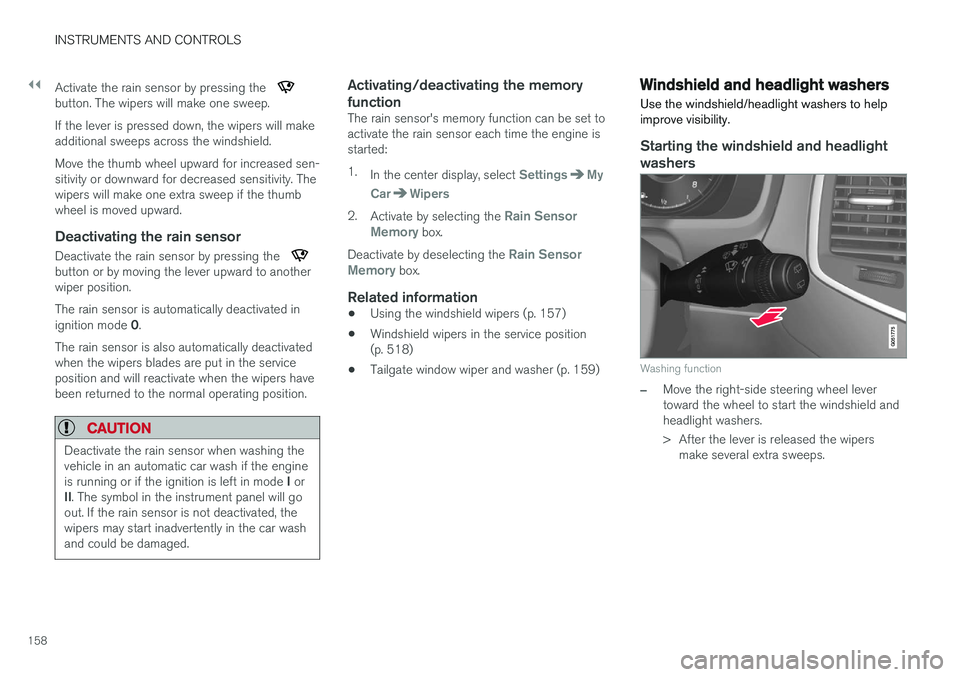
Right-side steering wheel lever
Rain sensor button
Thumb wheel for adjusting sensitivity/interval wiper speed
When the rain sensor is activated, the
symbol will illuminate in the instrument panel.
Activating the rain sensorWhen activating the rain sensor, the engine must be running or the ignition must be in mode I or II.
The windshield wiper lever must also be in posi-tion 0 or in the single sweep position.
Page 160 of 560
||
INSTRUMENTS AND CONTROLS
158Activate the rain sensor by pressing the
button. The wipers will make one sweep. If the lever is pressed down, the wipers will make additional sweeps across the windshield. Move the thumb wheel upward for increased sen- sitivity or downward for decreased sensitivity. Thewipers will make one extra sweep if the thumbwheel is moved upward.
Deactivating the rain sensor
Deactivate the rain sensor by pressing the button or by moving the lever upward to another wiper position. The rain sensor is automatically deactivated in ignition mode
0.
The rain sensor is also automatically deactivated when the wipers blades are put in the serviceposition and will reactivate when the wipers havebeen returned to the normal operating position.
CAUTION
Deactivate the rain sensor when washing the vehicle in an automatic car wash if the engine is running or if the ignition is left in mode I or
II . The symbol in the instrument panel will go
out. If the rain sensor is not deactivated, the wipers may start inadvertently in the car washand could be damaged.
Activating/deactivating the memory function
The rain sensor's memory function can be set to activate the rain sensor each time the engine isstarted: 1. In the center display, select
SettingsMy
Car
Wipers
2. Activate by selecting the Rain Sensor
Memory box.
Deactivate by deselecting the
Rain Sensor
Memory box.
Related information
• Using the windshield wipers (p. 157)
• Windshield wipers in the service position (p. 518)
• Tailgate window wiper and washer (p. 159)
Windshield and headlight washers
Use the windshield/headlight washers to help improve visibility.
Starting the windshield and headlight washers
Washing function
–Move the right-side steering wheel lever toward the wheel to start the windshield andheadlight washers.
> After the lever is released the wipers make several extra sweeps.
Page 161 of 560
INSTRUMENTS AND CONTROLS
}}
* Option/accessory.159
CAUTION
•Use ample washer fluid when washing the windshield. The windshield should bethoroughly wet when the wipers are inoperation.
• Avoid using the washers if the fluid reser-voir is frozen or empty to help avoid dam-age to the pump.
When the washing system is used, the length of time that the windshield washers operatedepends on the ambient temperature. In coldweather, the amount of washer fluid used willalso be increased automatically to help improvecleaning.
Heated washer nozzles
*The washer nozzles are heated automatically incold weather to help prevent the washer fluidfrom freezing.
High-pressure headlight washing *High-pressure headlight washing consumes alarge quantity of washer fluid. To save fluid, theheadlights are washed once for every five timesthe windshield is washed.
Reduced washingWhen approx. 1 US quart (1 liter) of washer fluidremains in the reservoir, the headlights will nolonger be washed to conserve fluid. A text message and the
symbol will be dis-
played in the instrument panel to remind the driver to fill the washer fluid reservoir.
Related information
• Refilling the windshield washer fluid reservoir(p. 521)
• Using the windshield wipers (p. 157)
• Tailgate window wiper and washer (p. 159)
Tailgate window wiper and washer
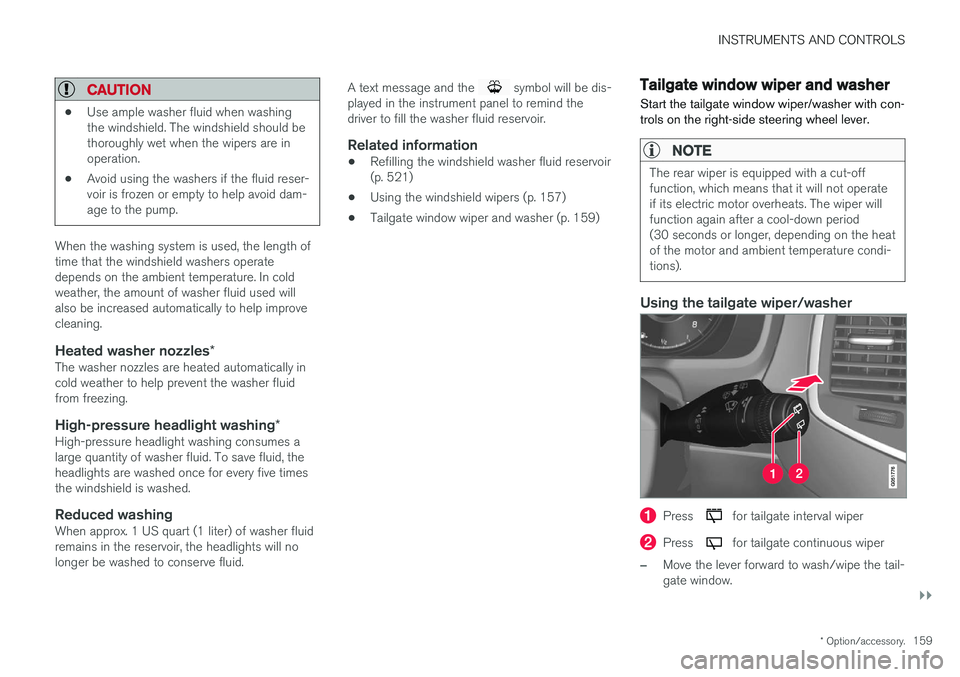
Start the tailgate window wiper/washer with con- trols on the right-side steering wheel lever.
NOTE
The rear wiper is equipped with a cut-off function, which means that it will not operateif its electric motor overheats. The wiper willfunction again after a cool-down period(30 seconds or longer, depending on the heatof the motor and ambient temperature condi-tions).
Using the tailgate wiper/washer
Press for tailgate interval wiper
Press for tailgate continuous wiper
–Move the lever forward to wash/wipe the tail- gate window.
Page 163 of 560
INSTRUMENTS AND CONTROLS
* Option/accessory.161
•
Using the instrument panel App menu (p. 156)
• Phone (p. 419)
Adjusting the steering wheel
The steering wheel can be adjusted to various positions.
WARNING
Never adjust the steering wheel while driving.
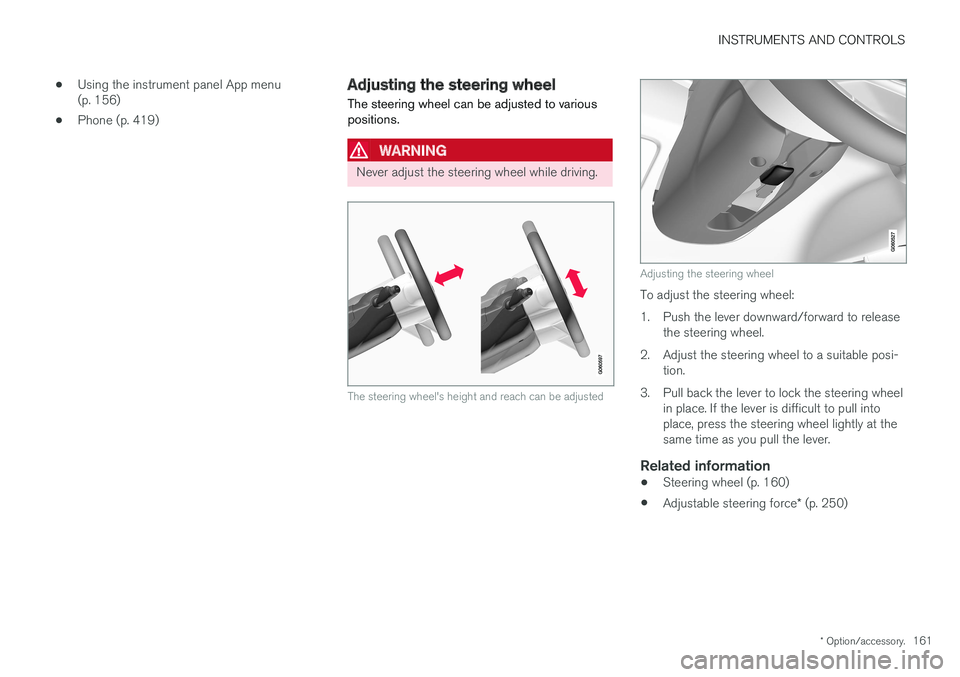
The steering wheel's height and reach can be adjusted
Adjusting the steering wheel
To adjust the steering wheel:
1. Push the lever downward/forward to release the steering wheel.
2. Adjust the steering wheel to a suitable posi- tion.
3. Pull back the lever to lock the steering wheel in place. If the lever is difficult to pull into place, press the steering wheel lightly at thesame time as you pull the lever.
Related information
• Steering wheel (p. 160)
• Adjustable steering force
* (p. 250)
Page 167 of 560
INSTRUMENTS AND CONTROLS
* Option/accessory.165
Using the power seat memory function*
The memory function can be used to store the settings (positions) of the power front seats *,
door mirrors and the head-up display *.
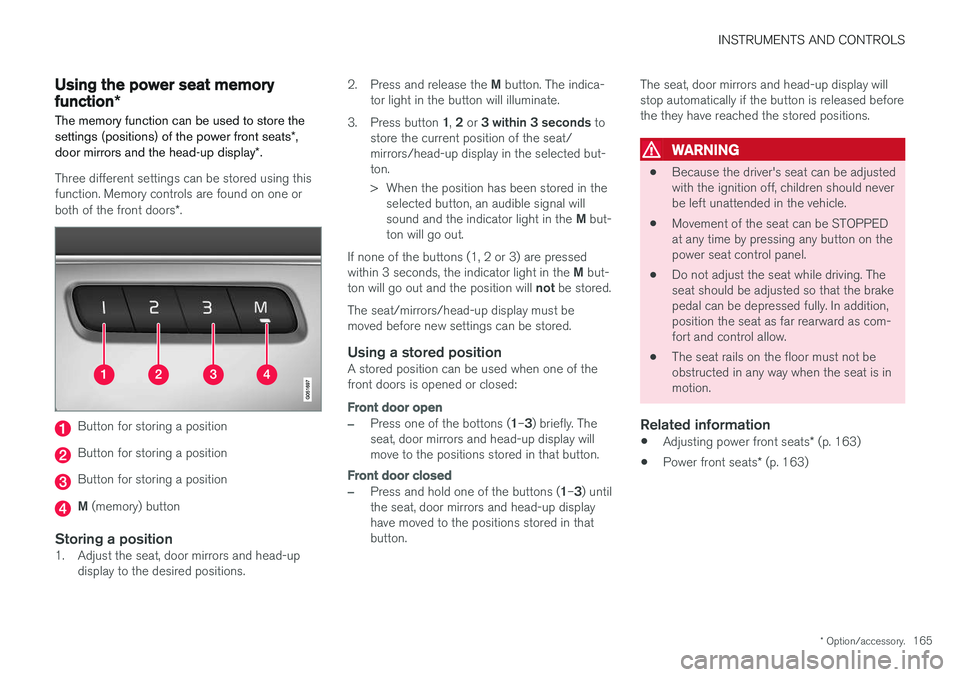
Three different settings can be stored using this function. Memory controls are found on one or both of the front doors *.
Button for storing a position
Button for storing a position
Button for storing a position
M (memory) button
Storing a position1. Adjust the seat, door mirrors and head-up
display to the desired positions. 2.
Press and release the M button. The indica-
tor light in the button will illuminate.
3. Press button 1, 2 or 3 within 3 seconds to
store the current position of the seat/ mirrors/head-up display in the selected but-ton.
> When the position has been stored in the selected button, an audible signal will sound and the indicator light in the M but-
ton will go out.
If none of the buttons (1, 2 or 3) are pressedwithin 3 seconds, the indicator light in the M but-
ton will go out and the position will not be stored.
The seat/mirrors/head-up display must be moved before new settings can be stored.
Using a stored positionA stored position can be used when one of thefront doors is opened or closed:
Front door open
–Press one of the bottons ( 1–3 ) briefly. The
seat, door mirrors and head-up display will move to the positions stored in that button.
Front door closed
–Press and hold one of the buttons ( 1–3 ) until
the seat, door mirrors and head-up display have moved to the positions stored in thatbutton. The seat, door mirrors and head-up display willstop automatically if the button is released beforethe they have reached the stored positions.
WARNING
•
Because the driver's seat can be adjusted with the ignition off, children should neverbe left unattended in the vehicle.
• Movement of the seat can be STOPPEDat any time by pressing any button on thepower seat control panel.
• Do not adjust the seat while driving. Theseat should be adjusted so that the brakepedal can be depressed fully. In addition,position the seat as far rearward as com-fort and control allow.
• The seat rails on the floor must not beobstructed in any way when the seat is inmotion.
Related information
•
Adjusting power front seats
* (p. 163)
• Power front seats
* (p. 163)
Page 226 of 560
LOCKS AND ALARM
* Option/accessory.
224
Locks and remote keys
The vehicle can be locked and unlocked in vari- ous ways and there are several types of remotekeys that can be used.
Locking/unlocking/opening/closingThe vehicle can be locked/unlocked from the passenger compartment, using the buttons onthe remote key or by using the optional PassiveEntry system where it is only necessary to have akey in your possession to lock or unlock thedoors. On models equipped with a power tailgate *, it can
also be opened/closed by moving your foot under a sensor * beneath the rear bumper.
If for any reason a remote key does not function properly, it may be necessary to replace its bat-teries but the vehicle can always be locked orunlocked manually using the remote key'sdetachable key blade.
Remote keyThe remote key does not have to be physicallyhandled in order to start the engine because thevehicle is equipped with the standard PassiveStart system (the key only needs to be in thefront part of the passenger compartment). If thevehicle is equipped with the optional PassiveEntry system that enables keyless entry and start,the key can be anywhere in the vehicle when theengine is started. Models with Passive Entry
* also have an extra,
smaller key without buttons called a Key Tag. Additional keys can be ordered from a Volvo retailer.
Related information
• Immobilizer (p. 224)
• Alarm (p. 245)
• Child safety locks (p. 246)
• Remote key (p. 227)
• Foot movement tailgate operation
* (p. 232)
• Locking/unlocking from inside the vehicle(p. 235)
• Locking/unlocking from outside the vehicle(p. 233)
• Locking/unlocking the tailgate (p. 238)
• Starting the engine (p. 382)
Immobilizer
The immobilizer is a start inhibitor that helps pre- vent unauthorized persons from starting theengine.
Each of the keys supplied with your vehicle con- tains a unique coded transponder. The vehiclecode in the key is transmitted to the vehicle'signition system where it is compared to the codestored in the start inhibitor module. The following message (which may appear in the instrument panel) is related to the immobilizer:
Symbol Message Explanation
Vehicle key not found See Owner'smanualRemote key not recognized duringstart. Place theremote key on thekey symbol in thetunnel console cupholder and try tostart the vehicleagain.
Related information
•Remote key's range (p. 229)
• Remote key (p. 227)