window VOLVO XC90 2017 Owner´s Manual
[x] Cancel search | Manufacturer: VOLVO, Model Year: 2017, Model line: XC90, Model: VOLVO XC90 2017Pages: 560, PDF Size: 9.97 MB
Page 383 of 560
STARTING AND DRIVING
* Option/accessory.381
ModeFunctions available
0 •The odometer, clock and tem- perature gauge are illuminated
• Power seats
* can be adjusted
• The power windows can be oper-ated
• The 12-volt socket in the cargocompartment can be used
• The center display is activatedand can be used
• The infotainment system can beused for a limited time
In this mode, certain functions canonly be used for a limited time to helpminimize battery drain
I •The laminated panoramic roof
*,
power seats */windows,12-volt
sockets in the passenger com-partment, Bluetooth, navigation system *, climate system blower,
windshield wipers can be oper- ated
• The infotainment system will start(if it was started when the ignitionwas switched off)Mode
Functions available
II •The headlights illuminate
• Warning/indicator lights illumi- nate for 5 seconds
• A number of other functions willalso be activated. However, the heated seats
* and heated rear
window functions can only be activated when the engine is run-ning.
This mode should only be used forvery short periods to help avoiddraining the battery.
Selecting an ignition mode
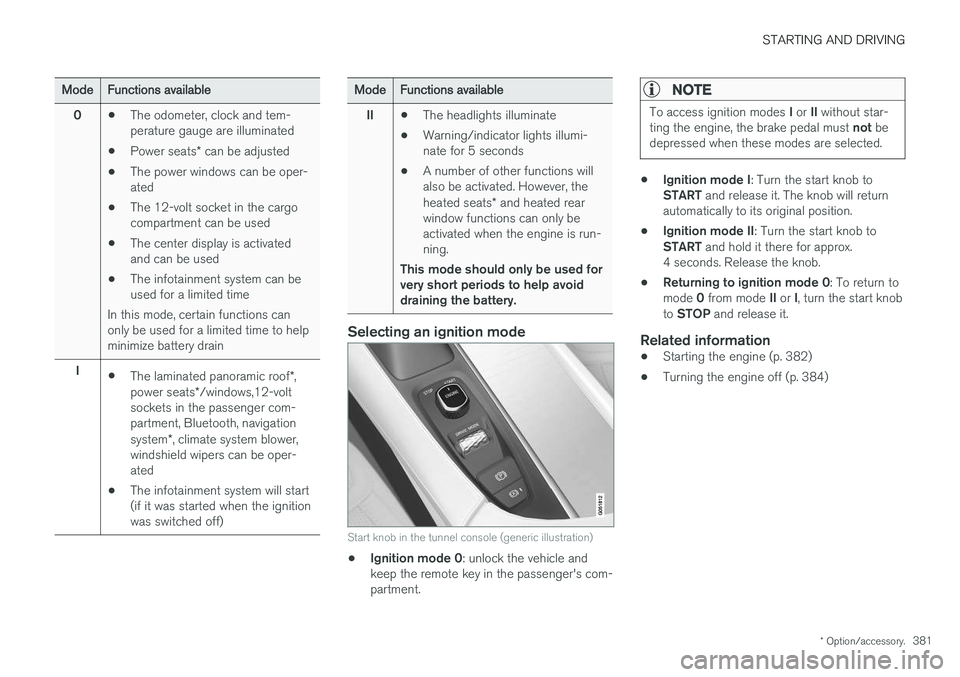
Start knob in the tunnel console (generic illustration)
• Ignition mode 0
: unlock the vehicle and
keep the remote key in the passenger's com- partment.
NOTE
To access ignition modes I or II without star-
ting the engine, the brake pedal must not be
depressed when these modes are selected.
• Ignition mode I
: Turn the start knob to
START and release it. The knob will return
automatically to its original position.
• Ignition mode II
: Turn the start knob to
START and hold it there for approx.
4 seconds. Release the knob.
• Returning to ignition mode 0
: To return to
mode 0 from mode II or I, turn the start knob
to STOP and release it.
Related information
•Starting the engine (p. 382)
• Turning the engine off (p. 384)
Page 413 of 560
INFOTAINMENT
}}
* Option/accessory.411
Using SiriusXM ®
Satellite radio *
SiriusXM ®
Satellite radio offers several features
for finding and listening to music, news, sporting events, etc. being broadcast on satellite radiostations.
SiriusXM ®
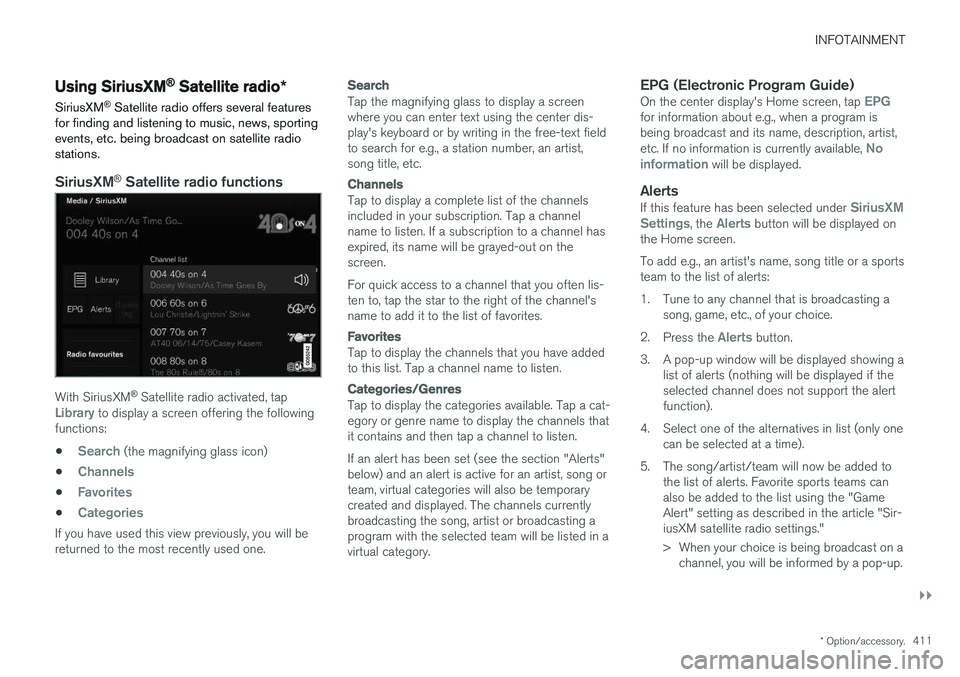
Satellite radio functions
With SiriusXM ®
Satellite radio activated, tapLibrary to display a screen offering the following
functions: •
Search (the magnifying glass icon)
•
Channels
•Favorites
•Categories
If you have used this view previously, you will be returned to the most recently used one.
Search
Tap the magnifying glass to display a screen where you can enter text using the center dis-play's keyboard or by writing in the free-text fieldto search for e.g., a station number, an artist,song title, etc.
Channels
Tap to display a complete list of the channels included in your subscription. Tap a channelname to listen. If a subscription to a channel hasexpired, its name will be grayed-out on thescreen. For quick access to a channel that you often lis- ten to, tap the star to the right of the channel'sname to add it to the list of favorites.
Favorites
Tap to display the channels that you have added to this list. Tap a channel name to listen.
Categories/Genres
Tap to display the categories available. Tap a cat- egory or genre name to display the channels thatit contains and then tap a channel to listen. If an alert has been set (see the section "Alerts" below) and an alert is active for an artist, song orteam, virtual categories will also be temporarycreated and displayed. The channels currentlybroadcasting the song, artist or broadcasting aprogram with the selected team will be listed in avirtual category.
EPG (Electronic Program Guide)On the center display's Home screen, tap EPGfor information about e.g., when a program is being broadcast and its name, description, artist, etc. If no information is currently available,
No
information will be displayed.
AlertsIf this feature has been selected under SiriusXM
Settings, the Alerts button will be displayed on
the Home screen. To add e.g., an artist's name, song title or a sports team to the list of alerts:
1. Tune to any channel that is broadcasting a song, game, etc., of your choice.
2. Press the
Alerts button.
3. A pop-up window will be displayed showing a list of alerts (nothing will be displayed if the selected channel does not support the alertfunction).
4. Select one of the alternatives in list (only one can be selected at a time).
5. The song/artist/team will now be added to the list of alerts. Favorite sports teams canalso be added to the list using the "GameAlert" setting as described in the article "Sir-iusXM satellite radio settings."
> When your choice is being broadcast on achannel, you will be informed by a pop-up.
Page 422 of 560
INFOTAINMENT
420
Pairing a cell phone
A Bluetooth ®
-enabled cell phone or other device
can be paired and wirelessly connected to the infotainment system.
When a cell phone or other device is connected, audio can be streamed to the infotainment sys-tem. Toggle between the devices by pressing the TEL and MEDIA buttons to access the respective
sources' functions. Before a Bluetooth device can be used with the infotainment system, it has to be paired("registered"). This procedure only needs to be done once for each device (a maximum of 20 Bluetooth devicescan be paired to the system). Once a device hasbeen paired and its Bluetooth function is acti-vated, it can then be selected for use (wirelesslyconnected) to the vehicle's infotainment system. Two Bluetooth devices can be connected at the same time. However, if two cell phones are con-nected, only the most recently connected onecan be used as a phone. The other one can beused to e.g., to stream audio or video. To changewhat the phone will be used for, see the article"Bluetooth settings." A paired and connected cell phone can also be used to connect the vehicle to the Internet. To doso, its tethering/personal hotspot function mustbe activated. There are two ways of pairing a Bluetooth deviceto the infotainment system:
• Searching for the phone (or other device)from the vehicle
• Searching for the vehicle from the phone (orother device)
The following instructions assume that a cellphone is to be paired to the infotainment systembut the procedure is the same for any Bluetoothdevice.
Alternative 1: searching for the phone
from the vehicle
1. Make the phone discoverable/visible using its Bluetooth function. Refer to the phone'suser guide if necessary.
2. Open the Phone view on the center display. >
•If no phones have been paired to the vehicle, tap
Add phone.
• If a list of phones is displayed, tap
Change and tap Add phone in
the pop-up window.
3. Tap the name of the phone to be connected.
4. Check that the code displayed in the vehicle is the same as the one in the phone. Confirm in both places. 5. For the phone selected, accept or cancel the
alternatives for the phone book (list of con-tacts), text messages, etc. Full functionalitymay not be available in all cell phones.
6. To connect the vehicle to the Internet via the phone's Bluetooth function, activate thephone's function for tethering/personal hot-spot, etc.
Alternative 2: searching for the vehicle from the phone
1. Open the center display's Phone view.
•If no phones have been paired to the vehi- cle, tap
Add phoneMake vehicle
discoverable.
• If a phone has previously been paired to the vehicle, tap
Change and tap Add
phone
Make vehicle discoverable in
the pop-up window.
2. Activate the phone's Bluetooth function.
3. Search in the phone for Bluetooth devices. > A list of Bluetooth devices will be dis-played.
4. Select the vehicle's name in the list.
5. Check that the code displayed in the phone is the same as the one in the vehicle. Con- firm in both places.
Page 431 of 560
INFOTAINMENT
}}
429
From a previously connected iPhone
1. Connect the iPhone to the USB socket in
the tunnel console. If there are two USB sockets, connect to the one with the whiteframe. >If the automatic start setting has been
activated, the Apple CarPlay sub-view will open and compatible apps will be dis-played.
2. If the automatic start setting has not been
activated, open the
Apple CarPlay app from
the center display's App view.
> The Apple CarPlay sub-view will open and compatible apps will be displayed.
3. Tap the desired app. > The app will start.
Apple CarPlay will run in the background if another app is started in the same sub-view. Toreturn to Apple CarPlay, tap the Apple CarPlayicon in App view.
Toggling between Apple CarPlay and iPod
Apple CarPlay to iPod
1.
Tap Settings in the center display's Top
view.
2. Tap
CommunicationApple CarPlay. 3. Deselect the Apple device's box that will no
longer start Apple CarPlay when it is con- nected.
4. Disconnect and reconnect the Apple device to the USB socket.
5. Open the
iPod app from App view.
iPod to Apple CarPlay
1.
Tap Apple CarPlay in the center display's
App view.
2. Read the conditions in the pop-up window that appears and tap
OK.
3. Disconnect and reconnect the Apple device to the USB socket.
> The Apple CarPlay sub-view will open.
Related information
• Media player (p. 427)
• Playing media (p. 432)
• Connecting a device via the AUX/USB socket (p. 426)
• Apple CarPlay settings (p. 429)
Apple CarPlay settings This article explains settings for a cell phone connected through Apple CarPlay.
Automatic start1.
Tap Settings in the center display's Top
view.
2. Tap
CommunicationApple CarPlay and
select the following settings:
• Select the Apple CarPlay box for auto- matic start when the device's USB cableis connected.
• Deselect the Apple CarPlay box to
disa-
ble automatic start when the device's
USB cable is connected.
A maximum of 20 Apple devices can be stored inthe list. When the list is full, the first (oldest)device stored will be deleted. To erase the entire list, a factory reset has to be performed. See the article "Resetting the set-tings view."
System volume levels1. Tap Settings in the center display's Top
view.
Page 488 of 560
||
MAINTENANCE AND SERVICING
486
Viewing workshop information
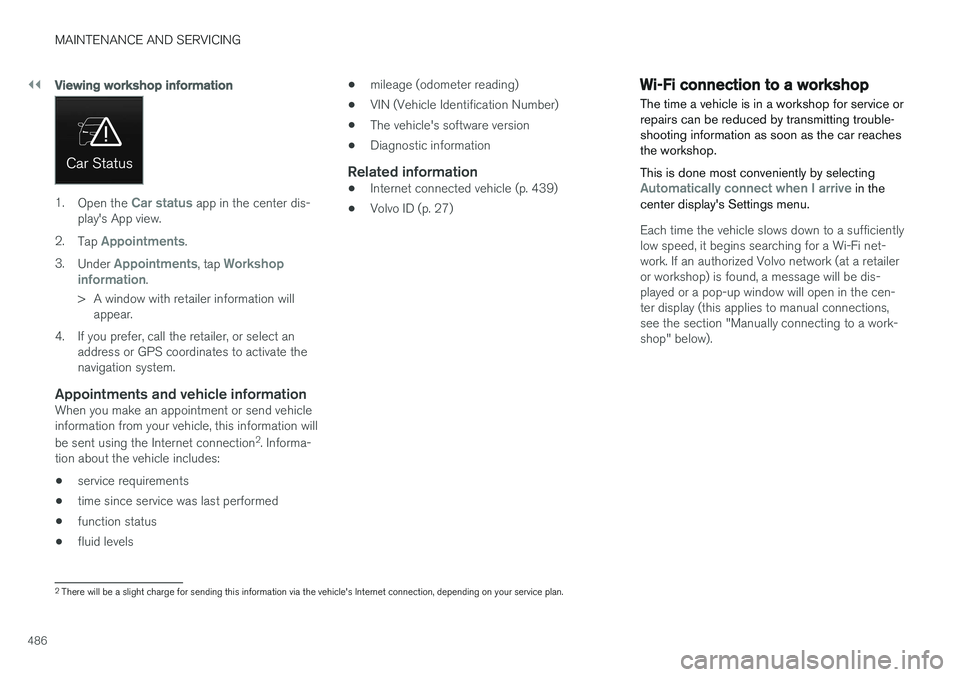
1.Open the Car status app in the center dis-
play's App view.
2. Tap
Appointments.
3. Under
Appointments, tap Workshop
information.
> A window with retailer information will appear.
4. If you prefer, call the retailer, or select an address or GPS coordinates to activate the navigation system.
Appointments and vehicle informationWhen you make an appointment or send vehicleinformation from your vehicle, this information will be sent using the Internet connection 2
. Informa-
tion about the vehicle includes:
• service requirements
• time since service was last performed
• function status
• fluid levels •
mileage (odometer reading)
• VIN (Vehicle Identification Number)
• The vehicle's software version
• Diagnostic information
Related information
•Internet connected vehicle (p. 439)
• Volvo ID (p. 27)
Wi-Fi connection to a workshop The time a vehicle is in a workshop for service or repairs can be reduced by transmitting trouble-shooting information as soon as the car reachesthe workshop. This is done most conveniently by selecting
Automatically connect when I arrive in the
center display's Settings menu.
Each time the vehicle slows down to a sufficiently low speed, it begins searching for a Wi-Fi net-work. If an authorized Volvo network (at a retaileror workshop) is found, a message will be dis-played or a pop-up window will open in the cen-ter display (this applies to manual connections,see the section "Manually connecting to a work-shop" below).
2 There will be a slight charge for sending this information via the vehicle's Internet connection, depending on your service plan.
Page 489 of 560
MAINTENANCE AND SERVICING
487
Automatically connecting to a workshop
Without driver confirmation
This is the most convenient way to transmit trou- ble-shooting data. The driver does not need toconfirm that the vehicle will establish a connec-tion. If the vehicle stops at a workshop and the engine is switched off using the start knob, a messagewill appear above the status bar in the center dis-play. The vehicle will be automatically connectedwhen the driver's door is opened if the driver does not tap the
Cancel button in the message.
To help prevent the driver from being disturbed by unwanted requests to connect (e.g., if thevehicle is often parked near a workshop with anauthorized Volvo network), the vehicle will switchto manual connection if the driver cancels a con-nection request twice within 5 days.
With driver confirmation
With this alternative, the driver must confirm a connection. If the vehicle stops at a workshop and the engine is switched off using the start knob, a pop-upwindow will open in the center display. The vehi-cle will be automatically connected when the driv- er's door is opened if the driver taps
Connect in
the pop-up window. If the driver does nothing or taps the pop-up window's
Abort button, no
attempt will be made to establish a connection.
NOTE
To help prevent the driver from being distur- bed by unwanted requests to connect (e.g., ifthe vehicle is often parked near a workshopwith an authorized Volvo network), the vehiclewill switch to manual connection if the drivercancels a connection request twice within5 days.
Manually connecting to a workshopManual connections are handled by the service technician.
Changing the way a connection is madeThe type of connection (manual or automatic)can be changed in the center display's Settingsmenu.
1. Pull down the center display's Top view and
tap
Settings.
2. Tap
CommunicationVolvo Service
Networks.
3. Select
Automatically connect when I
arrive, Ask before connecting or Never
connect and never ask (manual connec-
tions).
Related information
• Internet connected vehicle (p. 439)
• Settings view (p. 109)
Climate system service
Service and repairs on the air conditioning sys- tem should only be done by a trained and quali-fied Volvo service technician.
Troubleshooting and repairsThe air conditioning system contains a floures- cent tracer substance. Ultraviolet light is used tosearch for leaks in the system.
Refrigerant R134a
WARNING
The air conditioning system contains the refrigerant R134a under pressure. Serviceand repairs on the system should only bedone by a trained and qualified Volvo servicetechnician.
Related information
• Climate control system (p. 182)
Page 498 of 560
||
MAINTENANCE AND SERVICING
* Option/accessory.
496 •
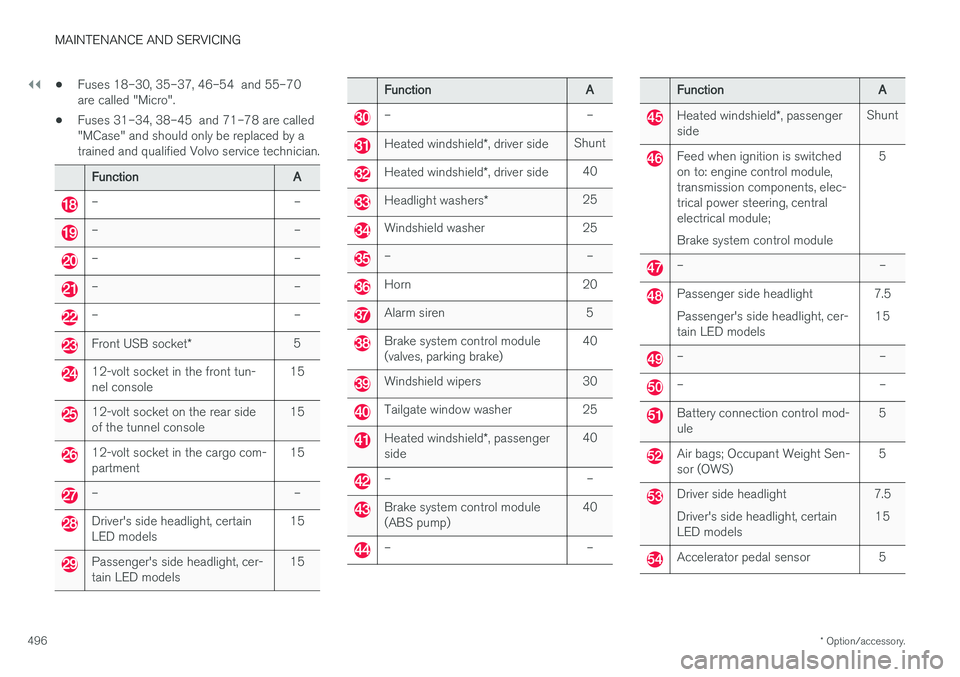
Fuses 18–30, 35–37, 46–54 and 55–70 are called "Micro".
• Fuses 31–34, 38–45 and 71–78 are called"MCase" and should only be replaced by atrained and qualified Volvo service technician.
Function
A
– –
– –
– –
– –
– –
Front USB socket* 5
12-volt socket in the front tun- nel console 15
12-volt socket on the rear side of the tunnel console15
12-volt socket in the cargo com- partment15
– –
Driver's side headlight, certain LED models15
Passenger's side headlight, cer- tain LED models15
Function
A
– –
Heated windshield*, driver side Shunt
Heated windshield
*, driver side 40
Headlight washers
*25
Windshield washer 25
– –
Horn 20
Alarm siren 5
Brake system control module (valves, parking brake) 40
Windshield wipers 30
Tailgate window washer 25
Heated windshield
*, passenger
side 40
– –
Brake system control module (ABS pump)
40
– –
Function
A
Heated windshield*, passenger
side Shunt
Feed when ignition is switched on to: engine control module,transmission components, elec-trical power steering, centralelectrical module; Brake system control module 5
– –
Passenger side headlight Passenger's side headlight, cer- tain LED models
7.5
15
– –
– –
Battery connection control mod- ule 5
Air bags; Occupant Weight Sen- sor (OWS)5
Driver side headlight Driver's side headlight, certain LED models7.5
15
Accelerator pedal sensor 5
Page 503 of 560
MAINTENANCE AND SERVICING
* Option/accessory.501
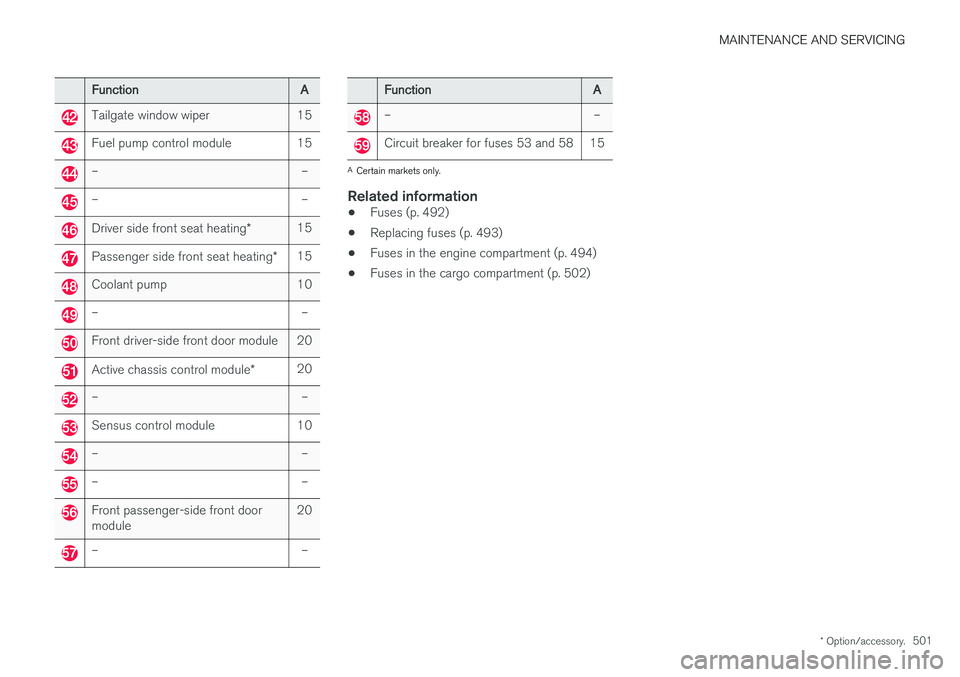
Function A
Tailgate window wiper 15
Fuel pump control module 15
– –
– –
Driver side front seat heating*15
Passenger side front seat heating
*15
Coolant pump 10
– –
Front driver-side front door module 20
Active chassis control module
*20
– –
Sensus control module 10
– –
– –
Front passenger-side front door module 20
– –
Function
A
– –
Circuit breaker for fuses 53 and 58 15
A
Certain markets only.
Related information
• Fuses (p. 492)
• Replacing fuses (p. 493)
• Fuses in the engine compartment (p. 494)
• Fuses in the cargo compartment (p. 502)
Page 506 of 560
||
MAINTENANCE AND SERVICING
* Option/accessory.
504
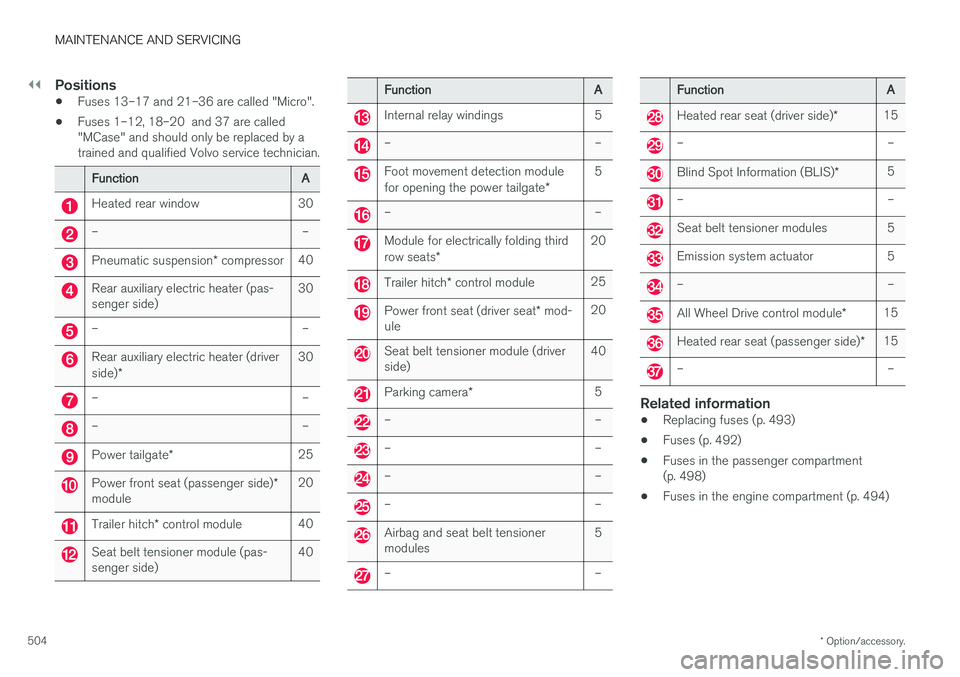
Positions
• Fuses 13–17 and 21–36 are called "Micro".
• Fuses 1–12, 18–20 and 37 are called "MCase" and should only be replaced by atrained and qualified Volvo service technician.
Function
A
Heated rear window 30
– –
Pneumatic suspension* compressor 40
Rear auxiliary electric heater (pas- senger side) 30
– –
Rear auxiliary electric heater (driver side)
* 30
– –
– –
Power tailgate
* 25
Power front seat (passenger side)
*
module 20
Trailer hitch
* control module 40
Seat belt tensioner module (pas- senger side) 40
Function
A
Internal relay windings 5
– –
Foot movement detection module for opening the power tailgate*5
– –
Module for electrically folding third row seats
* 20
Trailer hitch
* control module 25
Power front seat (driver seat
* mod-
ule 20
Seat belt tensioner module (driver side)
40
Parking camera
* 5
– –
– –
– –
– –
Airbag and seat belt tensioner modules 5
– –
Function
A
Heated rear seat (driver side)*15
– –
Blind Spot Information (BLIS)
*5
– –
Seat belt tensioner modules 5
Emission system actuator 5
– –
All Wheel Drive control module
*15
Heated rear seat (passenger side)
*15
– –
Related information
•Replacing fuses (p. 493)
• Fuses (p. 492)
• Fuses in the passenger compartment (p. 498)
• Fuses in the engine compartment (p. 494)
Page 524 of 560
||
MAINTENANCE AND SERVICING
522Volume:
• Models
with headlight washers: 5.8 qts
(5.5 liters).
• Models
without headlight washers: 3.7 qts
(3.5 liter).
Related information
• Opening and closing the hood (p. 514)
• Engine compartment overview (p. 515)
Cleaning the exterior
The vehicle should be washed at regular inter- vals since dirt, dust, insects and tar spotsadhere to the paint and may cause damage. Tohelp prevent corrosion, it is particularly importantto wash the car frequently in the wintertime.
Hand washingThe following points should be kept in mind when washing and cleaning the vehicle:
CAUTION
Avoid using car washing detergents with a pH value lower than 3.5 or higher than 11.5.Doing so could result in discoloring of ano-dized aluminum surfaces on e.g., roof rails orthe frames around the side windows.
• Avoid washing your vehicle in direct sunlight. Doing so may cause detergents and wax todry out and become abrasive. To avoidscratching, use lukewarm water to soften thedirt before you wash with a soft sponge, andplenty of sudsy water.
• Bird droppings
: Remove from paintwork as
soon as possible. Otherwise the finish maybe permanently damaged.
• A car washing detergent can be used tofacilitate the softening of dirt and oil. •
Dry the vehicle with a clean chamois andremember to clean the drain holes in thedoors and rocker panels.
• Tar spots can be removed with tar removerafter the vehicle has been washed.
• A stiff-bristle brush and lukewarm soapywater can be used to clean the wiper blades.Frequent cleaning of the windshield andwiper blades improves visibility considerablyand also helps prolong the service life of thewiper blades.
• Wash off the dirt from the underside (wheelhousings, fenders, etc).
• In areas of high industrial fallout, more fre-quent washing is recommended.