light VOLVO XC90 2018 Owner´s Manual
[x] Cancel search | Manufacturer: VOLVO, Model Year: 2018, Model line: XC90, Model: VOLVO XC90 2018Pages: 666, PDF Size: 11.32 MB
Page 63 of 666

SAFETY
}}
61
WARNING
Volvo recommends contacting an authorized Volvo workshop for repair. Incorrectly per-formed repairs to the inflatable curtain systemcould impair function and lead to seriousinjury.
WARNING
Never hang or attach heavy objects in the handle in the ceiling. The hooks are onlyintended for lightweight garments (not forhard objects such as umbrellas). Never screw or mount anything to the vehi- cle's headlining, door pillars or side panels.This could impair the intended protectiveproperties. Volvo recommends only usingVolvo original parts that are approved forplacement in these areas.
WARNING
If objects are loaded higher than the upper edge of the side windows, leave a 10 cm (4in.) space between the objects and the win-dow. Objects placed closer to this couldimpede the function of the inflatable curtainconcealed inside the headlining.
WARNING
The inflatable curtain is a supplement to the seat belt. Always wear your seat belt.
Related information
•Airbags (p. 52)
Safety mode Safety mode is a feature that is triggered after a collision if there is potential damage to an impor-tant function in the vehicle, such as the fuellines, sensors for one of the safety systems, thebrake system, etc.
If the vehicle has been involved in a collision, the text Safety mode See Owner's manual may
appear in the instrument panel along with the warning symbol if the panel is undamaged andthe vehicle's electrical system is intact. The mes-sage indicates that one or more of the vehicle'sfunctions may be reduced.
WARNING
Never attempt to restart the vehicle if you smell fuel fumes when the message Safety
mode See Owner's manual is displayed in
the instrument panel. Leave the vehicle imme- diately.
If safety mode has been set, it may be possible to reset the system in order to start and move thevehicle a short distance, for example, if it is block-ing traffic.
Page 84 of 666
DISPLAYS AND VOICE CONTROL
* Option/accessory.
82
Instruments and controls in left-hand drive vehicles
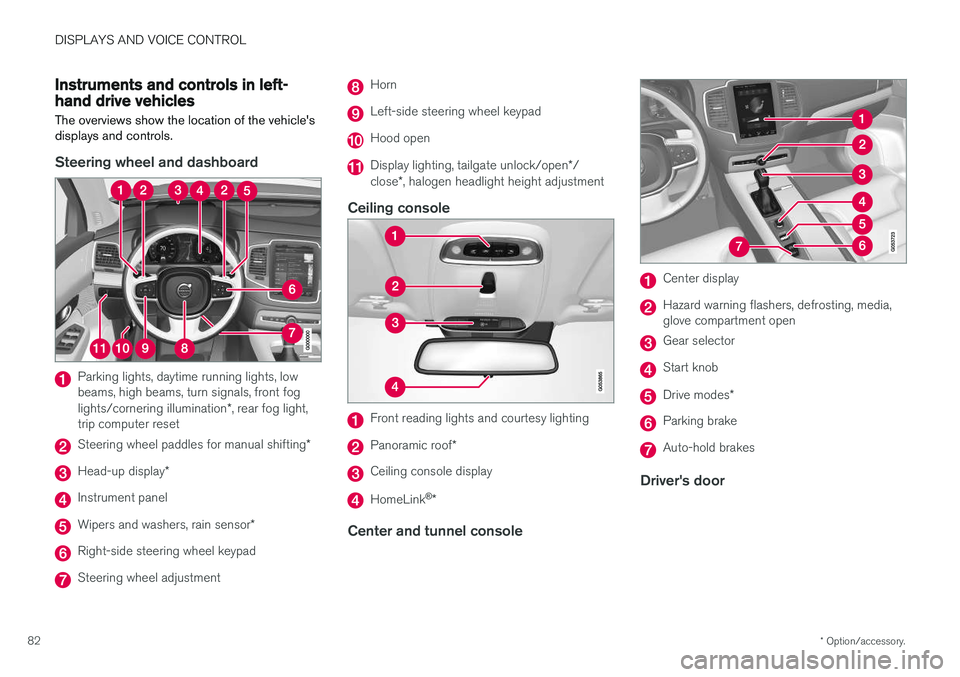
The overviews show the location of the vehicle's
displays and controls.
Steering wheel and dashboard
Parking lights, daytime running lights, low beams, high beams, turn signals, front fog lights/cornering illumination *, rear fog light,
trip computer reset
Steering wheel paddles for manual shifting *
Head-up display*
Instrument panel
Wipers and washers, rain sensor *
Right-side steering wheel keypad
Steering wheel adjustment
Horn
Left-side steering wheel keypad
Hood open
Display lighting, tailgate unlock/open */
close *, halogen headlight height adjustment
Ceiling console
Front reading lights and courtesy lighting
Panoramic roof *
Ceiling console display
HomeLink®
*
Center and tunnel console
Center display
Hazard warning flashers, defrosting, media, glove compartment open
Gear selector
Start knob
Drive modes *
Parking brake
Auto-hold brakes
Driver's door
Page 85 of 666
DISPLAYS AND VOICE CONTROL
* Option/accessory.83
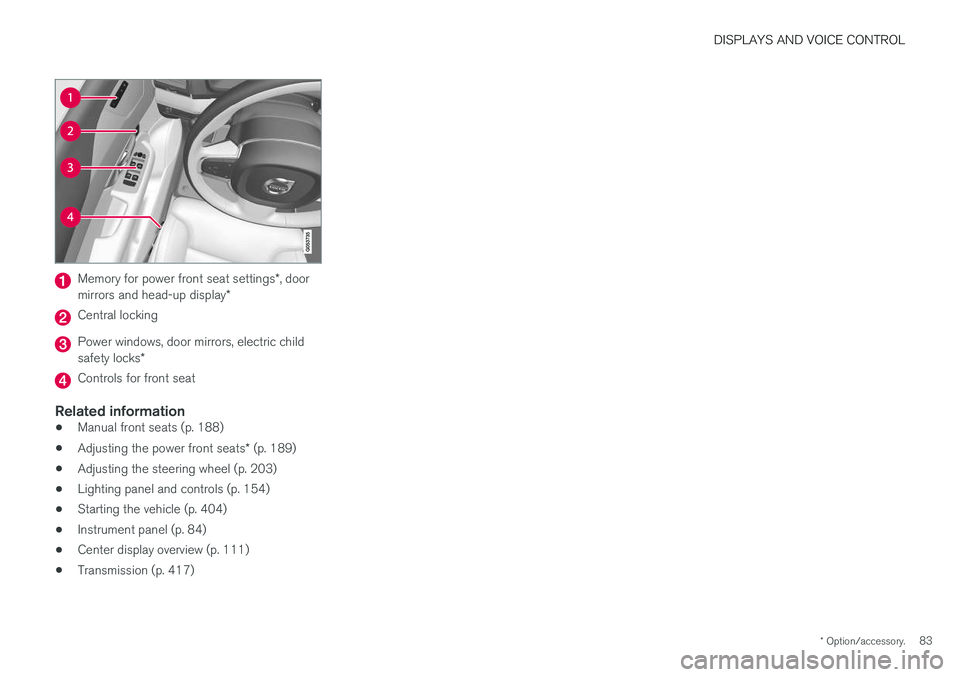
Memory for power front seat settings *, door
mirrors and head-up display *
Central locking
Power windows, door mirrors, electric child safety locks*
Controls for front seat
Related information
•Manual front seats (p. 188)
• Adjusting the power front seats
* (p. 189)
• Adjusting the steering wheel (p. 203)
• Lighting panel and controls (p. 154)
• Starting the vehicle (p. 404)
• Instrument panel (p. 84)
• Center display overview (p. 111)
• Transmission (p. 417)
Page 91 of 666
DISPLAYS AND VOICE CONTROL
}}
89
Fuel gauge
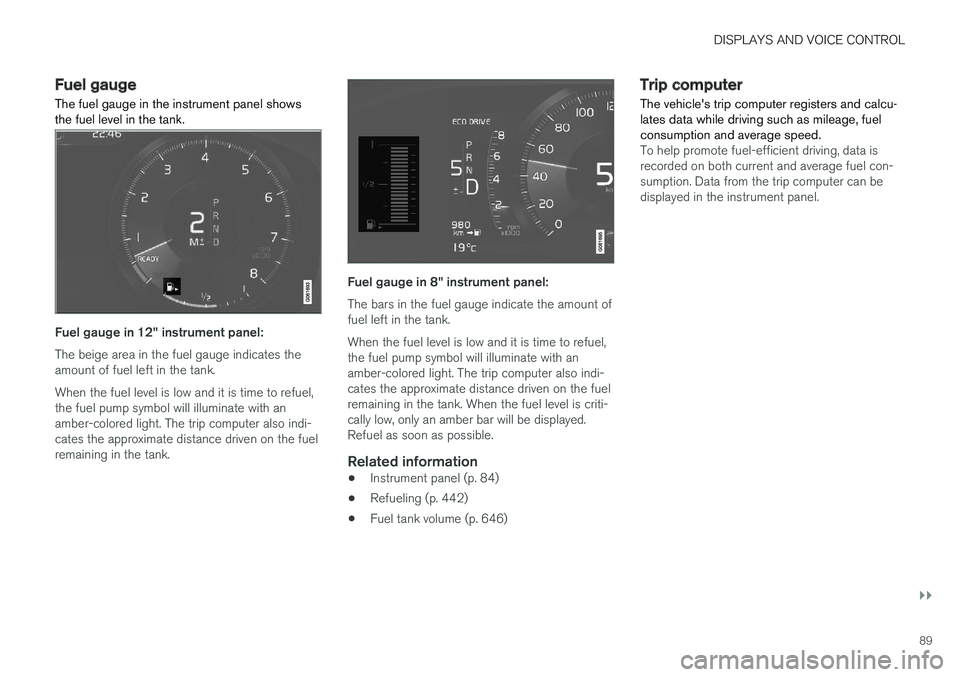
The fuel gauge in the instrument panel shows the fuel level in the tank.
Fuel gauge in 12" instrument panel: The beige area in the fuel gauge indicates the amount of fuel left in the tank. When the fuel level is low and it is time to refuel, the fuel pump symbol will illuminate with anamber-colored light. The trip computer also indi-cates the approximate distance driven on the fuelremaining in the tank.
Fuel gauge in 8" instrument panel: The bars in the fuel gauge indicate the amount of fuel left in the tank. When the fuel level is low and it is time to refuel, the fuel pump symbol will illuminate with anamber-colored light. The trip computer also indi-cates the approximate distance driven on the fuelremaining in the tank. When the fuel level is criti-cally low, only an amber bar will be displayed.Refuel as soon as possible.
Related information
• Instrument panel (p. 84)
• Refueling (p. 442)
• Fuel tank volume (p. 646)
Trip computer The vehicle's trip computer registers and calcu- lates data while driving such as mileage, fuelconsumption and average speed.
To help promote fuel-efficient driving, data is recorded on both current and average fuel con-sumption. Data from the trip computer can bedisplayed in the instrument panel.
Page 96 of 666
DISPLAYS AND VOICE CONTROL
94
Date and timeThe clock is displayed in both the instrument panel and the center display.
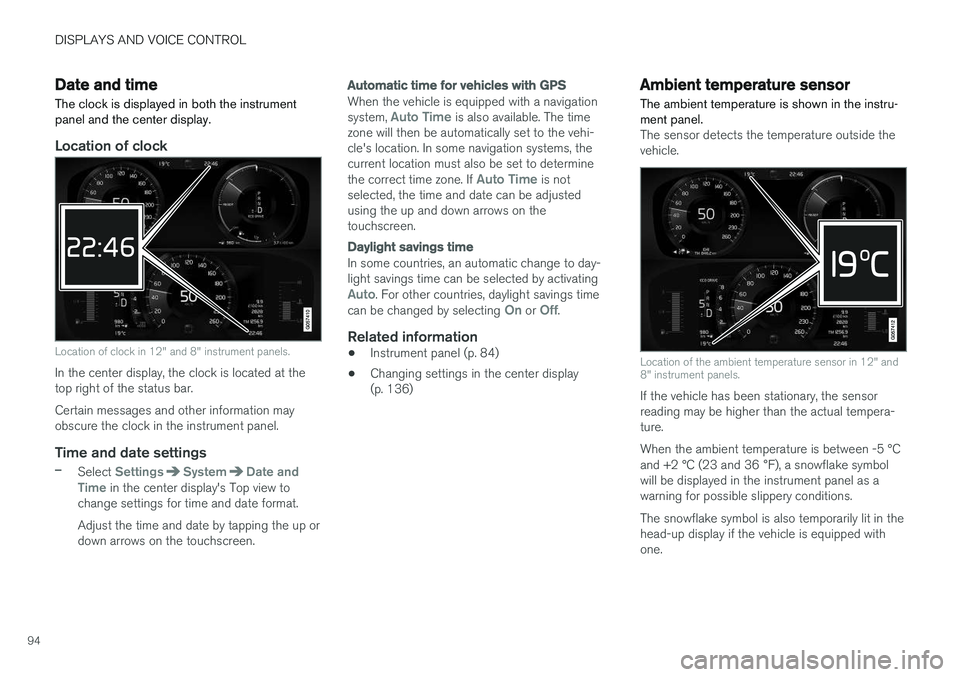
Location of clock
Location of clock in 12" and 8" instrument panels.
In the center display, the clock is located at the top right of the status bar. Certain messages and other information may obscure the clock in the instrument panel.
Time and date settings
–Select SettingsSystemDate and
Time in the center display's Top view to
change settings for time and date format. Adjust the time and date by tapping the up or down arrows on the touchscreen.
Automatic time for vehicles with GPS
When the vehicle is equipped with a navigation system, Auto Time is also available. The time
zone will then be automatically set to the vehi- cle's location. In some navigation systems, thecurrent location must also be set to determine the correct time zone. If
Auto Time is not
selected, the time and date can be adjusted using the up and down arrows on thetouchscreen.
Daylight savings time
In some countries, an automatic change to day- light savings time can be selected by activating
Auto. For other countries, daylight savings time
can be changed by selecting On or Off.
Related information
• Instrument panel (p. 84)
• Changing settings in the center display (p. 136)
Ambient temperature sensor
The ambient temperature is shown in the instru- ment panel.
The sensor detects the temperature outside the vehicle.
Location of the ambient temperature sensor in 12" and 8" instrument panels.
If the vehicle has been stationary, the sensor reading may be higher than the actual tempera-ture. When the ambient temperature is between -5 °C and +2 °C (23 and 36 °F), a snowflake symbol
will be displayed in the instrument panel as a warning for possible slippery conditions. The snowflake symbol is also temporarily lit in the head-up display if the vehicle is equipped withone.
Page 98 of 666
||
DISPLAYS AND VOICE CONTROL
96
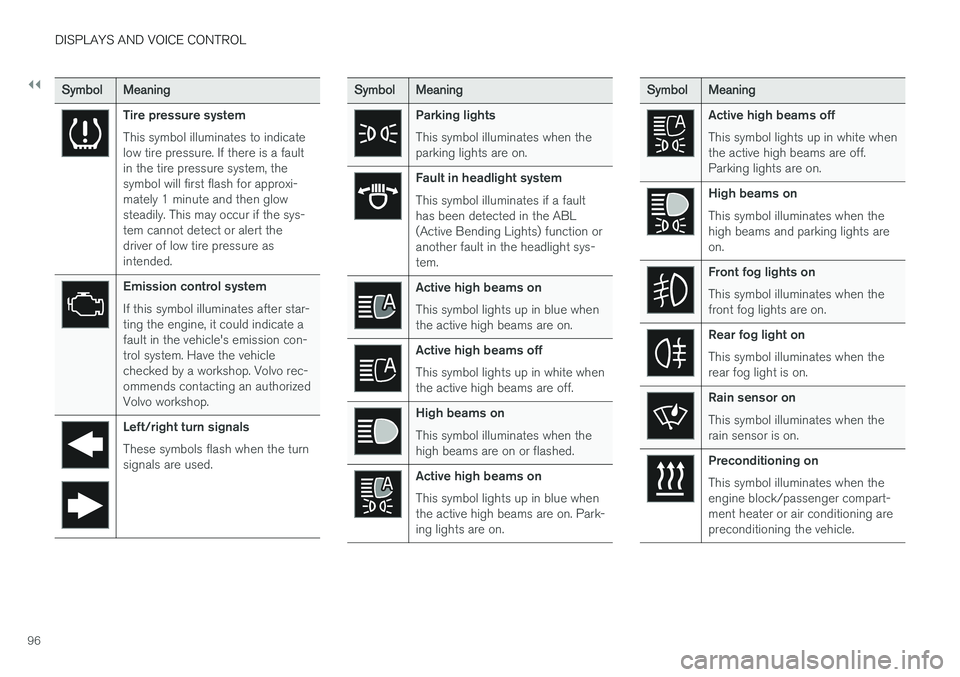
SymbolMeaning
Tire pressure system This symbol illuminates to indicate low tire pressure. If there is a faultin the tire pressure system, thesymbol will first flash for approxi-mately 1 minute and then glowsteadily. This may occur if the sys-tem cannot detect or alert thedriver of low tire pressure asintended.
Emission control system If this symbol illuminates after star- ting the engine, it could indicate afault in the vehicle's emission con-trol system. Have the vehiclechecked by a workshop. Volvo rec-ommends contacting an authorizedVolvo workshop.
Left/right turn signals These symbols flash when the turn signals are used.
SymbolMeaning
Parking lights This symbol illuminates when the parking lights are on.
Fault in headlight system This symbol illuminates if a fault has been detected in the ABL(Active Bending Lights) function oranother fault in the headlight sys-tem.
Active high beams on This symbol lights up in blue when the active high beams are on.
Active high beams off This symbol lights up in white when the active high beams are off.
High beams on This symbol illuminates when the high beams are on or flashed.
Active high beams on This symbol lights up in blue when the active high beams are on. Park-ing lights are on.
SymbolMeaning
Active high beams off This symbol lights up in white when the active high beams are off.Parking lights are on.
High beams on This symbol illuminates when the high beams and parking lights areon.
Front fog lights on This symbol illuminates when the front fog lights are on.
Rear fog light on This symbol illuminates when the rear fog light is on.
Rain sensor on This symbol illuminates when the rain sensor is on.
Preconditioning on This symbol illuminates when the engine block/passenger compart-ment heater or air conditioning arepreconditioning the vehicle.
Page 116 of 666
DISPLAYS AND VOICE CONTROL
* Option/accessory.
114
Handling the center display
Many of the vehicle's functions and features can be controlled and adjusted from the center dis-play. The center display is a touchscreen thatreacts to taps and other gestures.
Using the center display's touchscreenThe touchscreen reacts differently depending on whether the user taps, drags or swipes thescreen. It is possible to e.g. move between differ- ent views, mark objects, scroll in a list and moveapps by touching the screen in various ways. An infrared light curtain just above the surface of the screen enables the screen to detect when afinger is directly in front of the screen. This tech-nology makes it possible to use the screen evenwhile wearing gloves. Two people can interact with the screen at the same time, e.g. to adjust climate system settingsfor both the driver and passenger sides.
CAUTION
Do not use sharp objects on the screen as this could cause scratches.
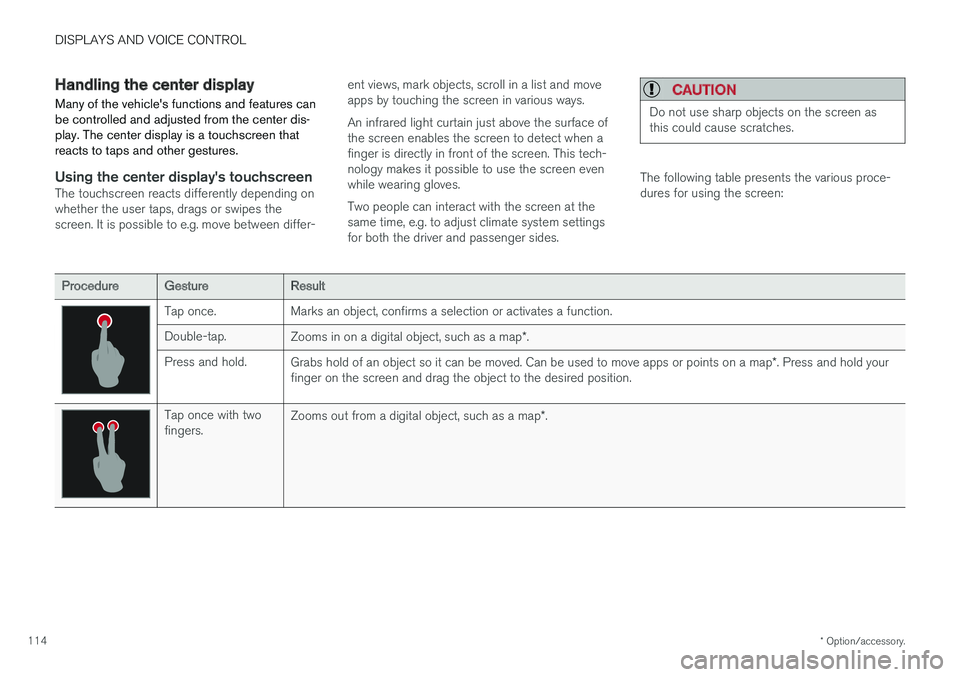
The following table presents the various proce- dures for using the screen:
ProcedureGestureResult
Tap once. Marks an object, confirms a selection or activates a function. Double-tap.
Zooms in on a digital object, such as a map *.
Press and hold. Grabs hold of an object so it can be moved. Can be used to move apps or points on a map *. Press and hold your
finger on the screen and drag the object to the desired position.
Tap once with two fingers. Zooms out from a digital object, such as a map
*.
Page 126 of 666
DISPLAYS AND VOICE CONTROL
124
Function view in the center displayFunction view, which is one of the center dis- play's basic views, contains all of the vehicle'sfunction buttons. From the Home view, navigate to Function view by swiping from left to right over the screen
12
.Different types of buttonsThere are three different types of buttons for vehicle functions; see below:
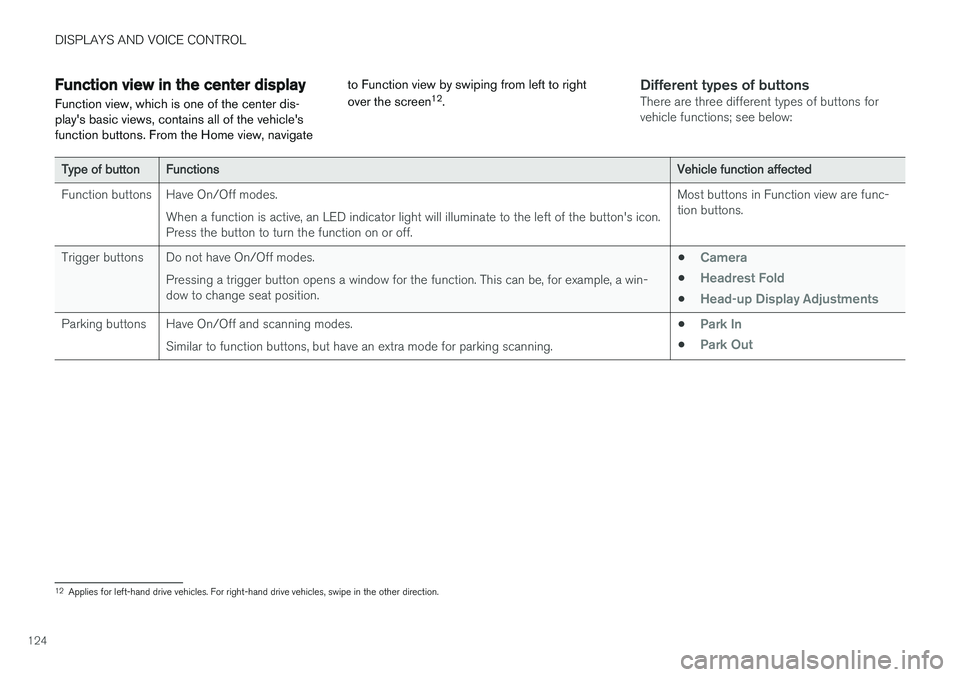
Type of buttonFunctionsVehicle function affected
Function buttons Have On/Off modes. When a function is active, an LED indicator light will illuminate to the left of the button's icon. Press the button to turn the function on or off. Most buttons in Function view are func-tion buttons.
Trigger buttons Do not have On/Off modes. Pressing a trigger button opens a window for the function. This can be, for example, a win-dow to change seat position. •
Camera
•Headrest Fold
•Head-up Display Adjustments
Parking buttons Have On/Off and scanning modes.
Similar to function buttons, but have an extra mode for parking scanning. •Park In
•Park Out
12
Applies for left-hand drive vehicles. For right-hand drive vehicles, swipe in the other direction.
Page 127 of 666
DISPLAYS AND VOICE CONTROL
125
Button modes
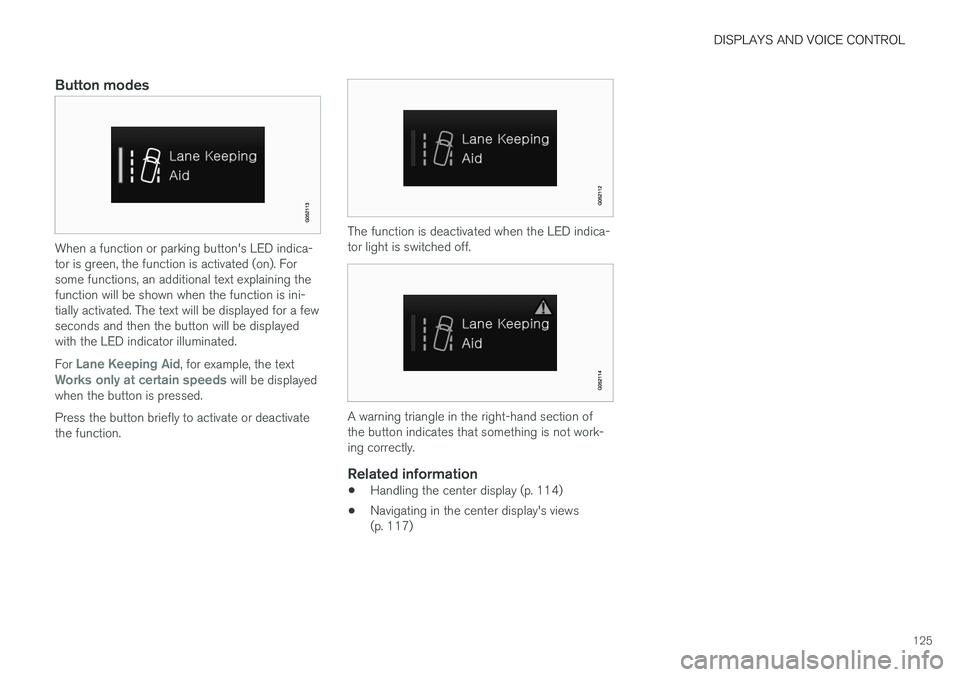
When a function or parking button's LED indica- tor is green, the function is activated (on). Forsome functions, an additional text explaining thefunction will be shown when the function is ini-tially activated. The text will be displayed for a fewseconds and then the button will be displayedwith the LED indicator illuminated. For
Lane Keeping Aid, for example, the textWorks only at certain speeds will be displayed
when the button is pressed. Press the button briefly to activate or deactivate the function.
The function is deactivated when the LED indica- tor light is switched off.
A warning triangle in the right-hand section of the button indicates that something is not work-ing correctly.
Related information
• Handling the center display (p. 114)
• Navigating in the center display's views (p. 117)
Page 128 of 666
DISPLAYS AND VOICE CONTROL
126
Moving apps and buttons in thecenter display
The apps and buttons for vehicle functions can be moved and organized in the App and Func-tion views.
1. Swipe from right to left 13
to access App view
or swipe from left to right 13
to access Func-
tion view.
2. Press and hold an app or button. > The app or button will change size andbecome slightly transparent. It can then be moved.
3. Drag the app or button to an available posi- tion in the view.
A maximum of 48 rows can be used to positionapps or buttons. To move an app or button out-side the visible view, drag it to the bottom of theview. New rows will be added and the app or but-ton can be placed in one of these. Apps or buttons placed below the view's normal display will not be visible on the screen. Swipe the screen to scroll up or down in the view to display information outside the view.
NOTE
Hide the apps that are rarely or never used by moving them far down, outside of the visibleview. This makes it easier to find the appsused more frequently.
NOTE
Apps and vehicle function buttons cannot be situated at spots already in use.
Related information
• Function view in the center display (p. 124)
• Apps (p. 465)
• Handling the center display (p. 114)
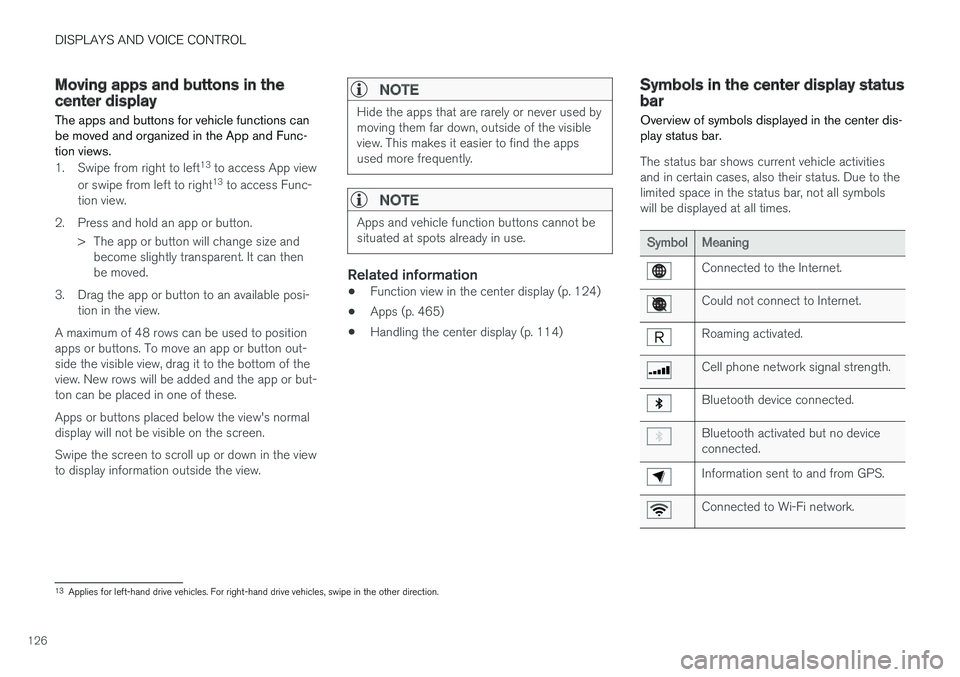
Symbols in the center display statusbar
Overview of symbols displayed in the center dis- play status bar.
The status bar shows current vehicle activities and in certain cases, also their status. Due to thelimited space in the status bar, not all symbolswill be displayed at all times.
SymbolMeaning
Connected to the Internet.
Could not connect to Internet.
Roaming activated.
Cell phone network signal strength.
Bluetooth device connected.
Bluetooth activated but no device connected.
Information sent to and from GPS.
Connected to Wi-Fi network.
13 Applies for left-hand drive vehicles. For right-hand drive vehicles, swipe in the other direction.