manual radio set VOLVO XC90 2018 Owner´s Manual
[x] Cancel search | Manufacturer: VOLVO, Model Year: 2018, Model line: XC90, Model: VOLVO XC90 2018Pages: 666, PDF Size: 11.32 MB
Page 13 of 666
11
AUDIO, MEDIA AND INTERNET
Audio, media and Internet464
Sound settings 464
Apps 465
Download apps 466
Updating apps 467
Deleting apps 468
Radio 468
Starting the radio 469
Changing waveband and radio station 469
Searching for a radio station 470
Storing radio favorites 471
Radio settings 471
RBDS 472
HD Radio ™
472
Activating and deactivating the HD Radio ™ 474
HD Radio ™ sub-channels
474
HD Radio ™ limitations
475
SiriusXM ®
Satellite radio * 476
Using SiriusXM ®
Satellite radio *477
Settings for SiriusXM ®
Satellite radio *478
SiriusXM Travel Link ®
* 480
SiriusXM Travel Link ®
* - Weather 481
SiriusXM Travel Link ®
* - Notifications 482
SiriusXM Travel Link®
* - Fuel 483
SiriusXM Travel Link ®
* - Sports 484
Media player 485
Playing media 486
Controlling and changing media 487
Media searches 488
Gracenote ®
489
CD player *
489
Video 490
Playing video 490
Playing DivX ®
490
Video settings 491
Streaming media via Bluetooth ®
491
Connecting a device via Bluetooth ®
491
Playing media via the USB port 492
Connecting a device via the USB port 492
Apple ®
CarPlay ®
* 493
Using Apple ®
CarPlay ®
* 493
Settings for Apple ®
CarPlay ®
* 494
Tips for using Apple ®
CarPlay ®
* 495
Android Auto *
496
Using Android Auto *
496
Settings for Android Auto *
497
Tips for using Android Auto *
498
Phone 498
Connecting a phone to the car via Bluetooth for the first time 499
Connecting a phone to the car viaBluetooth automatically 501
Connecting a phone to the car viaBluetooth manually 501
Disconnecting a Bluetooth-con-nected phone 502
Switch between phones connectedvia Bluetooth 502
Removing a Bluetooth-connected phone 503
Handling phone calls 503
Handling text messages 504
Text message settings 505
Managing the phone book 505
Phone settings 506
Settings for Bluetooth devices 507
Internet-connected vehicle *
507
Connecting the car to the Internetvia a mobile device (Bluetooth) 509
Connecting the car to the Internetvia a mobile device (Wi-Fi) 509
Connect the car to the Internet viacar modem (SIM card) 510
Vehicle modem settings 511
Page 115 of 666
DISPLAYS AND VOICE CONTROL
* Option/accessory.113
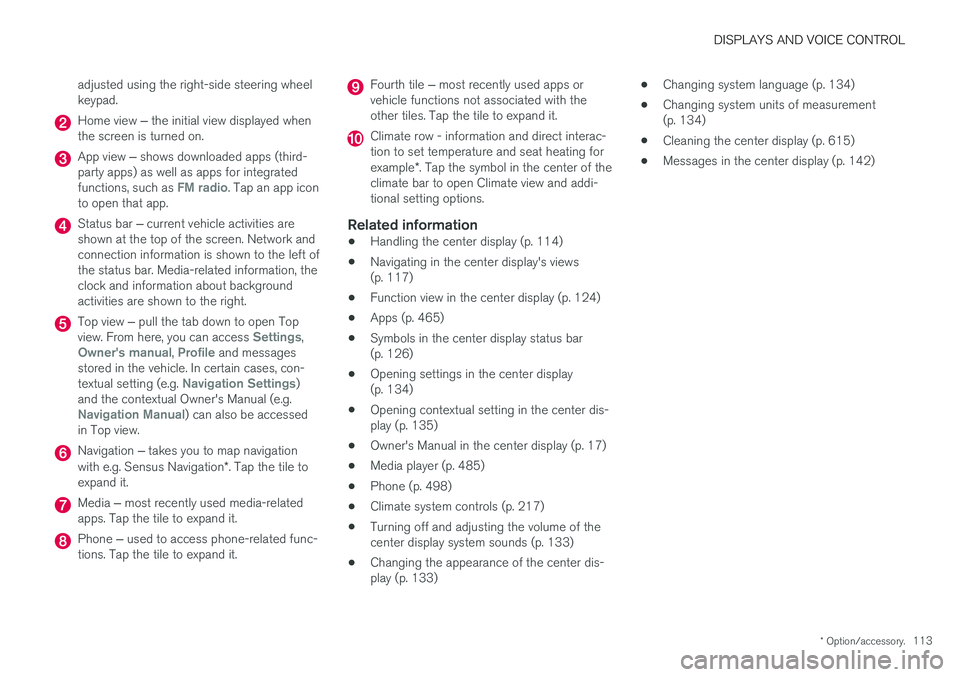
adjusted using the right-side steering wheel keypad.
Home view
‒ the initial view displayed when
the screen is turned on.
App view ‒ shows downloaded apps (third-
party apps) as well as apps for integrated functions, such as
FM radio. Tap an app icon
to open that app.
Status bar ‒ current vehicle activities are
shown at the top of the screen. Network and connection information is shown to the left ofthe status bar. Media-related information, theclock and information about backgroundactivities are shown to the right.
Top view ‒ pull the tab down to open Top
view. From here, you can access Settings,Owner's manual, Profile and messages
stored in the vehicle. In certain cases, con- textual setting (e.g.
Navigation Settings)
and the contextual Owner's Manual (e.g.
Navigation Manual) can also be accessed
in Top view.
Navigation ‒ takes you to map navigation
with e.g. Sensus Navigation *. Tap the tile to
expand it.
Media ‒ most recently used media-related
apps. Tap the tile to expand it.
Phone ‒ used to access phone-related func-
tions. Tap the tile to expand it.
Fourth tile ‒ most recently used apps or
vehicle functions not associated with the other tiles. Tap the tile to expand it.
Climate row - information and direct interac- tion to set temperature and seat heating for example *. Tap the symbol in the center of the
climate bar to open Climate view and addi- tional setting options.
Related information
• Handling the center display (p. 114)
• Navigating in the center display's views(p. 117)
• Function view in the center display (p. 124)
• Apps (p. 465)
• Symbols in the center display status bar(p. 126)
• Opening settings in the center display(p. 134)
• Opening contextual setting in the center dis-play (p. 135)
• Owner's Manual in the center display (p. 17)
• Media player (p. 485)
• Phone (p. 498)
• Climate system controls (p. 217)
• Turning off and adjusting the volume of thecenter display system sounds (p. 133)
• Changing the appearance of the center dis-play (p. 133) •
Changing system language (p. 134)
• Changing system units of measurement(p. 134)
• Cleaning the center display (p. 615)
• Messages in the center display (p. 142)
Page 140 of 666
||
DISPLAYS AND VOICE CONTROL
* Option/accessory.
138
Type ofsettingDescription
Slider Select a level for a function by pressing and dragging the slider control, e.g. to set volume level.
Informa-tion dis-play This is not an actual setting, butinstead displays information suchas the vehicle's VIN number.
Related information
•
Center display overview (p. 111)
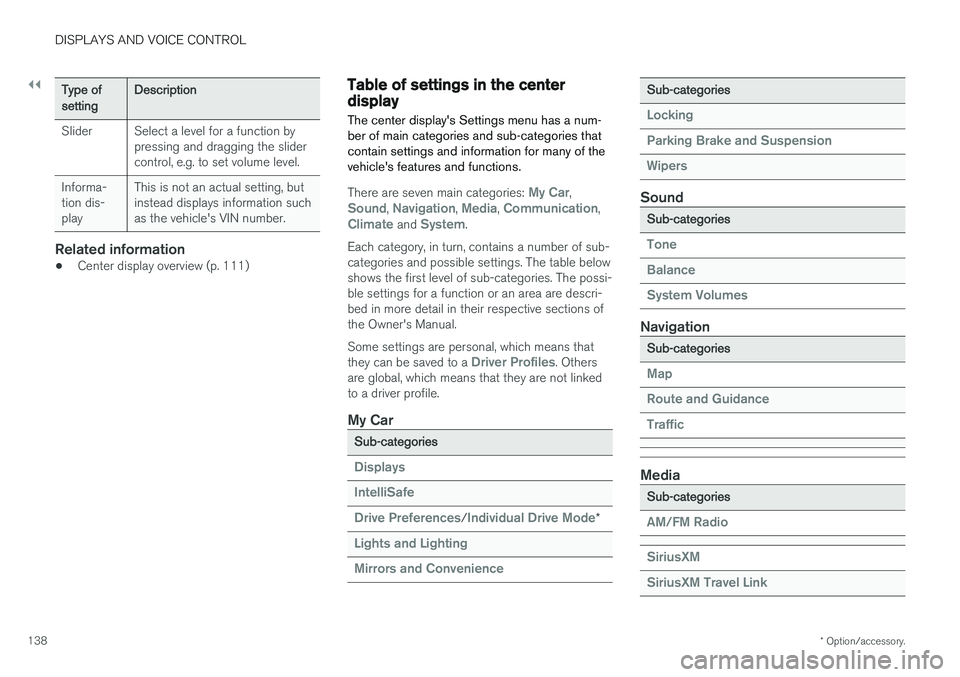
Table of settings in the centerdisplay The center display's Settings menu has a num- ber of main categories and sub-categories thatcontain settings and information for many of thevehicle's features and functions.
There are seven main categories: My Car,Sound, Navigation, Media, Communication,Climate and System.
Each category, in turn, contains a number of sub- categories and possible settings. The table belowshows the first level of sub-categories. The possi-ble settings for a function or an area are descri-bed in more detail in their respective sections ofthe Owner's Manual. Some settings are personal, which means that they can be saved to a
Driver Profiles. Others
are global, which means that they are not linked to a driver profile.
My Car
Sub-categories
Displays IntelliSafe Drive Preferences
/Individual Drive Mode*
Lights and Lighting Mirrors and Convenience
Sub-categories
Locking Parking Brake and SuspensionWipers
Sound
Sub-categories
Tone BalanceSystem Volumes
Navigation
Sub-categories
Map Route and GuidanceTraffic
Media
Sub-categories
AM/FM Radio SiriusXM SiriusXM Travel Link
Page 472 of 666
||
AUDIO, MEDIA AND INTERNET
470
Genres - only plays channels broadcasting the
selected genre or program type, e.g. pop, classi- cal, etc.
Changing radio stations in a selected
list
–Press or under the center display
or on the right-side steering wheel keypad.
> Move step-by-step through the selected list.
It is also possible to change radio station in the selected list via the center display.
Related information
• Radio (p. 468)
• Searching for a radio station (p. 470)
• Voice control for radio and media (p. 150)
• Storing radio favorites (p. 471)
• Radio settings (p. 471)
• App menu in instrument panel (p. 104)
Searching for a radio station
The radio automatically compiles a list of the radio stations that are sending out the strongestsignals in the vehicle's current location.
Searching is performed in different ways depend- ing on the waveband selected:
• AM - stations and frequency.
• FM, stations, genres and frequency.
1. Tap
Library.
2. Tap
.
> Search view will displayed and the key- board will open.
3. Enter a search word/phrase. > The search will start and change as char-acters are entered. Search results will be displayed by category.
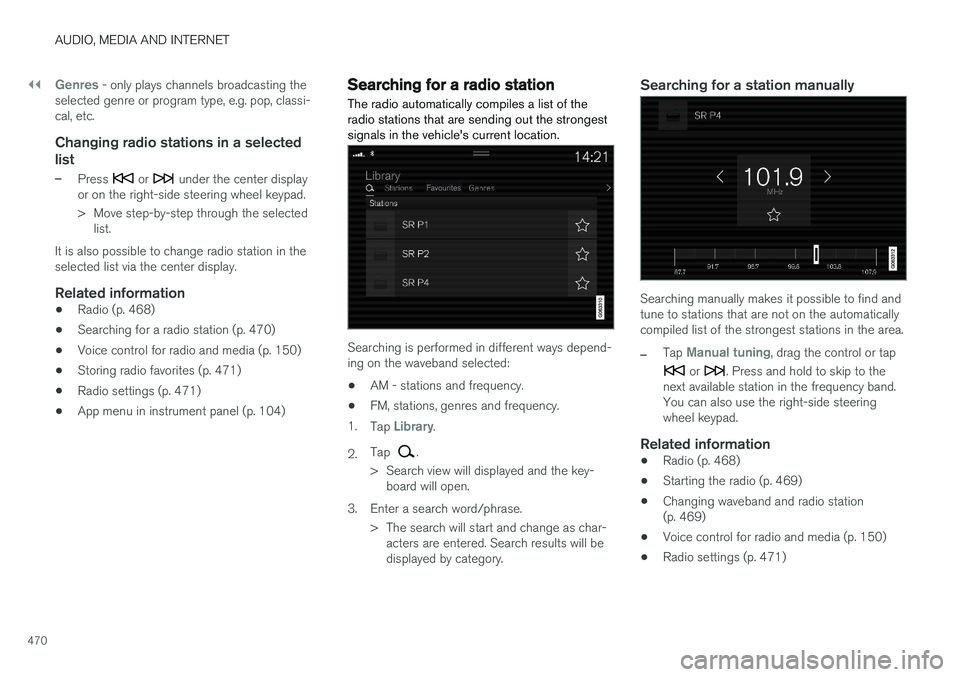
Searching for a station manually
Searching manually makes it possible to find and tune to stations that are not on the automaticallycompiled list of the strongest stations in the area.
–Tap Manual tuning, drag the control or tap
or . Press and hold to skip to the
next available station in the frequency band. You can also use the right-side steeringwheel keypad.
Related information
• Radio (p. 468)
• Starting the radio (p. 469)
• Changing waveband and radio station(p. 469)
• Voice control for radio and media (p. 150)
• Radio settings (p. 471)
Page 661 of 666
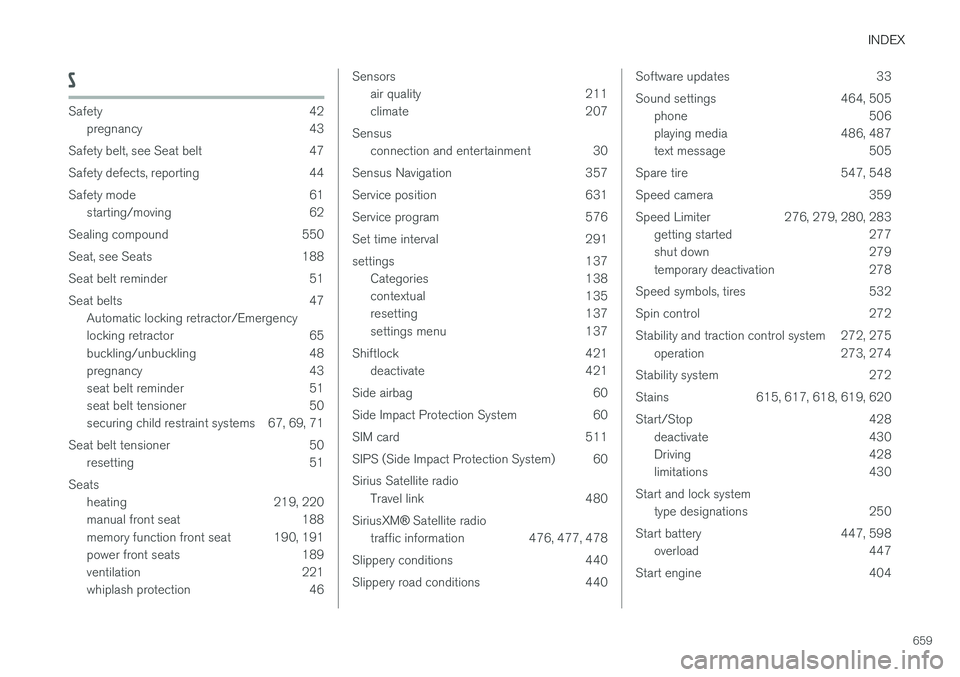
INDEX
659
S
Safety 42pregnancy 43
Safety belt, see Seat belt 47
Safety defects, reporting 44
Safety mode 61 starting/moving 62
Sealing compound 550
Seat, see Seats 188
Seat belt reminder 51
Seat belts 47 Automatic locking retractor/Emergency
locking retractor 65
buckling/unbuckling 48
pregnancy 43
seat belt reminder 51
seat belt tensioner 50
securing child restraint systems 67, 69, 71
Seat belt tensioner 50 resetting 51
Seats heating 219, 220
manual front seat 188
memory function front seat 190, 191
power front seats 189
ventilation 221
whiplash protection 46
Sensors
air quality 211
climate 207
Sensus connection and entertainment 30
Sensus Navigation 357
Service position 631
Service program 576
Set time interval 291
settings 137 Categories 138
contextual 135
resetting 137
settings menu 137
Shiftlock 421 deactivate 421
Side airbag 60
Side Impact Protection System 60
SIM card 511
SIPS (Side Impact Protection System) 60 Sirius Satellite radio Travel link 480
SiriusXM ® Satellite radio
traffic information 476, 477, 478
Slippery conditions 440
Slippery road conditions 440Software updates 33
Sound settings 464, 505 phone 506
playing media 486, 487
text message 505
Spare tire 547, 548
Speed camera 359
Speed Limiter 276, 279, 280, 283 getting started 277
shut down 279
temporary deactivation 278
Speed symbols, tires 532
Spin control 272
Stability and traction control system 272, 275 operation 273, 274
Stability system 272
Stains 615, 617, 618, 619, 620
Start/Stop 428 deactivate 430
Driving 428
limitations 430
Start and lock system type designations 250
Start battery 447, 598 overload 447
Start engine 404