phone VOLVO XC90 T8 2016 Owner´s Manual
[x] Cancel search | Manufacturer: VOLVO, Model Year: 2016, Model line: XC90 T8, Model: VOLVO XC90 T8 2016Pages: 546, PDF Size: 10.26 MB
Page 44 of 546
INTRODUCTION
42
Navigating in the center display's views
There are 5 different basic views in the center display: Home view, Top view, Climate view, Appview and Function view. The display is activatedautomatically when the driver's door is opened.
Home viewHome view is displayed when the screen is acti- vated. It consists of four sub-views: Navigation,Media, Phone and an extra sub-view. The extra sub-view contains the most recently used app/ vehicle function that is not related to the otherthree sub-views. For example, if the most recentlyused app/vehicle function is a music app, the
Media sub-view will be displayed.
The sub-views display brief information about the respective apps. The first time the vehicle is started, some of the Home view's sub-views will not contain any infor-mation.
NOTE
• In Home view's standard mode (reached by pressing the Home button briefly), ananimation explaining how to access thedifferent views will be shown on thescreen.
• Some functions may be disabled whenthe vehicle is moving.
Page 47 of 546
INTRODUCTION
}}
45
ignition is being started/switched off or when a message is displayed on the screen.
Going to Top view from an app
To pull down Top view when an app is running (e.g., FM radio):
• Tap
FM Radio Settings to display these
settings.
• Tap
Owner's manual to open an article
related to the specific app.
This applies only to your vehicle's factory- installed apps . This is not possible for third-
party apps that have been downloaded.
Climate viewThe climate bar, where the most common climatesystem settings can be made, is located at thebottom of the screen and is always visible.
Tap the symbol at the center of the cli-mate bar to open Climate view foraccess to additional climate systemsettings.
Tap the symbol to close Climate view and return to a previous view.
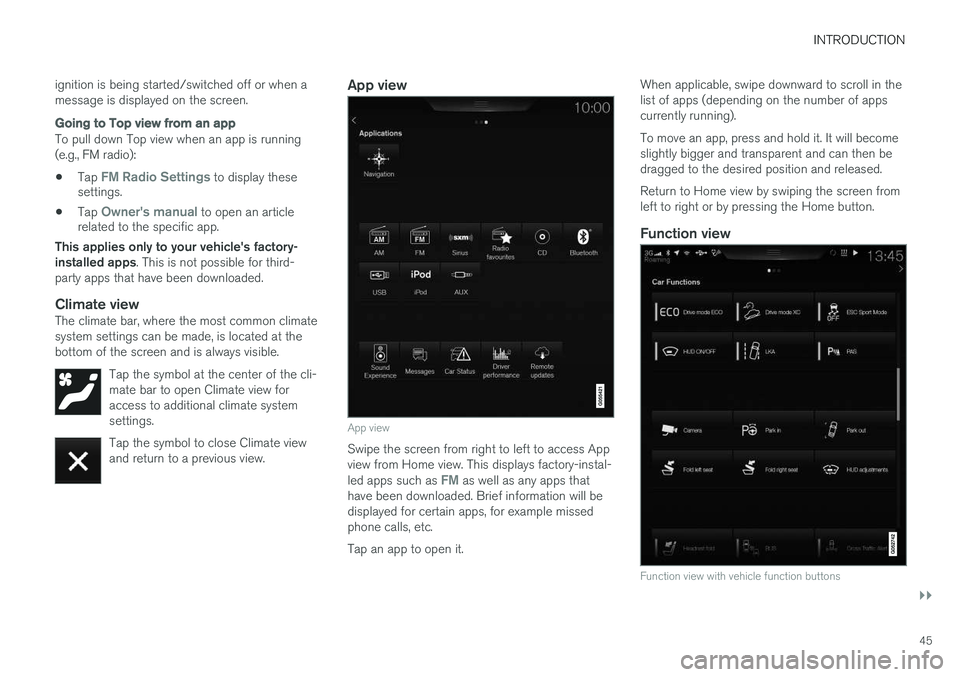
App view
App view
Swipe the screen from right to left to access App view from Home view. This displays factory-instal- led apps such as
FM as well as any apps that
have been downloaded. Brief information will be displayed for certain apps, for example missedphone calls, etc. Tap an app to open it. When applicable, swipe downward to scroll in the list of apps (depending on the number of appscurrently running). To move an app, press and hold it. It will become slightly bigger and transparent and can then bedragged to the desired position and released. Return to Home view by swiping the screen from left to right or by pressing the Home button.
Function view
Function view with vehicle function buttons
Page 49 of 546
INTRODUCTION
47
Symbols in the center display status bar
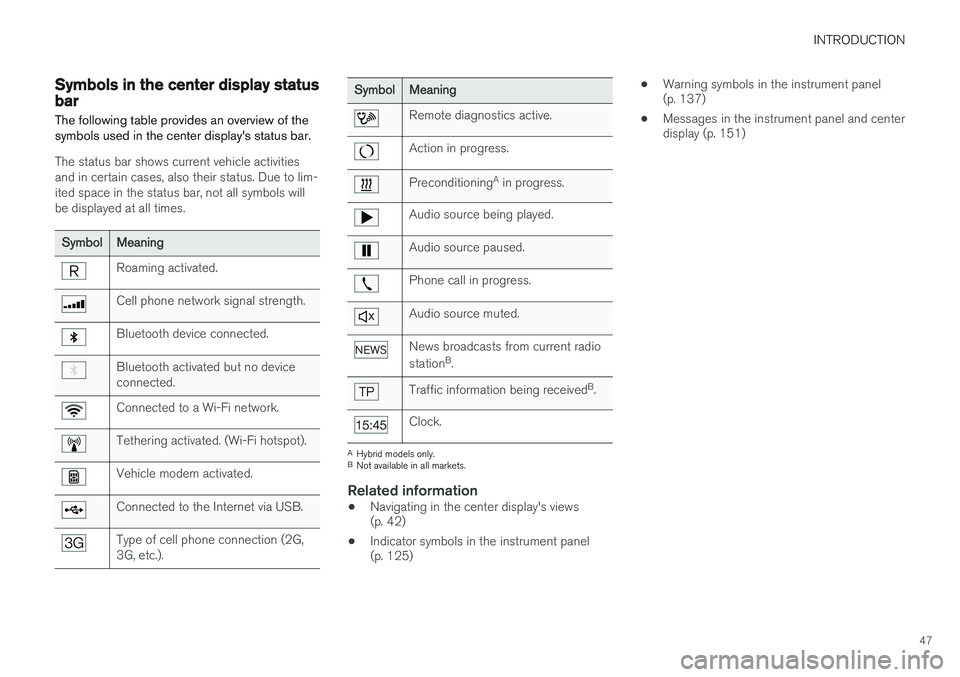
The following table provides an overview of the symbols used in the center display's status bar.
The status bar shows current vehicle activities and in certain cases, also their status. Due to lim-ited space in the status bar, not all symbols willbe displayed at all times.
SymbolMeaning
Roaming activated.
Cell phone network signal strength.
Bluetooth device connected.
Bluetooth activated but no device connected.
Connected to a Wi-Fi network.
Tethering activated. (Wi-Fi hotspot).
Vehicle modem activated.
Connected to the Internet via USB.
Type of cell phone connection (2G, 3G, etc.).
SymbolMeaning
Remote diagnostics active.
Action in progress.
Preconditioning A
in progress.
Audio source being played.
Audio source paused.
Phone call in progress.
Audio source muted.
News broadcasts from current radio station B
.
Traffic information being received B
.
Clock.
A Hybrid models only.
B Not available in all markets.
Related information
• Navigating in the center display's views (p. 42)
• Indicator symbols in the instrument panel(p. 125) •
Warning symbols in the instrument panel(p. 137)
• Messages in the instrument panel and centerdisplay (p. 151)
Page 50 of 546
INTRODUCTION
48
Changing settings in different types of appsApp view, which is one of the center display's basic views, contains all of the vehicle's apps(applications/programs). Access this view byswiping the screen from right to left.
Basic appsA number of apps are standard and are part of Volvo Sensus, such as FM Radio, USB and CD.
To change settings in a basic app: 1. Open the app, for example
Phone, either on
the home screen or full-screen from App view.
2. Pull down Top view. 3. Tap
Phone settings.
4. Change the desired settings and confirm.
5. Press the Home button, tap the screen out- side of Top view or pull Top view up.
Third-party appsThird party apps have to be selected and down- loaded. In these apps, setting are made fromwithin the app, not from Top view.
Page 55 of 546
INTRODUCTION
}}
53
Using the owner's manualReading your owner's manual is a good way of familiarizing yourself with the features and sys-tems in your vehicle.
On-board owner's manualReading the owner's manual is a good way to become familiar with your vehicle and to learn toutilize the features and functions that it offers.Pay particular attention to the warnings provided. Volvo reserves the right to make model changes at any time, or to change specifications or designwithout notice and without incurring obligation. © Volvo Car Corporation
Printed owner's informationWe advise keeping printed owner's information in the vehicle for quick access to necessary infor-mation and how to contact Volvo if help isrequired.
IllustrationsSome of the illustrations used in your owner'sinformation may be generic and will give a gen-eral view of a certain feature or function. Forexample, some illustrations describing climatesystem functions may display a temperature indegrees Celsius but the same information appliesto Fahrenheit.
Options and accessoriesOptional or accessory equipment described inthis manual is indicated by an asterisk. Optional or accessory equipment may not be available in all countries or markets. Please notethat some vehicles may be equipped differently,depending on special legal requirements. Contact your Volvo retailer for additional informa- tion.
FootnotesCertain pages of this manual contain informationin the form of footnotes at the bottom of thepage. This information supplements the text thatthe footnote number refers to (a letter is used ifthe footnote refers to text in a table).
MessagesThere are several displays in the vehicle thatshow messages generated by various systemsand functions in the vehicle. The appearance ofthese texts differs slightly from normal texts (for example:
Phone, Accept).
DecalsThere are various types of decals in the vehicle whose purpose is to provide important informa-tion in a clear and concise way. The importanceof these decals is explained as follows, indescending order of importance.
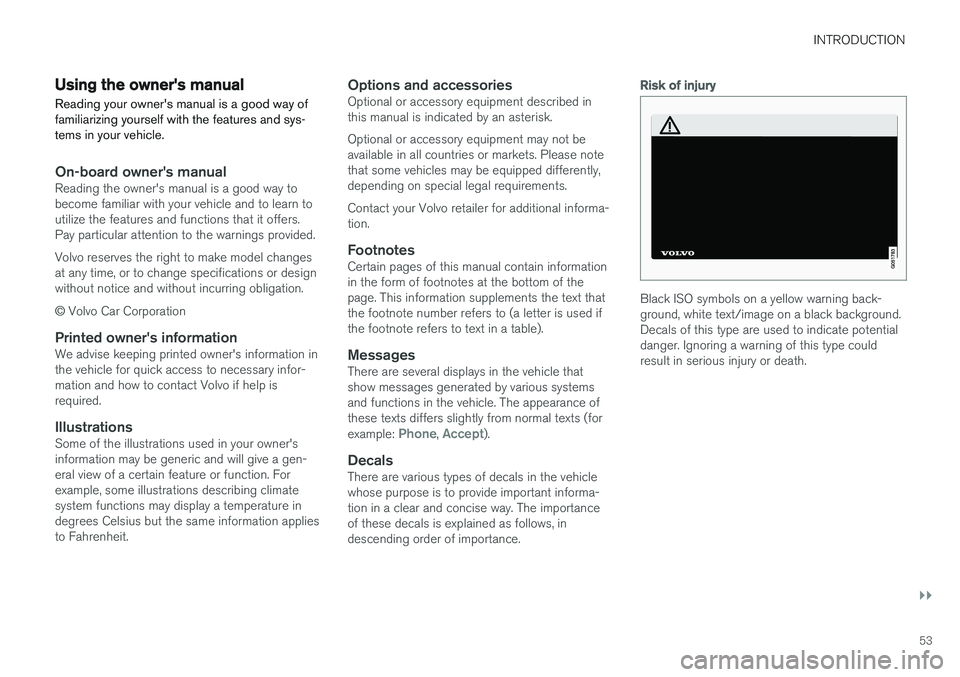
Risk of injury
Black ISO symbols on a yellow warning back- ground, white text/image on a black background.Decals of this type are used to indicate potentialdanger. Ignoring a warning of this type couldresult in serious injury or death.
Page 63 of 546
SAFETY
}}
61
Occupant safety reminders
How safely you drive doesn't depend on how old you are but rather on:
• How well you see.
• Your ability to concentrate.
• How quickly you make decisions under stress to avoid an accident.
The following suggestions are intended to help you cope with the ever changing traffic environ-ment.
• Never drink and drive.
• If you are taking any medication, consult your physician about its potential effects on yourdriving abilities.
• Take a driver-retraining course.
• Have your eyes checked regularly.
• Keep your windshield and headlights clean.
• Replace wiper blades when they start toleave streaks.
• Take into account the traffic, road, andweather conditions, particularly with regard tostopping distance.
• Never send text messages while driving.
• Refrain from using or minimize the use of acell phone while driving.
Related information
• Recall information (p. 62)
• Reporting safety defects (p. 61)
Reporting safety defects
The following information will help you report any perceived safety-related defects in your vehicle.
Reporting safety defects in the U.S.
If you believe that your vehicle has a defect which could cause a crash orcould cause injury or death, you shouldimmediately inform the National High-way Traffic Safety Administration(NHTSA) in addition to notifying VolvoCars of North America, LLC. If NHTSAreceives similar complaints, it may openan investigation, and if it finds that asafety defect exists in a group of vehi-cles, it may order a recall and remedycampaign. However, NHTSA cannotbecome involved in individual problemsbetween you, your retailer, or VolvoCars of North America, LLC. To contactNHTSA, you may either call the AutoSafety Hotline toll-free at 1-888-327-4236(TTY: 1-800-424-9153) or write to: NHTSA, U.S. Department of Transpor-tation, Washington D.C. 20590. You can also obtain other informationabout motor vehicle safety from http://www.safercar.gov, where you can alsoenter your vehicle's VIN (Vehicle Identi-fication Number) to see if it has anyopen recalls. Volvo strongly recommends that if your vehicle is covered under a service cam-paign, safety or emission recall or simi-lar action, it should be completed assoon as possible. Please check withyour local retailer or Volvo Cars ofNorth America, LLC if your vehicle iscovered under these conditions. NHTSA can be reached at:Internet:http://www.nhtsa.govTelephone:1-888-DASH-2-DOT (1-888-327-4236).
Reporting safety defects in CanadaIf you believe your vehicle has a defect that could cause a crash or could cause injury or death, youshould immediately inform Transport Canada inaddition to notifying Volvo Cars of Canada Corp.
Page 115 of 546
INSTRUMENTS AND CONTROLS
* Option/accessory, for more information, see Introduction.113
Sub-categories
Electric Parking Brake
Seats
Wipers
Suspension
Exterior SoundA
A
XC90 T8 Plug-in Hybrid, certain markets only.
Sound
Sub-categories
Sound Experience*
Tone
Balance
System Volumes
Navigation
Sub-categories
Map
Route
Traffic
Guidance
System
Media
Sub-categories
AM/FM RadioA
SiriusXM
Gracenote ®
Video
A
AM radio is not available in hybrid models.
Communication
Sub-categories
Phone
Text Messages
Bluetooth
Wi-Fi
Vehicle Wi-Fi Hotspot
Vehicle Modem Internet
Volvo On Call
Volvo Service Networks
ClimateThe main category Climate has no sub-catego-
ries.
System
Sub-categories
Date & Time
Language
Keyboard Layouts
Voice Control
Units
Storage
Software Updates
Factory reset
Services
Related information
• Settings view (p. 111)
• Changing system settings in Settings view (p. 114)
Page 119 of 546
INSTRUMENTS AND CONTROLS
}}
* Option/accessory, for more information, see Introduction.117
Clock The clock is displayed in the instrument panel and in the center display.
Location of the clock in the instrument panel in 12" (upper) and 8" (lower) instrument panels
Certain messages and other information in the instrument panel may temporarily obscure theclock. In the center display, the clock is located at the upper right of the status bar.
Settings for date and time
Select SettingsSystemDate & Time in
the center display's Top view to change the for- mat for displaying date or time. Set the date and time by tapping the up or down arrows on the center display.
Automatic time
The function Automatic Time is also available,
which adjusts the time zone automatically, depending on the vehicle's location. If
Automatic
Time has not been selected, set the date and
time manually by tapping the up or down arrows on the center display.
Daylight savings time
In certain countries, an automatic change to day- light savings time can be selected by activating
Auto. If the automatic change is not available,
change to daylight savings time by selecting Onor Off.
Related information
• Instrument panel (p. 127)
• Center display overview (p. 32)
• Using the center display (p. 49)
Head-up display (HUD)
*
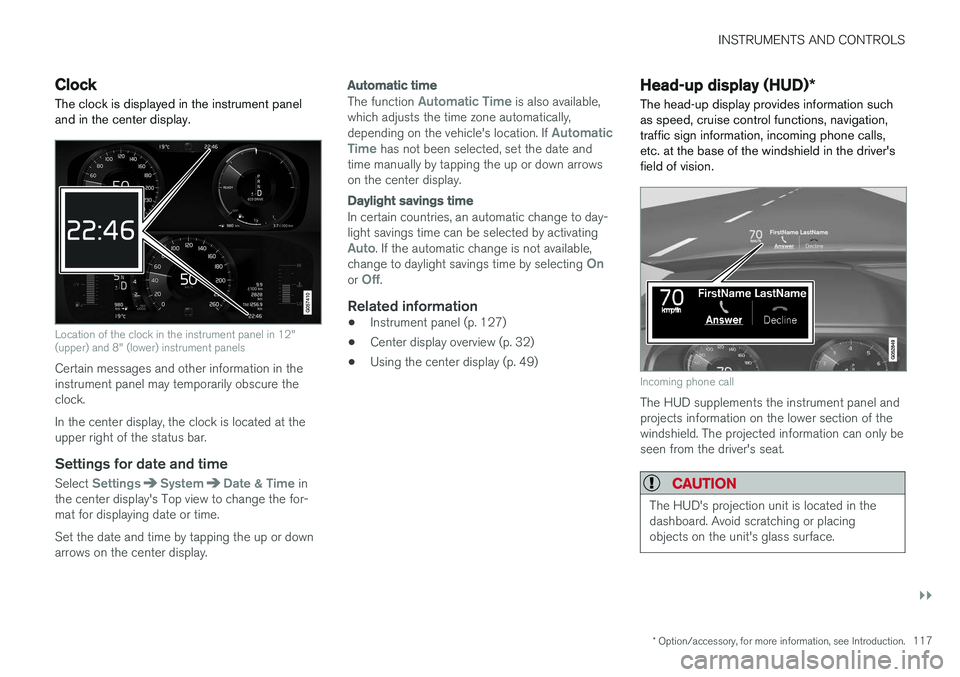
The head-up display provides information such as speed, cruise control functions, navigation,traffic sign information, incoming phone calls,etc. at the base of the windshield in the driver'sfield of vision.
Incoming phone call
The HUD supplements the instrument panel and projects information on the lower section of thewindshield. The projected information can only beseen from the driver's seat.
CAUTION
The HUD's projection unit is located in the dashboard. Avoid scratching or placingobjects on the unit's glass surface.
Page 121 of 546
INSTRUMENTS AND CONTROLS
}}
* Option/accessory, for more information, see Introduction.119
Via settings
1.
Tap Settings in Top view.
2. Tap
My CarDisplays.
3. Select/deselect
Head-Up Display.
Selecting display alternatives1.Tap Settings in Top view.
2. Tap
My CarDisplaysHead-Up
Display Options.
Tap Go to the center display's Settings view and select
Driver Display & Head-up
Display.
3. Select :
Show Navigation In Head-Up
Display, Road Sign Information In Head-
Up Display, Show Driver Support In
Head-Up Display or Show Phone In
Head-Up Display.
Adjusting HUD brightness and height position
1. Tap Head-up display adjustments in the
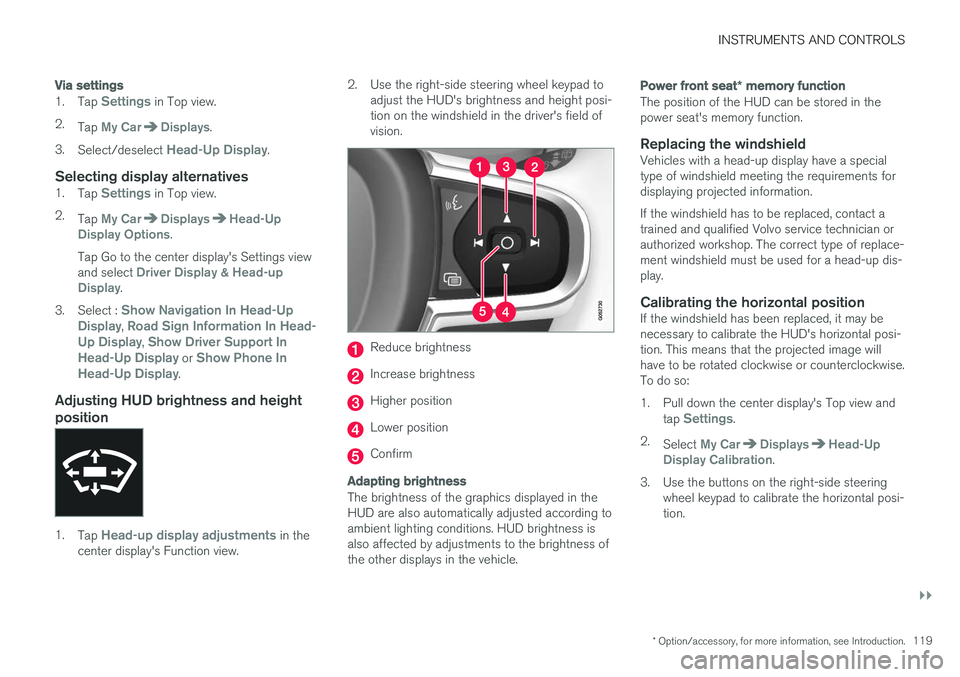
center display's Function view. 2. Use the right-side steering wheel keypad to
adjust the HUD's brightness and height posi- tion on the windshield in the driver's field ofvision.
Reduce brightness
Increase brightness
Higher position
Lower position
Confirm
Adapting brightness
The brightness of the graphics displayed in the HUD are also automatically adjusted according toambient lighting conditions. HUD brightness isalso affected by adjustments to the brightness ofthe other displays in the vehicle.
Power front seat * memory function
The position of the HUD can be stored in the power seat's memory function.
Replacing the windshieldVehicles with a head-up display have a specialtype of windshield meeting the requirements fordisplaying projected information. If the windshield has to be replaced, contact a trained and qualified Volvo service technician orauthorized workshop. The correct type of replace-ment windshield must be used for a head-up dis-play.
Calibrating the horizontal positionIf the windshield has been replaced, it may benecessary to calibrate the HUD's horizontal posi-tion. This means that the projected image willhave to be rotated clockwise or counterclockwise.To do so:
1. Pull down the center display's Top view and
tap
Settings.
2. Select
My CarDisplaysHead-Up
Display Calibration.
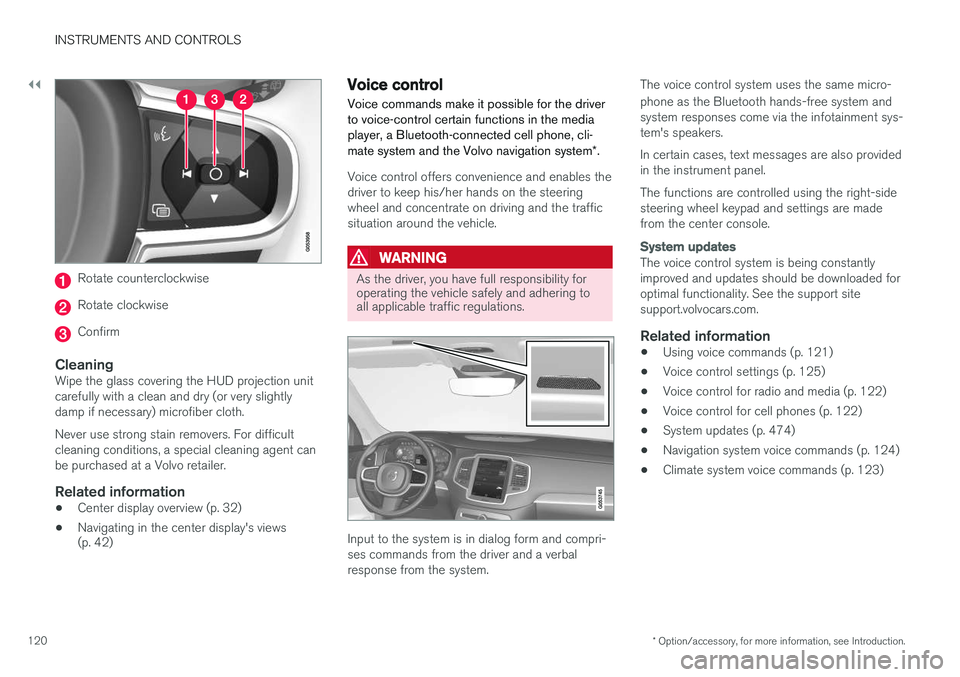
3. Use the buttons on the right-side steering wheel keypad to calibrate the horizontal posi- tion.
Page 122 of 546
||
INSTRUMENTS AND CONTROLS
* Option/accessory, for more information, see Introduction.
120
Rotate counterclockwise
Rotate clockwise
Confirm
CleaningWipe the glass covering the HUD projection unit carefully with a clean and dry (or very slightlydamp if necessary) microfiber cloth. Never use strong stain removers. For difficult cleaning conditions, a special cleaning agent canbe purchased at a Volvo retailer.
Related information
• Center display overview (p. 32)
• Navigating in the center display's views (p. 42)
Voice control
Voice commands make it possible for the driver to voice-control certain functions in the mediaplayer, a Bluetooth-connected cell phone, cli- mate system and the Volvo navigation system *.
Voice control offers convenience and enables the driver to keep his/her hands on the steeringwheel and concentrate on driving and the trafficsituation around the vehicle.
WARNING
As the driver, you have full responsibility for operating the vehicle safely and adhering toall applicable traffic regulations.
Input to the system is in dialog form and compri- ses commands from the driver and a verbalresponse from the system. The voice control system uses the same micro- phone as the Bluetooth hands-free system and system responses come via the infotainment sys-tem's speakers. In certain cases, text messages are also provided in the instrument panel. The functions are controlled using the right-side steering wheel keypad and settings are madefrom the center console.
System updates
The voice control system is being constantly improved and updates should be downloaded foroptimal functionality. See the support sitesupport.volvocars.com.
Related information
•
Using voice commands (p. 121)
• Voice control settings (p. 125)
• Voice control for radio and media (p. 122)
• Voice control for cell phones (p. 122)
• System updates (p. 474)
• Navigation system voice commands (p. 124)
• Climate system voice commands (p. 123)