radio VOLVO XC90 T8 2016 Owner´s Manual
[x] Cancel search | Manufacturer: VOLVO, Model Year: 2016, Model line: XC90 T8, Model: VOLVO XC90 T8 2016Pages: 546, PDF Size: 10.26 MB
Page 114 of 546
||
INSTRUMENTS AND CONTROLS
* Option/accessory, for more information, see Introduction.
112
Changing a setting
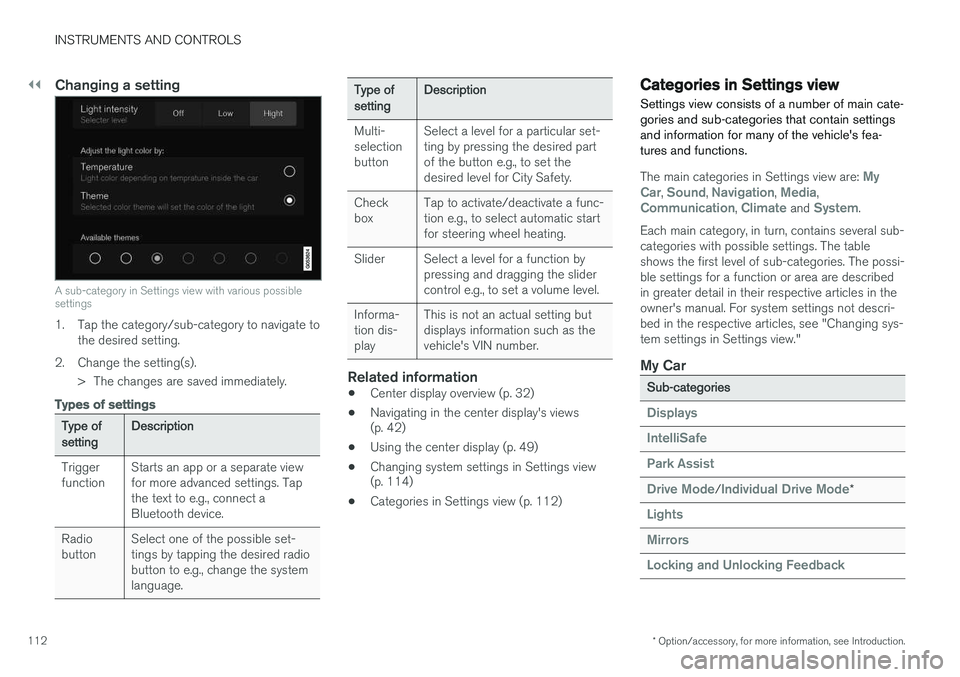
A sub-category in Settings view with various possible settings
1. Tap the category/sub-category to navigate to
the desired setting.
2. Change the setting(s). > The changes are saved immediately.
Types of settings
Type of settingDescription
Trigger functionStarts an app or a separate view for more advanced settings. Tapthe text to e.g., connect aBluetooth device.
Radio buttonSelect one of the possible set- tings by tapping the desired radiobutton to e.g., change the systemlanguage.
Type of settingDescription
Multi- selectionbuttonSelect a level for a particular set- ting by pressing the desired partof the button e.g., to set thedesired level for City Safety.
Check boxTap to activate/deactivate a func- tion e.g., to select automatic startfor steering wheel heating.
SliderSelect a level for a function by pressing and dragging the slidercontrol e.g., to set a volume level.
Informa- tion dis-playThis is not an actual setting but displays information such as thevehicle's VIN number.
Related information
• Center display overview (p. 32)
• Navigating in the center display's views (p. 42)
• Using the center display (p. 49)
• Changing system settings in Settings view(p. 114)
• Categories in Settings view (p. 112)
Categories in Settings view
Settings view consists of a number of main cate- gories and sub-categories that contain settingsand information for many of the vehicle's fea-tures and functions.
The main categories in Settings view are: My
Car, Sound, Navigation, Media,Communication, Climate and System.
Each main category, in turn, contains several sub- categories with possible settings. The tableshows the first level of sub-categories. The possi-ble settings for a function or area are describedin greater detail in their respective articles in theowner's manual. For system settings not descri-bed in the respective articles, see "Changing sys-tem settings in Settings view."
My Car
Sub-categories
Displays
IntelliSafe
Park Assist
Drive Mode/Individual Drive Mode*
Lights
Mirrors
Locking and Unlocking Feedback
Page 115 of 546
INSTRUMENTS AND CONTROLS
* Option/accessory, for more information, see Introduction.113
Sub-categories
Electric Parking Brake
Seats
Wipers
Suspension
Exterior SoundA
A
XC90 T8 Plug-in Hybrid, certain markets only.
Sound
Sub-categories
Sound Experience*
Tone
Balance
System Volumes
Navigation
Sub-categories
Map
Route
Traffic
Guidance
System
Media
Sub-categories
AM/FM RadioA
SiriusXM
Gracenote ®
Video
A
AM radio is not available in hybrid models.
Communication
Sub-categories
Phone
Text Messages
Bluetooth
Wi-Fi
Vehicle Wi-Fi Hotspot
Vehicle Modem Internet
Volvo On Call
Volvo Service Networks
ClimateThe main category Climate has no sub-catego-
ries.
System
Sub-categories
Date & Time
Language
Keyboard Layouts
Voice Control
Units
Storage
Software Updates
Factory reset
Services
Related information
• Settings view (p. 111)
• Changing system settings in Settings view (p. 114)
Page 117 of 546
INSTRUMENTS AND CONTROLS
115
Changing settings in apps
App view, which is one of the center display's basic views, contains all of the apps installed inthe vehicle. From Home view, navigate to Appview by swiping the screen from right to left.
Apps for integrated (basic) functionsCertain apps in your vehicle are factory-installed, such as FM, USB and CD and are part of Sen-
sus. Settings in these apps can be changed in the center display's Top view.
Changing settings for a basic app
1. Tap one of the basic apps, for example FM
radio.
2. Pull down Top view. 3. Tap
FM Radio Settings.
4. Change the desired settings and confirm.
5. Press the Home button below the center dis- play or tap the screen outside of Top view or pull up Top view to return to your originalview. See also the article "Categories in Set-tings view."
Third party appsThird party apps have to be downloaded e.g.,Volvo ID. Settings for these apps are made in
the apps themselves, not in Top view.
Related information
• Settings view (p. 111)
• Navigating in the center display's views (p. 42)
• Categories in Settings view (p. 112)
Resetting the settings view
All of the changes made under Settings view can be reset to their default values at the sametime.
Resetting1. Tap Settings in the center display's Top
view.
2. Tap
SystemFactory reset.
3. Tap
OK to confirm your choice.
Related information
• Settings view (p. 111)
• Resetting user data when the vehicle changes owners (p. 116)
Page 122 of 546
||
INSTRUMENTS AND CONTROLS
* Option/accessory, for more information, see Introduction.
120
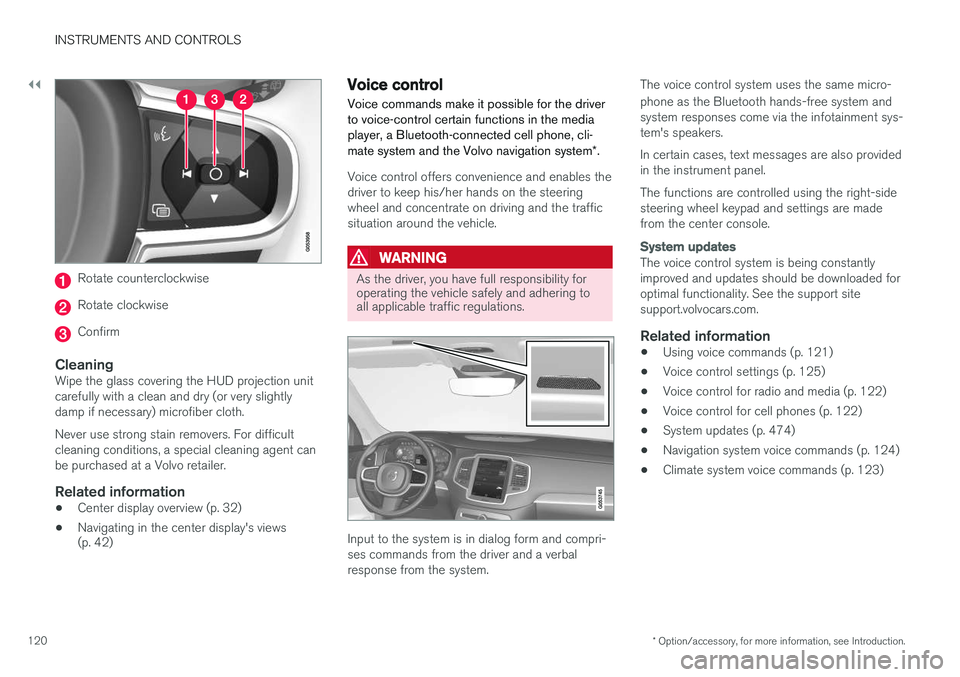
Rotate counterclockwise
Rotate clockwise
Confirm
CleaningWipe the glass covering the HUD projection unit carefully with a clean and dry (or very slightlydamp if necessary) microfiber cloth. Never use strong stain removers. For difficult cleaning conditions, a special cleaning agent canbe purchased at a Volvo retailer.
Related information
• Center display overview (p. 32)
• Navigating in the center display's views (p. 42)
Voice control
Voice commands make it possible for the driver to voice-control certain functions in the mediaplayer, a Bluetooth-connected cell phone, cli- mate system and the Volvo navigation system *.
Voice control offers convenience and enables the driver to keep his/her hands on the steeringwheel and concentrate on driving and the trafficsituation around the vehicle.
WARNING
As the driver, you have full responsibility for operating the vehicle safely and adhering toall applicable traffic regulations.
Input to the system is in dialog form and compri- ses commands from the driver and a verbalresponse from the system. The voice control system uses the same micro- phone as the Bluetooth hands-free system and system responses come via the infotainment sys-tem's speakers. In certain cases, text messages are also provided in the instrument panel. The functions are controlled using the right-side steering wheel keypad and settings are madefrom the center console.
System updates
The voice control system is being constantly improved and updates should be downloaded foroptimal functionality. See the support sitesupport.volvocars.com.
Related information
•
Using voice commands (p. 121)
• Voice control settings (p. 125)
• Voice control for radio and media (p. 122)
• Voice control for cell phones (p. 122)
• System updates (p. 474)
• Navigation system voice commands (p. 124)
• Climate system voice commands (p. 123)
Page 124 of 546
INSTRUMENTS AND CONTROLS
* Option/accessory, for more information, see Introduction.
122
Voice control for cell phones Voice commands can be used to control many of the most common functions in a Bluetooth ®
-
connected cell phone.
To specify a phone book contact, the voice com- mand has to include the contact's informationthat is in the phone book. For example, if a con- tact such as
John Smith has several phone
numbers, a number category such as home ormobile can be specified. To call, say: "Call John
Smith mobile".
To use the voice control system, press the
on the right-side steering wheel keypad and say one of the following commands after the tone:
• "
Call [contact]": call a contact from your
phone book.
• "
Call [phone number]": call a phone num-
ber.
• "
Recent calls": displays the list of recent
calls.
• "
Read message": reads a message aloud.
If there are several messages, select the one to be read.
Related information
• Voice control (p. 120)
• Using voice commands (p. 121)
• Voice control settings (p. 125)
Voice control for radio and media
The following voice commands can be used for the radio or an external media player.
To use the voice control system, press the on the right-side steering wheel keypad and say one of the following commands after the tone:
• "
Media": initiates a dialog and displays pos-
sible commands.
• "
Play [artist]": plays music by the selected
artist.
• "
Play [song title]": plays the selected song.
• "
Play [song title] from [album]": plays the
selected song from the selected album.
• "
Play [radio station]": starts the selected
radio station.
• "
Tune to [frequency]": tunes to the
selected frequency on the current waveband. If no waveband has been selected, FM is thedefault.
• "
Tune to [frequency] [waveband]": tunes
to the selected station on the selected wave- band.
• "
Radio": starts FM radio.
• "
Radio FM": starts FM radio.
• "
SiriusXM": starts SiriusXM radio
*
• "
CD": starts playback from a CD.
• "
USB": starts playback from a USB flash
drive. •
"
iPod": starts playback from an iPod.
• "
Bluetooth": starts playback from a Blue-
tooth-connected device.
• "
Similar music": starts playback from a
USB flash drive with music similar to the type currently playing.
Related information
• Voice control (p. 120)
• Using voice commands (p. 121)
• Voice control settings (p. 125)
Page 214 of 546
LOADING AND STORAGE
* Option/accessory, for more information, see Introduction.
212
Electrical sockets There are two 12-volt sockets in the tunnel con- sole, a 120-volt socket on the rear side of thetunnel console, and one 12-volt socket in the cargo area *.
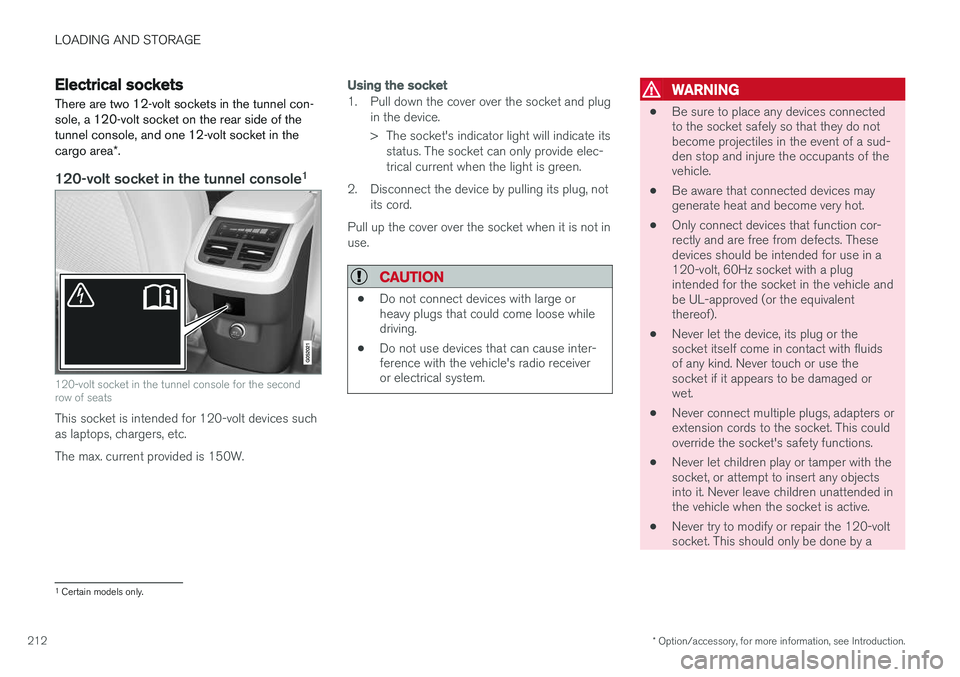
120-volt socket in the tunnel console 1
120-volt socket in the tunnel console for the second row of seats
This socket is intended for 120-volt devices such as laptops, chargers, etc. The max. current provided is 150W.
Using the socket
1. Pull down the cover over the socket and plug
in the device.
> The socket's indicator light will indicate itsstatus. The socket can only provide elec- trical current when the light is green.
2. Disconnect the device by pulling its plug, not its cord.
Pull up the cover over the socket when it is not inuse.
CAUTION
• Do not connect devices with large or heavy plugs that could come loose whiledriving.
• Do not use devices that can cause inter-ference with the vehicle's radio receiveror electrical system.
WARNING
• Be sure to place any devices connected to the socket safely so that they do notbecome projectiles in the event of a sud-den stop and injure the occupants of thevehicle.
• Be aware that connected devices maygenerate heat and become very hot.
• Only connect devices that function cor-rectly and are free from defects. Thesedevices should be intended for use in a120-volt, 60Hz socket with a plugintended for the socket in the vehicle andbe UL-approved (or the equivalentthereof).
• Never let the device, its plug or thesocket itself come in contact with fluidsof any kind. Never touch or use thesocket if it appears to be damaged orwet.
• Never connect multiple plugs, adapters orextension cords to the socket. This couldoverride the socket's safety functions.
• Never let children play or tamper with thesocket, or attempt to insert any objectsinto it. Never leave children unattended inthe vehicle when the socket is active.
• Never try to modify or repair the 120-voltsocket. This should only be done by a
1
Certain models only.
Page 237 of 546
LOCKS AND ALARM
}}
235
Remote key's range
In order to function correctly, the remote key must be within a certain distance of the vehicle.
Manual useThe remote key's functions, such as locking and unlocking the vehicle, which are activated by pressing the
or buttons, have a range
of approx. 65 feet (20 meters) from the vehicle. Buildings or other obstacles may interfere with the function of the remote key. The vehicle canalso be locked or unlocked with the key blade. If the vehicle's locks do not react, move closer and try again.
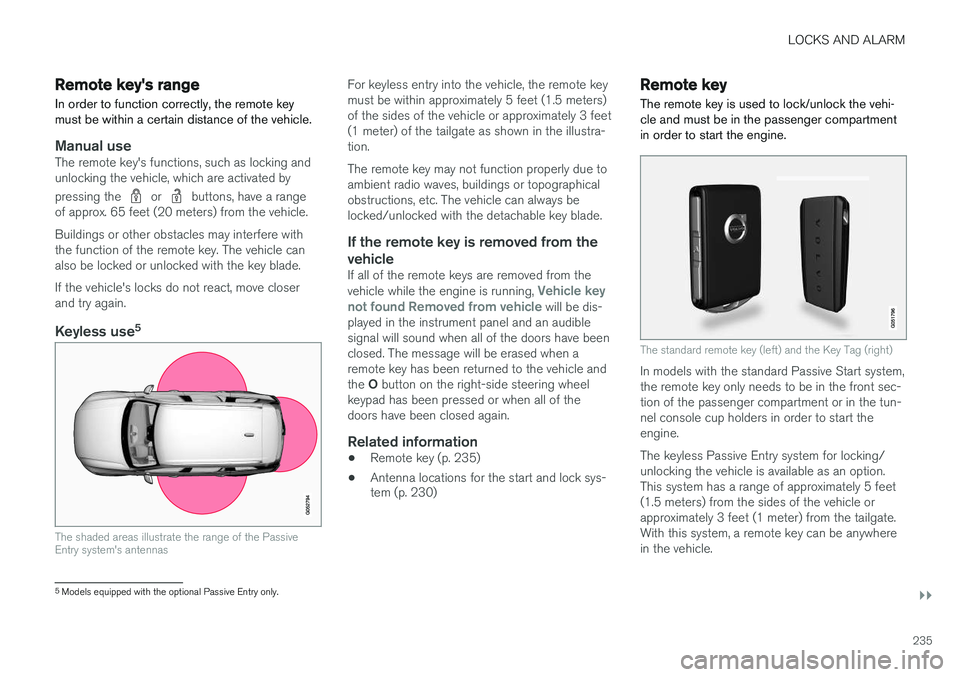
Keyless use 5
The shaded areas illustrate the range of the Passive Entry system's antennas
For keyless entry into the vehicle, the remote key must be within approximately 5 feet (1.5 meters)of the sides of the vehicle or approximately 3 feet(1 meter) of the tailgate as shown in the illustra-tion. The remote key may not function properly due to ambient radio waves, buildings or topographicalobstructions, etc. The vehicle can always belocked/unlocked with the detachable key blade.
If the remote key is removed from the vehicle
If all of the remote keys are removed from the vehicle while the engine is running, Vehicle key
not found Removed from vehicle will be dis-
played in the instrument panel and an audible signal will sound when all of the doors have beenclosed. The message will be erased when aremote key has been returned to the vehicle and the O button on the right-side steering wheel
keypad has been pressed or when all of the doors have been closed again.
Related information
• Remote key (p. 235)
• Antenna locations for the start and lock sys- tem (p. 230)
Remote key
The remote key is used to lock/unlock the vehi- cle and must be in the passenger compartmentin order to start the engine.
The standard remote key (left) and the Key Tag (right)
In models with the standard Passive Start system, the remote key only needs to be in the front sec-tion of the passenger compartment or in the tun-nel console cup holders in order to start theengine. The keyless Passive Entry system for locking/ unlocking the vehicle is available as an option.This system has a range of approximately 5 feet(1.5 meters) from the sides of the vehicle orapproximately 3 feet (1 meter) from the tailgate.With this system, a remote key can be anywherein the vehicle.
5 Models equipped with the optional Passive Entry only.
Page 286 of 546
DRIVER SUPPORT
* Option/accessory, for more information, see Introduction.
284
Radar sensor - type approval
USA & Canada:
FCC ID: L2C0054TR IC: 3432A-0054TR FCC
ID: L2C0055TR IC: 3432A-0055TR This device complies with Part 15 of the FCC Rules and with Industry Canada license-exemptRSS standard(s). Operation is subject to the fol-lowing two conditions: (1) This device may not cause harmful interfer- ence, and (2) This device must accept any interference received, including interference that may causeundesired operation.
WARNING
Changes or modifications not expressively approved by the party responsible for compli-ance could void the user's authority to oper-ate the equipment.
The term “IC:” before the radio certification num- ber only signifies that Industry Canada technicalspecifications were met.
Related information
• Radar sensor (p. 283)
Adaptive cruise control passing assistance
ACC can assist the driver when passing other vehicles.
How passing assistance worksWhen ACC is following another vehicle and the driver indicates that he/she is about to pass thatvehicle by using the left turn signal, ACC willbegin accelerating toward the vehicle aheadbefore your vehicle has moved into the passinglane. The function will then delay a speed reduction to avoid early braking as your vehicle approachesthe slower-moving vehicle. The function is active until your vehicle has passed the other vehicle.
WARNING
Be aware that this function may be activated in situations other than when passing a vehi-cle, such as if the turn signal is used to indi-cate a lane change or to indicate a turn. Thevehicle will accelerate briefly.
Using passing assistanceTo activate passing assistance:
• Your vehicle (ACC) must be following another vehicle (the target vehicle).
• Current speed must be at least approx.45 mph (70 km/h ). •
The speed set for ACC must be high enoughto safely pass the vehicle ahead.
Starting passing assistanceTo start a passing assistance sequence:
• Activate the left turn signal.
Passing assistance limitations
WARNING
The driver should be prepared for sudden changes when passing assistance is used. Incertain cases, there may be undesired accel-eration. Certain situations should be avoided, such as: • If the vehicle is approaching an exit to the left or a left turn.
• If the vehicle ahead slows down beforeyour vehicle has moved into the passinglane.
• Traffic in the passing lane slows down.
Passing assistance in these situations can be deactivated by putting ACC in standby mode.
Related information
• Adaptive Cruise Control (ACC)
* (p. 266)
Page 406 of 546
INFOTAINMENT
404
The infotainment system
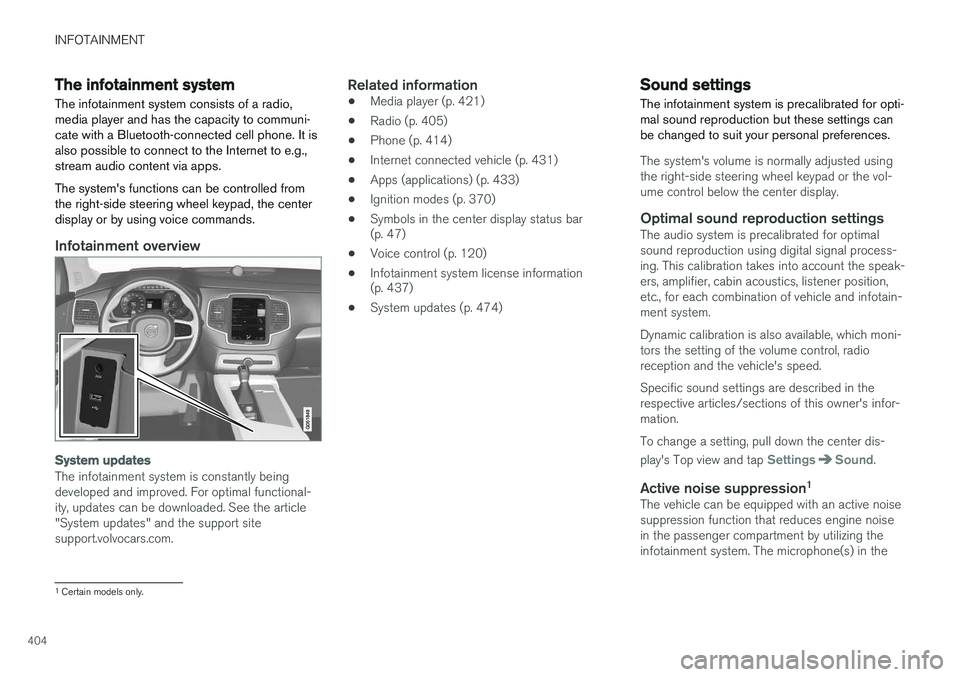
The infotainment system consists of a radio, media player and has the capacity to communi-cate with a Bluetooth-connected cell phone. It isalso possible to connect to the Internet to e.g.,stream audio content via apps. The system's functions can be controlled from the right-side steering wheel keypad, the centerdisplay or by using voice commands.
Infotainment overview
System updates
The infotainment system is constantly being developed and improved. For optimal functional-ity, updates can be downloaded. See the article"System updates" and the support sitesupport.volvocars.com.
Related information
• Media player (p. 421)
• Radio (p. 405)
• Phone (p. 414)
• Internet connected vehicle (p. 431)
• Apps (applications) (p. 433)
• Ignition modes (p. 370)
• Symbols in the center display status bar (p. 47)
• Voice control (p. 120)
• Infotainment system license information(p. 437)
• System updates (p. 474)
Sound settings
The infotainment system is precalibrated for opti- mal sound reproduction but these settings canbe changed to suit your personal preferences.
The system's volume is normally adjusted using the right-side steering wheel keypad or the vol-ume control below the center display.
Optimal sound reproduction settingsThe audio system is precalibrated for optimalsound reproduction using digital signal process-ing. This calibration takes into account the speak-ers, amplifier, cabin acoustics, listener position,etc., for each combination of vehicle and infotain-ment system. Dynamic calibration is also available, which moni- tors the setting of the volume control, radioreception and the vehicle's speed. Specific sound settings are described in the respective articles/sections of this owner's infor-mation. To change a setting, pull down the center dis- play's Top view and tap
SettingsSound.
Active noise suppression 1The vehicle can be equipped with an active noise suppression function that reduces engine noisein the passenger compartment by utilizing theinfotainment system. The microphone(s) in the
1
Certain models only.
Page 407 of 546
INFOTAINMENT
* Option/accessory, for more information, see Introduction.405
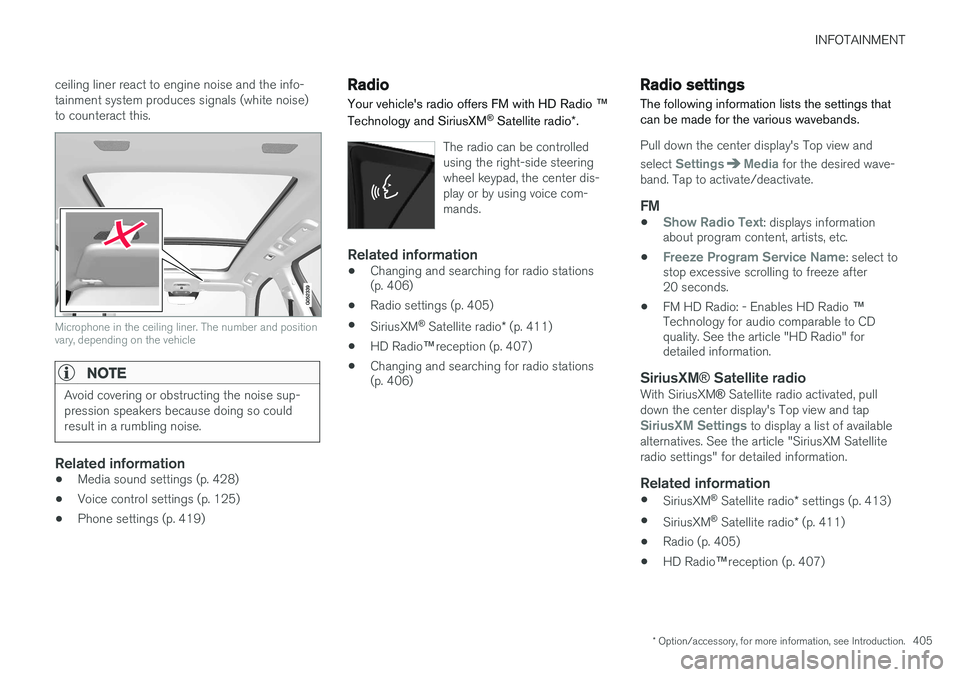
ceiling liner react to engine noise and the info- tainment system produces signals (white noise)to counteract this.
Microphone in the ceiling liner. The number and position vary, depending on the vehicle
NOTE
Avoid covering or obstructing the noise sup- pression speakers because doing so couldresult in a rumbling noise.
Related information
•
Media sound settings (p. 428)
• Voice control settings (p. 125)
• Phone settings (p. 419)
Radio Your vehicle's radio offers FM with HD Radio
™
Technology and SiriusXM ®
Satellite radio *.
The radio can be controlled using the right-side steeringwheel keypad, the center dis-play or by using voice com-mands.
Related information
• Changing and searching for radio stations (p. 406)
• Radio settings (p. 405)
• SiriusXM ®
Satellite radio * (p. 411)
• HD Radio
™reception (p. 407)
• Changing and searching for radio stations(p. 406)
Radio settings
The following information lists the settings that can be made for the various wavebands.
Pull down the center display's Top view and select
SettingsMedia for the desired wave-
band. Tap to activate/deactivate.
FM
•Show Radio Text: displays information
about program content, artists, etc.
•
Freeze Program Service Name: select to
stop excessive scrolling to freeze after 20 seconds.
• FM HD Radio: - Enables HD Radio
™
Technology for audio comparable to CDquality. See the article "HD Radio" fordetailed information.
SiriusXM ® Satellite radioWith SiriusXM ® Satellite radio activated, pull
down the center display's Top view and tap
SiriusXM Settings to display a list of available
alternatives. See the article "SiriusXM Satellite radio settings" for detailed information.
Related information
• SiriusXM ®
Satellite radio * settings (p. 413)
• SiriusXM ®
Satellite radio * (p. 411)
• Radio (p. 405)
• HD Radio
™reception (p. 407)