CD player VOLVO XC90 T8 2016 Owner´s Manual
[x] Cancel search | Manufacturer: VOLVO, Model Year: 2016, Model line: XC90 T8, Model: VOLVO XC90 T8 2016Pages: 546, PDF Size: 10.26 MB
Page 432 of 546
||
INFOTAINMENT
* Option/accessory, for more information, see Introduction.
430
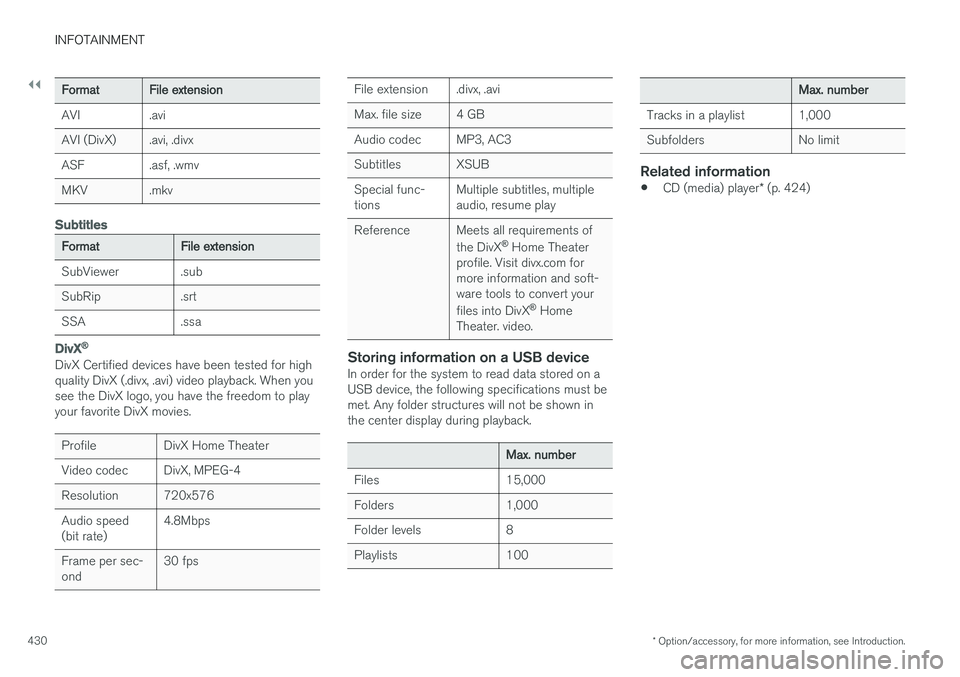
FormatFile extension
AVI.avi
AVI (DivX).avi, .divx
ASF.asf, .wmv
MKV.mkv
Subtitles
FormatFile extension
SubViewer.sub
SubRip.srt
SSA.ssa
DivX ®
DivX Certified devices have been tested for high quality DivX (.divx, .avi) video playback. When yousee the DivX logo, you have the freedom to playyour favorite DivX movies.
ProfileDivX Home Theater
Video codecDivX, MPEG-4
Resolution720x576
Audio speed (bit rate)4.8Mbps
Frame per sec- ond30 fps
File extension.divx, .avi
Max. file size4 GB
Audio codecMP3, AC3
SubtitlesXSUB
Special func- tionsMultiple subtitles, multiple audio, resume play
ReferenceMeets all requirements of the DivX ®
Home Theater
profile. Visit divx.com for more information and soft-ware tools to convert your files into DivX ®
Home
Theater. video.
Storing information on a USB deviceIn order for the system to read data stored on a USB device, the following specifications must bemet. Any folder structures will not be shown inthe center display during playback.
Max. number
Files15,000
Folders1,000
Folder levels8
Playlists100
Max. number
Tracks in a playlist1,000
SubfoldersNo limit
Related information
• CD (media) player
* (p. 424)
Page 436 of 546
||
INFOTAINMENT
434operated in conjunction with any other antenna or transmitter. Canada This device complies with Industry Canada licence-exempt RSS standard(s). Operation issubject to the following two conditions: (1) this device may not cause interference, and(2) this device must accept any interference, including interference that may cause undesiredoperation of the device.
Related information
•
Internet connected vehicle (p. 431)
• Pairing a cell phone (p. 415)
• Phone (p. 414)
• Media player (p. 421)
• Connecting/disconnecting a cell phone (p. 416)
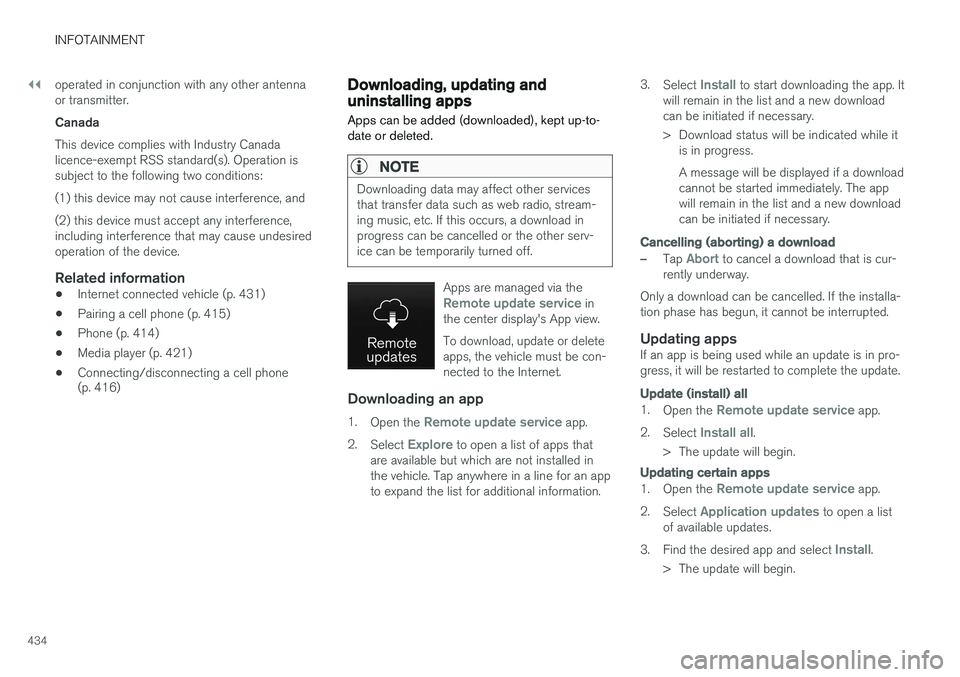
Downloading, updating and uninstalling apps
Apps can be added (downloaded), kept up-to- date or deleted.
NOTE
Downloading data may affect other services that transfer data such as web radio, stream-ing music, etc. If this occurs, a download inprogress can be cancelled or the other serv-ice can be temporarily turned off.
Apps are managed via theRemote update service in
the center display's App view. To download, update or delete apps, the vehicle must be con-nected to the Internet.
Downloading an app
1. Open the Remote update service app.
2. Select
Explore to open a list of apps that
are available but which are not installed in the vehicle. Tap anywhere in a line for an appto expand the list for additional information. 3.
Select
Install to start downloading the app. It
will remain in the list and a new download can be initiated if necessary.
> Download status will be indicated while it is in progress. A message will be displayed if a download cannot be started immediately. The appwill remain in the list and a new downloadcan be initiated if necessary.
Cancelling (aborting) a download
–Tap Abort to cancel a download that is cur-
rently underway.
Only a download can be cancelled. If the installa-
tion phase has begun, it cannot be interrupted.
Updating appsIf an app is being used while an update is in pro- gress, it will be restarted to complete the update.
Update (install) all
1. Open the Remote update service app.
2. Select
Install all.
> The update will begin.
Updating certain apps
1. Open the Remote update service app.
2. Select
Application updates to open a list
of available updates.
3. Find the desired app and select
Install.
> The update will begin.
Page 437 of 546
INFOTAINMENT
}}
435
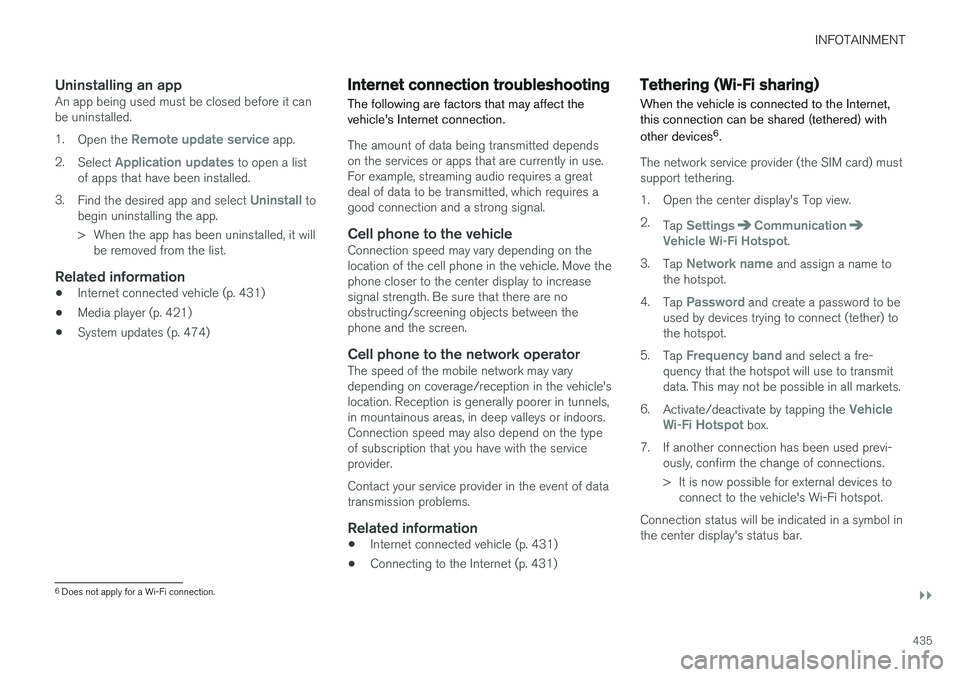
Uninstalling an appAn app being used must be closed before it can be uninstalled. 1.Open the
Remote update service app.
2. Select
Application updates to open a list
of apps that have been installed.
3. Find the desired app and select
Uninstall to
begin uninstalling the app.
> When the app has been uninstalled, it will be removed from the list.
Related information
• Internet connected vehicle (p. 431)
• Media player (p. 421)
• System updates (p. 474)
Internet connection troubleshooting The following are factors that may affect the vehicle's Internet connection.
The amount of data being transmitted depends on the services or apps that are currently in use.For example, streaming audio requires a greatdeal of data to be transmitted, which requires agood connection and a strong signal.
Cell phone to the vehicleConnection speed may vary depending on thelocation of the cell phone in the vehicle. Move thephone closer to the center display to increasesignal strength. Be sure that there are noobstructing/screening objects between thephone and the screen.
Cell phone to the network operatorThe speed of the mobile network may varydepending on coverage/reception in the vehicle'slocation. Reception is generally poorer in tunnels,in mountainous areas, in deep valleys or indoors.Connection speed may also depend on the typeof subscription that you have with the serviceprovider. Contact your service provider in the event of data transmission problems.
Related information
• Internet connected vehicle (p. 431)
• Connecting to the Internet (p. 431)
Tethering (Wi-Fi sharing)
When the vehicle is connected to the Internet, this connection can be shared (tethered) with other devices 6
.
The network service provider (the SIM card) must support tethering.
1. Open the center display's Top view.2. Tap
SettingsCommunicationVehicle Wi-Fi Hotspot.
3. Tap
Network name and assign a name to
the hotspot.
4. Tap
Password and create a password to be
used by devices trying to connect (tether) to the hotspot.
5. Tap
Frequency band and select a fre-
quency that the hotspot will use to transmit data. This may not be possible in all markets.
6. Activate/deactivate by tapping the
Vehicle
Wi-Fi Hotspot box.
7. If another connection has been used previ- ously, confirm the change of connections.
> It is now possible for external devices toconnect to the vehicle's Wi-Fi hotspot.
Connection status will be indicated in a symbol in the center display's status bar.
6 Does not apply for a Wi-Fi connection.
Page 493 of 546
MAINTENANCE AND SERVICING
}}
* Option/accessory, for more information, see Introduction.491
Positions
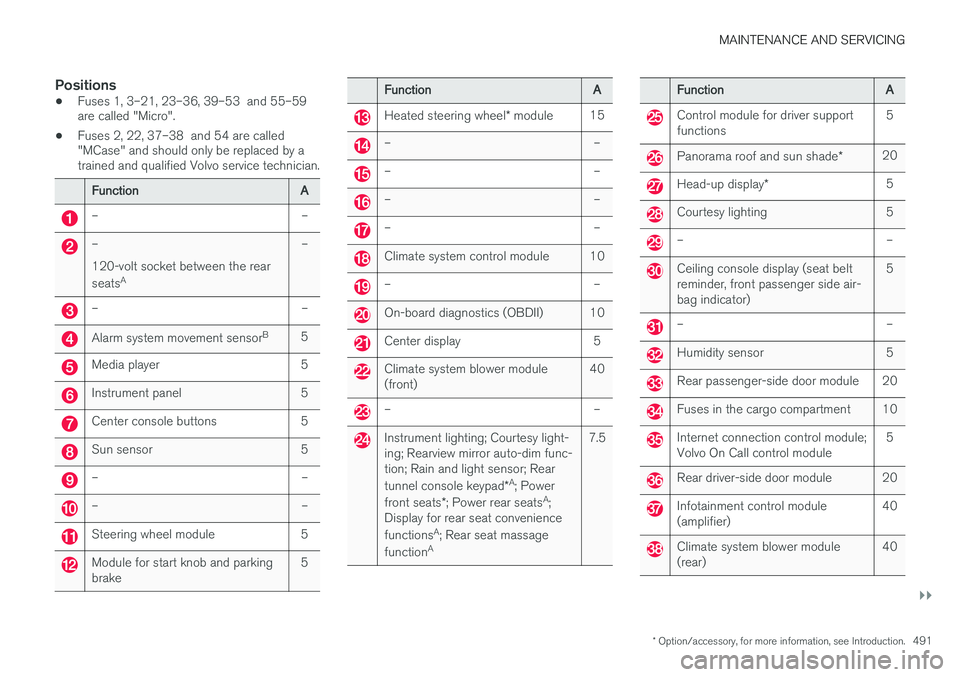
•Fuses 1, 3–21, 23–36, 39–53 and 55–59 are called "Micro".
• Fuses 2, 22, 37–38 and 54 are called"MCase" and should only be replaced by atrained and qualified Volvo service technician.
FunctionA
––
– 120-volt socket between the rear seats A–
––
Alarm system movement sensor B5
Media player5
Instrument panel5
Center console buttons5
Sun sensor5
––
––
Steering wheel module5
Module for start knob and parking brake5
FunctionA
Heated steering wheel
* module15
––
––
––
––
Climate system control module10
––
On-board diagnostics (OBDII)10
Center display5
Climate system blower module (front)40
––
Instrument lighting; Courtesy light- ing; Rearview mirror auto-dim func-tion; Rain and light sensor; Rear tunnel console keypad *A
; Power
front seats *; Power rear seats A
;
Display for rear seat conveniencefunctions A
; Rear seat massage
function A7.5
FunctionA
Control module for driver support functions5
Panorama roof and sun shade
*20
Head-up display*5
Courtesy lighting5
––
Ceiling console display (seat belt reminder, front passenger side air-bag indicator)5
––
Humidity sensor5
Rear passenger-side door module20
Fuses in the cargo compartment10
Internet connection control module; Volvo On Call control module5
Rear driver-side door module20
Infotainment control module (amplifier)40
Climate system blower module (rear)40
Page 536 of 546
INDEX
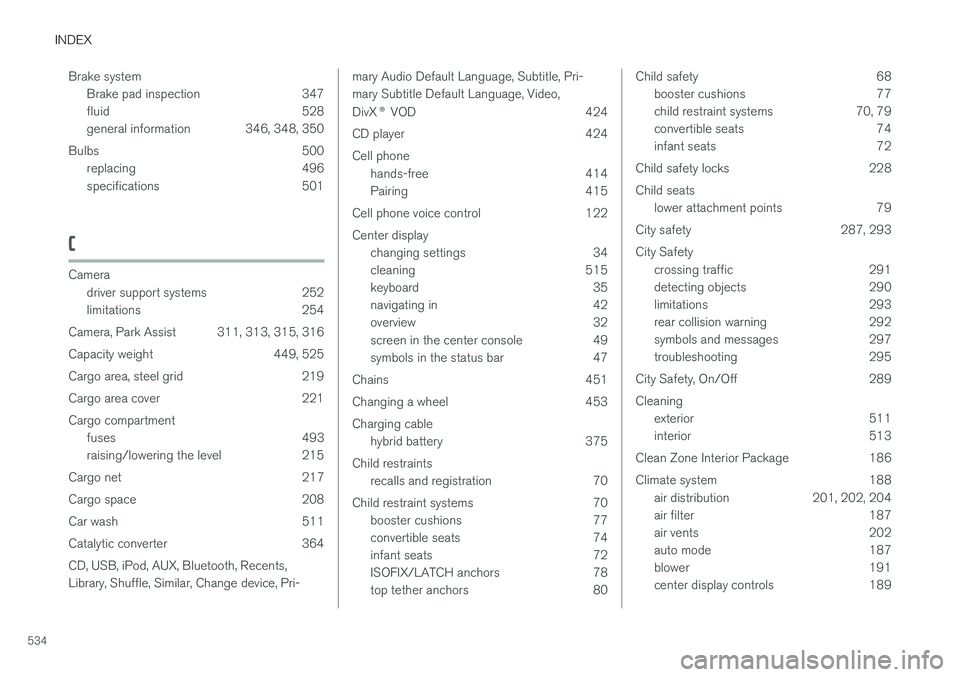
534Brake system
Brake pad inspection 347
fluid 528
general information 346, 348, 350
Bulbs 500 replacing 496
specifications 501
C
Cameradriver support systems 252
limitations 254
Camera, Park Assist 311, 313, 315, 316
Capacity weight 449, 525
Cargo area, steel grid 219
Cargo area cover 221Cargo compartment fuses 493
raising/lowering the level 215
Cargo net 217
Cargo space 208
Car wash 511
Catalytic converter 364CD, USB, iPod, AUX, Bluetooth, Recents, Library, Shuffle, Similar, Change device, Pri-
mary Audio Default Language, Subtitle, Pri- mary Subtitle Default Language, Video, DivX ® VOD 424
CD player 424 Cell phone hands-free 414
Pairing 415
Cell phone voice control 122 Center display changing settings 34
cleaning 515
keyboard 35
navigating in 42
overview 32
screen in the center console 49
symbols in the status bar 47
Chains 451
Changing a wheel 453Charging cable hybrid battery 375
Child restraints recalls and registration 70
Child restraint systems 70 booster cushions 77
convertible seats 74
infant seats 72
ISOFIX/LATCH anchors 78
top tether anchors 80Child safety 68booster cushions 77
child restraint systems 70, 79
convertible seats 74
infant seats 72
Child safety locks 228 Child seats lower attachment points 79
City safety 287, 293City Safety crossing traffic 291
detecting objects 290
limitations 293
rear collision warning 292
symbols and messages 297
troubleshooting 295
City Safety, On/Off 289 Cleaning exterior 511
interior 513
Clean Zone Interior Package 186
Climate system 188 air distribution 201, 202, 204
air filter 187
air vents 202
auto mode 187
blower 191
center display controls 189
Page 539 of 546
INDEX
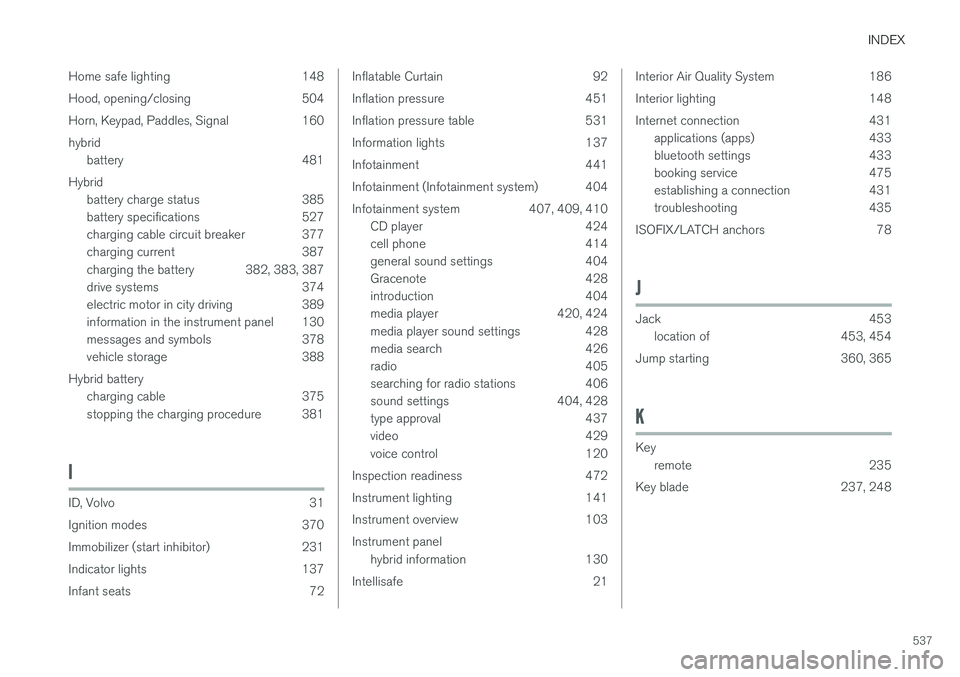
537
Home safe lighting 148
Hood, opening/closing 504
Horn, Keypad, Paddles, Signal 160hybrid
battery 481
Hybrid battery charge status 385
battery specifications 527
charging cable circuit breaker 377
charging current 387
charging the battery 382, 383, 387
drive systems 374
electric motor in city driving 389
information in the instrument panel 130
messages and symbols 378
vehicle storage 388
Hybrid battery charging cable 375
stopping the charging procedure 381
I
ID, Volvo 31
Ignition modes 370
Immobilizer (start inhibitor) 231
Indicator lights 137
Infant seats 72
Inflatable Curtain 92
Inflation pressure 451
Inflation pressure table 531
Information lights 137
Infotainment 441
Infotainment (Infotainment system) 404
Infotainment system 407, 409, 410CD player 424
cell phone 414
general sound settings 404
Gracenote 428
introduction 404
media player 420, 424
media player sound settings 428
media search 426
radio 405
searching for radio stations 406
sound settings 404, 428
type approval 437
video 429
voice control 120
Inspection readiness 472
Instrument lighting 141
Instrument overview 103Instrument panel hybrid information 130
Intellisafe 21Interior Air Quality System 186
Interior lighting 148
Internet connection 431 applications (apps) 433
bluetooth settings 433
booking service 475
establishing a connection 431
troubleshooting 435
ISOFIX/LATCH anchors 78
J
Jack 453 location of 453, 454
Jump starting 360, 365
K
Key remote 235
Key blade 237, 248
Page 540 of 546
INDEX
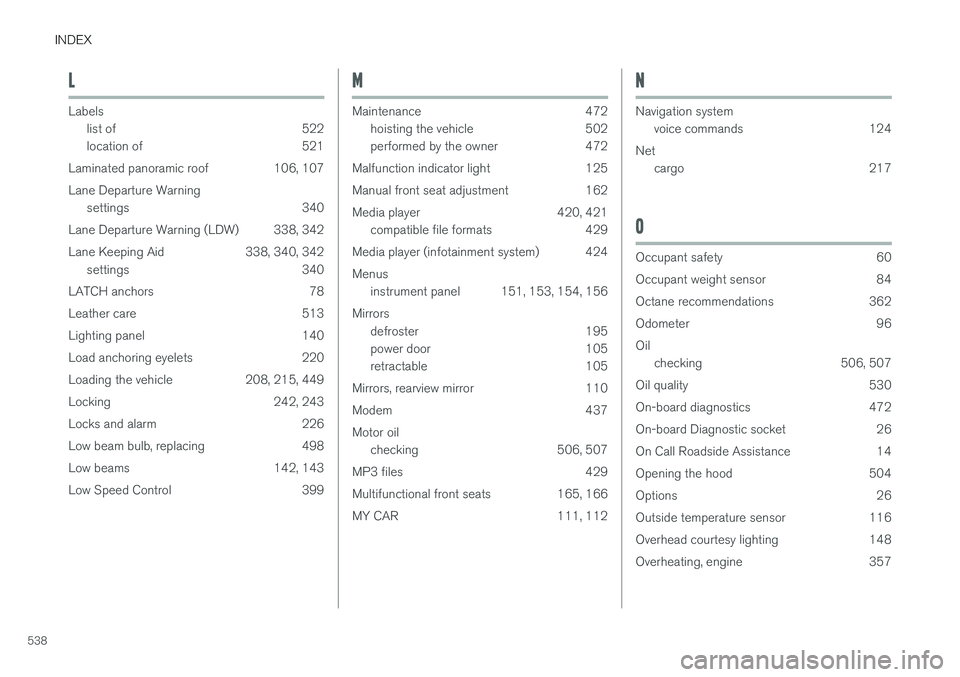
538
L
Labelslist of 522
location of 521
Laminated panoramic roof 106, 107 Lane Departure Warning settings 340
Lane Departure Warning (LDW) 338, 342
Lane Keeping Aid 338, 340, 342 settings 340
LATCH anchors 78
Leather care 513
Lighting panel 140
Load anchoring eyelets 220
Loading the vehicle 208, 215, 449
Locking 242, 243
Locks and alarm 226
Low beam bulb, replacing 498
Low beams 142, 143
Low Speed Control 399
M
Maintenance 472 hoisting the vehicle 502
performed by the owner 472
Malfunction indicator light 125
Manual front seat adjustment 162
Media player 420, 421 compatible file formats 429
Media player (infotainment system) 424Menus instrument panel 151, 153, 154, 156
Mirrors defroster 195
power door 105
retractable 105
Mirrors, rearview mirror 110
Modem 437Motor oil checking 506, 507
MP3 files 429
Multifunctional front seats 165, 166
MY CAR 111, 112
N
Navigation system voice commands 124
Net cargo 217
O
Occupant safety 60
Occupant weight sensor 84
Octane recommendations 362
Odometer 96Oilchecking 506, 507
Oil quality 530
On-board diagnostics 472
On-board Diagnostic socket 26
On Call Roadside Assistance 14
Opening the hood 504
Options 26
Outside temperature sensor 116
Overhead courtesy lighting 148
Overheating, engine 357