reset VOLVO XC90 T8 2016 Owner´s Manual
[x] Cancel search | Manufacturer: VOLVO, Model Year: 2016, Model line: XC90 T8, Model: VOLVO XC90 T8 2016Pages: 546, PDF Size: 10.26 MB
Page 211 of 546
LOADING AND STORAGE
}}
209
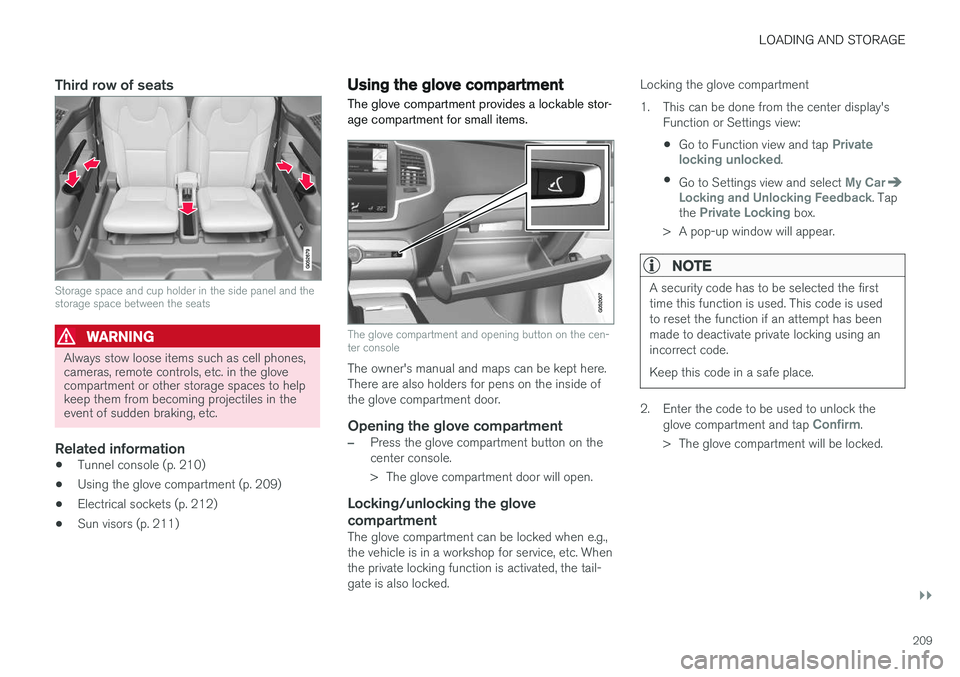
Third row of seats
Storage space and cup holder in the side panel and the storage space between the seats
WARNING
Always stow loose items such as cell phones, cameras, remote controls, etc. in the glovecompartment or other storage spaces to helpkeep them from becoming projectiles in theevent of sudden braking, etc.
Related information
•Tunnel console (p. 210)
• Using the glove compartment (p. 209)
• Electrical sockets (p. 212)
• Sun visors (p. 211)
Using the glove compartment
The glove compartment provides a lockable stor- age compartment for small items.
The glove compartment and opening button on the cen- ter console
The owner's manual and maps can be kept here. There are also holders for pens on the inside ofthe glove compartment door.
Opening the glove compartment
–Press the glove compartment button on the center console.
> The glove compartment door will open.
Locking/unlocking the glove compartment
The glove compartment can be locked when e.g., the vehicle is in a workshop for service, etc. Whenthe private locking function is activated, the tail-gate is also locked. Locking the glove compartment
1. This can be done from the center display's
Function or Settings view:
• Go to Function view and tap
Private
locking unlocked.
• Go to Settings view and select
My CarLocking and Unlocking Feedback. Tap
the Private Locking box.
> A pop-up window will appear.
NOTE
A security code has to be selected the first time this function is used. This code is usedto reset the function if an attempt has beenmade to deactivate private locking using anincorrect code. Keep this code in a safe place.
2. Enter the code to be used to unlock the glove compartment and tap Confirm.
> The glove compartment will be locked.
Page 249 of 546
LOCKS AND ALARM
}}
* Option/accessory, for more information, see Introduction.247
–Press the button14
on the lower edge of
the tailgate.
> The tailgate will close automatically but will not be locked .
–Press the button14
on the lower edge of
the tailgate.
> The tailgate will close automatically. The tailgate and doors will also be locked and
the alarm will be armed.
If the remote key is not close enough to the tail- gate, automatic locking/unlocking/opening/clos-ing will not be possible. Three short audible sig-nals will sound.
Interrupting opening/closing
–This can be done in five ways: • Press the button on the lighting panel
• Press the button on the remote key
• Press either of the buttons on the lower edge of the tailgate
• Press lightly on the rubber-covered buttonunder the tailgate's outside handle
• Move your foot under a sensor beneath the rear bumper
*
> The tailgate will stop moving
Programming the tailgate's maximum opening angle
The tailgate's maximum opening angle can be programmed, for example, if the tailgate has to beopened in a garage with a low ceiling. Programming the opening angle:
–Open the tailgate manually to the desired angle and press and hold the closing buttonon the tailgate's lower edge for at least 3seconds. Release the tailgate.
> Two audible signals will sound to indicate that the selected opening angle has been stored.
Erasing tailgate programming
–Open the tailgate manually to its highest position and press and hold the closing but-ton on the tailgate's lower edge for at least 3seconds. Release the tailgate.
> Two audible signals will sound to indicate that the programmed opening angle has been erased.
NOTE
If the tailgate has been opened and closed continuously too long, the automatic functionwill be deactivated to avoid overloading theelectrical system. The automatic function canbe used again after approximately 2 minutes. If the vehicle's battery has been discharged or disconnected, or if the tailgate has been openfor more than 24 hours, the tailgate must beopened and closed once manually to resetthe system.
Pinch protectionIf the tailgate is obstructed when being opened/ closed, a pinch protection mechanism is acti-vated.
• While opening: the tailgate will stop moving and an audible signal will sound.
• While closing: the tailgate will stop andreturn to the maximum programmable open-ing position. An audible signal will sound.
WARNING
Be sure that no one is near the tailgate when it is opened or closed automatically. The tail-gate should never be obstructed in any waywhen it is operated.
14
Models equipped with the optional Passive Entry system have a button to close the tailgate and a button to close and lock the tailgate.
Page 257 of 546
DRIVER SUPPORT
}}
255
CauseAction
There is dirt between the inside of the windshield and the camera/radar sensor.Have the area of the windshield cleaned by a trained and qualified Volvo service technician.
Strong backlightingNo action required. The came will reset automatically when lighting conditions improve.
High temperaturesIf the temperature in the passenger compartment is very high, the camera and radar sensor may betemporarily turned off for approx. 15 minutesafter the engine has been started to protect theirelectronic components. When the temperaturehas cooled sufficiently, the camera and radarsensor will restart automatically.Damaged windshield
CAUTION
•Service and maintenance on City Safety may only be carried out by a trained andqualified Volvo service technician.
• If a crack, scratch or stone chip shouldoccur in the section of the windshield infront the camera/radar sensor, contact atrained and qualified Volvo service techni-cian to repair or replace the windshield.Failing to do so may result in reducedCity Safety functionality.
To help prevent limited or reduced functional- ity, please also observe the following:
• Volvo recommends that cracks, scratches or stone chips on the windshield in front of the camera/radar sensor should
not
be repaired; in such cases, the entire windshield should be replaced.
• Before the windshield is replaced, con-tact a Volvo retailer to ensure that thecorrect windshield is ordered and instal-led. If the wrong type of windshield is
used, this may cause City Safety to func- tion improperly or not at all.
• Volvo recommends the use of only Genu-ine Volvo Replacement Windshields.
• When replacing windshield wipers, usethe same type or ones approved by Volvo.
After the windshield has been replaced, the camera/radar sensor will have to be recalibra-ted by a trained and qualified Volvo servicetechnician to help ensure proper function ofall of the vehicle's camera-/radar-based sys-tems.
MaintenanceIn order for camera and radar sensor to function properly, the area of the windshield must be keptfree of dirt, ice, snow, etc. and should be washedregularly with a suitable car washing detergent.
Related information
• City Safety
™ (p. 287)
• Radar sensor limitations (p. 258)
• Driver support systems (p. 252)
Page 276 of 546
||
DRIVER SUPPORT
274
WARNING
•Pilot Assist is designed to be a supple- mentary driving aid and cannot cover alldriving situations, traffic, weather and/orroad conditions.
• The driver should be familiar with all ofthe information in this article regardingPilot Assist, including its limitations.
• Pilot Assist is not intended to replace thedriver's attention and judgement.
• Pilot Assist must only be used wherethere are clearly visible traffic lane sidemarker lines on both sides of the currenttraffic lane. In other circumstances thereis an increased risk of collision with sur-rounding obstacles that are not detectedby the system.
• The driver is always responsible for steer-ing the vehicle and maintaining a suitablespeed and distance to the vehicle aheadand must intervene if necessary, even ifPilot Assist is being used.
Pilot Assist is designed to regulate speed smoothly but in situations calling for fast braking,the driver must apply the brakes. This applies tosituations where there are considerable differen-ces in speed or if the vehicle ahead brakes sud-denly. Due to the limitations of the camera andradar sensor, the system may apply the brakes inyour vehicle suddenly or not at all. The default speed for Pilot Assist is preset toapprox. 30 mph (50 km/h) and cannot bechanged. If the vehicle ahead increases speed toover 30 mph (50 km/h) and pulls away from yourvehicle, Pilot Assist will go into standby mode.
NOTE
•
Pilot Assist maintenance should only be carried out by a trained and qualifiedVolvo service technician.
• Pilot Assist regulates your vehicle'sspeed using the accelerator pedal andthe brakes. Please be aware that theremay be a faint sound from the brakeswhen the system is using them.
WARNING
•Pilot Assist does not react to people or animals, or small vehicles such as bicy-cles and motorcycles. It also does notreact to low trailers, slow moving, parkedor approaching vehicles, or stationaryobjects.
• Do not use Pilot Assist in demandingdriving conditions such as city driving orother heavy traffic situations, in slipperyconditions, when there is a great deal ofwater or slush on the road, during heavyrain or snow, in poor visibility, on windingroads or on highway on- or off-ramps.
Pilot Assist overview
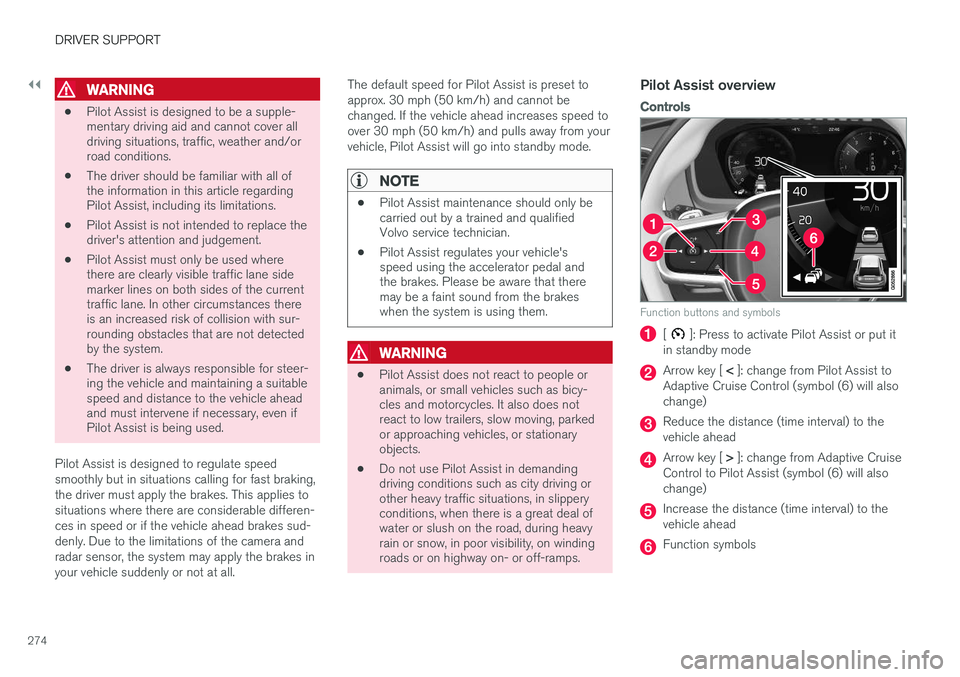
Controls
Function buttons and symbols
[]: Press to activate Pilot Assist or put it
in standby mode
Arrow key [ < ]: change from Pilot Assist to
Adaptive Cruise Control (symbol (6) will also change)
Reduce the distance (time interval) to the vehicle ahead
Arrow key [ > ]: change from Adaptive Cruise
Control to Pilot Assist (symbol (6) will also change)
Increase the distance (time interval) to the vehicle ahead
Function symbols
Page 300 of 546
DRIVER SUPPORT
* Option/accessory, for more information, see Introduction.
298
Speed limiter (SL) *
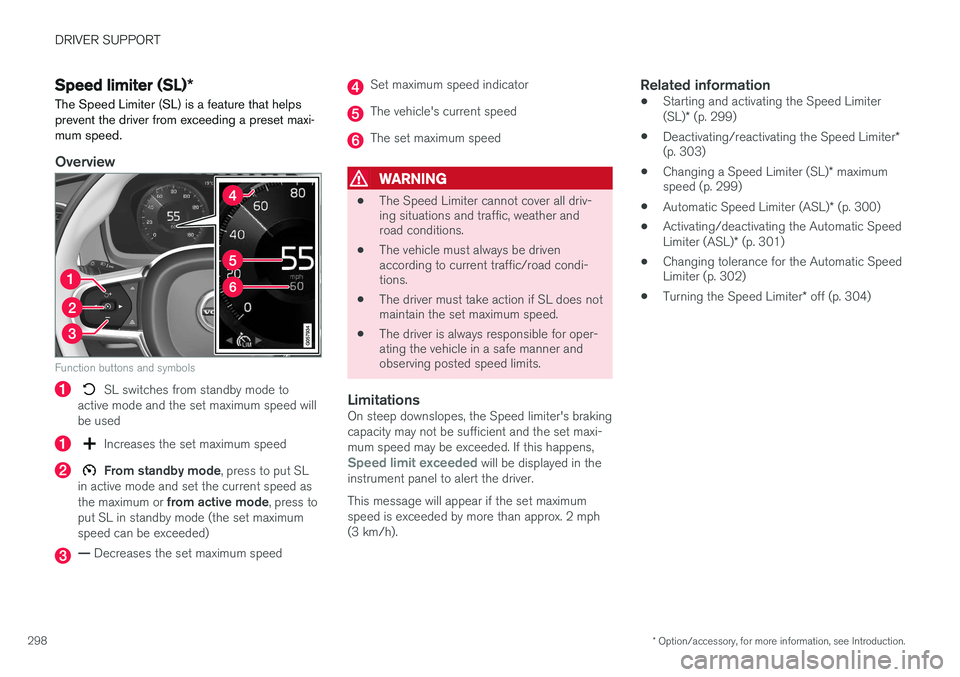
The Speed Limiter (SL) is a feature that helps prevent the driver from exceeding a preset maxi-mum speed.
Overview
Function buttons and symbols
SL switches from standby mode to
active mode and the set maximum speed will be used
Increases the set maximum speed
From standby mode , press to put SL
in active mode and set the current speed as the maximum or from active mode , press to
put SL in standby mode (the set maximum speed can be exceeded)
— Decreases the set maximum speed
Set maximum speed indicator
The vehicle's current speed
The set maximum speed
WARNING
• The Speed Limiter cannot cover all driv- ing situations and traffic, weather androad conditions.
• The vehicle must always be drivenaccording to current traffic/road condi-tions.
• The driver must take action if SL does notmaintain the set maximum speed.
• The driver is always responsible for oper-ating the vehicle in a safe manner andobserving posted speed limits.
LimitationsOn steep downslopes, the Speed limiter's braking capacity may not be sufficient and the set maxi-mum speed may be exceeded. If this happens,
Speed limit exceeded will be displayed in the
instrument panel to alert the driver. This message will appear if the set maximum speed is exceeded by more than approx. 2 mph(3 km/h).
Related information
• Starting and activating the Speed Limiter (SL)
* (p. 299)
• Deactivating/reactivating the Speed Limiter
*
(p. 303)
• Changing a Speed Limiter (SL)
* maximum
speed (p. 299)
• Automatic Speed Limiter (ASL)
* (p. 300)
• Activating/deactivating the Automatic SpeedLimiter (ASL)
* (p. 301)
• Changing tolerance for the Automatic Speed Limiter (p. 302)
• Turning the Speed Limiter
* off (p. 304)
Page 412 of 546
||
INFOTAINMENT
410
Selecting sub-channels
To listen to a station's sub-channel(s), tap the station on the screen or press the forward/backarrow keys on the right-side steering wheel key-pad or below the screen. Sub-channels can also be stored as favorites, see the article "Changing and searching for radio sta-tions". If you tap a sub-channel favorite, it may take up to 6 seconds before the channel becomes audi-
ble. If you tap a station while you are out of digital range of the transmitter,
No reception will be
displayed.
Related information
• HD Radio
™reception (p. 407)
• Switching HD Radio on and off (p. 409)
• Changing and searching for radio stations (p. 406)
HD Radio limitations
Limitations
•
Main channel vs. sub-channels (FM only)
:
The main channel is the only channel that can receive in hybrid mode (both digital andanalogue). If a frequency has sub-channels,they are broadcast in digital mode only. Themain FM channel will be displayed as, forexample, "WRIF-FM HD1". The sub-FMchannels will be displayed as"WRIF-FMHD2", "WRIF-FM HD3", etc.
• Reception coverage area
: Due to current
IBOC transmitter power limitations, thereception coverage area in digital mode issomewhat more limited than the station'sanalogue coverage area. Please be awarethat as with any radio broadcast technology,terrain, time of day, foliage level and buildinglocation can have positive or negative effectson radio reception.
• Analogue to digital/digital to analogueblending
: Analogue to digital blending will
occur as the signal strength reaches a presetthreshold in the receiver. This will be noticea-ble in fringe areas (areas with weak recep-tion) and is normal.
NOTE
There may be a noticeable difference in sound quality when a change from analogueto digital or digital to analogue occurs, suchas:
• Volume increase or decrease
• Equalizer settings, i.e., Bass/ Midrange/ Treble cut or boost
• Time alignment (Digital program materialin extreme cases can be as much as 8seconds behind the analogue). This willnoticeable as a "stuttering" effect.
The above items are dependant on the broadcaster's equipment settings and donot indicate a fault in the vehicle's radioreceiver or antenna systems .
Related information
•HD Radio sub-channels (p. 409)
• HD Radio
™reception (p. 407)
Page 425 of 546
INFOTAINMENT
}}
423
From a previously connected iPhone
1. Connect the phone to the USB socket in the
tunnel console. >If the automatic start setting has been
chosen, the Apple CarPlay sub-view will open and compatible apps will be dis-played.
2. If the automatic start setting has not been
chosen, open the
Apple CarPlay app from
the center display's App view.
> The Apple CarPlay sub-view will open and compatible apps will be displayed.
3. Tap the desired app. > The app will start.
Apple CarPlay will run in the background if another app is started in the same sub-view. Toreturn to Apple CarPlay, tap the Apple CarPlayicon in App view.
Toggling between Apple CarPlay and iPod
Apple CarPlay to iPod
1.
Tap Settings in the center display's Top
view.
2. Tap
CommunicationApple CarPlay.
3. Deselect the Apple device's box that will no longer start Apple CarPlay when it is con- nected. 4. Disconnect and reconnect the Apple device
to the USB socket.
5. Open the
iPod app from App view.
iPod to Apple CarPlay
1.
Tap Apple CarPlay in the center display's
App view.
2. Read the conditions in the pop-up window that appears and tap
OK.
3. Disconnect and reconnect the Apple device to the USB socket.
> The Apple CarPlay sub-view will open.
Related information
• Media player (p. 421)
• Playing media (p. 424)
• Connecting a device via the AUX/USB socket (p. 420)
• Apple CarPlay settings (p. 423)
Apple CarPlay settings This article explains settings for a cell phone connected through Apple CarPlay.
Automatic start1.
Tap Settings in the center display's Top
view.
2. Tap
CommunicationApple CarPlay and
select the following settings:
• Select the Apple CarPlay box for auto- matic start when the device's USB cableis connected.
• Deselect the Apple CarPlay box to
disa-
ble automatic start when the device's
USB cable is connected.
A maximum of 20 Apple devices can be stored in the list. When the list is full, the first (oldest)device stored will be deleted. To erase the entire list, a factory reset has to be performed. See the article "Resetting the set-tings view."
System volume levels1. Tap Settings in the center display's Top
view.
2. Tap
SoundSystem Volumes and select
the following settings: •
Voice Control
•Navigation
•Ringtone
Page 426 of 546
||
INFOTAINMENT
* Option/accessory, for more information, see Introduction.
424
Related information
• Apple CarPlay (p. 422)
• Resetting the settings view (p. 115)
CD (media) player
*
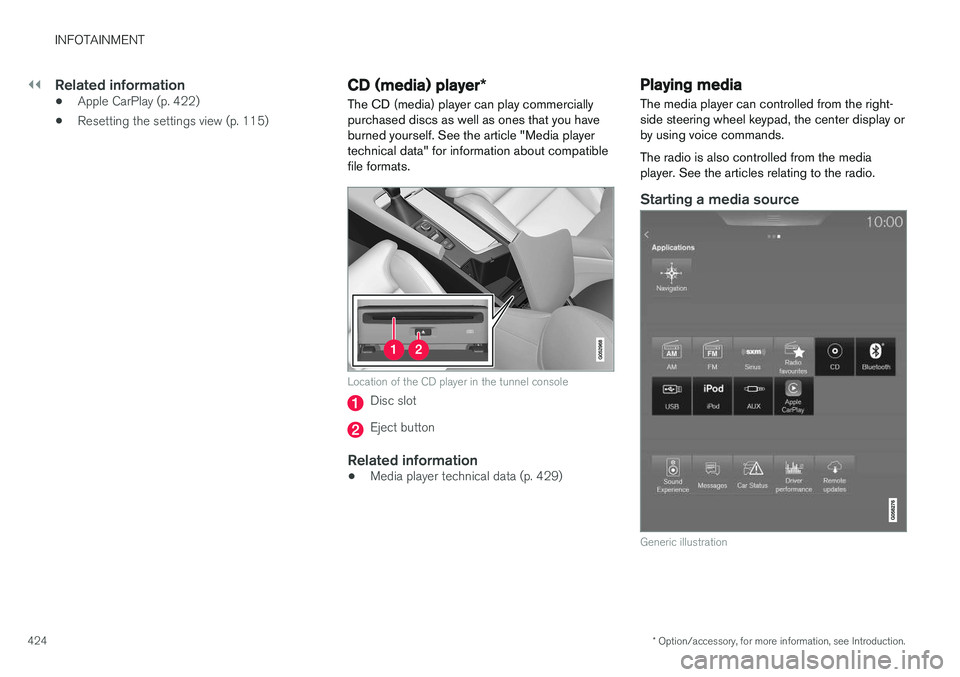
The CD (media) player can play commercially purchased discs as well as ones that you haveburned yourself. See the article "Media playertechnical data" for information about compatiblefile formats.
Location of the CD player in the tunnel console
Disc slot
Eject button
Related information
• Media player technical data (p. 429)
Playing media The media player can controlled from the right- side steering wheel keypad, the center display orby using voice commands. The radio is also controlled from the media player. See the articles relating to the radio.
Starting a media source
Generic illustration
Page 438 of 546
||
INFOTAINMENT
436Tap
Connected devices to see a list of con-
nected devices.
Related information
• Internet connected vehicle (p. 431)
• Wi-Fi technology and security (p. 436)
• Symbols in the center display status bar (p. 47)
• Internet connection troubleshooting (p. 435)
Deleting Wi-Fi networks
Networks that are not used can be deleted.
1. Tap Settings in the center display's Top
view.
2. Tap
Wi-FiSaved networks.
3. Tap
Forget to remove the network.
4. Confirm the selection. > The vehicle will no longer connect to thedeleted network.
Deleting all networksAll networks can be deleted at the same time by returning (resetting) to factory settings. If this is done, all user data and settings will be reset to their default settings.
Related information
• Internet connected vehicle (p. 431)
• Connecting to the Internet (p. 431)
Wi-Fi technology and security
The following are types of networks can be con- nect to.
It is possible to connect to the following types of networks:
• Frequency: 2.4 or 5 GHz 7
.
• Standards: 802.11 a/b/g/n.
• Security type: WPA2-AES-CCMP.
The vehicle's Wi-Fi system is designed to man-age Wi-Fi devices in the vehicle. If several devices are using a frequency at the same time, this may result in poorer performance.
Related information
• Internet connected vehicle (p. 431)
• Connecting to the Internet (p. 431)
• Tethering (Wi-Fi sharing) (p. 435)
• Internet connection troubleshooting (p. 435)
7
Selecting a frequency is not possible in all markets.
Page 439 of 546
INFOTAINMENT
}}
437
Vehicle modem settings
The vehicle is equipped with a modem that can be used to connect the vehicle to the Internet. Itis also possible to share (tether) this connectionvia Wi-Fi.
1. Tap Settings in the center display's Top
view.
2. Tap
CommunicationVehicle Modem
Internet and choose among the following
settings:
•
Vehicle modem Internet: select to use the
vehicle's modem to connect to the Internet.
•
Data usage: %s: Tap Reset to restart
(reset) the counter for the amount of data sent/received.
•
Network Select carrier
: select a service provider automati-
cally or manually.
Data roaming: select to allow the vehicle to con-
nect to another network if the standard net- work is not available (e.g., if you are driving inanother country). This could entail additionalcharges, consult your service provider.
•
SIM card PIN Change PIN
: enter max. 4 digits.
Disable PIN: Allow access to the SIM card without
requiring a PIN code.
•
Send request code: this is used to down-
load the balance remaining on a SIM card. This is specific to your service provider.
Related information
• Internet connected vehicle (p. 431)
• Connecting to the Internet (p. 431)
Infotainment system license information
The following license information pertains to Vol- vo's agreements with certain manufacturers/developers.
Bowers & Wilkins
Bowers & Wilkins and B&W are trademarks of the B&W Group Ltd. Nautilus is a trademark ofB&W Group Ltd. Kevlar is a registered trademarkof DuPont.
Dirac Live