instrument panel VOLVO XC90 T8 2017 Owner´s Manual
[x] Cancel search | Manufacturer: VOLVO, Model Year: 2017, Model line: XC90 T8, Model: VOLVO XC90 T8 2017Pages: 580, PDF Size: 10.37 MB
Page 419 of 580
STARTING AND DRIVING
* Option/accessory.417
In position
P, the transmission is mechanically
locked. Always apply the parking brake when the vehicle is parked.
NOTE
The gear selector must be in the P position
before the vehicle can be locked and the alarm set.
WARNING
Always apply the parking brake when the vehicle is parked, particularly when parking on a hill. The transmission's P mode may not be
able to keep the vehicle stationary if it is parked on an incline.
Reverse – R
The vehicle must be stationary before R can be
selected.
Neutral – N
No gear is selected and the engine can be started. Always apply the parking brake if thevehicle is not moving and the gear selector is in the N position.
The ignition must be in mode II and the brake
pedal must be depressed before the gear selec-tor can be moved from N.
Drive – D
D is the normal driving position and gear shifting
is fully automatic. The vehicle must be stationary when the gear selector is moved from R to D.
Brake – B
B can be selected at any time during a drive. In
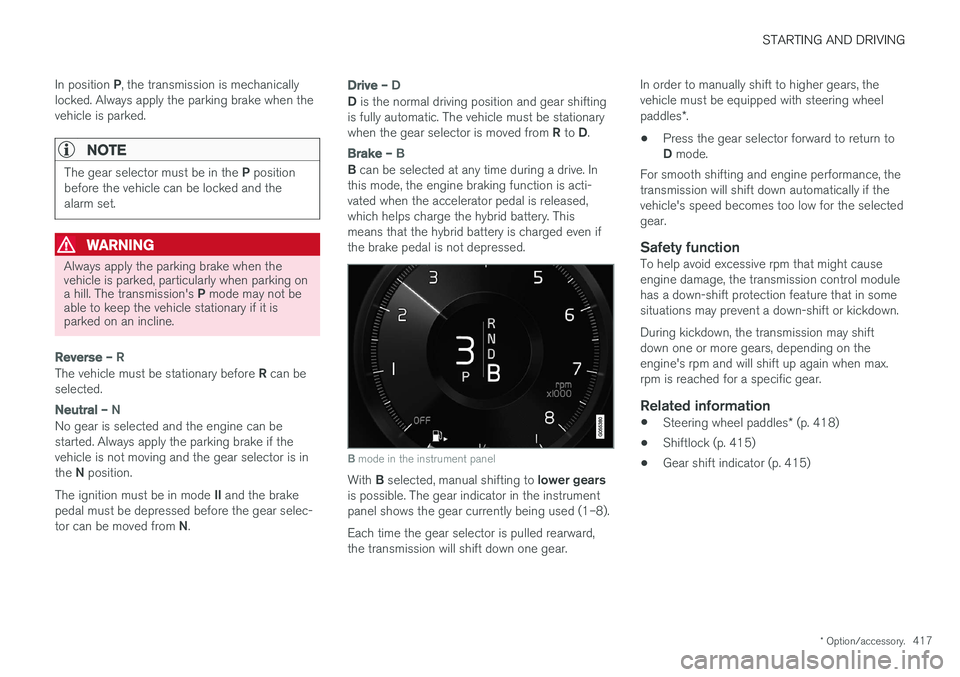
this mode, the engine braking function is acti- vated when the accelerator pedal is released,which helps charge the hybrid battery. Thismeans that the hybrid battery is charged even ifthe brake pedal is not depressed.
B mode in the instrument panel
With B selected, manual shifting to lower gears
is possible. The gear indicator in the instrument panel shows the gear currently being used (1–8). Each time the gear selector is pulled rearward, the transmission will shift down one gear. In order to manually shift to higher gears, thevehicle must be equipped with steering wheel paddles
*.
• Press the gear selector forward to return to D
mode.
For smooth shifting and engine performance, the transmission will shift down automatically if thevehicle's speed becomes too low for the selectedgear.
Safety functionTo help avoid excessive rpm that might causeengine damage, the transmission control modulehas a down-shift protection feature that in somesituations may prevent a down-shift or kickdown. During kickdown, the transmission may shift down one or more gears, depending on theengine's rpm and will shift up again when max.rpm is reached for a specific gear.
Related information
• Steering wheel paddles
* (p. 418)
• Shiftlock (p. 415)
• Gear shift indicator (p. 415)
Page 420 of 580
STARTING AND DRIVING
* Option/accessory.
418
Steering wheel paddles *
In addition to the manual gearshift function using the gear selector, the paddles make it possibleto manually shift gears from the steering wheel.
Activating the paddlesIn order to shift gears with the paddles, they have to first be activated. To do so:
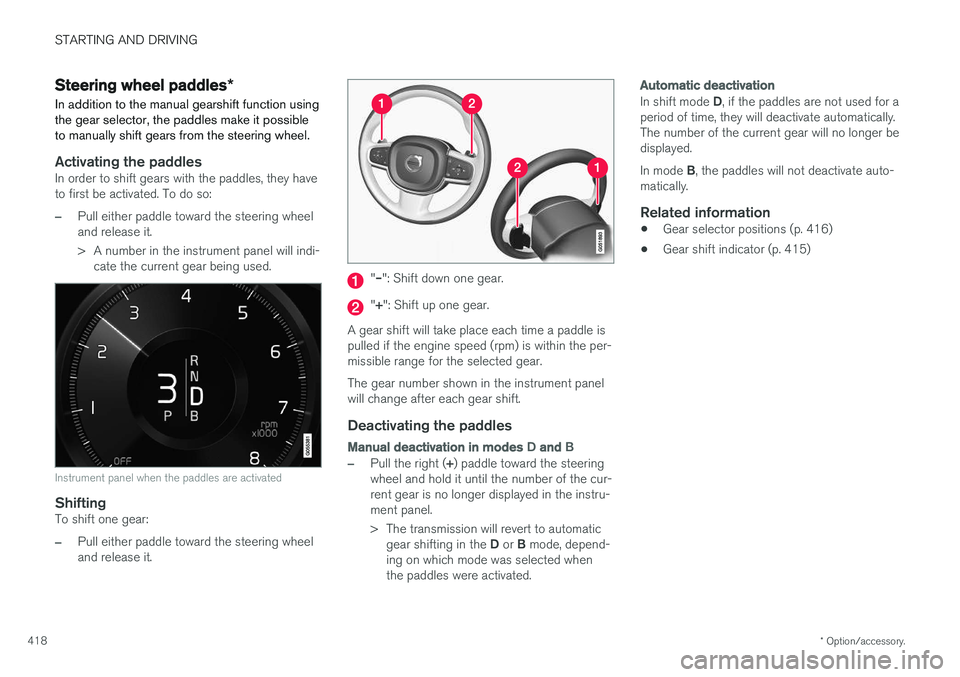
–Pull either paddle toward the steering wheel and release it.
> A number in the instrument panel will indi- cate the current gear being used.
Instrument panel when the paddles are activated
ShiftingTo shift one gear:
–Pull either paddle toward the steering wheel and release it.
"– ": Shift down one gear.
"+ ": Shift up one gear.
A gear shift will take place each time a paddle is pulled if the engine speed (rpm) is within the per-missible range for the selected gear. The gear number shown in the instrument panel will change after each gear shift.
Deactivating the paddles
Manual deactivation in modes D and B
–Pull the right ( +) paddle toward the steering
wheel and hold it until the number of the cur- rent gear is no longer displayed in the instru-ment panel.
> The transmission will revert to automatic
gear shifting in the D or B mode, depend-
ing on which mode was selected when the paddles were activated.
Automatic deactivation
In shift mode D, if the paddles are not used for a
period of time, they will deactivate automatically. The number of the current gear will no longer bedisplayed. In mode B, the paddles will not deactivate auto-
matically.
Related information
• Gear selector positions (p. 416)
• Gear shift indicator (p. 415)
Page 421 of 580
STARTING AND DRIVING
}}
* Option/accessory.419
All Wheel Drive (AWD) 4
Your Volvo can be equipped with All Wheel Drive, which means that power is distributedautomatically between the front and rear wheels.
The electric motor that powers the rear wheels enables electronic all wheel drive functionality. Under normal driving conditions, most of the engine's power is directed to the front wheels.However, if there is any tendency for the frontwheels to spin, an electronically controlled cou-pling distributes power to the wheels that havethe best traction. AWD reacts differently, depending on the drive mode selected.
Related information
• Drive modes (p. 411)
• Low Speed Control (LSC) (p. 367)
Leveling control
* and suspension
The leveling control system adjusts the suspen- sion and shock absorbers automatically to helpprovide good comfort and control while driving.Leveling can also be controlled manually tomake loading or getting in and out of the vehicleeasier.
Pneumatic suspension and shock absorbers
This system is linked to the selected drive mode and is adapted to the vehicle's speed. The pneu-matic suspension reduces the vehicle's groundclearance at higher speeds to reduce wind resis-tance and increase stability. The shock absorbersare normally set to provide the best possiblecomfort and are adjusted continuously accordingto the road surface, acceleration, braking andcornering.
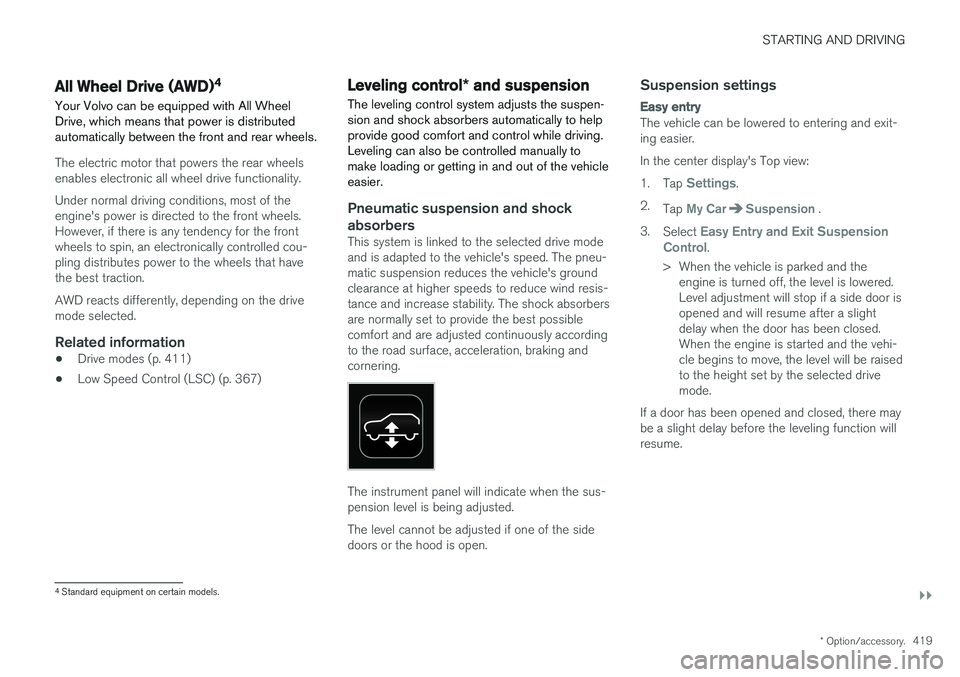
The instrument panel will indicate when the sus- pension level is being adjusted. The level cannot be adjusted if one of the side doors or the hood is open.
Suspension settings
Easy entry
The vehicle can be lowered to entering and exit- ing easier. In the center display's Top view:1. Tap
Settings.
2. Tap
My CarSuspension .
3. Select
Easy Entry and Exit Suspension
Control.
> When the vehicle is parked and the engine is turned off, the level is lowered. Level adjustment will stop if a side door isopened and will resume after a slightdelay when the door has been closed.When the engine is started and the vehi-cle begins to move, the level will be raisedto the height set by the selected drivemode.
If a door has been opened and closed, there maybe a slight delay before the leveling function willresume.
4 Standard equipment on certain models.
Page 440 of 580
||
INFOTAINMENT
* Option/accessory.
438 4. Tap one of the divisions to display:
•
In progress: play-by-play information
about a match/game/tournament cur- rently in progress. Continue tapping todisplay. In the detailed view, you can alsoselect a radio station that is currentlybroadcasting an ongoing sporting event
•
Headlines for MLB: Tap to display brief
headline information
•
Scheduled: schedules for coming
matches, games, etc.
•
Scores: match/game results
The same principle applies to all sports.
Related information
• Using SiriusXM ®
Satellite radio * (p. 430)
Phone
A Bluetooth-enabled cell phone can be paired and connected to the vehicle's integrated hands-free system.
The infotainment system offers hands-free func- tionality for remote-controlling a number of a cellphone's features. The phone's integrated controlscan also be used, even when it is connected tothe vehicle. When the phone has been paired and connected to the infotainment system, it can be used tomake or receive calls, send or receive text mes-sages, to stream music, etc., or as an Internetconnection.
The phone is controlled fromthe center display but the Appmenu (accessed using theright-side steering wheel key-pad) and voice commands canalso be used to control certainfunctions.
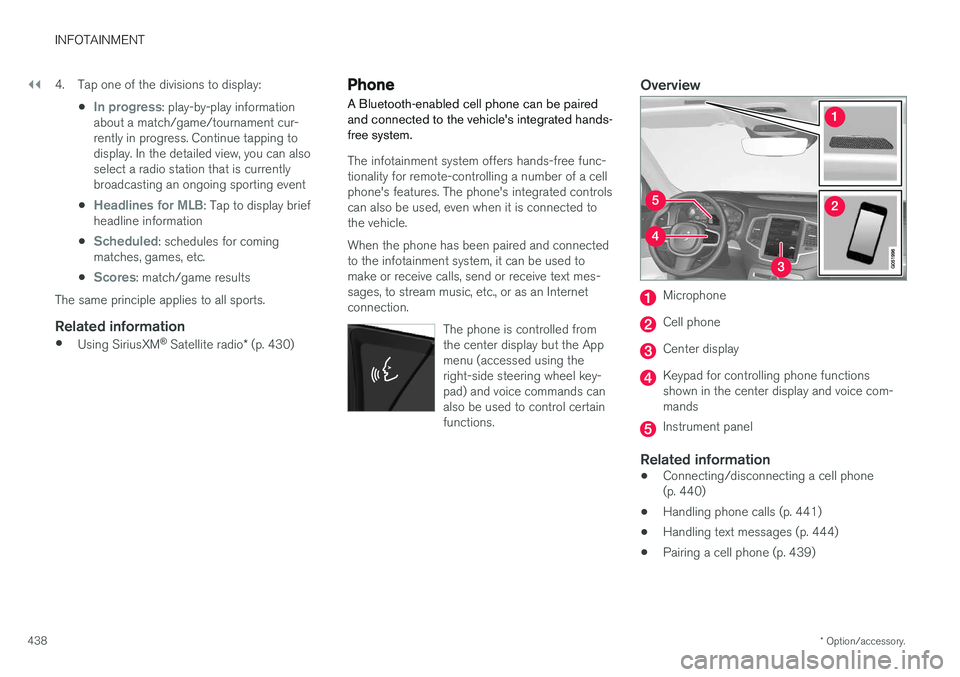
Overview
Microphone
Cell phone
Center display
Keypad for controlling phone functions shown in the center display and voice com-mands
Instrument panel
Related information
•Connecting/disconnecting a cell phone (p. 440)
• Handling phone calls (p. 441)
• Handling text messages (p. 444)
• Pairing a cell phone (p. 439)
Page 444 of 580
||
INFOTAINMENT
4422. Initiate a call from: recently made calls, the
phone book (list of contacts) or enter a num- ber. Search for or scroll to a contact in the phone book. Tap
in the phone book to
add a contact to your list of Favorites.
3. Tap
Call or .
4. Tap
End call to end a phone call.
Calls can also be made from the list of recent calls using the App menu, which can be opened using the right-side steering wheel keypad's
symbol.
Making multiple calls
While a call is in progress: 1. Tap
Add call.
2. Select from the list of recent calls or from the phone book.
3. Tap a line in the list of recent calls or
to
call a contact in the phone book.
4. Tap
Swap call to toggle between calls.
5. Tap
End call to end a phone call.
Group (conference) calls
While multiple calls are in progress: 1.
Tap
Join calls to merge ongoing calls.
2. Tap
End call to end a phone call.
Incoming callsInformation about incoming calls is displayed in the instrument panel and the center display. Han-dle the calls using the right-side steering wheelkeypad or the center display. 1.Tap
Answer/Reject.
2. Tap
End call to end a phone call.
Incoming calls while another call is in progress
1.Tap Answer/Reject.
2. Tap
End call to end a phone call.
PrivacyWhile a call is in progress:
–Tap Privacy.
> The vehicle's integrated microphone will be turned off.
•
Switch to mobile phone: the hands-free
function will be disconnected and the call will continue in the cell phone.
•
Driver focused: the microphone in the ceil-
ing liner on the passenger's side will be muted and the call will continue using vehi-cle's the hands-free function on the driver'sside.
Related information
• Phone (p. 438)
• Voice control for cell phones (p. 124) •
Using the center display (p. 49)
• Using the center display keyboard (p. 36)
• Phone settings (p. 445)
Page 446 of 580
INFOTAINMENT
444
Handling text messages
Text messages can be received and sent from a connected cell phone.
Text message functionality has to be activated in certain cell phones and not all phones offer fullcompatibility/functionality. Go tosupport.volvocars.com for additional information.
Reading text messages in the center display
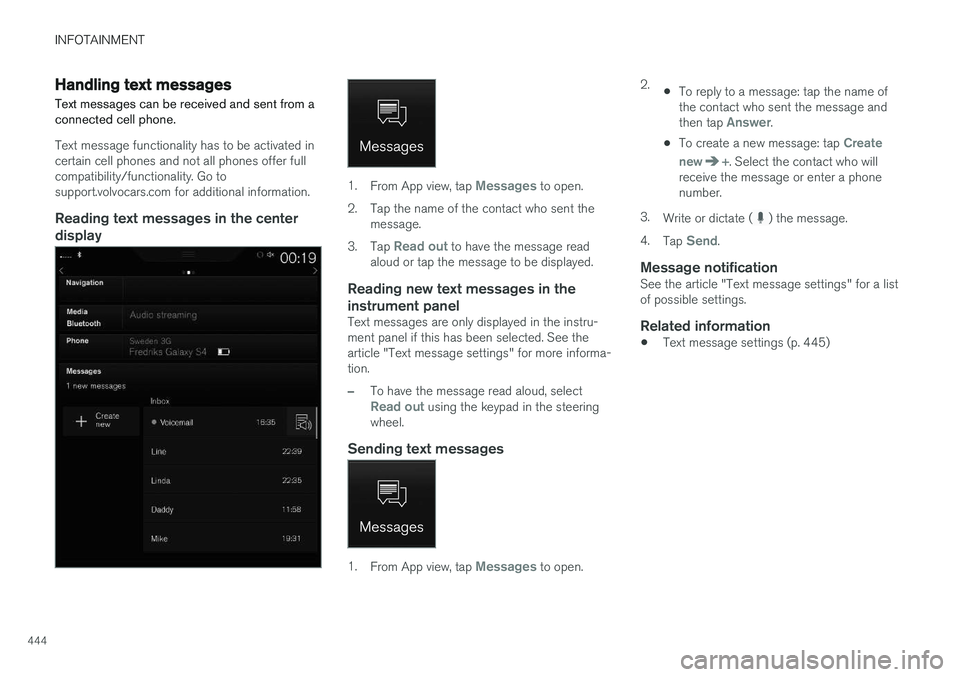
1. From App view, tap Messages to open.
2. Tap the name of the contact who sent the message.
3. Tap
Read out to have the message read
aloud or tap the message to be displayed.
Reading new text messages in the instrument panel
Text messages are only displayed in the instru- ment panel if this has been selected. See thearticle "Text message settings" for more informa-tion.
–To have the message read aloud, selectRead out using the keypad in the steering
wheel.
Sending text messages
1. From App view, tap Messages to open. 2.
•To reply to a message: tap the name of the contact who sent the message and then tap
Answer.
• To create a new message: tap
Create
new
+. Select the contact who will
receive the message or enter a phone number.
3. Write or dictate (
) the message.
4. Tap
Send.
Message notificationSee the article "Text message settings" for a list of possible settings.
Related information
• Text message settings (p. 445)
Page 447 of 580
INFOTAINMENT
* Option/accessory.445
Phone settings
The following settings can be made for a paired and connected cell phone.
Cell phones
–Pull down the center display's Top view and tap
SettingsCommunicationPhoneand choose among the following settings: •
Ringtones: select a ring tone (tones from
the cell phone or the vehicle can be used). Not all cell phones are fully com-patible and it may not be possible to usetheir ring tones in the vehicle. Go towww.volvocars.com for additional informa-tion.
•
Sort order for contacts: select sort cri-
teria for the phone book (list of contacts).
To show call notifications in the head-up dis- play *, see the article "Head-up display."
Related information
• Text message settings (p. 445)
• Bluetooth settings (p. 460)
• Phone (p. 438)
• Handling phone calls (p. 441)
• Head-up display (HUD)
* (p. 120)
Text message settings
The following settings can be made for text mes- sages received through a paired and connectedcell phone.
Text message settings
–Pull down the center display's Top view and tap
SettingsCommunicationText
Messages and choose among the following
settings:
•
Notification in center display: shows
text messages in the center display's sta- tus bar.
•
Notification in driver display: shows
text messages in the instrument panel. With this alternative active, incoming mes-sages can be handled from the right-sidesteering wheel keypad.
•
Text message tone: select an audible
signal for incoming text messages.
Related information
• Connecting/disconnecting a cell phone (p. 440)
• Pairing a cell phone (p. 439)
• Handling text messages (p. 444)
Connecting a Bluetooth ®
device
Bluetooth ®
-enabled devices can be paired and
connected to the infotainment system to stream media and in some cases connect to the Inter-net.
Many cell phones and other devices currently on the market offer wireless Bluetooth ®
technology.
Consult your Volvo retailer or go to support.volvocars.com for any questions regar-ding a device's compatibility with the vehicle'sinfotainment system. The procedure for pairing and connecting a Bluetooth ®
-enabled device is the same as for a
cell phone. See the articles "Pairing a cell phone" and "Connecting/disconnecting a cell phone" fordetails.
Related information
• Pairing a cell phone (p. 439)
• Connecting/disconnecting a cell phone(p. 440)
Page 449 of 580
INFOTAINMENT
}}
* Option/accessory.447
•
Apps (applications) (p. 422)
• CD (media) player
* (p. 451)
• Playing media through the AUX/USB sock- ets (p. 454)
Apple CarPlay
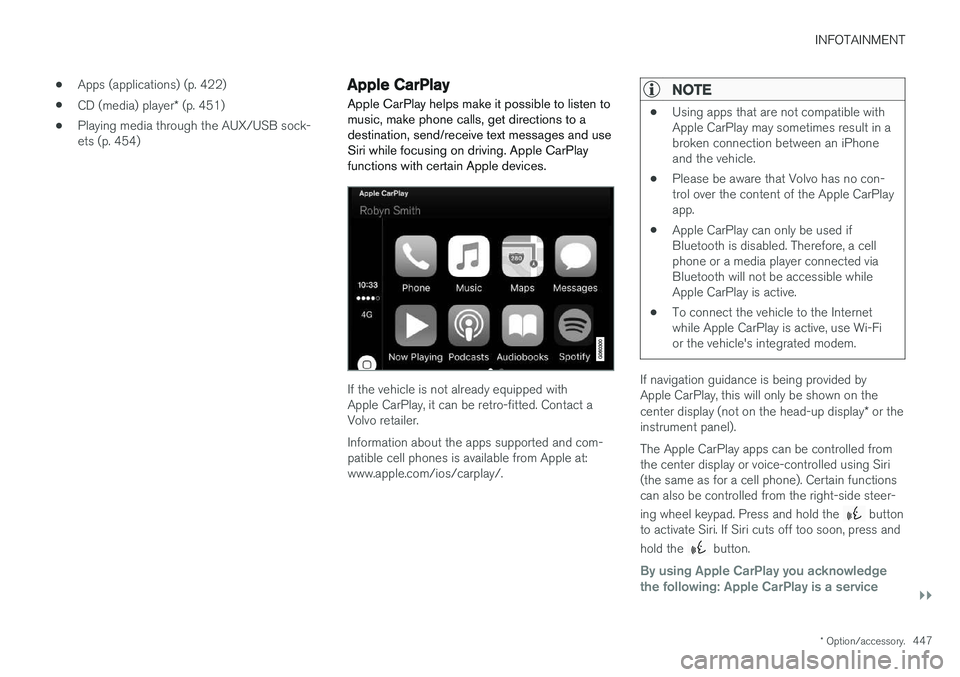
Apple CarPlay helps make it possible to listen to music, make phone calls, get directions to adestination, send/receive text messages and useSiri while focusing on driving. Apple CarPlayfunctions with certain Apple devices.
If the vehicle is not already equipped with Apple CarPlay, it can be retro-fitted. Contact aVolvo retailer. Information about the apps supported and com- patible cell phones is available from Apple at:www.apple.com/ios/carplay/.
NOTE
• Using apps that are not compatible with Apple CarPlay may sometimes result in abroken connection between an iPhoneand the vehicle.
• Please be aware that Volvo has no con-trol over the content of the Apple CarPlayapp.
• Apple CarPlay can only be used ifBluetooth is disabled. Therefore, a cellphone or a media player connected viaBluetooth will not be accessible whileApple CarPlay is active.
• To connect the vehicle to the Internetwhile Apple CarPlay is active, use Wi-Fior the vehicle's integrated modem.
If navigation guidance is being provided by Apple CarPlay, this will only be shown on the center display (not on the head-up display
* or the
instrument panel). The Apple CarPlay apps can be controlled from the center display or voice-controlled using Siri(the same as for a cell phone). Certain functionscan also be controlled from the right-side steer- ing wheel keypad. Press and hold the
button
to activate Siri. If Siri cuts off too soon, press and hold the
button.
By using Apple CarPlay you acknowledge the following: Apple CarPlay is a service
Page 452 of 580
||
INFOTAINMENT
* Option/accessory.
450
NOTE
• Please be aware that Volvo has no con- trol over the content of the Android Autoapp.
• If a cell phone or a media player is con-nected via Bluetooth, it will not be acces-sible while Android Auto is activebecause Bluetooth will be disabled. Toconnect the vehicle to the Internet, useWi-Fi or the vehicle's integrated modem.
If navigation guidance is being provided by Android Auto, this will only be shown on the cen- ter display (not on the head-up display
* or the
instrument panel). The Android Auto apps can be controlled from the center display or voice-controlled (the sameas for a cell phone). Certain functions can also becontrolled from the right-side steering wheel key- pad. Press and hold the
button to activate
voice control. Press briefly to deactivate.
By using Android Auto, you acknowledge the following: Android Auto is a serviceprovided by Google Inc. under its terms andconditions. Volvo Cars is not responsible forAndroid Auto or its features or applications.When you use Android Auto, your cartransfers certain information (including itslocation) to your connected Android phone. You are fully responsible for your and anyother person
Page 487 of 580
WHEELS AND TIRES
}}
485
Installing a wheel
It is important to install wheels properly.
1. Clean the contact surfaces on the wheel and hub.
2. Lift the wheel and place it on the hub.
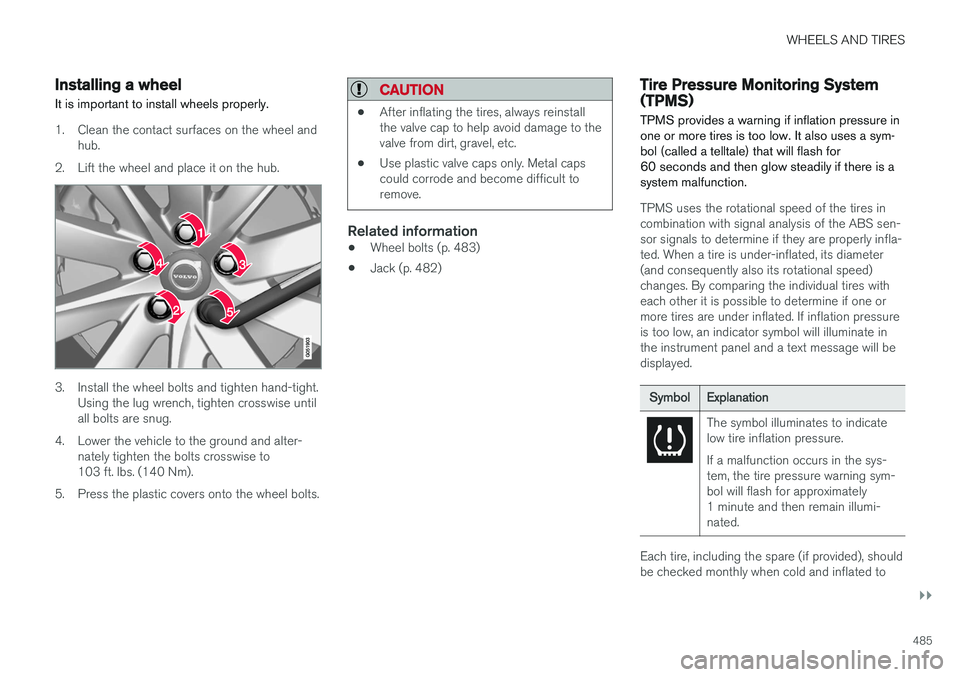
3. Install the wheel bolts and tighten hand-tight. Using the lug wrench, tighten crosswise until all bolts are snug.
4. Lower the vehicle to the ground and alter- nately tighten the bolts crosswise to103 ft. lbs. (140 Nm).
5. Press the plastic covers onto the wheel bolts.
CAUTION
• After inflating the tires, always reinstall the valve cap to help avoid damage to thevalve from dirt, gravel, etc.
• Use plastic valve caps only. Metal capscould corrode and become difficult toremove.
Related information
•Wheel bolts (p. 483)
• Jack (p. 482)
Tire Pressure Monitoring System (TPMS) TPMS provides a warning if inflation pressure in one or more tires is too low. It also uses a sym-bol (called a telltale) that will flash for60 seconds and then glow steadily if there is asystem malfunction.
TPMS uses the rotational speed of the tires in combination with signal analysis of the ABS sen-sor signals to determine if they are properly infla-ted. When a tire is under-inflated, its diameter(and consequently also its rotational speed)changes. By comparing the individual tires witheach other it is possible to determine if one ormore tires are under inflated. If inflation pressureis too low, an indicator symbol will illuminate inthe instrument panel and a text message will bedisplayed.
Symbol
Explanation
The symbol illuminates to indicate low tire inflation pressure. If a malfunction occurs in the sys- tem, the tire pressure warning sym-bol will flash for approximately1 minute and then remain illumi-nated.
Each tire, including the spare (if provided), should be checked monthly when cold and inflated to