warning VOLVO XC90 T8 2017 Owner´s Manual
[x] Cancel search | Manufacturer: VOLVO, Model Year: 2017, Model line: XC90 T8, Model: VOLVO XC90 T8 2017Pages: 580, PDF Size: 10.37 MB
Page 327 of 580
DRIVER SUPPORT
}}
* Option/accessory.325
Blind Spot Information (BLIS) *
Blind Spot Information is a system designed to alert the driver to the presence of other vehiclesmoving in the same direction as your vehicle onroads with several lanes.
Blind Spot Information is a driving aid intended to:
• detect other vehicles in your door mirrors'"blind area"
• detect vehicles that are about to pass yourvehicle or are approaching your vehiclequickly from behind in the left and/or rightlanes
WARNING
•
Blind Spot Information is an information system, NOT a warning or safety systemand does not function in all situations.
• Blind Spot Information does not eliminatethe need for you to visually confirm theconditions around you, and the need foryou to turn your head and shoulders tomake sure that you can safely changelanes or back up.
• As the driver, you have full responsibilityfor changing lanes/backing up in a safemanner.
Overview
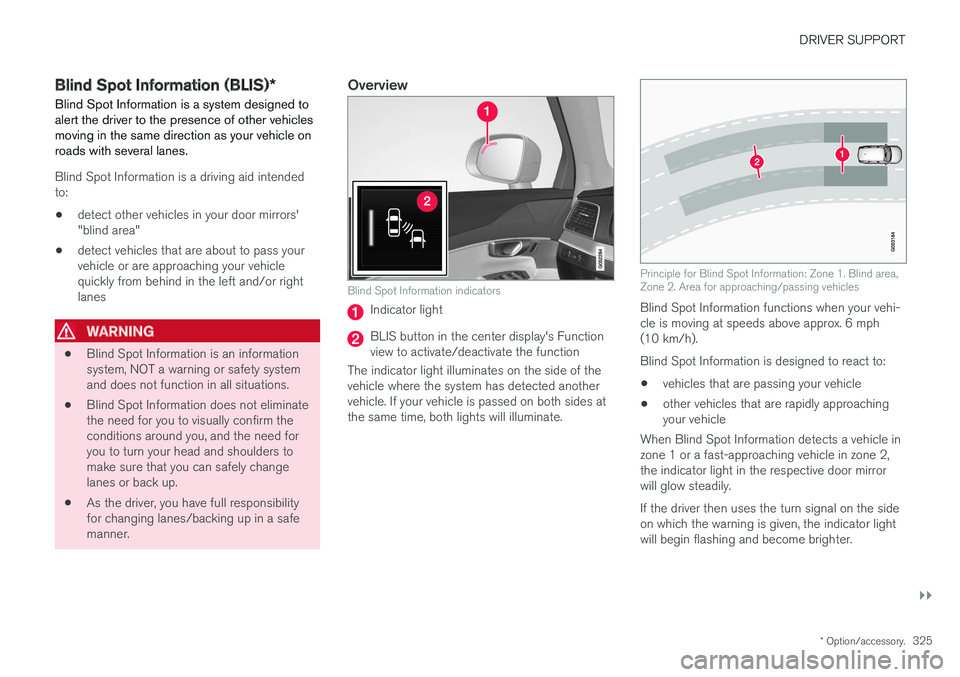
Blind Spot Information indicators
Indicator light
BLIS button in the center display's Function view to activate/deactivate the function
The indicator light illuminates on the side of thevehicle where the system has detected anothervehicle. If your vehicle is passed on both sides atthe same time, both lights will illuminate.
Principle for Blind Spot Information: Zone 1. Blind area, Zone 2. Area for approaching/passing vehicles
Blind Spot Information functions when your vehi- cle is moving at speeds above approx. 6 mph(10 km/h). Blind Spot Information is designed to react to:
• vehicles that are passing your vehicle
• other vehicles that are rapidly approaching your vehicle
When Blind Spot Information detects a vehicle inzone 1 or a fast-approaching vehicle in zone 2,the indicator light in the respective door mirrorwill glow steadily. If the driver then uses the turn signal on the side on which the warning is given, the indicator lightwill begin flashing and become brighter.
Page 328 of 580
||
DRIVER SUPPORT
* Option/accessory.
326
WARNING
• Blind Spot Information does not function in sharp curves.
• Blind Spot Information does not functionwhen your vehicle is backing up.
Related information
•
Blind Spot Information (BLIS)
* On/Off
(p. 326)
• Blind Spot Information (BLIS)
* limitations
(p. 327)
• Cross Traffic Alert (CTA)
* (p. 327)
Blind Spot Information (BLIS) *
On/Off The Blind Spot Information function can be acti- vated/deactivated.
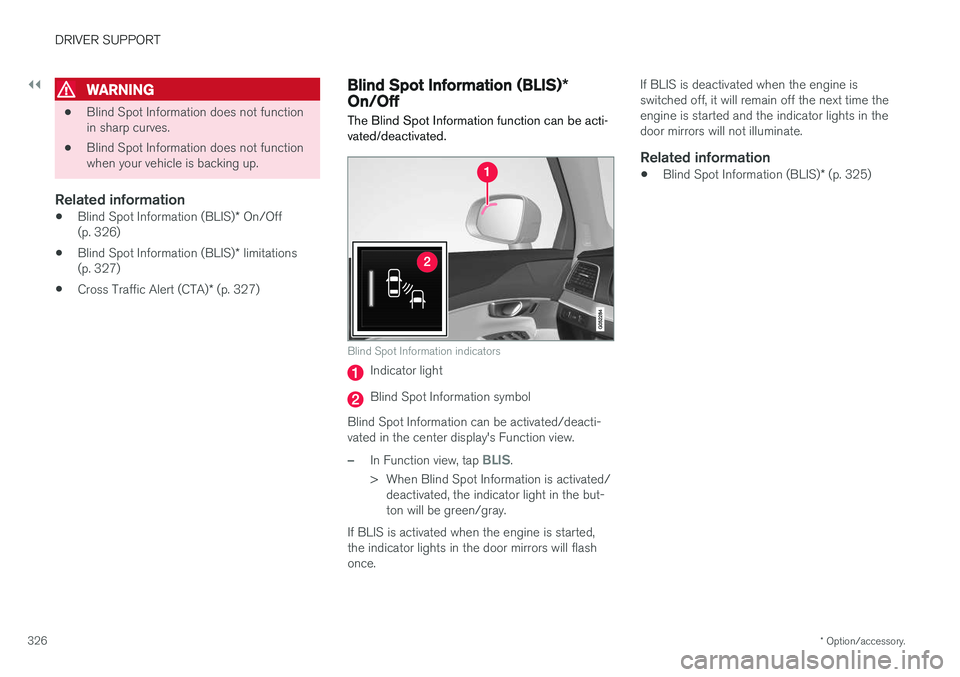
Blind Spot Information indicators
Indicator light
Blind Spot Information symbol
Blind Spot Information can be activated/deacti- vated in the center display's Function view.
–In Function view, tap BLIS.
> When Blind Spot Information is activated/ deactivated, the indicator light in the but- ton will be green/gray.
If BLIS is activated when the engine is started,the indicator lights in the door mirrors will flashonce. If BLIS is deactivated when the engine isswitched off, it will remain off the next time theengine is started and the indicator lights in thedoor mirrors will not illuminate.
Related information
•
Blind Spot Information (BLIS)
* (p. 325)
Page 329 of 580
DRIVER SUPPORT
}}
* Option/accessory.327
Blind Spot Information (BLIS) *
limitations
Blind Spot Information functionality may be reduced in certain situations.
• Dirt, ice and snow on the sensors may reduce functionality and prevent the systemfrom providing warnings.
• Do not attach any objects, tape, decals, etc.,on the surface of the sensors.
• BLIS is deactivated if a trailer is attached tothe vehicle's electrical system.
Maintenance
The BLIS/CTA 5
sensors are located on the
inside of the rear fenders/bumper.
Keep the highlighted area clean (on both sides of the vehicle)
For the system to function optimally, the area over and around the sensors must be kept clean.
CAUTION
Repairs to the BLIS/CTA systems and/or repainting the rear bumper should only bedone by a trained and qualified Volvo servicetechnician.
Related information
• Blind Spot Information (BLIS)
* On/Off
(p. 326)
• Blind Spot Information (BLIS)
* (p. 325)
• Cross Traffic Alert (CTA)
* (p. 327)
Cross Traffic Alert (CTA) *
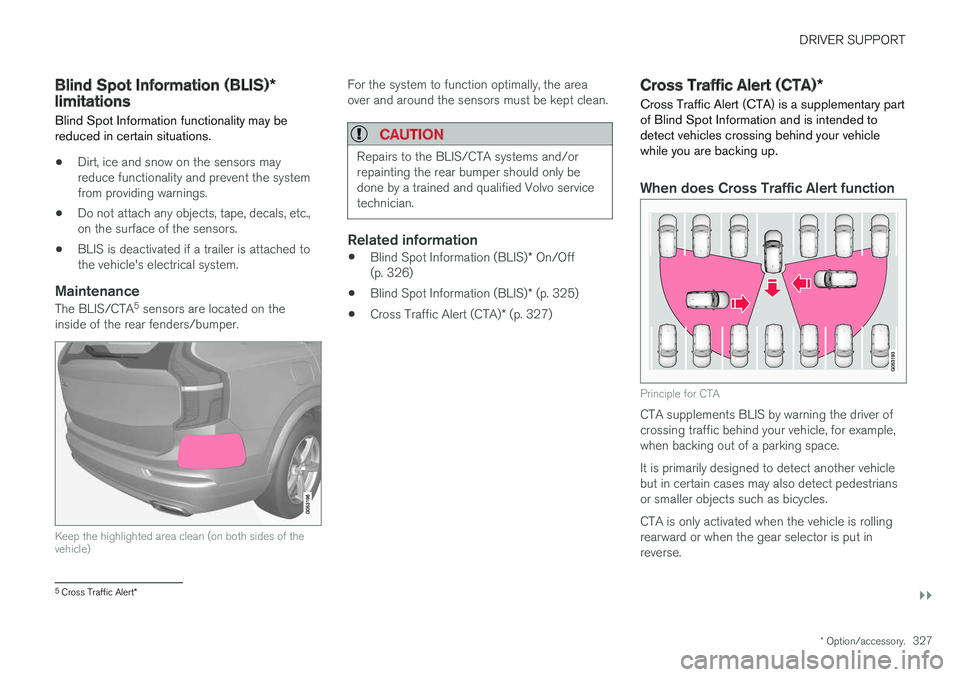
Cross Traffic Alert (CTA) is a supplementary part of Blind Spot Information and is intended todetect vehicles crossing behind your vehiclewhile you are backing up.
When does Cross Traffic Alert function
Principle for CTA
CTA supplements BLIS by warning the driver of crossing traffic behind your vehicle, for example,when backing out of a parking space. It is primarily designed to detect another vehicle but in certain cases may also detect pedestriansor smaller objects such as bicycles. CTA is only activated when the vehicle is rolling rearward or when the gear selector is put inreverse.
5 Cross Traffic Alert *
Page 331 of 580
DRIVER SUPPORT
}}
* Option/accessory.329
WARNING
•BLIS and CTA are information systems, NOT warning or safety systems and donot function in all situations.
• BLIS and CTA do not eliminate the needfor you to visually confirm the conditionsaround you, and the need for you to turnyour head and shoulders to make surethat you can safely change lanes or backup.
• As the driver, you have full responsibilityfor changing lanes/backing up in a safemanner.
Related information
•
Cross Traffic Alert (CTA)
* (p. 327)
• Blind Spot Information (BLIS)
* On/Off
(p. 326)
Cross Traffic Alert (CTA) * limitations
CTA functionality may be reduced in certain sit- uations.
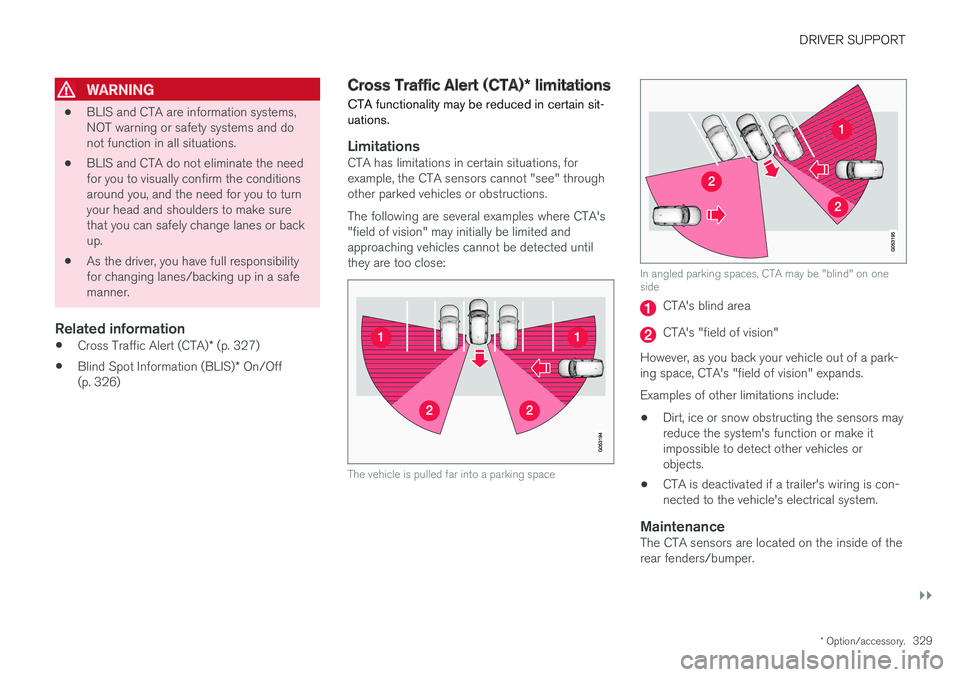
LimitationsCTA has limitations in certain situations, for example, the CTA sensors cannot "see" throughother parked vehicles or obstructions. The following are several examples where CTA's "field of vision" may initially be limited andapproaching vehicles cannot be detected untilthey are too close:
The vehicle is pulled far into a parking space
In angled parking spaces, CTA may be "blind" on one side
CTA's blind area
CTA's "field of vision"
However, as you back your vehicle out of a park- ing space, CTA's "field of vision" expands. Examples of other limitations include:
• Dirt, ice or snow obstructing the sensors may reduce the system's function or make itimpossible to detect other vehicles orobjects.
• CTA is deactivated if a trailer's wiring is con-nected to the vehicle's electrical system.
MaintenanceThe CTA sensors are located on the inside of therear fenders/bumper.
Page 334 of 580
DRIVER SUPPORT
* Option/accessory.
332
Road Sign Information (RSI) *
RSI is a feature that helps the driver see road signs showing the posted speed limit.
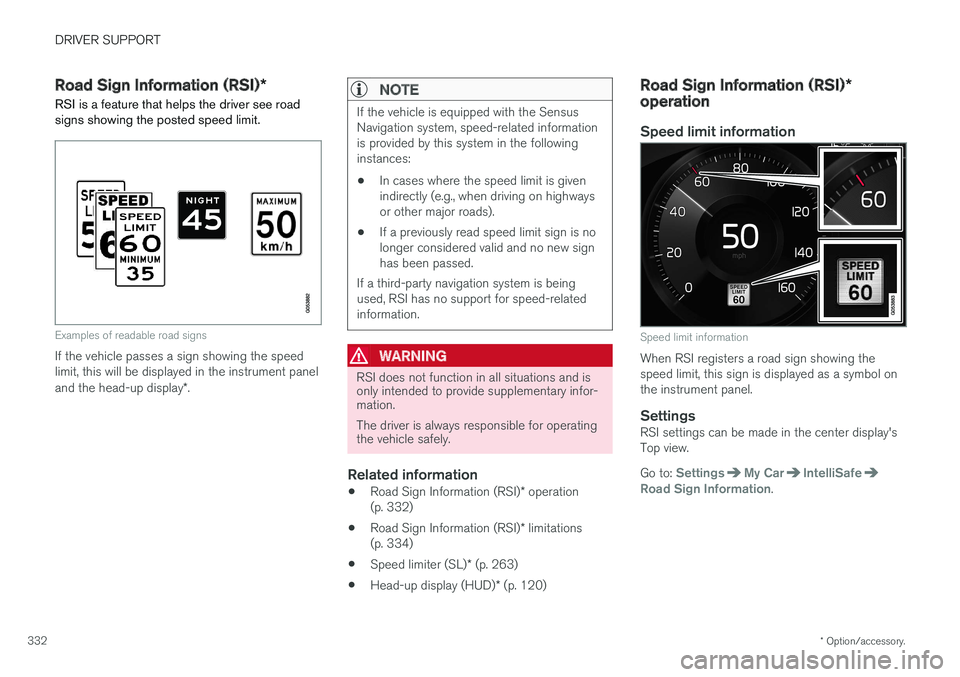
Examples of readable road signs
If the vehicle passes a sign showing the speed limit, this will be displayed in the instrument panel and the head-up display *.
NOTE
If the vehicle is equipped with the Sensus Navigation system, speed-related informationis provided by this system in the followinginstances:
• In cases where the speed limit is givenindirectly (e.g., when driving on highwaysor other major roads).
• If a previously read speed limit sign is nolonger considered valid and no new signhas been passed.
If a third-party navigation system is beingused, RSI has no support for speed-relatedinformation.
WARNING
RSI does not function in all situations and is only intended to provide supplementary infor-mation. The driver is always responsible for operating the vehicle safely.
Related information
• Road Sign Information (RSI)
* operation
(p. 332)
• Road Sign Information (RSI)
* limitations
(p. 334)
• Speed limiter (SL)
* (p. 263)
• Head-up display (HUD)
* (p. 120)
Road Sign Information (RSI) *
operation
Speed limit information
Speed limit information
When RSI registers a road sign showing the speed limit, this sign is displayed as a symbol onthe instrument panel.
SettingsRSI settings can be made in the center display'sTop view. Go to:
SettingsMy CarIntelliSafeRoad Sign Information.
Page 335 of 580
DRIVER SUPPORT
* Option/accessory.333
Activating/deactivating RSI
RSI can be activated/deacti- vated in the center display'sfunction view.
–Tap the Road Sign Information button in
Function view.
> When RSI is activated, the indicator light in the button will be green. The indicator light will be gray when the function isdeactivated.
Activating/deactivating the speed warning function
The driver can be alerted if the current speed limit is being exceeded (the symbol for the cur-rent speed limit will begin to flash). This functioncan be activated or deactivated and the limit for awarning can be set. 1. Tap
Settings in the center display's Top
view.
2. Tap
My CarIntelliSafeRoad Sign
Information.
3. Tap
Speed Limit Warning to activate/deac-
tivate this function.
> If the function is activated, a speed selec- tor will be displayed. 4. Select the limit at which the speed warning is
to be given by pressing the up/down arrows. Please be aware that the set warning limit will not be used when a speed camera sym-bol is displayed in the instrument panel.
Activating/deactivating the audible alert
The audible alert can be activated/deactivated and the limit for a warning can be set. 1.Tap
Settings in the center display's Top
view.
2. Tap
My CarIntelliSafeRoad Sign
Information.
3. Tap
Audio Warning to activate/deactivate
this function.
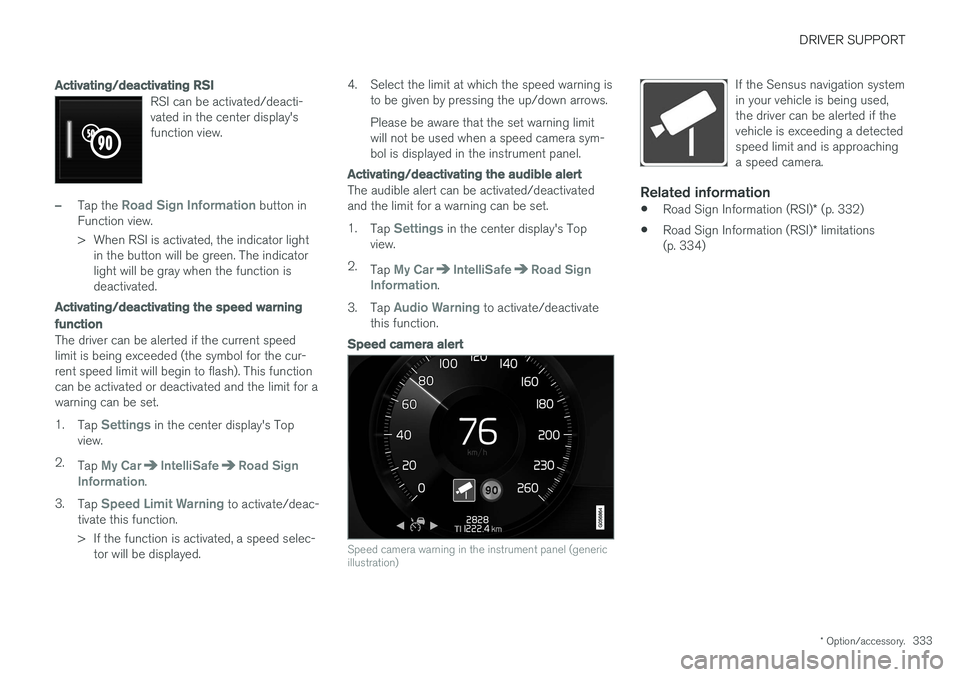
Speed camera alert
Speed camera warning in the instrument panel (generic illustration)
If the Sensus navigation system in your vehicle is being used,the driver can be alerted if thevehicle is exceeding a detectedspeed limit and is approachinga speed camera.
Related information
• Road Sign Information (RSI)
* (p. 332)
• Road Sign Information (RSI)
* limitations
(p. 334)
Page 337 of 580
DRIVER SUPPORT
335
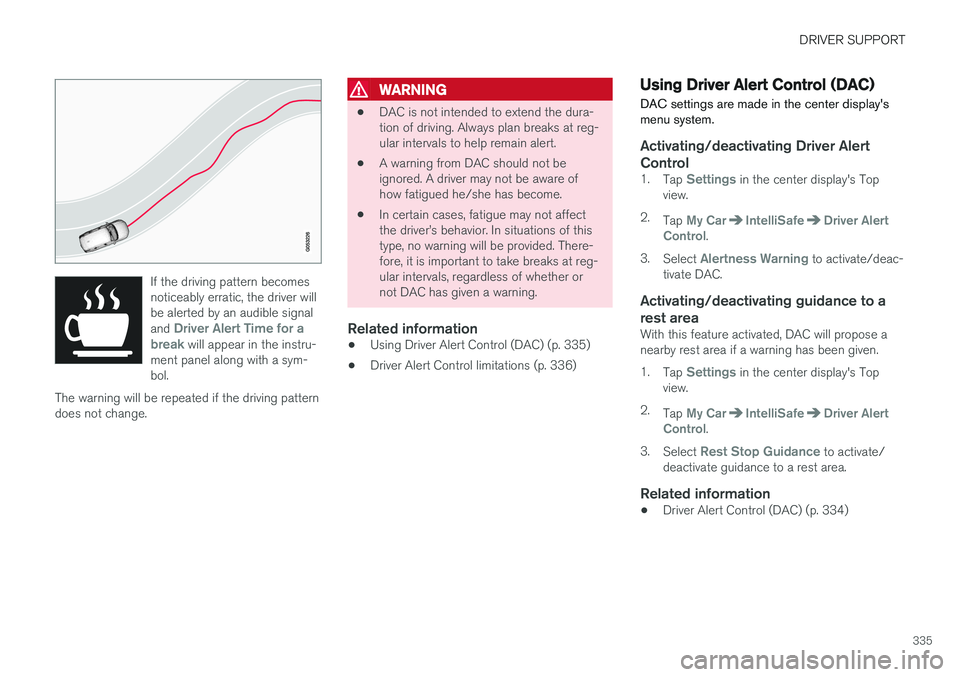
If the driving pattern becomes noticeably erratic, the driver willbe alerted by an audible signal and
Driver Alert Time for a
break will appear in the instru-
ment panel along with a sym- bol.
The warning will be repeated if the driving patterndoes not change.
WARNING
• DAC is not intended to extend the dura- tion of driving. Always plan breaks at reg-ular intervals to help remain alert.
• A warning from DAC should not beignored. A driver may not be aware ofhow fatigued he/she has become.
• In certain cases, fatigue may not affectthe driver
Page 338 of 580
DRIVER SUPPORT
* Option/accessory.
336
Driver Alert Control limitations
Driver Alert Control (DAC) may have limited or reduced functionality in certain situations.
WARNING
A driving pattern may not change despite driver fatigue, e.g., if a function such as PilotAssist is being used, which means that DACwill not provide a warning. It is always veryimportant to stop and take a break at the firstsign of driver fatigue, even if the system hasnot provided a warning.
In certain situations, DAC may provide warnings even if the driver
Page 339 of 580
DRIVER SUPPORT
}}
337
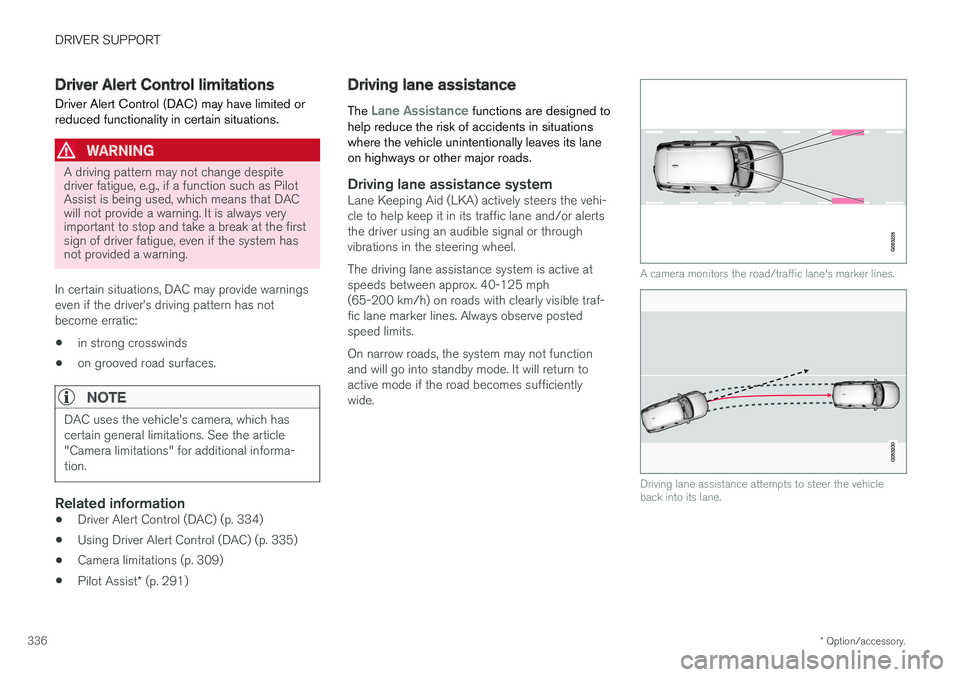
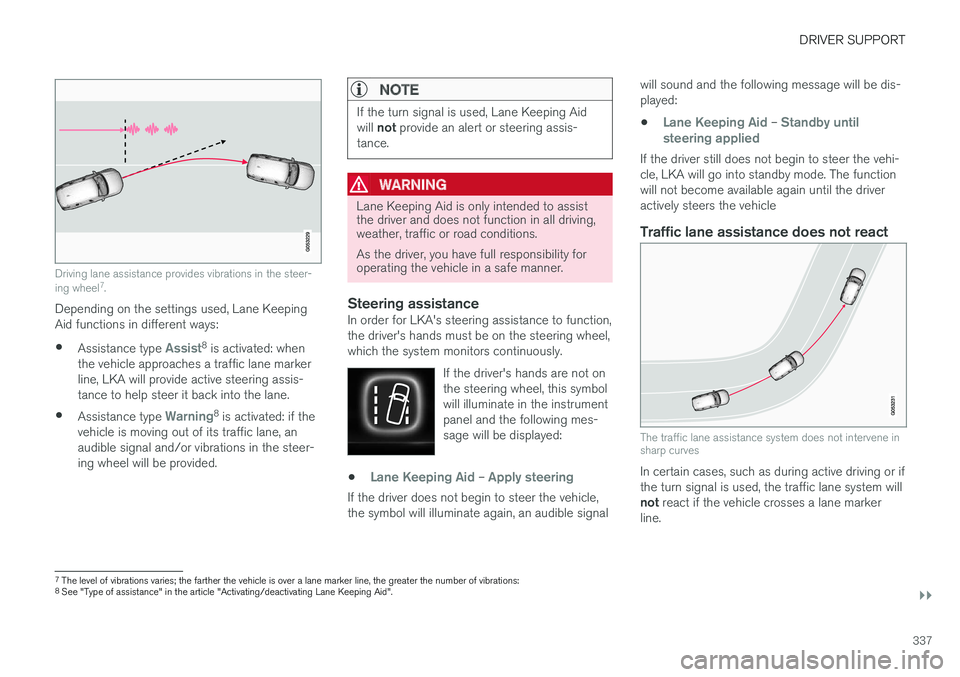
Driving lane assistance provides vibrations in the steer- ing wheel7
.
Depending on the settings used, Lane Keeping Aid functions in different ways:
• Assistance type
Assist8
is activated: when
the vehicle approaches a traffic lane marker line, LKA will provide active steering assis-tance to help steer it back into the lane.
• Assistance type
Warning8
is activated: if the
vehicle is moving out of its traffic lane, an audible signal and/or vibrations in the steer-ing wheel will be provided.
NOTE
If the turn signal is used, Lane Keeping Aid will not provide an alert or steering assis-
tance.
WARNING
Lane Keeping Aid is only intended to assist the driver and does not function in all driving,weather, traffic or road conditions. As the driver, you have full responsibility for operating the vehicle in a safe manner.
Steering assistanceIn order for LKA's steering assistance to function, the driver's hands must be on the steering wheel,which the system monitors continuously.
If the driver's hands are not onthe steering wheel, this symbolwill illuminate in the instrumentpanel and the following mes-sage will be displayed:
•Lane Keeping Aid – Apply steering
If the driver does not begin to steer the vehicle, the symbol will illuminate again, an audible signal will sound and the following message will be dis-played:
•
Lane Keeping Aid – Standby until
steering applied
If the driver still does not begin to steer the vehi- cle, LKA will go into standby mode. The functionwill not become available again until the driveractively steers the vehicle
Traffic lane assistance does not react
The traffic lane assistance system does not intervene in sharp curves
In certain cases, such as during active driving or if the turn signal is used, the traffic lane system will not react if the vehicle crosses a lane marker
line.
7 The level of vibrations varies; the farther the vehicle is over a lane marker line, the greater the number of vibrations:
8 See "Type of assistance" in the article "Activating/deactivating Lane Keeping Aid".
Page 340 of 580
||
DRIVER SUPPORT
338
LimitationsIn certain demanding driving situations, the driv- ing lane assistance functions may not be able toassist the driver. In these situations, it may beadvisable to turn the function off. Examples of such situations: •road construction
• winter driving conditions
• poor road surfaces
• a very active driving style
• bad weather with reduced visibility
• edges or lines other than the lane's marker lines
• roads with indistinct or no lane marker lines
The driving lane assistance function use the vehi-cle's camera, which has general limitations. Seethe article "Camera limitations."
Related information
• Activating/deactivating Lane Keeping Aid(LKA) (p. 338)
• Camera limitations (p. 309)
• Run-off Mitigation (p. 341)
Activating/deactivating Lane Keeping Aid (LKA) LKA can be activated/deactivated.
Activating/deactivating
The function can be activated/deactivated in the center display's Function view.
–Tap Lane Keeping Aid.
> LKA is activated (GREEN indicator light in the button), or is deactivated (GRAY indi- cator light in the button).
Type of warningChoose the type of warning that the driver willreceive if the vehicle starts to leave its drivinglane. 1. Tap
Settings in the center display's Top
view.
2. Tap
My CarIntelliSafeLane
Assistance. 3.
Under
Lane Keeping Aid Warning
Feedback, select:
•
Sound: an audible warning signal will be
provided
•
Vibrations: the driver will be warned by
vibrations in the steering wheel
Type of assistanceSelect the type of assistance LKA should provide: 1. Tap
Settings in the center display's Top
view.
2. Tap
My CarIntelliSafeLane
Assistance.
3. Under
Lane Keeping Aid Mode, select:
•
Assist: the system will provide steering
assistance but no warning.
•
Both: the system will provide steering
assistance and warning
•
Warning: the system will provide warning
but no steering assistance
Related information
• Driving lane assistance (p. 336)
• Driving lane assistance symbols and mes- sages (p. 339)