display VOLVO XC90 T8 2017 Owner´s Manual
[x] Cancel search | Manufacturer: VOLVO, Model Year: 2017, Model line: XC90 T8, Model: VOLVO XC90 T8 2017Pages: 580, PDF Size: 10.37 MB
Page 463 of 580
INFOTAINMENT
461
Downloading, updating and uninstalling apps
When the vehicle is connected to the Internet, apps can be added (downloaded), kept up-to-date or deleted.
NOTE
Downloading data may affect other services that transfer data such as web radio, stream-ing music, etc. If this occurs, a download inprogress can be cancelled or the other serv-ice can be temporarily turned off.
Apps are managed via theDownload Center in the cen-
ter display's App view. To download, update or delete apps, the vehicle must be con-nected to the Internet.
Downloading an app
1. Open the Download Center app.
2. Select
New apps to open a list of apps that
are available but which are not installed in the vehicle. Tap anywhere in a line for an appto expand the list for additional information. 3.
Select
Install to start downloading the app. It
will remain in the list and a new download can be initiated if necessary.
> Download status will be indicated while it is in progress. A message will be displayed if a download cannot be started immediately. The appwill remain in the list and a new downloadcan be initiated if necessary.
Cancelling (aborting) a download
–Tap Abort to cancel a download that is cur-
rently underway.
Only a download can be cancelled. If the installa-
tion phase has begun, it cannot be interrupted.
Updating appsIf an app is being used while an update is in pro- gress, it will be restarted to complete the update.
Update (install) all
1. Open the Download Center app.
2. Select
Install all.
> The update will begin.
Updating certain apps
1. Open the Download Center app.
2. Select
Application updates to open a list
of available updates.
3. Find the desired app and select
Install.
> The update will begin.
Uninstalling an appAn app being used must be closed before it can be uninstalled. 1. Open the
Download Center app.
2. Select
Application updates to open a list
of apps that have been installed.
3. Find the desired app and select
Uninstall to
begin uninstalling the app.
> When the app has been uninstalled, it will be removed from the list.
Related information
• Internet connected vehicle (p. 458)
• Media player (p. 446)
• System updates (p. 500)
Page 464 of 580
INFOTAINMENT
462
Internet connection troubleshooting The following are factors that may affect the vehicle's Internet connection.
The amount of data being transmitted depends on the services or apps that are currently in use.For example, streaming audio requires a greatdeal of data to be transmitted, which requires agood connection and a strong signal.
Cell phone to the vehicleConnection speed may vary depending on thelocation of the cell phone in the vehicle. Move thephone closer to the center display to increasesignal strength. Be sure that there are noobstructing/screening objects between thephone and the screen.
Cell phone to the network operatorThe speed of the mobile network may varydepending on coverage/reception in the vehicle'slocation. Reception is generally poorer in tunnels,in mountainous areas, in deep valleys or indoors.Connection speed may also depend on the typeof subscription that you have with the serviceprovider. Contact your service provider in the event of data transmission problems.
Restarting the phone
If you experience problems making a connection, it may to help to restart the phone.
Related information
•Internet connected vehicle (p. 458)
• Connecting to the Internet (p. 459)
Tethering (Wi-Fi sharing)
When the vehicle is connected to the Internet, this connection can be shared (tethered) with other devices 7
.
The network service provider (the SIM card) must support tethering.
1. Open the center display's Top view.
7 Does not apply for a Wi-Fi connection.
Page 465 of 580
INFOTAINMENT
463
2.
Tap
SettingsCommunicationVehicle Wi-Fi Hotspot.
3. Tap
Network name and assign a name to
the hotspot.
4. Tap
Password and create a password to be
used by devices trying to connect (tether) to the hotspot.
5. Tap
Frequency band and select a fre-
quency that the hotspot will use to transmit data. This may not be possible in all markets.
6. Activate/deactivate by tapping the
Vehicle
Wi-Fi Hotspot box.
7. If another connection has been used previ- ously, confirm the change of connections.
> It is now possible for external devices toconnect to the vehicle's Wi-Fi hotspot.
Connection status will be indicated in a symbol in the center display's status bar. Tap
Connected devices to see a list of con-
nected devices.
Related information
• Internet connected vehicle (p. 458)
• Wi-Fi technology and security (p. 463)
• Symbols in the center display status bar (p. 48)
• Internet connection troubleshooting (p. 462)
Deleting Wi-Fi networks
Networks that are not used can be deleted.
1. Tap Settings in the center display's Top
view.
2. Tap
Wi-FiSaved networks.
3. Tap
Forget to remove the network.
4. Confirm the selection. > The vehicle will no longer connect to thedeleted network.
Deleting all networksAll networks can be deleted at the same time by returning (resetting) to factory settings. If this is done, all user data and settings will be reset to their default settings.
Related information
• Internet connected vehicle (p. 458)
• Connecting to the Internet (p. 459)
Wi-Fi technology and security
The following are types of networks can be con- nect to.
It is possible to connect to the following types of networks:
• Frequency: 2.4 or 5 GHz 8
.
• Standards: 802.11 a/b/g/n.
• Security type: WPA2-AES-CCMP.
The vehicle's Wi-Fi system is designed to man-age Wi-Fi devices in the vehicle. If several devices are using a frequency at the same time, this may result in poorer performance.
Related information
• Internet connected vehicle (p. 458)
• Connecting to the Internet (p. 459)
• Tethering (Wi-Fi sharing) (p. 462)
• Internet connection troubleshooting (p. 462)
8
Selecting a frequency is not possible in all markets.
Page 466 of 580
INFOTAINMENT
464
Vehicle modem settings
The vehicle is equipped with a modem that can be used to connect the vehicle to the Internet. Itis also possible to share (tether) this connectionvia Wi-Fi.
1. Tap Settings in the center display's Top
view.
2. Tap
CommunicationVehicle Modem
Internet and choose among the following
settings:
•
Vehicle modem Internet: select to use the
vehicle's modem to connect to the Internet.
•
Data usage: %s: Tap Reset to restart
(reset) the counter for the amount of data sent/received.
•
Network Select carrier
: select a service provider
automatically or manually.
Data roaming: select to allow the vehicle to
connect to another network if the standard network is not available (e.g., if you are driv-ing in another country). This could entailadditional charges, consult your service pro-vider.
•
SIM card PIN Change PIN
: enter max. 4 digits.
Disable PIN: Allow access to the SIM card
without requiring a PIN code. •
Send request code: this is used to down-
load the balance remaining on a SIM card. This is specific to your service provider.
Related information
• Internet connected vehicle (p. 458)
• Connecting to the Internet (p. 459)
Infotainment system license information
The following license information pertains to Vol- vo's agreements with certain manufacturers/developers.
Bowers & Wilkins
Bowers & Wilkins and B&W are trademarks of the B&W Group Ltd. Nautilus is a trademark ofB&W Group Ltd. Kevlar is a registered trademarkof DuPont.
Dirac Live
Page 487 of 580
WHEELS AND TIRES
}}
485
Installing a wheel
It is important to install wheels properly.
1. Clean the contact surfaces on the wheel and hub.
2. Lift the wheel and place it on the hub.
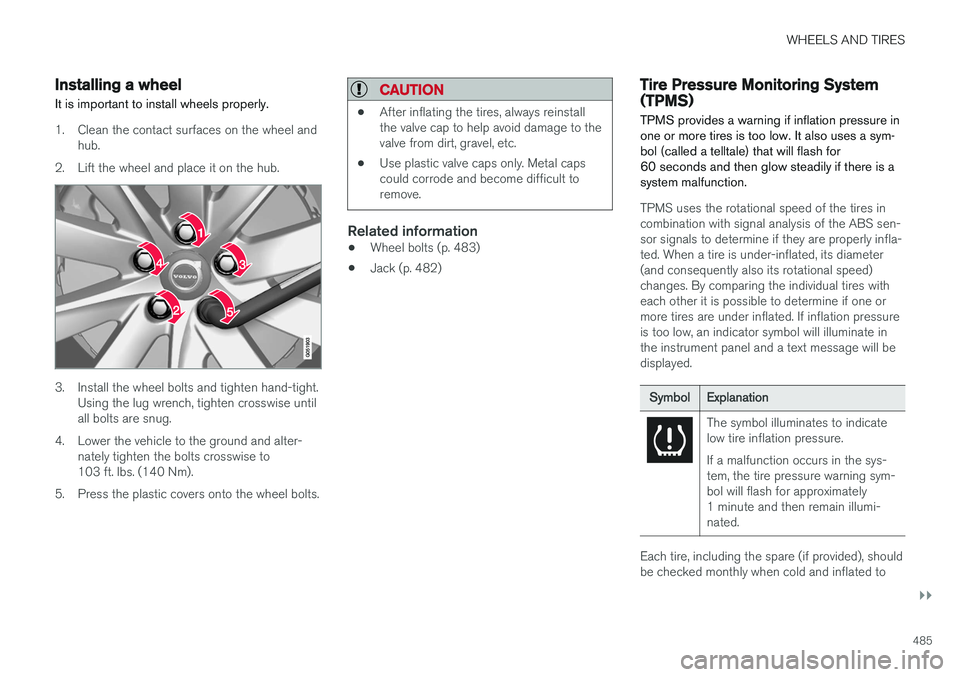
3. Install the wheel bolts and tighten hand-tight. Using the lug wrench, tighten crosswise until all bolts are snug.
4. Lower the vehicle to the ground and alter- nately tighten the bolts crosswise to103 ft. lbs. (140 Nm).
5. Press the plastic covers onto the wheel bolts.
CAUTION
• After inflating the tires, always reinstall the valve cap to help avoid damage to thevalve from dirt, gravel, etc.
• Use plastic valve caps only. Metal capscould corrode and become difficult toremove.
Related information
•Wheel bolts (p. 483)
• Jack (p. 482)
Tire Pressure Monitoring System (TPMS) TPMS provides a warning if inflation pressure in one or more tires is too low. It also uses a sym-bol (called a telltale) that will flash for60 seconds and then glow steadily if there is asystem malfunction.
TPMS uses the rotational speed of the tires in combination with signal analysis of the ABS sen-sor signals to determine if they are properly infla-ted. When a tire is under-inflated, its diameter(and consequently also its rotational speed)changes. By comparing the individual tires witheach other it is possible to determine if one ormore tires are under inflated. If inflation pressureis too low, an indicator symbol will illuminate inthe instrument panel and a text message will bedisplayed.
Symbol
Explanation
The symbol illuminates to indicate low tire inflation pressure. If a malfunction occurs in the sys- tem, the tire pressure warning sym-bol will flash for approximately1 minute and then remain illumi-nated.
Each tire, including the spare (if provided), should be checked monthly when cold and inflated to
Page 488 of 580
||
WHEELS AND TIRES
486the inflation pressure recommended by the vehi- cle manufacturer on the vehicle placard or tireinflation pressure label. (If your vehicle has tiresof a different size than the size indicated on thevehicle placard or tire inflation pressure label, youshould determine the proper tire inflation pres-sure for those tires.) As an added safety feature, your vehicle has been equipped with a tire pressure monitoringsystem (TPMS) that illuminates a low tire pres-sure telltale when one or more of your tires issignificantly under-inflated. Accordingly, when thelow tire pressure telltale illuminates, you shouldstop and check your tires as soon as possible,and inflate them to the proper pressure. Driving on a significantly under-inflated tire cau- ses the tire to overheat and can lead to tire fail-ure. Under-inflation also reduces fuel efficiencyand tire tread life, and may affect the vehicle'shandling and stopping ability. Please note thatthe TPMS is not a substitute for proper tire main-tenance, and it is the driver's responsibility tomaintain correct tire pressure, even if under-infla-tion has not reached the level to trigger illumina-tion of the TPMS low tire pressure telltale. Your vehicle has also been equipped with a TPMS malfunction indicator to indicate when thesystem is not operating properly. The TPMS mal-function indicator is combined with the low tirepressure telltale.
When the system detects a malfunction, the tell-tale will flash for approximately one minute andthen remain continuously illuminated. Thissequence will continue upon subsequent vehiclestart-ups as long as the malfunction exists. Whenthe malfunction indicator is illuminated, the sys-tem may not be able to detect or signal low tirepressure as intended. TPMS malfunctions may occur for a variety of reasons, including the installation of replacementor alternate tires or wheels on the vehicle thatprevent the TPMS from functioning properly.Always check the TPMS malfunction telltale afterreplacing one or more tires or wheels on yourvehicle to ensure that the replacement or alter-nate tires and wheels allow the TPMS to con-tinue to function properly.
Messages in the instrument panel
When the TPMS symbol illuminates, the following text messages may also be displayed:
•
Tire pressure low
•Tire pressure system Temporarily
unavailable
•Tire pressure system Service required
If TPMS cannot determine which tire(s) have low inflation pressure:
• All four tires will be shown as affected in thecenter display After changing wheels, always calibrate the sys-tem to avoid false warnings. TPMS does not replace the need for regular tire inspection and maintenance.
NOTE
If you change to tires with a different dimen- sion than the factory-installed ones, theTPMS system must be calibrated for thesetires. TPMS cannot be turned off.
WARNING
Incorrect inflation pressure could lead to tire failure, resulting in a loss of control of thevehicle.
Related information
•
Checking tire inflation pressure (p. 487)
• Reinflating tires equipped with the Tire Pressure Monitoring System (TPMS)(p. 488)
• Ignition modes (p. 389)
Page 489 of 580
WHEELS AND TIRES
487
Checking tire inflation pressure
The Tire Pressure Monitoring System (TPMS) makes it possible to view the current inflationpressure status of all four tires.
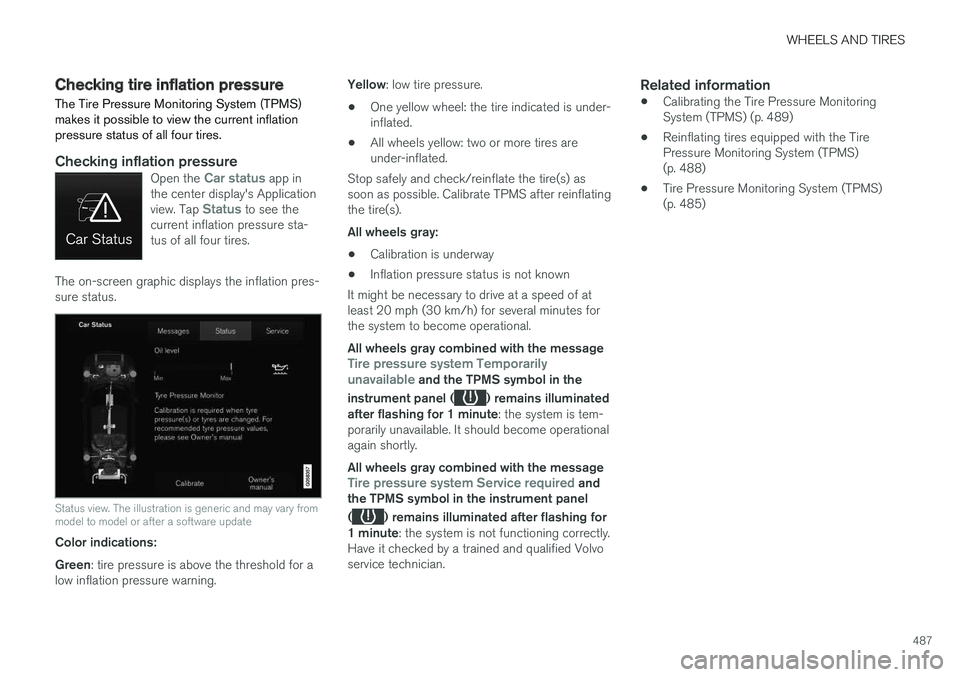
Checking inflation pressureOpen the Car status app in
the center display's Application view. Tap
Status to see the
current inflation pressure sta- tus of all four tires.
The on-screen graphic displays the inflation pres- sure status.
Status view. The illustration is generic and may vary from model to model or after a software update
Color indications: Green : tire pressure is above the threshold for a
low inflation pressure warning. Yellow
: low tire pressure.
• One yellow wheel: the tire indicated is under- inflated.
• All wheels yellow: two or more tires areunder-inflated.
Stop safely and check/reinflate the tire(s) assoon as possible. Calibrate TPMS after reinflatingthe tire(s). All wheels gray:
• Calibration is underway
• Inflation pressure status is not known
It might be necessary to drive at a speed of at least 20 mph (30 km/h) for several minutes forthe system to become operational. All wheels gray combined with the message
Tire pressure system Temporarily
unavailable and the TPMS symbol in the
instrument panel (
) remains illuminated
after flashing for 1 minute : the system is tem-
porarily unavailable. It should become operational again shortly. All wheels gray combined with the message
Tire pressure system Service required and
the TPMS symbol in the instrument panel (
) remains illuminated after flashing for
1 minute : the system is not functioning correctly.
Have it checked by a trained and qualified Volvo service technician.
Related information
• Calibrating the Tire Pressure MonitoringSystem (TPMS) (p. 489)
• Reinflating tires equipped with the TirePressure Monitoring System (TPMS)(p. 488)
• Tire Pressure Monitoring System (TPMS)(p. 485)
Page 490 of 580
WHEELS AND TIRES
488
Reinflating tires equipped with the Tire Pressure Monitoring System(TPMS) When low tire pressure has been detected, a message will be displayed in the instrumentpanel and the Tire Pressure Monitoring Systemsymbol will illuminate.
SymbolExplanation
When the TPMS symbol illuminates and a message is displayed, check,reinflate the tire(s) and calibrateTPMS.
1. Use a tire pressure gauge to check the infla-
tion pressure of all four tires.
2. Re-inflate the tire(s) to the correct pressure. Consult the tire pressure decal located on the driver's side B-pillar (the structural mem-ber at the side of the vehicle, at the rear ofthe driver's door opening) or the inflationpressure table in your printed owner's man-ual supplement.
3. Calibrate the Tire Pressure Monitoring System, see the article "Calibrating the TirePressure Monitoring System". 4. In some cases, it may be necessary to drive
the vehicle for several minutes at a speed ofat least 20 mph (30 km/h) to erase theTPMS telltale warning and the text message.Please be aware that the TPMS telltalewarning will not go out until the low tire pres-sure has been corrected and calibration hasbeen carried out.
NOTE
To help avoid incorrect tire inflation pressure, if possible only inflate the tires when they arecold. The tires are considered to be coldwhen they have the same temperature as thesurrounding (ambient) air. This temperature isnormally reached after the vehicle has beenparked for at least 3 hours. After driving a dis-tance of approximately 1 mile (1.6 km), thetires are considered to be warm.
CAUTION
When inflating tires, press the pump's mouth- piece straight onto the valve to help avoidbending or otherwise damaging the valve.
CAUTION
• After inflating the tires, always reinstall the valve cap to help avoid damage to thevalve from dirt, gravel, etc.
• Use plastic valve caps only. Metal capscould corrode and become difficult toremove.
WARNING
•Incorrect inflation pressure could lead to tire failure, resulting in a loss of control ofthe vehicle.
• Tire monitoring systems cannot indicatesudden tire damage caused by externalfactors (e.g., a blowout) in advance.
Related information
•Tire Pressure Monitoring System (TPMS)(p. 485)
• Checking tire inflation pressure (p. 487)
• Calibrating the Tire Pressure MonitoringSystem (TPMS) (p. 489)
Page 491 of 580
WHEELS AND TIRES
489
Calibrating the Tire Pressure Monitoring System (TPMS)In order for the Tire Pressure Monitoring System to work properly, tire pressure reference valuesmust be set correctly. This must be done eachtime wheels are changed or tire pressures aremodified.
Calibrating TPMSTo calibrate the system:
1. Switch off the engine.
2. Re-inflate the tire(s) to the correct pressure. Consult the tire pressure decal located on the driver's side B-pillar (the structural mem-ber at the side of the vehicle, at the rear ofthe driver's door opening) or the inflationpressure table in your printed owner's man-ual supplement.
3. Start the engine. 4. Open the
Car status app in the center dis-
play's App view.
5. Tap Status to access Tire Pressure
Monitoring System. 6. Tap the calibration button. 7.
Tap
OK after the tire pressure in all four tires
has been checked and adjusted.
8. Drive the vehicle. > The calibration process will be completedwhile driving and will be interrupted if the vehicle is parked and the engine isswitched off. Calibration continues auto-matically when driving resumes.
When enough data has been collected to detecta low tire pressure situation, the tires' color in thecenter display will change to green. The systemwill not give any text confirmation when calibra-tion is finished although it will state if calibrationfails. When driving with heavy loads or at sus-tained highway speeds, the tire pressure shouldbe adjusted to the recommended inflation pres-sures. After adjusting inflation pressure, repeat steps 1-8.
NOTE
Always remember to calibrate the Tire Pres- sure Monitoring System when the wheelshave been changed or the tire inflation pres-sure has been corrected according to the tirepressure decal or tire inflation pressure table. If correct reference values have not been set, the system cannot issue low tire pressurealerts correctly. The vehicle must be parked with the engine running to access the calibration button andto start the calibration process.
WARNING
The exhaust gases contain carbon monoxide, which is invisible and odorless but very poi-sonous. For this reason, always perform thecalibration procedure outdoors or in a work-shop with exhaust gas evacuation equipment.
Related information
• Tire Pressure Monitoring System (TPMS) (p. 485)
Page 501 of 580
MAINTENANCE AND SERVICING
}}
499
Emission inspection readiness
How do states use OBD II for emission
inspections?
Many states connect a computer directly to a vehicle's OBD II system. The inspector can thenread "faults." In some states, this type of inspec-tion has replaced the tailpipe emission test.
How can my vehicle fail OBD II emission
inspection?
Your vehicle can fail OBD II emission inspection for any of the following reasons.
• If your Check Engine (MIL) light is lit, yourvehicle may fail inspection.
• If your vehicle's Check Engine light was lit,but went out without any action on your part,OBD II will still have a recorded fault. Yourvehicle may pass or fail, depending on theinspection practices in your area.
• If you had recent service that required dis-connecting the battery, OBD II diagnosticinformation may be incomplete and "notready" for inspection. A vehicle that is notready may fail inspection.
How can I prepare for my next
OBD II
emission inspection?
• If your Check Engine (MIL) light is lit – or was lit but went out without service, have your vehicle diagnosed and, if necessary, servicedby a qualified Volvo technician.
• If you recently had service for a lit CheckEngine light, or if you had service thatrequired disconnecting the battery, a periodof driving is necessary to bring the OBD IIsystem to "ready" for inspection. Two half-hour trips of mixed stop-and-go/highwaydriving are typically needed to allow OBD II toreach readiness. Your Volvo retailer can pro-vide you with more information on planning atrip.
• Maintain your vehicle in accordance with yourvehicle's maintenance schedule.
Owner maintenancePeriodic maintenance requirements and intervalsare described in your vehicle's Warranty andService Records Information booklet. The following points can be carried out between the normally scheduled maintenance services.
Each time the car is refueled:
•Check the engine oil level.
• Clean the windshield, windshield wipers, headlights, and taillights.
Monthly:
• Check cold tire pressure in all tires. Inspect the tires for wear.
• Check that engine coolant and other fluidlevels are between the indicated "min" and"max" markings.
• Clean interior glass surfaces with a glasscleaner and soft paper towels.
• Wipe driver information displays with a softcloth.
• Visually inspect battery terminals for corro-sion. Corrosion may indicate a loose terminalconnector, or a battery near the end of itsuseful service life. Consult your Volvo retailerfor additional information.
As needed:
Wash the car, including the undercarriage, to reduce wear that can be caused by a buildup ofdirt, and corrosion that can be caused by salt res-idues. Clean leaves and twigs from air intake vents at the base of the windshield, and from other placeswhere they may collect.
NOTE
Complete service information for qualified technicians is available online for purchase orsubscription at www.volvotechinfo.com.