instrument panel VOLVO XC90 T8 2017 Owner´s Manual
[x] Cancel search | Manufacturer: VOLVO, Model Year: 2017, Model line: XC90 T8, Model: VOLVO XC90 T8 2017Pages: 580, PDF Size: 10.37 MB
Page 122 of 580
INSTRUMENTS AND CONTROLS
* Option/accessory.
120
Head-up display (HUD) *
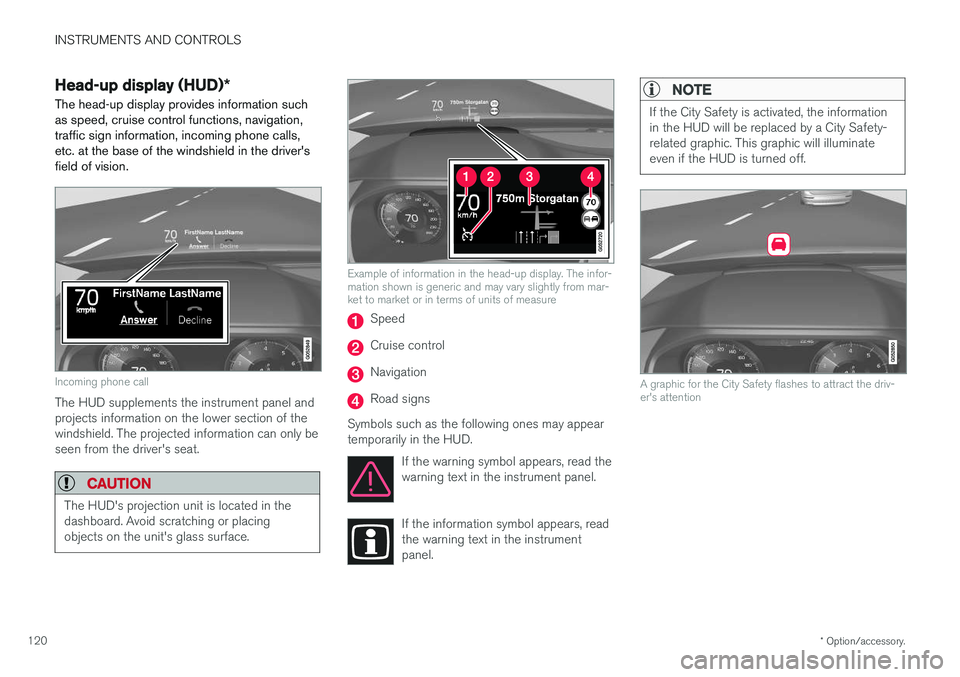
The head-up display provides information such as speed, cruise control functions, navigation,traffic sign information, incoming phone calls,etc. at the base of the windshield in the driver'sfield of vision.
Incoming phone call
The HUD supplements the instrument panel and projects information on the lower section of thewindshield. The projected information can only beseen from the driver's seat.
CAUTION
The HUD's projection unit is located in the dashboard. Avoid scratching or placingobjects on the unit's glass surface.
Example of information in the head-up display. The infor- mation shown is generic and may vary slightly from mar-ket to market or in terms of units of measure
Speed
Cruise control
Navigation
Road signs
Symbols such as the following ones may appear temporarily in the HUD. If the warning symbol appears, read thewarning text in the instrument panel.
If the information symbol appears, read the warning text in the instrumentpanel.
NOTE
If the City Safety is activated, the information in the HUD will be replaced by a City Safety-related graphic. This graphic will illuminateeven if the HUD is turned off.
A graphic for the City Safety flashes to attract the driv- er's attention
Page 125 of 580
INSTRUMENTS AND CONTROLS
}}
* Option/accessory.123
Voice control
Voice commands make it possible for the driver to voice-control certain functions in the mediaplayer, a Bluetooth-connected cell phone, cli- mate system and the Volvo navigation system *.
Voice control offers convenience and enables the driver to keep his/her hands on the steeringwheel and concentrate on driving and the trafficsituation around the vehicle.
WARNING
As the driver, you have full responsibility for operating the vehicle safely and adhering toall applicable traffic regulations.
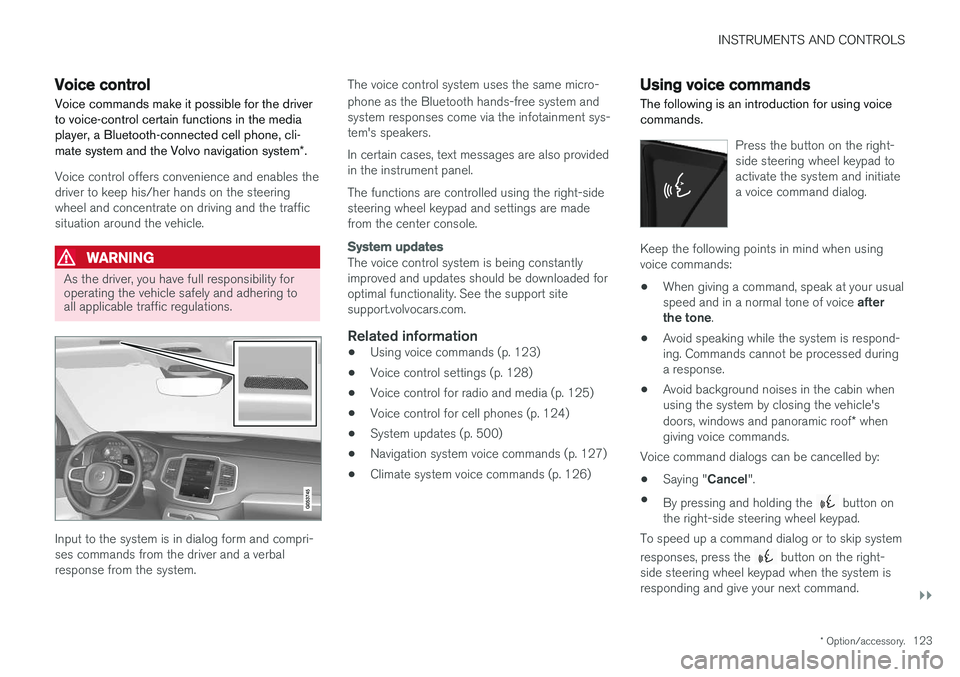
Input to the system is in dialog form and compri- ses commands from the driver and a verbalresponse from the system. The voice control system uses the same micro- phone as the Bluetooth hands-free system and system responses come via the infotainment sys-tem's speakers. In certain cases, text messages are also provided in the instrument panel. The functions are controlled using the right-side steering wheel keypad and settings are madefrom the center console.
System updates
The voice control system is being constantly improved and updates should be downloaded foroptimal functionality. See the support sitesupport.volvocars.com.
Related information
•
Using voice commands (p. 123)
• Voice control settings (p. 128)
• Voice control for radio and media (p. 125)
• Voice control for cell phones (p. 124)
• System updates (p. 500)
• Navigation system voice commands (p. 127)
• Climate system voice commands (p. 126)
Using voice commands
The following is an introduction for using voice commands.
Press the button on the right- side steering wheel keypad toactivate the system and initiatea voice command dialog.
Keep the following points in mind when using voice commands:
• When giving a command, speak at your usual speed and in a normal tone of voice
after
the tone .
• Avoid speaking while the system is respond- ing. Commands cannot be processed duringa response.
• Avoid background noises in the cabin whenusing the system by closing the vehicle's doors, windows and panoramic roof
* when
giving voice commands.
Voice command dialogs can be cancelled by:
• Saying "
Cancel".
• By pressing and holding the
button on
the right-side steering wheel keypad.
To speed up a command dialog or to skip system responses, press the
button on the right-
side steering wheel keypad when the system is responding and give your next command.
Page 130 of 580
INSTRUMENTS AND CONTROLS
* Option/accessory.
128
Voice control settings
There are a number of settings that can be made for the voice control system.
Open the center display's Top view and tap
SettingsSystemVoice Control and
select settings. •
Repeat Voice Command
•Gender
•Speech Rate
Sound settings
Open Top view and tap SettingsSound
System VolumesVoice Control.
Changing languages
The voice control system only understands the languages marked by the
symbol in the list
of possible system languages. Changing the language for this system also affects menus, messages and help texts. Open Top view and tap
SettingsSystemSystem Language.
Related information
• Voice control (p. 123)
• Using voice commands (p. 123)
• Navigation system voice commands (p. 127)
Instrument panel
The instrument panel displays vehicle- and driv- ing-related information.
The gauges, indicators, symbols and functions displayed in the instrument panel depend on theequipment/systems installed in the vehicle andwhich functions are currently activated. Some of the functions listed below are optional.
WARNING
• If the instrument panel is not functioning properly, information about e.g., brakes,airbags or other safety-related messagescannot be displayed and the driver cannotbe alerted to possible problems.
• If the instrument panel turns off, does notactivate when the ignition is switched onor is completely/partially not possible toread, do not drive the vehicle. Contact atrained and qualified Volvo service techni-cian.
Instrument panel
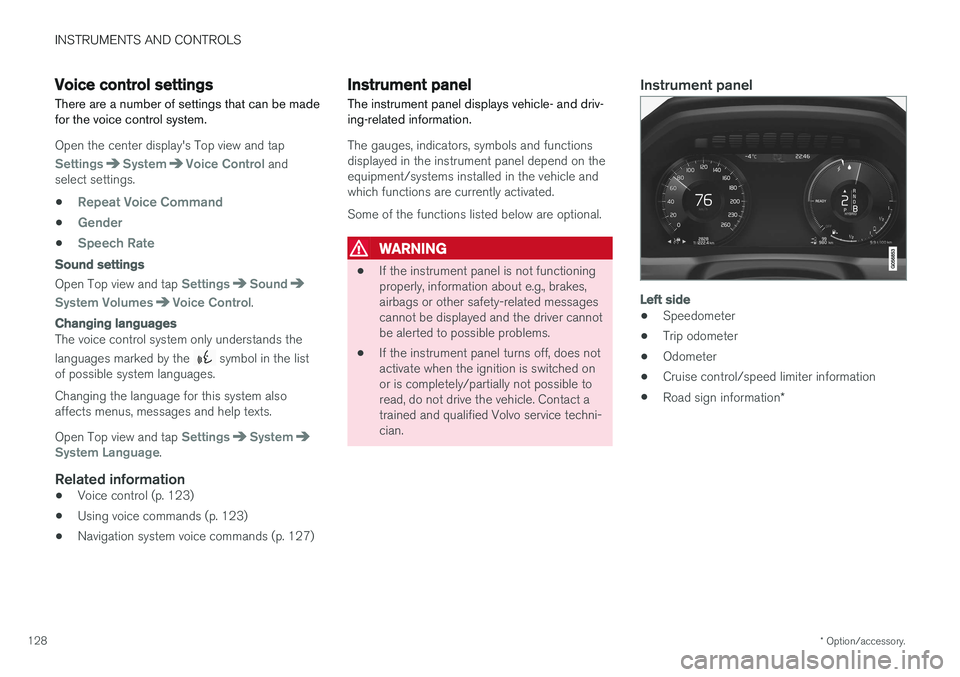
Left side
• Speedometer
• Trip odometer
• Odometer
• Cruise control/speed limiter information
• Road sign information
*
Page 131 of 580
INSTRUMENTS AND CONTROLS
129
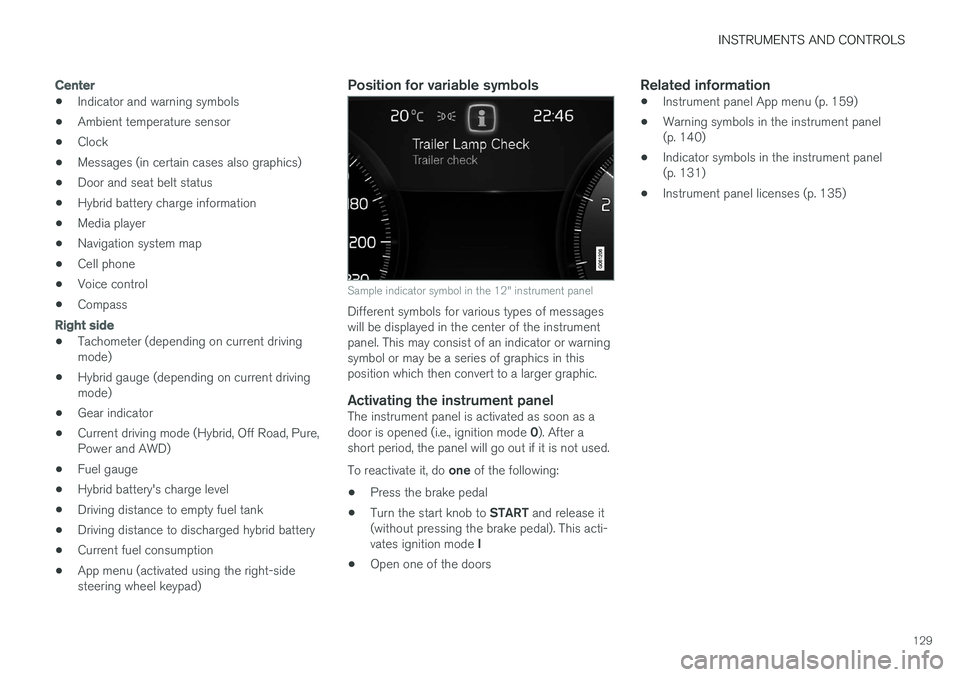
Center
•Indicator and warning symbols
• Ambient temperature sensor
• Clock
• Messages (in certain cases also graphics)
• Door and seat belt status
• Hybrid battery charge information
• Media player
• Navigation system map
• Cell phone
• Voice control
• Compass
Right side
•Tachometer (depending on current driving mode)
• Hybrid gauge (depending on current drivingmode)
• Gear indicator
• Current driving mode (Hybrid, Off Road, Pure,Power and AWD)
• Fuel gauge
• Hybrid battery's charge level
• Driving distance to empty fuel tank
• Driving distance to discharged hybrid battery
• Current fuel consumption
• App menu (activated using the right-sidesteering wheel keypad)
Position for variable symbols
Sample indicator symbol in the 12" instrument panel
Different symbols for various types of messages will be displayed in the center of the instrumentpanel. This may consist of an indicator or warningsymbol or may be a series of graphics in thisposition which then convert to a larger graphic.
Activating the instrument panelThe instrument panel is activated as soon as a door is opened (i.e., ignition mode
0). After a
short period, the panel will go out if it is not used. To reactivate it, do one of the following:
• Press the brake pedal
• Turn the start knob to
START and release it
(without pressing the brake pedal). This acti- vates ignition mode I
• Open one of the doors
Related information
• Instrument panel App menu (p. 159)
• Warning symbols in the instrument panel (p. 140)
• Indicator symbols in the instrument panel(p. 131)
• Instrument panel licenses (p. 135)
Page 132 of 580
INSTRUMENTS AND CONTROLS
130
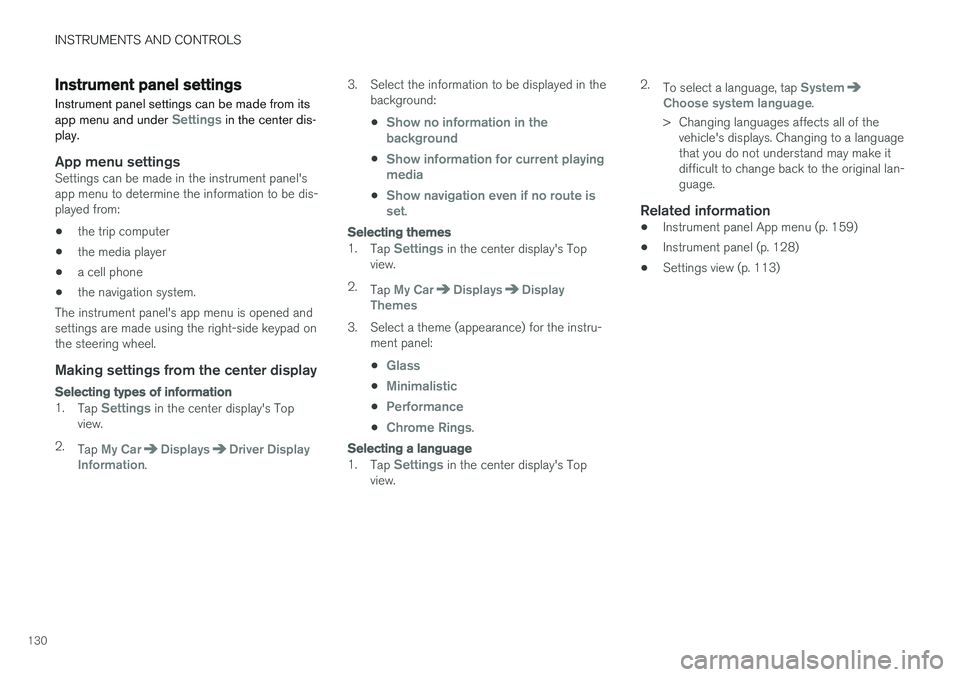
Instrument panel settings
Instrument panel settings can be made from its app menu and under
Settings in the center dis-
play.
App menu settingsSettings can be made in the instrument panel's app menu to determine the information to be dis-played from:
• the trip computer
• the media player
• a cell phone
• the navigation system.
The instrument panel's app menu is opened andsettings are made using the right-side keypad onthe steering wheel.
Making settings from the center display
Selecting types of information
1. Tap Settings in the center display's Top
view.
2. Tap
My CarDisplaysDriver Display
Information. 3. Select the information to be displayed in the
background:
•
Show no information in the background
•Show information for current playing media
•Show navigation even if no route is set.
Selecting themes
1. Tap Settings in the center display's Top
view.
2. Tap
My CarDisplaysDisplay
Themes
3. Select a theme (appearance) for the instru- ment panel:
•
Glass
•Minimalistic
•Performance
•Chrome Rings.
Selecting a language
1. Tap Settings in the center display's Top
view. 2.
To select a language, tap
SystemChoose system language.
> Changing languages affects all of the vehicle's displays. Changing to a language that you do not understand may make itdifficult to change back to the original lan-guage.
Related information
• Instrument panel App menu (p. 159)
• Instrument panel (p. 128)
• Settings view (p. 113)
Page 133 of 580
INSTRUMENTS AND CONTROLS
}}
131
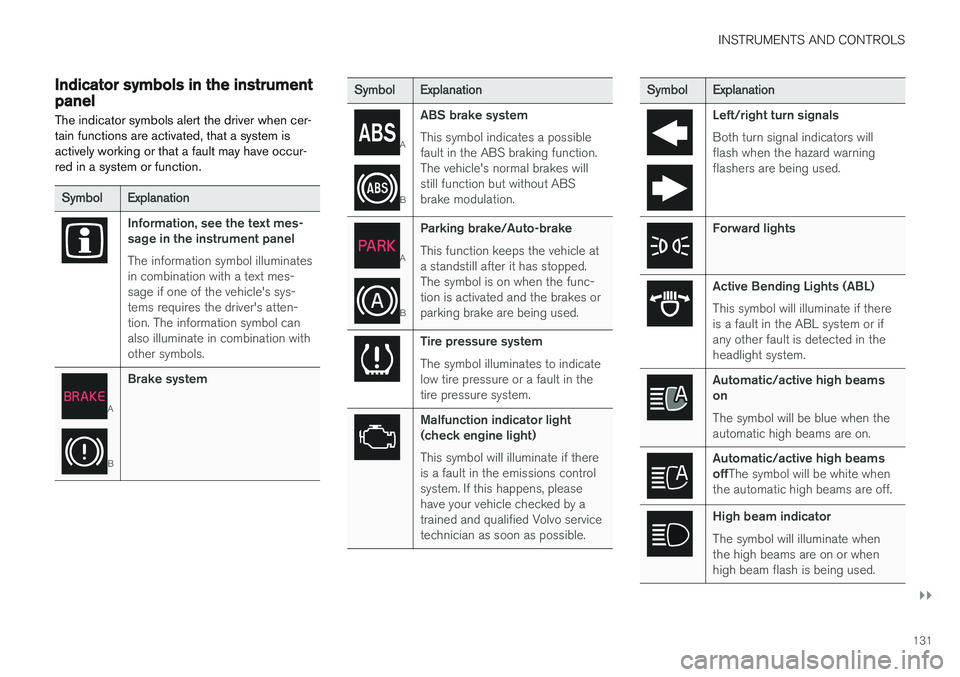
Indicator symbols in the instrument panelThe indicator symbols alert the driver when cer- tain functions are activated, that a system isactively working or that a fault may have occur-red in a system or function.
Symbol Explanation
Information, see the text mes- sage in the instrument panel The information symbol illuminates in combination with a text mes-sage if one of the vehicle's sys-tems requires the driver's atten-tion. The information symbol canalso illuminate in combination withother symbols.
A
BBrake system
Symbol
Explanation
A
BABS brake system This symbol indicates a possible fault in the ABS braking function.The vehicle's normal brakes willstill function but without ABSbrake modulation.
A
B
Parking brake/Auto-brake This function keeps the vehicle at a standstill after it has stopped.The symbol is on when the func-tion is activated and the brakes orparking brake are being used.
Tire pressure system The symbol illuminates to indicate low tire pressure or a fault in thetire pressure system.
Malfunction indicator light (check engine light) This symbol will illuminate if there is a fault in the emissions controlsystem. If this happens, pleasehave your vehicle checked by atrained and qualified Volvo servicetechnician as soon as possible.
Symbol
Explanation
Left/right turn signals Both turn signal indicators will flash when the hazard warningflashers are being used.
Forward lights
Active Bending Lights (ABL) This symbol will illuminate if there is a fault in the ABL system or ifany other fault is detected in theheadlight system.
Automatic/active high beams on The symbol will be blue when the automatic high beams are on.
Automatic/active high beams offThe symbol will be white when
the automatic high beams are off.
High beam indicator The symbol will illuminate when the high beams are on or whenhigh beam flash is being used.
Page 134 of 580
||
INSTRUMENTS AND CONTROLS
132
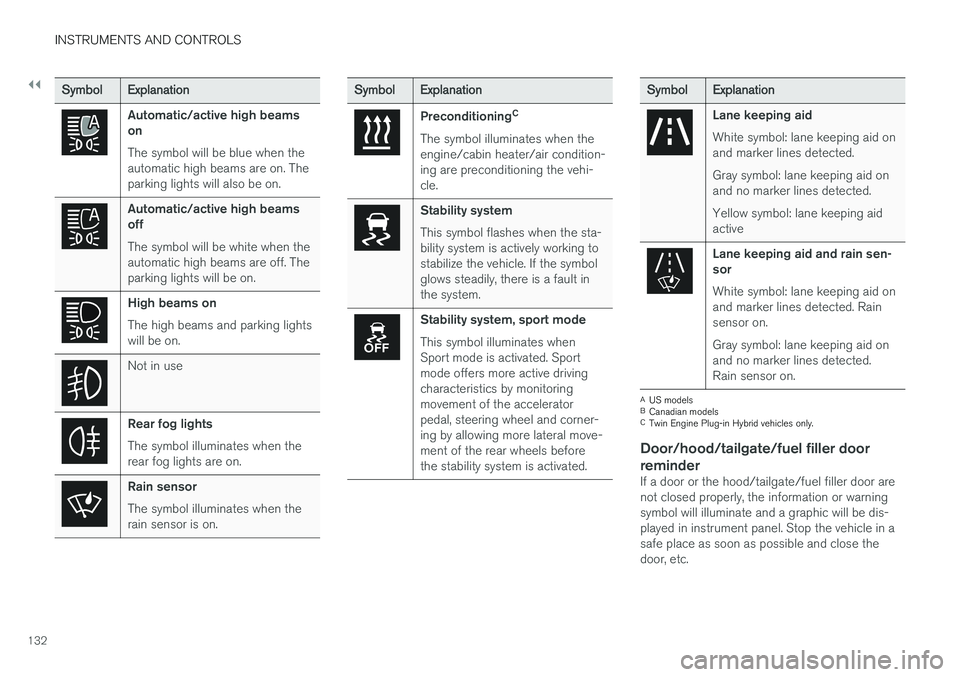
SymbolExplanation
Automatic/active high beams on The symbol will be blue when the automatic high beams are on. Theparking lights will also be on.
Automatic/active high beams off The symbol will be white when the automatic high beams are off. Theparking lights will be on.
High beams on The high beams and parking lights will be on.
Not in use
Rear fog lights The symbol illuminates when the rear fog lights are on.
Rain sensor The symbol illuminates when the rain sensor is on.
SymbolExplanation
Preconditioning C
The symbol illuminates when the engine/cabin heater/air condition-ing are preconditioning the vehi-cle.
Stability system This symbol flashes when the sta- bility system is actively working tostabilize the vehicle. If the symbolglows steadily, there is a fault inthe system.
Stability system, sport mode This symbol illuminates when Sport mode is activated. Sportmode offers more active drivingcharacteristics by monitoringmovement of the acceleratorpedal, steering wheel and corner-ing by allowing more lateral move-ment of the rear wheels beforethe stability system is activated.
Symbol Explanation
Lane keeping aid White symbol: lane keeping aid on and marker lines detected. Gray symbol: lane keeping aid on and no marker lines detected. Yellow symbol: lane keeping aid active
Lane keeping aid and rain sen- sor White symbol: lane keeping aid on and marker lines detected. Rainsensor on. Gray symbol: lane keeping aid on and no marker lines detected.Rain sensor on.
A
US models
B Canadian models
C Twin Engine Plug-in Hybrid vehicles only.
Door/hood/tailgate/fuel filler door
reminder
If a door or the hood/tailgate/fuel filler door are not closed properly, the information or warningsymbol will illuminate and a graphic will be dis-played in instrument panel. Stop the vehicle in asafe place as soon as possible and close thedoor, etc.
Page 135 of 580
INSTRUMENTS AND CONTROLS
}}
133
Related information
•Instrument panel (p. 128)
• Warning symbols in the instrument panel (p. 140)
• Door and seat belt reminders (p. 68)
Hybrid-related information in the instrument panel
Different types of information will be displayed in the instrument panel, depending on the drivemode selected. These drive modes offer uniqueways of helping the driver achieve the best pos-sible driving economy. The vehicle also stores driving statistics that can be viewed in the form of a bar graph.
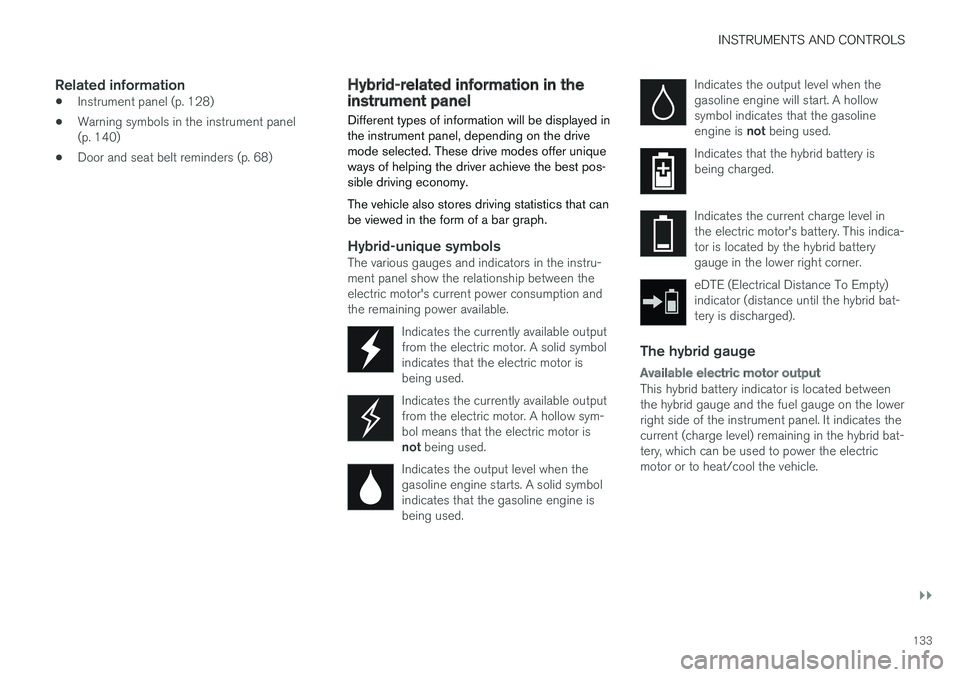
Hybrid-unique symbolsThe various gauges and indicators in the instru- ment panel show the relationship between theelectric motor's current power consumption andthe remaining power available.
Indicates the currently available outputfrom the electric motor. A solid symbolindicates that the electric motor isbeing used.
Indicates the currently available output from the electric motor. A hollow sym-bol means that the electric motor is not being used.
Indicates the output level when the gasoline engine starts. A solid symbolindicates that the gasoline engine isbeing used.
Indicates the output level when the gasoline engine will start. A hollowsymbol indicates that the gasoline engine is not being used.
Indicates that the hybrid battery is being charged.
Indicates the current charge level in the electric motor's battery. This indica-tor is located by the hybrid batterygauge in the lower right corner.
eDTE (Electrical Distance To Empty) indicator (distance until the hybrid bat-tery is discharged).
The hybrid gauge
Available electric motor output
This hybrid battery indicator is located between the hybrid gauge and the fuel gauge on the lowerright side of the instrument panel. It indicates thecurrent (charge level) remaining in the hybrid bat-tery, which can be used to power the electricmotor or to heat/cool the vehicle.
Page 136 of 580
||
INSTRUMENTS AND CONTROLS
134
Power utilized by the driver
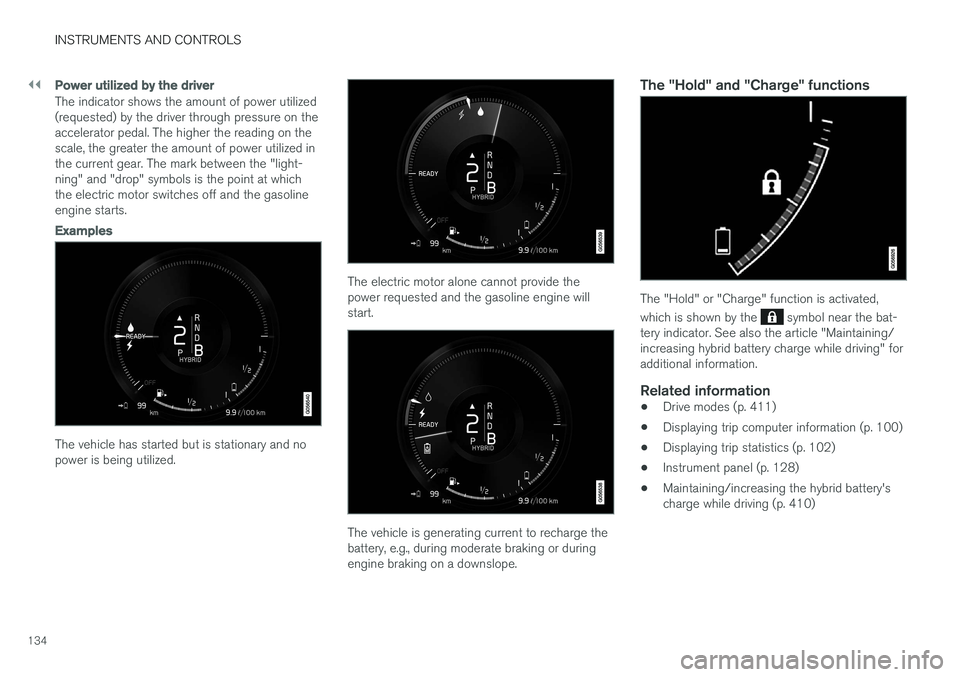
The indicator shows the amount of power utilized (requested) by the driver through pressure on theaccelerator pedal. The higher the reading on thescale, the greater the amount of power utilized inthe current gear. The mark between the "light-ning" and "drop" symbols is the point at whichthe electric motor switches off and the gasolineengine starts.
Examples
The vehicle has started but is stationary and no power is being utilized.
The electric motor alone cannot provide the power requested and the gasoline engine willstart.
The vehicle is generating current to recharge the battery, e.g., during moderate braking or duringengine braking on a downslope.
The "Hold" and "Charge" functions
The "Hold" or "Charge" function is activated, which is shown by the
symbol near the bat-
tery indicator. See also the article "Maintaining/ increasing hybrid battery charge while driving" foradditional information.
Related information
• Drive modes (p. 411)
• Displaying trip computer information (p. 100)
• Displaying trip statistics (p. 102)
• Instrument panel (p. 128)
• Maintaining/increasing the hybrid battery'scharge while driving (p. 410)
Page 137 of 580
INSTRUMENTS AND CONTROLS
}}
135
Instrument panel licenses
BSD 4-clause "Original" or "Old"
License
Copyright ©) 1982, 1986, 1990, 1991, 1993
The Regents of the University of California. All rights reserved. Redistribution and use in source and binary forms, with or without modification, are permittedprovided that the following conditions are met:
1. Redistributions of source code must retain the above copyright notice, this list of conditions and the following disclaimer.
2. Redistributions in binary form must reproduce the above copyright notice, this listof conditions and the following disclaimer inthe documentation and/or other materialsprovided with the distribution.
3. All advertising materials mentioning features or use of this software must display thefollowing acknowledgment: This productincludes software developed by theUniversity of California, Berkeley and itscontributors.
4. Neither the name of the University nor the names of its contributors may be used toendorse or promote products derived fromthis software without specific prior writtenpermission.
THIS SOFTWARE IS PROVIDED BY THEREGENTS AND CONTRIBUTORS ``AS IS'' AND ANY EXPRESS OR IMPLIED WARRANTIES,INCLUDING, BUT NOT LIMITED TO, THEIMPLIED WARRANTIES OF MERCHANTABILITYAND FITNESS FOR A PARTICULAR PURPOSEARE DISCLAIMED. IN NO EVENT SHALL THEREGENTS OR CONTRIBUTORS BE LIABLEFOR ANY DIRECT, INDIRECT, INCIDENTAL,SPECIAL, EXEMPLARY, OR CONSEQUENTIALDAMAGES (INCLUDING, BUT NOT LIMITED TO,PROCUREMENT OF SUBSTITUTE GOODS ORSERVICES; LOSS OF USE, DATA, OR PROFITS;OR BUSINESS INTERRUPTION) HOWEVERCAUSED AND ON ANY THEORY OF LIABILITY,WHETHER IN CONTRACT, STRICT LIABILITY,OR TORT (INCLUDING NEGLIGENCE OROTHERWISE) ARISING IN ANY WAY OUT OFTHE USE OF THIS SOFTWARE, EVEN IFADVISED OF THE POSSIBILITY OF SUCHDAMAGE.
BSD 3-clause "New" or "Revised"
License
Copyright (c) 2011-2014, Yann Collet. Redistribution and use in source and binary forms, with or without modification, are permittedprovided that the following conditions are met:
1. Redistributions of source code must retain the above copyright notice, this list of conditions and the following disclaimer.
2. Redistributions in binary form must reproduce the above copyright notice, this listof conditions and the following disclaimer in the documentation and/or other materialsprovided with the distribution.
3. Neither the name of the organisation nor the names of its contributors may be used toendorse or promote products derive from thissoftware without specific prior writtenpermission.
THIS SOFTWARE IS PROVIDED BY THECOPYRIGHT HOLDERS AND CONTRIBUTORS"AS IS" AND ANY EXPRESS OR IMPLIEDWARRANTIES, INCLUDING, BUT NOT LIMITEDTO, THE IMPLIED WARRANTIES OFMERCHANTABILITY AND FITNESS FOR APARTICULAR PURPOSE ARE DISCLAIMED. INNO EVENT SHALL THE COPYRIGHT HOLDEROR CONTRIBUTORS BE LIABLE FOR ANYDIRECT, INDIRECT, INCIDENTAL, SPECIAL,EXEMPLARY, OR CONSEQUENTIAL DAMAGES(INCLUDING, BUT NOT LIMITED TO,PROCUREMENT OF SUBSTITUTE GOODS ORSERVICES; LOSS OF USE, DATA, OR PROFITS;OR BUSINESS INTERRUPTION) HOWEVERCAUSED AND ON ANY THEORY OF LIABILITY,WHETHER IN CONTRACT, STRICT LIABILITY,OR TORT (INCLUDING NEGLIGENCE OROTHERWISE) ARISING IN ANY WAY OUT OFTHE USE OF THIS SOFTWARE, EVEN IFADVISED OF THE POSSIBILITY OF SUCHDAMAGE.