navigation VOLVO XC90 T8 2017 Owner´s Manual
[x] Cancel search | Manufacturer: VOLVO, Model Year: 2017, Model line: XC90 T8, Model: VOLVO XC90 T8 2017Pages: 580, PDF Size: 10.37 MB
Page 132 of 580
INSTRUMENTS AND CONTROLS
130
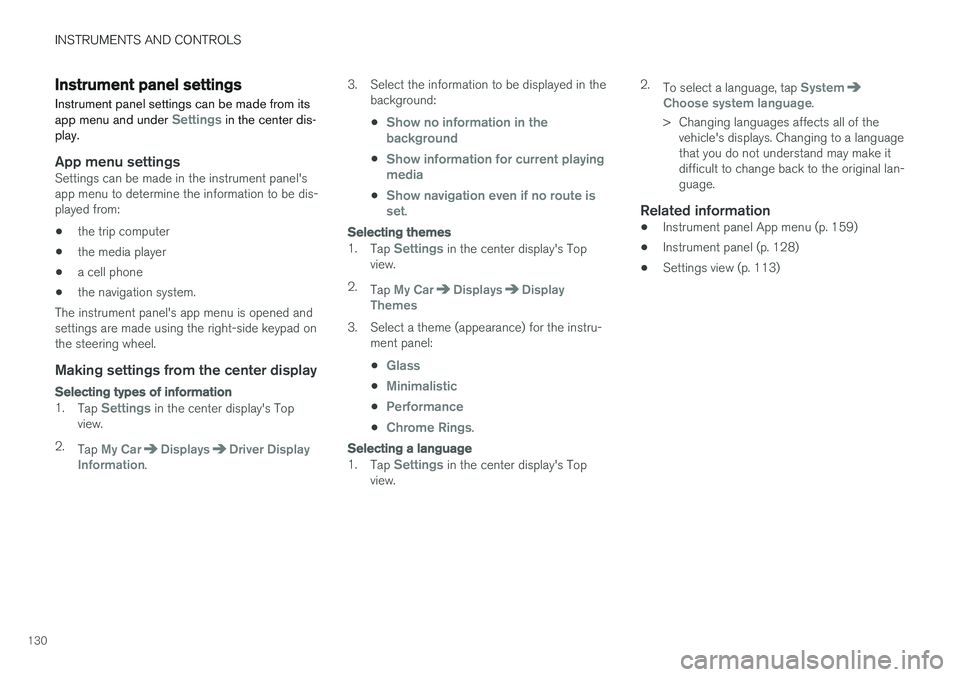
Instrument panel settings
Instrument panel settings can be made from its app menu and under
Settings in the center dis-
play.
App menu settingsSettings can be made in the instrument panel's app menu to determine the information to be dis-played from:
• the trip computer
• the media player
• a cell phone
• the navigation system.
The instrument panel's app menu is opened andsettings are made using the right-side keypad onthe steering wheel.
Making settings from the center display
Selecting types of information
1. Tap Settings in the center display's Top
view.
2. Tap
My CarDisplaysDriver Display
Information. 3. Select the information to be displayed in the
background:
•
Show no information in the background
•Show information for current playing media
•Show navigation even if no route is set.
Selecting themes
1. Tap Settings in the center display's Top
view.
2. Tap
My CarDisplaysDisplay
Themes
3. Select a theme (appearance) for the instru- ment panel:
•
Glass
•Minimalistic
•Performance
•Chrome Rings.
Selecting a language
1. Tap Settings in the center display's Top
view. 2.
To select a language, tap
SystemChoose system language.
> Changing languages affects all of the vehicle's displays. Changing to a language that you do not understand may make itdifficult to change back to the original lan-guage.
Related information
• Instrument panel App menu (p. 159)
• Instrument panel (p. 128)
• Settings view (p. 113)
Page 161 of 580
INSTRUMENTS AND CONTROLS
159
Handling a saved message
Some messages have a button to e.g., activate/ deactivate a function related to the message.
–Tap the button to carry out the action.
Messages saved in Top view are erased automat- ically when the engine is switched off.
Related information
• Handling messages in the instrument paneland center display (p. 156)
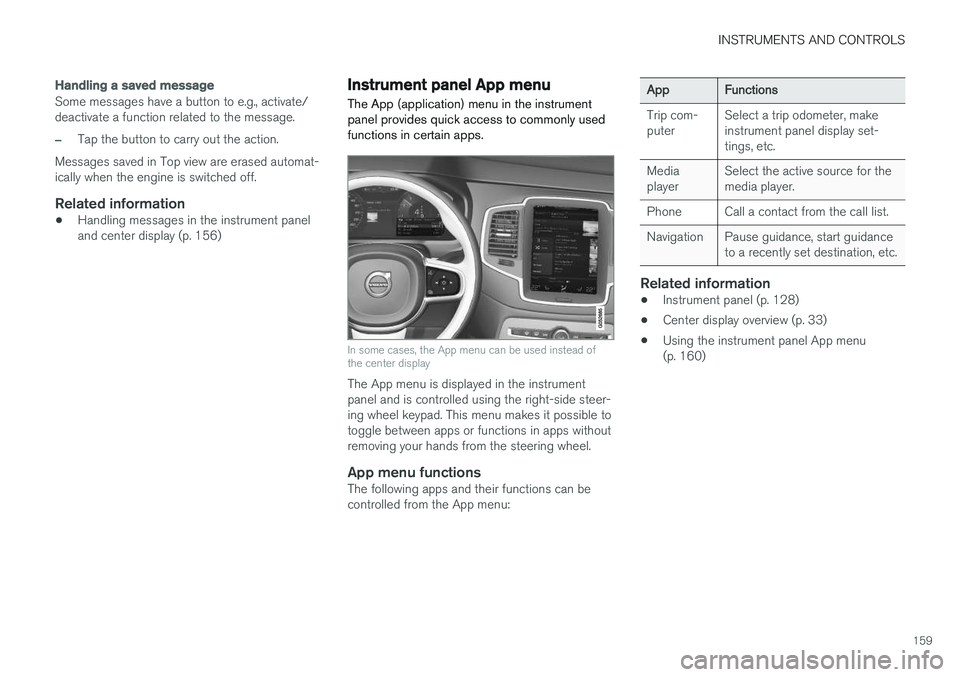
Instrument panel App menu The App (application) menu in the instrument panel provides quick access to commonly usedfunctions in certain apps.
In some cases, the App menu can be used instead of the center display
The App menu is displayed in the instrument panel and is controlled using the right-side steer-ing wheel keypad. This menu makes it possible totoggle between apps or functions in apps withoutremoving your hands from the steering wheel.
App menu functionsThe following apps and their functions can becontrolled from the App menu:
App
Functions
Trip com- puter Select a trip odometer, makeinstrument panel display set-tings, etc.
Mediaplayer Select the active source for themedia player.
Phone Call a contact from the call list.
Navigation Pause guidance, start guidance to a recently set destination, etc.
Related information
•Instrument panel (p. 128)
• Center display overview (p. 33)
• Using the instrument panel App menu (p. 160)
Page 334 of 580
DRIVER SUPPORT
* Option/accessory.
332
Road Sign Information (RSI) *
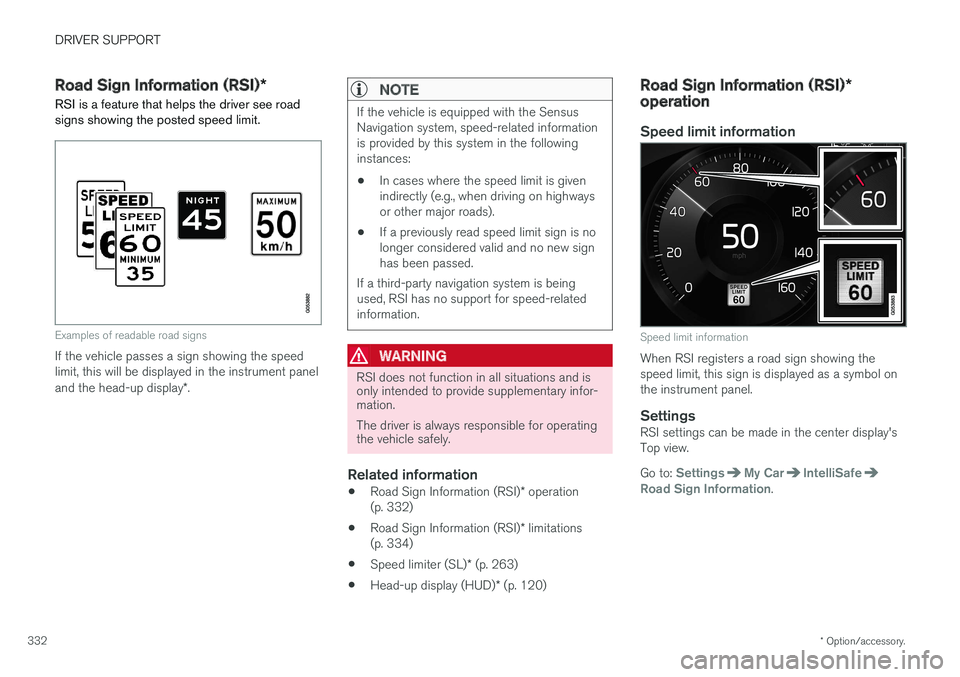
RSI is a feature that helps the driver see road signs showing the posted speed limit.
Examples of readable road signs
If the vehicle passes a sign showing the speed limit, this will be displayed in the instrument panel and the head-up display *.
NOTE
If the vehicle is equipped with the Sensus Navigation system, speed-related informationis provided by this system in the followinginstances:
• In cases where the speed limit is givenindirectly (e.g., when driving on highwaysor other major roads).
• If a previously read speed limit sign is nolonger considered valid and no new signhas been passed.
If a third-party navigation system is beingused, RSI has no support for speed-relatedinformation.
WARNING
RSI does not function in all situations and is only intended to provide supplementary infor-mation. The driver is always responsible for operating the vehicle safely.
Related information
• Road Sign Information (RSI)
* operation
(p. 332)
• Road Sign Information (RSI)
* limitations
(p. 334)
• Speed limiter (SL)
* (p. 263)
• Head-up display (HUD)
* (p. 120)
Road Sign Information (RSI) *
operation
Speed limit information
Speed limit information
When RSI registers a road sign showing the speed limit, this sign is displayed as a symbol onthe instrument panel.
SettingsRSI settings can be made in the center display'sTop view. Go to:
SettingsMy CarIntelliSafeRoad Sign Information.
Page 335 of 580
DRIVER SUPPORT
* Option/accessory.333
Activating/deactivating RSI
RSI can be activated/deacti- vated in the center display'sfunction view.
–Tap the Road Sign Information button in
Function view.
> When RSI is activated, the indicator light in the button will be green. The indicator light will be gray when the function isdeactivated.
Activating/deactivating the speed warning function
The driver can be alerted if the current speed limit is being exceeded (the symbol for the cur-rent speed limit will begin to flash). This functioncan be activated or deactivated and the limit for awarning can be set. 1. Tap
Settings in the center display's Top
view.
2. Tap
My CarIntelliSafeRoad Sign
Information.
3. Tap
Speed Limit Warning to activate/deac-
tivate this function.
> If the function is activated, a speed selec- tor will be displayed. 4. Select the limit at which the speed warning is
to be given by pressing the up/down arrows. Please be aware that the set warning limit will not be used when a speed camera sym-bol is displayed in the instrument panel.
Activating/deactivating the audible alert
The audible alert can be activated/deactivated and the limit for a warning can be set. 1.Tap
Settings in the center display's Top
view.
2. Tap
My CarIntelliSafeRoad Sign
Information.
3. Tap
Audio Warning to activate/deactivate
this function.
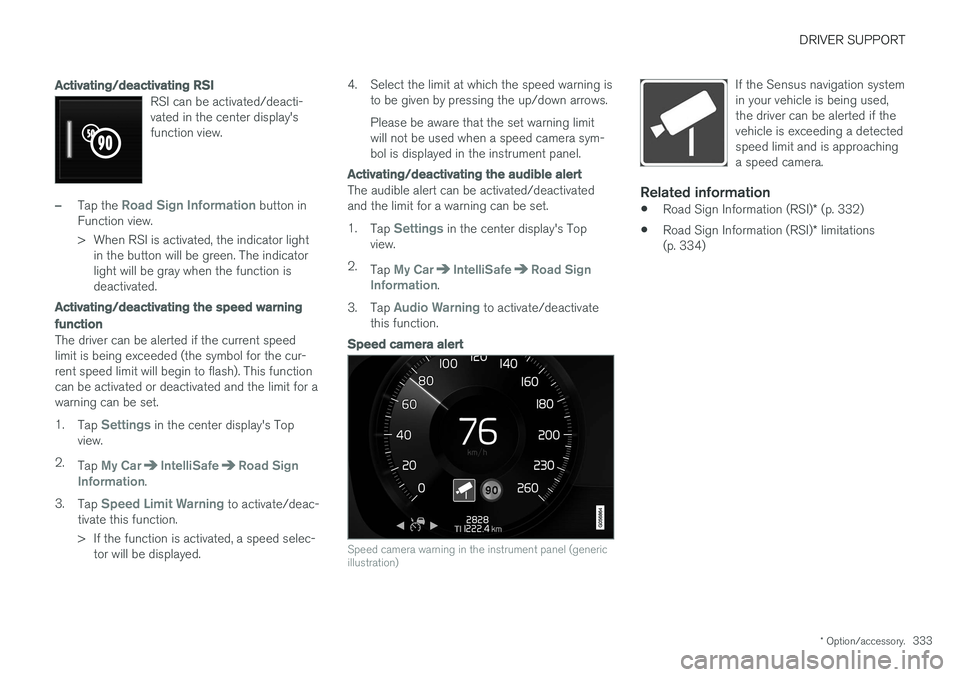
Speed camera alert
Speed camera warning in the instrument panel (generic illustration)
If the Sensus navigation system in your vehicle is being used,the driver can be alerted if thevehicle is exceeding a detectedspeed limit and is approachinga speed camera.
Related information
• Road Sign Information (RSI)
* (p. 332)
• Road Sign Information (RSI)
* limitations
(p. 334)
Page 336 of 580
DRIVER SUPPORT
* Option/accessory.
334
Road Sign Information (RSI) *
limitations
The RSI function may be limited in certain situa- tions.
RSI may have difficulty reading signs that are:
• Faded
• Located in a curve
• Twisted or damaged
• Positioned high above the road
• Obstructed (by bushes, etc.)
• Partially covered by snow, ice, etc.
• If the digital maps used by the Sensus Navigation system
* are not up-to-date or do
not contain speed information 6
.
The camera used by RSI has certain limitations. See the article "Camera limitations" for additionalinformation.
NOTE
RSI may perceive certain types of bicycle holders (with wiring attached to the trailerelectrical socket) as a trailer, which may resultin faulty speed limit information to the driver.
Related information
• Road Sign Information (RSI)
* (p. 332)
• Road Sign Information (RSI)
* operation
(p. 332)
• Camera limitations (p. 309)
Driver Alert Control (DAC)
DAC is intended to alert the driver if his/her driv- ing becomes erratic due to e.g., distraction orfatigue.
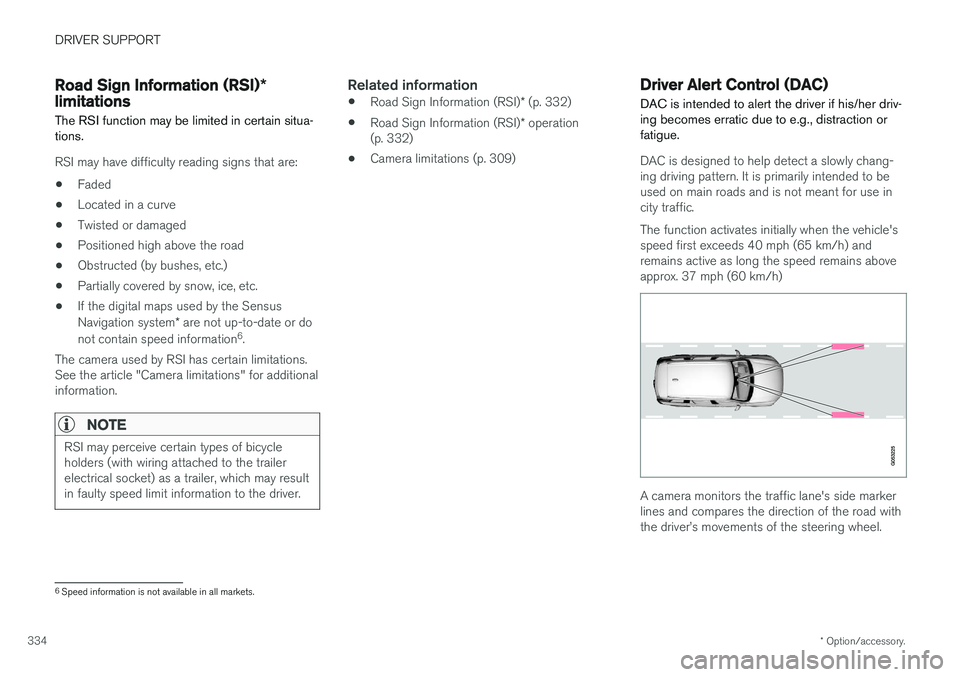
DAC is designed to help detect a slowly chang- ing driving pattern. It is primarily intended to be used on main roads and is not meant for use incity traffic. The function activates initially when the vehicle's speed first exceeds 40 mph (65 km/h) andremains active as long the speed remains aboveapprox. 37 mph (60 km/h)
A camera monitors the traffic lane's side marker lines and compares the direction of the road withthe driver
Page 391 of 580
STARTING AND DRIVING
}}
* Option/accessory.389
Ignition modes
The vehicle's ignition can be put in various modes (levels) to make different functions availa-ble.
The vehicle's ignition has 3 modes: 0, I, and II
that can be used to operate various functions without starting the engine. The following tableshows examples of which functions are availablein the respective modes.
Mode Functions available
0 •The odometer, clock and tem- perature gauge are illuminated
• Power seats
* can be adjusted
• The power windows can be oper-ated
• The 12-volt socket in the cargocompartment can be used
• The center display is activatedand can be used
• The infotainment system can beused for a limited time
In this mode, certain functions canonly be used for a limited time to helpminimize battery drain
I •The laminated panoramic roof
*,
power seats */windows,12-volt
sockets in the passenger com-partment, Bluetooth, navigation system *, climate system blower,
windshield wipers can be oper- ated
• The infotainment system will start(if it was started when the ignitionwas switched off)
Using electrical current will drainthe start battery in this mode.Mode Functions available
II •The headlights illuminate
• Warning/indicator lights illumi- nate for 5 seconds
• A number of other functions willalso be activated. However, the heated seats
* and heated rear
window functions can only be activated when the engine is run-ning.
This mode should only be used forvery short periods to help avoiddraining the battery.
Selecting an ignition mode
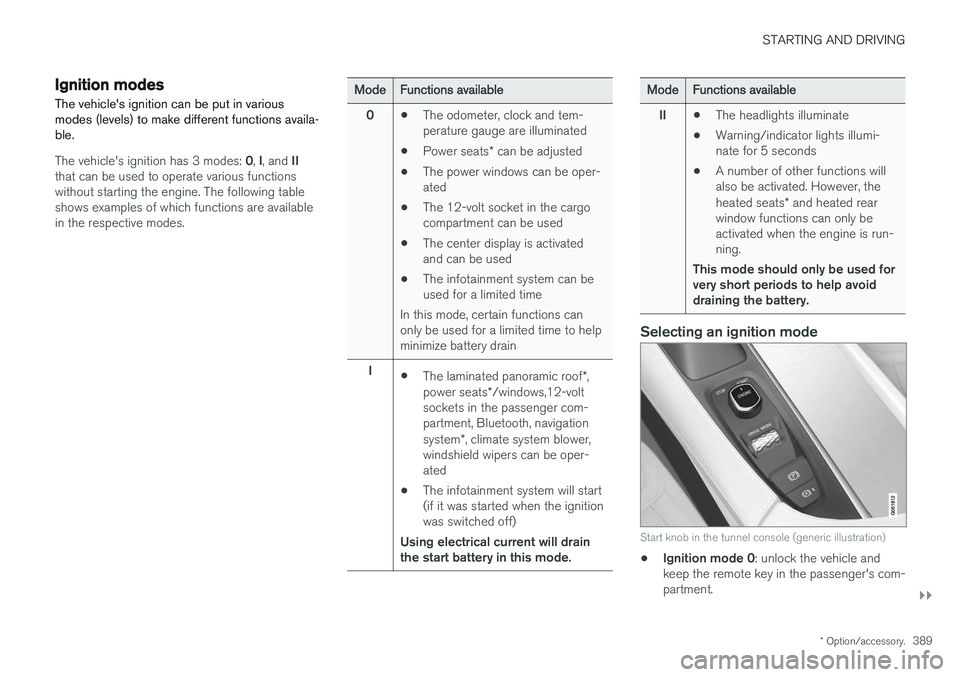
Start knob in the tunnel console (generic illustration)
• Ignition mode 0
: unlock the vehicle and
keep the remote key in the passenger's com- partment.
Page 424 of 580
INFOTAINMENT
422
The infotainment system
The infotainment system consists of a radio, media player and has the capacity to communi-cate with a Bluetooth-connected cell phone. It isalso possible to connect to the Internet to e.g.,stream audio content via apps. The system's functions can be controlled from the right-side steering wheel keypad, the centerdisplay or by using voice commands.
Infotainment overview
Infotainment system overview
System updates
The infotainment system is constantly being developed and improved. For optimal functional-ity, updates can be downloaded when the vehicleis connected to the Internet. See the article "Sys-tem updates" and the support sitesupport.volvocars.com.
Related information
• Media player (p. 446)
• Radio (p. 424)
• Phone (p. 438)
• Internet connected vehicle (p. 458)
• Apps (applications) (p. 422)
• Ignition modes (p. 389)
• Symbols in the center display status bar(p. 48)
• Voice control (p. 123)
• Infotainment system license information(p. 464)
• System updates (p. 500)
Apps (applications)
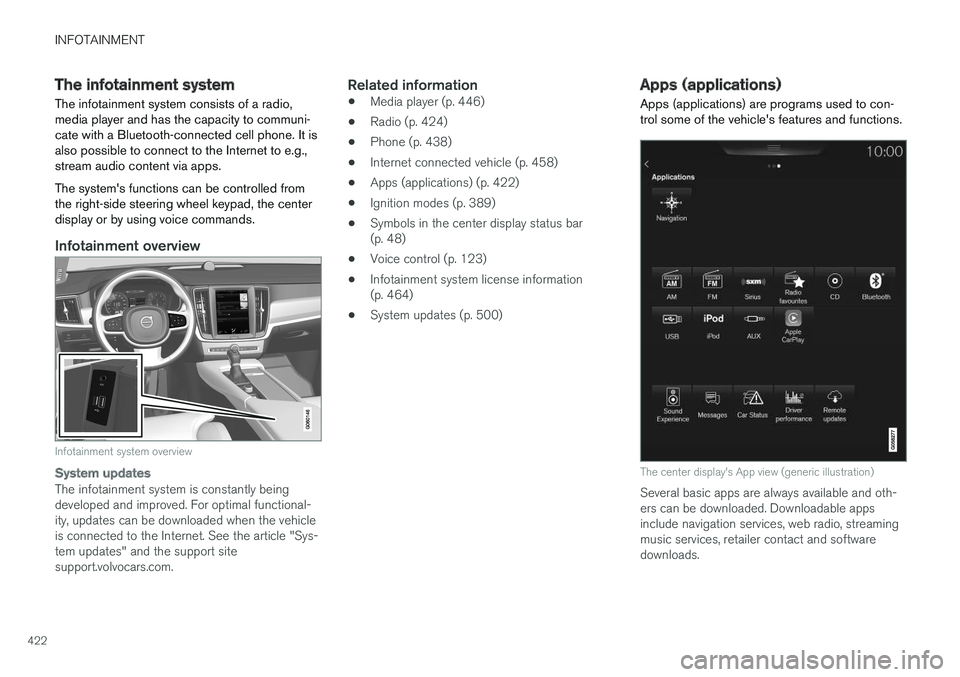
Apps (applications) are programs used to con- trol some of the vehicle's features and functions.
The center display's App view (generic illustration)
Several basic apps are always available and oth- ers can be downloaded. Downloadable appsinclude navigation services, web radio, streamingmusic services, retailer contact and softwaredownloads.
Page 435 of 580
INFOTAINMENT
}}
* Option/accessory.433
SiriusXM Travel Link *
SiriusXM Travel Link is a feature offered by SiriusXM ®
Satellite radio * that can provide infor-
mation about e.g., weather forecasts, weather alerts, service stations, sports, etc. in the vicinityof the vehicle.
Starting SiriusXM Travel Link
NOTE
SiriusXM Travel Link services are only availa- ble in vehicles equipped with the SensusNavigation system.
From the center display
Page 438 of 580
||
INFOTAINMENT
* Option/accessory.
436
Information about an alert
If any alerts have been displayed on the screen, tap one for more detailed information (i.e., thelocation of the weather problem on a map and adescription of the situation). If a phone number is available in an alert, a
Callbutton will be displayed. Tap this button for addi- tional information.
Related information
• SiriusXM Travel Link
* (p. 433)
• SiriusXM Travel Link - Weather (p. 434)
SiriusXM Travel Link - Fuel
This SiriusXM Travel Link service provides infor- mation and guidance to service stations near thevehicle providing the type of fuel that you prefer/require for your vehicle.
From the SiriusXM Travel Link home screen, to display fuel information:
–Tap the Fuel button to display main fuel
screen.
The following
Fuel categories will be listed:
• Search (the magnifying glass icon)
•
Nearby
•Recommended
•Favorites
•Brands
Tap one of the alternatives to display its screen.
NOTE
In each of the Fuel categories listed, tapping
the Select fuel type button near the bottom
of the screen opens a sub-view where you can specify the type of fuel preferred/required (regular, premium, diesel, 120V, etc.). Tap
Done to return to the previous screen.
SearchTap the magnifying glass icon. If the function is supported in the current context, a keyboard will appear on the screen. Enter the text of your choice and tap
Search for detailed information if
available.
NearbyTap for a list of service stations in the vicinity of the vehicle, with the nearest station at the top ofthe list. The following information will be provided where available:
• For vehicles using gasoline, the price infor-mation for regular gasoline (unless anothergrade/type of fuel has been selected in
Select fuel type)
• For electric vehicles/hybrids, information about charging stations, showing the totalnumber of charging ports and the number ofports currently not in use
• the distance to the station
• a star icon to set the service station as afavorite
Tap the name of a service station to display moredetailed information. For guidance to the service station, tap the
Start
navigation or Add as waypoint buttons. See
the Sensus Navigation supplement for additional information about using the navigation system.
RecommendedTap for a list of service stations near the vehicle,displayed according to the price of regular gaso-
Page 449 of 580
INFOTAINMENT
}}
* Option/accessory.447
•
Apps (applications) (p. 422)
• CD (media) player
* (p. 451)
• Playing media through the AUX/USB sock- ets (p. 454)
Apple CarPlay
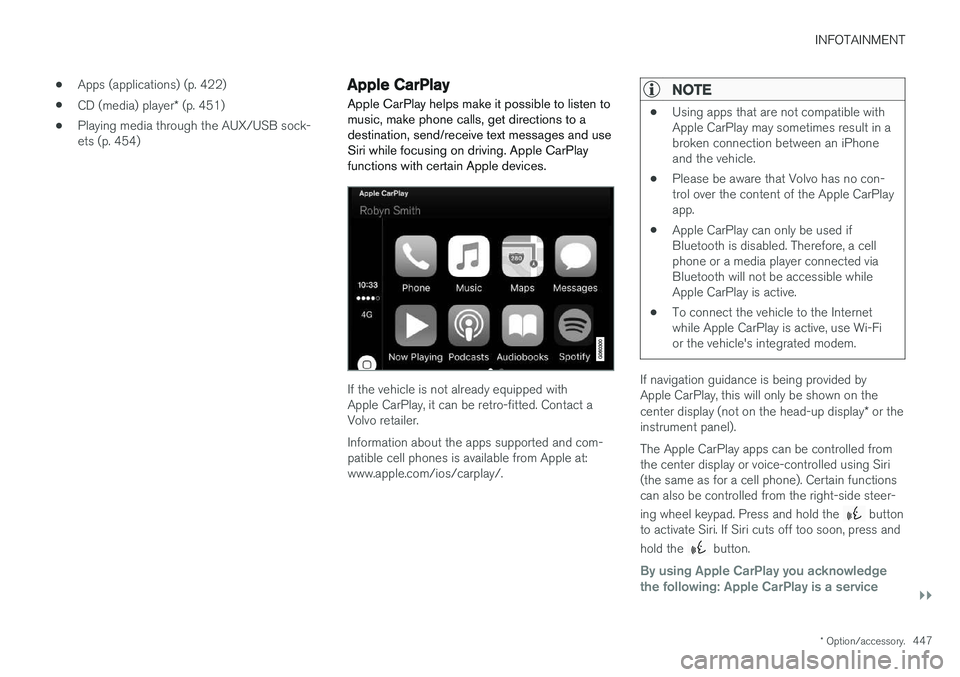
Apple CarPlay helps make it possible to listen to music, make phone calls, get directions to adestination, send/receive text messages and useSiri while focusing on driving. Apple CarPlayfunctions with certain Apple devices.
If the vehicle is not already equipped with Apple CarPlay, it can be retro-fitted. Contact aVolvo retailer. Information about the apps supported and com- patible cell phones is available from Apple at:www.apple.com/ios/carplay/.
NOTE
• Using apps that are not compatible with Apple CarPlay may sometimes result in abroken connection between an iPhoneand the vehicle.
• Please be aware that Volvo has no con-trol over the content of the Apple CarPlayapp.
• Apple CarPlay can only be used ifBluetooth is disabled. Therefore, a cellphone or a media player connected viaBluetooth will not be accessible whileApple CarPlay is active.
• To connect the vehicle to the Internetwhile Apple CarPlay is active, use Wi-Fior the vehicle's integrated modem.
If navigation guidance is being provided by Apple CarPlay, this will only be shown on the center display (not on the head-up display
* or the
instrument panel). The Apple CarPlay apps can be controlled from the center display or voice-controlled using Siri(the same as for a cell phone). Certain functionscan also be controlled from the right-side steer- ing wheel keypad. Press and hold the
button
to activate Siri. If Siri cuts off too soon, press and hold the
button.
By using Apple CarPlay you acknowledge the following: Apple CarPlay is a service