navigation system VOLVO XC90 T8 2017 Owner´s Manual
[x] Cancel search | Manufacturer: VOLVO, Model Year: 2017, Model line: XC90 T8, Model: VOLVO XC90 T8 2017Pages: 580, PDF Size: 10.37 MB
Page 438 of 580
||
INFOTAINMENT
* Option/accessory.
436
Information about an alert
If any alerts have been displayed on the screen, tap one for more detailed information (i.e., thelocation of the weather problem on a map and adescription of the situation). If a phone number is available in an alert, a
Callbutton will be displayed. Tap this button for addi- tional information.
Related information
• SiriusXM Travel Link
* (p. 433)
• SiriusXM Travel Link - Weather (p. 434)
SiriusXM Travel Link - Fuel
This SiriusXM Travel Link service provides infor- mation and guidance to service stations near thevehicle providing the type of fuel that you prefer/require for your vehicle.
From the SiriusXM Travel Link home screen, to display fuel information:
–Tap the Fuel button to display main fuel
screen.
The following
Fuel categories will be listed:
• Search (the magnifying glass icon)
•
Nearby
•Recommended
•Favorites
•Brands
Tap one of the alternatives to display its screen.
NOTE
In each of the Fuel categories listed, tapping
the Select fuel type button near the bottom
of the screen opens a sub-view where you can specify the type of fuel preferred/required (regular, premium, diesel, 120V, etc.). Tap
Done to return to the previous screen.
SearchTap the magnifying glass icon. If the function is supported in the current context, a keyboard will appear on the screen. Enter the text of your choice and tap
Search for detailed information if
available.
NearbyTap for a list of service stations in the vicinity of the vehicle, with the nearest station at the top ofthe list. The following information will be provided where available:
• For vehicles using gasoline, the price infor-mation for regular gasoline (unless anothergrade/type of fuel has been selected in
Select fuel type)
• For electric vehicles/hybrids, information about charging stations, showing the totalnumber of charging ports and the number ofports currently not in use
• the distance to the station
• a star icon to set the service station as afavorite
Tap the name of a service station to display moredetailed information. For guidance to the service station, tap the
Start
navigation or Add as waypoint buttons. See
the Sensus Navigation supplement for additional information about using the navigation system.
RecommendedTap for a list of service stations near the vehicle,displayed according to the price of regular gaso-
Page 451 of 580
INFOTAINMENT
}}
* Option/accessory.449
Apple CarPlay settings This article explains settings for a cell phone connected through Apple CarPlay.
Automatic start1.
Tap Settings in the center display's Top
view.
2. Tap
CommunicationApple CarPlay and
select the following settings:
• Select the Apple CarPlay box for auto- matic start when the device's USB cableis connected.
• Deselect the Apple CarPlay box to
disa-
ble automatic start when the device's
USB cable is connected.
A maximum of 20 Apple devices can be stored inthe list. When the list is full, the first (oldest)device stored will be deleted. To erase the entire list, a factory reset has to be performed. See the article "Resetting the set-tings view."
System volume levels1. Tap Settings in the center display's Top
view. 2.
Tap
SoundSystem Volumes and select
the following settings: •
Voice Control
•Navi Voice Guidance
•Phone Ringtone
Related information
• Apple CarPlay (p. 447)
• Resetting the settings view (p. 117)
Android auto
*
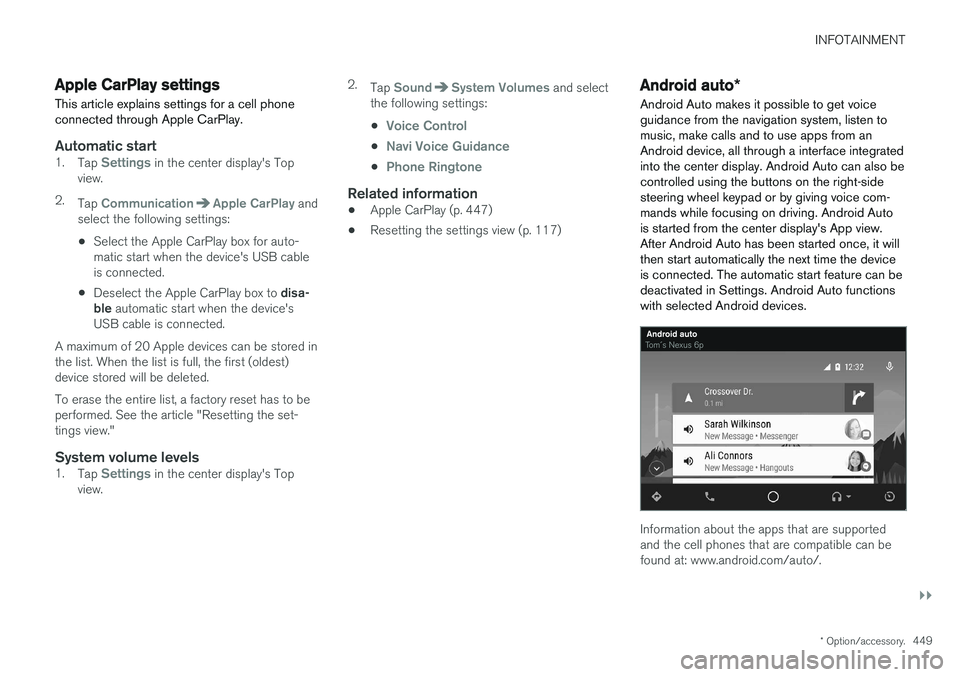
Android Auto makes it possible to get voice guidance from the navigation system, listen tomusic, make calls and to use apps from anAndroid device, all through a interface integratedinto the center display. Android Auto can also becontrolled using the buttons on the right-sidesteering wheel keypad or by giving voice com-mands while focusing on driving. Android Autois started from the center display's App view.After Android Auto has been started once, it willthen start automatically the next time the deviceis connected. The automatic start feature can bedeactivated in Settings. Android Auto functionswith selected Android devices.
Information about the apps that are supported and the cell phones that are compatible can befound at: www.android.com/auto/.
Page 460 of 580
||
INFOTAINMENT
* Option/accessory.
458
Max. number
Tracks in a playlist 1,000
Subfolders No limit
USB socket
• Type A socket
• Version 2.0
• Voltage 5 V
• Max. current 2.1 A
Related information
•
CD (media) player
* (p. 451)
Internet connected vehicle
Connecting to the Internet makes it possible to e.g., use certain navigation services, listen toweb radio, stream music using apps, contact aretailer and download software.
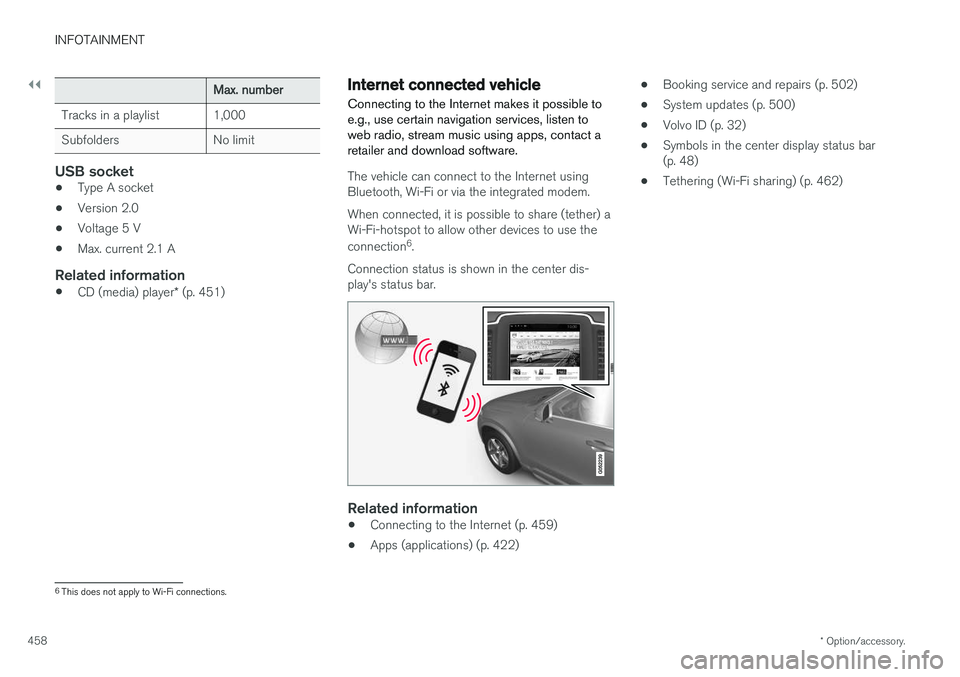
The vehicle can connect to the Internet using Bluetooth, Wi-Fi or via the integrated modem. When connected, it is possible to share (tether) a Wi-Fi-hotspot to allow other devices to use the connection 6
.
Connection status is shown in the center dis- play's status bar.
Related information
• Connecting to the Internet (p. 459)
• Apps (applications) (p. 422) •
Booking service and repairs (p. 502)
• System updates (p. 500)
• Volvo ID (p. 32)
• Symbols in the center display status bar (p. 48)
• Tethering (Wi-Fi sharing) (p. 462)
6
This does not apply to Wi-Fi connections.
Page 503 of 580
MAINTENANCE AND SERVICING
501
Keep in mind that a download can be cancelled but an installation that has already begun cannotbe interrupted.
Allowing background searches or
software updates
This function can be deactivated from the centerdisplay:
1. Go to the Settings in the center display's Top view and select
Download Center.
2. Tap
SystemDownload Center.
3. Tap to deselect
Auto Software Update.
If an update is available,
New software updates
available will appear in the center display's sta-
tus bar. Tap the message to start a download app in Home view's lower sub-view. As soon as the download app has started, an icon in the
System
updates button will indicate the number of
downloads available.
Related information
• Center display overview (p. 33)
• Navigating in the center display's views (p. 43)
Remote updates With the vehicle connected to the Internet, updates for a number of the vehicle's systemscan be downloaded from the center display.
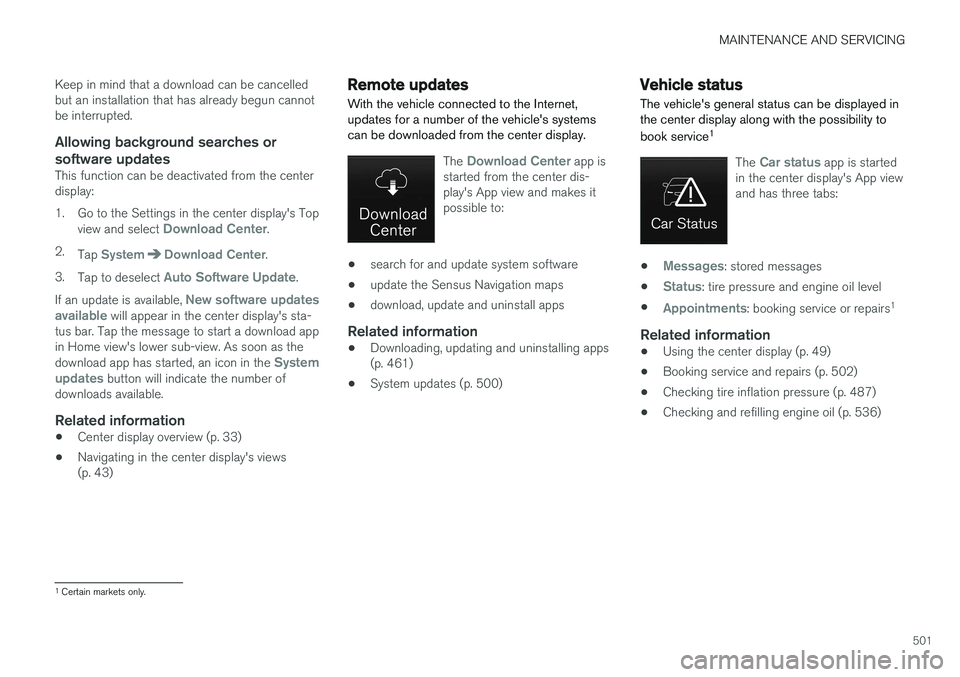
The Download Center app is
started from the center dis- play's App view and makes itpossible to:
• search for and update system software
• update the Sensus Navigation maps
• download, update and uninstall apps
Related information
•Downloading, updating and uninstalling apps (p. 461)
• System updates (p. 500)
Vehicle status
The vehicle's general status can be displayed in the center display along with the possibility to book service 1
The Car status app is started
in the center display's App view and has three tabs:
•Messages: stored messages
•
Status: tire pressure and engine oil level
•
Appointments: booking service or repairs 1
Related information
•
Using the center display (p. 49)
• Booking service and repairs (p. 502)
• Checking tire inflation pressure (p. 487)
• Checking and refilling engine oil (p. 536)
1
Certain markets only.
Page 504 of 580
MAINTENANCE AND SERVICING
502
Booking service and repairs Connected Service Booking (CSB) makes it possible to use the vehicle's Internet connectionto set up a time for service, maintenance and/orrepairs.
The information is handled through the Car
status app, which can be opened from the cen-
ter display's App view. Information about your vehicle is sent to your retailer and you can book your workshop appoint-ment directly in your retailer's workshop planningsystem using the Volvo On-Line Service Schedu-ler with your smart phone. The system will alsosend a reminder as the appointment approachesand the Sensus Navigation system will providedirections to the workshop if necessary. This feature makes it convenient to book a work- shop appointment directly from your vehicle.Vehicle-related information is sent to yourretailer, who prepares your visit to the workshop.After you have requested a workshop appoint-ment, your retailer will send you an email includ-ing a link enabling you to connect directly to yourretailer's booking system, where you can bookthe appointment at a convenient time. Informationabout your retailer is also available in the vehicleso that you can contact the retailer/workshop at any time using the
Call my retailer menu option.
NOTE
My Volvo can be found by going to www.vol- vocars.com and selecting the United States orCanada.
Before the service can be used
Volvo ID
• The owner (primary driver) must create or have a Volvo ID (see the article "Volvo ID").
• You must enter your Volvo ID (your emailaddress) in the vehicle as explained in thearticle "Volvo ID". If you have already regis-tered a Volvo ID, use the same email addressthat you used to create the Volvo ID.
Changing a
Volvo ID email address
If you would like to register a different email address, open the Volvo ID app in the center dis- play's App view and tap
Change Volvo ID. Fol-
low the instructions provided. See also the article "Volvo ID" for additional information.
Selecting a Volvo retailer on the My Volvo
website
By default, the retailer where you purchased your vehicle will be your preferred retailer/Volvoauthorized workshop who will perform serviceand repairs on your vehicle. To change the pre-ferred retailer, go to your personalized My Volvowebsite.
Prerequisites for booking service from the vehicle
In order to request an appointment from the vehi- cle:
• The engine must be running
• The vehicle must be connected to the Inter-net (see the article "Internet connected vehi-cle")
Using the serviceWhen it is time for service or in certain cases ifrepairs are necessary, a message will appear inthe instrument panel and in the center display.This message is triggered by: • the amount of time that has elapsed since the last service
• the number of hours the engine has runsince the last service
• mileage since the last service.
• Specific alerts or fault codes in the vehicle
Booking service or repairs
Submit a booking request whenever you need a workshop appointment or when a messageregarding the need for service or repairs hasbeen displayed in the instrument panel and in thecenter display. This can be done directly from thevehicle as follows or alternatively by using the MyVolvo personal website booking tab.
Page 506 of 580
||
MAINTENANCE AND SERVICING
504
Viewing workshop information
1.Open the Car status app in the center dis-
play's App view.
2. Tap
Appointments.
3. Under
Appointments, tap Workshop
information.
> A window with retailer information will appear.
4. If you prefer, call the retailer, or select an address or GPS coordinates to activate the navigation system.
Appointments and vehicle informationWhen you make an appointment or send vehicleinformation from your vehicle, this information will be sent using the Internet connection 2
. Informa-
tion about the vehicle includes:
• service requirements
• time since service was last performed
• function status
• fluid levels •
mileage (odometer reading)
• VIN (Vehicle Identification Number)
• The vehicle's software version
• Diagnostic information
Related information
•Internet connected vehicle (p. 458)
• Volvo ID (p. 32)
Wi-Fi connection to a workshop The time a vehicle is in a workshop for service or repairs can be reduced by transmitting trouble-shooting information as soon as the car reachesthe workshop. This is done most conveniently by selecting
Automatically connect when I arrive in the
center display's Settings menu.
Each time the vehicle slows down to a sufficiently low speed, it begins searching for a Wi-Fi net-work. If an authorized Volvo network (at a retaileror workshop) is found, a message will be dis-played or a pop-up window will open in the cen-ter display (this applies to manual connections,see the section "Manually connecting to a work-shop" below).
2 There will be a slight charge for sending this information via the vehicle's Internet connection, depending on your service plan.
Page 572 of 580
INDEX
570
J
Jack 482location of 482, 483
Jump starting 378, 382
K
Key remote 181, 235
Key blade 239, 251
Keys 238
L
Labels list of 553
location of 553
Laminated panoramic roof 108, 109
Lane Keeping Aid 336, 339 settings 338
LATCH anchors 89
Leather care 544
Lighting panel 143
Load anchoring eyelets 224
Loading the vehicle 216, 478
Locking 241, 243
Locks and alarm 232
Low beam bulb, replacing 527
Low beams 146, 147
Low Speed Control 367
M
Maintenance 498 hoisting the vehicle 531
performed by the owner 498
Malfunction indicator light 131
Manual front seat adjustment 166
Media player 445, 446 compatible file formats 457
Media player (infotainment system) 452Menus instrument panel 154, 156, 157, 160
Mirrors defroster 204
power door 106
retractable 106
Mirrors, rearview mirror 112
Modem 464Motor oil checking 535, 536
MP3 files 457
Multifunctional front seats 169, 170
MY CAR 113, 114
N
Navigation systemvoice commands 127
Net cargo 221
O
Occupant safety 60
Occupant weight sensor 73
Octane recommendations 379
Odometer 99Oilchecking 535, 536
Oil quality 562
On-board diagnostics 498
On-board Diagnostic socket 26
On Call Roadside Assistance 14
Opening the hood 533
Option/accessory 53