lock VOLVO XC90 T8 2017 Owner´s Manual
[x] Cancel search | Manufacturer: VOLVO, Model Year: 2017, Model line: XC90 T8, Model: VOLVO XC90 T8 2017Pages: 580, PDF Size: 10.37 MB
Page 114 of 580
||
INSTRUMENTS AND CONTROLS
112For the power windows to function, the ignition must be in at least mode
I. When the vehicle has
been running, the power windows can be oper- ated for several minutes after the ignition hasbeen switched off, or until a door has beenopened.
NOTE
• Movement of the windows will stop if they are obstructed in any way. If this happenstwice in succession, the automatic func-tion will not work for several minutes andthe window can be closed by holding thebutton up.
• To reduce buffeting wind noise if the rearwindows are opened, also open the frontwindows slightly.
Manual up/down
–Move one of the controls up/down slightly.
> The power windows move up/down as
long as the control is held in position.
Auto up/down
–Move one of the controls up/down as far as possible and release it.
> The window will open or close completely.
ResettingIf the battery has been disconnected, the auto open function must be reset so that it will workproperly
1. Gently raise the front section of the button to close the window and hold it for one second.
2. Release the button briefly.
3. Raise the front section of the button again for one second.
Related information
• Child safety locks (p. 254)
Rearview mirror The interior rearview mirror has an auto-dim function that helps reduce glare from followingvehicle's headlights.
Auto-dim functionThe auto-dim function is controlled by two sen- sors: one pointing forward (located on the for-ward-facing side of the mirror, which monitors theamount of ambient light) and one pointing rear-ward (located on the side of the mirror facing thedriver at the upper edge, which senses thestrength of following vehicles' headlights), andwork together to help eliminate glare.
NOTE
Obstructing the forward sensor with e.g., parking stickers, transponders, etc., or the rearsensor by loading the cargo area or the rearseat in such a way that light is prevented fromreaching the sensor will reduce the auto-dimfunction in the interior rearview mirror andoptional auto-dim function in the door mirrors.
The auto-dim function is always active while the vehicle is being driven except when the reversegear has been selected. The level of sensitivityfor this function can be set to three levels, whichaffect the rearview mirror and door mirrors.
Page 115 of 580

INSTRUMENTS AND CONTROLS
}}
* Option/accessory.113
NOTE
When the level of sensitivity is changed, this change will not be noticeable immediately butwill take effect after a short period of time.
The level of sensitivity is set from the center dis- play: 1.
Tap
Settings in Top view.
2. Tap
My CarMirrors and Easy Entry.
3. Under
Rearview Mirror Auto Dimming,
select Normal, Dark or Light.
Related information
• Adjusting the power door mirrors (p. 106)
Using sun curtains
*
Both rear doors have integrated sun curtains.
Rear doors
Hook and locking mechanism
–Pull up the sun curtain and hook it to the upper section of the door frame.
The window can be opened/closed when the suncurtain is being used.
Related information
• Power windows (p. 111)
• Ignition modes (p. 389)
Settings view
The center display's Settings view is used to make many of the vehicle's function settings andto display vehicle-related information.
Opening Settings view
Top view with the Settings button
1. Pull down the tab on the upper edge of the
center display to open Top view.
2. Tap
Settings.
3. Tap one of the categories displayed and nav- igate to sub-categories and settings by tap- ping again.
4. Tap
Back to go back in Settings view.
Tap
Close to close Settings view.
Page 116 of 580
||
INSTRUMENTS AND CONTROLS
* Option/accessory.
114
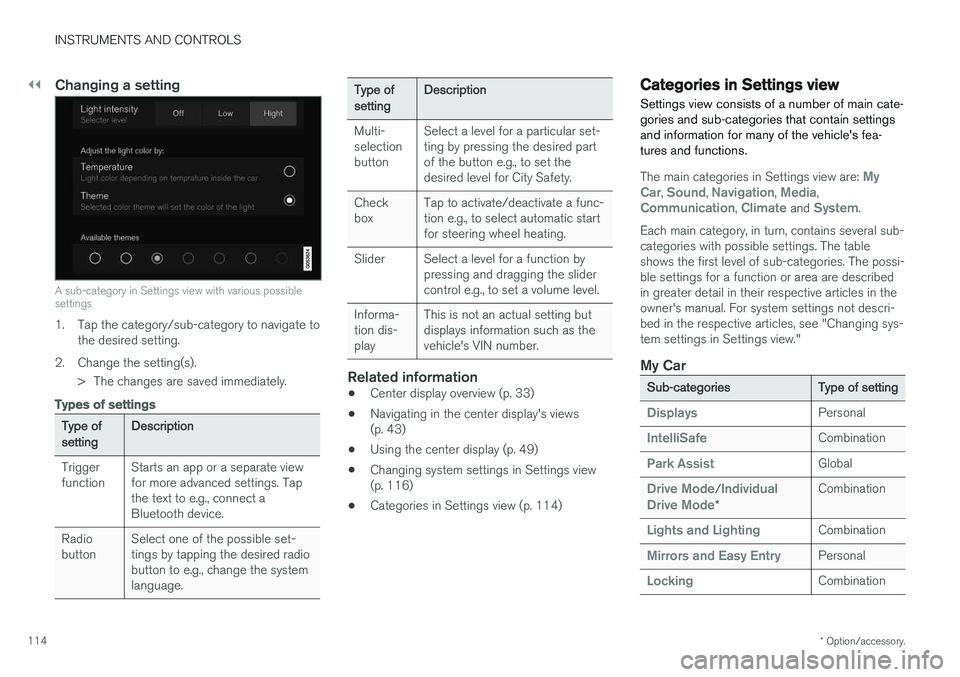
Changing a setting
A sub-category in Settings view with various possible settings
1. Tap the category/sub-category to navigate to
the desired setting.
2. Change the setting(s). > The changes are saved immediately.
Types of settings
Type of setting Description
Trigger function Starts an app or a separate viewfor more advanced settings. Tapthe text to e.g., connect aBluetooth device.
Radiobutton Select one of the possible set-tings by tapping the desired radiobutton to e.g., change the systemlanguage.
Type of settingDescription
Multi- selectionbutton Select a level for a particular set-ting by pressing the desired partof the button e.g., to set thedesired level for City Safety.
Checkbox Tap to activate/deactivate a func-tion e.g., to select automatic startfor steering wheel heating.
Slider Select a level for a function by pressing and dragging the slidercontrol e.g., to set a volume level.
Informa-tion dis-play This is not an actual setting butdisplays information such as thevehicle's VIN number.
Related information
•
Center display overview (p. 33)
• Navigating in the center display's views (p. 43)
• Using the center display (p. 49)
• Changing system settings in Settings view(p. 116)
• Categories in Settings view (p. 114)
Categories in Settings view
Settings view consists of a number of main cate- gories and sub-categories that contain settingsand information for many of the vehicle's fea-tures and functions.
The main categories in Settings view are: My
Car, Sound, Navigation, Media,Communication, Climate and System.
Each main category, in turn, contains several sub- categories with possible settings. The tableshows the first level of sub-categories. The possi-ble settings for a function or area are describedin greater detail in their respective articles in theowner's manual. For system settings not descri-bed in the respective articles, see "Changing sys-tem settings in Settings view."
My Car
Sub-categories Type of setting
DisplaysPersonal
IntelliSafeCombination
Park AssistGlobal
Drive Mode/Individual
Drive Mode* Combination
Lights and LightingCombination
Mirrors and Easy EntryPersonal
LockingCombination
Page 121 of 580
INSTRUMENTS AND CONTROLS
119
SettingsChanging measurement standard in the center display:
1. Pull down the center display's Top view andtap
Settings.
2. Tap
SystemUnits of Measurement.
3. Select measurement standard,
Metric,Imperial or US.
Related information
• Instrument panel (p. 128)
• Climate system sensors (p. 187)
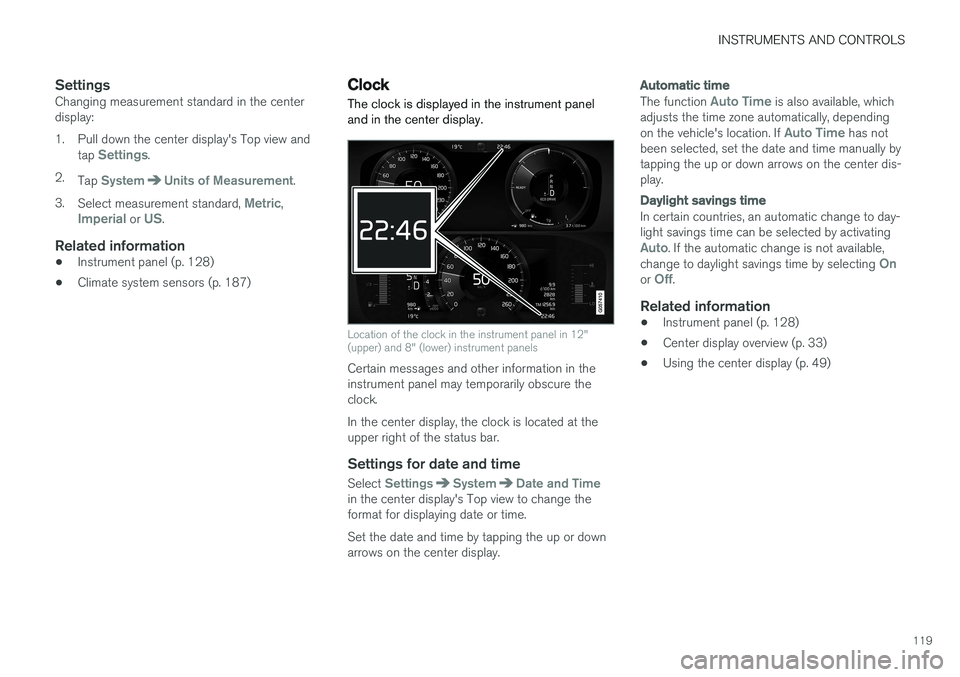
Clock The clock is displayed in the instrument panel and in the center display.
Location of the clock in the instrument panel in 12" (upper) and 8" (lower) instrument panels
Certain messages and other information in the instrument panel may temporarily obscure theclock. In the center display, the clock is located at the upper right of the status bar.
Settings for date and time
Select SettingsSystemDate and Timein the center display's Top view to change the format for displaying date or time. Set the date and time by tapping the up or down arrows on the center display.
Automatic time
The function Auto Time is also available, which
adjusts the time zone automatically, depending on the vehicle's location. If
Auto Time has not
been selected, set the date and time manually by tapping the up or down arrows on the center dis-play.
Daylight savings time
In certain countries, an automatic change to day- light savings time can be selected by activating
Auto. If the automatic change is not available,
change to daylight savings time by selecting Onor Off.
Related information
• Instrument panel (p. 128)
• Center display overview (p. 33)
• Using the center display (p. 49)
Page 124 of 580
||
INSTRUMENTS AND CONTROLS
* Option/accessory.
122
Lower position
Confirm
Adapting brightness
The brightness of the graphics displayed in the HUD are also automatically adjusted according toambient lighting conditions. HUD brightness isalso affected by adjustments to the brightness ofthe other displays in the vehicle.
Power front seat * memory function
The position of the HUD can be stored in the power seat's memory function.
Replacing the windshieldVehicles with a head-up display have a specialtype of windshield meeting the requirements fordisplaying projected information. If the windshield has to be replaced, contact a trained and qualified Volvo service technician orauthorized workshop. The correct type of replace-ment windshield must be used for a head-up dis-play.
Calibrating the horizontal positionIf the windshield has been replaced, it may benecessary to calibrate the HUD's horizontal posi-tion. This means that the projected image willhave to be rotated clockwise or counterclockwise.To do so:
1. Pull down the center display's Top view and
tap
Settings. 2.
Select
My CarDisplaysHead-Up
Display Calibration.
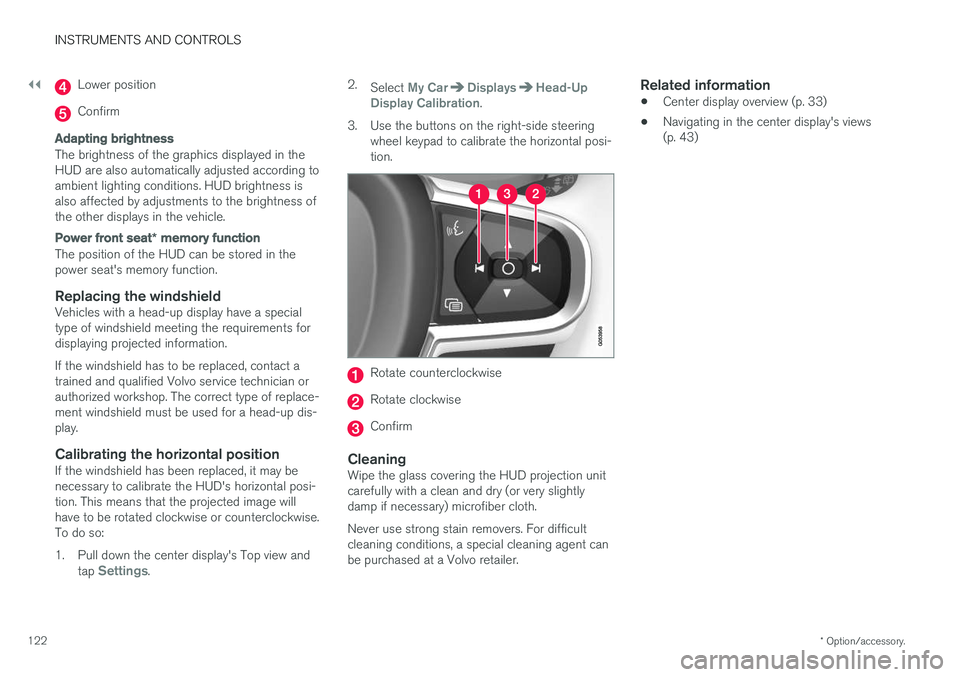
3. Use the buttons on the right-side steering wheel keypad to calibrate the horizontal posi- tion.
Rotate counterclockwise
Rotate clockwise
Confirm
CleaningWipe the glass covering the HUD projection unit carefully with a clean and dry (or very slightlydamp if necessary) microfiber cloth. Never use strong stain removers. For difficult cleaning conditions, a special cleaning agent canbe purchased at a Volvo retailer.
Related information
• Center display overview (p. 33)
• Navigating in the center display's views(p. 43)
Page 131 of 580
INSTRUMENTS AND CONTROLS
129
Center
•Indicator and warning symbols
• Ambient temperature sensor
• Clock
• Messages (in certain cases also graphics)
• Door and seat belt status
• Hybrid battery charge information
• Media player
• Navigation system map
• Cell phone
• Voice control
• Compass
Right side
•Tachometer (depending on current driving mode)
• Hybrid gauge (depending on current drivingmode)
• Gear indicator
• Current driving mode (Hybrid, Off Road, Pure,Power and AWD)
• Fuel gauge
• Hybrid battery's charge level
• Driving distance to empty fuel tank
• Driving distance to discharged hybrid battery
• Current fuel consumption
• App menu (activated using the right-sidesteering wheel keypad)
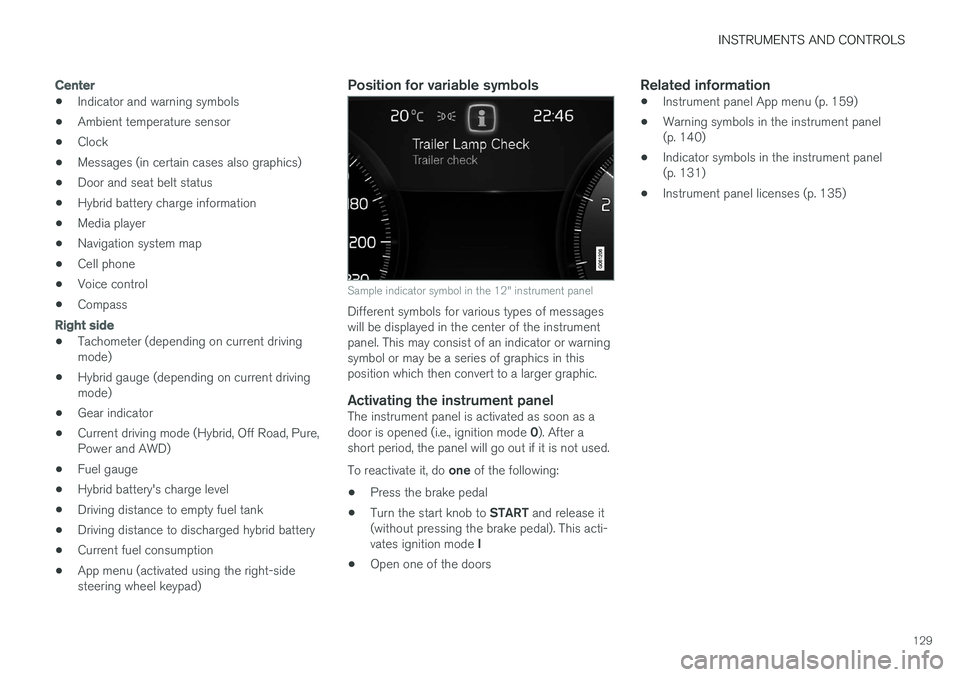
Position for variable symbols
Sample indicator symbol in the 12" instrument panel
Different symbols for various types of messages will be displayed in the center of the instrumentpanel. This may consist of an indicator or warningsymbol or may be a series of graphics in thisposition which then convert to a larger graphic.
Activating the instrument panelThe instrument panel is activated as soon as a door is opened (i.e., ignition mode
0). After a
short period, the panel will go out if it is not used. To reactivate it, do one of the following:
• Press the brake pedal
• Turn the start knob to
START and release it
(without pressing the brake pedal). This acti- vates ignition mode I
• Open one of the doors
Related information
• Instrument panel App menu (p. 159)
• Warning symbols in the instrument panel (p. 140)
• Indicator symbols in the instrument panel(p. 131)
• Instrument panel licenses (p. 135)
Page 149 of 580
INSTRUMENTS AND CONTROLS
}}
147
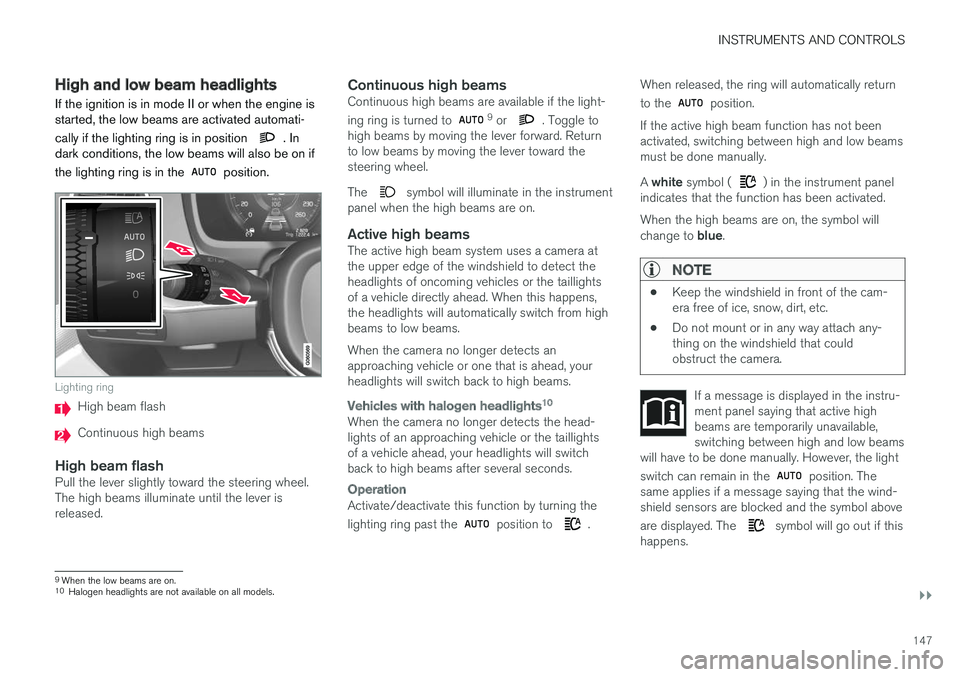
High and low beam headlights
If the ignition is in mode II or when the engine is started, the low beams are activated automati- cally if the lighting ring is in position
. In
dark conditions, the low beams will also be on if the lighting ring is in the
position.
Lighting ring
High beam flash
Continuous high beams
High beam flashPull the lever slightly toward the steering wheel. The high beams illuminate until the lever isreleased.
Continuous high beamsContinuous high beams are available if the light- ing ring is turned to 9 or . Toggle to
high beams by moving the lever forward. Return to low beams by moving the lever toward thesteering wheel. The
symbol will illuminate in the instrument
panel when the high beams are on.
Active high beamsThe active high beam system uses a camera at the upper edge of the windshield to detect theheadlights of oncoming vehicles or the taillightsof a vehicle directly ahead. When this happens,the headlights will automatically switch from highbeams to low beams. When the camera no longer detects an approaching vehicle or one that is ahead, yourheadlights will switch back to high beams.
Vehicles with halogen headlights 10
When the camera no longer detects the head- lights of an approaching vehicle or the taillightsof a vehicle ahead, your headlights will switchback to high beams after several seconds.
Operation
Activate/deactivate this function by turning the lighting ring past the
position to .When released, the ring will automatically return to the
position.
If the active high beam function has not been activated, switching between high and low beamsmust be done manually. A white symbol (
) in the instrument panel
indicates that the function has been activated. When the high beams are on, the symbol will change to blue.
NOTE
•Keep the windshield in front of the cam- era free of ice, snow, dirt, etc.
• Do not mount or in any way attach any-thing on the windshield that couldobstruct the camera.
If a message is displayed in the instru- ment panel saying that active highbeams are temporarily unavailable,switching between high and low beams
will have to be done manually. However, the light switch can remain in the
position. The
same applies if a message saying that the wind- shield sensors are blocked and the symbol above are displayed. The
symbol will go out if this
happens.
9 When the low beams are on.10
Halogen headlights are not available on all models.
Page 153 of 580
INSTRUMENTS AND CONTROLS
}}
151
NOTE
•This automatic flashing sequence can be interrupted by immediately moving thelever in the opposite direction.
• If the turn signal indicator flashes fasterthan normal, see the message in theinstrument panel.
Continuous flashing sequenceMove the lever as far up or down as possible to start the turn signals.
The turn signals will be cancelled automaticallyby the movement of the steering wheel, or thelever can be returned to its initial position byhand.
Related information
• Lighting panel and controls (p. 143)
• Hazard warning flashers (p. 150)
• Settings view (p. 113)
Passenger compartment lighting
The passenger compartment lighting is con- trolled using the buttons in the ceiling above thefront and rear seats.
All passenger compartment lighting can be turned on and off manually within 30 minutesafter:
• the vehicle is unlocked but the engine hasnot been started
• the engine is switched off and the ignition is in mode
0.
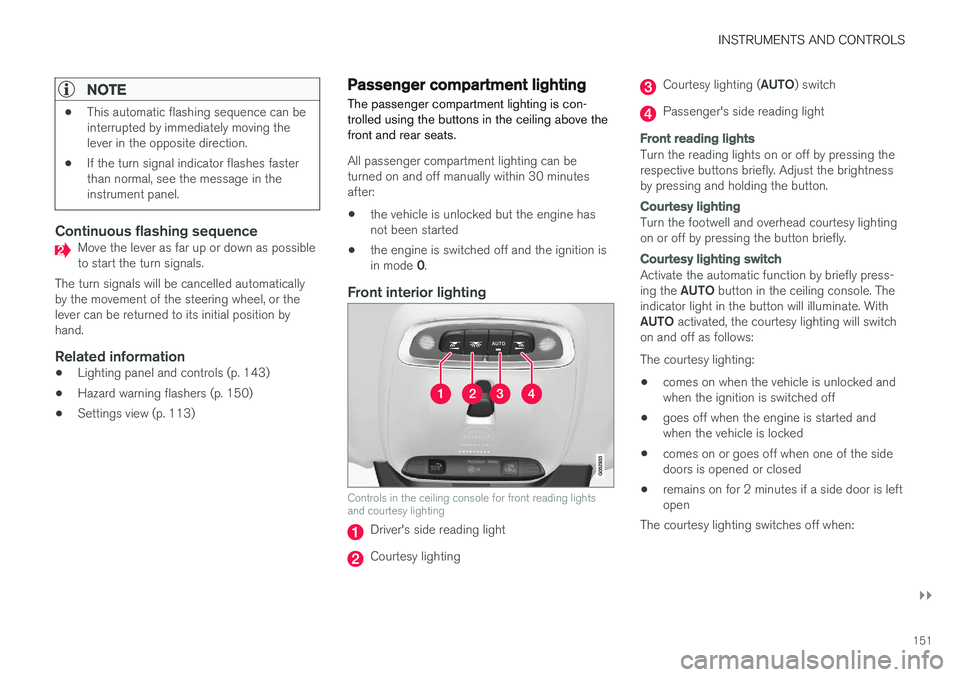
Front interior lighting
Controls in the ceiling console for front reading lights and courtesy lighting
Driver's side reading light
Courtesy lighting
Courtesy lighting ( AUTO) switch
Passenger's side reading light
Front reading lights
Turn the reading lights on or off by pressing the respective buttons briefly. Adjust the brightnessby pressing and holding the button.
Courtesy lighting
Turn the footwell and overhead courtesy lighting on or off by pressing the button briefly.
Courtesy lighting switch
Activate the automatic function by briefly press- ing the AUTO button in the ceiling console. The
indicator light in the button will illuminate. WithAUTO activated, the courtesy lighting will switch
on and off as follows: The courtesy lighting: • comes on when the vehicle is unlocked and when the ignition is switched off
• goes off when the engine is started andwhen the vehicle is locked
• comes on or goes off when one of the sidedoors is opened or closed
• remains on for 2 minutes if a side door is leftopen
The courtesy lighting switches off when:
Page 155 of 580
INSTRUMENTS AND CONTROLS
* Option/accessory.153
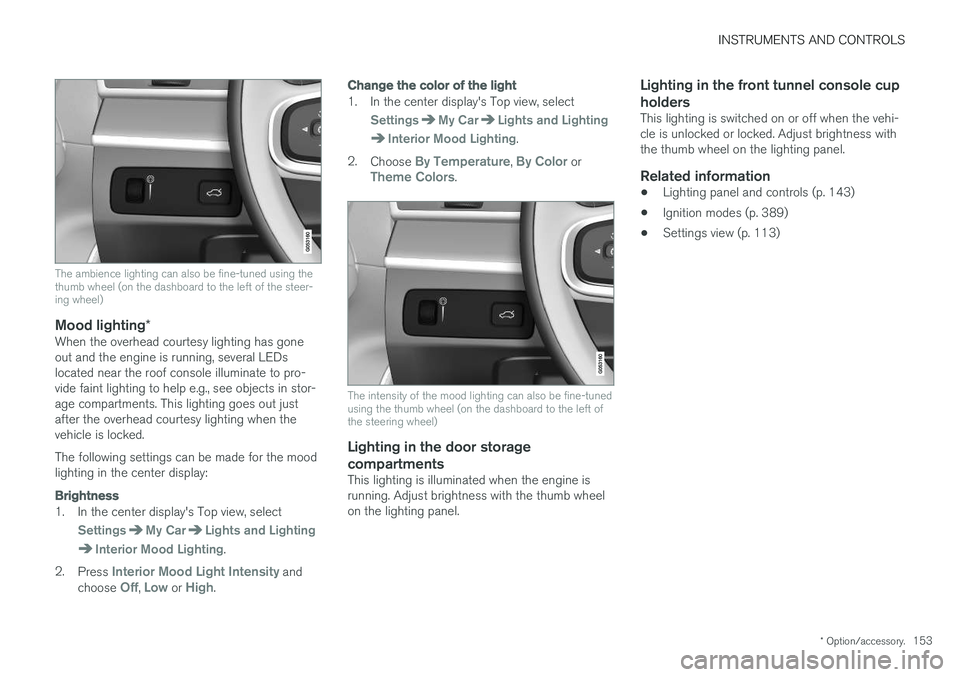
The ambience lighting can also be fine-tuned using the thumb wheel (on the dashboard to the left of the steer-ing wheel)
Mood lighting*When the overhead courtesy lighting has gone out and the engine is running, several LEDslocated near the roof console illuminate to pro-vide faint lighting to help e.g., see objects in stor-age compartments. This lighting goes out justafter the overhead courtesy lighting when thevehicle is locked. The following settings can be made for the mood lighting in the center display:
Brightness
1. In the center display's Top view, select
SettingsMy CarLights and Lighting
Interior Mood Lighting.
2. Press
Interior Mood Light Intensity and
choose Off, Low or High.
Change the color of the light
1. In the center display's Top view, select
SettingsMy CarLights and Lighting
Interior Mood Lighting.
2. Choose
By Temperature, By Color orTheme Colors.
The intensity of the mood lighting can also be fine-tuned using the thumb wheel (on the dashboard to the left ofthe steering wheel)
Lighting in the door storage
compartments
This lighting is illuminated when the engine is running. Adjust brightness with the thumb wheelon the lighting panel.
Lighting in the front tunnel console cup holders
This lighting is switched on or off when the vehi- cle is unlocked or locked. Adjust brightness withthe thumb wheel on the lighting panel.
Related information
• Lighting panel and controls (p. 143)
• Ignition modes (p. 389)
• Settings view (p. 113)
Page 156 of 580
INSTRUMENTS AND CONTROLS
* Option/accessory.
154
Home safe lighting
The home safe lighting function illuminates the area in front of the vehicle in dark conditions.
This function turns on the headlights, parking lights, outer door handle lights * and license plate
lights for a set amount of time. The length of time that these lights remain illumi- nated can be set in the center display. Thedefault setting is 30 seconds. To activate home safe lighting:1. Switch off the ignition (mode 0).
2. Push the turn signal lever as far as possible towards the dashboard and release it.
3. Exit the vehicle and lock the doors.
Related information
• Using the center display (p. 49)
• Settings view (p. 113)
• Ignition modes (p. 389)
Approach lighting
Approach lighting (the parking lights, outer door handle lights *, license plate lighting, courtesy
lighting and footwell lighting) can be activated to provide light as you walk toward the vehicle.
To use this feature, deselect/select Welcome
Light in the center display's menu system.
If this function has been selected in the menu, it
is activated by pressing the unlock button on the remote key as you approach the vehicle .
If a door is opened while the function is activated, the lighting in the outer door handle * and cour-
tesy lighting will remain illuminated for a some- what longer period of time.
Related information
• Settings view (p. 113)
• Home safe lighting (p. 154)
• Remote key (p. 235)
Messages in the instrument panel and center display Information and warning messages are dis- played in the instrument panel and center dis-play.
Instrument panel
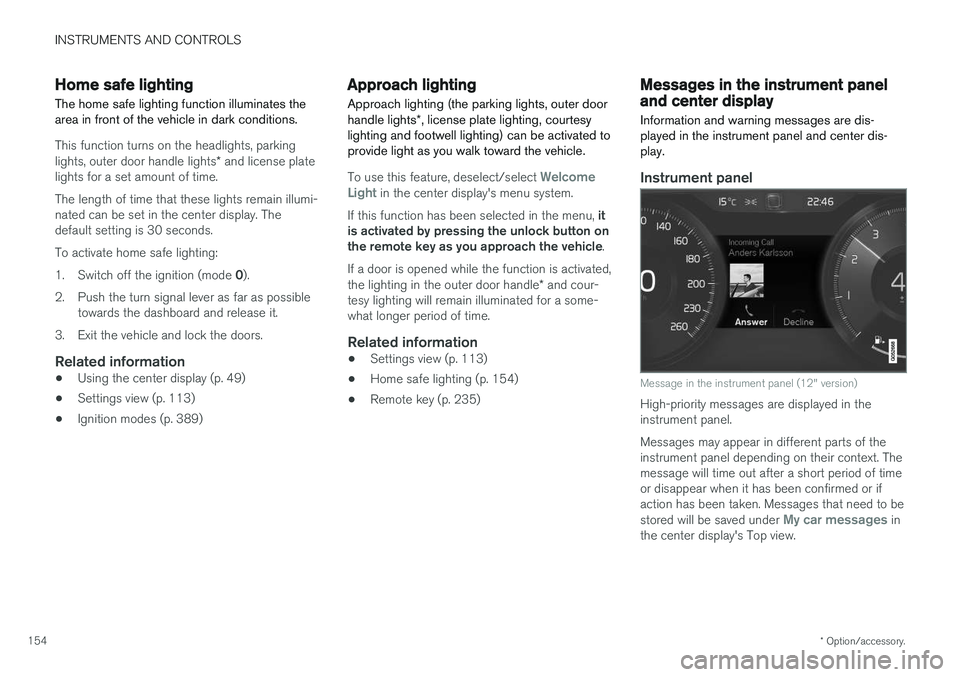
Message in the instrument panel (12" version)
High-priority messages are displayed in the instrument panel. Messages may appear in different parts of the instrument panel depending on their context. Themessage will time out after a short period of timeor disappear when it has been confirmed or ifaction has been taken. Messages that need to be stored will be saved under
My car messages in
the center display's Top view.