audio VOLVO XC90 T8 2018 Owner´s Manual
[x] Cancel search | Manufacturer: VOLVO, Model Year: 2018, Model line: XC90 T8, Model: VOLVO XC90 T8 2018Pages: 686, PDF Size: 11.51 MB
Page 339 of 686
DRIVER SUPPORT
}}
337
Large animals
If there is a risk of colliding with a large animal, City Safety can help reduce your vehicle's speedby up to 15 km/h (9 mph). The braking function for large animals is primarily intended to mitigate the force of a collision athigher speeds. Braking is most effective atspeeds above 70 km/h (43 mph) and less effec-tive at lower speeds.
City Safety sub-functions
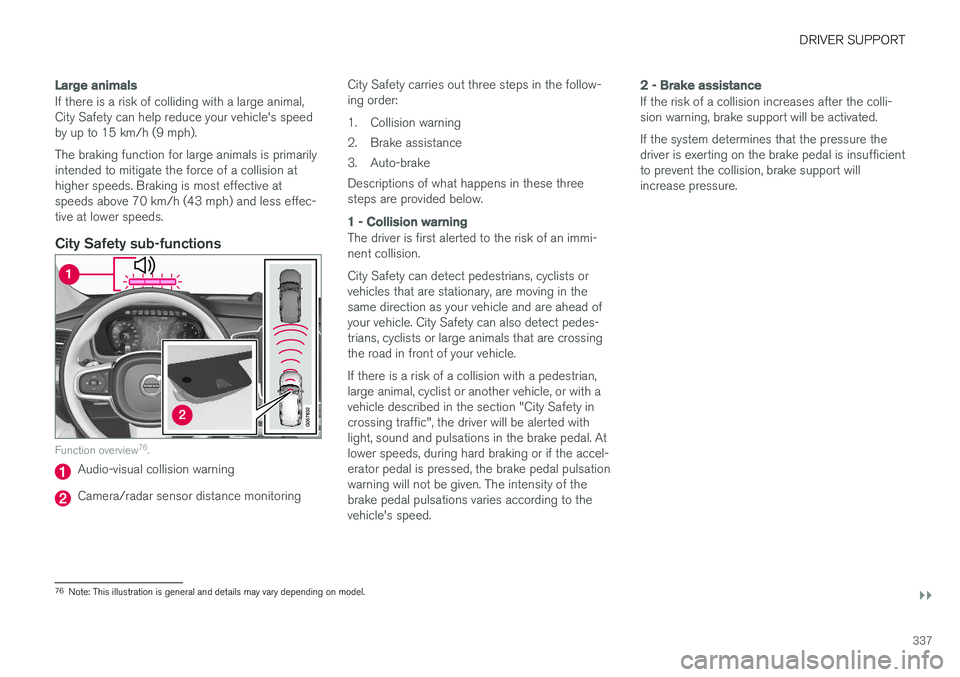
Function overview76
.
Audio-visual collision warning
Camera/radar sensor distance monitoring City Safety carries out three steps in the follow- ing order:
1. Collision warning
2. Brake assistance
3. Auto-brakeDescriptions of what happens in these three steps are provided below.
1 - Collision warning
The driver is first alerted to the risk of an immi- nent collision. City Safety can detect pedestrians, cyclists or vehicles that are stationary, are moving in thesame direction as your vehicle and are ahead ofyour vehicle. City Safety can also detect pedes-trians, cyclists or large animals that are crossingthe road in front of your vehicle. If there is a risk of a collision with a pedestrian, large animal, cyclist or another vehicle, or with avehicle described in the section "City Safety incrossing traffic", the driver will be alerted withlight, sound and pulsations in the brake pedal. Atlower speeds, during hard braking or if the accel-erator pedal is pressed, the brake pedal pulsationwarning will not be given. The intensity of thebrake pedal pulsations varies according to thevehicle's speed.
2 - Brake assistance
If the risk of a collision increases after the colli- sion warning, brake support will be activated. If the system determines that the pressure the driver is exerting on the brake pedal is insufficientto prevent the collision, brake support willincrease pressure.
76
Note: This illustration is general and details may vary depending on model.
Page 362 of 686
||
DRIVER SUPPORT
* Option/accessory.
360
Settings
Adjusting the Speed Warning limit
The driver can adjust the settings to be alerted at a higher speed than the posted speed limit. To adjust the Speed Warning limit:
1. Select
SettingsMy CarIntelliSafe
Road Sign Information in the center
display's Top view.
2. Mark
Speed Limit Warning.
> The function is activated and a speed limit selector is displayed.
3. Tap the up/down arrows on the screen to adjust the speed at which the Speed Warn- ing will be given.
Please note that the set warn-ing limit will not be used whena speed camera symbol is dis-played in the instrument panel.
Audible alert On/Off
An audible alert can also be given along with the Speed Warning. To adjust the audible alert settings:
1. Select
SettingsMy CarIntelliSafe
Road Sign Information in the center
display's Top view. 2.
Select/deselect
Road Sign Audio Warningto activate/deactivate the audible alert.
When
Road Sign Audio Warning is activated,
the driver will also be alerted if the vehicle is approaching a one-way/"no-entry" road orentrance.
Related information
• Road Sign Information
* (p. 357)
Activating/deactivating SpeedWarning in Road Sign Information
To activate the Speed Limit Warning sub-func-
tion:
1. Select
SettingsMy CarIntelliSafe
Road Sign Information in the center
display's Top view.
2. Mark
Speed Limit Warning.
> The function is activated and a speed limit selector is displayed. (see description for "selecting speed limit" in section "Road Sign Informationwith Speed warning and Settings")
Related information
• Road Sign Information
* (p. 357)
• Road Sign Information with Speed Warningand Settings (p. 359)
Page 363 of 686
DRIVER SUPPORT
}}
* Option/accessory.361
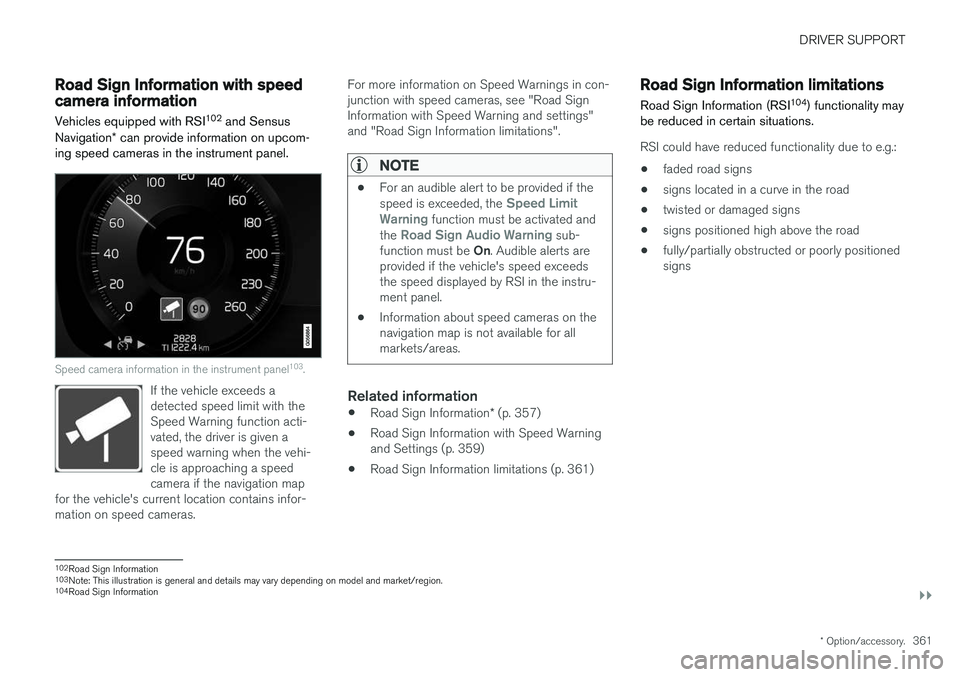
Road Sign Information with speedcamera information
Vehicles equipped with RSI 102
and Sensus
Navigation * can provide information on upcom-
ing speed cameras in the instrument panel.
Speed camera information in the instrument panel 103
.
If the vehicle exceeds a detected speed limit with theSpeed Warning function acti-vated, the driver is given aspeed warning when the vehi-cle is approaching a speedcamera if the navigation map
for the vehicle's current location contains infor-mation on speed cameras.
For more information on Speed Warnings in con- junction with speed cameras, see "Road SignInformation with Speed Warning and settings"and "Road Sign Information limitations".
NOTE
• For an audible alert to be provided if the speed is exceeded, the Speed Limit
Warning function must be activated and
the Road Sign Audio Warning sub-
function must be On. Audible alerts are
provided if the vehicle's speed exceeds the speed displayed by RSI in the instru-ment panel.
• Information about speed cameras on thenavigation map is not available for allmarkets/areas.
Related information
•
Road Sign Information
* (p. 357)
• Road Sign Information with Speed Warning and Settings (p. 359)
• Road Sign Information limitations (p. 361)
Road Sign Information limitations
Road Sign Information (RSI 104
) functionality may
be reduced in certain situations.
RSI could have reduced functionality due to e.g.:
• faded road signs
• signs located in a curve in the road
• twisted or damaged signs
• signs positioned high above the road
• fully/partially obstructed or poorly positioned signs
102
Road Sign Information
103 Note: This illustration is general and details may vary depending on model and market/region.
104 Road Sign Information
Page 383 of 686
DRIVER SUPPORT
* Option/accessory.381
Park Assist*
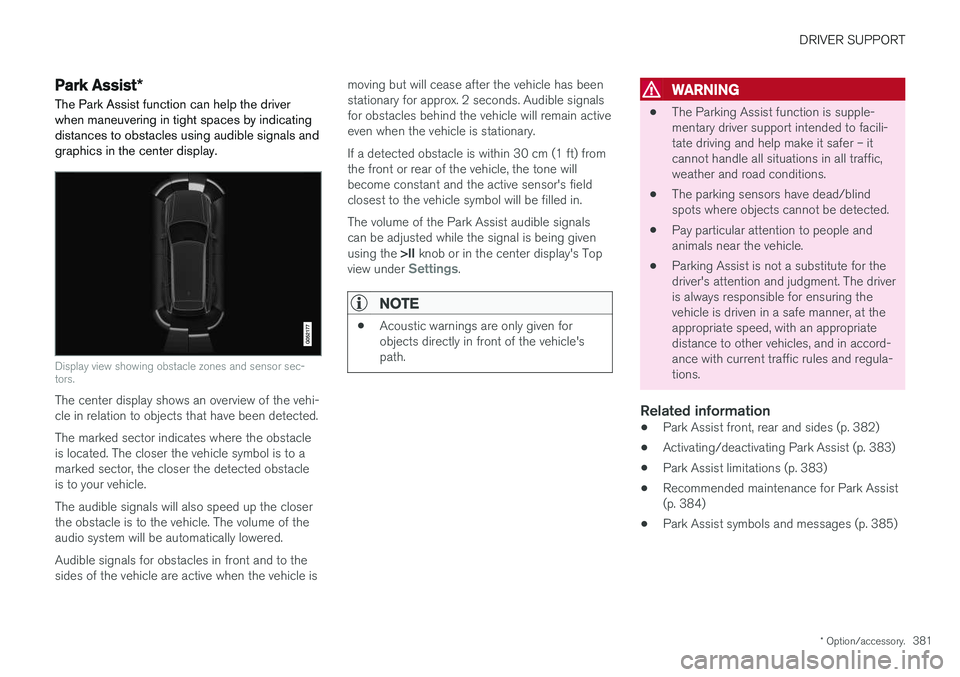
The Park Assist function can help the driver
when maneuvering in tight spaces by indicating distances to obstacles using audible signals andgraphics in the center display.
Display view showing obstacle zones and sensor sec- tors.
The center display shows an overview of the vehi- cle in relation to objects that have been detected. The marked sector indicates where the obstacle is located. The closer the vehicle symbol is to amarked sector, the closer the detected obstacleis to your vehicle. The audible signals will also speed up the closer the obstacle is to the vehicle. The volume of theaudio system will be automatically lowered. Audible signals for obstacles in front and to the sides of the vehicle are active when the vehicle is moving but will cease after the vehicle has beenstationary for approx. 2 seconds. Audible signalsfor obstacles behind the vehicle will remain activeeven when the vehicle is stationary. If a detected obstacle is within 30 cm (1 ft) from the front or rear of the vehicle, the tone willbecome constant and the active sensor's fieldclosest to the vehicle symbol will be filled in. The volume of the Park Assist audible signals can be adjusted while the signal is being given using the
>II knob or in the center display's Top
view under
Settings.
NOTE
• Acoustic warnings are only given for objects directly in front of the vehicle'spath.
WARNING
•The Parking Assist function is supple- mentary driver support intended to facili-tate driving and help make it safer – itcannot handle all situations in all traffic,weather and road conditions.
• The parking sensors have dead/blindspots where objects cannot be detected.
• Pay particular attention to people andanimals near the vehicle.
• Parking Assist is not a substitute for thedriver's attention and judgment. The driveris always responsible for ensuring thevehicle is driven in a safe manner, at theappropriate speed, with an appropriatedistance to other vehicles, and in accord-ance with current traffic rules and regula-tions.
Related information
•Park Assist front, rear and sides (p. 382)
• Activating/deactivating Park Assist (p. 383)
• Park Assist limitations (p. 383)
• Recommended maintenance for Park Assist(p. 384)
• Park Assist symbols and messages (p. 385)
Page 471 of 686
STARTING AND DRIVING
}}
469
Battery drain The electrical functions in the vehicle drain the battery to varying degrees. Avoid using ignitionmode II when the engine is switched off. Use
ignition mode I instead, as this uses less electri-
cal current.
Note that certain accessories may also drain power from the electrical system. Do not usefunctions that use a lot of electrical current whenthe engine is turned off. Examples of such func-tions are:
• blower
• headlights
• windshield wipers
• audio system (especially at high volume).
If the starter battery voltage is low, a message isshown in the driver display. The vehicle's energy-saving function will then turn off or reduce certainfunctions, such as the blower and/or the audio system.
–Charge the battery by starting the engine and let it run for at least 15 minutes (drivingcharges the battery faster than letting theengine idle).
Related information
• Start battery (p. 615)
• Ignition modes (p. 427)
Jump starting using another battery
If the start battery is discharged, current from another battery can be used to start the vehicle.
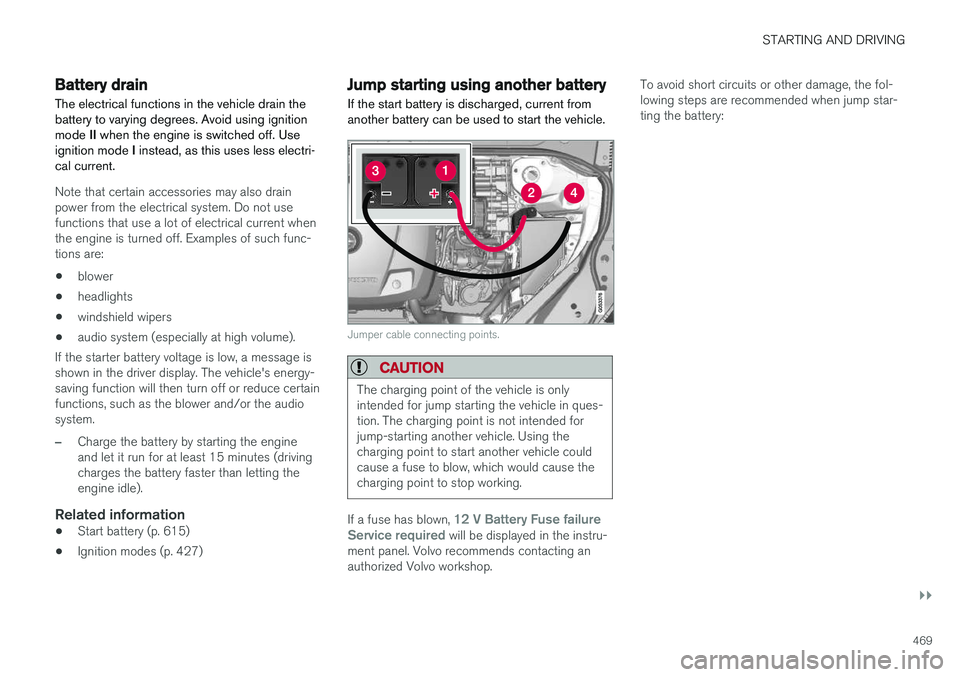
Jumper cable connecting points.
CAUTION
The charging point of the vehicle is only intended for jump starting the vehicle in ques-tion. The charging point is not intended forjump-starting another vehicle. Using thecharging point to start another vehicle couldcause a fuse to blow, which would cause thecharging point to stop working.
If a fuse has blown, 12 V Battery Fuse failure
Service required will be displayed in the instru-
ment panel. Volvo recommends contacting an authorized Volvo workshop. To avoid short circuits or other damage, the fol-lowing steps are recommended when jump star-ting the battery:
Page 488 of 686
AUDIO, MEDIA AND INTERNET
* Option/accessory.
486
Audio, media and Internet
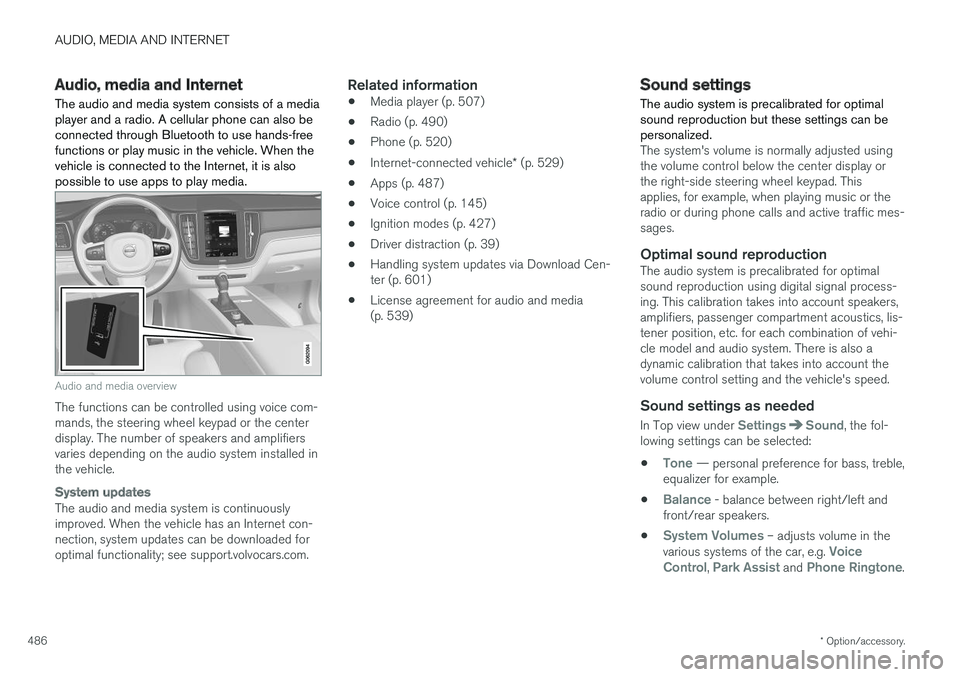
The audio and media system consists of a media player and a radio. A cellular phone can also beconnected through Bluetooth to use hands-freefunctions or play music in the vehicle. When thevehicle is connected to the Internet, it is alsopossible to use apps to play media.
Audio and media overview
The functions can be controlled using voice com- mands, the steering wheel keypad or the centerdisplay. The number of speakers and amplifiersvaries depending on the audio system installed inthe vehicle.
System updates
The audio and media system is continuously improved. When the vehicle has an Internet con-nection, system updates can be downloaded foroptimal functionality; see support.volvocars.com.
Related information
• Media player (p. 507)
• Radio (p. 490)
• Phone (p. 520)
• Internet-connected vehicle
* (p. 529)
• Apps (p. 487)
• Voice control (p. 145)
• Ignition modes (p. 427)
• Driver distraction (p. 39)
• Handling system updates via Download Cen-ter (p. 601)
• License agreement for audio and media(p. 539)
Sound settings
The audio system is precalibrated for optimal sound reproduction but these settings can bepersonalized.
The system's volume is normally adjusted using the volume control below the center display orthe right-side steering wheel keypad. Thisapplies, for example, when playing music or theradio or during phone calls and active traffic mes-sages.
Optimal sound reproductionThe audio system is precalibrated for optimalsound reproduction using digital signal process-ing. This calibration takes into account speakers,amplifiers, passenger compartment acoustics, lis-tener position, etc. for each combination of vehi-cle model and audio system. There is also adynamic calibration that takes into account thevolume control setting and the vehicle's speed.
Sound settings as needed
In Top view under SettingsSound, the fol-
lowing settings can be selected:
•
Tone — personal preference for bass, treble,
equalizer for example.
•
Balance - balance between right/left and
front/rear speakers.
•
System Volumes – adjusts volume in the
various systems of the car, e.g. Voice
Control, Park Assist and Phone Ringtone.
Page 489 of 686
AUDIO, MEDIA AND INTERNET
}}
* Option/accessory.487
Sound experience *
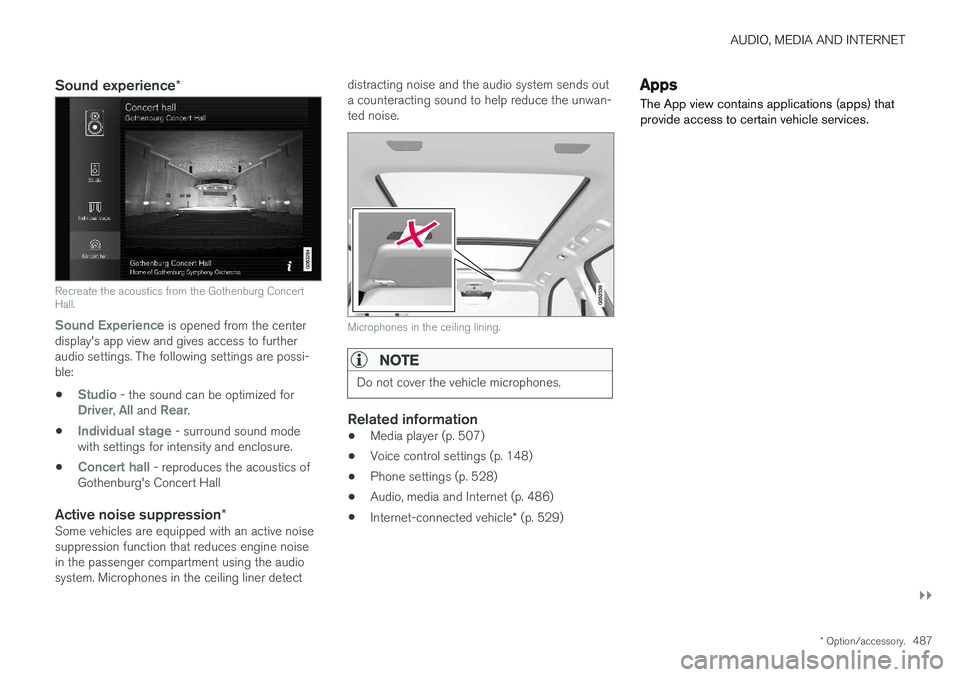
Recreate the acoustics from the Gothenburg Concert Hall.
Sound Experience
is opened from the center
display's app view and gives access to further audio settings. The following settings are possi-ble:
•
Studio - the sound can be optimized forDriver, All and Rear.
•
Individual stage - surround sound mode
with settings for intensity and enclosure.
•
Concert hall - reproduces the acoustics of
Gothenburg's Concert Hall
Active noise suppression *Some vehicles are equipped with an active noise suppression function that reduces engine noisein the passenger compartment using the audiosystem. Microphones in the ceiling liner detect distracting noise and the audio system sends outa counteracting sound to help reduce the unwan-ted noise.
Microphones in the ceiling lining.
NOTE
Do not cover the vehicle microphones.
Related information
•
Media player (p. 507)
• Voice control settings (p. 148)
• Phone settings (p. 528)
• Audio, media and Internet (p. 486)
• Internet-connected vehicle
* (p. 529)
Apps
The App view contains applications (apps) that provide access to certain vehicle services.
Page 490 of 686
||
AUDIO, MEDIA AND INTERNET
* Option/accessory.
488 Swipe the center display screen from right to left
1
to access the App view from the Home view.
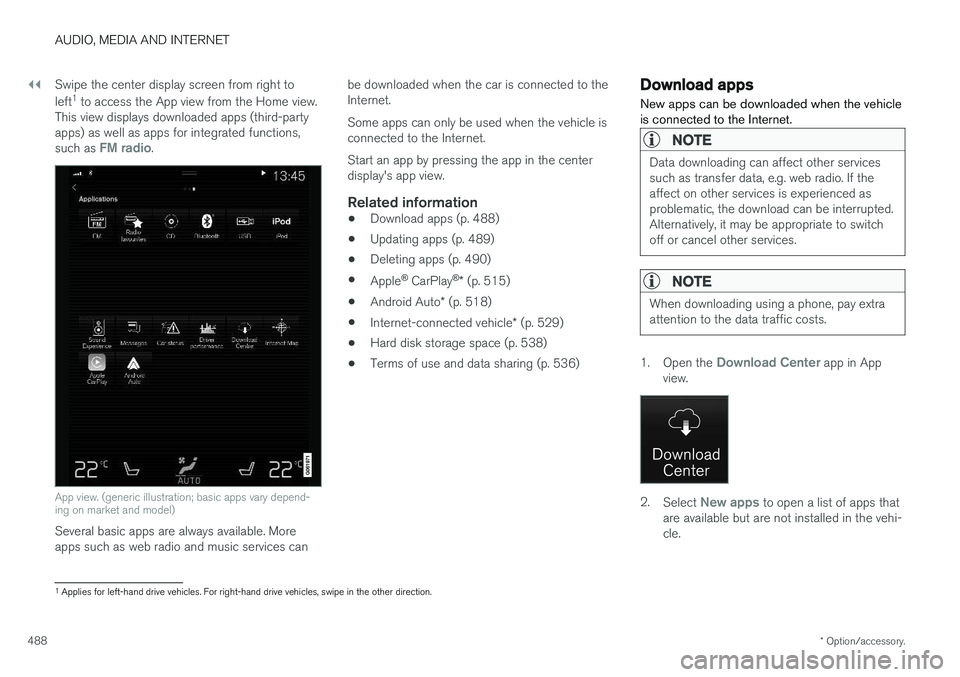
This view displays downloaded apps (third-party apps) as well as apps for integrated functions, such as
FM radio.
App view. (generic illustration; basic apps vary depend- ing on market and model)
Several basic apps are always available. More apps such as web radio and music services can be downloaded when the car is connected to theInternet. Some apps can only be used when the vehicle is connected to the Internet. Start an app by pressing the app in the center display's app view.
Related information
•
Download apps (p. 488)
• Updating apps (p. 489)
• Deleting apps (p. 490)
• Apple ®
CarPlay ®
* (p. 515)
• Android Auto
* (p. 518)
• Internet-connected vehicle
* (p. 529)
• Hard disk storage space (p. 538)
• Terms of use and data sharing (p. 536)
Download apps
New apps can be downloaded when the vehicle is connected to the Internet.
NOTE
Data downloading can affect other services such as transfer data, e.g. web radio. If theaffect on other services is experienced asproblematic, the download can be interrupted.Alternatively, it may be appropriate to switchoff or cancel other services.
NOTE
When downloading using a phone, pay extra attention to the data traffic costs.
1. Open the Download Center app in App
view.
2. Select New apps to open a list of apps that
are available but are not installed in the vehi- cle.
1 Applies for left-hand drive vehicles. For right-hand drive vehicles, swipe in the other direction.
Page 491 of 686
AUDIO, MEDIA AND INTERNET
* Option/accessory.489
3. Tap on the row for an app in order to expand
in the list and get more information about the app.
4. Select
Install to start the download and
installation of the app.
> The current status of the download and installation will be shown. If a download cannot be started immedi- ately, a message will be displayed. Theapp will remain in the list and it will bepossible to reattempt downloading.
Canceling a download
–Tap Abort to cancel a download in progress.
Note that only a download can be cancelled. An installation cannot be cancelled once it hasbegun.
Related information
• Apps (p. 487)
• Updating apps (p. 489)
• Deleting apps (p. 490)
• Internet-connected vehicle
* (p. 529)
• Handling system updates via Download Cen-ter (p. 601)
• Hard disk storage space (p. 538)
Updating apps
Apps can be updated when the vehicle is con- nected to the Internet.
NOTE
Data downloading can affect other services such as transfer data, e.g. web radio. If theaffect on other services is experienced asproblematic, the download can be interrupted.Alternatively, it may be appropriate to switchoff or cancel other services.
NOTE
When downloading using a phone, pay extra attention to the data traffic costs.
If an app is being used while an update is in pro- gress, it will be restarted to complete the update.
Update all
1. Open the Download Center app in App
view.
2. Select Install all.
> The update will begin.
Update certain apps
1. Open the Download Center app in App
view.
2. Select
Application updates to open a list
of all available updates.
3. Find the desired app and select
Install.
> The update will begin.
Related information
• Apps (p. 487)
• Download apps (p. 488)
• Deleting apps (p. 490)
• Handling system updates via Download Cen- ter (p. 601)
• Internet-connected vehicle
* (p. 529)
Page 492 of 686
AUDIO, MEDIA AND INTERNET
* Option/accessory.
490
Deleting apps
When the vehicle is connected to the Internet, it is possible to uninstall apps.
If the app is being used, it must be closed before it can be uninstalled. 1. Open the
Download Center app in App
view.
2. Select Application updates to open a list
of all installed apps.
3. Find the desired app and select
Uninstall to
begin uninstalling the app.
> When the app has been uninstalled, it will be removed from the list.
Related information
• Apps (p. 487)
• Download apps (p. 488)
• Updating apps (p. 489)
• Handling system updates via Download Cen- ter (p. 601)
• Internet-connected vehicle
* (p. 529)
Radio The radio can receive broadcasting from the FM waveband with HD Radio ™ Technology and
SiriusXM ®
Satellite radio *. When the vehicle has
an Internet connection, it is also possible to lis- ten to web radio.
The radio can be controlled using voice commands, theright-side steering wheel key-pad or the center display.
Related information
• Starting the radio (p. 491)
• Changing waveband and radio station (p. 491)
• Storing radio favorites (p. 493)
• Radio settings (p. 493) •
RBDS (p. 494)
• HD Radio
™ (p. 494)
• SiriusXM ®
Satellite radio * (p. 498)
• Internet-connected vehicle
* (p. 529)
• Voice control for radio and media (p. 148)
• Media player (p. 507)