wheel VOLVO XC90 T8 2018 Owner´s Manual
[x] Cancel search | Manufacturer: VOLVO, Model Year: 2018, Model line: XC90 T8, Model: VOLVO XC90 T8 2018Pages: 686, PDF Size: 11.51 MB
Page 53 of 686
SAFETY
}}
51
When a critical situation has passed, the seat belt and the electric seat belt tensioner are resetautomatically. However, they can also be resetmanually.
WARNING
Never attempt to alter or repair the seat belt on your own. Volvo recommends contactingan authorized Volvo workshop. If the seat belt has been exposed to extreme forces, e.g. in conjunction with a collision, theentire seat belt must be replaced. Even if theseat belt appears undamaged, some of itsprotective properties may have been lost. Alsoreplace the seat belt if it is worn or damaged.The new seat belt must be type approved andintended for the same seating position as thereplaced seat belt.
Related information
•
Seat belts (p. 47)
• Buckling and unbuckling seat belts (p. 48)
• Resetting the electric seat belt tensioners (p. 51)
• City Safety
™ (p. 335)
• Rear Collision Warning (p. 347)
Resetting the electric seat belttensioners
The electric seat belt tensioners are designed to be reset automatically, but if the seat beltremains taut it can be reset manually.
1. Stop the vehicle in a safe location.
2. Unbuckle the seat belt and then rebuckle it.
> The seat belt and the electric seat belttensioner will be reset.
WARNING
Never attempt to alter or repair the seat belt on your own. Volvo recommends contactingan authorized Volvo workshop. If the seat belt has been exposed to extreme forces, e.g. in conjunction with a collision, theentire seat belt must be replaced. Even if theseat belt appears undamaged, some of itsprotective properties may have been lost. Alsoreplace the seat belt if it is worn or damaged.The new seat belt must be type approved andintended for the same seating position as thereplaced seat belt.
Related information
• Seat belt tensioners (p. 50)
• Seat belts (p. 47)
Door and seat belt reminders
This system is intended to remind occupants to buckle their seat belts and to alert the driver if adoor or the hood, tailgate or fuel filler door isopen.
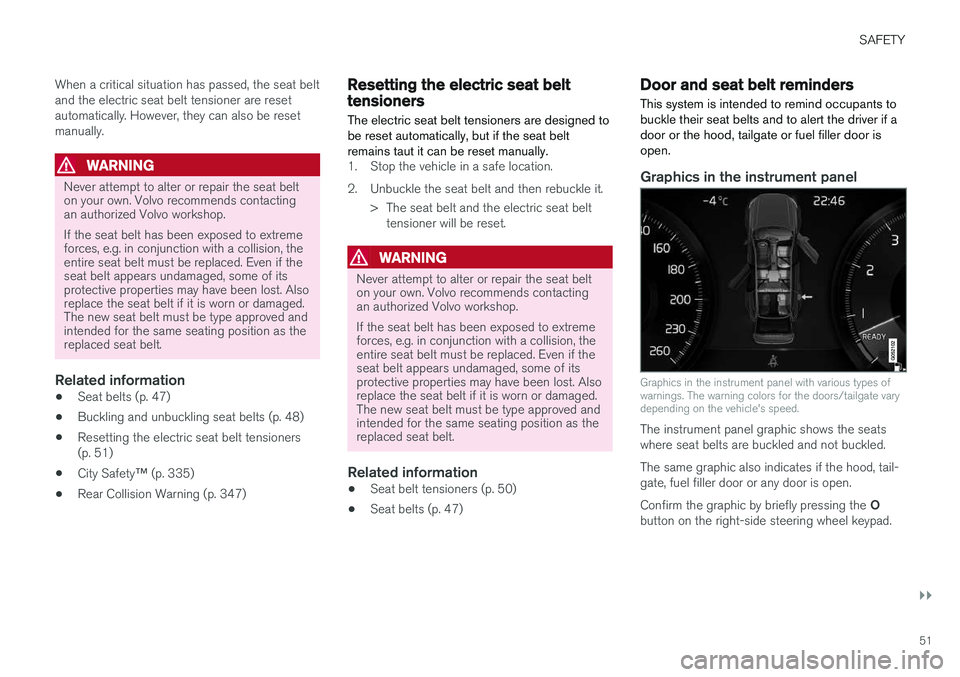
Graphics in the instrument panel
Graphics in the instrument panel with various types of warnings. The warning colors for the doors/tailgate varydepending on the vehicle's speed.
The instrument panel graphic shows the seats where seat belts are buckled and not buckled. The same graphic also indicates if the hood, tail- gate, fuel filler door or any door is open. Confirm the graphic by briefly pressing the O
button on the right-side steering wheel keypad.
Page 56 of 686
||
SAFETY
54sors that activate the gas generators, causing the airbags to be inflated with nitrogen gas. As the movement of the seats' occupants com- presses the airbags, some of the gas is expelledat a controlled rate to provide better cushioning.Both seat belt tensioners also deploy, minimizingseat belt slack. The entire process, from inflationto deflation of the airbag, occurs within tenths ofa second. The location of the front airbags is indicated by SRS AIRBAG
embossed on the steering wheel
pad and above the glove compartment, and by decals on both sun visors and on the front andfar right side of the dash. The driver's side front airbag is folded and
located in the steering wheel hub.The knee airbag is folded on the underside of
the dashboard on the driver's side. The text AIRBAG is embossed on the panel.
The passenger's side front airbag is folded
behind a panel located above the glove compart- ment.
WARNING
• The airbags in the vehicle are designed to be a SUPPLEMENT to-not a replacementfor-the three-point seat belts. For maxi-mum protection, wear seat belts at alltimes. Be aware that no system can pre-vent all possible injuries that may occur inan accident.
• Never drive with your hands on the steer-ing wheel pad/airbag housing.
• The front airbags are designed to helpprevent serious injury. Deployment occursvery quickly and with considerable force.During normal deployment and depend-ing on variables such as seating position,one may experience abrasions, bruises,swellings, or other injuries as a result ofdeployment of one or both of the airbags.
• When installing any accessory equipment,make sure that the front airbag system isnot damaged. Any interference in the sys-tem could cause malfunction.
Front airbag deployment
• The front airbags are designed to deploy dur-ing certain frontal or front-angular collisions,impacts, or decelerations, depending on thecrash severity, angle, speed and objectimpacted. The airbags may also deploy in certain non-frontal collisions where rapiddeceleration occurs.
• The airbag system sensors, which trigger thefront airbags, are designed to react to boththe impact of the collision and the inertialforces generated by it, and to determine ifthe intensity of the collision is sufficient forthe seat belt tensioners and/or airbags to bedeployed.
However, not all frontal collisions activate thefront airbags.
• If the collision involves a nonrigid object (e.g.,a snow drift or bush), or a rigid, fixed objectat a low speed, the front airbags will not nec-essarily deploy.
• Front airbags do not normally deploy in aside impact collision, in a collision from therear or in a rollover situation.
• The amount of damage to the bodyworkdoes not reliably indicate if the airbagsshould have deployed or not.
Page 58 of 686
||
SAFETY
56
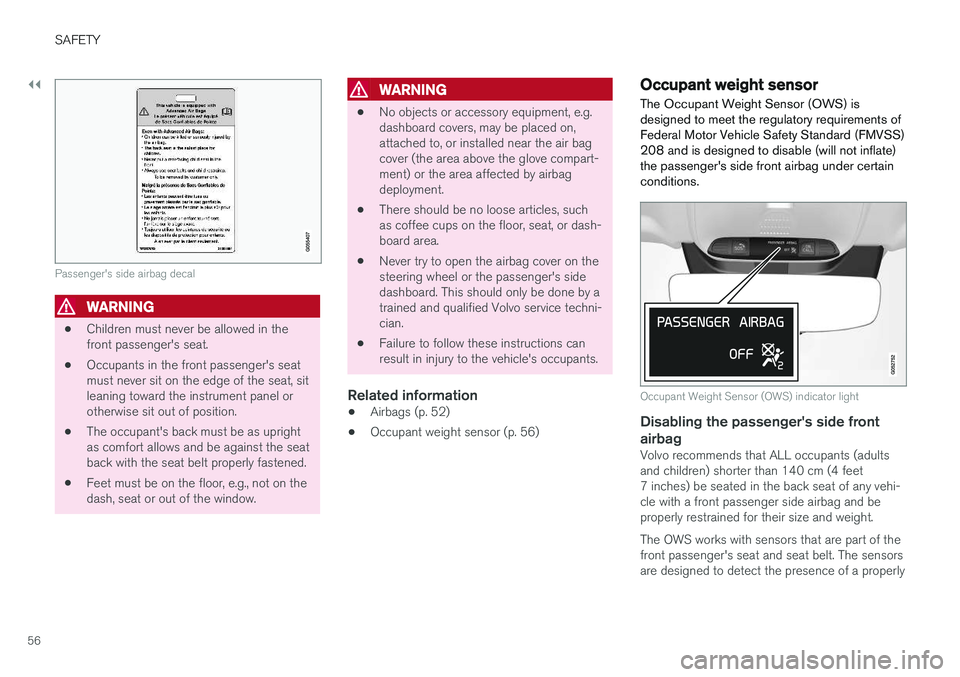
Passenger's side airbag decal
WARNING
•Children must never be allowed in the front passenger's seat.
• Occupants in the front passenger's seatmust never sit on the edge of the seat, sitleaning toward the instrument panel orotherwise sit out of position.
• The occupant's back must be as uprightas comfort allows and be against the seatback with the seat belt properly fastened.
• Feet must be on the floor, e.g., not on thedash, seat or out of the window.
WARNING
• No objects or accessory equipment, e.g. dashboard covers, may be placed on,attached to, or installed near the air bagcover (the area above the glove compart-ment) or the area affected by airbagdeployment.
• There should be no loose articles, suchas coffee cups on the floor, seat, or dash-board area.
• Never try to open the airbag cover on thesteering wheel or the passenger's sidedashboard. This should only be done by atrained and qualified Volvo service techni-cian.
• Failure to follow these instructions canresult in injury to the vehicle's occupants.
Related information
• Airbags (p. 52)
• Occupant weight sensor (p. 56)
Occupant weight sensor
The Occupant Weight Sensor (OWS) is designed to meet the regulatory requirements ofFederal Motor Vehicle Safety Standard (FMVSS)208 and is designed to disable (will not inflate)the passenger's side front airbag under certainconditions.
Occupant Weight Sensor (OWS) indicator light
Disabling the passenger's side front airbag
Volvo recommends that ALL occupants (adults and children) shorter than 140 cm (4 feet7 inches) be seated in the back seat of any vehi-cle with a front passenger side airbag and beproperly restrained for their size and weight. The OWS works with sensors that are part of the front passenger's seat and seat belt. The sensors are designed to detect the presence of a properly
Page 84 of 686
DISPLAYS AND VOICE CONTROL
* Option/accessory.
82
Instruments and controls in left-hand drive vehicles
The overviews show the location of the vehicle's
displays and controls.
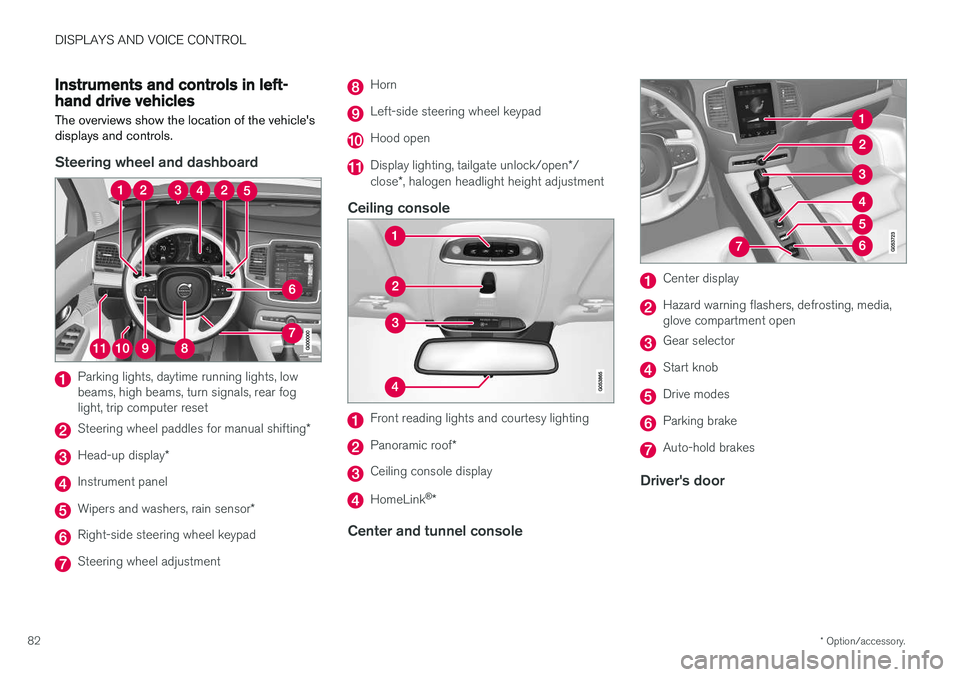
Steering wheel and dashboard
Parking lights, daytime running lights, low beams, high beams, turn signals, rear foglight, trip computer reset
Steering wheel paddles for manual shifting *
Head-up display*
Instrument panel
Wipers and washers, rain sensor *
Right-side steering wheel keypad
Steering wheel adjustment
Horn
Left-side steering wheel keypad
Hood open
Display lighting, tailgate unlock/open */
close *, halogen headlight height adjustment
Ceiling console
Front reading lights and courtesy lighting
Panoramic roof *
Ceiling console display
HomeLink®
*
Center and tunnel console
Center display
Hazard warning flashers, defrosting, media, glove compartment open
Gear selector
Start knob
Drive modes
Parking brake
Auto-hold brakes
Driver's door
Page 85 of 686
DISPLAYS AND VOICE CONTROL
* Option/accessory.83
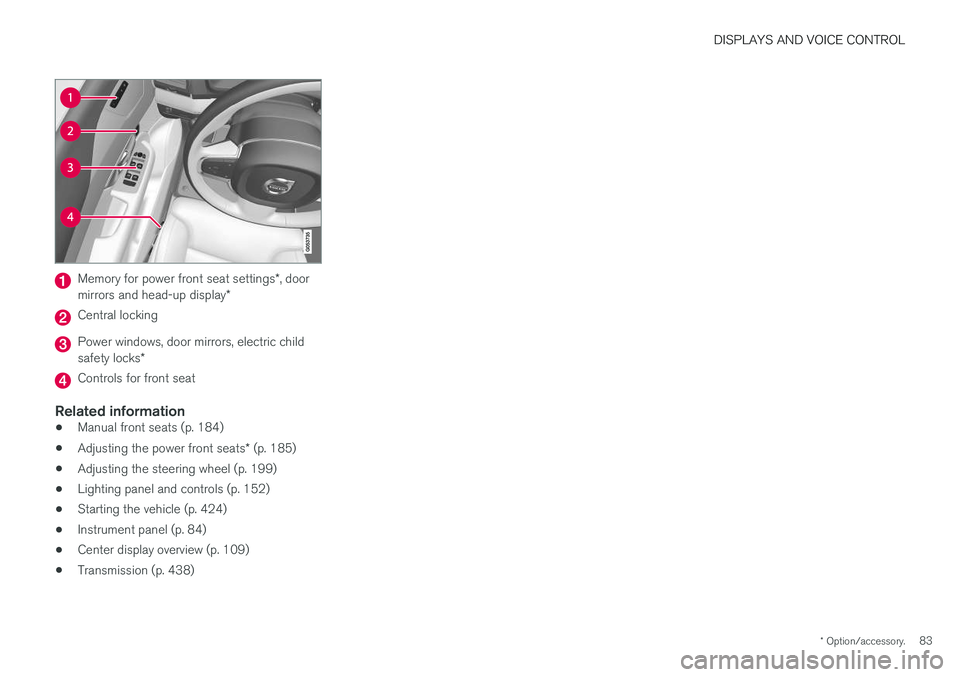
Memory for power front seat settings *, door
mirrors and head-up display *
Central locking
Power windows, door mirrors, electric child safety locks*
Controls for front seat
Related information
•Manual front seats (p. 184)
• Adjusting the power front seats
* (p. 185)
• Adjusting the steering wheel (p. 199)
• Lighting panel and controls (p. 152)
• Starting the vehicle (p. 424)
• Instrument panel (p. 84)
• Center display overview (p. 109)
• Transmission (p. 438)
Page 87 of 686
DISPLAYS AND VOICE CONTROL
85
Left sideIn the centerRight side
– Media player Distance to discharged battery
– Navigation system map Current fuel consumption
– PhoneApp menu (activated using steering wheel keypad)
– Voice Control –
– CompassA
–
ADepends on selected drive mode.
B Total distance.
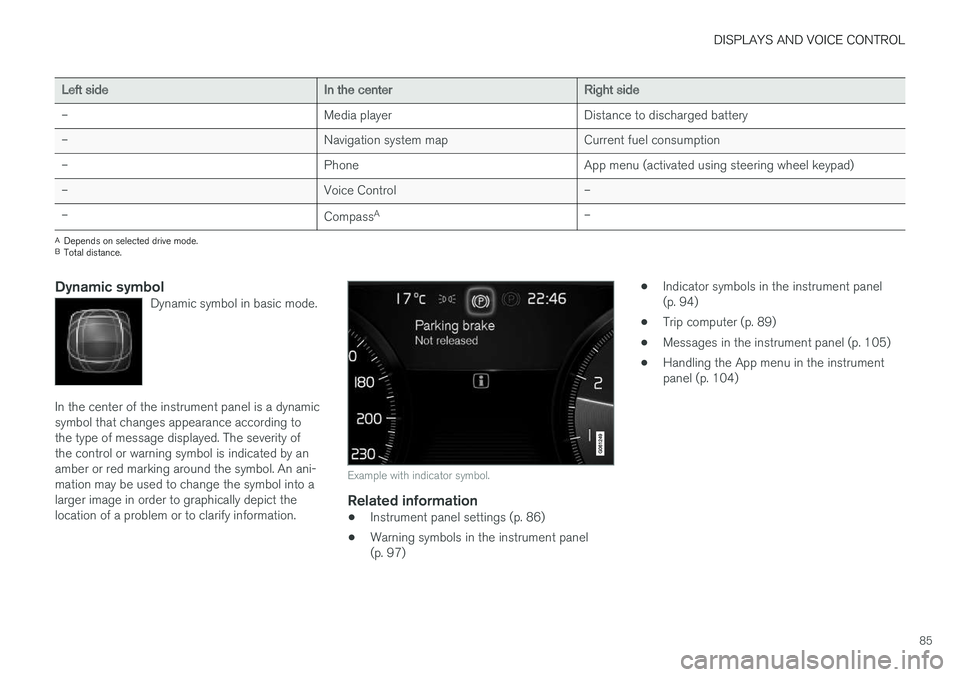
Dynamic symbolDynamic symbol in basic mode.
In the center of the instrument panel is a dynamic symbol that changes appearance according tothe type of message displayed. The severity ofthe control or warning symbol is indicated by anamber or red marking around the symbol. An ani-mation may be used to change the symbol into alarger image in order to graphically depict thelocation of a problem or to clarify information.
Example with indicator symbol.
Related information
• Instrument panel settings (p. 86)
• Warning symbols in the instrument panel (p. 97) •
Indicator symbols in the instrument panel(p. 94)
• Trip computer (p. 89)
• Messages in the instrument panel (p. 105)
• Handling the App menu in the instrumentpanel (p. 104)
Page 92 of 686
||
DISPLAYS AND VOICE CONTROL
90
NOTE
This may vary if your driving style changes.
An economical driving style will generally increase how far you can drive on a certainamount of fuel.
Starting values for fully charged hybrid
battery
Because it is difficult to predict driving style and other factors that affect the range of electricmotors, Volvo uses a starting value when thevehicle is fully charged. This starting value pro-vides an "up to" amount instead of a predictionon the range of the electric current in the motor. The difference in starting value between
Hybridand Pure is because the vehicle is permitted to
use more current from the hybrid battery in Puremode, and because the vehicle switches to ECO Climate.
Mileage when using electric motor
To achieve the longest possible mileage when using the electric motor, the driver of an electricvehicle also needs to think about conservingelectricity. The more electricity consumers(stereo, heated windows/mirrors/seats, very coldair from climate control system, etc.) that areactive, the shorter the potential mileage.
NOTE
In addition to high electrical consumption in the passenger compartment, rapid accelera-tion, sudden braking, high speeds, heavyloads, low ambient temperatures and drivingup hills can reduce possible driving distance.
Tourist - alternative speedometerThe alternative digital speedometer makes it eas- ier to drive in countries where speed limit signsare shown in a different measurement unit thanthe one shown in the vehicle's gauges. When used, the digital speed is displayed in the opposite unit to that shown in the analog speed- ometer. If mph is used in the analog speedome-
ter, the equivalent speed in km/h will be shown
in the digital speedometer.
Related information
• Displaying trip data in the instrument panel (p. 90)
• Resetting the trip odometer (p. 91)
• Displaying trip statistics in the center display (p. 92)
• Instrument panel (p. 84)
Displaying trip data in theinstrument panel
Data recorded and calculated by the trip com- puter can be displayed on the instrument panel.
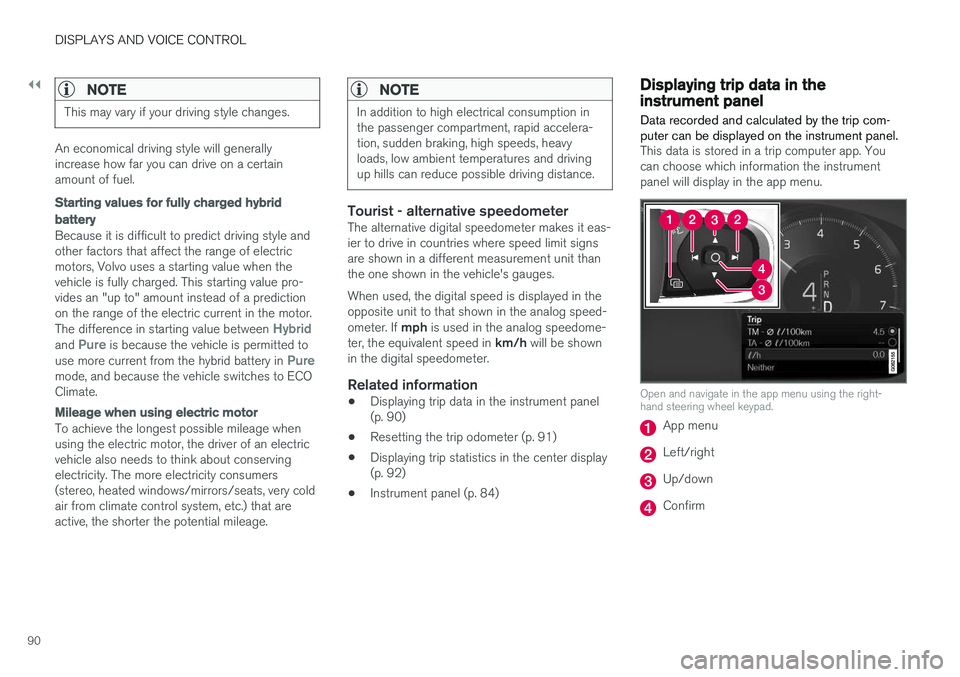
This data is stored in a trip computer app. You can choose which information the instrumentpanel will display in the app menu.
Open and navigate in the app menu using the right- hand steering wheel keypad.
App menu
Left/right
Up/down
Confirm
Page 93 of 686
DISPLAYS AND VOICE CONTROL
91
1. Open the app menu in the instrument panel
by pressing (1). (The App menu cannot be opened while there is an unacknowledged message in theinstrument panel. The message must be con-firmed before the App menu can be opened.)
2. Navigate to the trip computer app by moving left or right using (2).
> The top four menu rows show measuredvalues for trip odometer TM. The next four menu rows show measured values for tripodometer TA. Scroll up or down in the listusing (3).
3. Scroll down to the option buttons to choose which information to show in the instrumentpanel:
• Distance to empty tank
• Odometer
• Mileage for trip odometer TM, TA or nodisplay of mileage
• Current fuel consumption, average fuelconsumption for TM or TA, or no displayof fuel consumption
• Tourist (alternative speedometer).
• Distance to discharged battery
Select or clear a selection using the O but-
ton (4). The change will apply immediately.
Related information
• Trip computer (p. 89)
• Resetting the trip odometer (p. 91)
Resetting the trip odometer
Resetting the trip odometer using the left-side steering wheel lever.
–Reset all information in trip odometer TM (i.e. mileage, average fuel consumption, averagespeed and driving time) by pressing and holding the RESET button on the left-hand
steering wheel lever. Tapping the RESET button only resets the
distance driven.
The TA trip odometer can not be manually reset. It resets automatically if the vehicle is not usedfor four hours or more.
Related information
• Trip computer (p. 89)
Page 105 of 686
DISPLAYS AND VOICE CONTROL
}}
103
zlib License
The zlib/libpng License Copyright (c)
< copyright holders >
This software is provided 'as-is', without any express or implied warranty. In no event will theauthors be held liable for any damages arisingfrom the use of this software. Permission is granted to anyone to use this software for any purpose, including commercialapplications, and to alter it and redistribute itfreely, subject to the following restrictions:
1. The origin of this software must not be misrepresented; you must not claim that you wrote the original software. If you use thissoftware in a product, an acknowledgment inthe product documentation would beappreciated but is not required.
2. Altered source versions must be plainly marked as such, and must not bemisrepresented as being the originalsoftware.
3. This notice may not be removed or altered from any source distribution.
SGI Free Software B License Version 2.0.
SGI FREE SOFTWARE LICENSE B (Version 2.0, Sept. 18, 2008) Copyright (C) [dates of first publication] Silicon Graphics, Inc. All Rights Reserved. Permission ishereby granted, free of charge, to any personobtaining a copy of this software and associated documentation files (the "Software"), to deal inthe Software without restriction, including withoutlimitation the rights to use, copy, modify, merge,publish, distribute, sublicense, and/or sell copiesof the Software, and to permit persons to whomthe Software is furnished to do so, subject to thefollowing conditions: The above copyright noticeincluding the dates of first publication and eitherthis permission notice or a reference to http://oss.sgi.com/projects/FreeB/ shall be included inall copies or substantial portions of the Software. THE SOFTWARE IS PROVIDED "AS IS", WITHOUT WARRANTY OF ANY KIND,EXPRESS OR IMPLIED, INCLUDING BUT NOTLIMITED TO THE WARRANTIES OFMERCHANTABILITY, FITNESS FOR APARTICULAR PURPOSE ANDNONINFRINGEMENT. IN NO EVENT SHALLSILICON GRAPHICS, INC. BE LIABLE FOR ANYCLAIM, DAMAGES OR OTHER LIABILITY,WHETHER IN AN ACTION OF CONTRACT,TORT OR OTHERWISE, ARISING FROM, OUTOF OR IN CONNECTION WITH THE SOFTWAREOR THE USE OR OTHER DEALINGS IN THESOFTWARE. Except as contained in this notice, the name of Silicon Graphics, Inc. shall not be used inadvertising or otherwise to promote the sale, useor other dealings in this Software without priorwritten authorization from Silicon Graphics, Inc.
Related information
•
Instrument panel (p. 84)
App menu in instrument panel
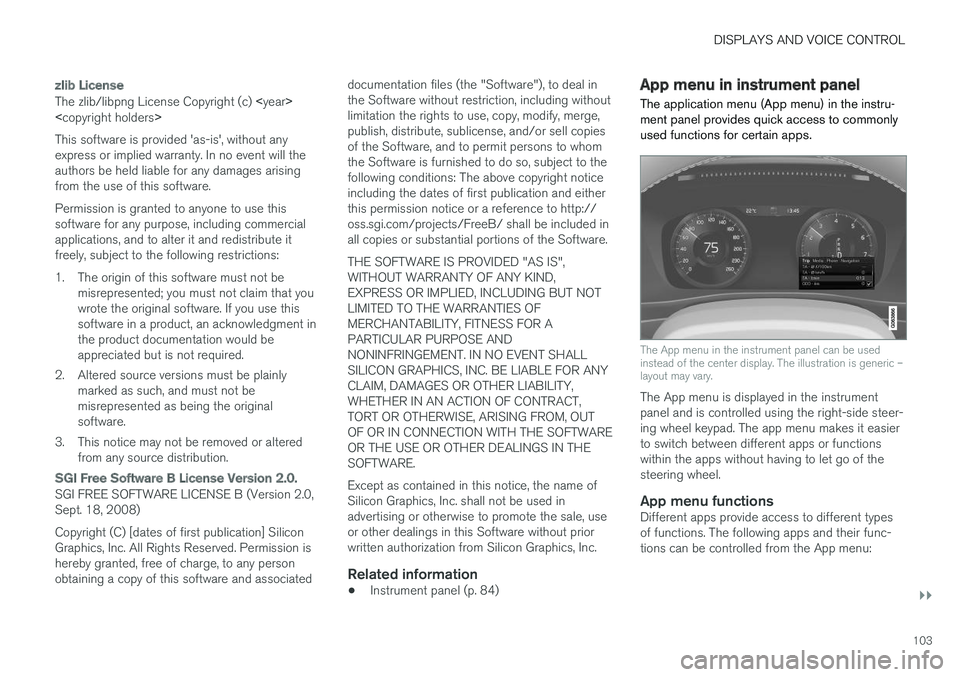
The application menu (App menu) in the instru- ment panel provides quick access to commonlyused functions for certain apps.
The App menu in the instrument panel can be used instead of the center display. The illustration is generic –layout may vary.
The App menu is displayed in the instrument panel and is controlled using the right-side steer-ing wheel keypad. The app menu makes it easierto switch between different apps or functionswithin the apps without having to let go of thesteering wheel.
App menu functionsDifferent apps provide access to different typesof functions. The following apps and their func-tions can be controlled from the App menu:
Page 106 of 686
||
DISPLAYS AND VOICE CONTROL
104
AppFunctions
Trip com- puter Select a trip odometer, changeinstrument panel display set-tings, etc.
Media player Select active source for media player.
Phone Call a contact from the call list.
Navigation Guide to destination, etc.
Related information
• Instrument panel (p. 84)
• Center display overview (p. 109)
• Handling the App menu in the instrument panel (p. 104)
Handling the App menu in theinstrument panel
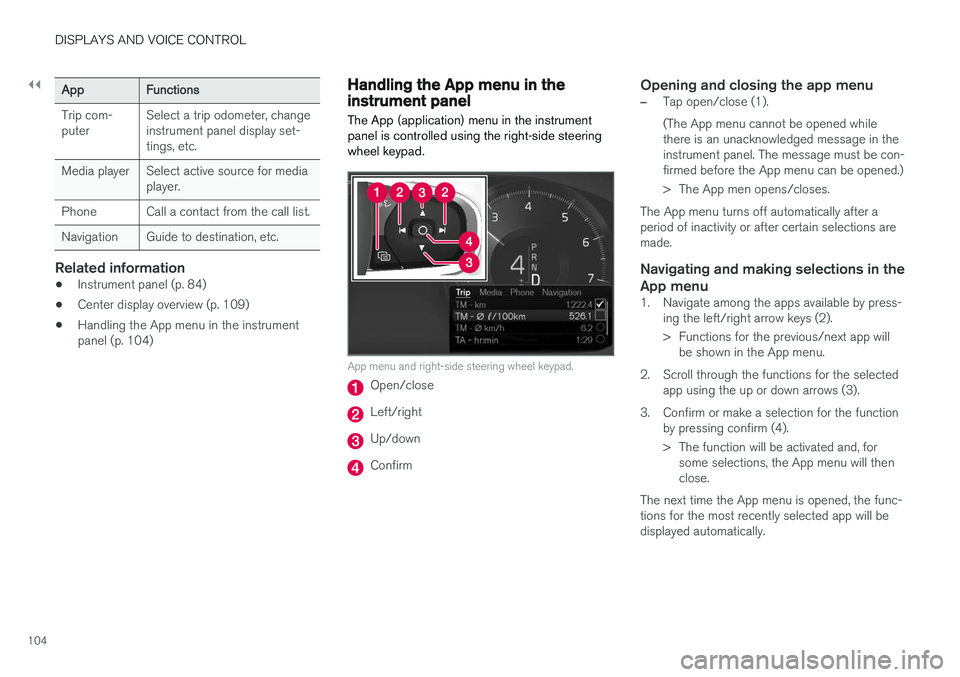
The App (application) menu in the instrument panel is controlled using the right-side steeringwheel keypad.
App menu and right-side steering wheel keypad.
Open/close
Left/right
Up/down
Confirm
Opening and closing the app menu
–Tap open/close (1). (The App menu cannot be opened while there is an unacknowledged message in theinstrument panel. The message must be con-firmed before the App menu can be opened.)
> The App men opens/closes.
The App menu turns off automatically after a period of inactivity or after certain selections aremade.
Navigating and making selections in the
App menu
1. Navigate among the apps available by press- ing the left/right arrow keys (2).
> Functions for the previous/next app willbe shown in the App menu.
2. Scroll through the functions for the selected app using the up or down arrows (3).
3. Confirm or make a selection for the function by pressing confirm (4).
> The function will be activated and, forsome selections, the App menu will then close.
The next time the App menu is opened, the func-tions for the most recently selected app will bedisplayed automatically.