remote start VOLVO XC90 T8 2018 Owner´s Manual
[x] Cancel search | Manufacturer: VOLVO, Model Year: 2018, Model line: XC90 T8, Model: VOLVO XC90 T8 2018Pages: 686, PDF Size: 11.51 MB
Page 481 of 686
STARTING AND DRIVING
}}
* Option/accessory.479
Programming HomeLink®
*12
Follow these instructions to program HomeLink ®
, reset all programming, or program
individual buttons.
NOTE
In some vehicles, the ignition must be on or in the "accessory position" before HomeLink ®
can be programmed or used. It can be a good idea to put new batteries in the remote con- trol being replaced by HomeLink ®
for faster
programming and better radio signal trans-mission. The HomeLink ®
buttons should be
reset before programming.
WARNING
While HomeLink ®
is being programmed, the
garage door or gate being programmed may be activated. Make sure that no one is nearthe door or gate during programming. Whenprogramming a garage door opener, it isadvised to park outside of the garage. 1.
Point the remote control at the HomeLink ®
button to be programmed and hold it about 2-8 cm (1-3 inches) from the button. Do not obstruct the HomeLink ®
indicator light.
Note: Some remote controls are more effec-
tive at programming HomeLink ®
from a dis-
tance of about 15-20 cm (6-12 inches). Try moving the remote control closer or furtheraway if you are experiencing any difficultiesprogramming.
2. Press and hold both the remote control but- ton and the HomeLink ®
button to be pro-
grammed.
3. Do not release the buttons until the indicator light has stopped flashing slowly (about oncea second) and either flashes quickly (about10 times a second) or glows steadily. >Steady glow: Indication that program-
ming is complete. Press the programmed button twice to activate. Flashing quickly: The device being pro-
grammed with HomeLink ®
may have a
security function that requires an extra step. Try pressing the programmed buttontwice to see whether the programmingworks. Otherwise, continue with the fol-lowing steps.
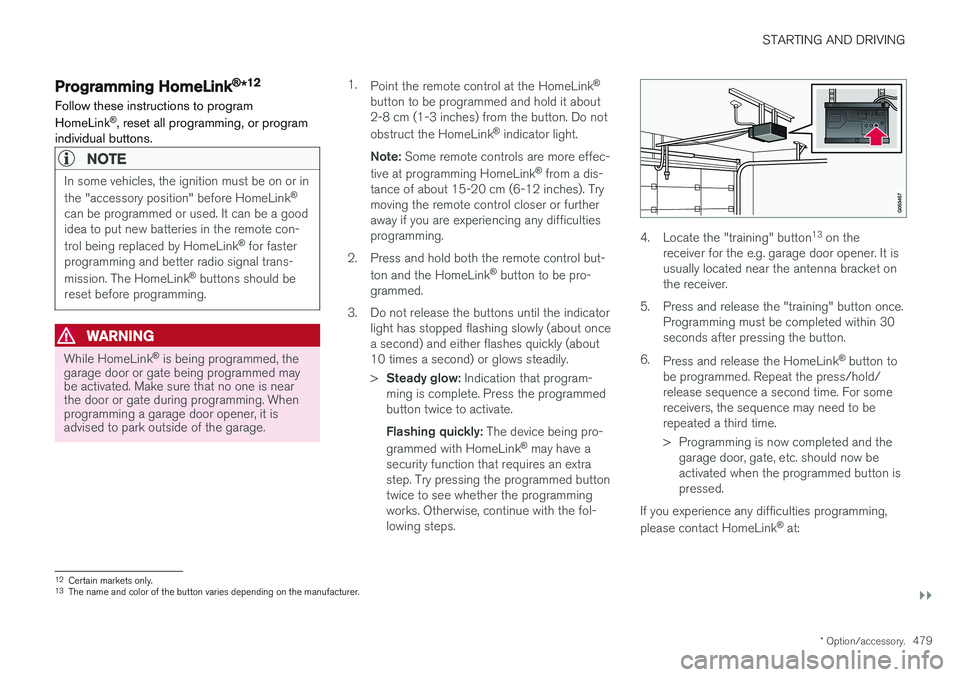
4. Locate the "training" button 13
on the
receiver for the e.g. garage door opener. It is usually located near the antenna bracket onthe receiver.
5. Press and release the "training" button once. Programming must be completed within 30seconds after pressing the button.
6. Press and release the HomeLink ®
button to
be programmed. Repeat the press/hold/release sequence a second time. For somereceivers, the sequence may need to berepeated a third time.
> Programming is now completed and the garage door, gate, etc. should now be activated when the programmed button ispressed.
If you experience any difficulties programming, please contact HomeLink ®
at:
12 Certain markets only.
13 The name and color of the button varies depending on the manufacturer.
Page 482 of 686
||
STARTING AND DRIVING
* Option/accessory.
480 www.HomeLink.com, www.youtube.com/ HomeLinkGentex or call 1-800-355-3515.
Programming individual buttons
To program an individual HomeLink
®
button:
1. Press and hold the desired button for about 20 seconds.
2. When the indicator light on HomeLink ®
starts flashing slowly, it is possible to pro-gram as usual. Note: If the button you are reprogramming
does not program with a new device, it will return to the previously saved programming.
Resetting the HomeLink ®
buttons
It is only possible to reset all HomeLink ®
buttons
at once. It is not possible to reset individual but-tons. Individual buttons can only be reprogram-med.
–Press and hold the outer buttons (1 and 3) on HomeLink ®
for about 10 seconds.
> When the indicator light goes from a steady glow to flashing, the buttons have been reset and are ready for reprogram-ming.
Related information
• Using HomeLink (p. 480)
• HomeLink ®
* (p. 478)
• Type approval for HomeLink ®
* (p. 481)
Using HomeLink
Once HomeLink ®
is programmed, it can be
used instead of the separate remote controls.
Press and hold the programming button. The garage door, gate, alarm system, etc. will be acti-vated (this may take several seconds). If the but-ton is held down for more than 20 seconds,reprogramming will begin. The indicator light willglow steadily or flash when the button has beenpressed. The original remote controls may be used concurrently with HomeLink ®
if desired.
NOTE
If the ignition is off, HomeLink ®
works for
30 minutes after the driver's door has been opened.
WARNING
• If you use HomeLink ®
to open a garage
door or gate, be sure no one is near the gate or door while it is in motion.
• Do not use HomeLink ®
with any garage
door opener that lacks safety stop andreverse features as required by US fed-eral safety standards (this includes anygarage door opener model manufacturedbefore April 1, 1982). A garage door thatcannot detect an object - signaling thedoor to stop and reverse - does not meetcurrent U.S. federal safety standards. Formore information, contact HomeLink at:www.homelink.com.
Related information
• HomeLink ®
* (p. 478)
• Programming HomeLink ®
* (p. 479)
• Type approval for HomeLink ®
* (p. 481)
Page 522 of 686
AUDIO, MEDIA AND INTERNET
* Option/accessory.
520
Tips for using Android Auto *
Here are some useful tips for when you use Android Auto.
• Ensure that your apps are updated.
• When starting the car, wait until the center display has started, connect the phone andthen open Android Auto from the app view.
• In the event of problems with Android Auto,disconnect your Android phone from theUSB port and then reconnect via USB. Oth-erwise, try closing the app on the phone andthen restarting the app.
• When a phone is connected to Android Autoit is still possible to playback media viaBluetooth to another media player. TheBluetooth function is on when Android Autois used.
Related information
•
Android Auto
* (p. 518)
Phone
A phone equipped with Bluetooth can be wire- lessly connected to the vehicle's integratedhands-free system.
The audio and media system offers hands-free functionality for remotely controlling a number ofthe phone's features. The phone's integratedcontrols can also be used, even when it is con-nected to the vehicle. When the phone has been paired and connected to the vehicle, it can be used as an Internet con-nection or to make or receive calls, send orreceive text messages or wirelessly play music.
The phone is controlled fromthe center display but the Appmenu (accessed using theright-side steering wheel key-pad) and voice commands canalso be used to control certainfunctions.
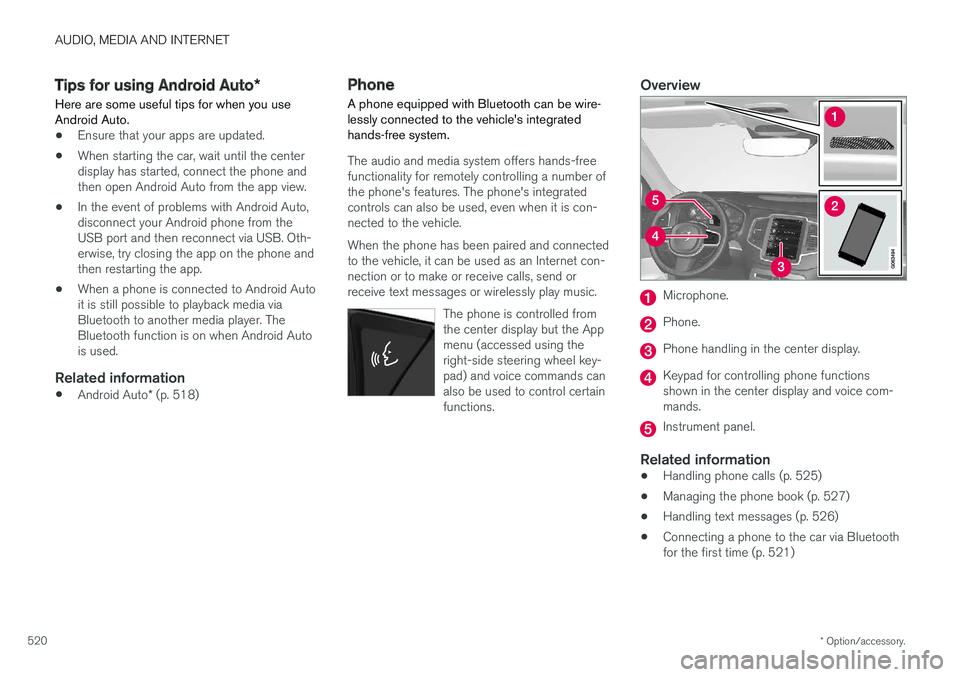
Overview
Microphone.
Phone.
Phone handling in the center display.
Keypad for controlling phone functions shown in the center display and voice com-mands.
Instrument panel.
Related information
•Handling phone calls (p. 525)
• Managing the phone book (p. 527)
• Handling text messages (p. 526)
• Connecting a phone to the car via Bluetooth for the first time (p. 521)
Page 674 of 686
INDEX
672Gear indicator 442 Gear selector positions
automatic transmission 439
Glass laminated/reinforced 166
Glove compartment 585 Gracenote ® 511
Grocery bag holders 588
Gross vehicle weight 659
GSI - Gear shift indicator 442
Guide lines for Park Assist Camera 388
H
Handbrake 432, 433
Hand wash 639 Hard disk space 538
Hazard warning flashers 161
HDC 454
HD radio 494
Head restraint 194
Head-up display 142 activate and deactivate 144
cleaning 634
replacing windshield 608
settings 144
Heated washer nozzles 177 Heating Seats 215, 216
steering wheel 218
windows 222, 223
Height adjustment 450, 453
high beams 156, 157
High engine temperature 468
Hill Descent Control 454, 455 activate with function button 455
Hill Start Assist 437 Hill Start Assist (HSA) 437
Hoisting the vehicle 605 HomeLink ® 478
programming 479
use 480
HomeLink ® remote control
programmable 478
Home safe lighting 161
Honk 199
Hood, opening 607
Horn 199
Hybrid battery 619 Charging 407Hybrid battery gauge 88
Hybrid gauge 87
I
IAQS (Interior Air Quality System) 206
IC (Inflatable Curtain) 60
ID, Volvo 26
Identification number 38
Ignition mode 427, 428
Immobilizer 252Electronic immobilizer 252
Indicator symbols 94
Individual drive mode 445
Infant seats 67
Inflatable curtain 60
Inflatable Curtain 60
Inflating tires 577 Inflation pressure adjusting 558
Checking 557
recommended 559
Inflation pressure monitoring 559 action 563
Status 562
Page 678 of 686
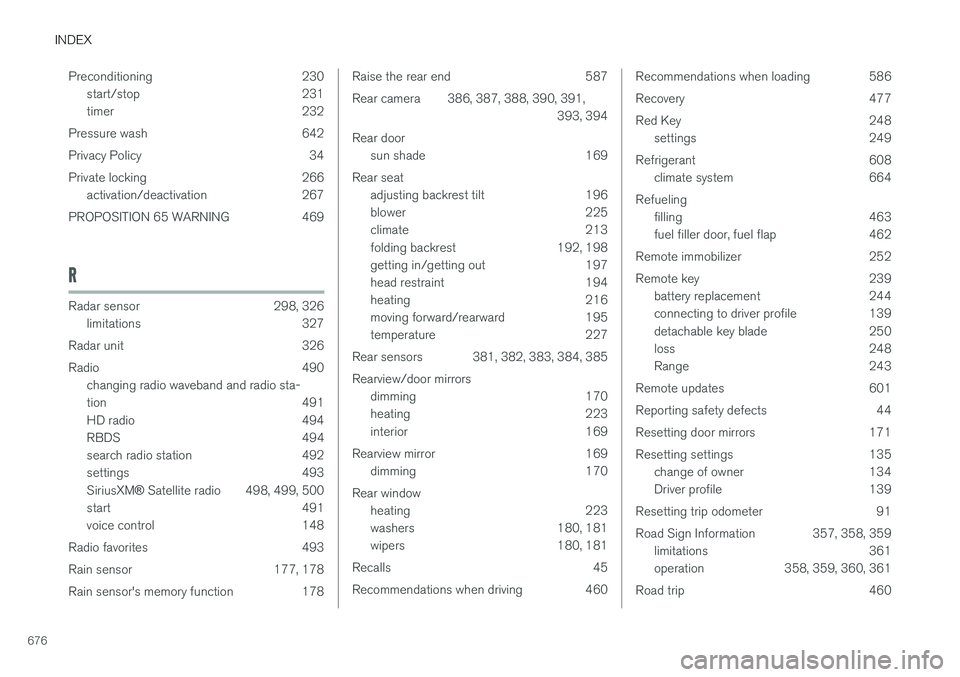
INDEX
676Preconditioning 230
start/stop 231
timer 232
Pressure wash 642
Privacy Policy 34
Private locking 266 activation/deactivation 267
PROPOSITION 65 WARNING 469
R
Radar sensor 298, 326 limitations 327
Radar unit 326
Radio 490 changing radio waveband and radio sta-
tion 491
HD radio 494
RBDS 494
search radio station 492
settings 493 SiriusXM ®
Satellite radio 498, 499, 500
start 491
voice control 148
Radio favorites 493
Rain sensor 177, 178
Rain sensor's memory function 178
Raise the rear end 587
Rear camera 386, 387, 388, 390, 391, 393, 394
Rear door sun shade 169
Rear seat adjusting backrest tilt 196
blower 225
climate 213
folding backrest 192, 198
getting in/getting out 197
head restraint 194
heating 216
moving forward/rearward 195
temperature 227
Rear sensors 381, 382, 383, 384, 385 Rearview/door mirrors dimming 170
heating 223
interior 169
Rearview mirror 169 dimming 170
Rear window heating 223
washers 180, 181
wipers 180, 181
Recalls 45
Recommendations when driving 460Recommendations when loading 586
Recovery 477
Red Key 248 settings 249
Refrigerant 608 climate system 664
Refueling filling 463
fuel filler door, fuel flap 462
Remote immobilizer 252
Remote key 239 battery replacement 244
connecting to driver profile 139
detachable key blade 250
loss 248
Range 243
Remote updates 601
Reporting safety defects 44
Resetting door mirrors 171
Resetting settings 135 change of owner 134
Driver profile 139
Resetting trip odometer 91
Road Sign Information 357, 358, 359 limitations 361
operation 358, 359, 360, 361
Road trip 460