buttons VOLVO XC90 T8 2018 Owner´s Manual
[x] Cancel search | Manufacturer: VOLVO, Model Year: 2018, Model line: XC90 T8, Model: VOLVO XC90 T8 2018Pages: 686, PDF Size: 11.51 MB
Page 480 of 686
||
STARTING AND DRIVING
* Option/accessory.
478
WARNING
No person or object should be behind the tow truck when the vehicle is lifted onto the bedof the truck.
Related information
• Attaching and removing the towing eyelet (p. 476)
HomeLink®
*10
HomeLink ®
11
is a programmable remote control,
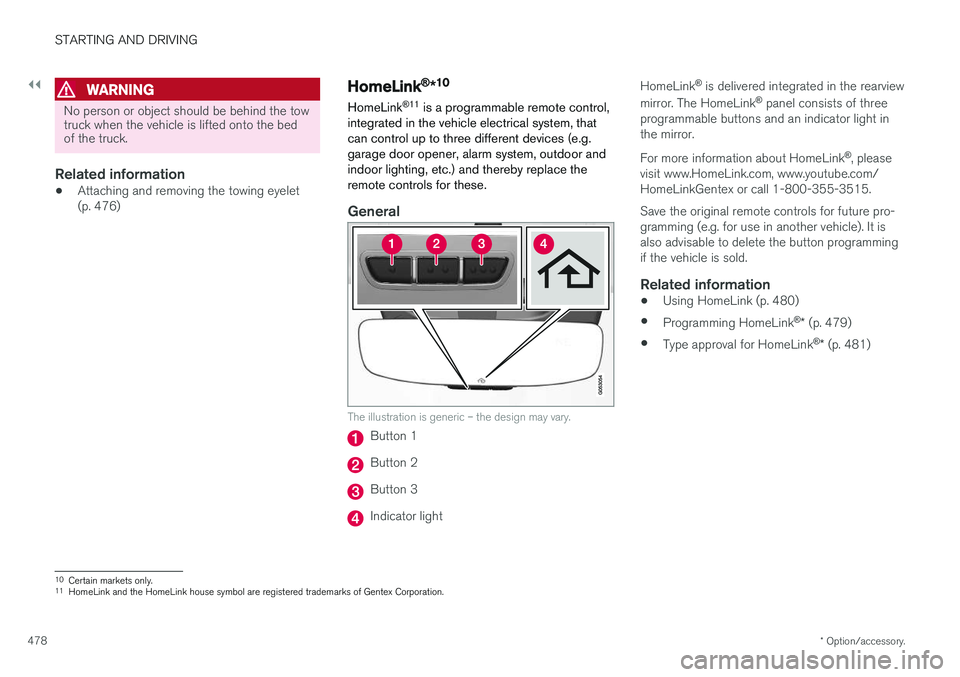
integrated in the vehicle electrical system, that can control up to three different devices (e.g.garage door opener, alarm system, outdoor andindoor lighting, etc.) and thereby replace theremote controls for these.
General
The illustration is generic – the design may vary.
Button 1
Button 2
Button 3
Indicator light HomeLink
®
is delivered integrated in the rearview
mirror. The HomeLink ®
panel consists of three
programmable buttons and an indicator light in the mirror. For more information about HomeLink ®
, please
visit www.HomeLink.com, www.youtube.com/ HomeLinkGentex or call 1-800-355-3515. Save the original remote controls for future pro- gramming (e.g. for use in another vehicle). It isalso advisable to delete the button programmingif the vehicle is sold.
Related information
• Using HomeLink (p. 480)
• Programming HomeLink ®
* (p. 479)
• Type approval for HomeLink ®
* (p. 481)
10
Certain markets only.
11 HomeLink and the HomeLink house symbol are registered trademarks of Gentex Corporation.
Page 481 of 686
STARTING AND DRIVING
}}
* Option/accessory.479
Programming HomeLink®
*12
Follow these instructions to program HomeLink ®
, reset all programming, or program
individual buttons.
NOTE
In some vehicles, the ignition must be on or in the "accessory position" before HomeLink ®
can be programmed or used. It can be a good idea to put new batteries in the remote con- trol being replaced by HomeLink ®
for faster
programming and better radio signal trans-mission. The HomeLink ®
buttons should be
reset before programming.
WARNING
While HomeLink ®
is being programmed, the
garage door or gate being programmed may be activated. Make sure that no one is nearthe door or gate during programming. Whenprogramming a garage door opener, it isadvised to park outside of the garage. 1.
Point the remote control at the HomeLink ®
button to be programmed and hold it about 2-8 cm (1-3 inches) from the button. Do not obstruct the HomeLink ®
indicator light.
Note: Some remote controls are more effec-
tive at programming HomeLink ®
from a dis-
tance of about 15-20 cm (6-12 inches). Try moving the remote control closer or furtheraway if you are experiencing any difficultiesprogramming.
2. Press and hold both the remote control but- ton and the HomeLink ®
button to be pro-
grammed.
3. Do not release the buttons until the indicator light has stopped flashing slowly (about oncea second) and either flashes quickly (about10 times a second) or glows steadily. >Steady glow: Indication that program-
ming is complete. Press the programmed button twice to activate. Flashing quickly: The device being pro-
grammed with HomeLink ®
may have a
security function that requires an extra step. Try pressing the programmed buttontwice to see whether the programmingworks. Otherwise, continue with the fol-lowing steps.
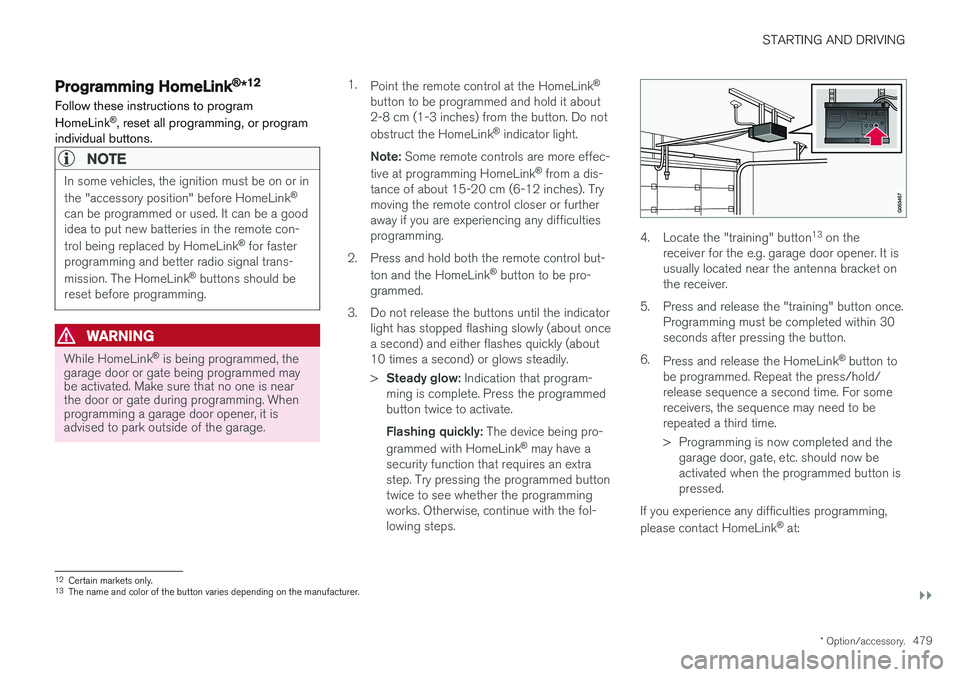
4. Locate the "training" button 13
on the
receiver for the e.g. garage door opener. It is usually located near the antenna bracket onthe receiver.
5. Press and release the "training" button once. Programming must be completed within 30seconds after pressing the button.
6. Press and release the HomeLink ®
button to
be programmed. Repeat the press/hold/release sequence a second time. For somereceivers, the sequence may need to berepeated a third time.
> Programming is now completed and the garage door, gate, etc. should now be activated when the programmed button ispressed.
If you experience any difficulties programming, please contact HomeLink ®
at:
12 Certain markets only.
13 The name and color of the button varies depending on the manufacturer.
Page 482 of 686
||
STARTING AND DRIVING
* Option/accessory.
480 www.HomeLink.com, www.youtube.com/ HomeLinkGentex or call 1-800-355-3515.
Programming individual buttons
To program an individual HomeLink
®
button:
1. Press and hold the desired button for about 20 seconds.
2. When the indicator light on HomeLink ®
starts flashing slowly, it is possible to pro-gram as usual. Note: If the button you are reprogramming
does not program with a new device, it will return to the previously saved programming.
Resetting the HomeLink ®
buttons
It is only possible to reset all HomeLink ®
buttons
at once. It is not possible to reset individual but-tons. Individual buttons can only be reprogram-med.
–Press and hold the outer buttons (1 and 3) on HomeLink ®
for about 10 seconds.
> When the indicator light goes from a steady glow to flashing, the buttons have been reset and are ready for reprogram-ming.
Related information
• Using HomeLink (p. 480)
• HomeLink ®
* (p. 478)
• Type approval for HomeLink ®
* (p. 481)
Using HomeLink
Once HomeLink ®
is programmed, it can be
used instead of the separate remote controls.
Press and hold the programming button. The garage door, gate, alarm system, etc. will be acti-vated (this may take several seconds). If the but-ton is held down for more than 20 seconds,reprogramming will begin. The indicator light willglow steadily or flash when the button has beenpressed. The original remote controls may be used concurrently with HomeLink ®
if desired.
NOTE
If the ignition is off, HomeLink ®
works for
30 minutes after the driver's door has been opened.
WARNING
• If you use HomeLink ®
to open a garage
door or gate, be sure no one is near the gate or door while it is in motion.
• Do not use HomeLink ®
with any garage
door opener that lacks safety stop andreverse features as required by US fed-eral safety standards (this includes anygarage door opener model manufacturedbefore April 1, 1982). A garage door thatcannot detect an object - signaling thedoor to stop and reverse - does not meetcurrent U.S. federal safety standards. Formore information, contact HomeLink at:www.homelink.com.
Related information
• HomeLink ®
* (p. 478)
• Programming HomeLink ®
* (p. 479)
• Type approval for HomeLink ®
* (p. 481)
Page 507 of 686
AUDIO, MEDIA AND INTERNET
}}
* Option/accessory.505
Information about a notification
If any notifications have been displayed on the screen, tap one for more detailed information (i.e.,the location of the weather problem on a mapand a description of the situation). If a phone number is available in a notification, a
Call button will be displayed. Tap this button for
additional information.
Related information
• SiriusXM Travel Link ®
* (p. 502)
• SiriusXM Travel Link ®
* - Fuel (p. 505)
• SiriusXM Travel Link ®
* - Sports (p. 506)
• SiriusXM Travel Link ®
* - Weather (p. 503)
SiriusXM Travel Link®
* - Fuel5
This SiriusXM Travel Link service provides infor- mation and guidance to service stations near thevehicle providing the type of fuel that you prefer/require for your vehicle.
From the SiriusXM Travel Link home screen, to show fuel information:
–Tap the Fuel button to display the main fuel
screen.
The following categories are shown:
• Search (the magnifying glass icon)
•
Nearby
•Recommended
•Favorites
•Brands
Tap one of the alternatives to display its screen.
NOTE
In each of the categories listed, tapping theSelect fuel type button near the bottom of
the screen opens a sub-view where you can specify the type of fuel preferred/required (
Regular, Midrange, Premium, Diesel,Electric 120V, etc.) Tap Done to return to
the previous screen.
SearchTap the magnifying glass icon. If the function is supported in the current context, a keyboard willappear on the screen. Enter the text of your choice and tap
Search for detailed information if
available.
NearbyTap for a list of service stations in the vicinity of the vehicle, with the nearest station at the top ofthe list. The following information will be provided where available:
• For vehicles using gasoline, the price infor-mation for regular gasoline (unless anothergrade/type of fuel has been selected in
Select fuel type)
• For electric vehicles/hybrids, information about charging stations, showing the totalnumber of charging ports and the number ofports currently not in use
• the distance to the station
• a star icon to set the service station as afavorite
Tap the name of a service station to display moredetailed information. For guidance to the service station, tap the
Start
navigation or Add as waypoint buttons. See
5 This service is not available in Canada.
Page 589 of 686
LOADING, STORAGE AND PASSENGER COMPARTMENT
* Option/accessory.587
WARNING
In a head-on collision at a speed of 50 km/h (30 mph), an unsecured object weighing 20kg (44 pounds) can reach a projectile weightequivalent to 1000 kg (2200 pounds).
WARNING
If objects are loaded higher than the upper edge of the side windows, leave a 10 cm (4in.) space between the objects and the win-dow. Objects placed closer to this couldimpede the function of the inflatable curtainconcealed inside the headlining.
WARNING
Always secure the load. Otherwise, it may shift during heavy braking and injure people in thevehicle. Cover sharp edges and sharp corners with something soft. Turn off the engine and apply the parking brake when loading/unloading long objects.Otherwise, it is possible for the load to reachthe gear lever or gear selector and move it toa drive position – which could cause the vehi-cle to begin rolling.
Extra cargo space
The rear seat backrests can be folded down to increase cargo compartment space and simplifyloading. If the rear seat backrests are folded down, make sure that no objects loaded into thevehicle prevent the WHIPS system for the frontseats from functioning correctly.
Raising/lowering the rear end of the vehicle
*
The rear end of the vehicle can be lowered or raised for easier loading or to facilitate attaching a trailer*.
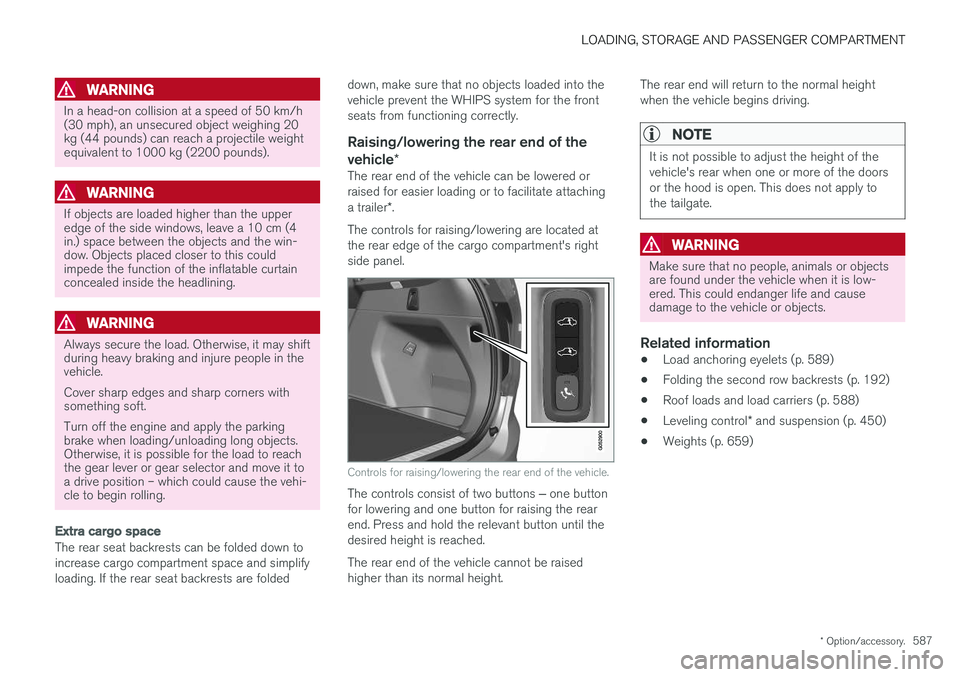
The controls for raising/lowering are located at the rear edge of the cargo compartment's rightside panel.
Controls for raising/lowering the rear end of the vehicle.
The controls consist of two buttons ‒ one button
for lowering and one button for raising the rear end. Press and hold the relevant button until thedesired height is reached. The rear end of the vehicle cannot be raised higher than its normal height. The rear end will return to the normal heightwhen the vehicle begins driving.
NOTE
It is not possible to adjust the height of the vehicle's rear when one or more of the doorsor the hood is open. This does not apply tothe tailgate.
WARNING
Make sure that no people, animals or objects are found under the vehicle when it is low-ered. This could endanger life and causedamage to the vehicle or objects.
Related information
•
Load anchoring eyelets (p. 589)
• Folding the second row backrests (p. 192)
• Roof loads and load carriers (p. 588)
• Leveling control
* and suspension (p. 450)
• Weights (p. 659)
Page 602 of 686
||
MAINTENANCE AND SERVICE
600
Monthly:
•Check cold tire pressure in all tires. Inspect the tires for wear.
• Check that engine coolant and other fluidlevels are between the indicated "min" and"max" markings.
• Clean interior glass surfaces with a glasscleaner and soft paper towels.
• Wipe driver information displays with a softcloth.
• Visually inspect battery terminals for corro-sion. Corrosion may indicate a loose terminalconnector, or a battery near the end of itsuseful service life. Consult your Volvo retailerfor additional information.
As needed:
Wash the car, including the undercarriage, to reduce wear that can be caused by a buildup ofdirt, and corrosion that can be caused by salt res-idues. Clean leaves and twigs from air intake vents at the base of the windshield, and from other placeswhere they may collect.
NOTE
Complete service information for qualified technicians is available online for purchase orsubscription at www.volvotechinfo.com.
Related information
•Vehicle status (p. 602)
• Scheduling service and repairs (p. 603)
• Connecting equipment to the vehicle's data link connector (p. 36)
• Technician certification (p. 37)
• Climate control system service (p. 608)
• Maintenance of the brake system (p. 432)
• Engine compartment overview (p. 609)
Data transfer between vehicle andworkshop over Wi-Fi
Volvo workshops have a designated Wi-Fi net- work for secure data transfer between your vehi-cle and the workshop. Your visit to the workshopwill be easier and more effective when diagnos-tics information and software can be transferredover the workshop's network.
When you arrive at the workshop, your technician can connect your vehicle to the workshop's Wi-Finetwork to perform troubleshooting and down-load software. For this type of communication,the vehicle only connects to the workshop's net-work. The vehicle can only be connected to thedesignated workshop networks, not to any othernetwork, e.g. your home network.
Manual connection to workshop Wi-FiManual connection is usually performed by aservice technician. Because the technician usesthe buttons on your remote key to connect thevehicle, it is important that you bring a key withbuttons when taking the vehicle in to a workshop.Pressing the lock button on the remote key threetimes will connect the vehicle to the workshop'sWi-Fi network. When the car is connected to a Wi-Fi network, the
symbol appears in the center display.
Page 629 of 686
MAINTENANCE AND SERVICE
}}
* Option/accessory.627
Fuse pliers are provided on the inside of the fuse box cover to assist in removing and insertingfuses. There are also spaces for several extra fuses in the
distribution box in the engine compart-
ment .
Positions
•Fuses 1, 3-21, 23-36, 39-53 and 55-59 are "Micro" fuses.
• Fuses 2-22, 37-38 and 54 are "MCase"fuses and should only be replaced by a work- shop 18
.
FunctionAA
– –
– –
– –
Movement sensor * 5
Media player 5
Instrument panel 5
Center console buttons 5
Sun sensor 5
FunctionAA
– –
– –
Steering wheel module 5
Module for start knob and parking brake controls 5
Heated steering wheel
* module 15
– –
– –
– –
– –
Climate system control module 10
– –
Data link connector OBD-II 10
Center display 5
Climate system blower module (front) 40
USB HUB 5
FunctionAA
Instrument lighting; Interior lighting; Rearview mirror auto-dim function
*;
Rain and light sensors *; Rear tun-
nel console keypad, second row of seats *B
; Power front seats *; Rear
door control panels; Climate sys- tem blower module left/right Power rear seats C
; Display for rear
seat convenience functions C
; Rear
seat massage function C7.5
Control module for driver support functions
5
Panoramic roof with sun curtain
*20
Head-up display
* 5
Passenger compartment lighting 5
– –
Ceiling console display (seat belt reminder/front passenger side air-bag indicator) 5
– –
Humidity sensor 5
18
An authorized Volvo workshop is recommended.
Page 635 of 686
MAINTENANCE AND SERVICE
}}
633
Cleaning the interiorOnly use cleaning agents and car care products recommended by Volvo. Clean regularly andtreat stains immediately for best results. It isimportant to vacuum before using a cleaningagent.
CAUTION
• Some colored clothing (for example, dark jeans and suede garments) may stain theupholstery. If this occurs, it is important toclean and treat these parts of the uphols-tery as soon as possible.
• Never use strong solvents such aswasher fluid, gasoline, mineral spirit orconcentrated alcohol to clean the interioras this can damage the upholstery aswell as other interior materials.
• Never spray cleaning agent directly ontocomponents that have electrical buttonsand controls. Wipe instead with a dampcloth with cleaning agent.
• Sharp objects and Velcro can damagethe car's textile upholstery.
Related information
• Cleaning the center display (p. 633)
• Cleaning fabric upholstery and ceiling liner (p. 635)
• Cleaning the seat belt (p. 635) •
Cleaning floor mats and inlay mats (p. 635)
• Cleaning leather upholstery (p. 636)
• Cleaning the leather steering wheel(p. 637)
• Cleaning interior plastic, metal and wood sur-faces (p. 638)
Cleaning the center display
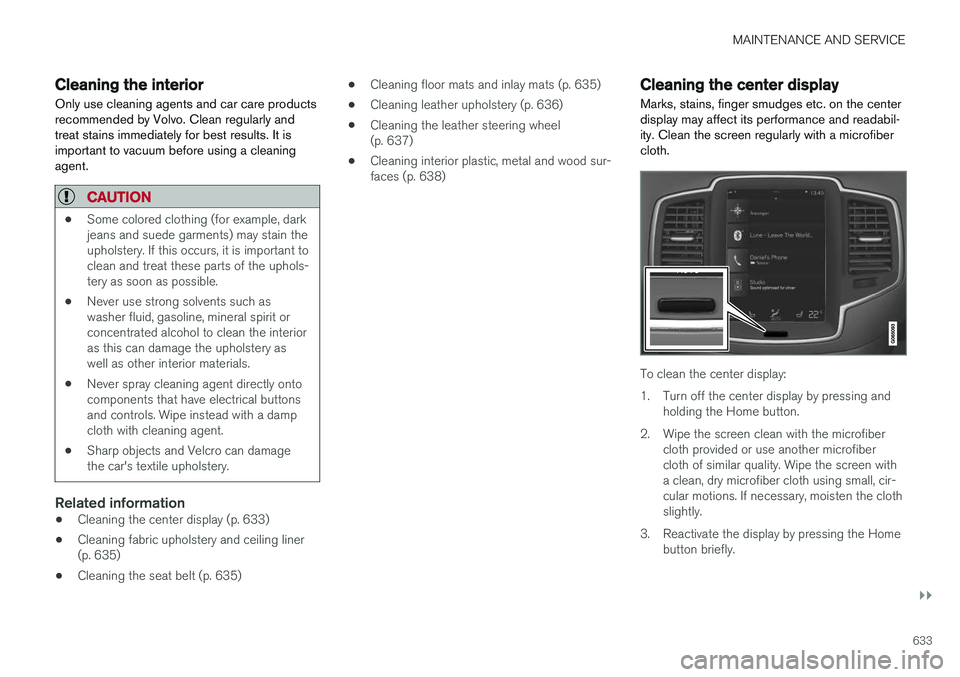
Marks, stains, finger smudges etc. on the center display may affect its performance and readabil-ity. Clean the screen regularly with a microfibercloth.
To clean the center display:
1. Turn off the center display by pressing and holding the Home button.
2. Wipe the screen clean with the microfiber cloth provided or use another microfiber cloth of similar quality. Wipe the screen witha clean, dry microfiber cloth using small, cir-cular motions. If necessary, moisten the clothslightly.
3. Reactivate the display by pressing the Home button briefly.