key VOLVO XC90 TWIN ENGINE 2018 Owners Manual
[x] Cancel search | Manufacturer: VOLVO, Model Year: 2018, Model line: XC90 TWIN ENGINE, Model: VOLVO XC90 TWIN ENGINE 2018Pages: 686, PDF Size: 17 MB
Page 492 of 686

AUDIO, MEDIA AND INTERNET
* Option/accessory.
490 Deleting apps
When the vehicle is connected to the Internet, it
is possible to uninstall apps. If the app is being used, it must be closed before
it can be uninstalled.
1. Open the Download Center app in App
view. 2.
Select Application updates to open a list
of all installed apps.
3. Find the desired app and select Uninstall to
begin uninstalling the app.
>
When the app has been uninstalled, it will
be removed from the list.
Related information
• Apps (p. 487)
• Download apps (p. 488)
• Updating apps (p. 489)
• Handling system updates via Download Cen-
ter (p. 601)
• Internet-connected vehicle* (p. 529) Radio
The radio can receive broadcasting from the FM
waveband with HD Radio™ Technology and
SiriusXM
®
Satellite radio *. When the vehicle has
an Internet connection, it is also possible to lis-
ten to web radio. The radio can be controlled
using voice commands, the
right-side steering wheel key-
pad or the center display.
Related information
•
Starting the radio (p. 491)
• Changing waveband and radio station
(p. 491)
• Storing radio favorites (p. 493)
• Radio settings (p. 493) •
RBDS (p. 494)
• HD Radio™ (p. 494)
• SiriusXM ®
Satellite radio* (p. 498)
• Internet-connected vehicle* (p. 529)
• Voice control for radio and media (p. 148)
• Media player (p. 507)
Page 493 of 686

AUDIO, MEDIA AND INTERNET
}}
491
Starting the radio
The radio is started from the center display's
App view.
1.
Open the desired waveband (e.g. FM) from
App view. 2. Select a radio station.
Related information
•
Radio (p. 490)
• Searching for a radio station (p. 492) •
Changing waveband and radio station
(p. 491)
• Storing radio favorites (p. 493)
• Radio settings (p. 493)
• Voice control for radio and media (p. 148) Changing waveband and radio
station
Instructions for changing wavebands, waveband
lists and radio stations in the selected list are
provided here.
Changing wavebandsSwipe from App view on the center display and
select the desired waveband (e.g. FM) or open
the App menu in the instrument panel with the
right-side steering wheel keypad and make your
selection there.
Changing a list in a waveband 1.
Tap Library.
2. Select playback from Stations, Favorites or
Genres.
3.
Tap the desired station in the list.
Favorites – only plays selected favorite channels.
Page 494 of 686
||AUDIO, MEDIA AND INTERNET
492
Genres - only plays channels broadcasting the
selected genre or program type, e.g. pop, classi-
cal, etc.
Changing radio stations in a selected
list
– Press or under the center display
or on the right-side steering wheel keypad.
>
Move step-by-step through the selected
list.
It is also possible to change radio station in the
selected list via the center display.
Related information
• Radio (p. 490)
• Searching for a radio station (p. 492)
• Voice control for radio and media (p. 148)
• Storing radio favorites (p. 493)
• Radio settings (p. 493)
• App menu in instrument panel (p. 103) Searching for a radio station
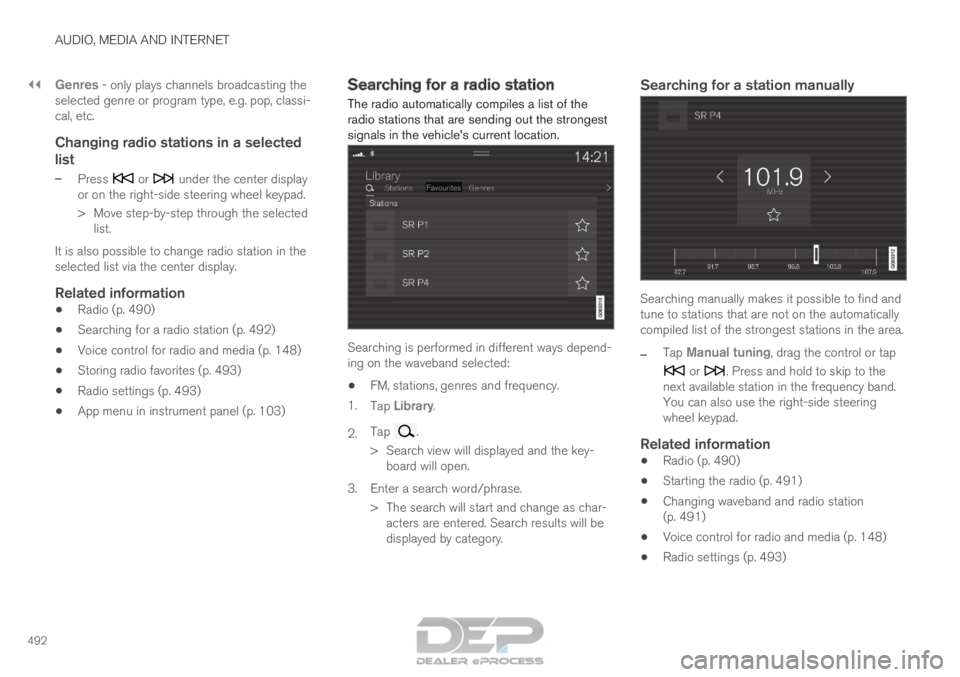
The radio automatically compiles a list of the
radio stations that are sending out the strongest
signals in the vehicle's current location. Searching is performed in different ways depend-
ing on the waveband selected:
• FM, stations, genres and frequency.
1. Tap Library.
2. Tap .
>
Search view will displayed and the key-
board will open.
3. Enter a search word/phrase. > The search will start and change as char-acters are entered. Search results will be
displayed by category.
Searching for a station manually Searching manually makes it possible to find and
tune to stations that are not on the automatically
compiled list of the strongest stations in the area.
–
Tap
Manual tuning, drag the control or tap or . Press and hold to skip to the
next available station in the frequency band.
You can also use the right-side steering
wheel keypad.
Related information
• Radio (p. 490)
• Starting the radio (p. 491)
• Changing waveband and radio station
(p. 491)
• Voice control for radio and media (p. 148)
• Radio settings (p. 493)
Page 495 of 686

AUDIO, MEDIA AND INTERNET
}}
* Option/accessory. 493
Storing radio favorites
It is possible to add a radio a radio station in the Radio favorites app and in the list of favorites
for the waveband (e.g. FM). Instructions for add-
ing and removing favorites are provided below.
Radio favoritesRadio favorites shows saved
favorites from all wavebands. 1.
Open the Radio favorites app from App
view.
2.
Tap the desired station in the list to listen.
Adding and deleting radio favorites
– Tap to add/remove a radio channel from
the waveband's list of favorites or Radio
favorites.
If a favorite station is deleted here, it will also be
deleted from that waveband's list of favorites.
Related information
• Radio (p. 490)
• Starting the radio (p. 491)
• Searching for a radio station (p. 492)
• Changing waveband and radio station
(p. 491) •
Voice control for radio and media (p. 148)
• Radio settings (p. 493)
• App menu in instrument panel (p. 103) Radio settings
There are a number of different radio functions
that can be activated and deactivated.
Canceling a traffic messageA current broadcast (e.g. a traffic message) can
be temporarily interrupted by pressing in the
right-side steering wheel keypad or tapping
Cancel in the center display.
Activating and deactivating radio
functions
Pull down Top view and select Settings Media and the desired waveband to see available
functions.
FM radio
• HD Radio FM: HD Radio
™
Technology:
makes it possible to achieve a sound quality
comparable with a CD.
• Show Broadcast Information: shows
information on program content, artists, etc.
• Freeze Program Name: select to stop the
program service name from scrolling continu-
ously. Instead it freezes after 20 seconds.
SiriusXM ®
Satellite radio*
Pull down Top view and select Settings Media SiriusXM
to show a list of available
options.
Page 497 of 686

AUDIO, MEDIA AND INTERNET
495
The IBOC system is referred to as a "hybrid"
since it is both analog and digital. During hybrid
operation, receivers still continue to receive the
analog (non-digital) signal. HD Radio receivers
incorporate both modes of reception, where the
receiver will automatically switch to the analog
signal if the digital signal cannot be decoded or
is lost by the receiver.
When you have tuned to an HD Radio station, the
symbol will appear in the infotainment sys-
tem display. The symbol will be displayed in dif-
ferent colors:
• Grayed-out symbol: No HD Radio broad-
cast reception
• White symbol: the radio is actively receiving
an HD broadcast
• Orange symbol: the radio is receiving an
HD broadcast with digital sound
More information about HD Radio and IBOC can
be found on DTS, Inc.'s website, www.dts.com.
Artist Experience™A radio station's logo and album art can be dis-
played. If a station opts to provide this informa-
tion, it is broadcast once every 12 minutes, which
means that there may be a delay before the
logo/album art appear on the screen. The radio
can store 100 station logos so the next time the
radio is tuned to the same station, the logo will
be displayed immediately. Album art is synched
with the artist that you are currently listening to.
Ball game modeThis feature means that a main FM station (HD1)
will broadcast live events, where the content of
the programming is more important than sound
quality, in analog mode only to help prevent the
delay between analog and digital broadcasting.
The HD Radio symbol will be white during live
broadcasts and "Live" will be displayed next to
the symbol.
Benefits of digital broadcasting
• Better sound (FM sounds near CD quality).
• Some FM frequencies offer a greater num-
ber of listening choices through "multicast-
ing" (consisting of a frequency's main chan-
nel and any sub-channels that may also be
available on that particular frequency.)
• When receiving a digital signal there is no
multipath disturbance or hisses/pops/crack-
ling due to outside influences.
How HD Radio ™ Technology
broadcasting works
HD Radio works similarly to conventional radio
and broadcasts of this type are available in many
areas of the United States. However, there are a
few key differences:
• Instead of transmitting one analog signal,
stations send out a bundled signal - both
analog and digital.
• An HD Radio receiver can receive both digi-
tal and analog broadcasts. Depending on the terrain and location of the vehicle (which will
influence the signal strength), the receiver
will determine which signal to receive.
Related information
•
Radio (p. 490)
• Activating and deactivating the HD Radio™
(p. 496)
• HD Radio™ sub-channels (p. 496)
• HD Radio™ limitations (p. 497)
• Changing waveband and radio station
(p. 491)
• Searching for a radio station (p. 492)
Page 499 of 686

AUDIO, MEDIA AND INTERNET
497
Selecting sub-channels
To listen to a station's sub-channel(s), tap the
station on the screen or press the forward/back
arrow keys on the right-side steering wheel key-
pad or below the screen.
Sub-channels can also be saved as radio favor-
ites.
If you tap a sub-channel favorite, it may take up
to 6 seconds before the channel becomes audi-
ble. If you tap a station while you are out of digital
range of the transmitter, No reception will be
displayed.
Related information
• HD Radio™ (p. 494)
• Activating and deactivating the HD Radio
™
(p. 496)
• Changing waveband and radio station
(p. 491)
• Searching for a radio station (p. 492)
• HD Radio™ limitations (p. 497) HD Radio
™ limitations
Limitations
•
Main channel vs. sub-channels (FM only):
The main channel is the only channel that
can receive in hybrid mode (both digital and
analog). If a frequency has sub-channels,
they are broadcast in digital mode only. The
main FM channel will be displayed as, for
example, "WRIF-FM HD1". The sub-FM
channels will be displayed as"WRIF-FM
HD2", "WRIF-FM HD3", etc.
• Reception coverage area: Due to current
IBOC transmitter power limitations, the
reception coverage area in digital mode is
somewhat more limited than the station's
analog coverage area. Be aware that, like all
radio transmission technology, terrain, time of
day, vegetation and buildings can have a
positive or negative effect on radio reception.
• Analog to digital/digital to analog blend-
ing: Analog to digital blending will occur as
the signal strength reaches a preset thresh-
old in the receiver. This will be noticeable in
fringe areas (areas with weak reception) and
is normal.
NOTE There may be a noticeable difference in
sound quality when a change from analogue
to digital or digital to analogue occurs, such
as:
• Volume increase or decrease
• Equalizer settings, i.e., Bass/ Midrange/
Treble cut or boost
• Time alignment (Digital program material
in extreme cases can be as much as 8
seconds behind the analogue). This will
noticeable as a "stuttering" effect.
The above items are dependant on the
broadcaster's equipment settings and do
not indicate a fault in the vehicle's radio
receiver or antenna systems.
Related information
• HD Radio™ (p. 494)
• Activating and deactivating the HD Radio™
(p. 496)
• HD Radio
™
sub-channels (p. 496)
Page 501 of 686

AUDIO, MEDIA AND INTERNET
}}
* Option/accessory. 499
Using SiriusXM
®
Satellite radio*
SiriusXM ®
Satellite radio offers several features
for finding and listening to music, news, sporting
events, etc. being broadcast on satellite radio
stations.
SiriusXM ®
Satellite radio functions With SiriusXM
®
Satellite radio activated, tap
Library to display a screen offering the following
functions:
• Search (the magnifying glass icon)
• Channels
• Favorites
• Categories
If you have used this view previously, you will be
returned to the most recently used one.
Search
Tap the magnifying glass to display a screen
where you can enter text using the center dis-
play's keyboard or by writing in the free-text field
to search for e.g., a station number, an artist,
song title, etc.
Channels
Tap to display a complete list of the channels
included in your subscription. Tap a channel
name to listen. If a subscription to a channel has
expired, its name will be grayed-out on the
screen.
For quick access to a channel that you often lis-
ten to, tap the star to the right of the channel's
name. It will then be added to your list of favor-
ites.
Favorites
Tap to display the channels that you have added
to this list. Tap a channel name to listen.
Categories/Genres
Tap to display the categories available. Tap a cat-
egory or genre name to display the channels that
it contains and then tap a channel to listen.
If an alert has been set (see the section "Alerts"
below) and an alert is active for an artist, song or
team, virtual categories will also be temporary
created and displayed. The channels currently
broadcasting the song, artist or broadcasting a
program with the selected team will be listed in a
virtual category.
EPG (Electronic Program Guide)On the center display's Home view, tap EPG for
information about e.g., when a program is being
broadcast and its name, description, artist, etc. If
no information is currently available,
No
information will be displayed.
AlertsIf this feature has been selected under SiriusXM
Settings, the Alerts button will be displayed on
the Home view.
To add e.g., an artist's name, song title or a sports
team to the list of alerts:
1.
Tune to any channel that is broadcasting a
song, game, etc., of your choice.
2. Tap the Alerts button.
3.
A pop-up window will be displayed showing a
list of alerts (nothing will be displayed if the
selected channel does not support the alert
function).
4. Select one of the alternatives in list (only one can be selected at a time).
5. The song/artist/team will now be added to the list of alerts. Favorite sports teams can
also be added to the list using "Game Alert"
in the SiriusXM satellite radio settings.
> When your choice is being broadcast on achannel, you will be informed by a pop-up.
Page 505 of 686

AUDIO, MEDIA AND INTERNET
}}
* Option/accessory. 503
•
SiriusXM Travel Link ®
* - Sports (p. 506)
• SiriusXM Travel Link ®
* - Weather (p. 503)
• SiriusXM Travel Link ®
* - Notifications
(p. 504) SiriusXM Travel Link
®
* - Weather
This SiriusXM Travel Link service provides
weather-related information near the vehicle, at a
local ski resort, etc.
From the SiriusXM Travel Link home screen, to
display weather-related information:
– Tap the
Weather button to display this
screen.
At the top of the screen, the following categories
will be displayed:
• Search (the magnifying glass icon)
• Local
• Ski condition
• Areas
• Favorites
Tap the category of your choice.
SearchTap the magnifying glass icon. If the function is
supported in the current context, a keyboard will
appear on the screen. Enter the text of your
choice and tap Search for detailed information
from the SiriusXM Travel Link database.
Local 4Information from the closest weather station will
be displayed and the following alternatives are
available: •
Map view
• Today
• 5 days
Map view
Tap the map to display it in full-screen mode. Tap
Back to return to the original map view.
Tap Map options to display the following alter- natives.
• Weather radar
• Storm attributes
• Surface features
• Tropical storm tracks
• Winds
Tap the relevant box to the right of the option to
select/deselect it. Tap Done to confirm and
return to the previous screen or Cancel.
Today
Tap to see the current temperature, or the tem-
perature in 3/6 hours.
Tap
Back to return to the Local screen or Close
to return to the SiriusXM Travel Link home
screen.
4 This is the weather default unless another alternative has been selected\
.
Page 507 of 686

AUDIO, MEDIA AND INTERNET
}}
* Option/accessory. 505
Information about a notification
If any notifications have been displayed on the
screen, tap one for more detailed information (i.e.,
the location of the weather problem on a map
and a description of the situation).
If a phone number is available in a notification, a
Call button will be displayed. Tap this button for additional information.
Related information
• SiriusXM Travel Link ®
* (p. 502)
• SiriusXM Travel Link ®
* - Fuel (p. 505)
• SiriusXM Travel Link ®
* - Sports (p. 506)
• SiriusXM Travel Link ®
* - Weather (p. 503) SiriusXM Travel Link
®
* - Fuel 5
This SiriusXM Travel Link service provides infor-
mation and guidance to service stations near the
vehicle providing the type of fuel that you prefer/
require for your vehicle.
From the SiriusXM Travel Link home screen, to
show fuel information:
– Tap the
Fuel button to display the main fuel
screen.
The following categories are shown:
• Search (the magnifying glass icon)
• Nearby
• Recommended
• Favorites
• Brands
Tap one of the alternatives to display its screen.
NOTE In each of the categories listed, tapping the
Select fuel type button near the bottom of
the screen opens a sub-view where you can
specify the type of fuel preferred/required
(Regular, Midrange, Premium, Diesel,
Electric 120V, etc.) Tap Done to return to
the previous screen.
SearchTap the magnifying glass icon. If the function is
supported in the current context, a keyboard will
appear on the screen. Enter the text of your
choice and tap Search for detailed information if
available.
NearbyTap for a list of service stations in the vicinity of
the vehicle, with the nearest station at the top of
the list.
The following information will be provided where
available:
• For vehicles using gasoline, the price infor-
mation for regular gasoline (unless another
grade/type of fuel has been selected in
Select fuel type)
• For electric vehicles/hybrids, information
about charging stations, showing the total
number of charging ports and the number of
ports currently not in use
• the distance to the station
• a star icon to set the service station as a
favorite
Tap the name of a service station to display more
detailed information.
For guidance to the service station, tap the Start
navigation or Add as waypoint buttons. See 5
This service is not available in Canada.
Page 509 of 686
AUDIO, MEDIA AND INTERNET
* Option/accessory.507
4. Tap one of the divisions to display:
•In progress: play-by-play information
about a match/game/tournament cur-
rently in progress. Continue tapping to
display. In the detailed view, you can also
select a radio station that is currently
broadcasting an ongoing sporting event
• Headlines for MLB: Tap to display brief
headline information
• Scheduled: schedules for coming
matches, games, etc.
• Scores: match/game results
The same principle applies to all sports.
Related information
• SiriusXM Travel Link ®
* (p. 502)
• SiriusXM Travel Link ®
* - Notifications
(p. 504)
• SiriusXM Travel Link ®
* - Fuel (p. 505)
• SiriusXM Travel Link ®
* - Weather (p. 503) Media player
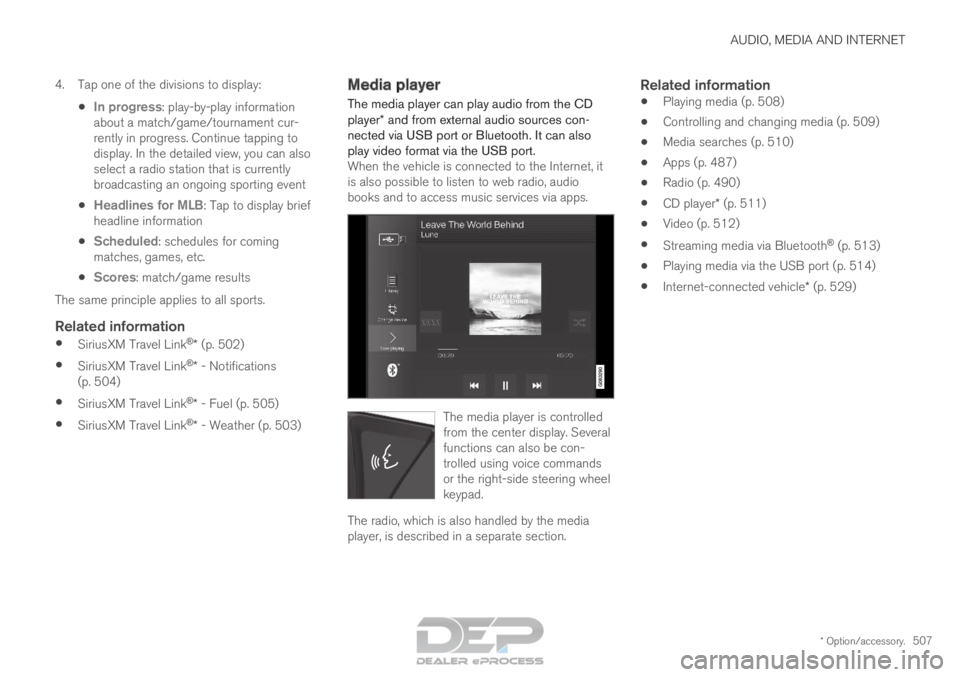
The media player can play audio from the CD
player* and from external audio sources con-
nected via USB port or Bluetooth. It can also
play video format via the USB port. When the vehicle is connected to the Internet, it
is also possible to listen to web radio, audio
books and to access music services via apps. The media player is controlled
from the center display. Several
functions can also be con-
trolled using voice commands
or the right-side steering wheel
keypad.
The radio, which is also handled by the media
player, is described in a separate section.
Related information
•
Playing media (p. 508)
• Controlling and changing media (p. 509)
• Media searches (p. 510)
• Apps (p. 487)
• Radio (p. 490)
• CD player* (p. 511)
• Video (p. 512)
• Streaming media via Bluetooth ®
(p. 513)
• Playing media via the USB port (p. 514)
• Internet-connected vehicle* (p. 529)