bluetooth VOLVO XC90 TWIN ENGINE 2018 User Guide
[x] Cancel search | Manufacturer: VOLVO, Model Year: 2018, Model line: XC90 TWIN ENGINE, Model: VOLVO XC90 TWIN ENGINE 2018Pages: 686, PDF Size: 17 MB
Page 509 of 686
AUDIO, MEDIA AND INTERNET
* Option/accessory.507
4. Tap one of the divisions to display:
•In progress: play-by-play information
about a match/game/tournament cur-
rently in progress. Continue tapping to
display. In the detailed view, you can also
select a radio station that is currently
broadcasting an ongoing sporting event
• Headlines for MLB: Tap to display brief
headline information
• Scheduled: schedules for coming
matches, games, etc.
• Scores: match/game results
The same principle applies to all sports.
Related information
• SiriusXM Travel Link ®
* (p. 502)
• SiriusXM Travel Link ®
* - Notifications
(p. 504)
• SiriusXM Travel Link ®
* - Fuel (p. 505)
• SiriusXM Travel Link ®
* - Weather (p. 503) Media player
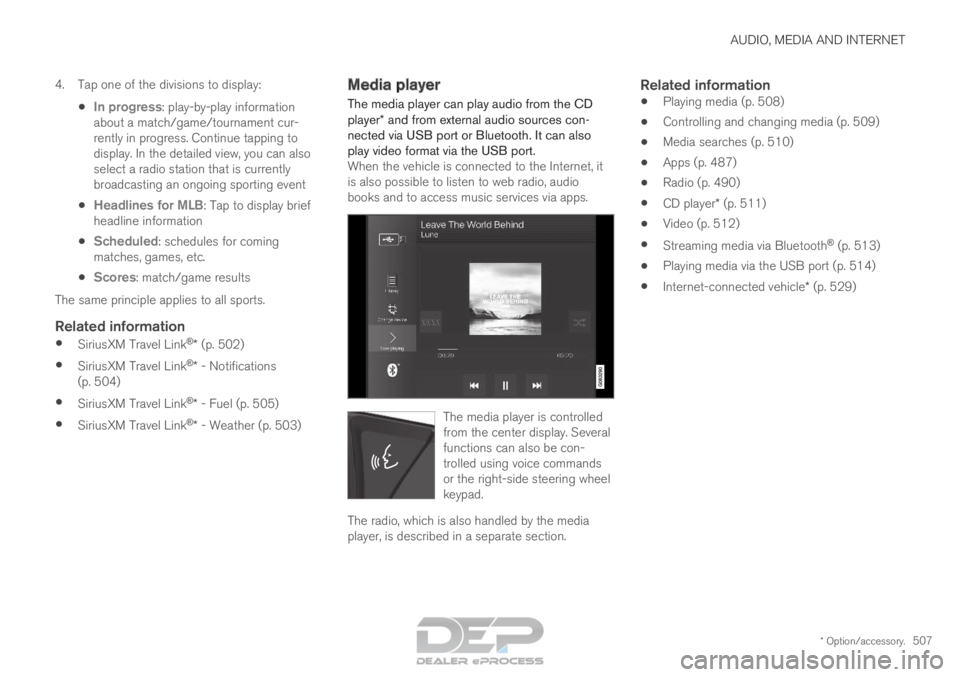
The media player can play audio from the CD
player* and from external audio sources con-
nected via USB port or Bluetooth. It can also
play video format via the USB port. When the vehicle is connected to the Internet, it
is also possible to listen to web radio, audio
books and to access music services via apps. The media player is controlled
from the center display. Several
functions can also be con-
trolled using voice commands
or the right-side steering wheel
keypad.
The radio, which is also handled by the media
player, is described in a separate section.
Related information
•
Playing media (p. 508)
• Controlling and changing media (p. 509)
• Media searches (p. 510)
• Apps (p. 487)
• Radio (p. 490)
• CD player* (p. 511)
• Video (p. 512)
• Streaming media via Bluetooth ®
(p. 513)
• Playing media via the USB port (p. 514)
• Internet-connected vehicle* (p. 529)
Page 510 of 686
AUDIO, MEDIA AND INTERNET
* Option/accessory.
508 Playing media
The media player is controlled from the center
display. Several other functions can also be con-
trolled using the right-side steering wheel key-
pad or by using voice commands.
The radio can also be controlled in the media
player. See the section describing the radio.
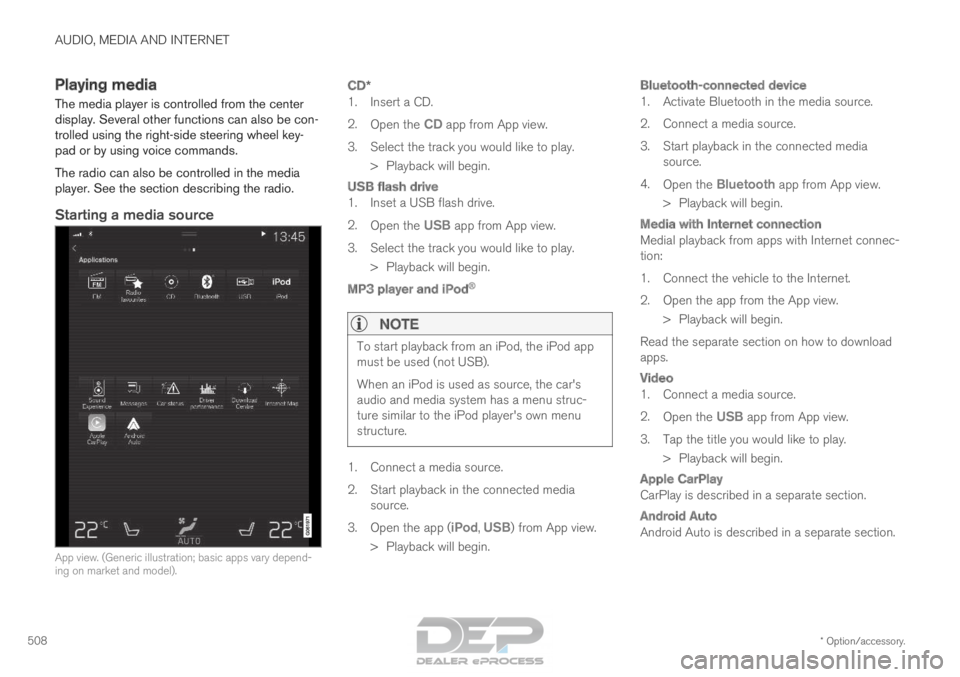
Starting a media source
App view. (Generic illustration; basic apps vary depend-
ing on market and model).
CD*
1. Insert a CD.
2.
Open the CD app from App view.
3.
Select the track you would like to play.
> Playback will begin.
USB flash drive
1. Inset a USB flash drive.
2. Open the USB app from App view.
3.
Select the track you would like to play.
> Playback will begin.
MP3 player and iPod ®
NOTE To start playback from an iPod, the iPod app
must be used (not USB).
When an iPod is used as source, the car's
audio and media system has a menu struc-
ture similar to the iPod player's own menu
structure.
1. Connect a media source.
2.
Start playback in the connected media
source.
3. Open the app ( iPod, USB) from App view.
>
Playback will begin.
Bluetooth-connected device
1. Activate Bluetooth in the media source.
2. Connect a media source.
3. Start playback in the connected media source.
4. Open the Bluetooth app from App view.
>
Playback will begin.
Media with Internet connection
Medial playback from apps with Internet connec-
tion:
1. Connect the vehicle to the Internet.
2. Open the app from the App view. > Playback will begin.
Read the separate section on how to download
apps.
Video
1. Connect a media source.
2. Open the USB app from App view.
3.
Tap the title you would like to play.
> Playback will begin.
Apple CarPlay
CarPlay is described in a separate section.
Android Auto
Android Auto is described in a separate section.
Page 511 of 686
AUDIO, MEDIA AND INTERNET
}}
* Option/accessory. 509
Related information
•Handling the App menu in the instrument
panel (p. 104)
• Radio (p. 490)
• Controlling and changing media (p. 509)
• Connecting a device via the USB port
(p. 514)
• Connecting a device via Bluetooth ®
(p. 513)
• Download apps (p. 488)
• Internet-connected vehicle* (p. 529)
• Video (p. 512)
• Apple ®
CarPlay ®
* (p. 515)
• Android Auto* (p. 518)
• Voice control for radio and media (p. 148)
• Compatible file formats for media (p. 536) Controlling and changing media
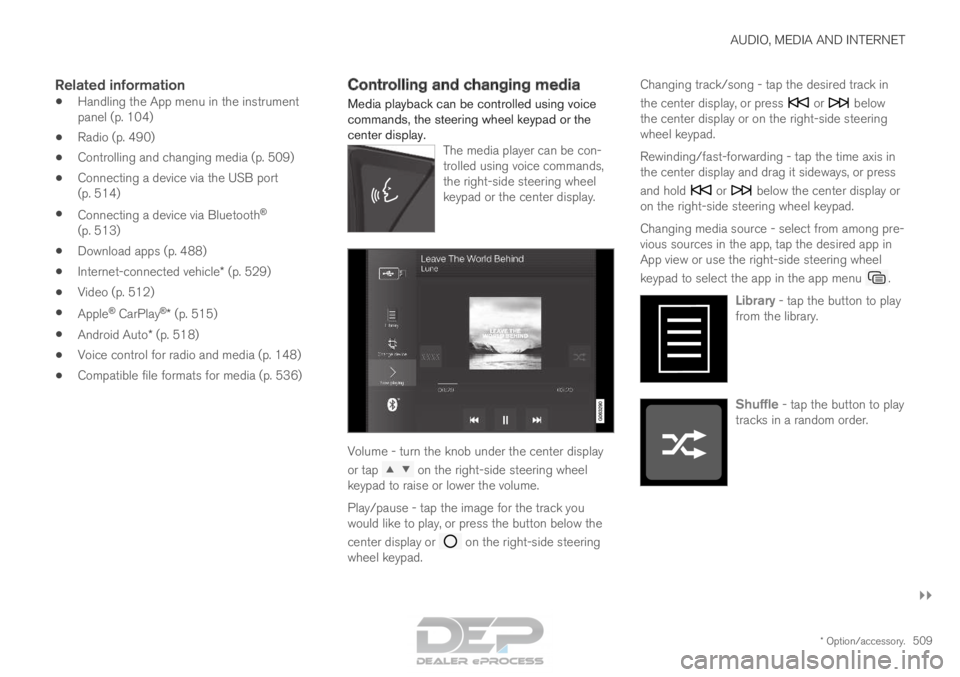
Media playback can be controlled using voice
commands, the steering wheel keypad or the
center display. The media player can be con-
trolled using voice commands,
the right-side steering wheel
keypad or the center display. Volume - turn the knob under the center display
or tap
on the right-side steering wheel
keypad to raise or lower the volume.
Play/pause - tap the image for the track you
would like to play, or press the button below the
center display or on the right-side steering
wheel keypad. Changing track/song - tap the desired track in
the center display, or press or below
the center display or on the right-side steering
wheel keypad.
Rewinding/fast-forwarding - tap the time axis in
the center display and drag it sideways, or press
and hold or below the center display or
on the right-side steering wheel keypad.
Changing media source - select from among pre-
vious sources in the app, tap the desired app in
App view or use the right-side steering wheel
keypad to select the app in the app menu .
Library - tap the button to play
from the library. Shuffle - tap the button to play
tracks in a random order.
Page 515 of 686
AUDIO, MEDIA AND INTERNET
513
Video settings
Some video playback settings can be adjusted,
e.g. language.
The following can be adjusted by opening Top
view and tapping Settings Video
or with the
video player in full-screen mode: Audio
Language, Off and Subtitle Language.
Related information
• Video (p. 512) Streaming media via Bluetooth
®
The vehicle's media player is equipped with
Bluetooth and can play audio files from
Bluetooth-enabled external devices such as cel-
lular phones and tablets. In order for the media player to be able to wire-
lessly play audio files from an external device, the
device must be connected to the vehicle via
Bluetooth.Related information
• Connecting a device via Bluetooth ®
(p. 513)
• Connecting a phone to the car via Bluetooth
for the first time (p. 521)
• Playing media (p. 508)
• Compatible file formats for media (p. 536) Connecting a device via Bluetooth
®
Connect a Bluetooth ®
device to the vehicle to
wirelessly play media and give the vehicle an
Internet connection if it is available.
Many cellular phones on the market currently
offer wireless Bluetooth ®
technology, but not all
phones are fully compatible with the vehicle. For
additional information on compatibility, see
support.volvocars.com.
The procedure for connecting a media device is
the same as for connecting a cellular phone to
the vehicle via Bluetooth ®
.
Related information
• Streaming media via Bluetooth ®
(p. 513)
• Connecting a phone to the car via Bluetooth
for the first time (p. 521)
• Playing media (p. 508)
Page 520 of 686
AUDIO, MEDIA AND INTERNET
* Option/accessory.
518 Android Auto*
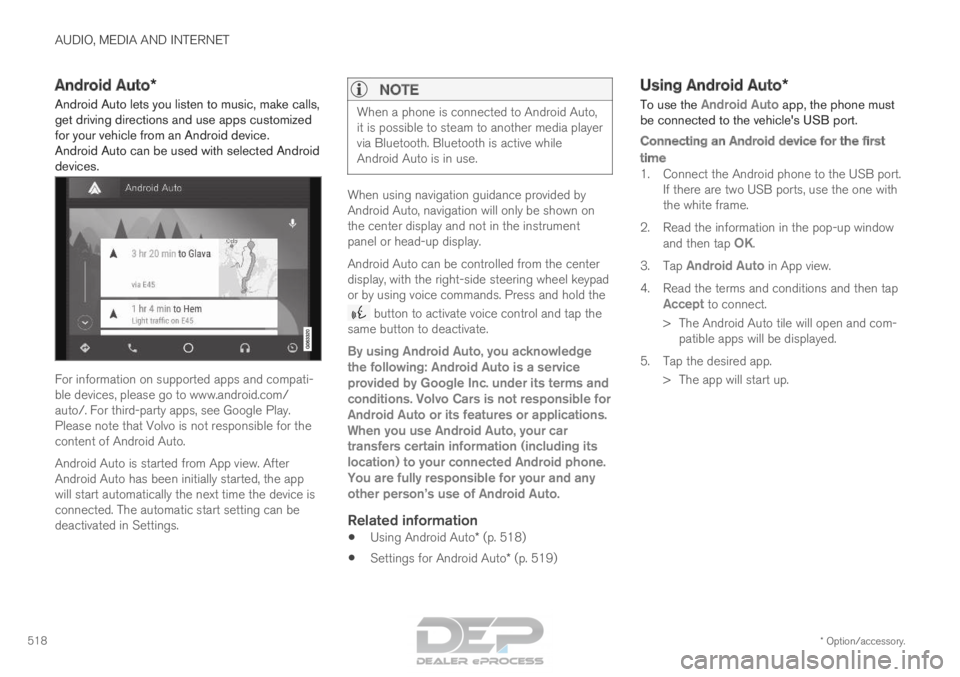
Android Auto lets you listen to music, make calls,
get driving directions and use apps customized
for your vehicle from an Android device.
Android Auto can be used with selected Android
devices. For information on supported apps and compati-
ble devices, please go to www.android.com/
auto/. For third-party apps, see Google Play.
Please note that Volvo is not responsible for the
content of Android Auto.
Android Auto is started from App view. After
Android Auto has been initially started, the app
will start automatically the next time the device is
connected. The automatic start setting can be
deactivated in Settings.
NOTE When a phone is connected to Android Auto,
it is possible to steam to another media player
via Bluetooth. Bluetooth is active while
Android Auto is in use.
When using navigation guidance provided by
Android Auto, navigation will only be shown on
the center display and not in the instrument
panel or head-up display.
Android Auto can be controlled from the center
display, with the right-side steering wheel keypad
or by using voice commands. Press and hold the
button to activate voice control and tap the
same button to deactivate.
By using Android Auto, you acknowledge
the following: Android Auto is a service
provided by Google Inc. under its terms and
conditions. Volvo Cars is not responsible for
Android Auto or its features or applications.
When you use Android Auto, your car
transfers certain information (including its
location) to your connected Android phone.
You are fully responsible for your and any
other person
Page 522 of 686
AUDIO, MEDIA AND INTERNET
* Option/accessory.
520 Tips for using Android Auto*
Here are some useful tips for when you use
Android Auto. • Ensure that your apps are updated.
• When starting the car, wait until the center
display has started, connect the phone and
then open Android Auto from the app view.
• In the event of problems with Android Auto,
disconnect your Android phone from the
USB port and then reconnect via USB. Oth-
erwise, try closing the app on the phone and
then restarting the app.
• When a phone is connected to Android Auto
it is still possible to playback media via
Bluetooth to another media player. The
Bluetooth function is on when Android Auto
is used.
Related information
•
Android Auto* (p. 518) Phone
A phone equipped with Bluetooth can be wire-
lessly connected to the vehicle's integrated
hands-free system.
The audio and media system offers hands-free
functionality for remotely controlling a number of
the phone's features. The phone's integrated
controls can also be used, even when it is con-
nected to the vehicle.
When the phone has been paired and connected
to the vehicle, it can be used as an Internet con-
nection or to make or receive calls, send or
receive text messages or wirelessly play music. The phone is controlled from
the center display but the App
menu (accessed using the
right-side steering wheel key-
pad) and voice commands can
also be used to control certain
functions.
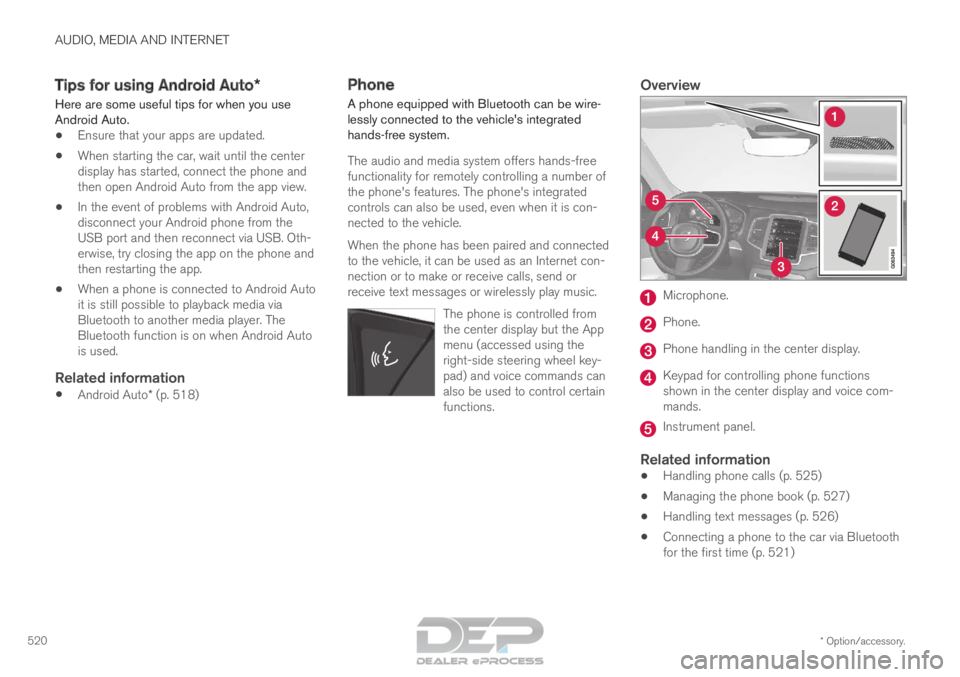
Overview Microphone.
Phone.
Phone handling in the center display.
Keypad for controlling phone functions
shown in the center display and voice com-
mands.
Instrument panel.
Related information
•
Handling phone calls (p. 525)
• Managing the phone book (p. 527)
• Handling text messages (p. 526)
• Connecting a phone to the car via Bluetooth
for the first time (p. 521)
Page 523 of 686
AUDIO, MEDIA AND INTERNET
}}
521
•
Connecting a phone to the car via Bluetooth
automatically (p. 523)
• Connecting a phone to the car via Bluetooth
manually (p. 523)
• Disconnecting a Bluetooth-connected phone
(p. 524)
• Switch between phones connected via Blue-
tooth (p. 524)
• Removing a Bluetooth-connected phone
(p. 525)
• Phone settings (p. 528)
• Voice control (p. 145)
• Handling the App menu in the instrument
panel (p. 104)
• Sound settings (p. 486)
• Connecting the car to the Internet via a
mobile device (Bluetooth) (p. 531) Connecting a phone to the car via
Bluetooth for the first time
Pair a Bluetooth-enabled phone to the vehicle to
make calls, send/receive text messages and
wirelessly play media from the vehicle, or con-
nect the vehicle to the Internet. Two Bluetooth devices can be connected at the
same time, but in that case, only one will be used
for wireless playback. The most recently paired
phone will be automatically connected to make
calls, send/receive text messages, play media or
use as an Internet connection. To change what
the phone is used for when it is paired, go to
Bluetooth Devices settings.
After the device has been connected/registered
for the first time via Bluetooth, the device no
longer needs to be visible/searchable. It just
needs to have Bluetooth activated. To connect
the vehicle to the Internet using a phone, the
phone's Wi-Fi sharing function (personal hot-
spot/tethering) must be activated. A maximum of
20 paired Bluetooth devices can be stored in the
vehicle.
There are two ways to pair a phone to the vehicle.
Searching for the phone from the vehicle or
searching for the vehicle from the phone.
Option 1 - searching for the phone from
the vehicle
1. Make the phone discoverable/visible using its Bluetooth function. 2. To connect the vehicle to the Internet via the
phone's Bluetooth function, activate Internet
sharing (tethering/personal hotspot) via
Bluetooth in the phone.
3. Open the phone tile.
•If no phone has been paired to the vehi-
cle, tap
Add phone.
• If a phone has been paired to the vehicle,
tap
Change . Tap
Add phone in the
pop-up window.
>
A list of available Bluetooth devices will be
displayed. The list will be updated as new
devices are discovered.
4. Tap the name of the phone you would like to connect.
5. Make sure that the code displayed in the vehicle matches the one in the phone. Con-
firm the code in both cases.
6. In the phone, accept or cancel the options for selecting the phone's contacts and text
messages.
NOTE •
The message function must be activated
in certain phones.
• Not all cell phones are fully compatible
and may not be able to display contacts
and messages in the vehicle.
Page 524 of 686
||AUDIO, MEDIA AND INTERNET
522
Option 2 - searching for the vehicle
from the phone
1. Open the phone tile.
•If no phone has been paired to the vehi-
cle, tap
Add phone Make vehicle
discoverable .
• If a phone has been paired to the vehicle,
tap
Change . Tap
Add phone
Make vehicle discoverable in the pop-
up window.
2. Activate Bluetooth in the phone.
3. To connect the vehicle to the Internet via the phone's Bluetooth function, activate Internet
sharing (tethering/personal hotspot) via
Bluetooth in the phone.
4. Search in the phone for Bluetooth devices. > A list of available Bluetooth devices will bedisplayed.
5. Select the vehicle's name from the list of devices in the phone.
6. A pop-up window for the connection is shown in the car. Confirm the connection.
7. Make sure that the code displayed in the vehicle matches the one in the external
device. Confirm the code in both cases.
8. In the phone, accept or cancel the options for selecting the phone's contacts and text
messages.
NOTE •
The message function must be activated
in certain phones.
• Not all cell phones are fully compatible
and may not be able to display contacts
and messages in the vehicle.
NOTE If the phone's operating system is being
updated, it is possible that the connection will
be interrupted. Delete the phone from the car
and reconnect.
Compatible phonesMany cellular phones on the market currently
offer wireless Bluetooth technology, but not all
phones are fully compatible with the vehicle. For
additional information on compatibility, see
support.volvocars.com.
Related information
•
Phone (p. 520)
• Connecting a phone to the car via Bluetooth
automatically (p. 523)
• Connecting a phone to the car via Bluetooth
manually (p. 523)
• Disconnecting a Bluetooth-connected phone
(p. 524) •
Switch between phones connected via Blue-
tooth (p. 524)
• Removing a Bluetooth-connected phone
(p. 525)
• Settings for Bluetooth devices (p. 529)
• Connecting the car to the Internet via a
mobile device (Bluetooth) (p. 531)
Page 525 of 686
AUDIO, MEDIA AND INTERNET
}}
523
Connecting a phone to the car via
Bluetooth automatically
A phone can be automatically connected to the
vehicle via Bluetooth. The phone must have first
been paired with the vehicle. Only the two most recently connected phones
can be connected automatically.
1.
Activate Bluetooth in the phone before turn-
ing the vehicle's ignition to mode I.
To simultaneously connect the vehicle to the
Internet, the phone's personal hotspot must
also be activated.
2. Turn the ignition to I or higher.
> The phone will be connected.
Related information
• Phone (p. 520)
• Connecting a phone to the car via Bluetooth
for the first time (p. 521)
• Connecting a phone to the car via Bluetooth
manually (p. 523)
• Disconnecting a Bluetooth-connected phone
(p. 524)
• Switch between phones connected via Blue-
tooth (p. 524)
• Removing a Bluetooth-connected phone
(p. 525)
• Settings for Bluetooth devices (p. 529) •
Connecting the car to the Internet via a
mobile device (Bluetooth) (p. 531)
• Ignition modes (p. 427) Connecting a phone to the car via
Bluetooth manually
A phone can be manually connected to the vehi-
cle via Bluetooth. The phone must have first
been paired with the vehicle.
1. Activate Bluetooth in the phone.
To simultaneously connect the vehicle to the
Internet, the phone's personal hotspot must
also be activated.
2.
Open the phone tile.
> A list of available phones will be displayed.
3. Tap the name of the phone you would like to connect.
> The phone will be connected.
Related information
• Phone (p. 520)
• Connecting a phone to the car via Bluetooth
for the first time (p. 521)
• Connecting a phone to the car via Bluetooth
automatically (p. 523)
• Disconnecting a Bluetooth-connected phone
(p. 524)
• Switch between phones connected via Blue-
tooth (p. 524)
• Removing a Bluetooth-connected phone
(p. 525)
Page 526 of 686
AUDIO, MEDIA AND INTERNET
524•
Settings for Bluetooth devices (p. 529)
• Connecting the car to the Internet via a
mobile device (Bluetooth) (p. 531) Disconnecting a Bluetooth-
connected phone
Disconnect a Bluetooth-connected phone from
the vehicle by deactivating Bluetooth in the
phone.
When the phone is out of range of the vehicle, it
will be automatically disconnected. If a call is in
progress when the phone is disconnected from
the vehicle, the call will be transferred from the
vehicle's speakers and microphone to the cellular
phone.
Related information
•
Phone (p. 520)
• Phone settings (p. 528)
• Switch between phones connected via Blue-
tooth (p. 524)
• Removing a Bluetooth-connected phone
(p. 525)
• Settings for Bluetooth devices (p. 529) Switch between phones connected
via Bluetooth
It is possible to switch between Bluetooth-con-
nected phones.
1. Open the phone tile.
2. Tap
Change or pull down Top view and
tap Settings Communication
Bluetooth Devices Add device
.
> A list of available Bluetooth devices will be displayed.
3. Tap the name of the phone you would like to connect.
Related information
• Phone (p. 520)
• Connecting a phone to the car via Bluetooth
for the first time (p. 521)
• Settings for Bluetooth devices (p. 529)
• Disconnecting a Bluetooth-connected phone
(p. 524)
• Removing a Bluetooth-connected phone
(p. 525)