fuel type VOLVO XC90 TWIN ENGINE 2018 Owners Manual
[x] Cancel search | Manufacturer: VOLVO, Model Year: 2018, Model line: XC90 TWIN ENGINE, Model: VOLVO XC90 TWIN ENGINE 2018Pages: 686, PDF Size: 17 MB
Page 12 of 686
10
STARTING AND DRIVING
Starting the vehicle424
Switching off the vehicle426
Ignition modes427
Selecting ignition mode428
Brake functions429
Brakes429
Brake Assist System431
Braking on wet roads431
Braking on salted roads431
Maintenance of the brake system432
Parking brake432
Activating and deactivating the park-ing brake433
Settings for automatically activatingthe parking brake434
Parking on a hill434
Parking brake malfunction435
Auto-hold brakes436
Activating and deactivating Auto-hold at a standstill436
Hill Start Assist437
Braking assist after a collision437
Transmission438
Gear selector positions for automatictransmissions439
Using the steering wheel paddles* toshift441
Shiftlock442
The kickdown function442
Gear indicator*442
All Wheel Drive (AWD)443
Drive systems443
Starting and stopping the combus-tion engine in Twin Engine vehicles444
Drive modes445
Changing drive mode449
Leveling control* and suspension450
Leveling control settings*453
Low Speed Control453
Activating and deactivating LowSpeed Control using the function button454
Hill Descent Control454
Activating and deactivating HillDescent Control using the functionbutton
455
Economical driving456
Using the electric motor only457
Factors affecting electric motor range458
"Hold" and "Charge" functions459
Preparing for a long trip460
Winter driving461
Driving through standing water462
Opening/closing the fuel filler door462
Refueling463
Fuel464
Octane rating465
Emission controls467
Overheating of engine and transmission468
Battery drain469
Jump starting using another battery469
Detachable towbar*471
Driving with a trailer472
Trailer Stability Assist*474
Checking trailer lights475
Towing using a towline476
Attaching and removing the towing eyelet476
Recovery477
HomeLink®*478
Programming HomeLink®*479
Using HomeLink480
Type approval for HomeLink®*481
Compass481
Activating and deactivating the compass482
Calibrating the compass482
Page 16 of 686
14
Touching up minor paint damage645
Color codes646
Changing rear window wipers647
Replacing windshield wiper blades648
Windshield wipers in the service position649
Filling washer fluid650
SPECIFICATIONS
Type designations654
Dimensions657
Weights659
Towing capacity and tongue weight660
Engine specifications661
Engine oil specifications662
Coolant specifications663
Transmission fluid specifications663
Brake fluid specifications663
Fuel tank volume664
Air conditioning specifications664
Approved tire pressure665
INDEX
Index667
Page 53 of 686
SAFETY
}}
51
When a critical situation has passed, the seat beltand the electric seat belt tensioner are resetautomatically. However, they can also be resetmanually.
WARNING
Never attempt to alter or repair the seat belton your own. Volvo recommends contactingan authorized Volvo workshop.
If the seat belt has been exposed to extremeforces, e.g. in conjunction with a collision, theentire seat belt must be replaced. Even if theseat belt appears undamaged, some of itsprotective properties may have been lost. Alsoreplace the seat belt if it is worn or damaged.The new seat belt must be type approved andintended for the same seating position as thereplaced seat belt.
Related information
•Seat belts (p. 47)
•Buckling and unbuckling seat belts (p. 48)
•Resetting the electric seat belt tensioners(p. 51)
•City Safety™ (p. 335)
•Rear Collision Warning (p. 347)
Resetting the electric seat belttensioners
The electric seat belt tensioners are designed tobe reset automatically, but if the seat beltremains taut it can be reset manually.1. Stop the vehicle in a safe location.
2.Unbuckle the seat belt and then rebuckle it.
> The seat belt and the electric seat belttensioner will be reset.
WARNING
Never attempt to alter or repair the seat belton your own. Volvo recommends contactingan authorized Volvo workshop.
If the seat belt has been exposed to extremeforces, e.g. in conjunction with a collision, theentire seat belt must be replaced. Even if theseat belt appears undamaged, some of itsprotective properties may have been lost. Alsoreplace the seat belt if it is worn or damaged.The new seat belt must be type approved andintended for the same seating position as thereplaced seat belt.
Related information
•Seat belt tensioners (p. 50)
•Seat belts (p. 47)
Door and seat belt reminders
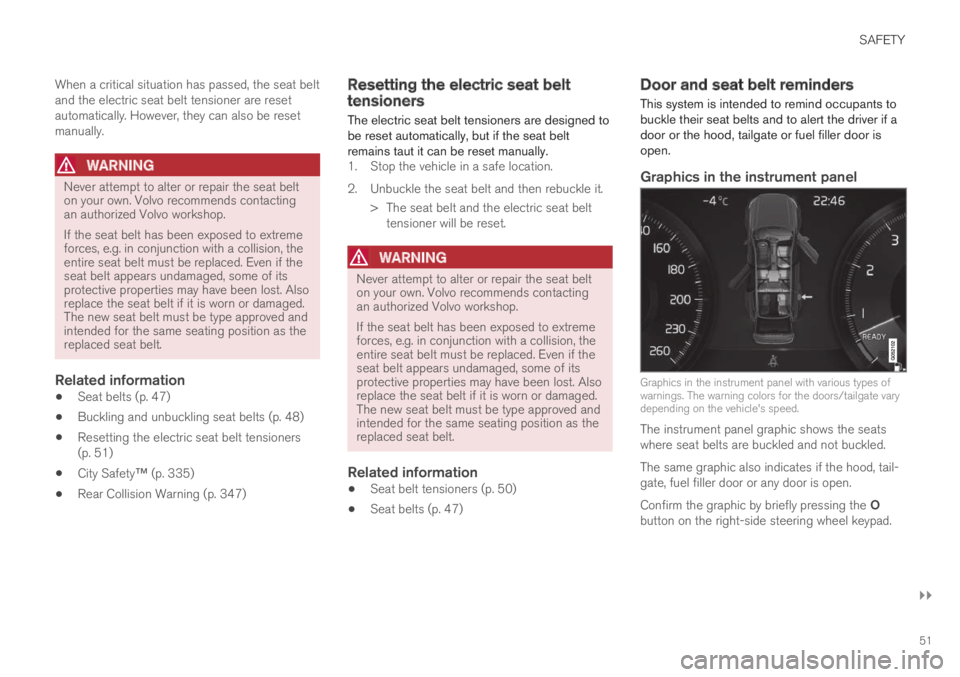
This system is intended to remind occupants tobuckle their seat belts and to alert the driver if adoor or the hood, tailgate or fuel filler door isopen.
Graphics in the instrument panel
Graphics in the instrument panel with various types ofwarnings. The warning colors for the doors/tailgate varydepending on the vehicle's speed.
The instrument panel graphic shows the seatswhere seat belts are buckled and not buckled.
The same graphic also indicates if the hood, tail-gate, fuel filler door or any door is open.
Confirm the graphic by briefly pressing the Obutton on the right-side steering wheel keypad.
Page 87 of 686
DISPLAYS AND VOICE CONTROL
85Left side
In the centerRight side
– Media player
Distance to discharged battery
– Navigation system mapCurrent fuel consumption
– PhoneApp menu (activated using steering wheel keypad)
– Voice Control–
– CompassA
–A
Depends on selected drive mode.
B Total distance.
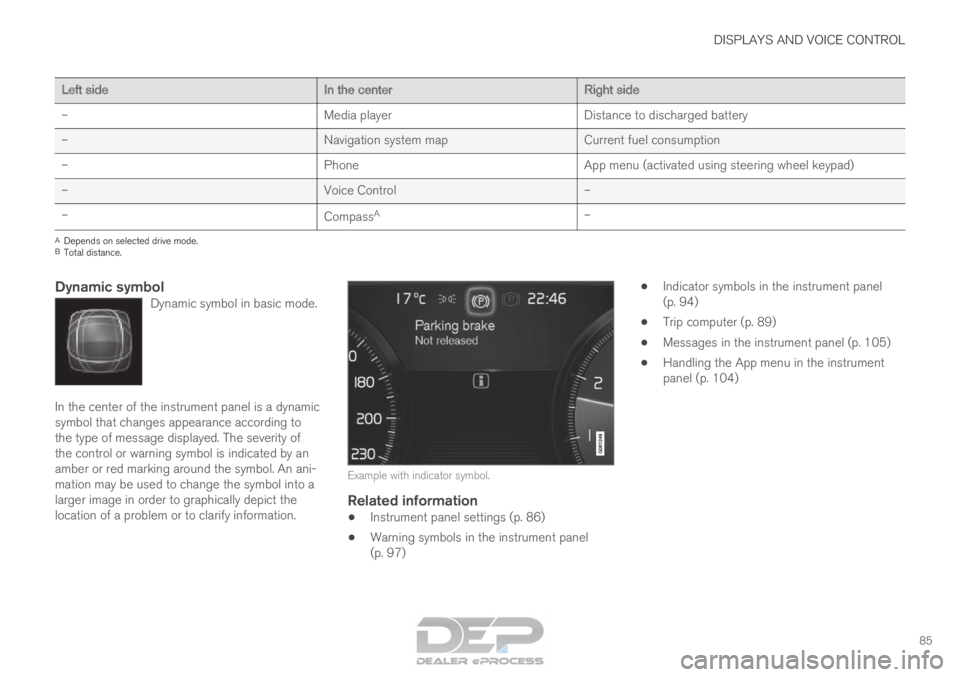
Dynamic symbolDynamic symbol in basic mode. In the center of the instrument panel is a dynamic
symbol that changes appearance according to
the type of message displayed. The severity of
the control or warning symbol is indicated by an
amber or red marking around the symbol. An ani-
mation may be used to change the symbol into a
larger image in order to graphically depict the
location of a problem or to clarify information.
Example with indicator symbol.
Related information
•
Instrument panel settings (p. 86)
• Warning symbols in the instrument panel
(p. 97) •
Indicator symbols in the instrument panel
(p. 94)
• Trip computer (p. 89)
• Messages in the instrument panel (p. 105)
• Handling the App menu in the instrument
panel (p. 104)
Page 88 of 686
DISPLAYS AND VOICE CONTROL
* Option/accessory.
86 Instrument panel settings
Display settings for the instrument panel can be
set in the instrument panel's app menu and in
the center display's Settings menu.
Settings in instrument panel's app
menu
The app menu can be used to set what informa-
tion will be displayed in the instrument panel:
• trip computer
• media player
• phone
• navigation system*.
Center display settings
Selecting type of information
1. Tap Settings in the center display's Top
view.
2.
Tap My Car Displays Driver Display
Information .
3.
Select a background:
• Show no information in the
background
• Show information for current playing
media
• Show navigation even if no route is
set.
Select theme
1.
Tap Settings in the center display's Top
view.
2.
Tap My Car Displays Display
Themes
3. Select a theme (appearance) for the instru- ment panel:
• Glass
• Minimalistic
• Performance
• Chrome Rings.
Select language
1.
Tap Settings in the center display's Top
view.
2.
Tap System System Languages and
Units System Language
to select lan-
guage.
> A change made here will affect the lan- guage in all displays.
The settings are personal and saved automati-
cally in the active driver profile.
Related information
• Instrument panel (p. 84)
• Handling the App menu in the instrument
panel (p. 104)
• Changing settings in the center display
(p. 134) Fuel gauge
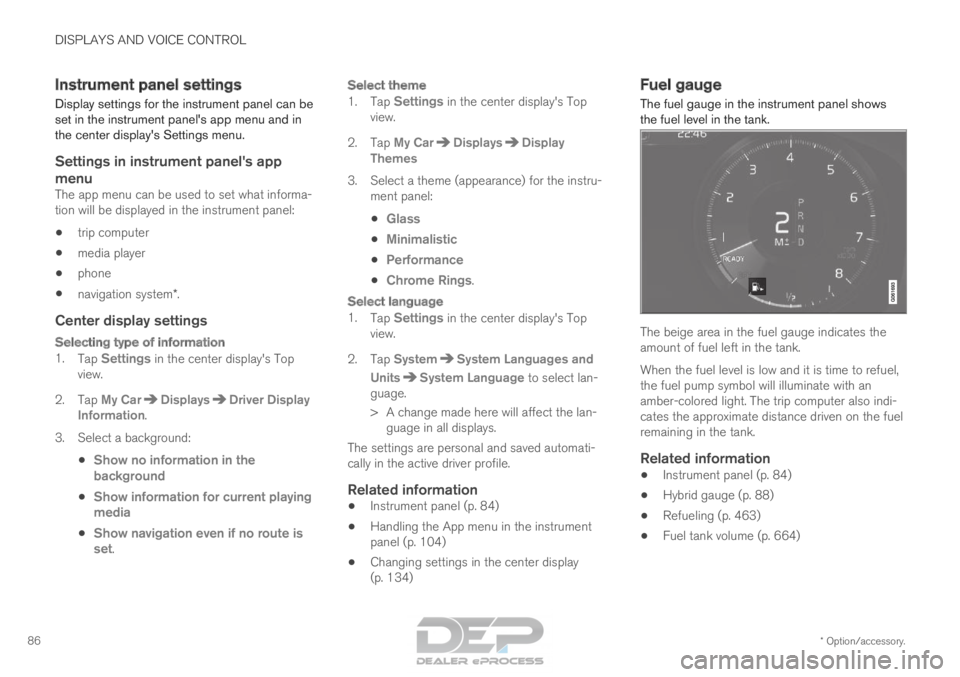
The fuel gauge in the instrument panel shows
the fuel level in the tank. The beige area in the fuel gauge indicates the
amount of fuel left in the tank.
When the fuel level is low and it is time to refuel,
the fuel pump symbol will illuminate with an
amber-colored light. The trip computer also indi-
cates the approximate distance driven on the fuel
remaining in the tank.
Related information
•
Instrument panel (p. 84)
• Hybrid gauge (p. 88)
• Refueling (p. 463)
• Fuel tank volume (p. 664)
Page 447 of 686

STARTING AND DRIVING
}}
* Option/accessory. 445
Drive modes
Drive modes affect the vehicle's driving charac-
teristics in different ways to enhance and sim-
plify the driving experience in certain types of sit-
uations. Drive modes enable easy access to the vehicle's
many functions and settings in different driving
situations. The following systems are adapted to
help optimize driving characteristics in each drive
mode:
• Steering
• Engine/transmission/all-wheel drive
• Brakes
• Pneumatic suspension* and shock absorbers
• Instrument panel
• Climate control settings
Select the drive mode that is best suited to the
current driving conditions. Keep in mind that not
all drive modes are available in all situations.
Available drive modes
WARNING Keep in mind that the vehicle does not emit
any engine noise when using the electric
motor and may therefore be difficult to detect
for children, pedestrians, cyclists or animals.
This is particularly true at low speeds, e.g. in
parking lots.
WARNING
Do not leave the vehicle in an unventilated
area with a drive mode activated and the com-
bustion engine switched off. The engine will
start automatically if the charge level in the
hybrid battery is low and the resulting exhaust
gases can be very harmful to people and ani-
mals.
HYBRID
•
This is the default mode in which the electric
motor and combustion engine work together.
The vehicle starts in Hybrid mode. The control
system uses both the electric motor and the gas-
oline engine - separately or in tandem - and cal-
culates optimal utilization with regard to perform-
ance, fuel consumption and comfort. At high
speeds, ground clearance is automatically low-
ered 4
to reduce air resistance. Driving capacity on
the electric motor alone is determined by factors such as the hybrid battery's charge level, the
need for heat/cooling in the passenger compart-
ment, etc.
If there is sufficient charge in the battery, it is
possible to drive solely on electric power. When
the accelerator pedal is pressed, only the electric
motor will be activated until the battery reaches a
certain charge level. Above this level, the current
in the battery cannot supply the power requested
by the accelerator pedal and the combustion
engine will start.
When the hybrid battery's charge level is low, the
combustion engine will start more frequently to
save the remaining current in the battery. Charge
the hybrid battery from a 120-240 volt outlet
using a charging cable, or activate
Charge in
Function view to reset the option of only using
the electric motor.
This drive mode is designed for low energy con-
sumption with an optimized mix between the
electric motor and gasoline engine, without com-
promising on climate comfort or driving experi-
ence. When faster acceleration is requested by
the driver, the electric driveline will be utilized to
help provide maximum additional power. The
vehicle also monitors the driving conditions and
automatically engages all-wheel drive if neces-
sary. All-wheel drive and extra electric power are
always available regardless of the battery's
charging status. 4
For vehicles with pneumatic suspension.
Page 459 of 686
STARTING AND DRIVING
}}
457
Driving
• Choose the Pure drive mode to help mini-
mize electric power consumption.
• Maintain a steady speed and a generous fol-
lowing distance to traffic ahead to minimize
braking. This drive mode has the lowest
power consumption.
• Balance energy requirements using the
accelerator pedal. Use the indicator on the
instrument panel to see available electric
power and avoid starting the combustion
engine unnecessarily. The electric motor is
more effective than the combustion engine,
especially at low speeds.
• When braking is necessary, brake gently
using the brake pedal. This will recharge the
hybrid battery. A regenerative function is
integrated in the brake pedal and can be
augmented by the electric motor's braking
capacity when the gear selector is in mode
B.
• Higher speeds increase energy consumption
- air resistance increases with speed.
• Activate the
Hold function in the Function
view at high speeds when traveling farther
than is possible using the hybrid battery's
capacity.
• Whenever possible, avoid using the Charge
function to charge the hybrid battery. Charg-
ing the battery using the combustion engine increases fuel consumption and carbon diox-
ide emissions.
• In a cold climate, reduce heating of the wind-
shield/rear window, mirrors, seats and the
steering wheel.
• Maintain the correct pressure in the tires and
check pressure regularly.
• The type of tires used could affect energy
consumption - consult a retailer for advice on
suitable tires.
• Remove unnecessary items from the vehicle
- the heavier the load, the higher the fuel
consumption.
• Roof loads increase air resistance and
increase fuel consumption. Remove roof
boxes, ski racks, etc. that are not in use.
• Avoid driving with the windows open.
• Do not keep the vehicle still on an upward
gradient by using the accelerator pedal. Use
the brakes instead.
Related information
•
Drive-E
‒
purer driving pleasure (p. 27)
• Factors affecting electric motor range
(p. 458)
• Using the electric motor only (p. 457)
• Hybrid gauge (p. 87)
• Checking tire pressure (p. 557) Using the electric motor only
When using the electric motor, Volvo Twin
Engine provides a combination of good fuel
economy, low emissions and high performance.
For energy-efficient driving:
• Select the Pure drive mode to help maximize
driving range using only the electric motor.
• Balance energy requirements using the
accelerator pedal. Use the indicator on the
instrument panel's hybrid gauge to see avail-
able electric power and avoid starting the
combustion engine unnecessarily.
• When braking is necessary, brake gently
using the brake pedal. This will recharge the
hybrid battery.
• Activate the
Hold function in the Function
view at high speeds when traveling farther
than is possible using the hybrid battery's
capacity.
• Reduce current consumption in the passen-
ger compartment by reducing e.g. fan speed,
electric heating, or air conditioning use.
Also follow the general economical driving advice
regarding speed, tires and load to maximize
range.
Related information
• General information about Twin Engine
(p. 406)
• Economical driving (p. 456)
Page 463 of 686
STARTING AND DRIVING
461
•
Speed limiter (p. 278)
• Tire sealing system (p. 572) Winter driving
It is important to check the vehicle before driving
in cold/snowy conditions to make sure it can be
driven safely.
Before the cold season arrives:• Make sure the engine coolant contains 50%
antifreeze. This mixture helps protect the
engine from frost erosion down to
approx. -35 °C (-31 °F). Do not mix different
types of antifreeze as this could pose a
health risk.
• Keep the fuel tank well filled to prevent con-
densation from forming.
• Check the viscosity of the engine oil. Oil with
low viscosity (thinner oil) improves cold-
weather starting and reduces fuel consump-
tion when driving with a cold engine.
CAUTION Low-viscosity oil should not be used with hard
driving or in hot weather.
•
Check the condition and charge level of the
start battery. Cold weather places greater
demands on the start battery and reduces its
capacity.
• Use washer fluid containing antifreeze to
help prevent ice from forming in the washer
fluid reservoir.
Slippery driving conditionsFor optimal traction and roadholding, Volvo rec-
ommends using snow tires on all wheels when-
ever there is a risk of snow or ice on the road.
NOTE Certain countries require use of winter tires
by law. Not all countries permit the use of
studded tires.
Practice driving on slippery surfaces under con-
trolled conditions to learn how the vehicle reacts.
Related information
•
Snow tires (p. 571)
• Snow chains (p. 571)
• Braking on salted roads (p. 431)
• Braking on wet roads (p. 431)
• Filling washer fluid (p. 650)
• Start battery (p. 615)
• Replacing windshield wiper blades (p. 648)
• Changing rear window wipers (p. 647)
• Refilling coolant (p. 612)
Page 506 of 686

||AUDIO, MEDIA AND INTERNET
* Option/accessory.
504
5 days
Tap to see weather information for the coming 5
days.
Tap Back to return to the Local screen or Close
to return to the SiriusXM Travel Link home
screen.
Ski conditionTap to display a list of ski areas in the vicinity of
the vehicle. Tap a name in the list for information
such as if the ski area is open/closed, tempera-
ture, wind conditions, snow conditions, the num-
ber of lifts that are in operation, etc.
• Weather locations
• Ski location
Tap Map view to display a map and a weather
legend.
Tap Map options to display the following alter-
natives.
• Weather radar
• Storm attributes
• Surface features
• Tropical storm tracks
• Winds
Tap the relevant box to the right of the option to
select/deselect it. Tap Done to confirm and
return to the previous screen or Cancel.
AreasTap Areas to display a list of areas/locations in
states from the SiriusXM Travel Link database.
Scroll to a state and tap to display:
• Weather locations: tap arrow to the right to
display a list of towns. Scroll to desired town
and tap for detailed weather information. You
can choose Map view, today, 5 days or Favor-
ites (star)
• Ski locations: tap arrow at right to display
local ski areas. Tap an area for detailed info.
For information about storing a location, state,
town, etc. as a favorite, see the heading "Favor-
ites" in the article "SiriusXM Travel Link."
Related information
• SiriusXM Travel Link ®
* (p. 502)
• SiriusXM Travel Link ®
* - Fuel (p. 505)
• SiriusXM Travel Link ®
* - Sports (p. 506)
• SiriusXM Travel Link ®
* - Notifications
(p. 504) SiriusXM Travel Link
®
* -
Notifications
This SiriusXM Travel Link service provides notifi-
cations of potential weather problems or other
emergency situations in the vicinity of the vehi-
cle.
From the SiriusXM Travel Link home screen, to
show notifications:
– Tap the
Alerts button to display this screen.
• If any notifications are currently available, a
message will appear at the top of the screen.
They can also be listed from the
Settings
menu in the center display's Top view.
• If no notifications are available, No active
alerts will be displayed.
Types of notifications
To select the types of notifications to be dis-
played:
1. From the Alerts screen, tap the Select
alerts button at the bottom of the screen.
2.
This displays the types of notifications that
can be displayed. Tap the box to the right of
each type of notification to select/deselect it.
3. Tap Done when you have made your selec-
tions. You will return to the Alerts screen.
Page 507 of 686

AUDIO, MEDIA AND INTERNET
}}
* Option/accessory. 505
Information about a notification
If any notifications have been displayed on the
screen, tap one for more detailed information (i.e.,
the location of the weather problem on a map
and a description of the situation).
If a phone number is available in a notification, a
Call button will be displayed. Tap this button for additional information.
Related information
• SiriusXM Travel Link ®
* (p. 502)
• SiriusXM Travel Link ®
* - Fuel (p. 505)
• SiriusXM Travel Link ®
* - Sports (p. 506)
• SiriusXM Travel Link ®
* - Weather (p. 503) SiriusXM Travel Link
®
* - Fuel 5
This SiriusXM Travel Link service provides infor-
mation and guidance to service stations near the
vehicle providing the type of fuel that you prefer/
require for your vehicle.
From the SiriusXM Travel Link home screen, to
show fuel information:
– Tap the
Fuel button to display the main fuel
screen.
The following categories are shown:
• Search (the magnifying glass icon)
• Nearby
• Recommended
• Favorites
• Brands
Tap one of the alternatives to display its screen.
NOTE In each of the categories listed, tapping the
Select fuel type button near the bottom of
the screen opens a sub-view where you can
specify the type of fuel preferred/required
(Regular, Midrange, Premium, Diesel,
Electric 120V, etc.) Tap Done to return to
the previous screen.
SearchTap the magnifying glass icon. If the function is
supported in the current context, a keyboard will
appear on the screen. Enter the text of your
choice and tap Search for detailed information if
available.
NearbyTap for a list of service stations in the vicinity of
the vehicle, with the nearest station at the top of
the list.
The following information will be provided where
available:
• For vehicles using gasoline, the price infor-
mation for regular gasoline (unless another
grade/type of fuel has been selected in
Select fuel type)
• For electric vehicles/hybrids, information
about charging stations, showing the total
number of charging ports and the number of
ports currently not in use
• the distance to the station
• a star icon to set the service station as a
favorite
Tap the name of a service station to display more
detailed information.
For guidance to the service station, tap the Start
navigation or Add as waypoint buttons. See 5
This service is not available in Canada.