ad blue VOLVO XC90 TWIN ENGINE 2019 Owners Manual
[x] Cancel search | Manufacturer: VOLVO, Model Year: 2019, Model line: XC90 TWIN ENGINE, Model: VOLVO XC90 TWIN ENGINE 2019Pages: 697, PDF Size: 10.33 MB
Page 13 of 697
11
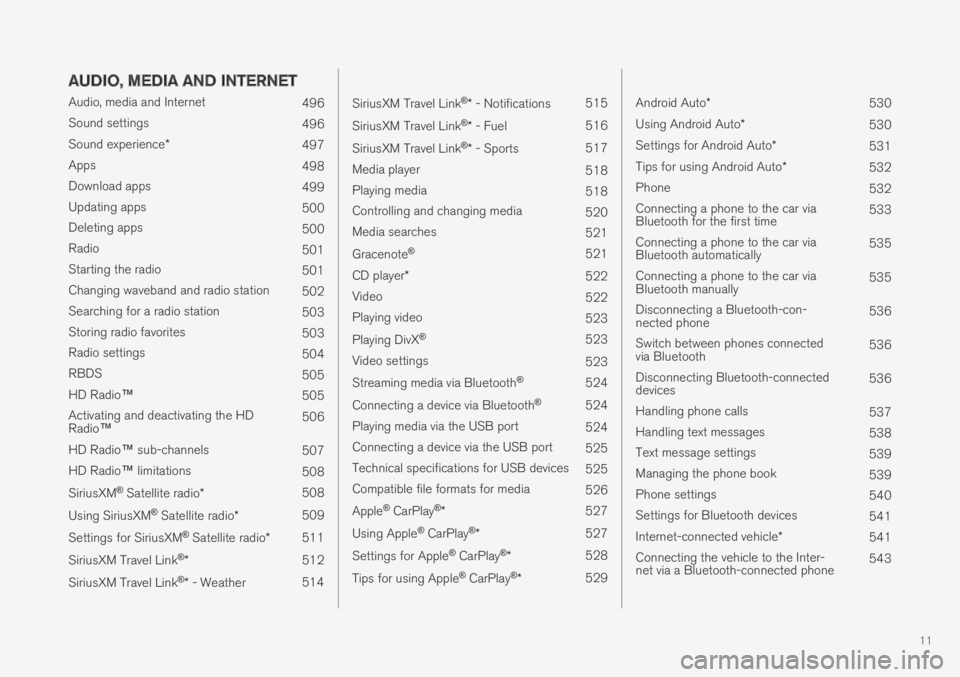
AUDIO, MEDIA AND INTERNET
Audio, media and Internet496
Sound settings496
Sound experience*497
Apps498
Download apps499
Updating apps500
Deleting apps500
Radio501
Starting the radio501
Changing waveband and radio station502
Searching for a radio station503
Storing radio favorites503
Radio settings504
RBDS505
HD Radio™505
Activating and deactivating the HDRadio™506
HD Radio™ sub-channels507
HD Radio™ limitations508
SiriusXM® Satellite radio*508
Using SiriusXM® Satellite radio*509
Settings for SiriusXM® Satellite radio*511
SiriusXM Travel Link®*512
SiriusXM Travel Link®* - Weather514
SiriusXM Travel Link®* - Notifications515
SiriusXM Travel Link®* - Fuel516
SiriusXM Travel Link®* - Sports517
Media player518
Playing media518
Controlling and changing media520
Media searches521
Gracenote®521
CD player*522
Video522
Playing video523
Playing DivX® 523
Video settings523
Streaming media via Bluetooth®524
Connecting a device via Bluetooth®524
Playing media via the USB port524
Connecting a device via the USB port525
Technical specifications for USB devices525
Compatible file formats for media526
Apple® CarPlay®*527
Using Apple® CarPlay®*527
Settings for Apple® CarPlay®*528
Tips for using Apple® CarPlay®*529
Android Auto*530
Using Android Auto*530
Settings for Android Auto*531
Tips for using Android Auto*532
Phone532
Connecting a phone to the car viaBluetooth for the first time533
Connecting a phone to the car viaBluetooth automatically535
Connecting a phone to the car viaBluetooth manually535
Disconnecting a Bluetooth-con-nected phone536
Switch between phones connectedvia Bluetooth536
Disconnecting Bluetooth-connecteddevices536
Handling phone calls537
Handling text messages538
Text message settings539
Managing the phone book539
Phone settings540
Settings for Bluetooth devices541
Internet-connected vehicle*541
Connecting the vehicle to the Inter-net via a Bluetooth-connected phone543
Page 24 of 697
||
OWNER'S INFORMATION
* Option/accessory.22
Option/accessory
In addition to standard equipment, the Owner'sManual also describes options (factory-installedequipment) and certain accessories (extra retro-fitted equipment).
All options and accessories are marked with anasterisk: *.
The equipment described in the Owner's Manualis not available in all vehicles. Vehicles may beequipped differently depending on marketrequirements and national or local laws and regu-lations.
For more information on which equipment isstandard and which is an option or accessory,please contact your Volvo retailer.
Footnotes
Certain parts of the Owner's Manual containinformation in the form of footnotes at the bot-tom of the page or at the end of a table. Thisinformation supplements the text that the foot-note number refers to. If the footnote refers totext in a table, a letter is used instead of a num-ber.
Messages
There are several displays in the vehicle thatshow messages and menu texts. The appearanceof these texts differs from the normal texts provi-ded. Example of messages and menu texts:Phone, New message.
Decals
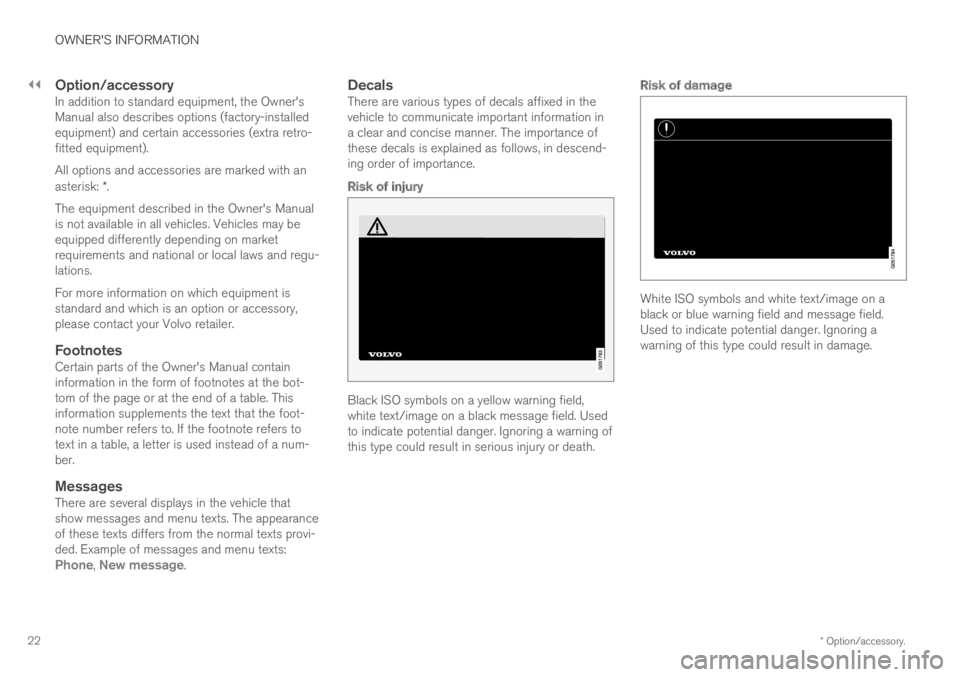
There are various types of decals affixed in thevehicle to communicate important information ina clear and concise manner. The importance ofthese decals is explained as follows, in descend-ing order of importance.
Risk of injury
Black ISO symbols on a yellow warning field,white text/image on a black message field. Usedto indicate potential danger. Ignoring a warning ofthis type could result in serious injury or death.
Risk of damage
White ISO symbols and white text/image on ablack or blue warning field and message field.Used to indicate potential danger. Ignoring awarning of this type could result in damage.
Page 97 of 697
DISPLAYS AND VOICE CONTROL
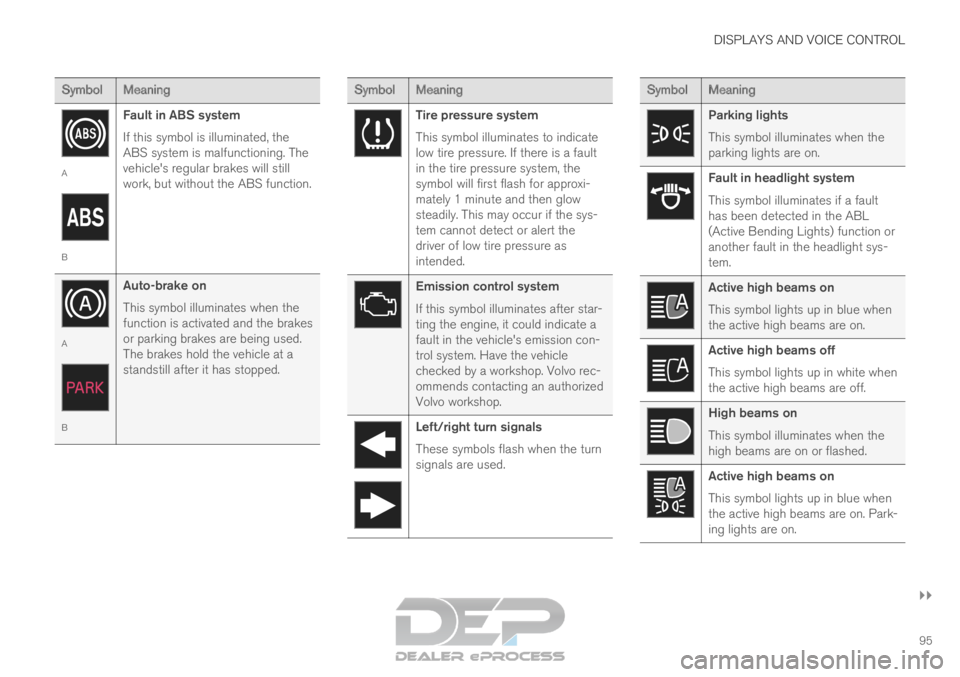
}}95 Symbol
Meaning A
B
Fault in ABS system
If this symbol is illuminated, the
ABS system is malfunctioning. The
vehicle's regular brakes will still
work, but without the ABS function. A
B
Auto-brake on
This symbol illuminates when the
function is activated and the brakes
or parking brakes are being used.
The brakes hold the vehicle at a
standstill after it has stopped. Symbol
Meaning Tire pressure system
This symbol illuminates to indicate
low tire pressure. If there is a fault
in the tire pressure system, the
symbol will first flash for approxi-
mately 1 minute and then glow
steadily. This may occur if the sys-
tem cannot detect or alert the
driver of low tire pressure as
intended.
Emission control system
If this symbol illuminates after star-
ting the engine, it could indicate a
fault in the vehicle's emission con-
trol system. Have the vehicle
checked by a workshop. Volvo rec-
ommends contacting an authorized
Volvo workshop.
Left/right turn signals
These symbols flash when the turn
signals are used. Symbol
Meaning Parking lights
This symbol illuminates when the
parking lights are on.
Fault in headlight system
This symbol illuminates if a fault
has been detected in the ABL
(Active Bending Lights) function or
another fault in the headlight sys-
tem.
Active high beams on
This symbol lights up in blue when
the active high beams are on.
Active high beams off
This symbol lights up in white when
the active high beams are off.
High beams on
This symbol illuminates when the
high beams are on or flashed.
Active high beams on
This symbol lights up in blue when
the active high beams are on. Park-
ing lights are on.
Page 126 of 697
DISPLAYS AND VOICE CONTROL
124Moving apps and buttons in the
center display
The apps and buttons for vehicle functions can
be moved and organized in the App and Func-
tion views.
1. Swipe from right to left 9
to access App view
or swipe from left to right 9
to access Func-
tion view.
2.
Press and hold an app or button.
> The app or button will change size and become slightly transparent. It can then
be moved.
3. Drag the app or button to an available posi- tion in the view.
A maximum of 48 rows can be used to position
apps or buttons. To move an app or button out-
side the visible view, drag it to the bottom of the
view. New rows will be added and the app or but-
ton can be placed in one of these.
Apps or buttons placed below the view's normal
display will not be visible on the screen.
Swipe the screen to scroll up or down in the view
to display information outside the view.
NOTE Hide the apps that are rarely or never used by
moving them far down, outside of the visible
view. This makes it easier to find the apps
used more frequently.
NOTE
Apps and vehicle function buttons cannot be
situated at spots already in use.
Related information
Function view in the center display (p. 122)
Apps (p. 498)
Handling the center display (p. 112) Symbols in the center display status
bar
Overview of symbols displayed in the center dis-
play status bar.
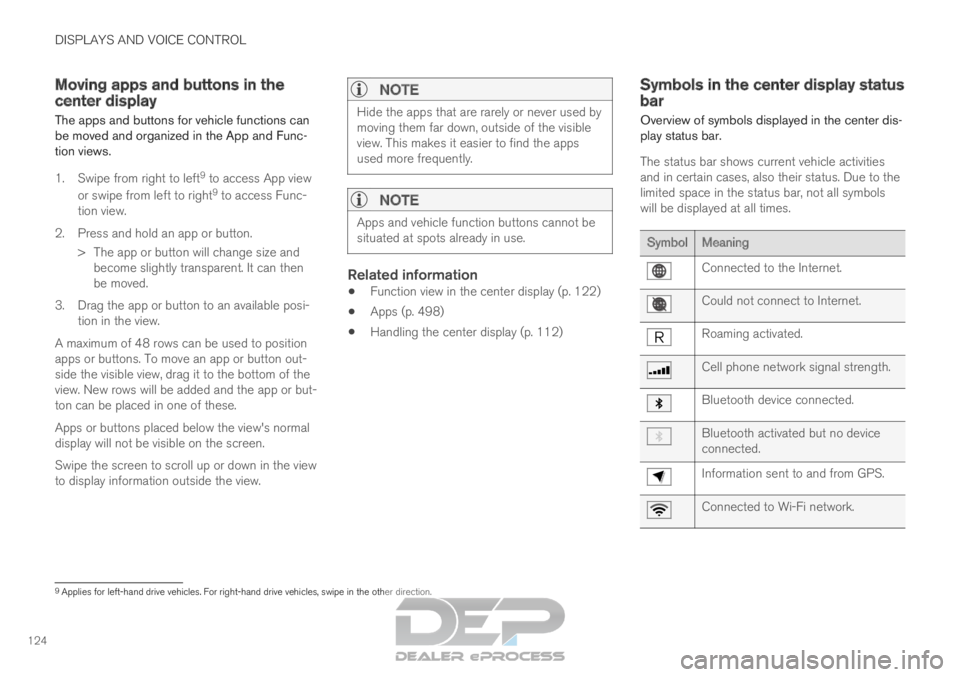
The status bar shows current vehicle activities
and in certain cases, also their status. Due to the
limited space in the status bar, not all symbols
will be displayed at all times. Symbol
Meaning Connected to the Internet.
Could not connect to Internet.
Roaming activated.
Cell phone network signal strength.
Bluetooth device connected.
Bluetooth activated but no device
connected.
Information sent to and from GPS.
Connected to Wi-Fi network.
9
Applies for left-hand drive vehicles. For right-hand drive vehicles, swi\
pe in the other direction.
Page 137 of 697
DISPLAYS AND VOICE CONTROL
}}
* Option/accessory. 135
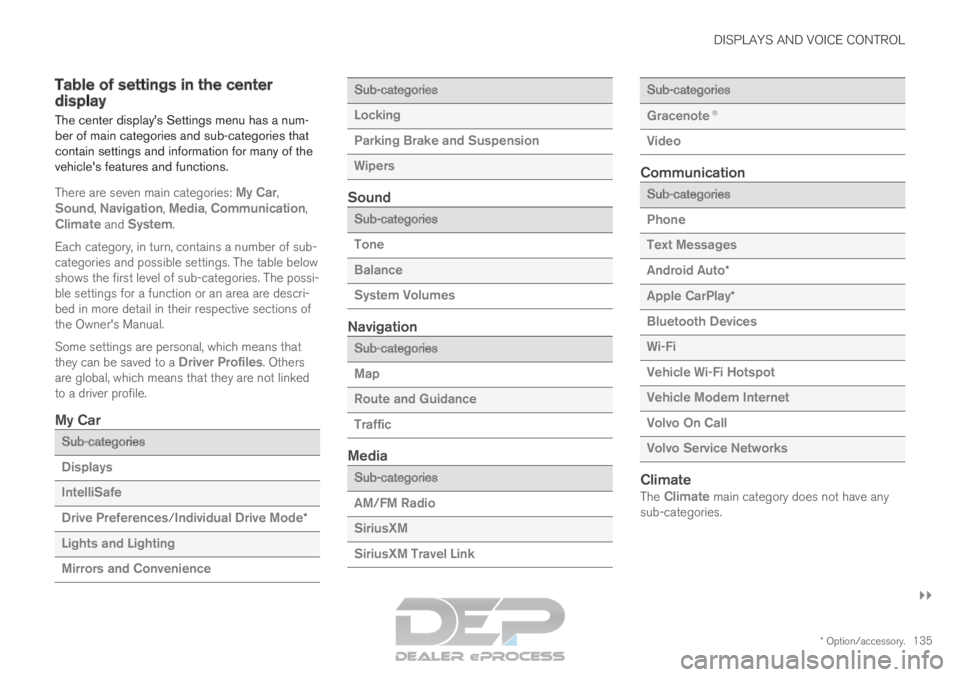
Table of settings in the center
display
The center display's Settings menu has a num-
ber of main categories and sub-categories that
contain settings and information for many of the
vehicle's features and functions.
There are seven main categories: My Car,
Sound, Navigation, Media, Communication,
Climate and System.
Each category, in turn, contains a number of sub-
categories and possible settings. The table below
shows the first level of sub-categories. The possi-
ble settings for a function or an area are descri-
bed in more detail in their respective sections of
the Owner's Manual.
Some settings are personal, which means that
they can be saved to a Driver Profiles. Others
are global, which means that they are not linked
to a driver profile.
My Car Sub-categories
Displays
IntelliSafe
Drive Preferences/Individual Drive Mode*
Lights and Lighting
Mirrors and Convenience Sub-categories
Locking
Parking Brake and Suspension
Wipers
Sound
Sub-categories
Tone
Balance
System Volumes
Navigation
Sub-categories
Map
Route and Guidance
Traffic
Media
Sub-categories
AM/FM Radio
SiriusXM
SiriusXM Travel Link Sub-categories
Gracenote®
Video
Communication
Sub-categories
Phone
Text Messages
Android Auto
*
Apple CarPlay*
Bluetooth Devices
Wi-Fi
Vehicle Wi-Fi Hotspot
Vehicle Modem Internet
Volvo On Call
Volvo Service Networks
ClimateThe Climate main category does not have any
sub-categories.
Page 147 of 697
DISPLAYS AND VOICE CONTROL
}}
* Option/accessory. 145
Calibrating the horizontal position
If the windshield or display unit has been
replaced, the head-up display's horizontal posi-
tion may need to be calibrated. Calibration means
that the projected image is rotated clockwise or
counterclockwise.
1.
Tap Settings in the center display's Top
view.
2.
Select My Car Displays Head-Up
Display Options Head-Up Display
Calibration .
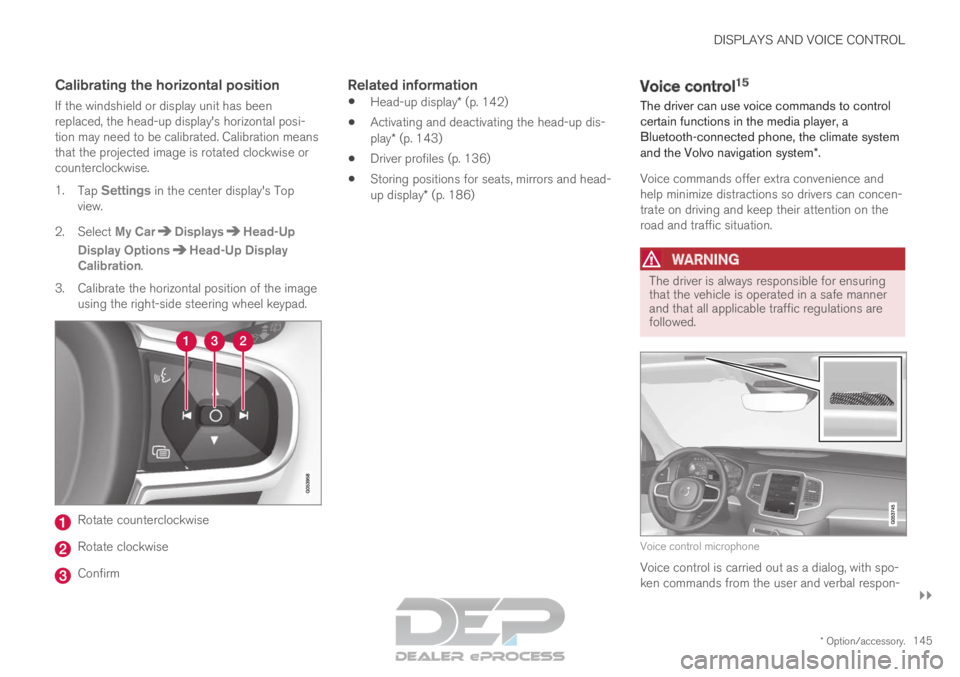
3.
Calibrate the horizontal position of the image
using the right-side steering wheel keypad. Rotate counterclockwise
Rotate clockwise
Confirm
Related information
Head-up display* (p. 142)
Activating and deactivating the head-up dis-
play* (p. 143)
Driver profiles (p. 136)
Storing positions for seats, mirrors and head-
up display* (p. 186) Voice control
15
The driver can use voice commands to control
certain functions in the media player, a
Bluetooth-connected phone, the climate system
and the Volvo navigation system*.
Voice commands offer extra convenience and
help minimize distractions so drivers can concen-
trate on driving and keep their attention on the
road and traffic situation.
WARNING The driver is always responsible for ensuring
that the vehicle is operated in a safe manner
and that all applicable traffic regulations are
followed.
Voice control microphone
Voice control is carried out as a dialog, with spo-
ken commands from the user and verbal respon-
Page 148 of 697
||DISPLAYS AND VOICE CONTROL
* Option/accessory.
146 ses from the system. The voice control system
uses the same microphone as devices connected
with Bluetooth, and the voice control system
responds through the vehicle's loudspeakers. In
certain cases, text messages will also be dis-
played in the instrument panel. The functions are
controlled using the right-side steering wheel
keypad and settings are made in the center dis-
play.
System updates
The voice control system is continuously
improved. For optimal functionality, always down-
load the latest update at support.volvocars.com.
Related information
Using voice commands (p. 146)
Voice control for cellular phones (p. 147)
Voice control for radio and media (p. 148)
Climate control system voice commands
(p. 205)
Voice control settings (p. 148) Using voice commands
16
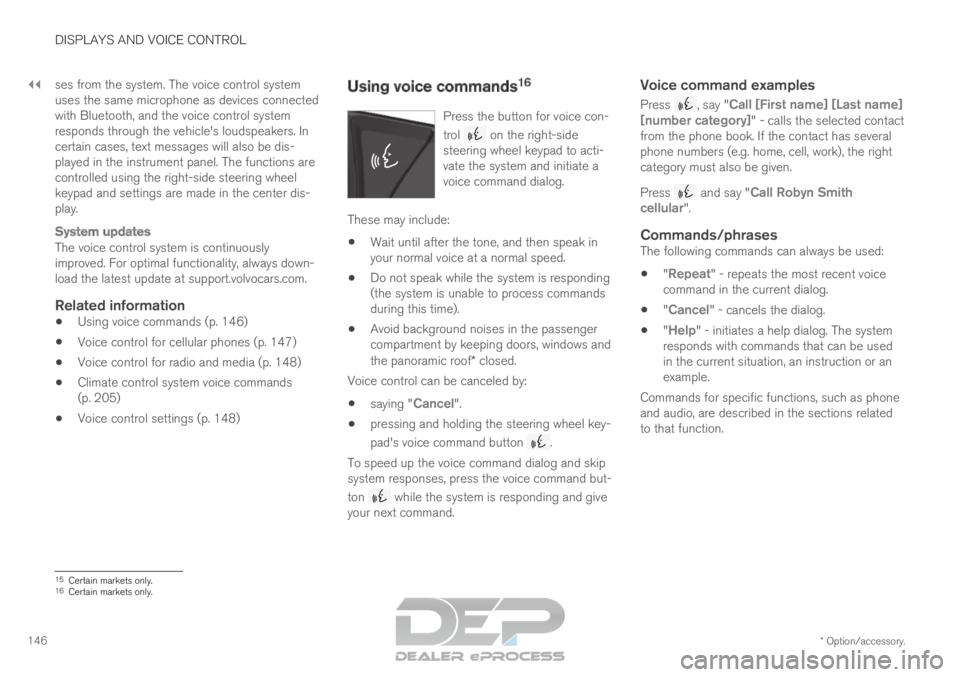
Press the button for voice con-
trol on the right-side
steering wheel keypad to acti-
vate the system and initiate a
voice command dialog. These may include:
Wait until after the tone, and then speak in
your normal voice at a normal speed.
Do not speak while the system is responding
(the system is unable to process commands
during this time).
Avoid background noises in the passenger
compartment by keeping doors, windows and
the panoramic roof* closed.
Voice control can be canceled by:
saying "
Cancel".
pressing and holding the steering wheel key-
pad's voice command button .
To speed up the voice command dialog and skip
system responses, press the voice command but-
ton while the system is responding and give
your next command.
Voice command examples
Press , say "Call [First name] [Last name]
[number category]" - calls the selected contact
from the phone book. If the contact has several
phone numbers (e.g. home, cell, work), the right
category must also be given.
Press and say "
Call Robyn Smith
cellular".
Commands/phrasesThe following commands can always be used:
"Repeat" - repeats the most recent voice
command in the current dialog.
"Cancel" - cancels the dialog.
"
Help" - initiates a help dialog. The system
responds with commands that can be used
in the current situation, an instruction or an
example.
Commands for specific functions, such as phone
and audio, are described in the sections related
to that function. 15
Certain markets only.
16 Certain markets only.
Page 149 of 697
DISPLAYS AND VOICE CONTROL
* Option/accessory.147
Numbers
Number commands can be given in different
ways depending on the function to be controlled:
Phone numbers and zip codes should be
given by stating each number individually, e.g.
zero three one two two four four three
(03122443).
Addresses can be given by stating each
number individually or in a group, e.g. two two
or twenty-two (22). For English and Dutch
language settings, groups of numbers can
also be said in sequence, e.g. twenty-two
twenty-two (22 22). For English, double or
triple digits can also be used, e.g. double
zero (00). Numbers in the range 0-2300 can
be used.
Frequencies can be given as ninety-eight
point eight (98.8), one hundred four point
two, or hundred four point two (104.2).
Related information
Voice control (p. 145)
Voice control for cellular phones (p. 147)
Voice control for radio and media (p. 148)
Climate control system voice commands
(p. 205)
Voice control settings (p. 148) Voice control for cellular phones
17
Call a contact in the phone book, have a text
message read aloud or dictate short messages
using voice commands to a Bluetooth-con-
nected phone.
To access a contact in the phone book, the voice
command must contain the contact information
entered in the phone book. If a contact, e.g.
Robyn Smith, has several phone numbers listed
in the phone book, a number category such as
home or cellular can also be specified, i.e. "Call
Robyn Smith cellular".
Tap and say one of the following commands:
"Call [contact]" - call the selected contact
from the phone book.
"Call [phone number]" - call a phone num-
ber.
"
Recent calls" - display the list of recent
calls.
"
Read message" - read a text message
aloud. If there are several messages, select
the message to read aloud.
"Message to [contact]" - the user is
prompted to dictate a short message. The
message will then be read aloud and the
user can choose to send 18
or re-dictate the message. The vehicle must be connected to
the Internet to access this function.
Related information
Voice control (p. 145)
Using voice commands (p. 146)
Voice control for radio and media (p. 148)
Climate control system voice commands
(p. 205)
Voice control settings (p. 148)
Internet-connected vehicle* (p. 541) 17
Certain markets only.
18 Only certain phones can send messages via the vehicle. For additional in\
formation on compatibility, see support.volvocars.com.
Page 150 of 697
DISPLAYS AND VOICE CONTROL
* Option/accessory.
148 Voice control for radio and media
19
Voice commands for the radio and media play-
ers are shown below.
Tap and say one of the following commands:
"Media" - initiates a dialog for media and
radio and displays examples of commands.
"
Play [artist]" - plays music by the selected
artist.
"
Play [song title]" - plays the selected
song.
"
Play [song title] from [album]" - plays
the selected song from the selected album.
"Play [radio station]" - starts the selected
radio station.
"
Tune to [frequency]" - tunes to the
selected radio frequency in the currently
active waveband. If no radio source is active,
the FM band will be started as default.
"
Tune to [frequency] [waveband]" - tunes
to the selected radio frequency on the
selected waveband.
"Radio" - starts FM radio.
"
Radio FM" - starts FM radio.
"
SiriusXM" - starts SiriusXM radio*
"
CD" - starts playback from CD*.
"
USB" - starts playback from USB.
"iPod" - starts playback from iPod.
"
Bluetooth" - starts playback from a Blue-
tooth-connected media source.
"
Similar music" - plays music from a USB-
connected device with music similar to that
currently playing.
Related information
Voice control (p. 145)
Using voice commands (p. 146)
Voice control for cellular phones (p. 147)
Climate control system voice commands
(p. 205)
Voice control settings (p. 148) Voice control settings
20
Settings for the voice control system are made
here.
Settings System Voice Control
Settings can be personalized in the following
areas:
Repeat Voice Command
Gender
Speech Rate
Sound settingsSelect sound settings under:
Settings Sound System Volumes
Voice Control
Language settingsThe voice control system is not available for all
languages. The languages available for voice
commands are indicated by the
icon in the
list of languages.
Changing the language here will also change the
language in the menus, messages and help texts.
Settings System System Languages
and Units System Language
19
Certain markets only.
Page 159 of 697
LIGHTING
}}
* Option/accessory. 157
Active high beam
Active high beams is a function that uses cam-
era sensors in the upper edge of the windshield
to detect the headlights of approaching vehicles
or the taillights of the vehicle directly ahead.
When either of these is detected, the vehicle's
headlights will automatically switch from high
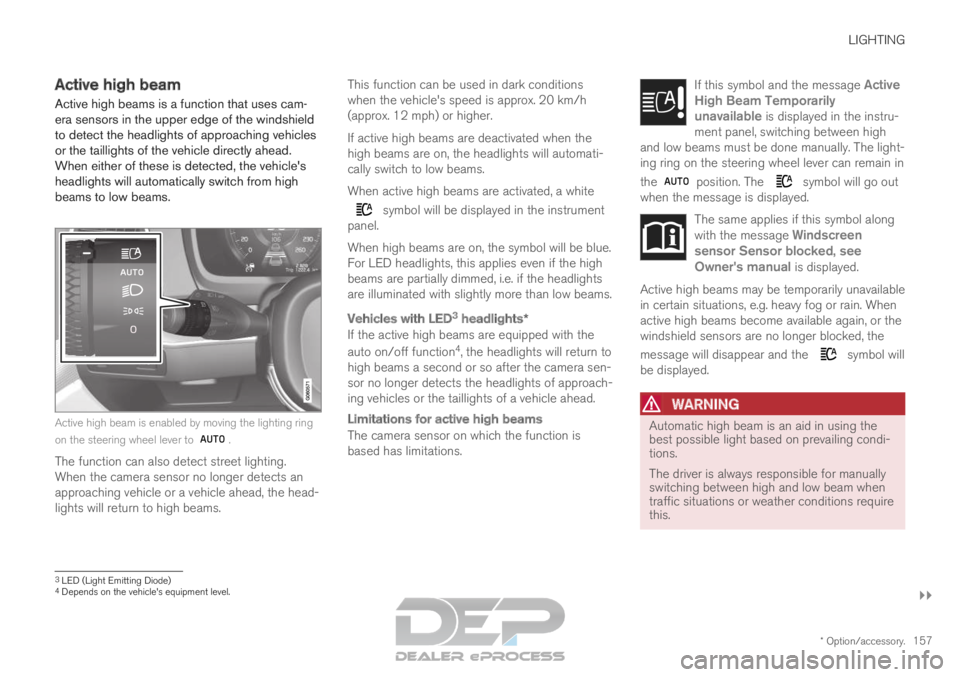
beams to low beams. Active high beam is enabled by moving the lighting ring
on the steering wheel lever to
.
The function can also detect street lighting.
When the camera sensor no longer detects an
approaching vehicle or a vehicle ahead, the head-
lights will return to high beams. This function can be used in dark conditions
when the vehicle's speed is approx. 20 km/h
(approx. 12 mph) or higher.
If active high beams are deactivated when the
high beams are on, the headlights will automati-
cally switch to low beams.
When active high beams are activated, a white symbol will be displayed in the instrument
panel.
When high beams are on, the symbol will be blue.
For LED headlights, this applies even if the high
beams are partially dimmed, i.e. if the headlights
are illuminated with slightly more than low beams.
Vehicles with LED 3
headlights*
If the active high beams are equipped with the
auto on/off function 4
, the headlights will return to
high beams a second or so after the camera sen-
sor no longer detects the headlights of approach-
ing vehicles or the taillights of a vehicle ahead.
Limitations for active high beams
The camera sensor on which the function is
based has limitations. If this symbol and the message Active
High Beam Temporarily unavailable is displayed in the instru-
ment panel, switching between high
and low beams must be done manually. The light-
ing ring on the steering wheel lever can remain in
the position. The symbol will go out
when the message is displayed. The same applies if this symbol along
with the message
Windscreen
sensor Sensor blocked, see Owner's manual is displayed. Active high beams may be temporarily unavailable
in certain situations, e.g. heavy fog or rain. When
active high beams become available again, or the
windshield sensors are no longer blocked, the
message will disappear and the
symbol will
be displayed.
WARNING Automatic high beam is an aid in using the
best possible light based on prevailing condi-
tions.
The driver is always responsible for manually
switching between high and low beam when
traffic situations or weather conditions require
this.
3
LED (Light Emitting Diode)4 Depends on the vehicle's equipment level.