instrument panel VOLVO XC90 TWIN ENGINE HYBRID 2017 User Guide
[x] Cancel search | Manufacturer: VOLVO, Model Year: 2017, Model line: XC90 TWIN ENGINE HYBRID, Model: VOLVO XC90 TWIN ENGINE HYBRID 2017Pages: 584, PDF Size: 14.2 MB
Page 82 of 584
SAFETY
80
Starting or moving a vehicle insafety mode
If Safety mode has been set, it may be possibleto start and move the vehicle, for example, if it isblocking traffic.
Starting the vehicle in safety mode
1. Check the vehicle for damage, particularly forfuel leakage or the smell of gasoline fumes.
If the damage to the vehicle is minor andthere is no fuel leakage/fumes, you mayattempt to start the engine and move thevehicle.
WARNING
If you smell gasoline fumes or detect fuelleakage while Safety mode See Owner'smanual is displayed in the instrument panel,do not attempt to start the vehicle. Leavethe vehicle immediately.
2.Turn the start knob to STOP and release it.
3.Try to start the vehicle.
>Vehicle start System check, wait willbe displayed in the instrument panel whilethe vehicle's electrical system attempts toreset to normal mode. This may take up toa minute.
4.When Vehicle start System check, wait isno longer displayed, try to start the vehicleagain.
WARNING
If the message Safety mode See Owner'smanual is still displayed, the vehicle shouldnot be driven and must be towed (lifted onto aflatbed tow truck. The vehicle may never betowed with the wheels on the ground). Con-cealed faults may make the vehicle difficult tocontrol.
Moving the vehicle after safety mode
has been set
If the message Normal mode The vehicle isnow in normal mode is displayed, the vehiclemay be moved carefully from its present positionif, for example, it is blocking traffic.
It should, however, not be moved farther thanis absolutely necessary.
WARNING
After Safety mode has been set, the vehicleshould not be driven or towed (pulled on theground by another vehicle). It must be trans-ported on a flatbed tow truck to a trained andqualified Volvo service technician for inspec-tion/repairs.
Related information
•Safety mode (p. 79)
•Towing recommendations (p. 389)
Page 102 of 584
INSTRUMENTS AND CONTROLS
* Option/accessory, for more information, see Introduction.100
Instruments and controls
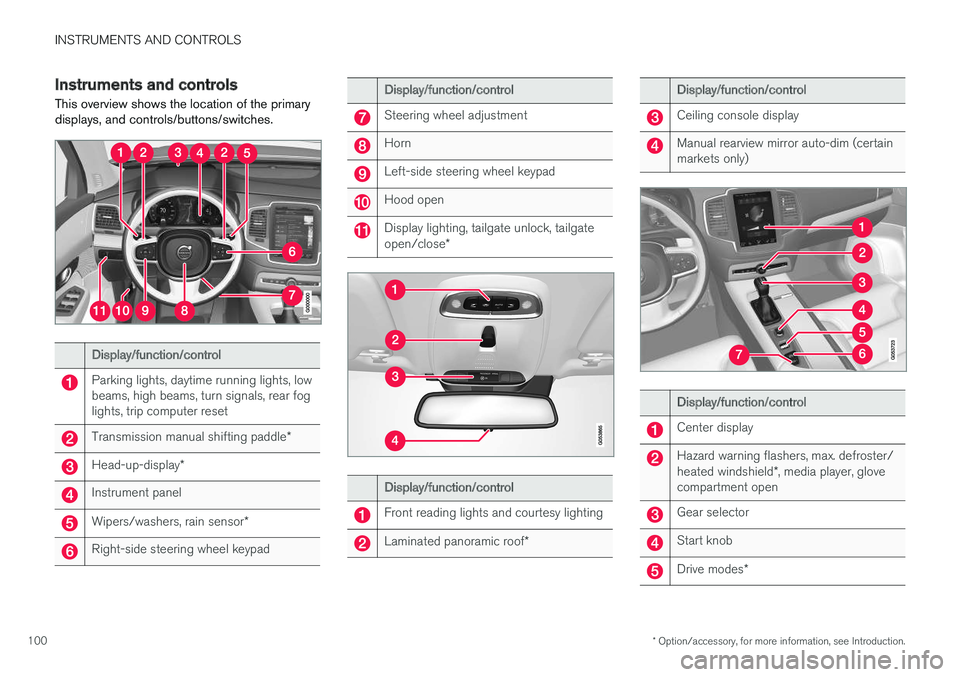
This overview shows the location of the primarydisplays, and controls/buttons/switches.
Display/function/control
Parking lights, daytime running lights, lowbeams, high beams, turn signals, rear foglights, trip computer reset
Transmission manual shifting paddle*
Head-up-display*
Instrument panel
Wipers/washers, rain sensor*
Right-side steering wheel keypad
Display/function/control
Steering wheel adjustment
Horn
Left-side steering wheel keypad
Hood open
Display lighting, tailgate unlock, tailgateopen/close*
Display/function/control
Front reading lights and courtesy lighting
Laminated panoramic roof*
Display/function/control
Ceiling console display
Manual rearview mirror auto-dim (certainmarkets only)
Display/function/control
Center display
Hazard warning flashers, max. defroster/heated windshield*, media player, glovecompartment open
Gear selector
Start knob
Drive modes*
Page 103 of 584
INSTRUMENTS AND CONTROLS
}}
* Option/accessory, for more information, see Introduction.101
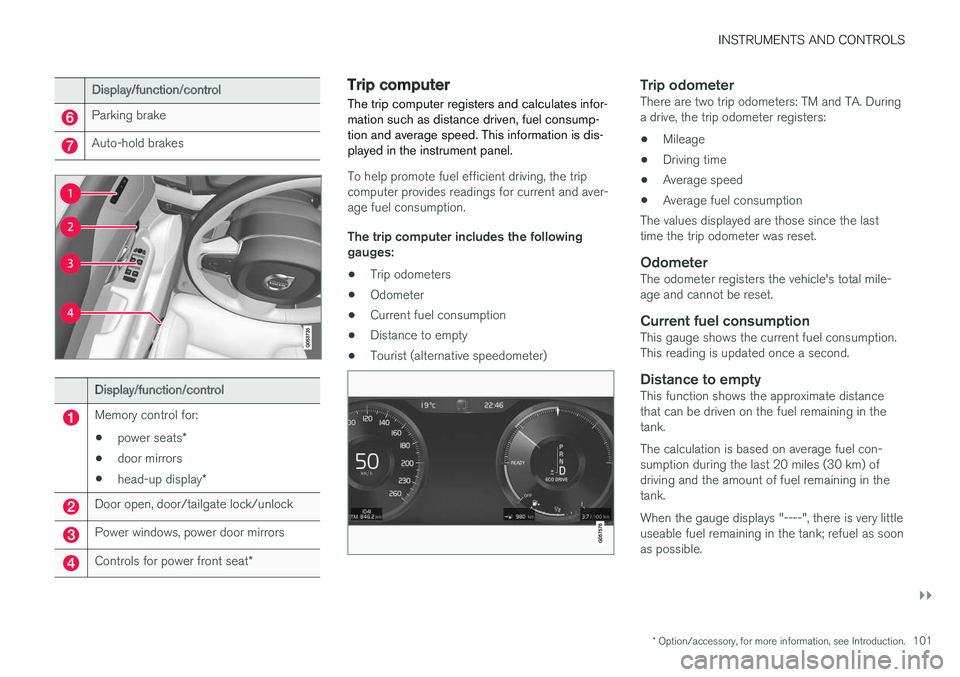
Display/function/control
Parking brake
Auto-hold brakes
Display/function/control
Memory control for:
•power seats*
•door mirrors
•head-up display*
Door open, door/tailgate lock/unlock
Power windows, power door mirrors
Controls for power front seat*
Trip computer
The trip computer registers and calculates infor-mation such as distance driven, fuel consump-tion and average speed. This information is dis-played in the instrument panel.
To help promote fuel efficient driving, the tripcomputer provides readings for current and aver-age fuel consumption.
The trip computer includes the followinggauges:
•Trip odometers
•Odometer
•Current fuel consumption
•Distance to empty
•Tourist (alternative speedometer)
Trip odometer
There are two trip odometers: TM and TA. Duringa drive, the trip odometer registers:
•Mileage
•Driving time
•Average speed
•Average fuel consumption
The values displayed are those since the lasttime the trip odometer was reset.
Odometer
The odometer registers the vehicle's total mile-age and cannot be reset.
Current fuel consumption
This gauge shows the current fuel consumption.This reading is updated once a second.
Distance to empty
This function shows the approximate distancethat can be driven on the fuel remaining in thetank.
The calculation is based on average fuel con-sumption during the last 20 miles (30 km) ofdriving and the amount of fuel remaining in thetank.
When the gauge displays "----", there is very littleuseable fuel remaining in the tank; refuel as soonas possible.
Page 104 of 584
||
INSTRUMENTS AND CONTROLS
102
The accuracy of this figure may vary if your driv-ing style changes. An economical driving style willgenerally increase this distance.
Distance to discharged battery
This gauge shows the approximate distance thatcan be driven on the charge remaining in thehybrid battery. When the gauge displays "----"there is no guaranteed driving charge remainingin the battery.
This calculation is based on the average electricalcurrent consumption in a normally loaded vehicleduring normal driving, and whether the A/C is onor off.
An economical driving style will generallyincrease this distance.
Distance using the electric motor
To get the optimal driving distance using theelectric motor, it is essential to conserve current.Functions that use a great deal of current (e.g.,audio system, electrical heating in the steeringwheel/door mirrors/rear window/seats, very coldair from the climate system, etc.) reduce the pos-sible driving distance.
NOTE
In addition to high electrical consumption inthe passenger compartment, fast accelera-tion, sudden braking, heavy loads, low ambienttemperatures and driving up hills can reducethe possible driving distance.
Tourist (alternative speedometer)
This is an alternative digital speedometer can beused when driving in areas in which the speedlimit is listed in a different unit of measure. If thespeedometer is in mph, this gauge will show thevehicle's speed in km/h and vice versa.
Related information
•Displaying trip computer information (p. 102)
•Displaying trip statistics (p. 104)
Displaying trip computerinformation
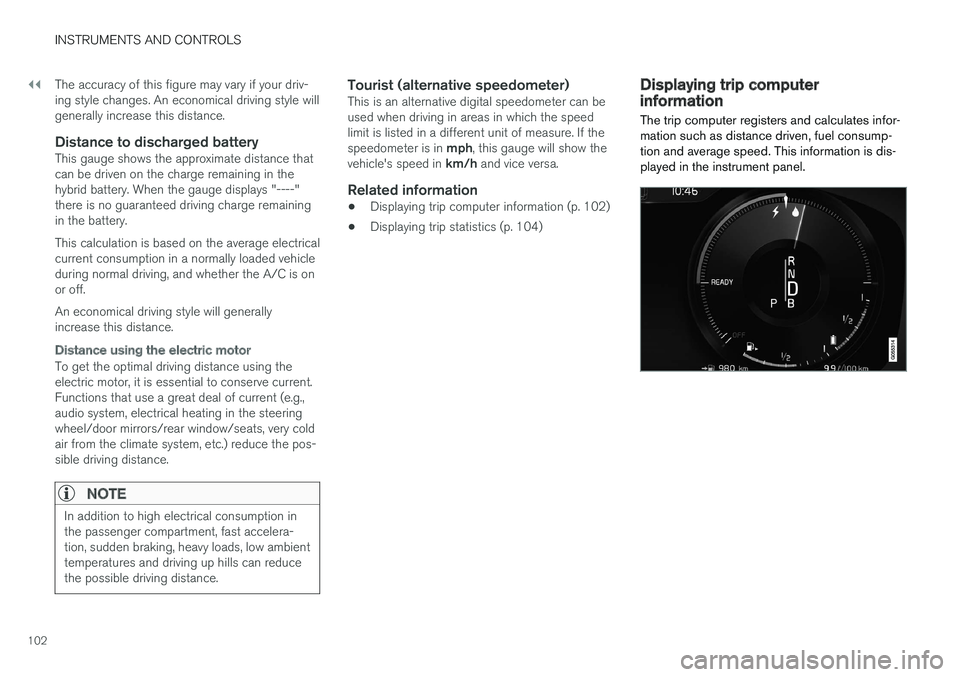
The trip computer registers and calculates infor-mation such as distance driven, fuel consump-tion and average speed. This information is dis-played in the instrument panel.
Page 105 of 584
INSTRUMENTS AND CONTROLS
* Option/accessory, for more information, see Introduction.103
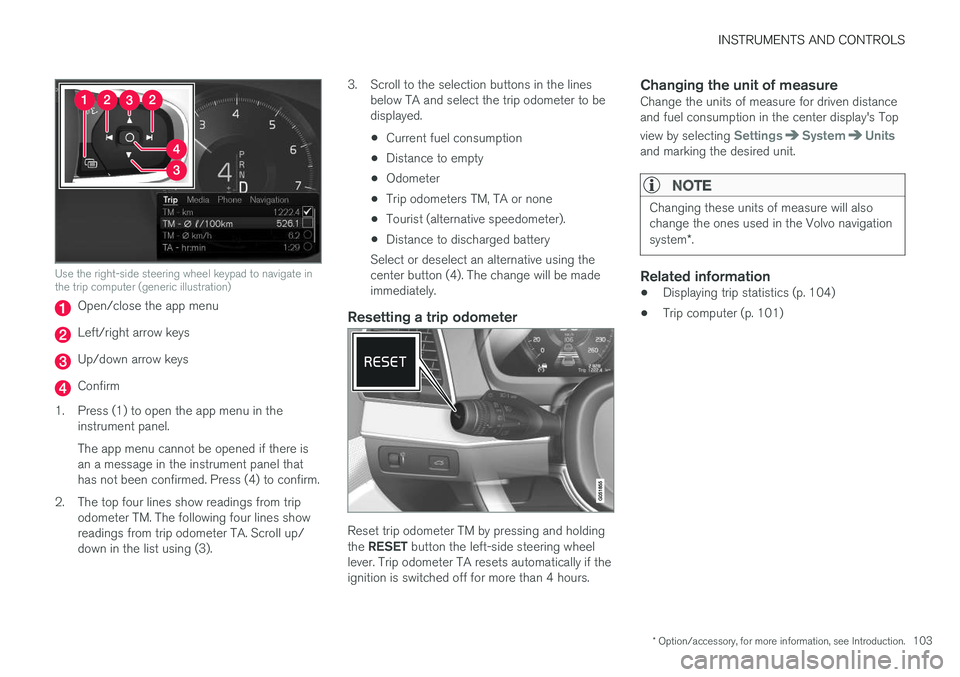
Use the right-side steering wheel keypad to navigate inthe trip computer (generic illustration)
Open/close the app menu
Left/right arrow keys
Up/down arrow keys
Confirm
1.Press (1) to open the app menu in theinstrument panel.
The app menu cannot be opened if there isan a message in the instrument panel thathas not been confirmed. Press (4) to confirm.
2. The top four lines show readings from tripodometer TM. The following four lines showreadings from trip odometer TA. Scroll up/down in the list using (3).
3. Scroll to the selection buttons in the linesbelow TA and select the trip odometer to bedisplayed.
•Current fuel consumption
•Distance to empty
•Odometer
•Trip odometers TM, TA or none
•Tourist (alternative speedometer).
•Distance to discharged battery
Select or deselect an alternative using thecenter button (4). The change will be madeimmediately.
Resetting a trip odometer
Reset trip odometer TM by pressing and holdingthe RESET button the left-side steering wheellever. Trip odometer TA resets automatically if theignition is switched off for more than 4 hours.
Changing the unit of measure
Change the units of measure for driven distanceand fuel consumption in the center display's Top
view by selecting SettingsSystemUnitsand marking the desired unit.
NOTE
Changing these units of measure will alsochange the ones used in the Volvo navigationsystem*.
Related information
•Displaying trip statistics (p. 104)
•Trip computer (p. 101)
Page 115 of 584
INSTRUMENTS AND CONTROLS
}}
* Option/accessory, for more information, see Introduction.113
Auto-stop
The laminated panoramic roof has an auto-stopfeature that is triggered if the glass section of theroof or the sun shade is blocked in any way whenbeing closed. In this case, the laminated panor-amic roof or sun shade will stop and reverseautomatically approximately 2 in. (5 cm) from thepoint at which it was blocked (or will open fully tothe tilt position).
The auto-stop feature also functions when thelaminated panoramic roof or sun shade is beingopened.
WARNING
For 10 minutes after the auto-stop functionhas been triggered, it will not function againthe first time the control is moved in the samedirection as when the auto-stop function wastriggered.
The auto-stop feature can be overridden if theclosing procedure has been interrupted (e.g., dueto ice around the moonroof) by pressing andholding the control forward/down until the moon-roof is closed.
Power windows
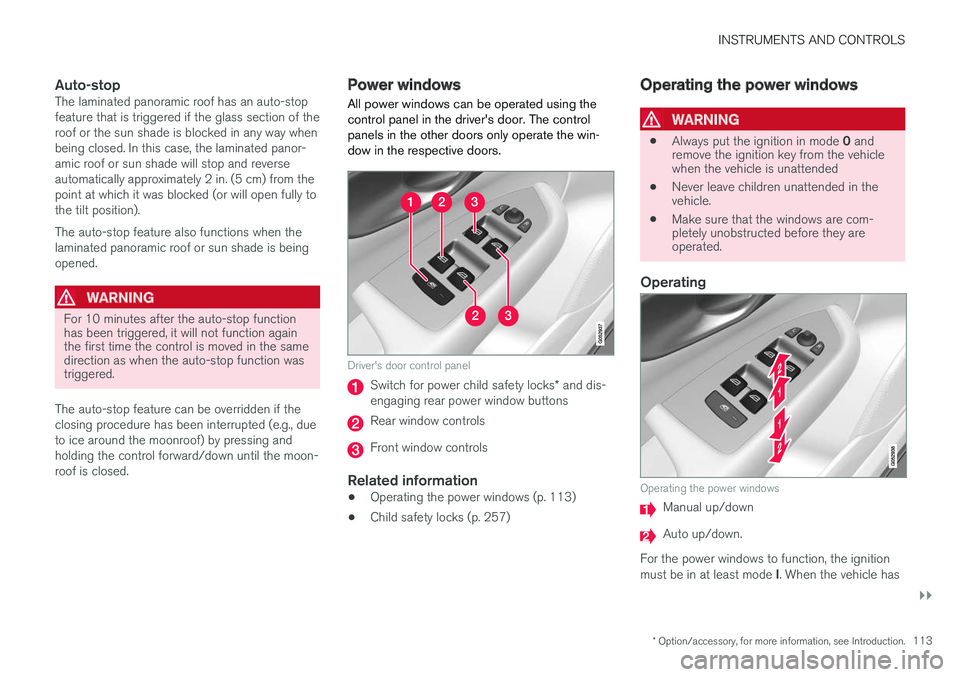
All power windows can be operated using thecontrol panel in the driver's door. The controlpanels in the other doors only operate the win-dow in the respective doors.
Driver's door control panel
Switch for power child safety locks* and dis-engaging rear power window buttons
Rear window controls
Front window controls
Related information
•Operating the power windows (p. 113)
•Child safety locks (p. 257)
Operating the power windows
WARNING
•Always put the ignition in mode 0 andremove the ignition key from the vehiclewhen the vehicle is unattended
•Never leave children unattended in thevehicle.
•Make sure that the windows are com-pletely unobstructed before they areoperated.
Operating
Operating the power windows
Manual up/down
Auto up/down.
For the power windows to function, the ignitionmust be in at least mode I. When the vehicle has
Page 120 of 584
INSTRUMENTS AND CONTROLS
* Option/accessory, for more information, see Introduction.118
Changing system settings inSettings view
Settings view's main category System containsgeneral settings and information, such as lan-guage, units of measure, etc.
The system settings under Driver Profile, Date& Time, Keyboard Layouts, Voice Control,Software Updates, Factory reset andServices are described in their respective arti-cles in the owner's manual.
Changing system languages
1. Pull down the center display's Top view andtap Settings.
2.Tap SystemLanguage.
3. Select a new system language. Languagesthat can be used for voice commands areindicated by a voice control symbol.
> This change affects the language used inthe instrument panel, center display andthe head-up display*.
Changing units of measure
Changing length and volume units
1. Pull down the center display's Top view andtap Settings.
2.Tap SystemUnitsUnits.
3. Select one of the following measurementstandards:
•Metric: kilometers, liters and degrees Cel-sius.
•Imperial: miles, gallons and degrees Cel-sius.
•US: miles, gallons and degrees Fahren-heit.
>This change affects the units of measureused in the instrument panel, center dis-play and the head-up display*
Changing tire inflation pressure units
1. Pull down the center display's Top view andtap Settings.
2.Tap SystemUnitsTire Pressure.
3.Select a unit of measure for tire pressure.
> This changes the tire inflation pressureunits used in the Car status app in thecenter display.
Viewing storage information
1. Pull down the center display's Top view andtap Settings.
2.Tap SystemStorage.
>Storage information for the vehicle's harddrive will be displayed, including totalcapacity, available capacity and theamount of storage space used by theapps that have been installed.
Viewing the VIN (Vehicle Identification
Number)
1. Pull down the center display's Top view andtap Settings.
2.Tap SystemVehicle IdentificationNumber.
>The vehicle's VIN will be displayed.
Page 122 of 584
||
INSTRUMENTS AND CONTROLS
120
3.Tap OK to confirm your choice.
For Reset Personal Settings, tap Resetfor the active profile or Reset for allprofiles for confirmation.
>The selected settings will be reset.
Related information
•Settings view (p. 115)
•Resetting user data when the vehiclechanges owners (p. 120)
•Changing system settings in Settings view(p. 118)
Resetting user data when thevehicle changes owners
When the vehicle changes owners, all user set-tings should be reset to the factory defaults.
When the vehicle changes owners, it is essentialto reset all user data and system settings to theirfactory defaults, including Volvo On Call.
Related information
•Resetting the settings view (p. 119)
•Volvo ID (p. 32)
Ambient temperature sensor
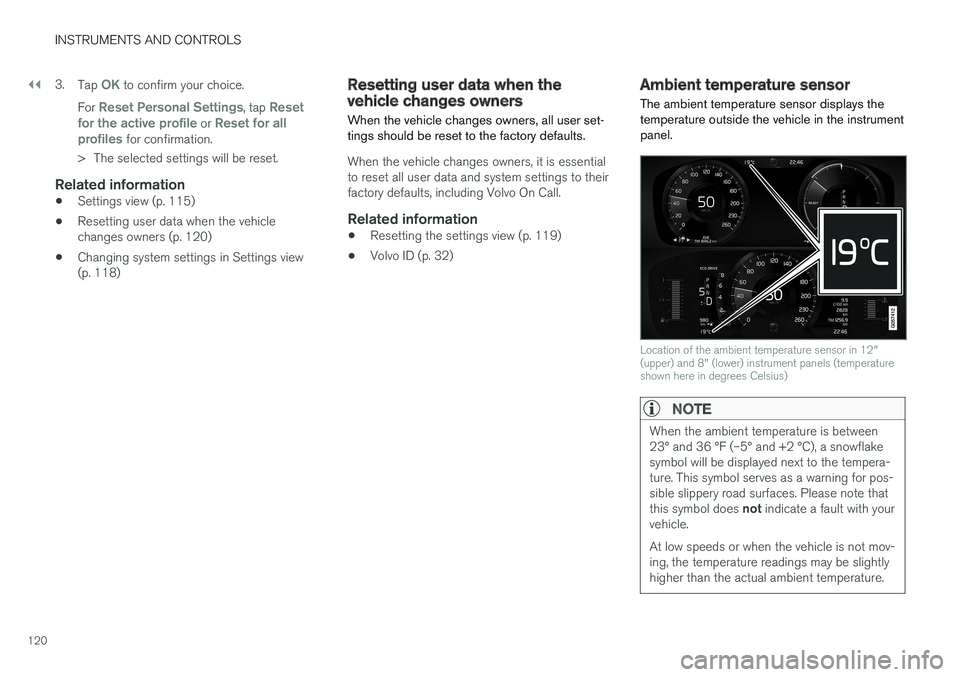
The ambient temperature sensor displays thetemperature outside the vehicle in the instrumentpanel.
Location of the ambient temperature sensor in 12"(upper) and 8" (lower) instrument panels (temperatureshown here in degrees Celsius)
NOTE
When the ambient temperature is between23° and 36 °F (–5° and +2 °C), a snowflakesymbol will be displayed next to the tempera-ture. This symbol serves as a warning for pos-sible slippery road surfaces. Please note thatthis symbol does not indicate a fault with yourvehicle.
At low speeds or when the vehicle is not mov-ing, the temperature readings may be slightlyhigher than the actual ambient temperature.
Page 123 of 584
INSTRUMENTS AND CONTROLS
121
Settings
Changing measurement standard in the centerdisplay:
1. Pull down the center display's Top view andtap Settings.
2.Tap SystemUnits.
3.Select measurement standard, Metric,Imperial or US.
Related information
•Instrument panel (p. 132)
•Climate system sensors (p. 189)
Clock
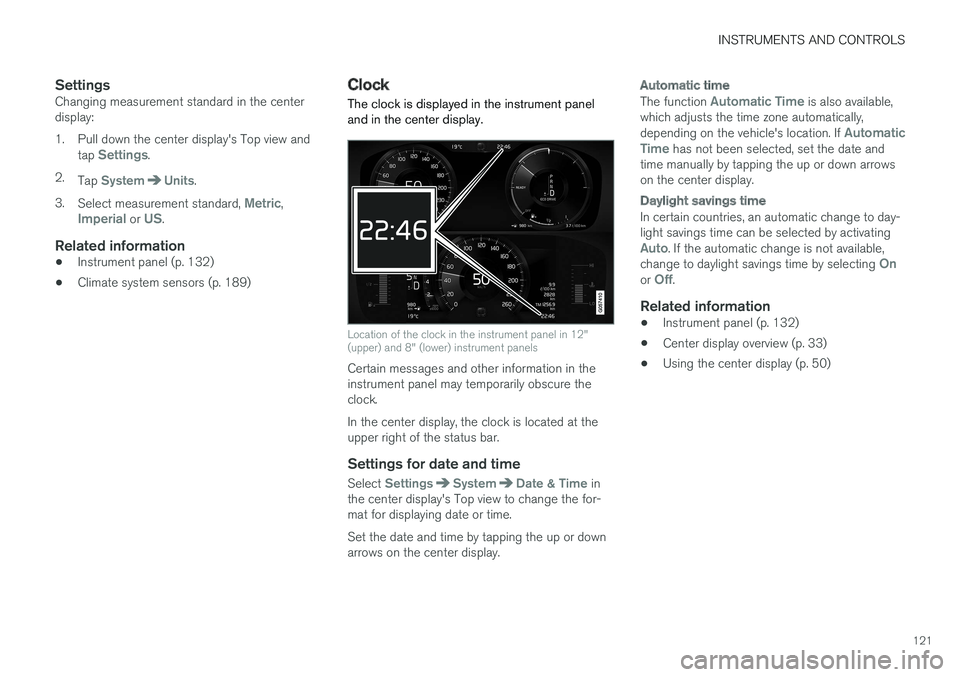
The clock is displayed in the instrument paneland in the center display.
Location of the clock in the instrument panel in 12"(upper) and 8" (lower) instrument panels
Certain messages and other information in theinstrument panel may temporarily obscure theclock.
In the center display, the clock is located at theupper right of the status bar.
Settings for date and time
Select SettingsSystemDate & Time inthe center display's Top view to change the for-mat for displaying date or time.
Set the date and time by tapping the up or downarrows on the center display.
Automatic time
The function Automatic Time is also available,which adjusts the time zone automatically,depending on the vehicle's location. If AutomaticTime has not been selected, set the date andtime manually by tapping the up or down arrowson the center display.
Daylight savings time
In certain countries, an automatic change to day-light savings time can be selected by activatingAuto. If the automatic change is not available,change to daylight savings time by selecting Onor Off.
Related information
•Instrument panel (p. 132)
•Center display overview (p. 33)
•Using the center display (p. 50)
Page 124 of 584
INSTRUMENTS AND CONTROLS
* Option/accessory, for more information, see Introduction.122
Head-up display (HUD)*
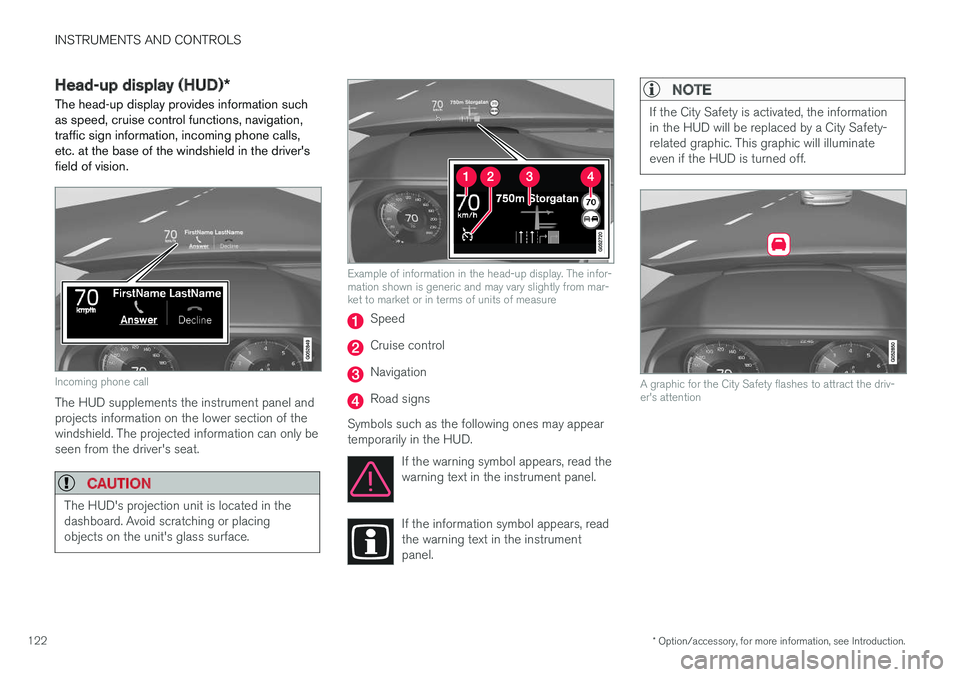
The head-up display provides information suchas speed, cruise control functions, navigation,traffic sign information, incoming phone calls,etc. at the base of the windshield in the driver'sfield of vision.
Incoming phone call
The HUD supplements the instrument panel andprojects information on the lower section of thewindshield. The projected information can only beseen from the driver's seat.
CAUTION
The HUD's projection unit is located in thedashboard. Avoid scratching or placingobjects on the unit's glass surface.
Example of information in the head-up display. The infor-mation shown is generic and may vary slightly from mar-ket to market or in terms of units of measure
Speed
Cruise control
Navigation
Road signs
Symbols such as the following ones may appeartemporarily in the HUD.
If the warning symbol appears, read thewarning text in the instrument panel.
If the information symbol appears, readthe warning text in the instrumentpanel.
NOTE
If the City Safety is activated, the informationin the HUD will be replaced by a City Safety-related graphic. This graphic will illuminateeven if the HUD is turned off.
A graphic for the City Safety flashes to attract the driv-er's attention