lock Abarth 124 Spider 2017 Owner handbook (in English)
[x] Cancel search | Manufacturer: ABARTH, Model Year: 2017, Model line: 124 Spider, Model: Abarth 124 Spider 2017Pages: 220, PDF Size: 2.9 MB
Page 152 of 220

IMPORTANT If there is air remaining in
the tire when the valve core is removed,
the valve core could fly out. Remove
the valve core carefully.
turn the valve core 7 counter
clockwise with the valve core tool 8 and
remove the valve core fig. 134;
IMPORTANT Store the valve core in a
place where it will not get dirty.
insert the injection hose 9
fig. 135 into the valve 10;
hold the bottom of the bottle upright
11 fig. 136, squeeze the bottle with
your hands, and inject the entire
amount of tire sealant into the tire;
pull out the injection hose from the
valve fig. 137;
reinsert the valve core 12 into the
valve 13 and turn it clockwise to install.
IMPORTANT The tire sealant cannot be
reused. Purchase a new tire sealant kit
at an Abarth Dealership.
IMPORTANT Do not throw away the
empty tire sealant bottle after use.
Return the empty tire sealant bottle to
an Abarth Dealership when replacing
the tire. The empty tire sealant bottle
will need to be used to extract and
dispose of the used sealant from the
tire.
after that, install the injection hose to
the tab 14 fig. 138 of the bottle to
prevent leakage of any remaining
sealant;
adhere the speed restriction sticker
to an area where it can be viewed easily
by the driver;
pull out the air compressor hose and
the air compressor plug from the air
compressor 15 fig. 139;
13408020202-03A-005AB
13508020202-03A-006AB
13608020202-03A-008AB
13708020202-03A-007AB
150
IN CASE OF EMERGENCY
Page 162 of 220
PERIODIC CHECKS
Every1,000 kmor before long trips
check and, if necessary, top up:
engine coolant level;
brake fluid level;
windscreen washer fluid level;
tire inflation pressure and condition;
operation of lighting system
(headlights, direction indicators, hazard
warning lights, etc.);
operation of windscreen
washer/wiper system and
positioning/wear of windscreen window
wiper blades.
Every 3,000 km, check and top up if
required: engine oil level.
HEAVY-DUTY USE OF THE
VEHICLE
If the vehicle is used under one of the
following conditions:
dusty roads;
short, repeated journeys (less than
7-8 km) at sub-zero outside
temperatures;
engine often idling or driving long
distances at low speeds or long periods
of inactivity;
the following checks must be carried
out more often than indicated in the
Scheduled Servicing Plan:
check front disc brake pad condition
and wear;
check cleanliness of bonnet and
luggage compartment locks,
cleanliness and lubrication of linkage;
visually inspect conditions of: engine,
gearbox, transmission, pipes and hoses
(exhaust/fuel system/brakes) and
rubber elements (gaiters/sleeves/
bushes, etc.);
check battery charge and battery
fluid level (electrolyte);
visually inspect conditions of the
accessory drive belts;
check and, if necessary, change
engine oil and replace oil filter;
check and, if necessary, replace
pollen filter;
check and, if necessary, replace air
cleaner.
160
MAINTENANCE AND CARE
Page 164 of 220

Thousands of miles9 182736455463728190
Thousands of kilometers15 30 45 60 75 90 105 120 135 150
Years12345678910
Check endfloat of wheel bearings and front and
rear joints●●●●●
Check windscreen wiper blade position/wear●●●●●
Check operation of the wiper/washer system
and adjust jets, if necessary●●●●●
Check cleanliness of bonnet and boot locks, as
well as cleanliness and lubrication of linkages●●●●●
Check handbrake lever travel and adjust, if
necessary●●●●●●●●●●
Visually inspect conditions and wear of front/rear
disk brake pads and integrity of pad wear
indicator
●●●●●●●●●●
Visually inspect condition of evaporation control
system●●●
Visually inspect condition and tensioning of
accessory drive belt(s)●
Visually inspect conditions of toothed timing
drive belt●
Change transmission oil●
Change engine oil and replace oil filter●●●●●●●●●●
162
MAINTENANCE AND CARE
Page 175 of 220

repair the affected area could lead to
serious rusting and expensive repairs.
Versions with opaque paint
(where provided)
Your vehicle could be equipped with an
exclusive opaque paint needing special
care for its preservation.
To correctly wash the vehicle, proceed
as follows:
wash the body using a low pressure
jet of water. Remember that the build
up of water can damage the car over a
period of time;
wipe a sponge with a slightly soapy
solution over the bodywork, frequently
rinsing the sponge;
rinse well with water and dry with a
jet of air or chamois leather, without
wiping localised areas repeatedly.
MAINTAINING THE
FINISH
Washing
To help protect the finish from rust and
deterioration, wash your vehicle
thoroughly and frequently, at least once
a month, with lukewarm or cold water.
IMPORTANT FCA is not responsible for
scratches caused by automatic car
washes or improper washing.
Scratches are more noticeable on
vehicles with darker paint finishes.IMPORTANT Keep hands and scrapers
clear of the windscreen when the wiper
lever is in the AUTO position and the
ignition is switched ON as fingers could
be pinched or the wipers and wiper
blades damaged when the wipers
activate automatically. If you are going
to clean the windscreen, be sure the
wipers are turned off completely (when
it is most likely that the engine is left
running) this is particularly important
when clearing ice and snow.
IMPORTANT Do not spray water in the
engine compartment. Otherwise, it
could result in engine-starting problems
or damage to electrical parts.
IMPORTANT When washing and
waxing the vehicle, be careful not to
apply excessive force to any single area
of the vehicle bonnet. Otherwise, you
could dent the vehicle.
IMPORTANT Do not use automatic car
washing machines and car washing
devices using high water pressure.
IMPORTANT Make sure that the fuel
flap is closed and lock the doors.
Otherwise, the fuel flap may be
forcefully opened by water pressure
causing damage to the vehicle or fuel
flap.IMPORTANT Do not use steel wool,
abrasive cleaners, or strong detergents
containing highly alkaline or caustic
agents on chromeplated or anodised
aluminium parts. This may damage the
protective coating; also, cleaners and
detergents may discolour or deteriorate
the paint.
Thoroughly rinse off all soap with
lukewarm or cold water. Do not allow
soap to dry on the finish.
212)
WARNING
212)Dry off brakes that have become wet
by driving slowly, releasing the accelerator
pedal and lightly applying the brakes
several times until the brake performance
returns to normal. Driving with wet brakes
is dangerous. Increased stopping distance
or the vehicle pulling to one side when
braking could result in a serious accident.
Light braking will indicate whether the
brakes have been affected.
IMPORTANT
51)In order to preserve the appearance of
the paint abrasive products and/or polishes
should not be used for cleaning the vehicle.
173
Page 195 of 220

STEERING WHEEL
CONTROLSVOLUME SWITCHES
Press up the volume switch+to
increase the volume. Press down the
volume switch–to decrease the
volume.
SEEK SWITCH
MW/LW/FM radio
Press the seek switch
/.
The radio switches to the next/previous
stored station in the order that it was
stored.
Press and hold the seek switch
/
to seek all usable stations at a
higher or lower frequency whether
programmed or not.
Radio stations which have been
previously stored in the auto memory
tuning can be called up by pressing the
seek switch
/while any
radio station stored in the auto memory
tuning is being received.
Radio stations can be called up in the
order they were stored with each press
of the switch
/.
USB Audio /
Bluetooth®Audio
Press the seek switch
to skip
forward to the beginning of the next
track. Press the seek switch
within a few seconds after
playback begins to track down to the
beginning of the previous track.
Press the seek switch
after a fewseconds have elapsed to start playback
from the beginning of the current track.
MUTE SWITCH
Press the mute switch
once to mute
audio, press it again to resume audio
output.
If the ignition is switched off with the
audio muted, the mute will be
cancelled. Therefore, when the engine
is restarted, the audio is not muted. To
mute the audio again, press the mute
switch
.
POWER / VOLUME
SOUND CONTROLS
Power ON / OFF
Switch the ignition to ACC or ON. Press
PUSH POWERbutton to turn the
audio system on. Press thePUSH
POWERbutton again to turn the audio
system off.
Volume adjustment
Turn theVOLdial. Turn theVOLdial
clockwise to increase volume,
anticlockwise to decrease it.
Audio sound adjustment
Press theMENUbutton to select the
function. The selected function will be
indicated.
Turn theVOLcontrol dial to adjust the
selected functions:
AF (Alternative Frequency);
1610620500-189-099AB
1620620500-188-088AB
193
The controls for the main system
functions are present on the steering
wheel fig. 161 (versions without
Bluetooth®hands-free) and
fig. 162 (versions withBluetooth®
hands-free) to make control easier.
Page 196 of 220
REG (Regional Programme);
ALC (Automatic volume adjustment);
BASS (Low pitch sound);
TREB (Treble sound);
FADE (Front/back volume balance);
BAL (Left/right volume balance);
BEEP (Audio operation sound);
12Hr < > 24Hr (12 Hr/24 Hr time
adjustment).
CLOCK
Setting the time
The clock can be set at any time when
the ignition is switched to ACC or ON.
To adjust the time, press the clock
buttonFM/AMfor about 2 seconds
until a beep is heard. The clock's
current time will flash.
Time adjustment
To adjust the time, press the
hour/minute set button
/
while the clock's current time is
flashing.
The hours advance while the hour set
button
is pressed. The minutes
advance while the minute
set
button is pressed.
Press the clock buttonFM/AMagain
to start the clock.
OPERATING THE RADIO
Radio ON: press a band selector
button FM/AM to turn the radio on.
Band selection: press the band
selector buttonFM/AMto switch the
bands as follows: M1–FM2–MW/LW
Manual tuning: select the station by
pressing the tuning button
/
lightly.
Seek tuning: press tuning button
/. The search stops when a
station is found.
Scan tuning: press and hold the scan
buttonMEDIAto automatically sample
strong stations. Scanning stops at each
station for about 5 seconds. To hold a
station, press and hold the scan button
MEDIA again during this interval.
Preset channel tuning
The 6 preset channels can be used to
store 6 MW/LW and 12 FM stations.
To set a channel first select MW/LW,
FM1, or FM2. Tune to the desired
station.
Press a channel preset button for
about 2 seconds until a beep is heard.
The preset channel number or station
frequency will be displayed. The station
is now held in the memory.
Repeat this operation for the other
stations and bands you want to store.
To tune one in the memory, selectMW/LW, FM1, or FM2 and then press
its channel preset button. The station
frequency or the channel number will be
displayed.
AUX / USB / iPod MODE
Auxiliary jack / USB port
Audio can be heard from the vehicle's
speakers by connecting a commercially
available portable audio unit to the
auxiliary jack. A commercially-available,
non-impedance (3.5 Ø) stereo mini plug
lead is required. In addition, audio can
be played from the vehicle audio device
by connecting a USB device or an iPod
to the USB port.
How to use AUX mode
Switch the ignition to ACC or ON, press
the power/volume dial to turn the audio
system on and press theMEDIA
button of the audio unit to change to
the AUX mode.
How to use USB mode
This unit does not support a USB
3.0 device. In addition, other devices
may not be supported depending on
the model or OS version.
Playback
Switch the ignition to ACC or ON, press
the power/volume dial to turn the audio
system on and press theMEDIA
194
MULTIMEDIA
Page 200 of 220
displays the Entertainment
screen.
NAVdisplays the Navigation screen
(only navigation-equipped
vehicles). If the SD card for the
navigation system is not inserted,
the compass indicating the
direction in which the vehicle is
moving is displayed.
displays the Favourites screen.
Long-press to store particular
items in “Favourites” (radio,
phonebook and destination of
the navigation system can be
programmed).
returns to previous screen.
Volume dial operation
Press theVOLdial to switch the audio
MUTE on and off.
Turn the volume dial to adjust the
volume. The volume increases by
turning the dial clockwise, and
decreases by turning it anticlockwise.
Selection of icons on screen
Tilt or turn the commander knob and
move the cursor to the desired icon.
Press the commander knob and select
the icon.
NOTE Long-press operation of the
commander knob is also possible for
some functions.Touch panel operation
Touch & Tap: touch or tap on the item
indicated on the screen. The operation
is launched and the next item is
displayed.
Slide: touch the setting item displaying
a slider bar. Touch the slider with your
finger and move to the desired level.
Swipe: touch the screen with your
finger and move up or down. Items
which were not displayed can be
displayed.
IMPORTANT Do not press the screen
strongly or press it with a sharp-pointed
object. Otherwise, the screen could be
damaged.
NOTE For safety reasons, touch panel
operation is disabled while the vehicle is
moving.
AUDIO SOUND
ADJUSTMENT
Select theicon on the home screen
to display the Settings screen.
Select theSoundto select the item you
would like to change:
Bass(Low pitch sound): + Side low
pitch enhancement/– Side: low pitch
reduction;
Treble(Treble sound): + Side: treble
enhancement/– Side: treble reduction;
Fade(Front/rear volume balance):
Front (front speaker volumeenhancement)/Rear (rear speaker
volume enhancement);
Balance(Left/right volume balance):
Left (left speaker volume
enhancement)/Right (right speaker
volume enhancement);
ALC(Automatic volume adjustment)
(standard audio): Off-Adjustment at
seven levels;
Bose®AudioPilot(Automatic
volume adjustment) (Bose®Sound
System, where provided): On/Off;
Beep(Audio operation sound):
On/Off.
HOME SCREEN
Icons visualized on home screen are:
Applications: information such
as average fuel economy,
maintenance, and warnings can
be verified. Depending on the
grade and specification, the
screen display may differ.
Entertainment: operates audio
such as the radio. The audio
source most recently used is
displayed. An audio source
which cannot be used at that
time is skipped and the previous
audio source is displayed. To
change the audio source, select
the icon displayed at the bottom
of the screen.
198
MULTIMEDIA
Page 201 of 220

Communication:Bluetooth®
related functions are available.
Navigation: Navigation screen
(where provided) is displayed. If
the SD card for the navigation
system is not inserted, the
compass indicating the direction
in which the vehicle is moving is
displayed. The compass may
not indicate the correct bearing
when the vehicle is stopped or
travelling at a slow speed.
Settings: overall setting menu
(such as display, sound,
Bluetooth®and Language).
Depending on the grade and
specification, the screen display
may differ.
OPERATING THE RADIO
Select the iconon the home screen
to display the “Entertainment” screen.
When selecting the desired radio, the
following icons are indicated in the
lower part of the display:
displays the “Entertainment”
menu. Use to switch to a
different audio source;
displays the list of receivable RDS
radio stations (FM only);
displays the station list (AM
only). Select“Update Station
List”to display the frequencies
of up to ten radio stations on the
auto memory preset list Select
the desired frequency.
displays the Favourites list.
Long-press to store radio station
currently being aired.
you can search for receivable
radio stations. Scanning stops at
each station for about five
seconds. Select again to
continue receiving the radio
station.
you can change the radio
frequency manually. Rotate the
commander knob, slide the
screen, or touch the radio
frequency. Press
orto
change the radio frequency one
step at a time. When
oris
long-pressed, the radio frequency
changes continually. It stops when
you remove your hand from the
icon or the commander knob.
switches the TA mode on and
off.
/Automatic radio station
selection. When
long-pressed, the radio
frequency changes
continually. It stops when
you remove your hand from
the icon or the commander
knob.
Displays the FM settings screen
(FM only). On/Off of Alternative
frequency and Region lock can be
set.
Displays sound settings to adjust
audio quality level.
NOTE When theoricon is
selected while FM is selected, each
programme is selected.
Digital Audio Broadcasting (DAB)
Radio
(where provided)
Select the icon
on the home screen
to display the “Entertainment” screen.
SelectDABthe following icons are
displayed at the bottom of the screen:
Displays the “Entertainment”
menu. Use to switch to a
different audio source.
Displays the station list (ensemble
and station). Select “Update List”
to update the station list. Select
“Select Ensemble” to select the
ensemble you want to display.
199
Page 202 of 220
Displays the favorites list. Press
and hold to store the currently
tuned station to the favorites list.
Searches your desired station
from the station list. Tunes to
each station in the station list for
10 seconds. Select again when
your desired station is tuned. If
the station list is not available, it
switches to the station list update
screen. Perform the station list
updating.
Switches the TA mode on and
off.
/Returns to the
previous/goes to the next
station. Touch and hold to
return to the top station in
the previous/next ensemble.
Displays the DAB radio setting
screen.
Displays sound settings to adjust
audio quality level.
SETTINGS
NOTE Depending on the grade and
specification, the screen display may
differ.
Select the
icon on the home screen
to display the Settings screen. Switch
the tab and select the setting item you
want to change.You can customize settings in the setup
display as follows:
“Display”: refer to “Volume/Display/
Sound controls” paragraph in Radio 7”
supplement;
“Sound”: refer to “Volume/Display/
Sound controls” paragraph in Radio 7”
supplement;
“Clock”: “Adjust Time”, “GPS Sync”,
“Time Format”, “Time Zone Select”,
“Daylight Savings Time”;
“Vehicle”: rain sensing Wiper/Door
Lock/Other;
“Devices”: selectBluetooth®or
“Network Management”;
“System”: “Tool Tips”, “Language”,
“Temperature”, “Distance”, “Music
Database Update”, “Factory Reset”,
“About (agreements and disclaimers)”,
“About (version Information)”
AUX / USB / iPod MODE
Audio can be heard from the vehicle's
speakers by connecting a commercially
available portable audio unit to the
auxiliary jack. A commercially-available,
non-impedance (3.5 Ø) stereo mini plug
lead is required.
In addition, audio can be played from
the vehicle audio device by connecting
a USB device or an iPod to the USB
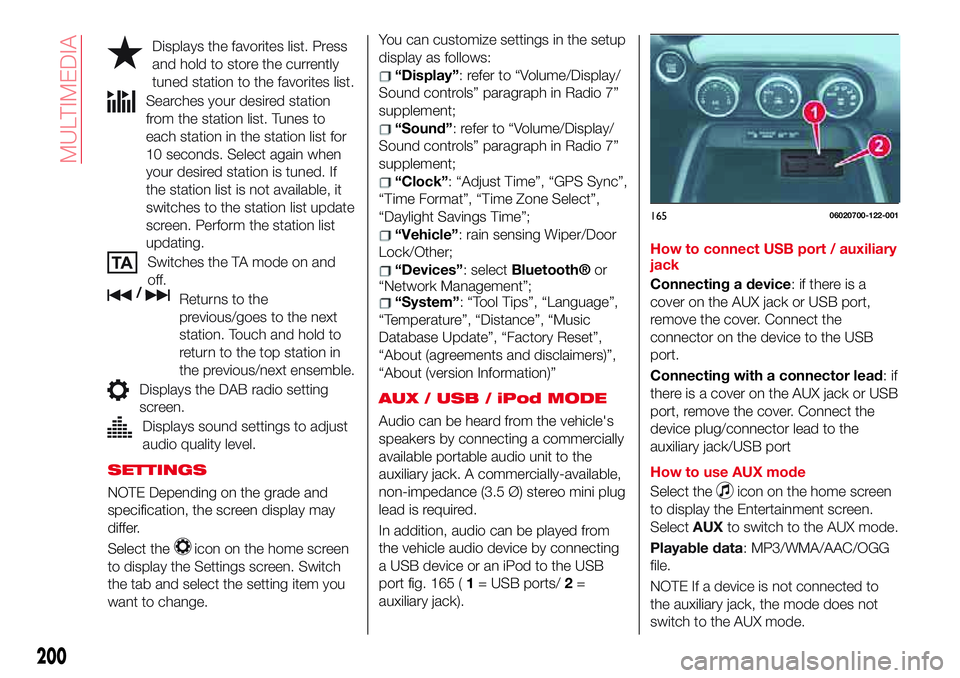
port fig. 165 (1= USB ports/2=
auxiliary jack).How to connect USB port / auxiliary
jack
Connecting a device: if there is a
cover on the AUX jack or USB port,
remove the cover. Connect the
connector on the device to the USB
port.
Connecting with a connector lead:if
there is a cover on the AUX jack or USB
port, remove the cover. Connect the
device plug/connector lead to the
auxiliary jack/USB port
How to use AUX mode
Select the
icon on the home screen
to display the Entertainment screen.
SelectAUXto switch to the AUX mode.
Playable data: MP3/WMA/AAC/OGG
file.
NOTE If a device is not connected to
the auxiliary jack, the mode does not
switch to the AUX mode.
16506020700-122-001
200
MULTIMEDIA
Page 204 of 220

phonebook or the name of a person
whose phone number has been
registered in the
Bluetooth®
hands-free. Press the talk button and
wait for the beep sound, say: “Call
XXXXX... (Ex. “John”) Mobile” and follow
the voice guidance to place the call.
Import contact (download
Phonebook)
Phonebook data from your device
(Mobile phone) can be sent and
registered to your
Bluetooth®
hands-free phonebook using
Bluetooth®.
Automatic downloading: the “Auto
Download Contacts” setting must be
on. When hands-free is connected to
the device, the phonebook is
downloaded automatically.
Manually downloading: if the “Auto
Download Contacts” setting is off,
download the phonebook using the
following procedure:
select theicon on the home
screen to display the “Communication”
screen;
selectContactsto display the
contact list;
selectEdit Contacts;
selectImport All Contactsor
Import Selected Contactto switch to
the device operation. IfImport All
Contactsis selected, select
Download. Download will be started
from the mobile phone.
NOTE A maximum of 1000 contacts
can be registered to the phonebook.
Receiving an incoming call
When an incoming call is received, the
incoming call notification screen is
displayed. The “Incoming Call
Notifications” setting must be on.
To accept the callpress steering
wheel button on the audio control
switch or selectAnsweron the screen.
To reject the callpress the hang-up
button on the audio control switch or
selectIgnoreon the screen.
NAVIGATION
SD CARD
To use the navigation system, the SD
card containing the map information
needs to be inserted in the SD card slot
fig. 166.When inserting the SD card, never
move the slider on the side of the SD
card to the LOCK position. If the slider
is set to LOCK, the SD card cannot be
read and the navigation system will not
operate.
This SD card is valid for use in only one
vehicle. Never use it in another vehicle.
If the SD card is used first in one vehicle
and then in another, the navigation
system for either one of the vehicles
may become inoperable.
NOTE For navigation map updates visit
the http://124spiderinfotainment.com
16606020777-177-077AB
202
MULTIMEDIA
website or contact an Abarth
Dealership.