light Abarth 500 2018 Owner handbook (in English)
[x] Cancel search | Manufacturer: ABARTH, Model Year: 2018, Model line: 500, Model: Abarth 500 2018Pages: 192, PDF Size: 5.86 MB
Page 160 of 192

Recording and transferring trip data
The trip data can be stored in the
system memory and transferred using a
suitably configured USB memory stick
or byUconnect™ LIVEApp. This
allows you to display the history of the
collected data, showing the complete
analysis of the trip data and of your
driving style.
Further information is available at
www.driveuconnect.eu.
WARNING Do not remove the USB
memory stick nor unpair the
smartphone and theUconnect™ LIVE
App before the system has
downloaded the data, otherwise it
could be lost.
During the transfer of data to the
devices, messages may appear on the
radio display to guide the user correctly
through the operation; follow these
instructions. These messages are only
displayed with the ignition key at STOP
and when a delay in the system
switching off is set. The data are
automatically transferred to the devices
when the engine is switched off.
Transferred data will be deleted from
the system memory in this manner. You
can choose to store the trip data or
not, by pressing the "Settings" button
and by setting the storage activation
and the USB or Cloud transfer mode.NOTES When the USB memory stick is
full, the warning messages are shown
on the radio display.
When theeco:Drive™data are not
transferred to USB memory stick for a
long time, the internal memory of the
Uconnect™ LIVEsystem may be
exhausted. Follow the instructions given
by the messages on the radio display.
my:Car
my:Car allows you to keep the
condition of your car always under
control.
my:Car can detect malfunction in real
time and inform the user about the
expiry of the servicing interval. Press
the "my:Car" button to interact with the
application.
The display will show a screen with the
"care:Index" section, which provides
all the detailed information about the
status of the car. Press the "Active
warnings" button (if present) to show
the details of the vehicle's faults which
caused a warning light to switch on.
The vehicle status can be seen both on
www.driveuconnect.eu or through the
Uconnect™LIVEApp.Settings
Press the
button on the front panel
to display the main “Settings” menu.
NOTE The menu items displayed vary
according to the versions.
The menu includes the following items:
Display;
Units;
Voice controls;
Clock & Date;
Lights (where provided);
Doors & Locks;
Vehicle Off Options;
Audio;
Phone /Bluetooth®;
Configurat. SiriusXM (where
provided);
Radio Setup;
Restore settings;
Clear Personal Data.
Navigation (Uconnect™
5" Nav LIVE only)
Planning a route
IMPORTANT In the interest of safety
and to reduce distractions while you are
driving, you should always plan a route
before you start driving.
To plan a route, do the following:
tap the screen to open the Main
menu;
158
MULTIMEDIA
Page 169 of 192

Switching the system
on/off
The system is switched on/off by
pressing the
button/knob.
Turn the button/knob clockwise to
increase the radio volume or
anticlockwise to decrease it. The
electronic volume adjustment control
rotates continuously (360°) in both
directions, without stop positions.
Radio mode
After the desired radio station is
selected, the following information is
shown on the display:
At the top: the list of radio stations
stored (preset) is displayed; the station
currently playing is highlighted.
In the middle: display of the name of
the current radio station and the
buttons for selecting the previous or
next radio station.
On the left:display of the "AM", "FM”,
“DAB” buttons for selecting the desired
frequency band (reconfigurable button
depending on the selected band:
AM, FM or DAB);
On the right:display of the following
buttons:
“Info”: additional information on the
source being listened to;
“Map": navigation map view
(Uconnect™ 7" HD Nav LIVE
versions only).
At the bottom:display of the following
buttons:
“Browse": list of the radio stations
available;
/: select previous/next
radio station;
“Tune”: manual radio station tuning;
“Audio”: access to the “Audio
Settings” screen.
Audio menu
To access the "Audio" menu press the
"Audio" button located at the bottom of
the display.
The following adjustments can be
carried out using the “Audio” menu:
"Balance/Fader" (left/right and
front/rear audio balance adjustment);
“Equaliser” (where provided);
“Speed Adj Volume” (speed-
dependent automatic volume control);
“Loudness” (where provided);
"AUX volume compensation" (off in
radio mode, selectable only with AUX
source active);
“AutoPlay”;
“Auto-On Radio”.Media mode
Press the "Media" button to select the
desired audio source among those
available: USB,Bluetooth®, AUX.
IMPORTANT NOTE Applications used
on portable devices may be not
compatible with theUconnect™
system
After Media mode is selected, the
following information is shown on the
display:
At the top:information on the track
being played and the following graphic
buttons:
“Repeat”: to repeat the track being
played;
“Shuffle”: to play the tracks in
random order.
In the middle:information on the track
being played.
On the left:display of the following
buttons:
Selected device or audio source;
“Select Source”: select the required
audio source.
On the right:display of the following
buttons:
“Info”: additional information on the
track being played;
“Tracks”: list of available tracks.
167
Page 175 of 192

Recording and transferring trip data
The trip data can be stored in the
system memory and made available
outside the car thanks to the
Uconnect™ LIVEApp. This allows
users to view the collected data later,
showing the overall trip data analysis.
Further information is available at
www.driveuconnect.eu.
For full access to the service’s
functionality, users must allow their data
to be recorded on-board the car. The
following icon
is the user’s
geolocation indicator. Through
Uconnect™ LIVEsmartphone App,
users can choose to enable detection
of their location and to share their
data with the community.
my:Car
154)
my:Car allows you to keep the "health"
of your vehicle always under control.
my:Car can detect malfunction in real
time and inform the user about the
expiry of the servicing interval. Press
the "my:Car" button to interact with the
application.The display will show a screen with the
"care:Index" section, which provides
all the detailed information about the
status of the vehicle. Press the "Active
warnings" button (if present) to show
the details of the faults of the car which
caused a warning light to switch on.
Apple CarPlay and
Android Auto
(for versions/markets, where provided)
The Apple CarPlay and Android Auto
applications allow you to use your
smartphone in the car safely and
intuitively.
To enable them, just connect a
compatible smartphone via the USB
port and the phone's contents will
be automatically shown on the
Uconnect™system display.
To check the compatibility of your
smartphone, see the indications on the
websites: https://www.android.com/
intl/it_it/auto/ and http://
www.apple.com/it/ios/carplay/.
If the smartphone is connected
correctly to the car via the USB port,
the Apple CarPlay or Android Auto icon
will be displayed in place of the
button in the main menu.Android Auto – app configuration
Before use, download the Android Auto
application to your smartphone from
Google Play Store.
The application is compatible with
Android 5.0 (Lollipop) and later
versions.
To use Android Auto, the smartphone
must be connected to the car with a
USB cable.
On the first connection, you will have to
perform the setup procedure that
appears on the smartphone. You can
only perform this procedure with the
vehicle stationary.
Apple CarPlay – app configuration
Apple CarPlay is compatible with the
iPhone 5 or more recent models, with
the iOS 7.1 operating system or later
versions.
Before using Apple CarPlay, enable Siri
from Settings > General > Siri on the
smartphone.
To use Apple CarPlay, the smartphone
must be connected to the car with a
USB cable.
NOTE Enabling Apple CarPlay/Android
Auto or some functions could require
interaction on the smartphone. If
necessary, complete the step on your
device (smartphone).
173
Page 176 of 192
Interaction
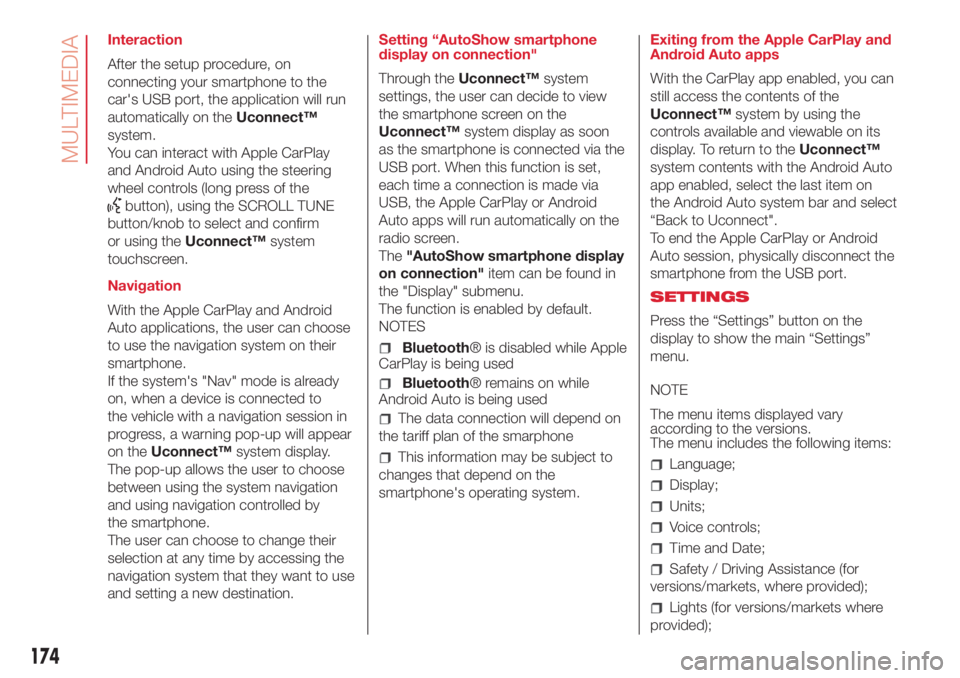
After the setup procedure, on
connecting your smartphone to the
car's USB port, the application will run
automatically on theUconnect™
system.
You can interact with Apple CarPlay
and Android Auto using the steering
wheel controls (long press of the
button), using the SCROLL TUNE
button/knob to select and confirm
or using theUconnect™system
touchscreen.
Navigation
With the Apple CarPlay and Android
Auto applications, the user can choose
to use the navigation system on their
smartphone.
If the system's "Nav" mode is already
on, when a device is connected to
the vehicle with a navigation session in
progress, a warning pop-up will appear
on theUconnect™system display.
The pop-up allows the user to choose
between using the system navigation
and using navigation controlled by
the smartphone.
The user can choose to change their
selection at any time by accessing the
navigation system that they want to use
and setting a new destination.Setting “AutoShow smartphone
display on connection"
Through theUconnect™system
settings, the user can decide to view
the smartphone screen on the
Uconnect™system display as soon
as the smartphone is connected via the
USB port. When this function is set,
each time a connection is made via
USB, the Apple CarPlay or Android
Auto apps will run automatically on the
radio screen.
The"AutoShow smartphone display
on connection"item can be found in
the "Display" submenu.
The function is enabled by default.
NOTES
Bluetooth® is disabled while Apple
CarPlay is being used
Bluetooth® remains on while
Android Auto is being used
The data connection will depend on
the tariff plan of the smarphone
This information may be subject to
changes that depend on the
smartphone's operating system.Exiting from the Apple CarPlay and
Android Auto apps
With the CarPlay app enabled, you can
still access the contents of the
Uconnect™system by using the
controls available and viewable on its
display. To return to theUconnect™
system contents with the Android Auto
app enabled, select the last item on
the Android Auto system bar and select
“Back to Uconnect".
To end the Apple CarPlay or Android
Auto session, physically disconnect the
smartphone from the USB port.
SETTINGS
Press the “Settings” button on the
display to show the main “Settings”
menu.
NOTE
The menu items displayed vary
according to the versions.
The menu includes the following items:Language;
Display;
Units;
Voice controls;
Time and Date;
Safety / Driving Assistance (for
versions/markets, where provided);
Lights (for versions/markets where
provided);
174
MULTIMEDIA
Page 180 of 192

RIGHT HAND DRIVE VERSIONS
DASHBOARD
1. Adjustable air vents 2. Fixed air vents 3. Left stalk: direction indicators, side/tail lights, dipped beam headlights, main beam headlights, Lane
change function 4. Turbo pressure gauge, “SPORT” display 5. Instrument panel 6. Right lever: windscreen wiper/washer, rear window wiper/washer
7.Uconnect™multimedia system 8. “SPORT” mode, hazard lights, fog light/rear fog light 9. Passenger front airbag 10. Glove compartment
11. Climate control system buttons 12. Window raisers 13. Storage compartment 14. Transmission 15. Driver front airbag 16.Uconnect™
multimedia system controls on steering wheel
124AB0A0391C
178
Page 182 of 192
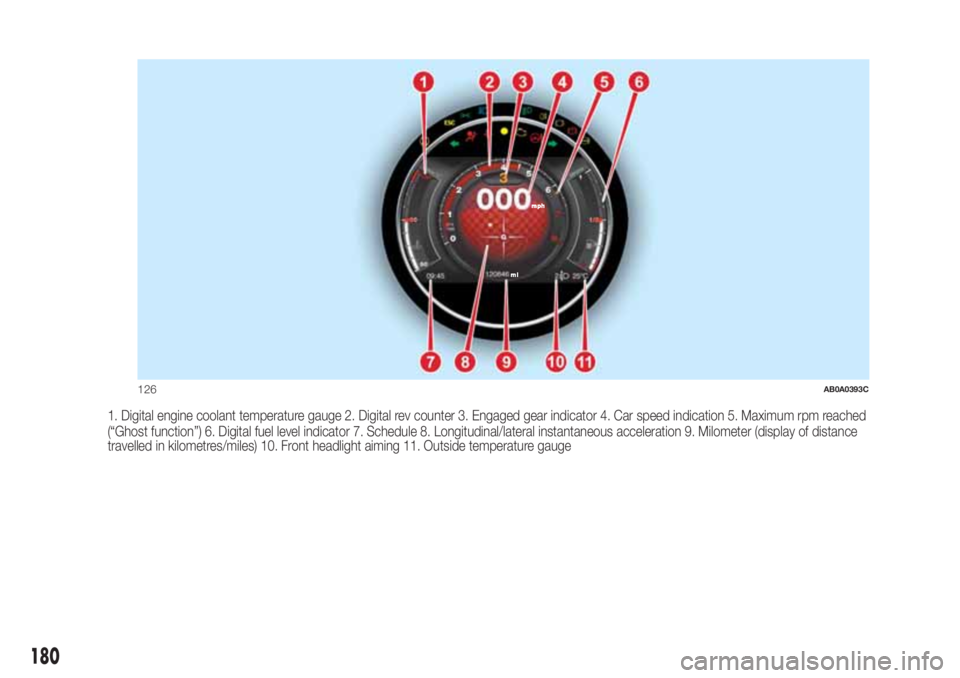
1. Digital engine coolant temperature gauge 2. Digital rev counter 3. Engaged gear indicator 4. Car speed indication 5. Maximum rpm reached
(“Ghost function”) 6. Digital fuel level indicator 7. Schedule 8. Longitudinal/lateral instantaneous acceleration 9. Milometer (display of distance
travelled in kilometres/miles) 10. Front headlight aiming 11. Outside temperature gauge
126AB0A0393C
180
Page 187 of 192
INDEX
A
ccessories purchased by the
owner
.............................4
Analogue pressure gauge............41
Automatic climate control
system...........................27
Battery
...........................121
advice for extending its life......121
inspecting the charge...........121
recharging.....................122
replacement...................121
Bodywork (cleaning and
maintenance)....................125
Brake fluid.........................119
Checking levels
...................117
Child protection systems.............67
Cleaning and maintenance
car interior.....................128
leather parts...................128
plastic parts....................128
seats..........................128
CO
2emissions....................144
Control panel and on-board
instruments.......................39
Courtesy lights......................22
Daytime running lights (DRL)
........20
Dimensions........................135
Dipped headlights (bulb
replacement).....................97
Dipped headlights/side lights.........20Direction indicators..................21
Direction indicators (bulb
replacement).....................96
Doors...............................14
Door central
locking/unlocking................14
door locking/unlocking...........14
opening/closing with the key . . . . . .14
Driver side knee bag.................76
Electric windows...................29
Engine.............................132
marking........................131
Engine bonnet......................35
Engine compartment (washing).....126
Engine coolant fluid................119
Engine oil (consumption)............119
Engine oil (level check)..............119
Exterior lights.......................20
Fiat CODE system..................13
Fitting a child restraint system
with seat belts....................68
Fix&Go kit.........................104
Flashing............................20
Fluids and lubricants...............140
Fog lights (bulb replacement).........97
Fog lights/rear fog light..............21
Follow Me Home (device)............21
Front airbag driver's side.............75
Front airbags........................74Front ceiling light....................22
Front light clusters (bulb
replacement).....................96
Fuel consumption..................143
Fuel cut-off system.................107
Fuel tank cap.......................89
Fuse boxes (location)................99
Fuses (replacement).................99
Gear Shift Indicator (system)........41
Handbrake.........................83
Hazard warning lights................92
Head restraints......................18
rear head restraints..............18
Headlamp alignment corrector.......22
Headlights (washing)...............126
Heated rear window (activation)......26
Identification data
bodywork paint plate...........131
chassis marking................131
engine marking.................131
identification data plate.........131
Ignition device.......................12
Installing an “ISOFIX” child
restraint system...................71
Installing electrical/electronic
devices............................4
Instrument panel....................10
Interiors (cleaning)..................128
iTPMS..............................61
Page 188 of 192
Jump starting.....................106
Lifting the car.....................124
Light bulbs
bulbs (replacement)..............92
Bulbs types.....................93
general instructions..............92
Lubricants (specifications)..........140
Luggage compartment..............36
closing..........................36
extending the boot..............37
Main beam headlights..............20
Main beam headlights (bulb
replacement).....................97
Manual climate control system.......25
controls.........................25
Menu options.......................41
Number plate lights (bulb
replacement).....................98
Occupant protection systems.......63
Official type approvals..............177
Paintwork (maintenance)...........125
Parking sensors.....................88
Parking the vehicle..................83
Passenger side front airbag..........75
Performance.......................142
Pre-tensioners......................65
load limiters.....................65
Radio transmitters and mobile
phones............................4Rear light clusters (bulb
replacement).....................97
Rear seats (backrest release).........16
Rear view mirrors....................19
Rear window washer (jets)..........124
Rear window wiper/washer..........23
Reconfigurable multifunction
display...........................39
Refuelling..........................139
Refuelling the vehicle................89
Replacing an exterior bulb...........96
Right hand drive versions...........178
Rims
dimensions....................134
wheels and tyres...............124
Rims and tyres.....................134
Safety..............................64
seat belts.......................64
SBR system........................65
Screen wiper/washer................23
Seat belts
using the seat belts..............64
Seat belts (maintenance).............66
Seats...............................15
front seats......................15
Sensors
parking.........................88
Service Schedule..................112
Servicing and maintenance.........111Demanding use of the car......116
periodic checks................116
scheduled servicing............111
Service Schedule...............112
Side airbags (Side bag - Window
bag)..............................78
Side bags (front side airbags)........78
Side lights/daytime running lights
(bulb replacement)................97
Snow chains.......................125
Snow tyres........................124
Soft Top............................31
Spark plugs (type)..................132
Sport front seats....................16
SPORT function.....................87
Starting the engine..................82
Steering wheel......................18
Sun roof ............................29
Technical data....................131
The keys............................11
key with remote control..........11
Mechanical key..................11
Third brake light (bulb
replacement).....................98
Towing the vehicle..................108
TRIP button.........................43
Trip computer.......................42
Ty r e s
inflation pressures..............134
INDEX
Page 189 of 192
snow tyres.....................134
tyres fitted.....................134
Tyres - maintenance................124
Uconnect™ 5”
APPS mode...................156
Bluetooth® source.............153
controls on front panel..........149
controls on the steering
wheel..........................151
eco:Drive™....................157
Media mode...................153
my:Car........................158
navigation......................158
phone mode...................154
Settings.......................158
switching the system on/off.....153
Uconnect™ LIVE services......156
voice commands...............161
Uconnect™ 5”/7” HD
Tips, controls and
information.....................147
Uconnect™ 7” HD
Android Auto...................173
Apple CarPlay..................173
AUX source....................169
Bluetooth® source.............168
controls on front panel..........162
controls on the steering
wheel..........................165Media mode...................167
navigation......................175
phone mode...................169
Settings.......................174
switching the system on/off.....167
trip computer..................169
Uconnect™ LIVE services......171
USB source....................169
voice commands...............176
Use of the Owner Handbook..........6
Using the manual gearbox...........84
Using the robotised sequential
transmission......................84
Vehicle changes/alterations...........4
Warning lights and messages
.......45
Washing and cleaning the soft
top .............................127
Weights...........................136
Wheels and tyres...................124
tyre inflation pressure...........134
Window bags (side airbags for
head protection)..................78
Window washing....................23
Windows (cleaning)................126
Windscreen washer (jets)...........123
Windscreen/rear window washer
fluid.............................119
Windscreen/rear window wiper
(blades).........................123