change time Abarth 500 2018 Owner handbook (in English)
[x] Cancel search | Manufacturer: ABARTH, Model Year: 2018, Model line: 500, Model: Abarth 500 2018Pages: 192, PDF Size: 5.86 MB
Page 12 of 192
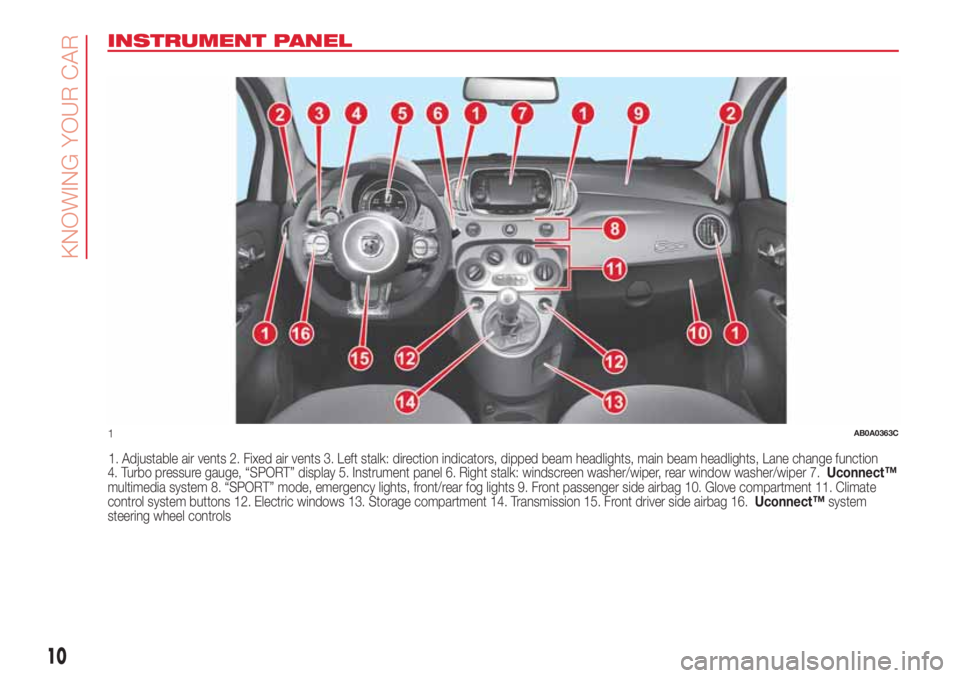
INSTRUMENT PANEL
1. Adjustable air vents 2. Fixed air vents 3. Left stalk: direction indicators, dipped beam headlights, main beam headlights, Lane change function
4. Turbo pressure gauge, “SPORT” display 5. Instrument panel 6. Right stalk: windscreen washer/wiper, rear window washer/wiper 7.Uconnect™
multimedia system 8. “SPORT” mode, emergency lights, front/rear fog lights 9. Front passenger side airbag 10. Glove compartment 11. Climate
control system buttons 12. Electric windows 13. Storage compartment 14. Transmission 15. Front driver side airbag 16.Uconnect™system
steering wheel controls
1AB0A0363C
10
KNOWING YOUR CAR
Page 64 of 192
Low tyre pressure
The system warns the driver if one or
more tyres are flat by switching on
the
warning light on the instrument
panel.
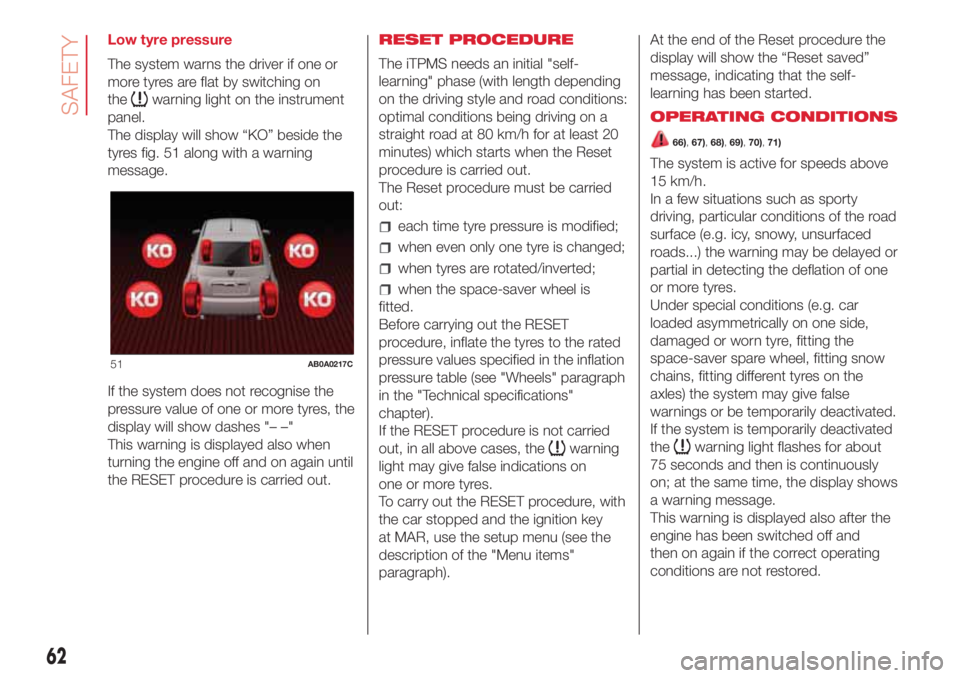
The display will show “KO” beside the
tyres fig. 51 along with a warning
message.
If the system does not recognise the
pressure value of one or more tyres, the
display will show dashes "– –"
This warning is displayed also when
turning the engine off and on again until
the RESET procedure is carried out.RESET PROCEDURE
The iTPMS needs an initial "self-
learning" phase (with length depending
on the driving style and road conditions:
optimal conditions being driving on a
straight road at 80 km/h for at least 20
minutes) which starts when the Reset
procedure is carried out.
The Reset procedure must be carried
out:
each time tyre pressure is modified;
when even only one tyre is changed;
when tyres are rotated/inverted;
when the space-saver wheel is
fitted.
Before carrying out the RESET
procedure, inflate the tyres to the rated
pressure values specified in the inflation
pressure table (see "Wheels" paragraph
in the "Technical specifications"
chapter).
If the RESET procedure is not carried
out, in all above cases, the
warning
light may give false indications on
one or more tyres.
To carry out the RESET procedure, with
the car stopped and the ignition key
at MAR, use the setup menu (see the
description of the "Menu items"
paragraph).At the end of the Reset procedure the
display will show the “Reset saved”
message, indicating that the self-
learning has been started.
OPERATING CONDITIONS
66),67),68),69),70),71)
The system is active for speeds above
15 km/h.
In a few situations such as sporty
driving, particular conditions of the road
surface (e.g. icy, snowy, unsurfaced
roads...) the warning may be delayed or
partial in detecting the deflation of one
or more tyres.
Under special conditions (e.g. car
loaded asymmetrically on one side,
damaged or worn tyre, fitting the
space-saver spare wheel, fitting snow
chains, fitting different tyres on the
axles) the system may give false
warnings or be temporarily deactivated.
If the system is temporarily deactivated
the
warning light flashes for about
75 seconds and then is continuously
on; at the same time, the display shows
a warning message.
This warning is displayed also after the
engine has been switched off and
then on again if the correct operating
conditions are not restored.
51AB0A0217C
62
SAFETY
Page 67 of 192
SBR SYSTEM (Seat
Belt Reminder)
The SBR system warns the front seat
occupants if their seat belt is not
fastened.
The system signals unfastened seat
belts with visual warnings (warning
lights on in the instrument panel and
icons on the display) and an acoustic
signal (see the following paragraphs).
NOTE Contact an Abarth Dealership to
deactivate this acoustic warning
permanently. The acoustic warning can
be reactivated at any time through the
display Setup Menu.
Seat belts warning light operation
The system warns the driver and the
front passenger if their seat belt is
not fastened, as follows:
flashingwarning light and
intermittent acoustic warning for about
100 seconds;
once the cycle has finished, the
warning light remains on constantly until
the seat belts are fastened.
PRE-TENSIONERS
The car is equipped with front seat
belts pretensioners, that reduce slack in
the belts in the event of a severe frontal
collision. This guarantees the perfect
adherence of the seat belts to the
occupants' bodies before the
restraining action begins.
It is evident that the pretensioners have
been activated when the belt withdraws
toward the retractor.
This car is also equipped with a second
pretensioner (fitted in the kick plate
area). Its activation is signalled by the
shortening of the metal cable.
A slight discharge of smoke may be
produced during the activation of the
pretensioner which is not harmful and
does not involve any fire hazard.
IMPORTANT To obtain the highest
degree of protection from the action of
the pretensioner, wear the seat belt
tight to the chest and pelvis.
The pretensioner does not require any
maintenance or lubrication: any
changes to its original conditions will
invalidate its efficiency. If, due to
unusual natural events (floods, sea
storms, etc.), the device has been
affected by water or mud, have it
replaced.
74)
14)
LOAD LIMITERS
To increase passenger safety, the front
seat belt reels contain a device which
allows the force acting on the chest and
shoulders to be modulated during the
belt restraining action in the event of
a frontal collision.
GENERAL
INSTRUCTIONS FOR
USING THE SEAT BELTS
75) 76) 77)
Seat belts are also to be worn by
pregnant women: the risk of injury in
the case of a crash is greatly reduced
for them and the unborn child if they
are wearing a seat belt.
Pregnant women must position the
lower part of the belt very low down so
that it passes over the pelvis and under
the abdomen (see fig. 54). While
pregnancy progresses, the driver must
adjust both the seat and the steering
wheel to ensure full control of the
vehicle (pedals and steering wheel must
be easily accessible). The maximum
clearance should be kept between the
abdomen and the steering wheel.
65
Page 86 of 192
USING THE MANUAL
GEARBOX
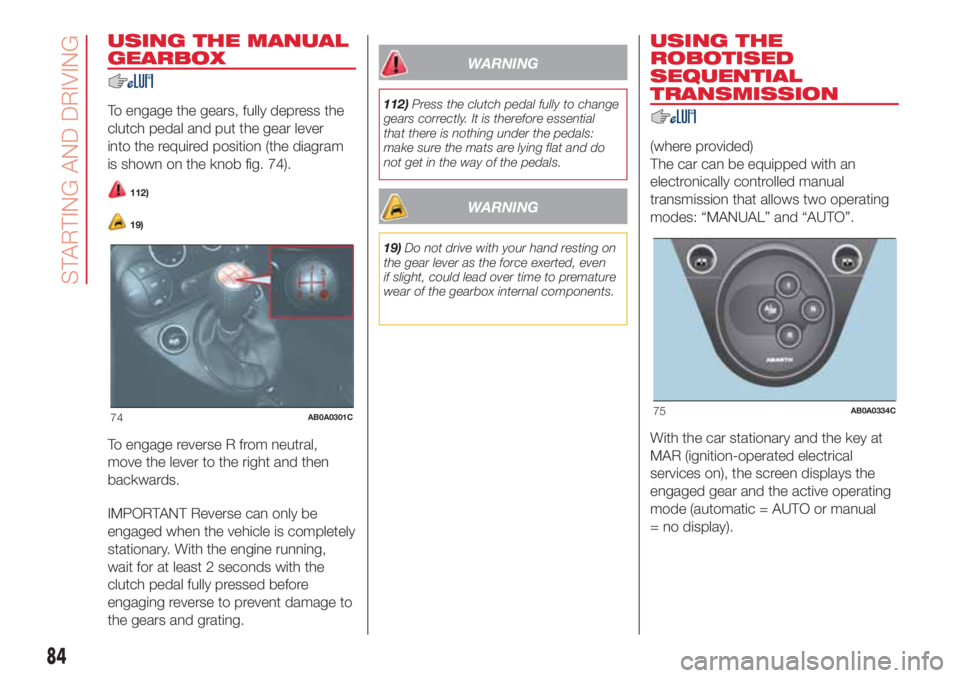
To engage the gears, fully depress the
clutch pedal and put the gear lever
into the required position (the diagram
is shown on the knob fig. 74).
112)
19)
To engage reverse R from neutral,
move the lever to the right and then
backwards.
IMPORTANT Reverse can only be
engaged when the vehicle is completely
stationary. With the engine running,
wait for at least 2 seconds with the
clutch pedal fully pressed before
engaging reverse to prevent damage to
the gears and grating.
WARNING
112)Press the clutch pedal fully to change
gears correctly. It is therefore essential
that there is nothing under the pedals:
make sure the mats are lying flat and do
not get in the way of the pedals.
WARNING
19)Do not drive with your hand resting on
the gear lever as the force exerted, even
if slight, could lead over time to premature
wear of the gearbox internal components.
USING THE
ROBOTISED
SEQUENTIAL
TRANSMISSION
(where provided)
The car can be equipped with an
electronically controlled manual
transmission that allows two operating
modes: “MANUAL” and “AUTO”.
With the car stationary and the key at
MAR (ignition-operated electrical
services on), the screen displays the
engaged gear and the active operating
mode (automatic = AUTO or manual
= no display).
74AB0A0301C75AB0A0334C
84
STARTING AND DRIVING
Page 87 of 192
STARTING THE CAR
NOTES
On starting, the system sets itself to
AUTO mode.
Using the 1, N, R buttons with the
brake pedal pressed, 1stgear, neutral
(N) or reverse (R) can be engaged.
Using the 1, N, R buttons without
pressing the brake pedal, the system
does not change gear.
The levers on the steering wheel will
not engage any gear, even with the
brake pedal pressed.
If the car is switched off with SPORT
or NORMAL modes active, the mode
previously set is kept when the engine
is restarted.
OPERATING MODE
The transmission can function in two
operating modes:
the first is manual (MANUAL). In this
mode the driver decides directly when
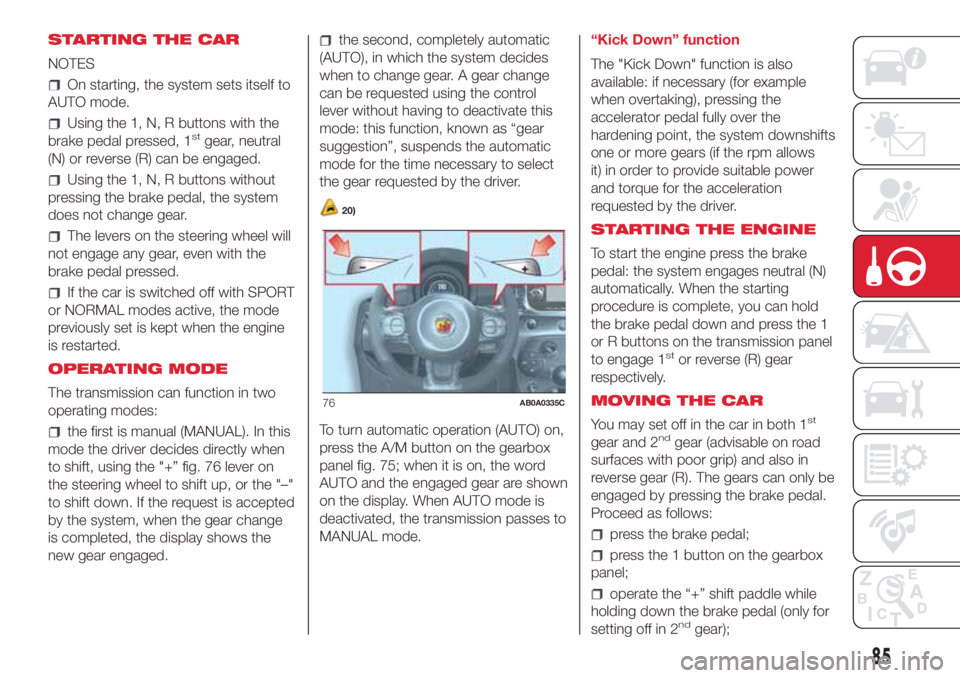
to shift, using the "+” fig. 76 lever on
the steering wheel to shift up, or the "–"
to shift down. If the request is accepted
by the system, when the gear change
is completed, the display shows the
new gear engaged.
the second, completely automatic
(AUTO), in which the system decides
when to change gear. A gear change
can be requested using the control
lever without having to deactivate this
mode: this function, known as “gear
suggestion”, suspends the automatic
mode for the time necessary to select
the gear requested by the driver.
20)
To turn automatic operation (AUTO) on,
press the A/M button on the gearbox
panel fig. 75; when it is on, the word
AUTO and the engaged gear are shown
on the display. When AUTO mode is
deactivated, the transmission passes to
MANUAL mode.“Kick Down” function
The "Kick Down" function is also
available: if necessary (for example
when overtaking), pressing the
accelerator pedal fully over the
hardening point, the system downshifts
one or more gears (if the rpm allows
it) in order to provide suitable power
and torque for the acceleration
requested by the driver.
STARTING THE ENGINE
To start the engine press the brake
pedal: the system engages neutral (N)
automatically. When the starting
procedure is complete, you can hold
the brake pedal down and press the 1
or R buttons on the transmission panel
to engage 1
stor reverse (R) gear
respectively.
MOVING THE CAR
You may set off in the car in both 1
st
gear and 2ndgear (advisable on road
surfaces with poor grip) and also in
reverse gear (R). The gears can only be
engaged by pressing the brake pedal.
Proceed as follows:
press the brake pedal;
press the 1 button on the gearbox
panel;
operate the “+” shift paddle while
holding down the brake pedal (only for
setting off in 2
ndgear);
76AB0A0335C
85
Page 116 of 192

Thousands of miles 9 18 27 36 45 54 63 72 81 90
Thousands of kilometres 15 30 45 60 75 90 105 120 135 150
Years 1 2 3 4 5 6 7 8 9 10
Visually inspect conditions of toothed timing drive belt
Check the oil level in the robotised sequential gearbox
activation system (2)
Check and, if necessary, restore the self-locking differential
pre-loading (where present) (3)
Change the oil of the transmission equipped with limited
slip differential (where present)(3) (4)
Change engine oil and replace oil filter
Spark plug replacement (5)
(2) Only for cars on the road in countries with particularly severe climates (cold countries).
(3) It is recommended to carry out this operation immediately after each time the car has undergone demanding use
(4) The first transmission oil change must be done on reaching the first 10,000 km, independently of the time passed
(5) The following are essential to ensure correct operation and prevent serious damage to the engine: only use spark plugs of the same make and type specially
certified for 1.4 Turbo petrol Abarth engines (see the information in the "Engine" paragraph); strictly comply with the spark plug replacement interval given in the
Scheduled Servicing Plan; for spark plug replacement it is advisable to contact an Abarth Dealership.
114
SERVICING AND CARE
Page 156 of 192

if the pairing procedure is completed
successfully, a screen is displayed.
Answer “Yes” to the question to pair the
Bluetooth® audio device as favourite
(the device will have priority over all
other devices to be paired subse-
quently). If “No” is selected, the priority
is determined according to the order of
connection. The last device connected
will have the highest priority;
an audio device can also be paired
by pressing the PHONE button on
the front panel and by selecting
“Settings” or, from the “Settings” menu,
selecting “Phone/Bluetooth”.
If theBluetooth® connection between
mobile phone and system is lost, con-
sult the mobile phone handbook.
The Radio may change the track being
played by modifying the name-device
in theBluetooth® settings of the tele-
phone (where provided), if the device is
connected via USB after theBlu-
etooth® connection.
Phone mode
Phone mode activation
Press the PHONE button on the front
panel to activate the Phone mode.
Use the buttons on the display to:
dial the phone number (using the
graphic keypad on the display);
display and call the contacts in the
mobile phone phonebook;
display and call contacts from the
registers of previous calls;
pair up to 10 phones/audio device
to make access and connection easier
and quicker;
transfer calls from the system to the
mobile phone and vice versa and
deactivate the microphone audio for
private conversations.
The mobile phone audio is transmitted
through the vehicle’s audio system;
the system automatically mutes the
radio when the Phone function is used.
To consult the list of mobile phones
and supported functions, visit the
www.driveuconnect.eu website
Pairing a mobile phone
To pair the mobile phone, proceed as
follows:
activate theBluetooth® function on
the mobile phone;
press the PHONE button on the
front panel;
if no phone is paired with the system
yet, the display shows a dedicated
screen;
select “Yes” to start the pairing
procedure, then search for the
Uconnect™device on the mobile
phone (if "No" is selected, the Phone
main screen is displayed);
when prompted by the mobile
phone, use its keypad to enter the PIN
code shown on the system display
or confirm on the mobile phone the PIN
displayed;
from the “Phone” screen you can
always pair a mobile phone by pressing
the “Settings” button: press the “Add
Device” button and proceed as
described above;
during the pairing stage a screen is
displayed showing the progress of
the operation;
when the pairing procedure is
completed successfully, a screen is
displayed: answer “Yes” to the question
to pair the mobile phone as favourite
(the mobile phone will have priority over
all other mobile phones to be paired
subsequently). If no other devices are
paired, the system will consider the first
associated device as favourite.
NOTE After updating the phone
software, for proper operation, it is
recommended to remove the phone
from the list of devices linked to the
radio, delete the previous system
pairing also from the list ofBluetooth®
devices on the phone and make a new
pairing.
154
MULTIMEDIA
Page 158 of 192

APPS Mode
Press the APPS button on the front
panel to display the following operating
settings:
External temperature
Clock
Compass (NAV versions only)
Trip (where present)
Uconnect™ LIVE
Uconnect™ LIVE
Services
Press the APPS button to access a
radio menu which shows all the
application functions of the system,
such as: Trip computer (where present),
Settings, Compass (where present),
Uconnect™ LIVEApplications.
If there is aUconnect™ LIVEicon, the
system is set up for the connected
services and allows the applications to
be used directly from the radio, for a
more efficient and advanced use of the
vehicle. The application functions are
present according to the vehicle
configuration and to the market.
To use theUconnect™LIVEservices,
you must:
Download theUconnect™ LIVE
App from the "Apple Store" or "Google
play" on your compatible smartphone,
making sure that the data connection is
enabled.
Use theUconnect™ LIVEApp to
register on www.driveuconnect.eu
or on the www.fiat.it website.
Start theUconnect™ LIVEApp on
the smartphone and enter your details.
For further information about the
services available in your market, visit
the www.DriveUconnect.eu website.
First access to the car
Once you have launched the
Uconnect™ LIVEApp and entered
your details, you have to pair the
Bluetooth® with your smartphone and
the radio, as described in the "Pairing a
mobile phone" chapter, to access the
Uconnect™LIVE services in your
vehicle.
The list of supported mobile phones is
available on www.driveuconnect.eu.
When pairing is complete, the
connected services can be accessed
by pressing theUconnect™ LIVEicon
on the radio.
When the activation process is
complete, a message will inform the
user. If a personal profile is necessary
for the services, your accounts can
be connected through theUconnect™
LIVEApp, or in your personal area on
www.driveuconnect.eu.User not connected
If the user does not pair the phone with
Bluetooth®, when theUconnect™
LIVEbutton is pressed, the radio menu
shows disabled icons, except for
eco:Drive™.
Further information about the
eco:Drive™functions is available in
the dedicated chapter.
Settings of the Uconnect™ services
that can be managed through the
radio
The "Settings" section can be accessed
through the
icon in theUconnect™
LIVEservices menu on the radio. In
this section the user can check the
system options and change them
according to their preferences.
Systems updating
If an update is available for the
Uconnect™ LIVEsystem while you
are using theUconnect™services,
you will be informed with a message on
the radio screen.
The update requires downloading the
new version of theUconnect™ LIVE
services management software.
The update is made using the data
connection of the paired smartphone.
The amount of traffic generated will
be communicated to the user.
156
MULTIMEDIA
Page 159 of 192
THE Uconnect™ LIVE APP
TheUconnect™ LIVEApp must be
installed on your smartphone to access
the connected services on the car.
This can be used to manage your
profile and customise your
Uconnect™ LIVEexperience.
The App can be downloaded from "App
Store" or "Google Play".
For safety reasons, the App cannot be
accessed when the phone is paired
with the radio.
Personal details (e-mail and password)
are required to access theUconnect™
LIVEradio services, therefore your
personal account is protected and can
only be accessed by the real user.
Connected services that can be
accessed on the vehicle
TheUconnect™ LIVEservices
available in the radio menu may change
depending on the market.
Theeco:Drive™and my:Car
applications were developed to improve
the customer's driving experience,
therefore they are available in all
markets where theUconnect™ LIVE
services can be accessed.
For further information visit the
www.driveuconnect.eu website.If the navigation system is installed in
the radio, accessing theUconnect™
LIVEservices enables use of the
TomTom LIVE services. Further
information about the LIVE functions is
available in the dedicated chapter.
eco:Drive™
Theeco:Drive™application allows you
to display your driving behaviour in
real time, in order to help you reach a
more efficient driving style as far as
consumption and emissions are
concerned.
In addition, the data can be saved on a
USB flash drive, and the data analysis
can be made on your personal
computer thanks to theeco:Drive™
desktop application, available on
www.fiat.it or www.driveuconnect.eu.
Driving style is evaluated by means
of four indices which monitor the
following parameters:
Acceleration
Deceleration
Transmission
Speedeco:Drive™ display
Press theeco:Drive™button to
interact with the function.
A screen will be displayed on the radio,
showing the 4 indices described above.
These indices are grey until the system
has enough data to evaluate the driving
style.
Once sufficient data are available, the
indices will have 5 colours depending
on the evaluation: dark green (very
good), light green, yellow, orange and
red (very bad).
It represents eco-friendliness of the
driving style: from 0 (low) to 100 (high).
In the event of extended inactivity the
display will show the average of the
indices up to that moment (“Average
index”) then the indices will be coloured
again in real time as soon as the car is
restarted.
To check the data average for the
previous trip (the “trip” starts when the
ignition key is turned to the MAR
position and stops when it is turned to
STOP), select the “Previous Route”
button.
The details of the previous trip can also
be displayed by pressing the "Details"
button to show trip duration (time
and mileage) and average speed.
157
Page 161 of 192

tap "Navigate to" or "Drive to";
tap “Address”. You can change the
country or state setting by tapping
the flag before you select a city;
enter the town or city name, or the
postcode. Towns with similar names
are shown in the list while you type;
enter the street name. Streets with
similar names are shown in the list while
you type. When the correct street
name appears in the list, tap the name
to select the destination;
enter the house number, then tap
“Done”;
if in the Advanced settings menu the
“Show location preview” option is
active, your position is shown on the
map. Tap “Select” to continue or tap
“Back” to enter another address;
when the new route is shown, tap
“Done”. For more information about the
route, tap on “Details”. To change
your route, for example, to travel via a
particular location or to select a new
destination, tap “Change route”;
You are guided to your destination,
using spoken instructions and
on-screen directions.Updating the map
Two modes for downloading a map
update are available:
Most recent maps guarantee: if a
new map is available for your system
within 90 days of initial use, you can
download it once free of charge.
Map update: you can purchase a
new version of the map installed on
your system.
Preparing a USB device
To update the map, use a USB device
that meets the following requirements.
Ideally, the USB device should be
empty.
The USB device must have at least
8 GB of memory free.
The USB device must use a FAT-32
file system.
The USB device must not be
blocked and must allow files to be
saved.
NOTE: the use of a memory stick is
recommended, while the use of mass
storage devices, such as mobile
phones or multimedia players, is not
recommended.
To prepare a USB device, proceed as
follows:
Select “Navigation updates” in the
“Settings” menu. You are asked
whether you wish to prepare a USB
device for downloading updates.
Select Yes.
Insert the USB device.
NOTE If the system continues to ask
you to insert the USB device, check
that the device meets the requirements
indicated previously, then retry.
The system starts to prepare the USB
device.
When the USB device is ready, the
following message is displayed.
Remove the USB device and connect it
to the computer. The new map can
now be downloaded to the USB
device.
TomTom HOME installation
To install TomTom HOME and create a
MyTomTom account, proceed as
follows:
Download and install the TomTom
HOME application on the computer. On
the computer, access tomtom.com/
getstarted. Select “Download TomTom
HOME”, then follow the instructions
provided.
Connect the USB device prepared
with the computer. TomTom HOME
is started automatically.
159